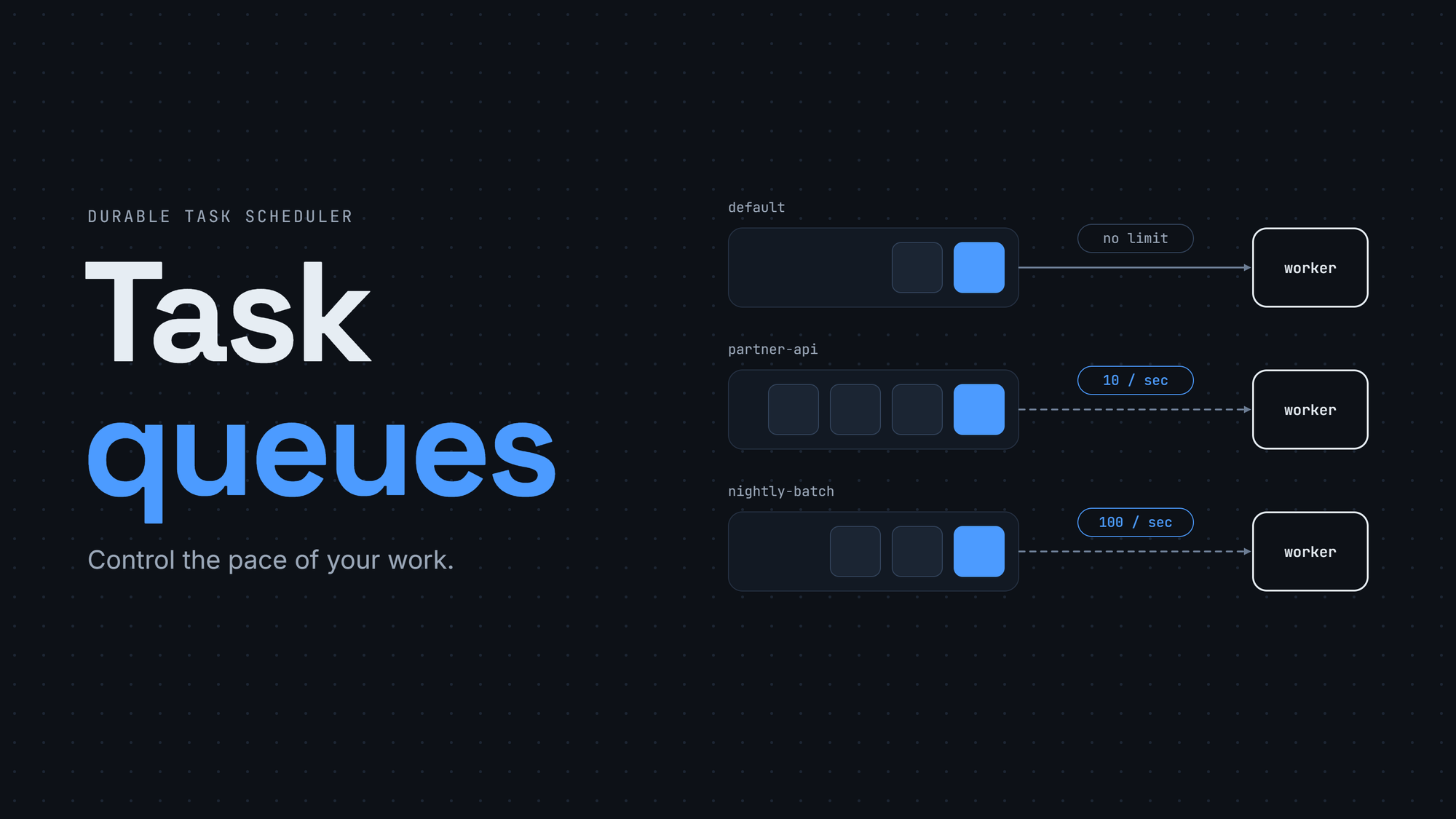
Task queues let you set how fast the scheduler hands work to your workers, so a rate-limited downstream API no longer drags down the rest of your task hub.
Task queues in Durable Task Scheduler: control the pace of your work
As teams scale their workflows on Durable Task Scheduler (DTS), many of them hit the same problem: the scheduler is fast, but the systems they call are not.
A batch job starts 50,000 orchestrations. Each one calls a partner API that allows only 10 requests per second. Your workers are happy to go as fast as the scheduler hands them work, so the partner API starts returning 429 Too Many Requests. Retries pile up, the batch slows down, and other workloads in the same task hub feel the pain too.
Without a built-in way to pace one workload, teams use workarounds. Some move the slow workload to its own task hub with fewer workers. Others write throttling code inside every activity, or cap worker concurrency and hope the number matches the downstream limit.
Task queues, now in public preview, are a simpler option. A task queue groups orchestration and activity work inside a task hub and sets how fast the scheduler hands that work to workers.
What is a task queue?
A task queue is a small Azure resource that lives under a task hub. It has a name and one optional setting: a throughput limit.
Scheduler
└── Task hub
├── Task queue: orders (20 actions per second)
└── Task queue: partner-api (5 actions per second)
You send work to a queue with a tag. When you start an orchestration (or call an activity), you set the tag DTS_TaskQueue to the queue name. The scheduler then delivers that work to workers at about the rate the queue allows.
You keep your existing workers, client, and task hub. The only worker change is the filter setting covered in step 4 below.
How it works
The throughput setting is called actionsPerSecond. It controls the sustained rate of work-item handouts, which is the number of times per second the scheduler gives a work item to a worker. Here is what counts as one handout:
- Each orchestration turn is one handout. An orchestration usually runs in several turns: it starts, waits for an activity, then continues.
- Each activity execution is one handout. If an activity is delivered again after a failure, the redelivery counts too.
Orchestrations and activities in the same queue share one rate. Activities and sub-orchestrations use their parent's queue unless you choose a different one. Entity work items don't use task queues, so if an orchestration in a queue calls an entity, the entity work runs outside the queue's budget.
So actionsPerSecond: 20 means the scheduler hands out about 20 work items per second from this queue. It doesn't mean 20 orchestrations finish per second. Short bursts above that rate can happen, and real throughput can be lower if your workers are busy.
If you create a queue without a throughput value, it has no queue-specific limit. Normal scheduler and worker limits still apply.
Behind the scenes
Clusters and partitions
A Durable Task Scheduler runs on a cluster of backend nodes. Each task hub is split into a fixed number of partitions. A partition is a slice of the task hub: it owns a set of orchestration instances, their state, and the queues of work that are ready to run. At any moment, each partition is owned by one node in the cluster. If a node fails or the cluster rebalances, another node takes over the partition and continues from its saved state.
When you start an orchestration, the scheduler hashes the instance ID to choose its partition, so the same ID always lands in the same partition. With many instances and random IDs, work spreads evenly across partitions.
Inside each partition there is a base queue for normal work, plus one ready queue for each task queue you define. Workers don't connect to partitions directly. A worker opens one streaming connection to the scheduler, and the scheduler pulls work for that worker from every partition.
How work flows through a Durable Task Scheduler
The routing decision is saved with the instance
When an orchestration starts with DTS_TaskQueue, the scheduler saves the queue name as part of the instance's state. Later turns of that orchestration, the activities it schedules, and the child orchestrations it starts all go to the same queue unless you override it. Because the choice is stored with the instance, it survives node failovers and retries.
The queue choice is saved with the instance
This design has three effects:
- When an external event, an activity result, or a child result wakes up an orchestration, the work goes to that orchestration's queue, not the sender's.
- Continue-as-new can switch queues. If the new execution has a DTS_TaskQueue tag, that becomes the new choice. If it doesn't, the old choice stays.
- The scheduler saves the queue name even if the queue doesn't exist, and checks whether it exists each time it routes work. If the queue is missing, the work goes to normal routing and the scheduler logs a warning. The work itself doesn't fail.
A token bucket in every partition
The rate limit is a token bucket. Every handout from a limited queue takes one token, and tokens refill with time, not when work completes. When the bucket is empty, the work waits in its queue while other queues keep moving.
The rate you configure applies to the whole task hub. The scheduler divides it evenly across partitions, so each partition has its own small bucket for each queue and decides on its own, with no central coordinator.
One rate, split across partitions
For example, with actionsPerSecond: 20 and a task hub with 4 partitions:
|
|
Value |
|
Refill rate per partition |
20 ÷ 4 = 5 tokens per second |
|
Bucket size per partition |
1 second of its share = 5 tokens |
|
Total across the task hub |
4 × 5 = 20 handouts per second |
Buckets start full. When a partition starts or moves to a new node, you can see a short burst before the steady rate takes over.
Low rates still work. A partition's share can be less than one token per second; the scheduler keeps the fraction, and each bucket can hold at least one token. That partition waits longer between handouts.
The split is static, so partitions don't borrow tokens from each other. If most of your work sits in one partition, it can only use that partition's share while the other buckets stay full. This matters when you have only a few long-running instances. With many instances, the hash spreads them out and you get close to the full rate.
Taking turns between queues
When a worker asks a partition for work, the partition has several ready queues: the base queue and each task queue. The scheduler reads from all of them at once and takes the first item that is ready. If more than one item comes back, it keeps one, puts the others back, and returns their tokens to the bucket.
The starting queue rotates on each read (round-robin), so every queue gets a turn to be first. A busy queue can't block a quiet one, and no queue has priority over another.
Worker concurrency limits still apply. A token lets the scheduler hand out a work item, but the worker still needs a free slot to accept it.
Changing queues while work is running
Queue definitions are Azure resources managed by the DTS control plane. When you create, update, or delete a queue, a durable control-plane workflow saves the new definition. Every partition then reloads its list of queues, and worker connections start reading the new set.
Updating a rate gives each partition a new bucket with the new refill speed, and like any new bucket it starts full. Work is not moved or cancelled. Deleting a queue doesn't wait for it to drain: its pending work moves to normal routing, and work that is already running can finish.
Example: an order workload with a rate-limited partner API
This example processes orders and calls a partner API that allows 10 requests per second.
Step 1: Create the queues
Task queues use management API version 2026-07-01-preview. You can create them with the Azure CLI, the ARM REST API, or Bicep. Here is Bicep:
param schedulerName string
param taskHubName string

resource scheduler 'Microsoft.DurableTask/schedulers@2026-02-01' existing = {
  name: schedulerName
}

resource taskHub 'Microsoft.DurableTask/schedulers/taskHubs@2026-02-01' existing = {
  parent: scheduler
  name: taskHubName
}

resource ordersQueue 'Microsoft.DurableTask/schedulers/taskHubs/taskQueues@2026-07-01-preview' = {
  parent: taskHub
  name: 'orders'
  properties: {
    throughput: {
      actionsPerSecond: 20
    }
  }
}

resource partnerQueue 'Microsoft.DurableTask/schedulers/taskHubs/taskQueues@2026-07-01-preview' = {
  parent: taskHub
  name: 'partner-api'
  properties: {
    throughput: {
      actionsPerSecond: 5
    }
  }
}
Or with the Azure CLI:
taskHubResourceId="/subscriptions/<sub-id>/resourceGroups/<rg>/providers/Microsoft.DurableTask/schedulers/<scheduler>/taskHubs/<task-hub>"
queueUrl="https://management.azure.com$taskHubResourceId/taskQueues/orders?api-version=2026-07-01-preview"

az rest --method put \
  --url "$queueUrl" \
  --body '{"properties":{"throughput":{"actionsPerSecond":20}}}'
Wait until properties.provisioningState is Succeeded before you send work to the queue.
Step 2: Route an orchestration to a queue
Add the DTS_TaskQueue tag when you schedule the orchestration:
var options = new StartOrchestrationOptions
{
    Tags = new Dictionary<string, string>
    {
        { "DTS_TaskQueue", "orders" },
    },
};

string instanceId = await client.ScheduleNewOrchestrationInstanceAsync(
    "ProcessOrderOrchestration", input: order, options: options);
The same idea works in Python:
instance_id = client.schedule_new_orchestration(
    "process_order_orchestration",
    input=order,
    tags={"DTS_TaskQueue": "orders"},
)
Every activity and sub-orchestration this orchestration starts will also use the orders queue. You don't need to repeat the tag on each call.
Step 3: Slow down only the part that needs it
Often only one step of a workflow needs a lower rate. Here, the orchestration can move at 20 handouts per second, but the partner API call should stay at 5 per second, well below the partner's limit of 10. You can move just that activity to another queue:
var partnerOptions = new TaskOptions(tags: new Dictionary<string, string>
{
    { "DTS_TaskQueue", "partner-api" },
});
await context.CallActivityAsync( "CallPartnerApi", input: order, options: partnerOptions);
The parent orchestration stays in orders. Only CallPartnerApi is paced by partner-api.
Step 4: Make sure your workers can pick up the work
Only workers without work item filters receive work from a task queue. The .NET SDK creates filters automatically from your task registry, so turn them off for these workers:
builder.Services.AddDurableTaskWorker()
    .AddTasks(registry => registry.AddAllGeneratedTasks())
    .UseDurableTaskScheduler(connectionString)
    .UseWorkItemFilters(null);
In the Java, Python, and Go SDKs, don't turn on work item filtering for these workers.
Step 5: Tune at runtime
You can change the rate at any time without redeploying code or changing tags:
az rest --method patch --url "$queueUrl" \
  --body '{"properties":{"throughput":{"actionsPerSecond":10}}}'
To remove the limit but keep the queue, set throughput to null.
Use cases
Rate-limited downstream services. A payment provider, a CRM, or an LLM endpoint often has a strict quota. Put the activities that call it in their own queue and set a rate below the quota, so fewer calls come back with 429.
Large batch jobs. Nightly imports and data backfills often start thousands of orchestrations at once. A task queue lets the batch move at a steady pace instead of hitting your database or storage in one wave.
Mixed workloads in one task hub. If a heavy workload shares a task hub with lighter, interactive work, a rate limit on the heavy workload's queue leaves room for the rest, without splitting into separate task hubs.
AI agent workflows. Agent loops can call models and tools many times per request. Routing the model-calling activities through a queue helps you stay inside token or request quotas while the rest of the workflow keeps moving.
Limits to know
Task queues pace work. Keep these limits in mind when you design with them:
- Queues have no priority. Each queue is paced on its own, and none runs before another.
- Queues don't reserve compute or give physical isolation. They share the same scheduler and workers.
- The handout rate is not an exact cap on downstream calls, because of bursts and retries. For a hard limit, also add rate limiting in the activity that calls the service.
- If the tag names a queue that doesn't exist or was deleted, the work still runs, but without the rate limit. Don't delete a queue to pause a workload.
- Work in a defined queue waits for an unfiltered worker. It doesn't fall back to a filtered one.
- A queue doesn't limit how fast you create instances. If you start 50,000 orchestrations, they are all created right away, and their work then waits in the queue.
- In this preview, extended sessions are not paced. If your workers use them, turns that run inside an open session don't take a token.
SDK support
You select a queue with orchestration and activity tags. Support today:
|
SDK |
Start orchestration |
Call activity |
Call sub-orchestration |
|
Durable Task .NET |
Yes |
Yes |
Yes |
|
Durable Task JavaScript/TypeScript |
Yes |
Yes |
Yes |
|
Durable Task Python |
Yes |
Yes |
No |
|
Durable Task Java (v1.6.0+) |
Yes |
No |
No |
|
Durable Task Go (beta) |
Yes |
Yes |
Yes |
|
Durable Functions .NET isolated |
Yes |
Yes |
Yes |
|
Durable Functions Java |
Yes |
No |
No |
When an SDK can't set the tag on a child call, the child inherits the parent's queue.
Best practices
Start with one queue. Put the workload you worry about most into a single queue with a safe rate. Add more queues only when you see a clear need.
Think in handouts, not orchestrations. An orchestration that calls five activities one after another uses about 11 handouts: six orchestration turns (one to start, plus one after each activity) and five activity executions. Do this math before you pick a number.
Set the rate below the downstream limit. Leave room for retries and short bursts.
Spread the work. The rate is split across partitions, so it works best with many instances. If you run only a few long-lived orchestrations, expect lower throughput than the configured rate. Random or unique instance IDs help the hash spread work evenly.
Create the queue first, then send work. Wait for provisioningState to be Succeeded. Otherwise the work runs without a limit.
Check the dashboard. The DTS dashboard shows orchestration status and tags, so you can confirm that work lands in the queue you expect.
Getting started
Task queues are available now in public preview. To try them:
- Create a queue under your task hub with API version 2026-07-01-preview.
- Make sure your workers connect without work item filters.
- Add the DTS_TaskQueue tag when you schedule work.
Read the full guide: Use task queues in Durable Task Scheduler.
To tell us how you use task queues or what you want next, open an issue in your SDK's GitHub repository.

 Microsoft