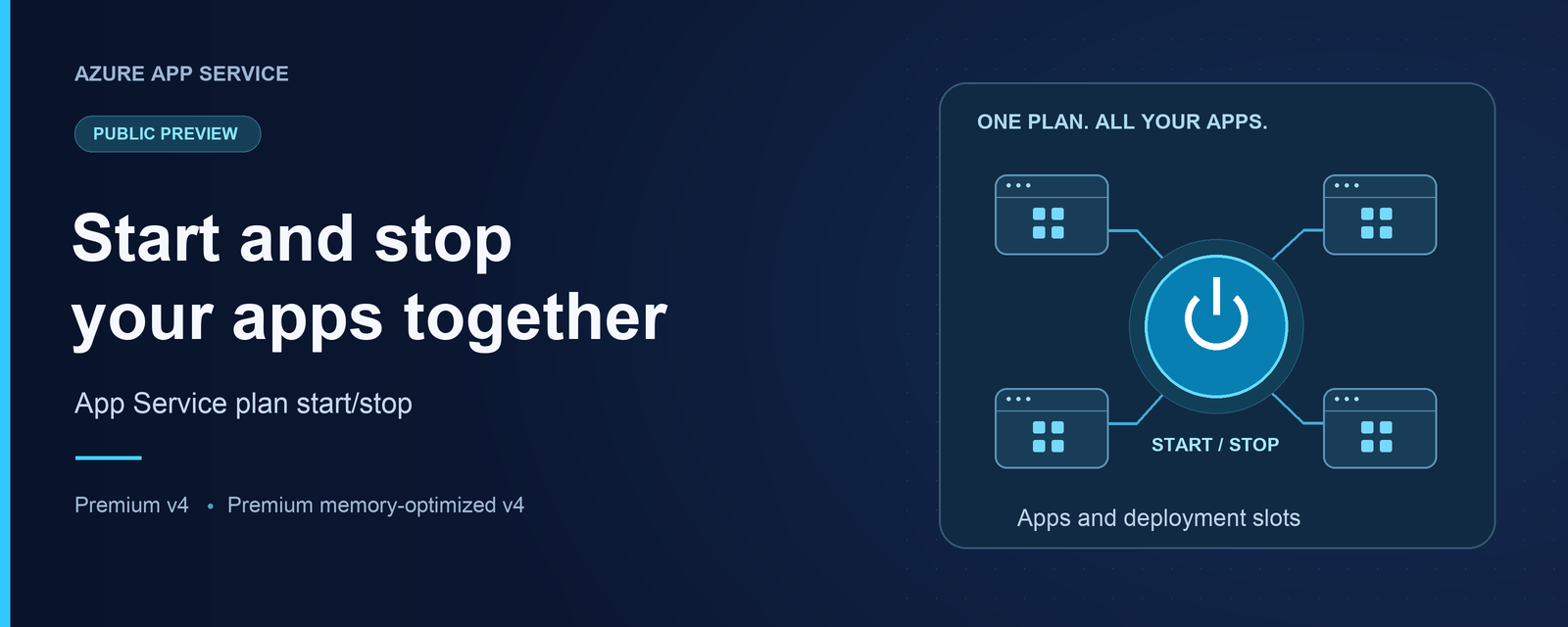
Start and stop all the apps in your App Service plan together, instead of managing each app individually. Now in public preview for Premium v4 plans, App Service plan start/stop gives you a single operation to take your workloads offline and bring them back when needed.
Start and stop your apps together
Managing an environment with multiple apps shouldn't mean stopping and starting each app individually. App Service plan start/stop brings that control to the plan level, letting you manage the apps and deployment slots it hosts together.
Today, we're announcing the public preview for this feature for Premium v4 (Pv4) and Premium memory-optimized v4 (Pmv4) plans. Stop the plan to take its workloads offline, then start it again when you're ready, without issuing separate commands for each app.
NOTE:
Start and stop operations are asynchronous: the apps on your plan don’t all stop or become ready to serve requests immediately. After you stop a plan, app shutdown and cleanup can continue over the next few minutes. When you start it again, allow time for your applications to become ready before sending traffic.
This is particularly useful for development, test, and demo environments that share an operating schedule. Because the operation affects the entire plan, make sure every hosted workload can tolerate the interruption. To bring workloads on a stopped plan back online, start the plan rather than an individual app.
Get started with Azure CLI
You can call the start and stop REST operations using az rest. Sign in to Azure, select the subscription containing your plan, and set its resource group and name:
resourceGroup="[RESOURCE-GROUP-NAME]"
planName="[APP-SERVICE-PLAN-NAME]"

planId=$(az appservice plan show \
  --resource-group "$resourceGroup" \
  --name "$planName" \
  --query id --output tsv) || exit 1

# Stop the plan. All hosted apps and deployment slots will be unavailable.
az rest --method post --url "https://management.azure.com${planId}/stopSites?api-version=2026-07-15"
When you're ready to run the workloads again, start the plan:
az rest --method post --url "https://management.azure.com${planId}/startSites?api-version=2026-07-15"Plan for application startup time before sending traffic back to the environment. A successful API response isn't a substitute for checking that your applications are ready to serve requests.
Get started with the Azure portal
You can also use the Azure portal to start and stop your plans. On the App Service plan Overview page, select start and stop as you may have done for your individual apps. If you try to start an app when its App Service plan is stopped, you will get an error letting you know to start the App Service plan instead.
NOTE:
This feature is rolling out in the portal over the next few weeks. If you don't see the option in the portal yet, check back in a couple days and use the Azure CLI in the meantime.
Billing considerations
Compute billing for an eligible plan pauses when the plan is stopped, even though app shutdown and cleanup can continue over the next few minutes. Compute billing resumes when the plan is started. Charges for other resources and services can continue.
Preview limitations and considerations
- Supported tiers: Premium v4 and Premium memory-optimized v4 only. Other App Service plan tiers aren't supported.
- Availability: [Insert confirmed preview regions, cloud availability]
- Plan-wide impact: All apps and deployment slots on the plan are affected. Don't stop a plan that also hosts workloads that must remain available.
- Restart at the plan level: Attempting to start an individual app will not restart the plan. You must restart the plan to restart the apps.
- Automatic scaling: Plans with App Service automatic scaling enabled aren't supported. This is distinct from Azure Monitor autoscale.
- Scaling in progress: Wait for an in-progress asynchronous scale operation to finish before starting or stopping the plan.
-
Start/stop throttling: Plan start and stop operations are subject to a five-minute throttle. Account for this when scheduling operations or testing repeated start/stop cycles.
- Changes while stopped: Start the plan before scaling it or making other plan updates.
Try the preview
Try start/stop on a development or test plan whose apps share an operating schedule. Review the apps and deployment slots it hosts, then use the plan-level commands to stop and start those workloads together instead of managing each app individually.
For the API details, see Stop Web Apps and Start Web Apps.

 Microsoft