Copilot Notebooks is now rolling out to all Microsoft 365 Education licenses
Every student knows the feeling: the test is coming, the materials are everywhere— and the hardest part is not finding information, it is knowing where to start. There is a PDF from the teacher. Slides from last week. A Word document with notes. Each piece has value. But studying means turning all of it into something usable: what to review first, what connects together, what still feels fuzzy, and what to practice learning.
That is why we are excited to share two updates for education.
First, Copilot Notebooks is now rolling out to Copilot Chat users, available with Microsoft 365 Education licenses. Copilot Notebooks are AI-powered workspaces for a subject or group project built on reference materials—bringing together all context behind a topic in one place for you or your study group and Copilot to collaborate on. This addresses one of the top asks we have heard from Microsoft 365 Education customers: bring the power of Copilot Notebooks to the education licenses schools already use.
This education expansion builds on the broader Copilot Notebooks announcement that brings Notebooks to all education and enterprise Copilot Chat users, including new ways to work with your own materials in Notebooks with mind maps, Study Guides, and coming soon - the ability to create Word documents, Excel spreadsheets, and PowerPoint presentations. You can read that announcement in the broader commercial Copilot Notebooks blog.
Copilot Notebooks are available in the Microsoft 365 Copilot web and desktop versions for Education users. Expect them to be available in Education tenants in the next two weeks. They will be available in OneNote in the weeks to follow.
Get started: Find Copilot Notebooks located in the Microsoft 365 Copilot app waffle.
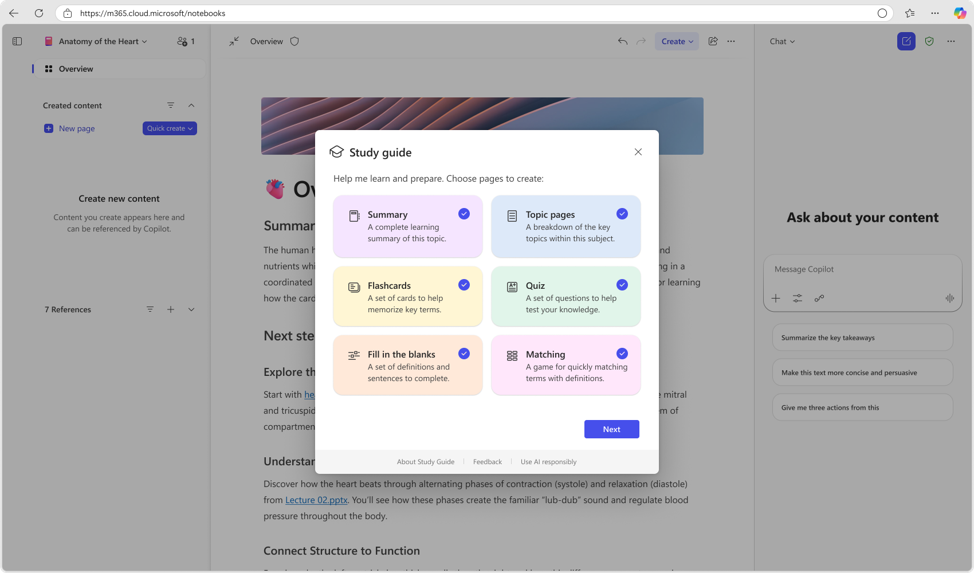
Second, Copilot Notebook Study Guide is now generally available both for education and enterprise users. Study Guide is an AI-powered feature in Notebooks that turns the learning materials you provide into a complete, interactive study companion. Organized, editable, grounded in your references. Ready when you are.
For Education IT admins - what you need to know
Study guide lives inside Copilot Notebooks. Copilot Notebooks are available in the Microsoft 365 Copilot app. Copilot Notebooks are located in the Microsoft 365 Copilot app waffle.
With this update, Copilot Notebooks are available to Microsoft 365 Education A1, A3, and A5 users.
Study guide is available for education users ages 13+. Student accounts need the right Age Group in Microsoft Entra ID, and K-12 students ages 13-17 need Microsoft 365 Copilot Chat enabled by an IT admin before they can use Copilot Notebooks and Study Guide.
No additional deployment is needed for Study Guide. Study Guide is rolling out to enterprise and education customers starting June 11. It may take a few days to show up in your account.
What Study guide does
Study Guide takes the materials learners already have and helps turn them into a collection of organized study topics and activities of your choice.
Drop in PDFs, Word documents, PowerPoint presentations, or Excel files. Study Guide reads across those references, identifies the key ideas, and creates a multi-page study guide inside the notebook.
The important part: it is grounded in the sources you provide. It is not pulling random facts from the internet. Summary pages and Topic pages include citations back to the original materials, so learners can check where information came from and return to the source when something needs a closer look.
That matters for learning. It helps students stay connected to the actual course materials. It helps educators trust what students are practicing from turns citation-checking into a habit, not an afterthought.
What is available in Study guide
Study Guide creates materials that span all phases of learning: understand, practice, and test.
Understand: deepen your knowledge of the material
- Summary page: Start with a high-level overview of the materials you added. The Summary includes an overview, why the topic matters, key topics, a glossary, common misconceptions, and citations back to the source materials.
- Topic pages: Study Guide creates deeper pages for the major topics it finds in your content. These pages work like mini-chapters that cover content across all your references. They include explanations, sub-topic deep dives, worked examples, questions that make you think critically and analyze concepts, short exercises, and citations throughout.
Practice: strengthen recall, and make connections
- Flashcards: Study Guide generates interactive cards from the learner's materials. Learners can flip cards, use hints, and edit the set so the wording matches how they think about the concept.
- Fill in the blanks: Key terms are removed from important sentences, and learners choose from a set of distraction answers to complete sentences. It is especially useful for processes, and sequences of events where the order and relationships matter.
- Matching: Study Guide creates matching tiles that ask learners to connect related ideas: terms to definitions, causes to effects, structures to functions, or concepts to examples.
Test: check what is sticking
- Quiz: Study Guide creates a Microsoft Forms-powered quiz with questions generated from the materials. Learners can answer directly from the page, review results, and see explanations for multiple-choice answers. Results are private to the learner unless they choose to share them.
Every one of these formats is designed to move studying from passive review to active practice. Not just rereading or highlighting. Actually trying to remember, connect, explain, and check.
Study Guide supports 21 languages at launch: Arabic, Chinese (Simplified), Chinese (Traditional), Danish, Dutch, English (US), Estonian, French (Canada), French (France), German, Hebrew, Italian, Japanese, Korean, Norwegian Bokmal, Portuguese (Brazil), Spanish (Mexico), Spanish (Spain), Swedish, Ukrainian, and Vietnamese.
That means students can study from the materials they already use, in the language they already learn in, without having to move everything into a separate tool.
For educators
A few ways you can bring Study guide to your students or use it yourself:
- Get started by taking the Microsoft Learn course. Available now at aka.ms/notebooksandstudyguidemodule
- Point learners to a specific study moment. "Before Friday's quiz, add this week's slides and generate flashcards" is more useful than "use AI to study."
- Encourage active practice. Flashcards, fill-in-the-blanks, matching, and quizzes help your students retrieve information from memory instead of only rereading it.
- Use citations as an AI literacy moment. Study Guide shows where information came from. That opens a natural classroom conversation about checking sources, verifying AI-generated content, and staying grounded in the material.
- Keep assessment separate from practice. Study Guide quizzes are for self-checking. They are not a gradebook, and quiz results are private unless a student chooses to share them.
- Keep building your own AI fluency.
Study Guide is built with privacy, safety, and learner control in mind. Study Guide pages are private by default, stored in the learner's Microsoft 365 notebook, and can be edited or deleted by the learner. Prompts and outputs are not used to train AI models, and quiz results are private unless a learner chooses to share them.
Get started
- Take the professional development course at aka.ms/notebooksandstudyguidemodule
- Learn more about Study guide
Anoo Padte is Principal Product Manager for AI in Education at Microsoft.

 Microsoft


