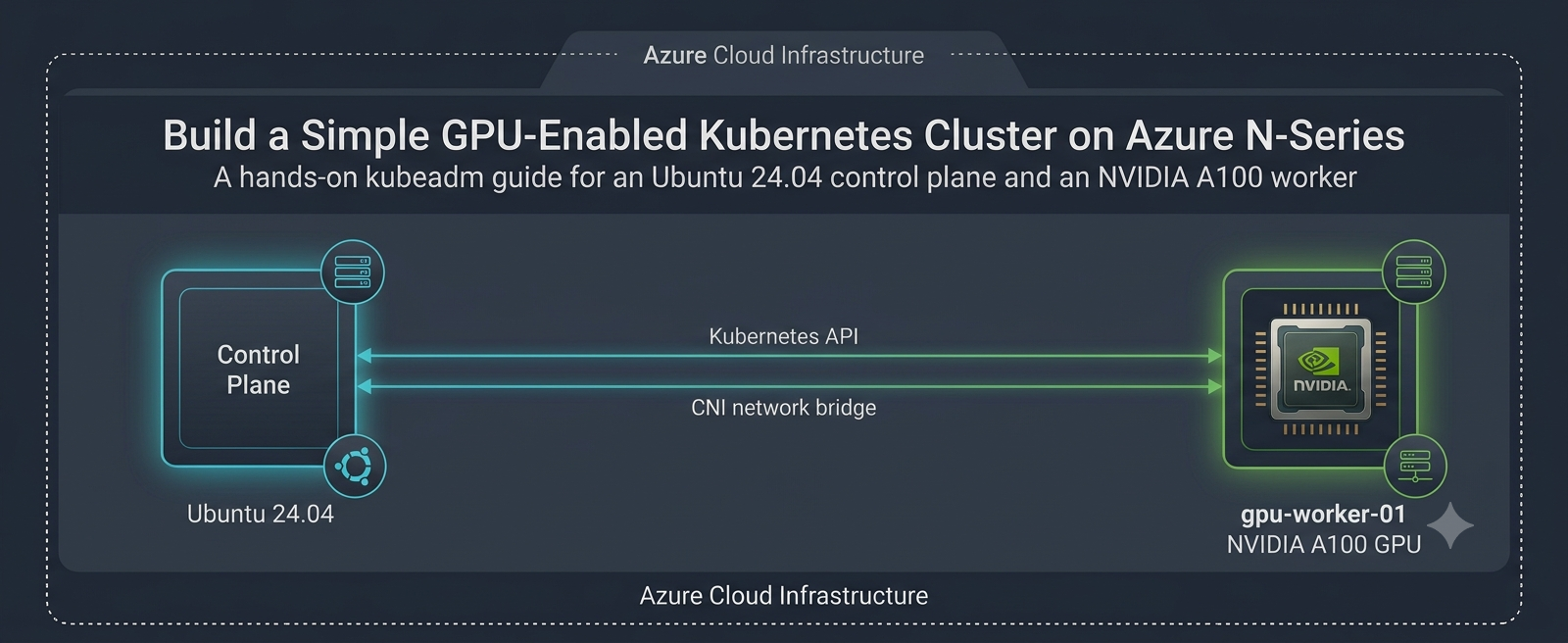
A hands-on kubeadm guide for an Ubuntu 24.04 control plane and an NVIDIA A100 worker
Audience: Platform engineers, ML engineers, and developers who need a small, understandable GPU development cluster without the abstraction of a managed Kubernetes service.
Reference topology:
|
Role |
Azure VM size |
Operating system |
Purpose |
|
Control plane |
Standard_D8s_v6 |
Ubuntu 24.04 LTS |
API server, scheduler, controllers, etcd |
|
GPU worker |
Standard_NC24ads_A100_v4 |
Ubuntu 24.04 LTS |
CUDA-enabled development workloads |
Software baseline: Kubernetes v1.33, containerd, Flannel CNI, NVIDIA Container Toolkit, and NVIDIA Kubernetes device plugin v0.17.0.
Why Build This Cluster?
A two-node kubeadm cluster is useful when you want direct access to Kubernetes internals while developing or debugging GPU applications. It keeps the control plane on a general-purpose VM and reserves the expensive N-series capacity for workloads that explicitly request a GPU.
Development Use Case: Shared GPU Sandbox
Imagine a small ML team validating a PyTorch service before moving it to a production platform. Developers build containers locally or in CI, deploy them to this cluster, request nvidia.com/gpu: 1, inspect CUDA behavior, tune resource requests, and test Kubernetes manifests. The same environment can exercise Jobs, model-serving Deployments, ConfigMaps, Secrets, storage mounts, and observability agents.
This design is appropriate for experimentation, integration testing, workshops, and short-lived development. It is not a production blueprint: the control plane is not highly available, etcd has no redundancy, Flannel is intentionally simple, and operational safeguards are minimal.
Architecture and Traffic Flow
- Control plane: runs the Kubernetes API server, scheduler, controller manager, and etcd.
- GPU worker: runs containerd, kubelet, the NVIDIA container runtime, and GPU workloads.
- Pod network: Flannel allocates pod addresses from 10.244.0.0/16.
- GPU discovery: the NVIDIA device plugin advertises nvidia.com/gpu to Kubernetes.
Before You Begin
Create both VMs in the same Azure virtual network and subnet. Use private IP connectivity between nodes. Confirm that the selected region has quota and capacity for Standard_NC24ads_A100_v4. GPU VM availability and quota are subscription- and region-dependent.
Use trusted administrative source ranges for SSH. Ensure the nodes can communicate on the Kubernetes control-plane, kubelet, and Flannel ports required by your network policy. Avoid exposing the Kubernetes API server broadly to the internet.
Disk requirement: Use 128GB disk as OS disk in Standard_NC24ads_A100_v4 as 32GB will be the default and it may not be sufficient to run the test job mentioned below.
1. Prepare Both Nodes
Run the following commands on both the control-plane VM and the GPU worker. Use a non-root account with sudo access.
Set Host Names and Name Resolution
Assign a unique host name on each VM:
Control plane
sudo hostnamectl set-hostname controlplaneGPU worker
sudo hostnamectl set-hostname gpunodeAdd both private IP addresses to /etc/hosts on each node, replacing the placeholders:
<CONTROL_PLANE_PRIVATE_IP> controlplane
<GPU_WORKER_PRIVATE_IP> gpunode
Disable Swap
Kubelet expects swap to be disabled unless it is explicitly configured to tolerate it.
sudo swapoff -a
sudo sed -i '/ swap / s/^/#/' /etc/fstab
swapon --show
The final command should return no active swap devices.
Load Required Kernel Modules
cat <<EOF | sudo tee /etc/modules-load.d/k8s.conf
overlay
br_netfilter
EOF

sudo modprobe overlay
sudo modprobe br_netfilter
Configure Kubernetes Networking Parameters
cat <<EOF | sudo tee /etc/sysctl.d/k8s.conf
net.bridge.bridge-nf-call-iptables = 1
net.bridge.bridge-nf-call-ip6tables = 1
net.ipv4.ip_forward = 1
EOF

sudo sysctl --system
Install and Configure containerd
sudo apt-get update
sudo apt-get install -y containerd
sudo mkdir -p /etc/containerd
sudo containerd config default | sudo tee /etc/containerd/config.toml > /dev/null
sudo sed -i 's/SystemdCgroup = false/SystemdCgroup = true/g' /etc/containerd/config.toml
sudo systemctl restart containerd
sudo systemctl enable containerd
sudo systemctl status containerd --no-pager
The SystemdCgroup = true setting aligns containerd with kubelet and systemd cgroup management.
Install Kubernetes v1.33 Packages
The repository minor version and the packages installed on every node must match. The commands below configure the v1.33 repository used by this guide.
sudo apt-get update
sudo apt-get install -y apt-transport-https ca-certificates curl gpg conntrack socat
sudo mkdir -p /etc/apt/keyrings
curl -fsSL https://pkgs.k8s.io/core:/stable:/v1.33/deb/Release.key | sudo gpg --dearmor -o /etc/apt/keyrings/kubernetes-apt-keyring.gpg
echo 'deb [signed-by=/etc/apt/keyrings/kubernetes-apt-keyring.gpg] https://pkgs.k8s.io/core:/stable:/v1.33/deb/ /' | sudo tee /etc/apt/sources.list.d/kubernetes.list
sudo apt-get update
sudo apt-get install -y kubelet kubeadm kubectl
sudo apt-mark hold kubelet kubeadm kubectl
kubeadm version
kubectl version --client
If you choose another supported Kubernetes minor release, replace v1.33 consistently on every node and follow that release’s upgrade and version-skew guidance.
2. Initialize the Control Plane
Run this section only on controlplane.
Initialize Kubernetes
Update the CIDR value as per your requirement
sudo kubeadm init --pod-network-cidr=10.xxx.0.0/16Save the kubeadm join command printed at the end. It contains a time-limited bootstrap token and the control-plane CA hash.
Configure kubectl for the Administrator
mkdir -p "$HOME/.kube"
sudo cp -i /etc/kubernetes/admin.conf "$HOME/.kube/config"
sudo chown "$(id -u):$(id -g)" "$HOME/.kube/config"
kubectl get nodes
The control-plane node may remain NotReady until the CNI is installed.
Install Flannel
kubectl apply -f https://github.com/flannel-io/flannel/releases/latest/download/kube-flannel.yml
kubectl get pods -n kube-flannel -w
Because Flannel’s default manifest uses 10.244.0.0/16, it matches the pod CIDR supplied to kubeadm.
Generate a New Join Command if Needed
kubeadm token create --print-join-commandTreat the join command as a secret while it is valid. Run it only on the intended worker.
3. Configure the GPU Worker
Complete the shared preparation steps first, then perform the following work on gpunode.
Validate the NVIDIA Driver
The Azure GPU VM must have a compatible NVIDIA driver. Confirm that the host can see the accelerator:
nvidia-smiDo not continue until this command reports the GPU and driver successfully. Driver installation varies by Azure image and extension strategy, so standardize it before automating the node build.
Install NVIDIA Container Toolkit
curl -fsSL https://nvidia.github.io/libnvidia-container/gpgkey | sudo gpg --dearmor -o /etc/apt/keyrings/nvidia-container-toolkit-keyring.gpg
curl -s -L https://nvidia.github.io/libnvidia-container/stable/deb/nvidia-container-toolkit.list | sed 's#deb https://#deb [signed-by=/etc/apt/keyrings/nvidia-container-toolkit-keyring.gpg] https://#g' | sudo tee /etc/apt/sources.list.d/nvidia-container-toolkit.list
sudo apt-get update
sudo apt-get install -y nvidia-container-toolkit
sudo nvidia-ctk runtime configure --runtime=containerd --nvidia-set-as-default
sudo systemctl restart containerd
sudo systemctl status containerd --no-pager
Join the Worker to the Cluster
Run the exact command generated by the control plane. It will resemble:
sudo kubeadm join <CONTROL_PLANE_PRIVATE_IP>:6443 --token <TOKEN> --discovery-token-ca-cert-hash sha256:<HASH>Back on the control plane, watch the node registration:
kubectl get nodes -o wide -wazureuser@controlplane:~$ kubectl get nodes
NAME STATUS ROLES AGE VERSION
controlplane Ready control-plane 84s v1.33.13
azureuser@controlplane:~$ kubectl get nodes
NAME STATUS ROLES AGE VERSION
controlplane Ready control-plane 111s v1.33.13
gpunode NotReady <none> 8s v1.33.13
azureuser@controlplane:~$ kubectl get nodes
NAME STATUS ROLES AGE VERSION
controlplane Ready control-plane 112s v1.33.13
gpunode Ready <none> 9s v1.33.13
4. Advertise the GPU to Kubernetes
Run these commands on the control plane.
Install the NVIDIA Device Plugin
Pinning the manifest version makes the cluster reproducible.
curl -fsSL -o nvidia-device-plugin.yml https://raw.githubusercontent.com/NVIDIA/k8s-device-plugin/v0.17.0/deployments/static/nvidia-device-plugin.yml
kubectl apply -f nvidia-device-plugin.yml
kubectl get daemonset -n kube-system nvidia-device-plugin-daemonset
kubectl get pods -n kube-system -l name=nvidia-device-plugin-ds -o wide
Verify GPU Capacity
kubectl describe node gpunode | grep -A 10 -E 'Capacity:|Allocatable:'
kubectl get node gpunode -o jsonpath='{.status.allocatable.nvidia\.com/gpu}{"\n"}'
The expected allocatable value depends on the VM’s visible GPU count and partitioning configuration. Kubernetes schedules GPUs as integer extended resources.
azureuser@controlplane:~$ kubectl describe node gpunode | grep -A 10 -E 'Capacity:|Allocatable:'
Capacity:
  cpu:                24
  ephemeral-storage:  128917488Ki
  hugepages-1Gi:      0
  hugepages-2Mi:      0
  memory:             226765912Ki
  nvidia.com/gpu:     1
  pods:               110
Allocatable:
  cpu:                24
  ephemeral-storage:  118810356745
  hugepages-1Gi:      0
  hugepages-2Mi:      0
  memory:             226663512Ki
  nvidia.com/gpu:     1
  pods:               110
System Info:
  Machine ID:                 ac82b1424d30473a86a3f22bb2c4ffa1
  System UUID:                67d695c2-b663-4514-9952-9e6e29671e4e
azureuser@controlplane:~$ kubectl get node gpunode -o jsonpath='{.status.allocatable.nvidia\.com/gpu}{"\n"}'
1
5. Run an End-to-End PyTorch GPU Test
Create gpu-test-job.yaml on the control plane with the following content:
apiVersion: batch/v1
kind: Job
metadata:
  name: pytorch-gpu-test
  namespace: default
spec:
  backoffLimit: 2
  template:
    spec:
      restartPolicy: Never
      containers:
      - name: pytorch-trainer
        image: pytorch/pytorch:2.1.0-cuda12.1-cudnn8-runtime
        command: ["python3", "-c"]
        args:
        - |
          import time
          import torch
          import torch.nn as nn
          import torch.optim as optim

          print("=== CUDA validation ===")
          if not torch.cuda.is_available():
              raise SystemExit("CUDA was not detected by PyTorch")

          device = torch.device("cuda:0")
          print(f"Device: {torch.cuda.get_device_name(0)}")
          print(f"Capability: {torch.cuda.get_device_capability(0)}")

          model = nn.Sequential(
              nn.Linear(1000, 2048),
              nn.ReLU(),
              nn.Linear(2048, 1000)
          ).to(device)
          optimizer = optim.SGD(model.parameters(), lr=0.01)
          criterion = nn.MSELoss()
          inputs = torch.randn(128, 1000, device=device)
          targets = torch.randn(128, 1000, device=device)

          started = time.time()
          for epoch in range(1, 101):
              optimizer.zero_grad()
              loss = criterion(model(inputs), targets)
              loss.backward()
              optimizer.step()
              if epoch % 20 == 0:
                  vram = torch.cuda.memory_allocated(0) / 1e6
                  print(f"Epoch {epoch}/100 | Loss {loss.item():.4f} | VRAM {vram:.2f} MB")

          print(f"Completed in {time.time() - started:.4f}s")
        resources:
          limits:
            nvidia.com/gpu: "1"
          requests:
            nvidia.com/gpu: "1"
Submit and observe the Job:
kubectl apply -f gpu-test-job.yaml
kubectl get pods -l job-name=pytorch-gpu-test -o wide
kubectl logs -l job-name=pytorch-gpu-test --follow
kubectl get job pytorch-gpu-test
A successful run prints the NVIDIA device name, CUDA capability, training progress, and completion time.
azureuser@controlplane:~$ kubectl get pods -l job-name=pytorch-gpu-test -o wide
NAME                     READY   STATUS    RESTARTS   AGE    IP           NODE      NOMINATED NODE   READINESS GATES
pytorch-gpu-test-j5wh8   1/1     Running   0          109s   XXXX gpunode   <none>           <none>
azureuser@controlplane:~$ kubectl logs -l job-name=pytorch-gpu-test --follow
=== CUDA validation ===
Device: NVIDIA A100 80GB PCIe
Capability: (8, 0)
Epoch 20/100 | Loss 1.0461 | VRAM 51.37 MB
Epoch 40/100 | Loss 1.0415 | VRAM 51.37 MB
Epoch 60/100 | Loss 1.0371 | VRAM 51.37 MB
Epoch 80/100 | Loss 1.0328 | VRAM 51.37 MB
Epoch 100/100 | Loss 1.0287 | VRAM 51.37 MB
Completed in 0.1250s
Conclusion
This compact cluster provides a transparent path from an Azure GPU VM to a Kubernetes-scheduled CUDA workload. It is small enough to understand, reset, and rebuild, yet realistic enough to validate container images, resource requests, device discovery, Jobs, and model-serving patterns before adopting a production-grade architecture.

 Microsoft