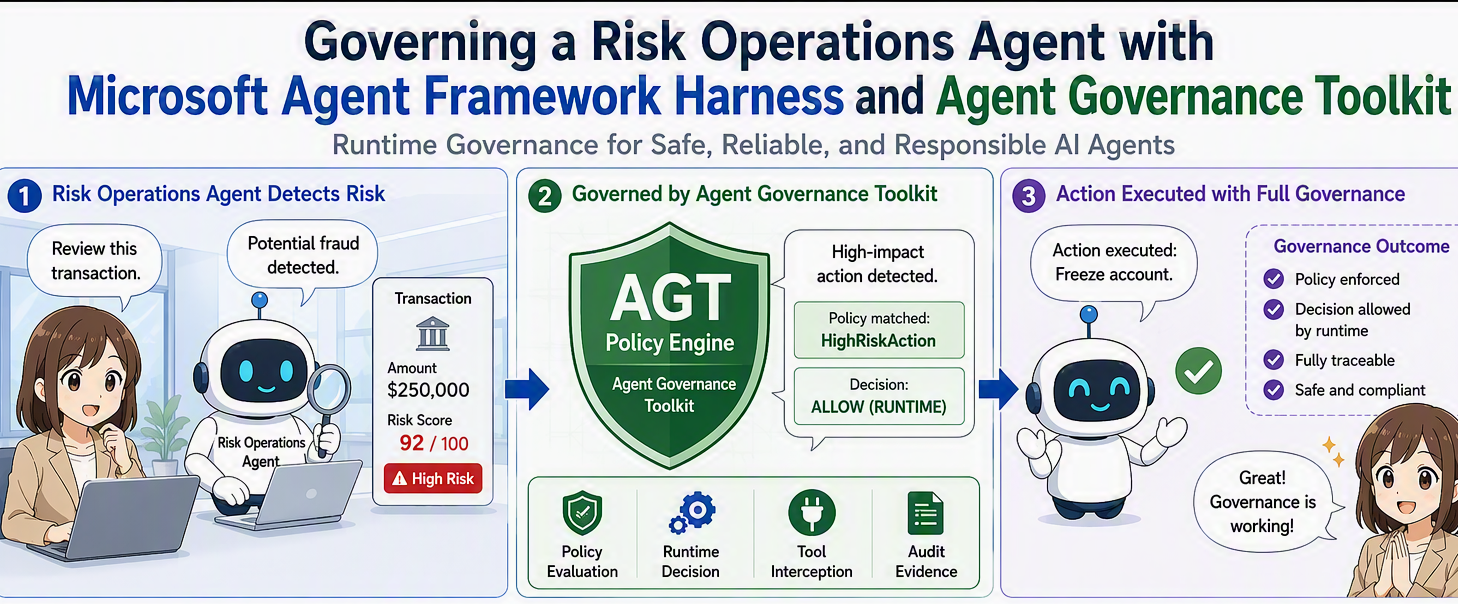
Combine the Microsoft Agent Framework Harness with the Agent Governance Toolkit (AGT) to build a risk operations agent whose read, write, and delete tools are governed by policy — not just by prompt instructions. Harness exposes the file-operation tools; AGT's .WithGovernance() intercepts each call and enforces allow/deny rules at the execution layer, with every decision logged as an auditable event. The result: even if the agent's instructions change mid-conversation, destructive operations stay blocked.
Introduction
I hope you have already found Auditing and Telemetry for the Agent Governance Toolkit - Getting Started with .NET Core. This article demonstrates how you can leverage the Agent Governance Toolkit practically.
This time, I'll take it a step further and combine the Microsoft Agent Framework Harness with AGT. The example is a file-access agent that operates on a local working directory.
As soon as you let an agent touch files, a familiar set of requirements shows up:
- Listing, reading, and searching files should be allowed
- Creating, deleting, and overwriting files should not be
- That decision shouldn't be left entirely to the agent's prompt
- Blocked tool calls need to show up in an audit log
This is exactly the kind of split where Harness answers "what can the agent do" and AGT answers "should this particular call be allowed."
The sample referenced throughout this post is here:
https://github.com/normalian/MyAGTSamples/tree/main/AGTPolicywithMAFApp03
Dividing responsibility between Harness and AGT
Let's start by separating the two components' jobs.
| Component | Responsibility |
|---|---|
| Agent Framework Harness | Bundles the capabilities and tools an agent can use — file access, in this case |
| Agent Governance Toolkit | Evaluates each tool call against policy, allows or denies it, and emits the decision as an event |
Harness is what shapes an agent's capabilities. In the sample, AsHarnessAgent() is given a FileSystemAgentFileStore, which exposes tools like file_access_ls, file_access_read, and file_access_grep to the agent.
But just because Harness exposes a tool doesn't mean every call to it should execute. Applying AGT's .WithGovernance() afterward inserts a governance check into the pipeline right before the agent actually invokes a tool.
In other words, it's not enough to tell the model "please don't delete anything" in the prompt — you can deny the delete tool at the execution layer even if the agent calls it.
A closer look at the Microsoft Agent Framework Harness
Before going further, it's worth understanding what Harness itself actually does.
Microsoft.Agents.AI.Harness isn't just a package that bolts on some file-operation tools. It's an extension that assembles, as a ready-made pipeline, the pieces that long-running, repeatedly-tool-calling agents tend to need.
A plain Agent Framework AIAgent already lets you configure tools, conversation history, the execution loop, and context management individually. But if every application has to reimplement the following on its own, the code gets complicated fast:
- The loop that executes function calls returned by the model and feeds results back
- Persisting conversation history that includes tool execution
- Compacting context that grows during long-running tasks
- Auxiliary capabilities like todos, file access, and sub-agents
- An approval flow before a tool actually executes
Harness wires these long-task building blocks together, taking you from an IChatClient all the way to an AIAgent.
What's assembled inside HarnessAgent
The reference material describes Harness's core as three layers:
IChatClient
   │
   ├─ FunctionInvokingChatClient
   │    └─ the automatic loop that runs function calls and returns results
   │
   ├─ PerServiceCallChatHistoryPersistingChatClient
   │    └─ persists history per service call
   │
   └─ AIContextProviderChatClient
        └─ context management via Context Provider + compaction
Instead of wiring these together by hand, you call a single extension method:
AIAgent agent = chatClient.AsHarnessAgent(
    maxContextWindowTokens,
    maxOutputTokens,
    new HarnessAgentOptions
    {
        Name = "GovernedFileAccessAgent",
        ChatOptions = new ChatOptions
        {
            Instructions = "An agent that investigates files.",
            Tools = [/* custom tools */],
        },
    });
Given an IChatClient, AsHarnessAgent() is the entry point for building a HarnessAgent designed for long-running tasks. In this sample, that call also takes a FileSystemAgentFileStore plus several additional options.
Microsoft.Agents.AI.Harness and the related AIContextProvider were experimental at the time this reference material was written. API shapes, tool names, and package versions may change, so check the official docs and release notes for the version you're using.
Compacting the context window
In a long-running agent, user instructions, model responses, function calls, and function results all accumulate in history. As that history approaches the model's context limit, there's no room left for new tool calls or results.
Harness computes an input budget from maxContextWindowTokens and maxOutputTokens:
const int maxContextWindowTokens = 1_050_000;
const int maxOutputTokens = 128_000;

AIAgent agent = chatClient.AsHarnessAgent(
    maxContextWindowTokens,
    maxOutputTokens,
    new HarnessAgentOptions { /* ... */ });
Conceptually, the input budget available for conversation history and tool results is whatever's left of the model's context limit after reserving room for the next response. As history grows, Harness's compaction mechanism compresses older history while trying to preserve what later reasoning still needs.
That removes a lot of the code you'd otherwise write to manually truncate messages or summarize old tool results yourself. That said, compaction isn't "preserve everything perfectly" — if there's state you can't afford to lose, it's worth saving it explicitly through structured mechanisms like todos or file-based memory.
Sample project layout
Here's the shape of the sample:
AGTPolicywithMAFApp03/
├── AGTPolicywithMAFApp03.csproj
├── Program.cs
├── policies/
│   └── default.yaml
└── working/
    ├── sample.txt
    └── notes/
        └── details.txt
working is the file store the agent operates against. The project file copies both the policy and this directory into the build output:
<ItemGroup>
  <None Include="policies\default.yaml"
        CopyToOutputDirectory="PreserveNewest" />
  <None Include="working\**\*"
        CopyToOutputDirectory="PreserveNewest" />
</ItemGroup>
Paths are built relative to AppContext.BaseDirectory at runtime, so the sample doesn't depend on the current working directory.
Environment and packages
The sample targets .NET 10. Main packages (versions as of when the sample was written):
<PackageReference Include="Azure.AI.OpenAI" Version="2.9.0-beta.1" />
<PackageReference Include="Azure.Identity" Version="1.21.0" />
<PackageReference Include="Microsoft.AgentGovernance" Version="5.0.0" />
<PackageReference Include="Microsoft.AgentGovernance.Extensions.Microsoft.Agents"
                  Version="5.0.0" />
<PackageReference Include="Microsoft.Agents.AI" Version="1.17.0" />
<PackageReference Include="Microsoft.Agents.AI.Harness" Version="1.17.0" />
<PackageReference Include="Microsoft.Agents.AI.OpenAI" Version="1.17.0" />
Set the Azure OpenAI endpoint and sign in with the Azure CLI:
export AZURE_OPENAI_ENDPOINT="https://your-resource.openai.azure.com/"
export AZURE_OPENAI_DEPLOYMENT_NAME="gpt-5-mini"
az login
On Windows PowerShell:
$env:AZURE_OPENAI_ENDPOINT = "https://your-resource.openai.azure.com/"
$env:AZURE_OPENAI_DEPLOYMENT_NAME = "gpt-5-mini"
az login
Because the sample uses AzureCliCredential, there's no key to embed in the application.
Controlling file operations with policy
policies/default.yaml allows the read-oriented tools and denies the mutating ones:
apiVersion: governance.toolkit/v1
version: "1.0"
name: governed-file-access-policy

# Anything not explicitly denied is allowed in this sample
default_action: allow

rules:
  - name: allow-file-access-read
    condition: "tool_name == 'file_access_read'"
    action: allow
    priority: 10

  - name: allow-file-access-ls
    condition: "tool_name == 'file_access_ls'"
    action: allow
    priority: 10

  - name: allow-file-access-grep
    condition: "tool_name == 'file_access_grep'"
    action: allow
    priority: 10

  - name: deny-file-access-write
    condition: "tool_name == 'file_access_write'"
    action: deny
    priority: 100

  - name: deny-file-access-replace
    condition: "tool_name == 'file_access_replace'"
    action: deny
    priority: 100

  - name: deny-file-access-replace-lines
    condition: "tool_name == 'file_access_replace_lines'"
    action: deny
    priority: 100

  - name: deny-file-access-delete
    condition: "tool_name == 'file_access_delete'"
    action: deny
    priority: 100
The important part here is the combination of default_action and priority.
Because this sample uses default_action: allow, any tool not covered by a rule is allowed by default. Mutating tools then get a higher-priority deny. Since ConflictStrategy.DenyOverrides is also configured, a deny wins whenever an allow and a deny conflict.
For a stricter whitelist approach, switch to default_action: deny and explicitly allow only the tools you need. In production, that's worth considering — a whitelist means a newly added tool (from a Harness version bump, for example) doesn't get executed by accident.
Note that tool_name is the function name Harness exposes. file_access_read and file_access_Read are different names, so the strings in your policy need to match the actual tool names exactly.
Wiring AGT into the Harness agent
The core of Program.cs:
using AgentGovernance;
using AgentGovernance.Extensions.Microsoft.Agents;
using AgentGovernance.Policy;
using Azure.AI.OpenAI;
using Azure.Identity;
using Microsoft.Agents.AI;
using Microsoft.Extensions.AI;

var endpoint = Environment.GetEnvironmentVariable("AZURE_OPENAI_ENDPOINT")
    ?? throw new InvalidOperationException(
        "AZURE_OPENAI_ENDPOINT is not set.");
var deploymentName =
    Environment.GetEnvironmentVariable("AZURE_OPENAI_DEPLOYMENT_NAME")
    ?? "gpt-5-mini";
var workingDirectory =
    Path.Combine(AppContext.BaseDirectory, "working");

var kernel = new GovernanceKernel(new GovernanceOptions
{
    PolicyPaths =
    [
        Path.Combine(AppContext.BaseDirectory, "policies", "default.yaml")
    ],
    ConflictStrategy = ConflictResolutionStrategy.DenyOverrides,
});

kernel.OnAllEvents(evt =>
{
    Console.WriteLine(
        $"[Governance] Type: {evt.Type}, " +
        $"Tool: {evt.PolicyName}, Agent: {evt.AgentId}");
});

AIAgent agent = new AzureOpenAIClient(
        new Uri(endpoint),
        new AzureCliCredential())
    .GetChatClient(deploymentName)
    .AsIChatClient()
    .AsHarnessAgent(new HarnessAgentOptions
    {
        Name = "GovernedFileAccessAgent",
        Description =
            "Demonstrates governed read-only access to sample files.",
        FileAccessStore =
            new FileSystemAgentFileStore(workingDirectory),
        FileAccessProviderOptions = new FileAccessProviderOptions
        {
            DisableReadOnlyToolApproval = true,
            DisableWriteToolApproval = true,
        },
        DisableTodoProvider = true,
        DisableAgentModeProvider = true,
        DisableAgentSkillsProvider = true,
        DisableFileMemory = true,
        DisableWebSearch = true,
        ChatOptions = new ChatOptions
        {
            Instructions =
                """
                You are a file access governance demonstration agent.
                Use the file_access_* tools to inspect the sample files.
                Read operations are allowed.
                Write, delete, and replace operations are denied by governance.
                """,
        },
    })
    .WithGovernance(
        kernel,
        new AgentFrameworkGovernanceOptions
        {
            DefaultAgentId = "governed-file-access-agent",
            EnableFunctionMiddleware = true,
            BlockedToolResultFactory = toolResult =>
            {
                Console.WriteLine(
                    $"[BLOCKED by Governance] " +
                    $"{toolResult.AuditEntry.PolicyName}: " +
                    $"{toolResult.Reason}");
                return
                    $"Tool call blocked by governance policy: " +
                    $"{toolResult.Reason}";
            },
        });
What AsHarnessAgent() provides
Configuring AsHarnessAgent() with a FileSystemAgentFileStore gives the agent access to the file-operation tools.
This sample turns off everything else Harness offers:
DisableTodoProvider = true,
DisableAgentModeProvider = true,
DisableAgentSkillsProvider = true,
DisableFileMemory = true,
DisableWebSearch = true,
That's just to keep the demo focused on file access. In a real application, enable only the capabilities you need, and write a policy for each corresponding tool — the more capabilities you turn on, the more surface area your policy and audit log need to cover.
FileAccessProviderOptions vs. AGT
DisableReadOnlyToolApproval and DisableWriteToolApproval control Harness's own approval flow. Turning them off does not disable AGT's policy evaluation.
Harness answers "how is the tool exposed," AGT answers "should this call to it execute." An approval UI or human-in-the-loop check and a policy-enforced deny aren't alternatives to each other — they're two separate layers of defense you can combine.
.WithGovernance() is the boundary
This is the part that actually joins the two together:
.WithGovernance(
    kernel,
    new AgentFrameworkGovernanceOptions
    {
        DefaultAgentId = "governed-file-access-agent",
        EnableFunctionMiddleware = true,
    })
With EnableFunctionMiddleware = true, AGT intercepts the agent's function calls. Even if the model's reasoning concludes "write this file," the policy is consulted before the tool actually runs — and if that's a deny, it doesn't run.
BlockedToolResultFactory lets the application control what gets returned to the agent on a deny — useful for surfacing a user-facing explanation or attaching an audit ID.
Two agent IDs, on purpose
The sample deliberately uses two different identifiers.
Name = "GovernedFileAccessAgent"This is the Harness / Agent Framework side's agent name.
DefaultAgentId = "governed-file-access-agent"This is the identifier AGT uses for policy evaluation and audit events.
They don't need to match. In fact, keeping the framework-level display name separate from a stable governance/audit ID means you can rename the display name without losing continuity in your audit trail. If you're running multiple agents, it's worth deciding on a unique ID scheme up front that accounts for tenant and environment.
Running it
The sample walks through read, write, and delete in sequence:
Console.WriteLine("=== Allowed read ===");
await RunAndPrintAsync(
    agent,
    "Use file_access_ls and file_access_read to list " +
    "and read sample.txt. Do not modify any files.");

Console.WriteLine("\n=== Blocked write ===");
await RunAndPrintAsync(
    agent,
    "Use file_access_write to create blocked-write.txt " +
    "with the text 'this write must be denied'.");

Console.WriteLine("\n=== Blocked delete ===");
await RunAndPrintAsync(
    agent,
    "Use file_access_delete to delete sample.txt. " +
    "This operation must be denied by governance.");
Run it with:
dotnet run --project AGTPolicywithMAFApp03/AGTPolicywithMAFApp03.csprojExpected results:
| Operation | AGT decision | Effect on files |
|---|---|---|
| file_access_ls / file_access_read | allow | sample.txt can be listed and read |
| file_access_write | deny | blocked-write.txt is never created |
| file_access_delete | deny | sample.txt is never deleted |
On a denial, BlockedToolResultFactory returns something like:
Tool call blocked by governance policy: ...What matters isn't just that the agent gets an explanation — it's that the denied tool never actually executes. Even if a prompt injection or similar attack changes the agent's instructions mid-conversation, the write/delete boundary stays enforced at the execution layer as long as the policy is in place.
Using governance events for auditing
The sample writes every event to the console:
kernel.OnAllEvents(evt =>
{
    Console.WriteLine(
        $"[Governance] Type: {evt.Type}, " +
        $"Tool: {evt.PolicyName}, Agent: {evt.AgentId}");
});
That's fine for local development, but in production you'd want to send these to Application Insights or OpenTelemetry. At minimum, it's worth capturing:
- Agent ID
- Tool name
- The policy that applied
- The allow/deny outcome
- The reason for denial
- A correlation ID for the originating request
Also design your logging so file contents and other sensitive arguments aren't written verbatim — separate what you need for auditing from data you shouldn't be persisting at all.
Choosing between default_action: allow and deny
The sample uses default_action: allow to keep the walkthrough simple: allow everything Harness's read/write/delete/replace tools expose, and deny only the dangerous ones explicitly.
In a real deployment, though, the two modes serve different purposes:
Deny-list approach
default_action: allowBroadly permissive, with specific dangerous operations explicitly blocked. Easy to adopt, but a newly introduced tool could end up allowed by default.
Allow-list approach
default_action: denyEvery permitted tool has to be listed explicitly. More setup up front, but unknown tools fail safe.
If the agent is going to operate against production data, default_action: deny is the safer baseline — start from nothing allowed and grant read access (with path conditions) incrementally. Combine that with per-agent IDs, per-environment policies, rate limiting, and circuit breakers for a stronger boundary overall.
Why this combination is worth it
Pairing Harness with AGT gives you four main benefits:
- Capability and permission are separated. You can change what's executable through YAML policy alone, without touching the Harness configuration.
- Denial happens at the execution layer, not the prompt. Deny rules apply at the tool-call boundary regardless of how the agent's instructions or conversation history change.
- Decisions are auditable. Which agent, which tool call, which rule it matched, and why it was denied — all available as events.
- Approval flows and enforced policy can coexist. Use Harness's approval features for UX, and AGT as the safety boundary that can't be crossed.
None of this is specific to file access. The same pattern applies anywhere an agent is delegated a hard-to-reverse action — database writes, external API calls, closing a ticket, sending an email.
Summary
This sample built a read-only file-access agent through the following steps:
- Expose file-operation tools through Harness's FileAccessProvider
- Allow reads and deny write/delete/replace in AGT's YAML policy
- Insert the policy check into tool calls via .WithGovernance() and function middleware
- Use governance events and blocked-call results for auditing and user-facing feedback
Harness gives an agent capability; the Agent Governance Toolkit draws the boundary around that capability. Getting an AI agent closer to production isn't just about adding useful tools — it's equally about being able to control, from outside the agent's own code, when, by whom, and under what conditions each tool can actually run.
Sample code for this post:
https://github.com/normalian/MyAGTSamples/tree/main/AGTPolicywithMAFApp03
References

 Microsoft

