what's new
45 TopicsPreview the new Microsoft 365 LTI® for your LMS
Enhance your LMS with the power of Microsoft 365 We are excited to announce the public preview of Microsoft 365 LTI. Experience the full potential of Microsoft 365 directly within your Learning Management System (LMS) through a simple to integrate learning tool interoperability (LTI). Microsoft 365 LTI makes LMS integrations simple, with a powerful tool designed to introduce new capabilities to streamline and simplify deployment. Deploy and access the new Microsoft 365 LTI in your LMS with the overview and deployment guides. At-a-glance: The Microsoft 365 LTI is now in Public Preview, bringing all your favorite Microsoft Education tools into a single, seamless experience inside your LMS. No more juggling multiple integrations - just streamlined access to everything educators and students need, right where they work. This includes: Unified access to OneDrive, Teams, Class Notebook, Reflect, and more, directly in your LMS Add content, create assignments, and schedule meetings - all from one place No need to enable multiple tools separately or clutter your LMS menus Replaces deprecated Teams Meetings and Team Classes LTI tools Expanding support for Microsoft Assignments, OneDrive, OneNote Class Notebooks, and Reflect Available for Canvas, Schoology, Blackboard, D2L Brightspace, Moodle, and more Let’s dive into the new Microsoft 365 LTI to streamline your learning management system experience We are bringing our Microsoft Education capabilities for learning management systems together into a single tool and streamlined user experience. Educators will be able to access Learning Accelerators, Reflect, OneDrive, Teams, and more in their LMS courses, without having to enable multiple tools separately, and without overcrowding menus where LTI tools are surfaced. Whether adding content to a module, creating an assignment, or scheduling a meeting for a class, you will be able to easily access Microsoft Education related features directly in your LMS workflow. Microsoft 365 LTI debuts with replacements for the deprecated Teams Meetings and Team Classes LTI tools that sunset on 9/15/2025. The capabilities of Microsoft Assignments, OneDrive, OneNote Class Notebooks, and Reflect will also be added to the Microsoft 365 LTI in preview, and those existing LTIs will continue to be supported as their capabilities transition. Microsoft 365 LTI will be available for all currently supported LMS platforms, including Canvas by Instructure, PowerSchool Schoology Learning, Blackboard by Anthology, D2L/Brightspace, and Moodle™, and for any LTI 1.3 Advantage compliant platform. Learning Accelerators and AI-enhanced assignments in your LMS (without Microsoft Teams) With the Microsoft 365 LTI, you will be able to use Learning Accelerators, multiple-document submissions, AI rubric and instructions generation, AI-assisted feedback, auto-graded Forms and other Microsoft Education assignment capabilities directly within your learning management system (LMS), without the need to create and sync a Microsoft Team for your class. Assignments in Microsoft 365 LTI no longer require Teams, enabling more LMS users to benefit from advanced, AI-enhanced capabilities that were formerly exclusive to Microsoft Teams for Education. Assignments can be created, managed, completed, and graded, without leaving your LMS, and grades and feedback will sync automatically to the LMS gradebook. This capability is included automatically in the new Microsoft 365 LTI tool. Existing, Teams-based assignments will continue to work and can be copied to new courses, so no migration is necessary. This enhancement will apply to all currently supported LMS platforms, including Canvas, Schoology, Blackboard, D2L Brightspace, and Moodle. Teams and Teams Meetings Microsoft 365 LTI replaces the former Teams Classes LTI and Teams Meetings LTI tools, with improved user experience. Users can easily schedule, manage, and launch meetings from directly within their LMS course. The tool provides streamlined views of future and past meetings, consolidated attendance reports, and a new “Meet Now” capability. Automatic rostering in Class Notebooks returns with the Microsoft 365 LTI In March, we announced the retirement of automatically adding newly rostered students and co-educators to OneNote Class Notebooks provisioned through the LMS using the LTI 1.1 integration. This much-loved feature is back in the new Class Notebook app in Microsoft 365 LTI. Any instructor in the LMS course can create a Class Notebook and all co-educators and students automatically added to the notebook, even as the LMS roster changes. In addition, the new integration enables OneNote with the benefits of LTI 1.3 conformance and a modernized provisioning flow for educators to easily deploy new Class Notebooks for their courses. Existing notebooks created in the LTI 1.1 integration will continue to work, and sections and pages can be easily copied to new notebooks. OneDrive and Microsoft 365 files with embedded editors and new placements The new Microsoft 365 LTI tool expands beyond the capabilities of the existing OneDrive LTI tool. The full capabilities of Word, PowerPoint, and Excel, including Microsoft 365 Copilot, are now available within the LMS experience for attaching content resources, collaborative documents (including Collaborations for Canvas Courses and Groups!), and students editing and submitting Microsoft 365 documents as an assignment without leaving the LMS. Documents can be embedded or linked into courses and other LMS activities like discussions, announcements, pages, with proper management of permissions to prevent oversharing, and with dedicated course-level storage to support proper document lifecycle management, assignment workflows, and use of Microsoft 365 Copilot. Easily add Reflect to your classroom toolset Microsoft 365 LTI provides easy access to Microsoft Reflect to support student wellbeing in the classroom. Educators can create check-ins, view responses, and monitor trends within an LMS course. Users can access activities from Microsoft and partners such as Calm to support physical and mental wellbeing. For more information, and to keep up with future product announcements Please visit the Microsoft Tech Community Education Blog and subscribe to keep up with what’s new in Microsoft Education. We also hold bi-monthly office hours every first and third Thursday where lots of LMS + Microsoft 365 customers come to discuss scenarios and get assistance from peers, please join us! Microsoft 365 LTI Office Hours 1 st and 3 rd Thursday of each month @11am EST Join link: https://aka.ms/LTIOfficeHours We can’t wait to hear your feedback! Try out the preview today. How to get help or send feedback For any issues deploying the integration, our Education Support team is here to help. Please visit https://aka.ms/EduSupport Once deployed, the Teams Assignments integration has links to Contact Support and Send Feedback from right within the app. These can be found in the user voice menu in the upper right on any view that appears within the LMS. Learn more about Microsoft feedback for your organization. Learning Tools Interoperability® (LTI®) is a trademark of the 1EdTech Consortium, Inc. (1edtech.org) The word Moodle and associated Moodle logos are trademarks or registered trademarks of Moodle Pty Ltd or its related affiliates.11KViews3likes8CommentsWhat's New in Microsoft EDU - Back to School 2026 webinar
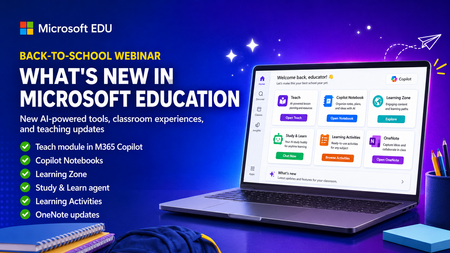
Get ready for back to school (Northern Hemisphere) with the latest product updates from Microsoft Education. In this webinar, we’ll showcase new AI-powered tools, teaching resources, and product updates designed to help educators save time, personalize learning, and support every student. You’ll see what’s new across Microsoft 365 Copilot, Teams for Education, OneNote, and more, including: ✅ Teach module in Microsoft 365 Copilot ✅ Copilot Notebooks ✅ Study and Learn agent ✅ Learning Zone ✅ Teams for EDU updates ✅ The latest OneNote EDU updates And more! Join us for practical demonstrations, helpful tips, and new ideas you can put to work as you prepare for a successful school year. And don't worry if you can't make it live, we will be recorded and posting this on the Microsoft Education YouTube channel afterwards. 📅 When: Wednesday, August 26th @ 8am Pacific Time 🔗 Register here: https://df.events.teams.microsoft.com/event/df.8c4f06fc-399f-4603-8023-f5fd92601bd1@72f988bf-86f1-41af-91ab-2d7cd011db47?source=copyLinkOneEventsShareDialog Mike Tholfsen Group Product Manager Microsoft Education743Views1like1CommentHands-on webinar: Teach Module in M365 Copilot and Copilot Notebooks (available for all educators)
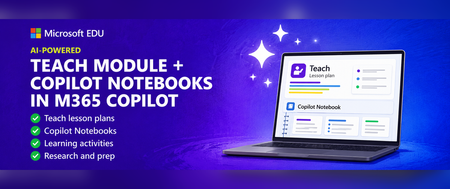
Join us on Wednesday, July 8th @ 8am Pacific Time for an in-depth professional development webinar on the new AI-powered "Teach" module in M365 Copilot that is fully rolled out and available to everyone. We will also be covering Copilot Notebooks and the Study Guide which is now also available to all M365 Educators and Students. This will be a 60-minute hands-on webinar where the Product Management team will walk through the new updates in detail and you can follow-along at home with your own M365 Education account. To reiterate, the Teach Module and Copilot Notebooks are available globally to all educators using Microsoft 365. And don’t worry – we’ll be recording these and posting on our Microsoft Education YouTube channel so you’ll always to able to watch later or share with others. Register here: https://msit.events.teams.microsoft.com/event/msit.ed7f065d-57a5-437c-ba23-12b0ef06a259@72f988bf-86f1-41af-91ab-2d7cd011db47 Agenda: How to use the new AI-powered "Teach" module in M365. ✅ Lesson plans and the new Keep Going feature ✅ Learning Zone integration ✅ Modifying Existing content ✅ Learning Activities ✅ Coplot Notebooks plus Study Guide We look forward to having you attend the event! Also, be sure to check out and sign up for our Microsoft Elevate Educator community. Mike Tholfsen Group Product Manager Microsoft Education team416Views1like0CommentsHands-on webinar: Study and Learn agent in M365 Copilot
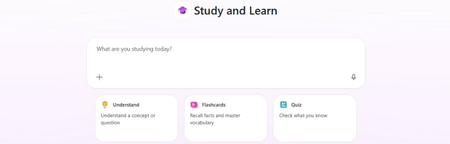
Join us on Wednesday, May 13th @ 8am Pacific Time for an in-depth professional development webinar on the new Study & Learn agent in Microsoft 365 Copilot, which is about to become available for all students 13+ and educators. This will be a 60-minute hands-on webinar where the Product Management team will walk through the Study & Learn agent, which is purpose-built for learning. The experience goes beyond just answering questions and instead guiding students through concepts with step-by-step support, interactive activities like quizzes and flashcards, and conversations grounded in learning science. The Study & Learn agent will be globally available by the time of this webinar on May 13th, 2026. We will also be providing links for professional development credit at this session. And don’t worry – we’ll be recording these and posting on our Microsoft Education YouTube channel so you’ll always to able to watch later or share with others. What we will cover ✅ Introduce the new Study & Learn agent ✅Understand concept/question, FC and Quiz, Matching and FIB ✅IT admin motions for enabling Copilot Chat ✅Learning Activities for students hands-on ✅CPNBs and Study Guide slides and demo 📅 Date: Tuesday, May 13th ⏰ Time: 8:00 AM Pacific 🔗 Register: https://msit.events.teams.microsoft.com/event/msit.954c5c3b-cbc0-458d-9739-49e3e8b4baf7@72f988bf-86f1-41af-91ab-2d7cd011db47577Views1like0CommentsAccelerating the Flow of Learning
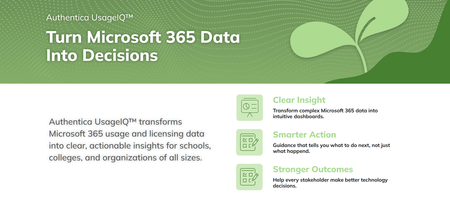
By Vince Frankson, Authentica Solutions | Guest Post via the Microsoft Education Blog Education technology leaders are not short on vision; they are short on time. They know exactly what their Microsoft 365 environment is capable of. What they deserve are better tools, smarter automation, and a partner that shows up ready to serve. At Authentica Solutions, we pride ourselves on our culture of servant leadership, not just as a slogan, but as our guiding principle. Our mission is to support and serve district technology teams, ensuring that technology enhances their valuable work rather than making it more complex. Everything we build is organized around one purpose: accelerating the flow of learning. Not technology for its own sake... tools and services focused at getting teachers back to teaching, students back to learning, and district leaders back to the decisions that matter most. With the school year winding down and Back to School planning already on the horizon, there is no better moment to look at where your Microsoft 365 environment stands, and how the right tools and the right team can compress your timeline, free your people, and make this the smoothest Back to School launch yet. District Technology Teams Deserve Better Tools K-12 technology leaders oversee complex systems, sometimes across multiple campuses, and support a wide range of users. While Microsoft 365 offers advanced features, many remain underused due to the time and expertise required for full implementation. Microsoft’s School Data Sync (SDS) is a great example. It is a genuinely powerful free service that automates the flow of student roster and identity data from your Student Information System (SIS) into Microsoft Entra ID, provisioning Teams classrooms, Intune device groups, SharePoint sites, and OneNote Class Notebooks automatically, at scale. The platform is exceptional. Fully configuring it, keeping it healthy across an academic year, and extending its value into the rest of the data ecosystem is specialized work that deserves specialized support. Authentica addresses this gap by providing support so school IT teams can focus on high-impact tasks, helping educators and students achieve more. Authentica seed™: Built to Accelerate the Flow of Learning Authentica seed™ is Authentica’s Education Intelligence Cloud Service, designed to streamline learning by enabling clean, automated, bidirectional data pipelines. This allows teachers to access rosters quickly, students to begin learning immediately, and administrators to monitor instruction in real time, accelerating progress for everyone. Getting Your Data into Microsoft 365 seed™ sits between your SIS and SDS, handling data preparation, mapping, and delivery so your team can focus on higher-value work. Districts that previously invested significant time in validation cycles and configuration troubleshooting are reaching full value in a fraction of the time. Automated SIS-to-SDS delivery with built-in validation, so errors are caught before they ever reach your tenant. Support for OneRoster API and CSV formats across all major SIS platforms, meeting your district where it already is. Automatic provisioning of users, classes, and groups across Microsoft Entra ID, Teams, SharePoint, Exchange, and Intune for Education. Manage Student Age Groups to limit or support access to Microsoft Copilot for students 13+. Every hour returned from focusing on the data pipeline is an hour returned to learning. That is Cloud with Purpose. Getting Your Data Back Where It Belongs Learning does not stop at the edge of Microsoft 365, and neither should your data. seed™ closes the loop by moving grade data, assessment data, and engagement signals back to the platforms that need them, automatically. Back to your SIS: Keeping your system of record current and authoritative without double grade entry. To your Analytics platform: Giving administrators and instructional coaches visibility into what is working, event making Microsoft 365 activity visible, without waiting for manual exports. Building your dream data estate: What if you could combine your academic and instructional data, your operations and staff data, and your financial data into a single place? What if you could have it prepped and ready so you can ask questions with Copilot and / or AI Agents. Which schools have the most students off track right now? Top 5, and why. Where are we spending the most with the weakest results? Top 3. One connected data ecosystem. Compounding the return on every platform investment your district has made and accelerating the flow of learning throughout. UsageIQ™ Microsoft 365 Edition: Giving Leaders the Visibility They Deserve District technology leaders make consequential decisions about licensing, training, and support every year. They deserve data that makes those decisions clear. Authentica UsageIQ™ Microsoft 365 Edition was built to provide exactly that: a straightforward, actionable picture of how your Microsoft 365 environment is being used across the organization. Not a consultant engagement. Not a manual pull from the admin portal. A purpose-built, single view of your tenant that tells you what you need to know, when you need to know it. App-by-app usage across your tenant: Teams, SharePoint, OneDrive, Exchange, OneNote, and more, in one place. School-by-school and role-based breakdowns: See where adoption is strong and where targeted support would unlock real value. License utilization insights: Ensure every seat is earning its value and renewal conversations are grounded in actual usage data. Back to School readiness views: Identify accounts and configurations that need attention before day one, not after. When technology leaders can see clearly, they lead confidently. That visibility is not a luxury. It is what great tools are supposed to deliver. Managed Services for Microsoft 365: A Team That Has Been Here Before At Authentica, we deliver Managed Services with a servant leadership mindset. We're not just a helpdesk, our team has years of experience at Microsoft, having built education solutions like SDS, Teams for Education, and Graph APIs. We support your district as an expert extension to handle critical Microsoft 365 tasks efficiently, allowing your technology staff to focus on their key responsibilities. What Managed Services for Microsoft 365 Covers End-of-Year close support for SDS expiration management, tenant cleanup, graduating account archiving, and identity hygiene, handled on time and on spec so your team can close the year cleanly. Back to School launch for new year SDS configuration, classroom provisioning, device group refresh, and Conditional Access review, so teachers walk into a working environment on day one. Ongoing SDS health monitoring and proactive troubleshooting, so issues are resolved before they become incidents Microsoft Entra ID and identity management support across the full user lifecycle. Teams for Education configuration, governance, and adoption enablement. Intune for Education device policy and deployment support. Copilot readiness assessment and enablement, so your district is positioned for AI-powered learning when you are ready to move. This is what it looks like when your Microsoft 365 environment has a team behind it that is fully committed to your success, not just at launch, but every day. End of School Checklist: Five Things Worth Doing Before Summer Break These are the actions that make Back to School smoother, faster, and less reactive. Your team knows this; this is a reminder of what is worth prioritizing before the calendar turns. Audit Microsoft Entra ID for inactive and graduating accounts. Clean identities now mean a cleaner, more secure tenant heading into the new year, and fewer licensing surprises at renewal. Review your SDS sync health. Check error and warning logs now. Small data issues that are easy to address in the spring become August emergencies. Get ahead of them while there is room to breathe. Check your Microsoft 365 license utilization. If you are on A3 or A5, are those features actively working for your district? UsageIQ™ Microsoft 365 Edition can show you the full picture and give you a clear story heading into renewal season. Archive Teams classes from the current year. Establish your retention and archival approach before the new year roster drop. A clean tenant makes everyone faster, IT, teachers, and students. Plan your Back-to-School timeline now. Microsoft School Data Sync (SDS) provisioning for a large district takes time. Build in buffer, engage your support resources before August, and set your team up to launch the year confidently instead of reactively. We Are Here to Serve Authentica Solutions is offering a complimentary Microsoft 365 Readiness Assessment for districts that want a clear picture of where they stand before the new year begins. This is a straightforward conversation with our team, people who have been inside these systems for years, helping you identify what is working, what is ready to unlock, and where the right tools can return the most value. No pressure. Just expertise, in service of your district and the learning that happens inside it. Let’s talk to schedule your complimentary Microsoft 365 Readiness Assessment. About Authentica Solutions Authentica Solutions is an EdTech company grounded in servant leadership and built around one purpose: accelerating the flow of learning. Our team, including former Microsoft engineers who built core Microsoft 365 education products, serves K-12 districts through seed™, UsageIQ™, reachAI™, and Managed Services for Microsoft 365. Cloud with Purpose. Visit www.authenticasolutions.com424Views1like1CommentWhat's New in Microsoft EDU - March 2026
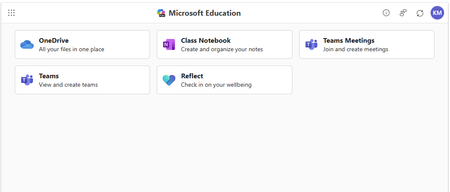
Join us on Wednesday, March 25th, 2026 for our latest "What's New in Microsoft EDU" webinar! We will be covering all of the latest product updates from Microsoft Education. These 30-minute webinars are put on by the Microsoft Education Product Management group and happen once per month, this month both 8:00am Pacific Time and 4:00pm Pacific time to cover as many global time zones as possible around the world. And don’t worry – we’ll be recording these and posting on our Microsoft Education YouTube channel in the new “What’s New in Microsoft EDU” playlist, so you’ll always to able to watch later or share with others! Here is our March 2026 webinar agenda: 1) M365 Copilot and AI updates for Educators and Students - Modify Existing Content - Minecraft EDU Lesson Plans - New Learning Activities: Fill in the Blanks, Matching and Self-Quizzing - Study & Learn agent for studnets 2) Learning Zone General Availability and the Copilot+ PC 3) Microsoft 365 LTI and Teach Module for Learning Management Systems 4) AMA - Ask Microsoft EDU Anything (Q&A) We look forward to having you attend the event! How to sign up 📅 OPTION 1: March 25th, Wednesday @ 8:00am Pacific Time Register here 📅 OPTION 2: March 25th, Wednesday @ 4:00pm Pacific Time Register here This is what the webinar portal will look like when you register: We look forward to seeing you there! Mike Tholfsen Group Product Manager Microsoft Education1.9KViews1like1CommentWhat's new in OneNote for EDU - Back to School 2025
It’s back-to-school time, and OneNote EDU is rolling out fresh updates to make life easier for educators and students alike! In this article, we’ll cover the latest OneNote features and updates for education, including: Built-in Class Notebook toolbar in OneNote on Windows and for Mac (no more need to download the add-in!) – How to enable it and why it’s great New Microsoft 365 LTI 1.3 integration – Streamlined LMS access to Class Notebook, Assignments, Reflect, and more Broader OneNote updates – Merge table cells (finally!) and a new option to “paste text only” Education Insiders Program (EIP) – How to join and help shape the future of Class Notebook Let’s dive in and get you ready for an amazing school year with OneNote! 1. Enable the Class Notebook Toolbar natively in OneNote on Windows and for Mac Class Notebook features are now built directly into OneNote on desktop – no separate add-in required! This means if you’re using OneNote on Windows or for Mac, you already have the Class Notebook tools; you just might need to turn them on. Enabling the native toolbar gives you all the goodies (page distribution, review student work, etc.) right on the ribbon while ensuring you always have the latest updates and better performance than the old add-in. Why this matters: A built-in toolbar means one less installation to worry about and more reliable updates. Schools no longer need to deploy the legacy add-in for Class Notebook on each device. It’s simpler for IT and ensures every teacher has the Class Notebook tools by default. How to enable the Class Notebook toolbar: In OneNote for Windows (Microsoft 365), click File > Options > General. Under Class Notebook, check the box for “Enable Class Notebook” and select OK. The Class Notebook tab will appear on your OneNote ribbon, loaded with all the Class Notebook features you know and love. (Tip: If you previously installed the add-in, you might see two Class Notebook tabs. You can remove the old add-in to avoid confusion.) For more details, check out the Enable the Class Notebook Toolbar in OneNote Desktop support article. 2. New Microsoft 365 LTI 1.3 Integration for LMS The new Microsoft 365 LTI app brings OneNote Class Notebook along with other Microsoft 365 Education experiences like Microsoft Assignments, OneDrive/Microsoft 365 files, Teams for collaboration, Teams Meetings and more to your learning management system (LMS). It is compatible with any LTI 1.3 Advantage Platform, and setup instructions can be found here: https://aka.ms/LMSAdminDocs. Key benefits of the new M365 LTI integration: All-in-one access: Once your LMS admin installs the Microsoft 365 LTI, educators and students get one-click access to OneNote Class Notebook, assignments, OneDrive, Teams meetings, Reflect check-ins and more – right from your LMS course. No more juggling separate LTI apps for each tool. Automatic roster sync: Class Notebook now supports auto-rostering with LTI 1.3. When you create a Class Notebook through the LMS, all learners and educators in that course are automatically added to the notebook as students and teachers/co-teachers respectively (and will be added automatically if they join later). This beloved feature, previously in older LTI integration, is back – saving you setup time. Assignments and grades in your LMS: Using the new LTI, you can create Microsoft Assignments (with Learning Accelerator tools like Reading Progress, etc.) directly in your LMS. Students submit without leaving the LMS, and grades sync back to the LMS gradebook. It brings the power of Teams Assignments into the LMS environment, no Teams class needed. Streamlined and up-to-date: The Microsoft 365 LTI replaces several legacy LTI tools (like the old “Teams Classes LTI” and separate OneNote LTI 1.1 app). This reduces confusion and upkeep. Getting started with the new LTI is simple for IT admins, with full documentation here. If you’re an educator, check with your IT about enabling the Microsoft 365 LTI for your courses. 3. Broader OneNote updates: merge table cells and paste text only The OneNote team has been hard at work on core improvements that benefit both educators and students. Here are two notable updates rolling out: Merge table cells in OneNote on Windows and for Mac: You asked, and it’s finally here – the ability to merge cells in a table. This means you can take any adjacent cells (horizontal or vertical) in a OneNote table and combine them into one cell (just like in Word or Excel). Paste text only in OneNote on Windows, for Mac, and for the web: Ever copy-paste some text into OneNote only to have it bring in crazy fonts or colors from a website or another document? We hear you – and now in OneNote you can use the familiar shortcut Ctrl + Shift + V (Windows) or Cmd + Shift + V (Mac) to paste plain text, stripping out all the source formatting. The pasted content will match your current notebook’s font style. This also works via the right-click menu: choose Paste > Keep Text Only. It’s a small quality-of-life change that can save a ton of cleanup time, especially when gathering materials from various sources into your lesson plans or content library. Read more about this here: Paste text only in OneNote on Windows, for Mac, and for the web All these updates are either available now or rolling out to OneNote users: Merge table cells is currently in preview for Office Insiders (as of late July 2025) and will reach all OneNote desktop clients in the coming updates. Paste Text Only is rolling out to OneNote for the web users and OneNote users running the most recent versions on Windows and on Mac. Features are released over some time to ensure things are working smoothly, so don’t worry if you can’t see it quite yet. 4. Join the Education Insiders Program (EIP) Lastly, a call to action for passionate educators: if you love getting early access to new features or want to provide direct feedback to the OneNote and Class Notebook team, consider joining the Education Insiders Program (EIP). This is a free community for K-12 and higher-ed tech leaders, teachers, and IT administrators who use Microsoft tools. As an Education Insider, you can: Preview and influence new features: Get invites to try out early builds or pilot programs (with your school’s Office 365 tenant) and share feedback before features launch worldwide. For example, insiders often get to test things like the latest Class Notebook updates and provide input. Participate in the Class Notebook insiders channel: There’s a dedicated Class Notebook discussion space where you can discuss ideas, ask questions, and interact with Microsoft product managers and other educators. It’s a direct line to share what you’d love to see in OneNote. Sound interesting? Sign up for EIP via this form. Once accepted, you’ll be plugged into the insider community, including the Class Notebook channel where you can weigh in on the future of OneNote. (By joining EIP, you’ll help shape products like OneNote – many of the features in this blog (such as merged table cells and the new LTI integration) were influenced by feedback from educators. We’d love to have your voice in the mix!) We hope these updates get you excited for back to school with OneNote. Whether you’re empowering students with more organized Class Notebooks, integrating OneNote more seamlessly into your LMS, or just enjoying a smoother note-taking experience, there’s a lot to look forward to this year. Try out these new features in your classroom workflow, and let us know what you think. You can drop your thoughts in the comments or join the conversation in the Education Insiders community. Here’s to a successful and innovative school year ahead with OneNote! 💜 Which new OneNote EDU feature are you most excited about? Let us know in the comments, and have a fantastic start to the school year!2.5KViews2likes2CommentsWhat’s New in Microsoft EDU, Bett Edition January 2026
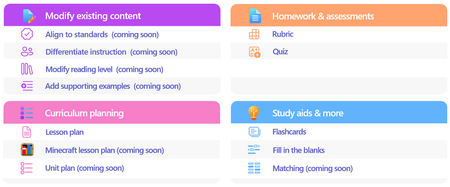
Welcome to our update for Microsoft Education and our special Bett 2026 edition! The Bett conference takes place in London during the week of January 21st - January 23rd, and Microsoft Education has 18 exciting updates to share! Check out the official Bett News blog here, and for our full Bett schedule and session times, be sure to check out our Microsoft EDU Bett 2026 guide. January 2026 topics: Microsoft 365 Updates for Educators Microsoft Learning Zone Microsoft 365 Updates for Students Teams EDU and OneNote EDU Updates Microsoft 365 LTI Updates Minecraft EDU 1. New Educator tools coming to the Teach Module in Microsoft 365 Unit Plans Soon educators will be able to create unit plans in Teach. Using a familiar interface, educators will be able to describe their unit, ground in existing content and educational standards, and attach any existing lesson plans. Unit plans will be created as Microsoft Word documents to facilitate easy edits and sharing. When: Preview in Spring 2026 Minecraft Lesson Plans Minecraft Education prepares students for the future workplace by helping build skills like collaboration, creative problem-solving, communication, and computational thinking. Coming soon, you will be able to create lesson plans in Teach that are fully teachable in Minecraft Education. And if you’re new to Minecraft Education, the lesson plan includes step-by-step instructions to get started. Just like the existing lesson plan tool in Teach, Minecraft Lessons can be grounded on your class details, existing content, and educational standards from 35+ countries. When: Preview in February 2026 Modify Content When: In Preview now Teach supports educators in modifying their existing teaching materials using AI-powered tools that save time and help meet the diverse needs of learners. With Modify existing content, educators can quickly adapt lessons they already use—without starting from scratch—by aligning materials to standards, differentiating instructions, adjusting reading levels, and enhancing text with supporting examples. Each modification tool accepts direct text input or file uploads from cloud storage, making it easy to transform current curriculum resources. These tools help educators maintain instructional intent while ensuring content is accessible, standards aligned, and effective for all learners. Align materials to standards Aligning instructional content to educational standards helps ensure lessons clearly support required learning goals and set the right expectations for learners. The Align to Standards tool rewrites existing lesson instructions so they reflect the intent of the selected standard—focusing on what learners should understand or be able to do—without copying the standard’s wording. Scenario: An educator has a lesson instruction for a reading activity on ecosystems. After selecting a state science standard, the educator uses Align to Standards to produce a revised instruction that emphasizes system interactions and evidence-based explanations while preserving the lesson’s original purpose. This allows the educator to strengthen alignment quickly without rewriting the lesson from scratch. Differentiate instructions Differentiation helps ensure every learner—regardless of readiness, background knowledge, or support needs—can access and engage with instructional tasks. The Differentiate Instructions tool adapts existing instructions based on specific supports an educator selects, such as adjusting reading level, including a single type of scaffold, or targeting a desired length. Because this tool is designed for single shot use, it produces a clear, accurate adaptation that adheres directly to the selected inputs. Scenario: A secondary biology educator has lab instructions written for general education learners but needs versions for learners requiring additional scaffolding. Using Differentiate Instructions, the educator quickly generates modified instructions that include step-by-step breakdowns, sentence starters, or graphic organizers—making the lab more accessible without changing the learning goal. Modify reading level Adjusting the reading level helps ensure instructional content remains accessible while preserving essential vocabulary and core concepts. The Modify reading level tool rewrites text to match a specified grade level, simplifying or increasing complexity as needed while maintaining meaning. Educators can also choose to generate a glossary with clear, age-appropriate definitions of key terms. Scenario: A social studies educator wants students to work with a primary source written at a university reading level. Using Modify reading level, the educator creates a version that maintains the document’s key ideas and important historical terms while simplifying sentence structure for lower secondary learners. By adding a glossary, students can access learner friendly definitions alongside the adapted text. Add supporting examples Concrete examples strengthen understanding by connecting abstract ideas to real world applications. The Add Supporting Examples tool enhances existing instructional content by appending relevant, accurate, and age-appropriate examples—without altering the original paragraph. Scenario: An educator teaching thermal energy transfer has a paragraph explaining that heat moves from warmer objects to cooler ones, but the concept feels abstract. Using Add Supporting Examples, the educator adds real world examples—such as a metal spoon warming in hot soup or an ice cube melting on a countertop—to help learners visualize how heat transfer works. These examples reinforce understanding and make the concept more accessible for secondary learners. Fill in the Blanks, Matching and Quizzing New Learning Activities are coming soon! We’re excited to introduce three new Learning Activities designed to make classroom experiences more dynamic and personalized: Fill in the Blanks, Matching, and Quizzes. Whether it’s completing paragraphs to strengthen comprehension, pairing terms with definitions in a timed matching game, or testing knowledge through quick self-assessments, these activities bring variety and fun to learning. Fill in the blanks creates paragraphs where learners can check their understanding by filling in missing terms. Matching is a game where learners can match terms and definitions while racing against the clock, aiming for fast completion and accuracy. And Quizzes allows students to quiz themselves and assess their comprehension. Learning Activities are available across our education products, in a standalone web app, in the Teach Module, in Teams for Education, in the Study and Learn agent and Study Guides. When: Spring 2026 Teach Module updates in Teams Classwork In Teams Classwork, you can already use Copilot to create Lesson Plans, Flashcards, and Fill in the Blank Activities. Coming this Spring, you will see the ability to create and modify more content, better matching the capabilities of Teach in the Microsoft 365 Copilot App. This includes modifying content with AI, Minecraft Lessons, and more! When: Coming soon Teach Module and Class Notebook integration We're bringing Copilot-powered creation tools directly into OneNote Class Notebook. Teachers will be able to generate Learning Activities and quizzes or modify existing content (like adjusting reading level or adding supporting examples) without leaving the page where they're already planning. When: Coming soon 2. Spark classroom engagement with Microsoft Learning Zone Educators worldwide are always looking for innovative ways to engage students, personalize learning, and support individual growth, yet limited time and resources often stand in their way. Microsoft Learning Zone, a new Windows app, empowers educators to transform any idea or resource into an interactive, personalized lesson using AI on Copilot+ PCs. The app also provides actionable insights to guide instruction and support every student’s progress. Learning Zone is now available to download from the Windows app store and included at no additional cost with all Microsoft Education licenses. Just in time for Bett 2026, Learning Zone has earned the prestigious ISTE Seal of Alignment - a recognized mark of quality, accessibility, and inclusive design. This recognition reflects our commitment to delivering meaningful, inclusive, and research-backed digital learning experiences for every learner. As noted by ISTE reviewers: "Microsoft Learning Zone saves educators valuable time while delivering personalized instruction that addresses individual learning needs." Getting started with Microsoft Learning Zone is simple. Educators begin by defining their lesson goals and preferences and can also choose to reference their teaching materials or trusted in-app resources by OpenStax. From there, AI does the heavy-lifting, generating a complete, interactive lesson with engaging content slides and a variety of practice activities. Educators can also quickly create Kahoot! quizzes using AI, bringing live classroom gamification into their lessons with just a few clicks. Learning Zone is more than content creation; it provides a full classroom-ready solution: from assignment to actionable insights. Once a lesson is created and reviewed, educators can assign it to students. Students complete lessons at their own pace, on any device, while the lesson flow adapts to their responses, helping reinforce understanding, revisit missed concepts, and build confidence over time. Educators, in turn, gain clear, actionable insights into student progress and mastery, enabling them to personalize instruction and better support every learner’s growth. Learning Zone is a classroom ready solution including management and actionable insights Learning Zone also includes an extensive library of ready-to-learn lessons developed in collaboration with leading global organizations, including the Nobel Peace Center, PBS NewsHour, the World Wildlife Fund (WWF), NASA, OpenStax, Figma, and Minecraft Education. Ready-to-learn lessons are available to educators and students on any Windows device and are a great way to inspire curiosity and bring meaningful learning of different subjects into the classroom. Ready-to-learn library in partnership with trusted global organizations Learning Zone is available today: Visit https://learningzone.microsoft.com to learn more and download the app. 3. New AI-powered tools for student learning in Microsoft 365 Study and Learn Agent Bring the interactive, conversational Study and Learn Agent in the Microsoft 365 Copilot App to your students. Available to all Microsoft EDU customers, the agent does not require an additional Copilot license. It is going into preview now, in January 2026. Join the Microsoft Education Insiders community at https://aka.ms/joinEIP and get information about getting access to the Preview. Study and Learn helps learners understand concepts, practice skills with activities like flashcards, and prepare for tests with study guides and quizzes. Additional activities including fill-in-the-blanks, matching, and others that will continue to be added. Purpose-built for learning in collaboration with learning science experts, Study and Learn aims to help foster reflective and critical thinking. Over time, it will provide a more personalized, adaptive, inclusive experience to make learning relevant and bolster motivation. When: January 2026 Preview Learning Activities app The Learning Activities Web App is now here! This web-based experience brings all your favorite activities together in one place, making it easier than ever to create, customize, and share engaging content. Whether you’re an educator designing lessons or a student building study sets, the web app offers a streamlined interface for finding or creating Flashcards and Fill in the Blanks with Matching, and Quizzes coming soon. You can easily access all your activities that you have created in other products from the web app, too. When: Available now! 4. Updates for your favorite teaching tools - Teams EDU and OneNote EDU Set AI Guidelines in Teams To help bring clarity to AI use in the classroom, AI Guidelines in Assignments allow educators to set clear expectations for when and how students can use AI—directly within the assignment experience. Educators start with a set of default, standardized AI use levels, and can apply them at the class or assignment level, with the ability to customize descriptions to reflect their school or district guidelines. These guidelines are clearly visible to students, reducing confusion and supporting responsible, transparent AI use, while also encouraging learners to use secure, education-ready Copilot. When: In Preview Q1 Add Learning Activities to Teams Assignments Learning Activities are coming to Teams Assignments and supported LMS platforms in preview, helping educators integrate interactive practice into the assignment workflows they already use. Educators can add activities such as Flashcards, Fill in the blanks, and Matching, and share resource documents that enable students to create their own learning activities within an assignment or the Classwork module. Students complete activities seamlessly within Assignments or their LMS, with progress captured as part of the assignment experience—supporting active, student driven learning while keeping setup, instruction and review in one familiar place. Students can create their own learning activities from educator-shared resources within an assignment or Classwork. When: In Preview Q1 New information literacy features in Search Progress in Teams Assignments Now students don't just gather sources—they investigate them. Four new research prompts (Source Reputation, Factual Importance, Cross-check, Source Purpose) make their thinking visible as they research. Read more about these new features in the preview blog here, and stay tuned for Microsoft Learn course updates to come. When: Available now Add Learning Zone lessons to Teams Assignments and LMS Learning Zone lessons are coming to Teams Assignments and Microsoft 365 LTI for LMS platforms in preview, allowing educators to bring interactive lessons directly into the assignments and grading workflows they already use. Educators can attach Learning Zone lessons during assignment creation, while students complete them fully embedded within Assignments or their LMS, with progress and scores automatically synchronized for review. This preview helps educators save time, reduce manual setup and grading steps, and confidently deliver interactive learning experiences—while keeping assignment creation, student work, and review all in one place. When: Preview in February Embed Learning Activities in OneNote You asked, we're building it. Soon, learners and educators alike will be able to copy a Learning Activity link, paste it into any OneNote classic page, and have it render inline – all to help folks engage without leaving the page. When: NH Spring 2026 5. Create with Copilot in your LMS In addition to supporting the new Learning Zone lessons in assignments, we are adding exciting new Create with Copilot options in Microsoft 365 LTI which bring the AI-powered capabilities of the Teach Module directly into LMS content creation workflows. From within their course, educators can use Copilot to draft lesson materials and other instructional content which is seamlessly published to the course using familiar Microsoft 365 tools. Create with Copilot is also available in LMS content editors to help educators compose content, discussion posts, and more. This includes the ability to modify existing content, if supported by the LMS platform. By embedding the creation experience where courses are designed and managed, Microsoft 365 LTI helps educators preserve instructional intent, reduce context switching, and move more quickly from planning to teaching. Microsoft 365 LTI is available to any Microsoft Education customer without additional licensing. LMS administrators can deploy the integration to an LTI 1.3 compatible LMS like Canvas, Blackboard, PowerSchool Schoology Learning, D2L/Brightspace and Moodle to get started! When: Preview in February 6. Dedicated servers coming to Minecraft Education Minecraft Education is launching a new feature that enables IT administrators and educators to run dedicated servers to host persistent worlds for use in classrooms and after-school programs, similar to Minecraft Bedrock’s dedicated servers (for the consumer version of the game). Dedicated servers enable cross-tenant gameplay, which is a gamechanger for expanding multiplayer experiences in the classroom or running Minecraft esports programs with other schools. This feature is currently in Beta to release in February for general availability for all Minecraft Education users. (Minecraft Education is available in Microsoft A3 and A5 software subscriptions for schools.) ___________________________________________________________________________________ And finally, just to recap all the news we have for you this month, here’s a quick review of all the features that are generally available or are rolling out soon: Teach Module Microsoft 365 Updates for Educators • Unit Plans – available in spring • Minecraft Lesson plans – preview in February • Modify content – align to standards. Private preview now • Modify content – modify reading level. Private preview now • Modify content – add supporting examples Private preview now • Modify content – differentiate instructions. Private preview now • Teach Module integration into OneNote Class Notebooks – preview in spring Microsoft Learning Zone • Available to download from the Windows store, at no additional cost • Provide full classroom ready solution including lesson management and insights • Teach Module, Teams Assignments and LMS integration in March Microsoft 365 Updates for Students • Study and Learn Agent – preview in late January • Learning Activities – Fill in the Blanks generally available • Learning Activities – Matching Activities in private preview now • Learning Activities – Self-quizzing available in private preview in February Teams and OneNote EDU Updates • Set expected AI use in Assignments – private preview end of January • Add Flashcards to Assignments – private preview in February • New information literacy features in Search Progress • Embed Learning Activities in OneNote – private preview in spring Copilot in your Learning Management System Dedicated Minecraft EDU servers Have any feedback to share with us? As always, we'd love to hear it! Mike Tholfsen Group Product Manager Microsoft Education4.6KViews4likes4CommentsWhat's New in Microsoft EDU - October 2025 (AI for all edition)
Join us on Wednesday, October 22nd, 2025 for our latest "What's New in Microsoft EDU" webinar! This will be a special one where we go into depth about all of the AI powered tools for educators and students who use Microsoft 365 in Education that we just announced. These 30-minute webinars are put on by the Microsoft Education Product Management group and happen once per month, this month both 8:00am Pacific Time and 4:00pm Pacific time to cover as many global time zones as possible around the world. And don’t worry – we’ll be recording these and posting on our Microsoft Education YouTube channel in the new “What’s New in Microsoft EDU” playlist, so you’ll always to able to watch later or share with others! Here is our October 2025 webinar agenda: M365 Copilot and AI updates for Educators and Students Learning Zone public preview and the Copilot+ PC Microsoft 365 LTI for Learning Management Systems AMA - Ask Microsoft EDU Anything (Q&A) We look forward to having you attend the event! How to sign up OPTION 1: October 22nd, Wednesday @ 8:00am Pacific Time Register here OPTION 2: October 22nd, Wednesday @ 4:00pm Pacific Time Register here This is what the webinar portal will look like when you register: We look forward to seeing you there! Mike Tholfsen Group Product Manager Microsoft Education2.4KViews1like0CommentsWhat's New in Microsoft EDU webinar - August 2025
Join us on Wednesday, August 20th, 2025 for our latest "What's New in Microsoft EDU" webinar! These 30-minute webinars are put on by the Microsoft Education Product Management group and happen once per month, this month both 8:00am Pacific Time and 4:00pm Pacific time to cover as many global time zones as possible around the world. And don’t worry – we’ll be recording these and posting on our Microsoft Education YouTube channel in the new “What’s New in Microsoft EDU” playlist, so you’ll always to able to watch later or share with others! Here is our August 2025 webinar agenda: Microsoft Copilot and Copilot Chat for students 13+ M365 Copilot updates for Educators and Students Learning Zone public preview and the Copilot+ PC Microsoft 365 LTI for Learning Management Systems Learning Accelerator updates Microsoft 365 app updates AMA - Ask Microsoft EDU Anything (Q&A) We look forward to having you attend the event! How to sign up OPTION 1: August 20th, Wednesday @ 8:00am Pacific Time Register here OPTION 2: August 20th, Wednesday @ 4:00pm Pacific Time Register here This is what the webinar portal will look like when you register: Look forward to seeing you there! Mike Tholfsen Group Product Manager Microsoft EDU1.7KViews1like0Comments