what's new
437 TopicsIntroducing a refreshed design, task chat, and more in Microsoft Planner
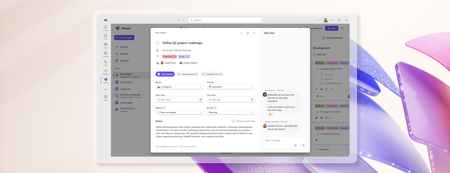
We’re excited to announce that a modernized user interface and new features are now rolling out to basic plans in both Planner in Teams and Planner for the web. The updated design offers enhanced navigation, responsive layouts, a new goals view for setting objectives and priorities, and task chat—one of your most requested features—to enable real-time collaboration and @ mentioning team members. This release aims to make planning easier for everyday users while preparing for future AI-powered capabilities. Our goal is to streamline planning by making it more intelligent and connected, so teams can concentrate on achieving results rather than managing tasks. What's new in Planner A refreshed design: With this rollout, users will be able to manage their plans in a cleaner, more modern interface that brings a more consistent planning experience across work. Planner’s new look was designed to feel simpler, allowing users to find what they need. It reduces visual clutter, improves layout and spacing, and creates a more focused workspace. Task chat with @ mentions: A new task chat is coming to basic plans, bringing real-time, threaded conversations directly into tasks, including @ mentions, rich formatting, emojis, and notifications to help keep decisions tied to the specific task at hand. Plan members who are @ mentioned in a task will receive a notification in their Teams Activity feed and via email and can select the notification which takes them directly to the task card for additional context. Note that previously, users received notifications for every task comment, but as a result of customer feedback, we now only send notifications to mentioned users. The ability to @ mention team members directly in a task has been a top request, and we’re excited to roll this out in a familiar, chat-based experience. Please note, premium plans will continue to utilize the existing task conversation experience. This will converge into the new experience at a later point in time. Goals view: Basic plans will now include a dedicated Goals view, allowing teams to set clear, well-defined objectives to help prioritize work. By connecting tasks to shared goals, teams achieve greater alignment, gain clarity on priorities, and track progress and outcomes—driving the plan forward together. Access to Goals view in basic plans requires either a Planner premium license or a Microsoft 365 Copilot license. Notes on availability Please note that not all users will see the new Planner interface at the same time. This refreshed interface, along with Task chat and Goals view, begins rolling out to basic plans today and will continue to roll out over the coming weeks. This is only the beginning This redesign lays the groundwork for many more improvements coming to Planner in the next few weeks and months, including: Project Manager agent in basic plans – to help with task execution and the creation of status reports. Custom templates. Planner in Outlook. Stay tuned for announcements regarding these updates and more aligned to our long-term vision for integrated work management. Feature availability, naming, and timelines are subject to change. Please refer to the Microsoft 365 Roadmap for the latest status. Addressing your feedback We heard your feedback about inconsistencies between basic and premium plans. This refresh starts closing those gaps, so features appear consistently across plans based on your license. For example, users with a Planner premium license will now see Goals in basic plans, and users with a Microsoft 365 Copilot license will soon have access to Project Manager Agent in basic plans as well. Tell us what you think about the new Planner interface, Task chat, and Goals view by selecting More (circled question mark icon) in the top right corner of the app, then selecting Feedback from the dropdown menu. We also encourage you to share any feature requests by adding your ideas to the Planner Feedback Portal. Your feedback helps inform our feature updates, and we look forward to hearing from you. Learn more Visit planner.cloud.microsoft to access Planner directly from your browser. Sign up to receive future communication about Planner. Learn more about Planner in our Frequently asked questions. Check out the Planner adoption page and Planner help & learning page to learn more about Planner. Visit the Microsoft 365 roadmap for feature descriptions and estimated release dates for Planner. Walk through the interactive demos for Project Manager Agent in Planner and Project Manager Agent skills in Teams meetings.41KViews9likes119CommentsWhat’s new in Microsoft Sentinel: May 2026
Welcome to the May edition of What's new in Microsoft Sentinel. This month’s updates focus on unified role-based access control (RBAC), ecosystem breadth, AI-agent security, and high-assurance identity. RBAC and row-level scoping are now generally available, giving security teams a single, granular permissions model across Sentinel and the Microsoft Defender portal and enabling multi-team SOC collaboration. The Sentinel connector catalog has passed 400 connectors, expanding coverage across Microsoft and third-party data sources and helping customers and partners onboard new data faster with the Codeless Connector Framework (CCF). The Agent 365 connector, now in public preview, brings AI agent telemetry into Sentinel data lake as first-class standardized signals so you can monitor agent behavior alongside identity, endpoint, and cloud activity. Finally, Entra Verified ID partner integrations in Microsoft Security Store are now generally available, delivering high‑assurance identity verification that makes account recovery after compromise far safer and significantly reduces the risk of re‑compromise. Read on for the full list of updates across Sentinel in May. Sentinel innovations: Sentinel SIEM Sentinel data lake Microsoft Security Store Sentinel SIEM Unified role-based access controls and row level scoping [Generally available] Sentinel now delivers general availability of two powerful access management capabilities: Unified RBAC and row-level data scoping. Together, these innovations provide a consistent, end-to-end model for controlling who can access data and what actions they can take — extending unified permissions management across the Defender portal while enabling granular, row-level visibility within a single Sentinel workspace. With Unified RBAC, organizations can simplify and centralize permissions across security workloads, reducing operational overhead, while row-level scoping enables secure collaboration across multiple teams by ensuring users only see data aligned to their role or scope. This milestone unlocks more scalable, multi-team SOC operations without the need for workspace segmentation, helping us to advance toward fully unified, granular access control across Microsoft Security. Tenant groups [Public preview] Managing security across multiple tenants just got simpler. Tenant Groups in the Microsoft Defender multi-tenant portal (MTO) give managed security service providers (MSSPs), cloud service partners (CSPs), and multi-tenant security teams a flexible way to organize tenants into logical groupings such as customer segment, geography, or operational priority, and instantly switch views with a single click. This streamlined experience reduces noise, improves investigation focus, and aligns to how teams actually work, all while respecting existing permissions and access controls. Learn more. Out-of-the-box integrations for Sentinel automation [Public preview] Out-of-the-box (OOTB) integrations for Sentinel automation brings a centralized catalog to easily discover, configure, and manage both Microsoft and third-party integrations. With simple, authentication-based setup, users can quickly add integrations and seamlessly incorporate them into playbooks. The experience places OOTB and custom integrations side by side, with enhanced with smart search, recommendations, and duplicate prevention to streamline automation workflows end to end. Learn more. UEBA enhancements [Public preview] Microsoft Sentinel UEBA continues to evolve with improvements that simplify management and expand detection coverage. A dedicated UEBA tab view in the Sentinel settings page consolidates UEBA and behaviors settings, making configuration easier to find and manage. Learn more. UEBA insights and anomalies now support the OktaV2_CL table alongside the existing Okta_CL table, extending anomalous activity and anomalous MFA failures detections to customers using the newer Okta connector format, without requiring new anomaly types. Learn more. UEBA extends GCP Audit Logs coverage with five anomaly detections for login activity, privileged actions, resource deployments, secret/KMS key access, and infrastructure usage. Learn more. Together, these updates make UEBA easier to operate while extending its visibility into identity and behavior signals from additional cloud and identity providers. Read the latest blog from the Microsoft Defender Research Team to learn more about Microsoft Sentinel UEBA and binary feature stacking, which uses clear binary signals to help establish behavioral context and inform investigation and detection decisions. Threat Intelligence – TAXII Export connector [Generally available] Sentinel supports threat intelligence export through the built-in Threat Intelligence – Trusted Automated Exchange of Intelligence Information (TAXII) Export connector, giving customers a standards-based way to share curated Structured Threat Information Expression (STIX) objects with supported TAXII 2.1 platforms. Configured from the Defender portal, the connector handles destination setup and intelligence delivery to external platforms. The capability supports cross-organization intelligence sharing for collective defense and centralized management in multi-tenant environments, with use cases across government, critical infrastructure, and large distributed organizations. Additional enhancements are planned, including more export options and expanded destination support. Learn more. Decision-stage resources for SIEM migration to Sentinel The AI-powered SIEM migration experience helps teams analyze detections, identify required data sources and connectors, and plan a phased move to Sentinel. But, customers still need help turning that analysis into a clear decision. To support that step, we’re introducing two new customer-facing resources: the Sentinel SIEM Migration Decision and Planning Guide, which explains the migration journey, outputs, and decision checkpoints before execution, and the Decision-Stage Customer FAQ, which answers common questions around disruption, cost, dual running, detection coverage, and delivery support. Together, these resources help make migration conversations more concrete and move teams more quickly from evaluation to a clearer, lower-risk next step. Learn more: Read the blog: AI-powered SIEM migration experience announcement Download the guide: Decision and planning guide Download the FAQ: Decision-stage customer FAQ Learn more: SIEM migration experience documentation Register for live AMA (Jun 23 at 9am PT): Live Microsoft Tech Community AMA on SIEM migration Sentinel data lake 400+ Sentinel data connectors The Sentinel connector catalog now includes 400+ connectors, providing broad, ready-to-deploy coverage across Microsoft and third-party data sources. Customers can flexibly ingest security data into Microsoft Sentinel analytics tier or the data lake tier. The Codeless Connector Framework (CCF) and VS code-based connector builder agent enables partners and customers to onboard new data sources faster and scale the catalog. Discover connectors in the Sentinel Content hub within the Defender portal or build custom connectors when needed. Learn more. Agent 365 connector [Public preview] Agent 365 connector streams AI agent telemetry from Agent 365 into Sentinel data lake, giving SOC teams visibility into agent behavior alongside identity, endpoint, and cloud signals. With the Agent 365 connector in place, Sentinel data lake becomes the system of record for agent security, turning activity such as data exposure or access drift into first-class security signals that analysts can correlate, hunt across, and investigate. Telemetry is normalized and to mapped to standard Advanced Security Information Model (ASIM) schemas, ready for analytics and detections, and end-to-end investigations can run through KQL, graph, and MCP-powered workflows. Install the connector with a single click from Sentinel Content Hub in the Defender portal. Learn more. CCF support for Azure Blob Storage [Public preview] Sentinel Codeless Connector Framework (CCF) supports Azure Blob Storage as a data source, providing an ingestion pattern designed for high-volume security data. Partners and customers can build CCF connectors that read from Blob Storage through a durable architecture that buffers spikes, handles backpressure, and reduces data loss risk during outages or throttling, making ingestion more reliable for variable or distributed pipelines. The pattern broadens compatibility with partners already streaming logs to Azure as part of their audit data delivery, with Cloudflare and Netskope as early adopters. App Assure further provides engineering-backed support for designing, validating, and remediating the Azure Blob Storage CCF connector integration. Learn more. Data filtering and splitting [Generally available] At RSAC, we announced built‑in filtering and splitting capabilities in Microsoft Sentinel, which is now generally available. As security teams ingest more data, it is important to optimize security data pipeline by controlling what data is ingested and in which tier. With filtering and splitting natively integrated into the Defender portal, security teams can shape data before it reaches Sentinel, without switching tools or managing custom JSON files. Using simple KQL‑based transformations directly in the UI, you can filter low‑value events and intelligently route data, making ingestion optimization faster, more intuitive, and easier to manage at scale. Filtering at ingest time allows you to remove low‑value or benign events to reduce noise, lower unnecessary processing, and ensure high‑signal data drives detections and investigations. Splitting enables intelligent routing of data between the analytics tier and the data lake tier based on relevance and usage. Together, these capabilities help you balance cost and performance while scaling data ingestion sustainably as your digital estate grows. Learn more. Transition your Sentinel connectors to the Codeless Connector Framework (CCF) [Action required] Azure has announced that the legacy Azure Data Collection API will be deprecated on September 14, 2026. Sentinel recommends customers review existing connectors and upgrade to the latest Codeless Connector Framework (CCF) versions to ensure continued access to the newest Sentinel capabilities. CCF delivers a fully managed SaaS experience with built-in health monitoring, centralized credential management, and improved performance. This enables partners and customers to onboard new data sources faster and at scale. Microsoft Security Store Entra Verified ID partner integrations via Security Store [Generally available] Security Store helps organizations secure one of the most critical steps in incident response: safe account recovery after compromise. Once a SOC team detects and contains a potential account takeover (ATO), restoring access requires high confidence that the user is legitimate. Through partner integrations with IDEMIA, AU10TIX, CLEAR, 1Kosmos, and WhoAmI, customers can extend Entra Verified ID with high-assurance identity verification (such as document and biometric checks) to validate users during recovery, onboarding, or helpdesk workflows. This helps replace weaker fallback methods that attackers often exploit, enabling SOC and IT teams to safely restore access while reducing risk of re-compromise. Learn more. Purview Data Security Triage Agent in Defender [Public preview] Security Store powers how customers discover and activate data security agents across Defender and Microsoft Purview, starting with the Data Security Triage Agent. This capability delivers AI-generated summaries and prioritization of Data Loss Prevention (DLP) alerts directly into Defender XDR, helping security teams reduce noise and focus on the incidents that matter most. By unifying discovery and activation through Security Store, customers can deploy data security agents in fewer steps and enable more integrated workflows across threat and data protection surfaces. Learn more. Additional resources Blogs and documentation: From idea to production: Building Security Store Advisor with an agentic SDLC Upcoming webinars: June 4: End-to-End Security in the Age of Agentic AI June 10: Deploy, optimize, and implement threat protection with Sentinel June 10: Security Foundations for AI Adoption June 24: Modern Security Made Simple: Stay Ahead of Threats with Sentinel Upcoming events: June 2–3: Microsoft Build, San Francisco (and free online) CEO Satya Nadella Day 1 keynote 90+ sessions, Microsoft Security experts onsite Register: build.microsoft.com Stay connected Check back each month for the latest innovations, updates, and events to ensure you’re getting the most out of Microsoft Sentinel. We’ll see you in the next edition!630Views3likes0CommentsWhat's new in Microsoft Teams | May 2026 - Build Edition
It's hard to believe May is over already! You may have noticed this edition of What's new in Teams is landing a few days later than usual — that's intentional. We're publishing alongside Microsoft Build, our annual developer conference where we showcase the latest in AI, agents, and the tools that help developers. It's one of the most energizing weeks of the year, full of announcements, hands-on sessions, and a first look at where the platform is headed. A lot of what's in this release ties directly to what's being unveiled on the Build stage, and I wanted to highlight a few Teams Platform features worth calling out: Linear, Cursor, and Atlassian Rovo agents in Teams — three powerful new partner agents that turn channel conversations into shipped code, filed issues, and updated project plans without ever leaving the chat. New Teams CLI — one command to register, configure, and deploy a Teams agent, so developers can spend their time on agent logic instead of managing complex processes Collaborative features for agents – our new agent capabilities include quoted replies to keep conversations anchored, slash commands to quickly take action in the flow of work, and expressive emoji reactions that add nuance without adding noise, all helping teams stay aligned and move faster in collaboration with agents. A few other highlights I'm especially excited about beyond Platform: New AI-generated Video recap in Teams turns meeting recordings into short, narrated highlight reels—so you can quickly catch up on what matters most without watching the full session. In Teams Phone, Brand Impersonation Protection alerts you in real time when a caller may be posing as a trusted brand like your bank or IT helpdesk, so you can decline or report the call with confidence. These are just a taste of what's new. Read on to see everything we've released in May across chat, meetings, phone, rooms, frontline, and more. Product areas covered in this update: (All features are generally available unless otherwise noted.) Teams Platform Chat and Collaboration Meetings Teams Phone Workplace - Places and Teams Rooms Fundamentals and Security Frontline workers Certified for Teams Devices Teams Platform Slash commands for agents- Public Preview Triggering an agent shouldn't break your flow. With slash commands, users can invoke agent actions, retrieve information, or kick off tasks directly from the compose box using simple "/" prompts — keeping agents one keystroke away in any chat or channel. Quoted replies for agents- Public Preview Threaded conversations are easier to follow when agents stay anchored to the right message. With quoted replies, your agent can now reference the exact message a user is responding to so context isn't lost as threads grow longer or branch into side discussions. Agents can also send quoted replies of their own, keeping multi-turn exchanges clear and traceable for everyone in the chat. Message Reactions for Agents – Public Preview Ever wish your agent could just give a thumbs-up instead of cluttering a thread with another reply? Now it can. Agents in Teams can now respond with emoji reactions the same way people do, matching the rhythm of the conversation with a lightweight signal instead of an extra message. Threads stay clean, exchanges feel more natural, and you get a clear acknowledgment without the noise. New Teams CLI Building an agent today means juggling registration, credentials, manifest creation, and deployment across multiple tools, slowing developers down before they even get to the interesting work. The new Teams CLI collapses all of it into a single command, working alongside coding agents to take a Teams agent from idea to running instance in minutes. By handling setup and diagnostics behind the scenes, developers can focus on agent logic instead of managing configuration complexity. Learn more here. Linear agent in Teams Software teams lose momentum every time a channel decision has to be manually translated into a Linear issue or project update. The Linear agent in Teams closes that gap by turning conversations directly into actionable work — creating issues, capturing context, and updating project workflows from inside the thread where the decision was made. The Linear agent is available now in the Microsoft Marketplace. Cursor agent in Teams Engineering work stalls every time you have to leave a Teams discussion to fix a bug or ship a feature in a separate tool. The Cursor agent in Teams keeps you in the flow: @mention it in any channel or chat to invoke Cursor's Cloud Agents directly inside the conversation, where it returns results with full context of the discussion. The result is a faster path from idea to production, without ever leaving Teams. The Cursor agent is available now in the Microsoft Marketplace. Atlassian Rovo agent in Teams Jumping between Teams, Jira, and Confluence to turn a chat decision into actual project work slows everyone down. The Atlassian Rovo agent in Teams brings AI-powered context and action across Jira, Confluence, and Teamwork Graph organizational data into your conversations — so you can go from a question in chat to creating Jira issues, drafting Confluence pages, and updating workflows in a single interaction. Rovo evolves Atlassian's previous Jira and Confluence apps into an orchestrating "uber agent" for Atlassian AI, now available in the Microsoft Marketplace. MCP servers/connectors discovery and connection UI from agent settings- Public Preview Connecting an agent to the right external system used to mean piecing together configurations from multiple places. Now, you can discover, connect, and manage MCP servers and connectors all from one unified experience inside agent settings in Teams — so it's faster and more secure to plug external data and services into agent workflows. Bot Detection - TAC Policy Bots and other automated participants are joining more meetings than ever, and organizers don't always know which attendees are human. With the new Bot Detection policy in the Teams Admin Center, IT admins can set tenant-wide rules for how automated participants are handled when they try to join. Organizers can see them clearly flagged in the lobby and make intentional decisions about admitting them, resulting in more predictable meetings and consistent admin controls across the organization. App centric management in Teams Admin Center to manage the Apps access for tenants, end-users, and groups in GCC In GCC environments, controlling who can install which Teams apps used to require broad permission policies that didn't scale well as app catalogs grew. With app-centric management, GCC admins can now set defaults for newly published apps and decide app-by-app whether everyone, specific users and groups, or no one, can install them. Existing app permission policies are migrated automatically, so current availability stays intact. Visual enhancements in adaptive cards Agent responses used to feel flat, with long walls of text and little room for users to drill into the details that matter. New visual TableSet, Accordion, and Loop components let agent builders structure responses into navigable tabs, expandable sections, and repeating content so users can scan and act on information the same way they would in a polished app. Expanded action capabilities such as Popover and richer content support through references and Citations round out the experience. Organization evaluation score for apps and agents- Public Preview IT admins used to manually review trust data for Teams agents and apps in the admin center to verify security, privacy, and compliance standards. This new feature enables admins to define their company's approval requirements once; the system then automatically assesses apps and agents, generating an evaluation score and detailed report per agent/app. This speeds up decision-making by clearly surfacing which ones meet all company standards and which need further review. M365 Agents Toolkit and Developer Portal Support for Agents in Gov Clouds Developers building for regulated customers used to face a choice: ship in commercial cloud, or rebuild from scratch for government environments. Now, the Microsoft 365 Agents Toolkit and Developer Portal are expanding support for building agents in Government Community Cloud (GCC), GCC High (GCCH), and DoD — so the same solution can reach highly regulated organizations without redesign or re-architecture. M365 certification bulk management IT admins today have to enable trusted third-party apps one at a time in the Teams admin center, a slow and repetitive process when working across hundreds of apps. This feature evolves the org-wide third-party app setting from a simple ON/OFF toggle into a granular dropdown with a new "Allow only Microsoft 365 certified apps" option, letting admins turn on every Microsoft-certified app across their tenant in a single click. As apps earn or lose certification, the platform keeps availability in sync automatically — no ongoing manual upkeep. Observability features for A365 Agents in Teams- Public Preview As more A365 agents act on behalf of users in Teams, IT needs more than just visibility and control—they need to understand how those agents are operating in real time. These new observability capabilities provide deep insights into agent activity, usage, performance, and interactions across Teams and the Microsoft 365 Copilot Agent Store. By surfacing real-time metrics and governance signals, admins can monitor behavior, identify issues, and ensure agents are operating securely, compliantly, and effectively at scale. A365 agents on Teams mobile- Public Preview Bring AI agents with you wherever work happens. A365 agents are now available on Teams mobile in public preview, so you can discover, chat with, and add approved agents to conversations and meetings from your phone, the same way you would from desktop. From the Teams mobile app store, browse the "Agents for your team" category, request an agent, and start delegating tasks on the go after admin approval. Enhanced Teams Store- Public Preview Finding the right agent in Teams just got easier, and knowing what it does is now instant. The enhanced Teams Agents & Apps Store solves both problems. Smarter search surfaces helpful suggestions that appear the moment you open the search box, and results update instantly as you type. Once you find what you're looking for, redesigned tiles, clickable sample prompts, and a personalized "Your Agents & Apps" view make it easy to evaluate an agent and put it to work right away. Chat and Collaboration Create workflows with slash commands Jumping out of a chat to update your status or schedule a message breaks your concentration just when you're trying to get something done. Now, you can stay in the compose box using slash commands. Type / on an empty line to interact with apps and agents, create and manage workflows, or run Teams actions like /busy, /goto, or /schedulemessage. Whether you're inserting a GIF or managing workflows, slash commands offer a consistent and efficient way to get things done without leaving your flow. Improved code readability with line numbers Pointing teammates to "the third line from the bottom" gets old fast when you're reviewing code in a chat. Teams now displays automatic line numbers in code blocks so you can reference specific lines naturally in reviews and discussions, and enhanced keyboard navigation lets you move through code without reaching for the mouse. Badging updates help find messages that count in the chat list That little badge on your Teams app icon tells you something needs attention, but tracking down exactly which message is driving it can take longer than you'd like. Now, unmuted chats show a purple indicator when they affect the badge. In addition, mentions, followed threads, and tag mentions display a purple number showing how many unread items are part of the count. Catch up on Teams conversations on mobile Catch up on everything that needs your attention in a single, unified view. Each conversation appears on its own swipeable card with full context and all the actions you need - reply, react, save, mark read/unread, follow/unfollow - to complete your triage. Simply tap the Catch up button at the top of your chat list to get started and get swiping! Learn more about Catch up. Quick access to read items from unread-only mode Unread-only mode keeps your chat list focused on what needs attention, but sometimes you still need to find a message you read earlier. Now, hovering over any section in unread-only view reveals an eye icon that opens a list of read chats and channels for that section, without leaving your unread view. Instant search results when typing in Teams Find in chat and channel Hitting Enter, scanning results, refining your query, and trying again is a slow way to find a message. Find in chat and Find in channel now show results instantly as you type, so you can refine on the fly and get to the right message faster. Advanced filters in Teams Find in chat and channel When the right message is buried under hundreds of others, scrolling isn't a search strategy. New filters in Find in chat and Find in channel let you narrow results by sender, date, attachments, or mentions directly from the right rail — accessible via Ctrl+F (Windows), Cmd+F (Mac), or the Find icon in any chat or channel header. Teams honors the Windows Do not disturb setting Setting Windows to Do not disturb but still getting pinged by Teams defeats the whole point of focus time. Teams integrates with the Do not disturb setting in Windows to help reduce interruptions during focused work. Teams notifications are paused when the Windows Do not disturb setting is turned on, and resume after it is turned off. Meetings Video recap Catching up on meetings just got a whole lot faster. Video recap turns your recorded Teams meetings into short, narrated highlight reels, pairing an AI-generated voiceover with real clips of the key moments, decisions, and shared visuals from the conversation. Whether you missed a meeting or just want to revisit the most important parts, video recap helps you quickly grasp the flow, tone, and outcomes without scrubbing through the full recording. Available to Microsoft 365 Copilot–licensed users on Teams for Windows, Mac, and the web, for recorded English-language meetings between 10 and 90 minutes. Ability to delete recap Cleaning up after a sensitive meeting used to mean deleting recording, transcript, AI summary, and notes from separate places, or asking an admin for help. Organizers can now delete all of it in one place from the recap page's More (…) menu. Shared files stay put in their original locations. It's a quick, confident way to support your retention practices — no admin setup required. Teams Phone Brand Impersonation Protection in Microsoft Teams Calling Stay one step ahead of scammers. Teams now detects and warns you when a caller may be impersonating a trusted brand—like your IT helpdesk, bank, or Microsoft Support—before you engage. When a potential threat is detected, you'll see an in-call alert with clear identity signals (such as "Scam suspected"), empowering you to decline, leave, or report the call instantly. No extra tools needed—protection is built right into your calling experience. It's proactive security that keeps your credentials, data, and organization safe without disrupting your workflow. Report a Suspicious Call in Teams Suspicious calls used to be easy to hang up on but hard to actually do anything about. Users can now report calls that appear unusual or suspicious directly in the Calls app history. After selecting, “Report call”, in the call’s additional options, users can add a reason to the report and have the option to block the caller. When a call is reported, the signal helps strengthen Microsoft’s detection systems to reduce future unwanted or malicious activity. By making it easy to report in the moment, users can contribute to ongoing threat protection while helping improve overall call security across the organization. Queues app for Teams Mobile Customer-facing employees can't always sit at a desk all day, but stepping away used to mean dropping out of the queue and missing calls. The Queues app — with advanced queue management and collaborative calling — is now supported on Teams mobile, so information workers like bank tellers or IT help desk representatives can stay opted in, review recent calls, and return missed customer calls from their phone. The result: faster response, fewer missed opportunities, and a more consistent customer experience away from the desk. Consult and merge a PSTN caller through DTMF Need to consult a subject matter expert in a private conversation before merging them into a meeting, but they're behind an auto attendant phone menu? Now you can. Meeting organizers can consult and merge PSTN callers into active Teams meetings, even when reaching them requires navigating Dual-Tone Multi-Frequency (DTMF) menus, so the right person joins the conversation without delays or call drops. Workplace - Places and Teams Rooms Enhanced media quality for Direct Guest Join in Teams Rooms on Windows You’ll notice media quality improvements including support for up to 16 participant videos (4×4 grid) available in May and simulcast streaming (June) when using Direct Guest Join. These updates make cross-platform meetings more immersive and reliable when joining Teams meetings from Zoom, Google Meet, or Cisco devices. Learn more. Miracast support for Teams Rooms on Windows devices including touch boards Cables and connectors slow down meetings, especially in flex spaces where guests and visitors need to share quickly. Teams Rooms on Windows all-in-one touch boards, now support Miracast for cable-free wireless screen mirroring alongside Teams Cast and HDMI ingest. Walk in, mirror your screen, present. Available with Teams Rooms Pro. Learn more. Multi-camera view support for GCC-H and DoD in Teams Rooms on Windows Remote participants in large rooms often miss what's happening because they're stuck looking at a single, fixed camera angle. GCC-H and DoD cloud customers can now use multi-camera views in Microsoft Teams Rooms on Windows, allowing remote participants to switch between multiple in-room camera feeds for improved visibility and engagement in larger spaces. Find camera requirements here. Available with Teams Rooms Pro. Learn more. Multi-stream IntelliFrame support for GCC-H and DoD in Teams Rooms on Windows In hybrid meetings, remote attendees often see in-room participants in a single distant frame— making it hard to read faces and engage. Multi-stream IntelliFrame, now available for GCC-H and DoD customers in Teams Rooms on Windows, sends a separate video feed of each in-room participant for far more inclusive hybrid conversations. Requires a compatible intelligent camera. Available with Teams Rooms Pro. Learn more. Book future meetings directly from Teams panels You can now make an upcoming meeting reservation from a Teams panel by browsing the calendar on the device and choosing any open time slot through midnight the next day. Add a guest during booking streamlining ad-hoc scheduling and coordination. Available with Teams Rooms Pro and Shared Device licenses. Learn more. Enhanced issue detection in Teams Rooms on Windows and auto-remediation with Teams Rooms Pro Management To minimize delays due to equipment issues, Teams Rooms on Windows proactively monitors room audio, video, and display signals to detect issues in meeting spaces. Teams Rooms Pro Management automatically remediates common issues that can be resolved through software, configuration changes, or device resets during nightly maintenance. This ensures users have reliable, ready-to-use meeting rooms, while IT admins benefit from reduced manual troubleshooting and increased uptime. Available for Teams Rooms Pro-licensed rooms. Learn more. Room health signals and notifications in Teams Rooms on Windows When critical issues impact room functionality, meetings can be delayed or derailed. Room health signals now trigger display of a banner notification on both the front-of-room display and console in Teams Rooms on Windows. Room health signals help get issues resolved quickly and ensure productive meetings. Available with Teams Rooms Pro. Learn more. Expanded access to the AI Assistant for all roles in the Teams Rooms Pro Management portal Admins now have broader access to the AI Assistant in the Teams Rooms Pro Management portal, no longer limited to global admin roles. Using role-based access controls (RBAC), admins see only rooms and devices they manage, improving visibility and support while adhering to security policies. Learn more. Fundamentals and Security Agent metadata visibility in Teams Admin Center Approving an AI agent for the organization used to mean piecing together what it could actually do from multiple places. IT admins can now view detailed agent metadata — capabilities, knowledge sources, and allowed actions — directly in the Teams Admin Center before approving or enabling agents. With this visibility centralized in one place, admins can understand what kind of agent they are approving and broaden rollout once they're certain agents meet their security and compliance standards. User-Reported Teams Message Security Signals in the Teams Admin Center Users flag suspicious messages every day, but those signals used to be hard for IT to act on at scale. Admins can now monitor user-reported security signals directly in the Teams Admin Center through the Security Message Violation report, surfacing flagged messages and false-positive reports in one centralized view, so security controls can be tuned to real-world threat exposure without leaving the admin center. Account switching for native Mac controls via dock and menu bar Juggling work, guest, and tenant accounts in Teams on Mac used to mean opening the full app every time you needed to switch. Now, account and tenant switching controls live directly in the macOS dock and menu bar — exactly where Mac users expect them — so toggling between organizations or accounts takes one click. Frontline workers Explore our learn docs for more information on all of our Teams for frontline solutions. Guided setup for Frontline Rolling Teams out to thousands of frontline workers used to mean stitching together onboarding, team structure, and pinned-app policies across multiple tools. Guided setup in the Teams Admin Center now walks admins through all of it in one place — making it easier to expand pilots, keep app layouts uniform, and track adoption with built-in insights. Learn more in the official documentation here or sign up here to explore additional deployment capabilities in private preview. Automatically fill open shifts with Smart Scheduling Smart scheduling in Shifts takes the manual effort out of building frontline schedules. Managers can automatically assign open shifts based on employee availability, scheduled time off, constraints such as maximum weekly or daily hours, and historical data about what shifts people usually work. Simply create open shifts for the required number of positions, select "Assign open shifts," and let Teams find the best match for each slot. Any shifts that can't be filled automatically are flagged for manual review, so managers stay in control while saving significant time. The result: faster, fairer schedules with less effort for managers and frontline workers alike. Deliver operational updates with the Communicator app Critical updates for frontline workers — safety alerts, training reminders, outage notifications — often get lost in long channel threads or scattered across other apps. The Communicator app in Microsoft Teams enables operations teams to deliver structured, actionable updates directly within the channels frontline workers already use. Whether sharing safety alerts, training reminders, or outage notifications, teams can publish consistent, easy-to-act-on messages, track delivery and engagement, and communicate seamlessly without requiring additional apps or workflow changes. Sign up for the limited public preview: aka.ms/CommunicatorApp Run hands-free site walkthroughs with voice in Frontline Agent Typing inspection notes on a phone while walking a site is slow, error-prone, and can be a safety risk. Frontline Agent enables voice-driven site walkthroughs, allowing workers to complete inspections, capture issues, and document compliance tasks using natural speech. Inputs are automatically transcribed into structured digital records, reducing manual data entry, speeding up reporting, and ensuring critical insights from the field are consistently captured. Sign up for the limited public preview: aka.ms/SiteWalkthrough Certified for Teams Devices Barco ClickShare Hub Core with Logitech Meetup 2 The ClickShare Hub Core and Logitech MeetUp 2 bundle is a solution certified for Microsoft Teams Rooms designed for small meeting rooms. ClickShare Hub Core enables one-click, wireless conferencing and 4K content sharing with one next-gen ClickShare Button (featuring Wi-Fi 6E and USB-C DisplayPort™). Built on the Microsoft Device Ecosystem Platform (MDEP), it’s designed to deliver a secure meeting experience. The widely recognized Logitech MeetUp 2 video bar delivers USB-connected high-quality audio and video with AI-enhanced performance. For meeting participants, this bundle ensures intuitive and engaging meetings. For IT managers, it pairs ease of installation and eco-friendliness with enterprise-grade security, compliance, and standardized integration. Learn more Jabra Scheduler Jabra Scheduler is a smart, professional room scheduling panel that makes finding and booking meeting rooms fast. With an integrated lightbar and intuitive touchscreen, it’s certified for Microsoft Teams. Easy to deploy, simple to scale, and built to unlock more productive meetings across your workplace. Learn more Neat Pad Pro Neat Pad Pro elevates how meetings come together. As a meeting room controller or scheduling display, it gives teams effortless command and IT a simple, scalable way to manage rooms. With a 10-inch touchscreen, built-in microphones, and intelligent processing, it enhances audio, sharpens control, and improves accessibility—so meetings run more smoothly and sound clearer. Learn more Jabra Speak2 40 Built for hybrid workers who take meetings from anywhere, the Jabra Speak2 40 delivers true full-duplex audio with a 50mm speaker, wideband sound, and four advanced beamforming microphones — connecting via either USB-C or USB-A on the same cable. Learn more. Owl Labs Meeting Owl 5 Pro The Meeting Owl 5 Pro is redefining the center-of-table experience by making hybrid meetings simpler and smarter than ever. Our next-gen camera, speaker, and microphone device powers enterprise-grade hybrid meetings with an easy-to-use BYOD solution. It combines 360-degree 4K video with award-winning automatic speaker-switching software to enable effective hybrid collaboration in any space. Features native HDMI and Ethernet ports for a seamless single-cable BYOD experience built with security and reliability in mind. Compatible with all video conferencing platforms, including Microsoft Teams, Zoom, and many others. Learn more.1.9KViews0likes0CommentsWhat’s New in Microsoft 365 Copilot | May 2026
Welcome to the May 2026 edition of What's New in Microsoft 365 Copilot! Every month, we highlight new features and enhancements to keep Microsoft 365 admins up to date with Copilot features that help your users be more productive and efficient in the apps they use every day.9.7KViews7likes3CommentsTutorial: Get started with Azure WAF investigation Notebook
In this blog, we introduce you to the Azure WAF guided investigation Notebook using Microsoft Sentinel, which lets you investigate an Azure WAF triggered SQL injection attack event log. This Azure WAF Notebook queries incidents related to Azure WAF SQL injection events in your Microsoft Sentinel workspace. In addition to guiding you through the Azure WAF SQL injection incidents, the Notebook correlates the incidents with Threat Intelligence, maps them to the Sentinel entity graph, and gives you a complete picture of the attack landscape. Furthermore, it will guide you through an investigation experience to determine if the incident is a true positive, false positive or benign positive using Azure WAF raw logs. Upon confirmation of a false positive, the Azure WAF exclusions are applied automatically using Azure WAF APIs.11KViews2likes2CommentsWhat's New in Microsoft Teams | April 2026
Our team just wrapped up the M365 Community Conference in Orlando, FL, and it was an incredible way to close out April! Our teams were energized by connecting with, listening to, and sharing what’s new with many of you: the builders, innovators and icons of intelligent work. Thank you to everyone who attended, and we can’t wait to see even more of you at next year’s conference! As for this month’s Teams updates, we remain focused on bringing you features that can make collaboration more intelligent, secure, and seamless—whether you’re working with AI, managing calls, or enabling hybrid teams at scale. Across meetings, calling, and the workplace, you’ll find improvements designed to remove friction, from smarter call handling with Copilot call delegation, to Interpreter agent enhancements that support proper attribution for sign-language users in meetings, and updated room booking and live transcription in meetings in Teams Rooms. In another new update, Targeted messages for agents now enables your agents and bots to send targeted, private, temporary updates to specific users in chats, channels, and meetings, without interrupting everyone else. We’re also delivering meaningful security and compliance enhancements, including sensitivity label inheritance for meeting recordings and Loop notes, improved admin visibility into external collaboration risks, and new user‑reported security signals in the Teams admin center. These updates help organizations protect information end to end, without slowing down teamwork. Together, these updates reflect our continued focus on helping teams collaborate more effectively, confidently, and securely—every day. Read on for all the latest updates! Feature categories: (All features listed are generally available unless otherwise noted) Chat and Collaboration Meetings Teams Phone Workplace Fundamentals and Security Platform Frontline Workers Certified for Teams Devices Chat and Collaboration Targeted messages for agents on Teams Send private, targeted messages from agents or bots to a specific person in a channel, group chat, or meeting—without distracting everyone else. Agents can share timely prompts, reminders, or next steps only with the people who need them, keeping conversations focused and clutter-free. As situations change, agents can update or remove these messages so guidance stays relevant and accurate. To enable targeted messaging for agents visit this page: Targeted Messages - Teams | Microsoft Learn Simplified Teams app bar The Teams app bar has been simplified to help you focus on what matters. App labels are hidden by default to reduce visual noise, the overflow menu is less cluttered, and you can now choose to show or hide the app bar to create more space for your work. New controls for quick views in the Teams chat list Positioned at the top of the chat and channels list in Teams, quick view controls provide fast access to mentions, followed threads, and more. You can choose when and how quick views are displayed – and can collapse the section at any time. Experts & verified answers in communities Help community members quickly identify trusted responses with Community Experts and verified answers. In the Engage app for Android and the Engage app in Teams for iOS and Android, members can request expert status, which admins can review and assign. Approved experts are highlighted with a special label next to their names and, along with admins, can endorse accurate and credible responses. Once marked, these responses receive a “verified” label, making it easy for viewers to recognize correct answers and rely on trusted expertise across community conversations. Microsoft Viva: Engage community membership management in Teams for iOS & Android Manage your communities on the go. Community admins can now add or remove members directly from the Teams mobile app on iOS and Android. Keep your Viva Engage communities up to date—anytime, anywhere. Meetings Consecutive interpretation in Interpreter agent Consecutive interpretation is a new mode in Microsoft Teams Interpreter that helps participants collaborate more naturally in meetings with two spoken languages. With consecutive interpretation, the translation begins after each speaker finishes speaking. This creates a turn-based flow that more closely reflects how people naturally communicate in multilingual conversations. In addition, consecutive interpretation brings Interpreter onto the meeting stage for everyone to see and hear, making it easier to follow, participate, and stay aligned. With this update, Interpreter now supports two modes: real-time simultaneous interpretation, launched last year, and the new consecutive interpretation mode designed for back-and-forth conversations—now available in public preview. Accurate transcript attribution for meetings with sign language interpreters Transcripts now attribute contributions to the original participant using sign language, not the interpreter. This ensures ideas and decisions are correctly credited to the person who shared them, including in Copilot chat and meeting recap. Spoken language detection is now automatic Spoken language detection is now fully automatic. Teams will automatically detect each speaker’s spoken language and update it in real time as the conversation evolves. Manual spoken language selection will no longer be available. This applies to both live captions and transcripts when Interpreter is enabled or when multilingual speech recognition is turned on in meeting options, helping deliver more accurate language recognition and a more consistent multilingual meeting experience. Teams meeting Notes, powered by Loop Teams meeting Notes, powered by Loop, are now available for instant meetings that started via ‘Meet now’ from the calendar. Notes are Loop components in Teams meetings and chats that allow end users to co-create and collaborate on their meeting agenda, notes, and action items that can be co-authored and edited by everyone. Since Notes are Loop components, they stay in sync across all the places they have been shared. Once added, meeting notes can also be shared and edited in the Loop app in your web browser. Resize the top video gallery in Teams meetings to see more people when content is being shared. Now you can resize the video gallery at the top of your meeting window when content is being shared, making it easy to see more participants alongside the presentation. Simply drag the divider between the shared content and the video gallery to adjust how much space each takes up. Whether you're in a small team sync or a large all-hands meeting, this gives you the flexibility to keep more faces visible while staying focused on what's being presented, helping everyone feel seen and engaged. Available on Windows desktop and Mac. Teams Phone Copilot call delegation - Frontier Incoming calls don’t wait for a break in your day. Whether you’re leading a meeting or juggling back-to-back commitments, every new call creates the same dilemma: answer and risk losing momentum, or ignore it and risk missing something important. Microsoft 365 Copilot can now help answer your incoming Teams calls and schedule follow-up appointments on your behalf. After turning on the experience in the Teams Calls settings, call delegation gathers context from callers that it shares with you to help you decide whether to pick up. It can also set up follow-up appointments via Microsoft Bookings so that you remember to meet with the callers that matter most. This experience is available to users with a Microsoft 365 Copilot license through Frontier early access program. Learn more about call delegation and the Frontier program. Teams Phone user multi-line Many organizations need a way for a single person to represent multiple departments or regions in calling without juggling different Teams accounts, devices, or complicated routing workarounds. Teams Phone user multi-line now enables Teams administrators to configure and assign up to 10 phone numbers to an individual user through Teams admin center. Supported across desktop and Teams phone devices, user multi-line is ideal for individuals who handle multiple roles or who call contacts across different geographies. For example, a communications director supporting both press relations and analyst relations can take inbound calls for either function and place outbound calls using the appropriate number, all within a unified Teams experience. Or a customer success manager covering North America and Europe can use dedicated regional numbers so that customers reach the right line and interact with a familiar local caller ID, helping build greater trust. Learn more. Workplace - Rooms Ad-hoc room reservation from Teams Rooms on Android console With Teams Rooms on Android consoles, you can quickly book a meeting room for immediate use, helping to avoid scheduling conflicts and ensure uninterrupted spontaneous meetings. Available in Teams Rooms Pro-licensed rooms. Learn more. Live transcription in Teams Rooms on Android View and control live transcription during a meeting from a Teams Rooms on Android device. The real-time transcript includes speaker names and timestamp. You can adjust settings such as spoken language, translated language, and whether both original and translated transcripts are displayed side by side on the front of room display. This feature is available in Teams Rooms Pro. Learn more. Digital signage in Teams Rooms on Android As with Teams Rooms on Windows, IT Admins can now set up Teams Rooms on Android to show dynamic content on the front-of-room display when not in use. Configuration is available for tenant-wide and room-specific settings via the Teams Rooms Pro Management portal. The feature supports select third-party digital signage partners like Appspace and XOGO, and is included with Teams Rooms Pro. Learn more. Fundamentals and Security Sensitivity label inheritance for meeting recordings and Loop meeting notes Meeting recordings and Loop meeting notes now automatically inherit your meeting’s sensitivity label. When admins enable label inheritance in the sensitivity label policy, any labeled meeting applies the same label to its MP4 recording and meeting notes, ensuring access controls and protections like data handling rules and encryption carry forward consistently. This also ensures that Copilot and agent responses based on transcripts and notes accurately reflect the meeting’s sensitivity, keeping confidential content protected end to end. External Domains Anomalies Report The External Domains Anomalies Report helps admins proactively identify unusual or risky interactions with external organizations in Microsoft Teams. By analyzing communication trends and detecting sudden spikes, new domains, or abnormal engagement patterns, it provides early visibility into potential data-sharing or security risks. As external collaboration continues to grow, this report offers admins actionable insights to protect their tenants while maintaining productive cross-organization collaboration. The report is available in the Teams Admin Center. It’s updated daily, and admins can select a time range to view (for example, the past 24 hours or past 7 days). User reported security signals in Teams admin center This update brings end‑user security reporting into Teams Admin Center. Admins can now view and download signals from messages users report as “a security concern” or “not a security concern” within TAC Protection reports, helping them identify trends and fine‑tune policies and responses. Microsoft Teams VDI Optimization for Omnissa on Windows Microsoft Teams has long supported Omnissa in Virtual Desktop Infrastructure (VDI) environments; this feature advances that support by bringing Omnissa deployments onto Microsoft’s modern Teams VDI optimization architecture. With this update, organizations running Teams on Omnissa can take advantage of the new optimization to deliver improved performance, greater feature parity with the native desktop client, and a more reliable experience for meetings, audio, video, and screen sharing—while continuing to benefit from the centralized management, security, and scalability of VDI. Trigger workflows from messages on Teams mobile (Android and iOS) Users can now trigger Microsoft Teams workflows directly from a message on Teams mobile for Android and iOS, enabling common automation scenarios - such as approvals, notifications, or follow‑up actions - without switching devices or leaving the conversation. This update extends workflow message actions to mobile, improves UI reliability, and helps close parity gaps between desktop and mobile experiences for Teams workflows. Prevent screen capture for iOS Prevent screen capture is now available on the Microsoft Teams iOS app. When enabled, this setting helps protect your meeting by preventing the meeting window from being captured in screenshots. This capability builds on the Prevent screen capture experience already available on Desktop Windows and Android mobile app, helping organizations apply more consistent protections across supported Teams clients when discussing confidential topics. Mac desktop, virtual desktop, and older clients aren't supported. People on these platforms will not be able to turn on their own video, share their screen, or see other's videos or shared screens. Platform Python support in the Microsoft Teams SDK Teams SDK is now available in Python. With the Teams SDK, developers have a production‑ready foundation for building intelligent collaboration‑centric experiences directly within Microsoft Teams. And now, Python developers can take full advantage of that platform, using the same SDK surface that powers modern Teams apps and agents. You can learn more about the Python release of the Teams SDK in the Getting Started | Teams SDK documentation. Frontline workers Pilots Kickstart frontline innovation with the Frontline Hub in Teams admin center. Create pilots in just a few clicks—choose the capabilities you want to test, select workers and managers, and monitor adoption through real-time usage insights. With built-in management controls, you can easily iterate as you learn: adjust features, update participants, and expand channels—all without slowing down your rollout. Deploy at scale Deploying Microsoft Teams to your frontline workforce is now faster and more seamless than ever. A new guided deployment experience in the Teams admin center lets you roll out a standardized Teams setup—whether you’re expanding a pilot or launching organization‑wide—in just a few steps. From one place, you can add frontline workers, organize them into teams, and apply a consistent pinned app configuration that updates automatically as your needs evolve. Once deployed, the Frontline hub gives you centralized control to manage teams, adjust pinned apps across your entire frontline workforce, and monitor adoption with built‑in usage insights. This streamlined approach helps you scale confidently, maintain consistency, and keep every frontline worker connected with the tools they rely on. Certified for Teams Devices Cisco Express Install Solutions for Teams Rooms Cisco Express Install solutions are fully integrated meeting room packages designed for fast, large‑scale deployment of Microsoft Teams Rooms. These Cisco‑certified bundles combine Cisco Room Bar or Room Bar Pro devices with Samsung commercial displays and Ashton Bentley freestanding mounts. Ergonomically designed for optimal camera angles and viewing height, the solutions deliver a consistent, familiar Teams Rooms experience across locations while enabling rapid global rollout with minimal on‑site effort. Two bundles (each available in either First Light or Carbon color) feature the Cisco Room Bar package and are designed for huddle spaces, focus rooms, and small meeting rooms: Cisco Room Bar with 43” display Cisco Room Bar with 55” display Two bundles (each available in either First Light or Carbon color) feature the Cisco Room Bar Pro package and are designed for small and mid-sized meeting rooms: Cisco Room Bar Pro with 75” display Cisco Room Bar Pro with two 55” displays One bundle (available in either First Light or Carbon color) features the Cisco Room Kit EQ package and is designed for midsize, large, and extra-large meeting rooms: Cisco Room Kit EQ with 105” display Neat Express Install: TAA-Compliant Neat Board Pro with Heckler Stand Neat Board Pro with the Heckler Stand is TAA compliant, making it easier for US federal government agencies, higher‑education institutions, and other public‑sector organizations to bring award‑winning video collaboration solutions into their workspaces. Together, they provide cutting‑edge audiovisual and AI‑driven capabilities—supporting high‑performance cameras, far‑field microphones, and immersive 4K touch experiences designed for medium to large spaces. Learn more. Jabra Express Install: PanaCast 40 VBS Bundles (LG displays available in: 43″ / 50″ / 55″ / 65″) The Jabra PanaCast 40 VBS teams up with Salamander Designs Acadia Tabletop Stand and LG 4K UHD displays to transform huddle rooms, focus rooms, and small meeting spaces into smart collaboration zones—fast. With panoramic video, intelligent audio, and clean cable management, this Express Install bundle is designed for sub‑90‑minute installation with no wall drilling or rewiring required. It’s a true plug‑and‑play Teams Rooms solution that’s easy to deploy, simple to manage, and ready for AI‑powered productivity. Learn more. Jabra PanaCast 40 VBS + Control IP PanaCast 40 VBS brings everyone into the picture with its 180° field‑of‑view and 4K precision—capturing every participant clearly, even those close to the screen or seated in the corners. AI‑powered video features track speakers, adjust views, and keep conversations natural for more productive meetings. Setup is quick, so rooms are ready in minutes. Built on the Microsoft Device Ecosystem Platform for robust security, and managed through Jabra+, it enables remote, real‑time device updates to keep collaboration seamless. Learn more. MAXHUB XBoard V7 (Display available in 55″ and 75″) The MAXHUB XBoard for Microsoft Teams Rooms is a Teams‑certified interactive display running Windows 11 IoT that delivers an all‑in‑one solution for meeting rooms and open spaces. Its Trident Lens triple‑camera system ensures clear, dynamic video calls, while Audio Fence technology filters background noise for crisp communication. With a high‑color‑gamut 4K/5K non‑glare display, flexible sizing, optional on‑seat touch console, and remote device management via MAXHUB Pivot, XBoard V7 offers a reliable, scalable collaboration experience with easy plug‑and‑play setup and a three‑year warranty. Learn more. MAXHUB Universal Console TCP33T MAXHUB Universal Console TCP33T is a Teams Rooms‑certified touch console designed for Microsoft Surface Hub and MAXHUB XBoard. It allows users to join meetings, invite participants, control meetings, and share content without leaving their seats—supporting smooth, focused, and efficient collaboration across meeting spaces. Learn more. MAXHUB XBar V70 Kit The MAXHUB XBar V70 Kit with console is a Teams‑certified videobar built on MDEP Android and designed for medium to large meeting rooms. It features a 200‑megapixel quad‑lens camera system, 16 beamforming microphones, AI‑enhanced audio, and FlexMount for simple installation. Built on Microsoft‑certified Android security architecture, the solution enables secure Teams integration, streamlined deployment, and remote device management through MAXHUB Pivot, with included service coverage to simplify ongoing IT operations. Learn more. Barco ClickShare Hub Pro and Huddly ®C1™ for Teams Rooms on Android The ClickShare Hub Pro and Huddly C1 bundle is a certified Microsoft Teams Rooms solution for small‑to‑medium meeting rooms. ClickShare Hub Pro enables one‑click, wireless conferencing and 4K content sharing with next‑generation ClickShare Buttons and dual‑screen support, all built on the Microsoft Device Ecosystem Platform for secure meetings. Huddly C1 adds modular, AI‑driven video and intelligent audio that scales from standalone to multi‑camera setups—delivering engaging meetings for participants and flexible, enterprise‑grade management for IT teams. Learn More Yealink UH42 / UH44 and WH68 Headsets Yealink expanded its portfolio of Teams‑certified headsets with wired UH42 and UH44 models and the WH68 Hybrid headset with charging stand. These devices are designed for professional use across open offices and hybrid work scenarios, offering clear audio, comfortable form factors for all‑day wear, and flexible connectivity options to support modern Teams calling and meetings. Yealink UH 42 and 44 (Mono) Yealink UH 42 and 44 (Dual) Yealink WH685.9KViews2likes6CommentsThe Microsoft Copilot Data Connector for Microsoft Sentinel is Now in Public Preview
*Please note that this connector is now in GA status as of March, 2026* We are happy to announce a new data connector that is available to the public: the Microsoft Copilot data connector for Microsoft Sentinel. The new Microsoft Copilot data connector will allow for audit logs and activities generated by different offerings of Copilot to be ingested into Microsoft Sentinel and Microsoft Sentinel data lake. This allows for Copilot activities to be leveraged within Microsoft Sentinel features such as analytic rules/custom detections, Workbooks, automation, and more. This also allows for Copilot data to be sent to Sentinel data lake, which opens the possibilities for integrations with custom graphs, MCP server, and more while offering lower cost ingestion and longer retention as needed. Eligibility for the Connector The connector is available for all customers within Microsoft Sentinel, but will only ingest data for environments that have access to Copilot licenses and SCUs as the activities rely on Copilot being used. These logs are available via the Purview Unified Audit Log (UAL) feed, which is available and enabled for all users by default. A big value of this new connector is that it eliminates the need for users to go to the Purview Portal in order to see these activities, as they are proactively brought into the workspace, enabling SOCs to generate detections and proactively threat hunt on this information. Note: This data connector is a single-tenant connector, meaning that it will ingest the data for the entire tenant that it resides in. This connector is not designed to handle multi-tenant configurations. What’s Included in the Connector The following are record types from Office 365 Management API that will be supported as part of this connector: 261 CopilotInteraction 310 CreateCopilotPlugin 311 UpdateCopilotPlugin 312 DeleteCopilotPlugin 313 EnableCopilotPlugin 314 DisableCopilotPlugin 315 CreateCopilotWorkspace 316 UpdateCopilotWorkspace 317 DeleteCopilotWorkspace 318 EnableCopilotWorkspace 319 DisableCopilotWorkspace 320 CreateCopilotPromptBook 321 UpdateCopilotPromptBook 322 DeleteCopilotPromptBook 323 EnableCopilotPromptBook 324 DisableCopilotPromptBook 325 UpdateCopilotSettings 334 TeamCopilotInteraction 363 Microsoft365CopilotScheduledPrompt 371 OutlookCopilotAutomation 389 CopilotForSecurityTrigger 390 CopilotAgentManagement These are great options for monitoring users who have permission to make changes to Copilot across the environment. This data can assist with identifying if there are anomalous interactions taking place between users and Copilot, unauthorized attempts of access, or malicious prompt usage. How to Deploy the Connector The connector is available via the Microsoft Sentinel Content Hub and can be installed today. To find the connector: Within the Defender Portal, expand the Microsoft Sentinel navigation in the left menu. Expand Configuration and select Content Hub. Within the search bar, search for “Copilot”. Click on the solution that appears and click Install. Once the solution is installed, the connector can be configured by clicking on the connector within the solution and selecting Open Connector Page. To enable the connector, the user will need either Global Administrator or Security Administrator on the tenant. Once the connector is enabled, the data will be sent to the table named CopilotActivity. Note: Data ingestion costs apply when using this data connector. Pricing will be based on the settings for the Microsoft Sentinel workspace or at the Microsoft Sentinel data lake tier pricing. As this data connector is in Public Preview, users can start deploying this connector right now! As always, let us know what you think in the comments so that we may continue to build what is most valuable to you. We hope that this new data connector continues to assist your SOC with high valuable insights that best empowers your security. Resources: Office Management API Event Number List: https://learn.microsoft.com/en-us/office/office-365-management-api/office-365-management-activity-api-schema#auditlogrecordtype Purview Unified Audit Log Library: Audit log activities | Microsoft Learn Copilot Inclusion in the Microsoft E5 Subscription: Learn about Security Copilot inclusion in Microsoft 365 E5 subscription | Microsoft Learn Microsoft Sentinel: What is Microsoft Sentinel SIEM? | Microsoft Learn Microsoft Sentinel Platform: Microsoft Sentinel data lake overview - Microsoft Security | Microsoft Learn8.9KViews0likes1Comment