virtual machine
365 TopicsUnderstanding device redirection changes in Hyper-V Virtual Machine Connection enhanced session mode
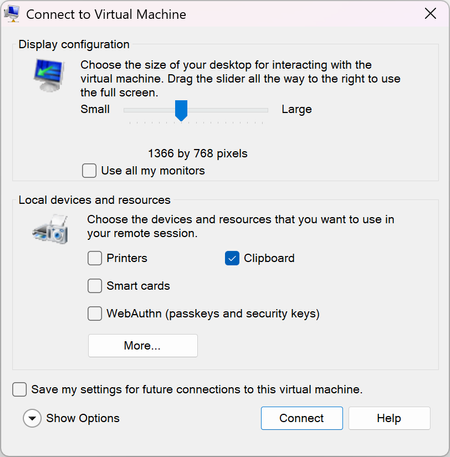
Understanding device redirection changes in Hyper-V Virtual Machine Connection Starting with the October 2026 security update, Hyper-V Virtual Machine Connection (VMConnect) changes how it shares your local devices and resources with a virtual machine (VM) when you connect in enhanced session mode. The connection dialog now shows the most sensitive resources up front, and several of them are no longer shared by default. This article explains what changed, why, and what to do. What is enhanced session mode? When you connect to a VM from Hyper-V Manager or by running vmconnect.exe, Virtual Machine Connection opens a window that shows the VM's screen. If the VM's operating system supports it, VMConnect can use enhanced session mode, which uses the Remote Desktop Protocol (RDP) over the VMBus channel between the host and the VM. Enhanced session mode adds features such as resizable displays, multiple monitors, and redirection: sharing parts of your local computer with the VM, such as your clipboard, printers, smart cards, or security keys. The dialog looks like this: Basic session mode connects to the VM's console without RDP and doesn't share these resources. This update doesn't change basic session mode. Why this changed In enhanced session mode, the VM acts as the Remote Desktop server and your computer acts as the client. Any resource you redirect is available to software running inside the VM. Before this update, VMConnect shared your clipboard, printers, smart cards, and WebAuthn (Windows Hello and security keys) with the VM by default. Smart card and WebAuthn redirection appeared only on a secondary page (Show Options > Local Resources > More...). If you connected to a VM by selecting Connect, you shared those credential channels without being shown that you did. That's a problem if the VM isn't fully trustworthy. For example, it might run untrusted software, be used for malware analysis or testing, be managed by someone else, or be compromised. Software in such a VM could: Use your redirected smart card or Windows Hello for Business credentials to authenticate as you to other systems. Send WebAuthn (passkey or security key) prompts to your computer that look legitimate, to try to get you to approve a sign-in for an attacker. Send print jobs to your local printers. Interact with the client-side components on your host that handle each redirected device. This exposes more of your host to an attacker in the guest. A VM is a security boundary. Sharing a resource across that boundary should be a choice you make, not a default you never see. IMPORTANT: Only share local resources with VMs you trust. If you don't know whether you need a resource in the VM, leave it unchecked. You can turn it on later. What changed After you install this update, when you connect to a VM in enhanced session mode, the Virtual Machine Connection dialog shows a checkbox for each of the following resources directly, without selecting Show Options: Clipboard Printers Smart cards WebAuthn (Windows Hello or security keys) The default for each local resource is now: Resource Default before this update Default after this update Where it appears after this update Clipboard On On Connection dialog Printers On Off Connection dialog Smart cards On Off Connection dialog WebAuthn (Windows Hello or security keys) On Off Connection dialog Drives Off Off Show Options > Local Resources > More... Other supported Plug and Play (PnP) devices Off Off Show Options > Local Resources > More... USB devices Off Off Show Options > Local Resources > More... Audio playback On On Show Options > Local Resources > Remote audio Audio recording (microphone) Off Off Show Options > Local Resources > Remote audio Clipboard stays on by default because copying and pasting between the host and the VM is the most common reason people use enhanced session mode. Turning it off by default would disrupt the most people. It's now shown in the dialog, so you can turn it off for any VM where you don't need it. Audio playback stays on because it only sends sound from the VM to your speakers. It doesn't give the VM access to your data or credentials. If you select Connect without changing anything, you get clipboard sharing and audio playback, and nothing else. Saved settings and when you see the dialog VMConnect can save your connection settings separately for each VM. To do this, select Save my settings for future connections to this virtual machine in the connection dialog. After the update, you see the dialog once for each VM, even if you saved settings before. Earlier saved settings were made when most of these options were hidden, so VMConnect asks you to confirm your choices again. The update never turns on a resource that you turned off. If your saved settings for a VM had a resource turned off, it stays off. After you confirm and save your choices, VMConnect uses them for later connections to that VM and doesn't show the dialog again. VMConnect shows the dialog again if a later update adds a new type of redirection. If you don't save your settings, the dialog appears each time you connect, with the defaults in the preceding table. To change saved settings for a VM, do one of the following: In Hyper-V Manager, select the VM, and then in the Actions pane, select Edit Session Settings.... Run vmconnect.exe <ServerName> <VMName> /edit. NOTE: On high-DPI displays, the connection dialog might get shorter when you select Show Options, because the extra settings move into tabs. This is expected. Understanding redirections Each redirected resource gives software in the VM access to part of your computer. For detailed descriptions of the risk of each resource type, see Understanding redirections. That article covers Remote Desktop Connection, but the risks apply equally to VMConnect enhanced sessions. The following summary covers the resources this update changes: Clipboard What it does: Shares copied text, images, and files between your computer and the VM. Risk: Software in the VM can read anything you copy on your computer while connected, including passwords. It can also put content on your clipboard that you might later paste into a local app. Printers What it does: Makes your local printers available to apps in the VM. Risk: Software in the VM can send print jobs to your printers and interacts with the printer redirection components on your computer. Smart cards What it does: Lets the VM use smart cards and Windows Hello for Business credentials on your computer. Risk: Software in the VM can use your credentials to authenticate as you, to the VM or to other systems the VM can reach. WebAuthn (Windows Hello or security keys) What it does: Lets the VM use your local passkeys, Windows Hello, and FIDO2 security keys to complete web sign-in challenges. Risk: Software in the VM can send sign-in prompts to your computer and try to get you to approve a sign-in for an attacker. TIP: When a WebAuthn request comes from a remote session, Windows says so in the sign-in prompt. If you see that and you didn't start a sign-in inside the VM, don't approve it. How to stay safe Only redirect what you need. Leave everything else unchecked. Be most careful with smart cards and WebAuthn. Turn them on only for VMs you control and trust, and only when you need to sign in from inside the VM. Turn off clipboard sharing for untrusted VMs, such as VMs you use to test unknown software or analyze malware. Use basic session mode for VMs you don't trust. In the Virtual Machine Connection window, select View, and then clear Enhanced session. Review your saved settings for VMs you connect to often, by using Edit Session Settings.... Frequently asked questions I selected Connect, and now I can't print or use my smart card or security key in the VM. What happened? Printers, smart cards, and WebAuthn are no longer shared by default. Disconnect, reconnect, and select the resources you need in the connection dialog. To keep your choice for that VM, select Save my settings for future connections to this virtual machine. To change saved settings, use Edit Session Settings... in Hyper-V Manager. Why am I seeing the connection dialog for a VM where I saved my settings? After this update, VMConnect asks you once for each VM to confirm which resources to share, because earlier choices were made when most of these options were hidden. After you confirm and save, you won't see the dialog again for that VM. Does this update affect basic session mode? No. Basic session mode doesn't redirect local resources, and its behavior doesn't change. Does this update affect connections to a VM by using Remote Desktop Connection (mstsc.exe)? No. This update changes only Virtual Machine Connection. Remote Desktop Connection has its own warnings and defaults for redirection when you open RDP files. For more information, see Understanding security warnings when opening Remote Desktop (RDP) files. Does this update affect Windows Admin Center, System Center Virtual Machine Manager, or other tools? Yes, the update is in vmconnect.exe and Microsoft.Virtualization.Client.dll. Any tools that open vmconnect.exe will see this change. Which versions of Windows get this change? The October 13, 2026 security update makes this change on the following versions: Windows 11 Windows 10 Windows Server 2025 Windows Server 2022 Windows Server 2019 Windows Server 2016 Windows Server 2012 R2 (Extended Security Updates)670Views3likes0Comments
Hyper-V Ubuntu VM: Memory Demand Different at Hyper-V and OS Level
Hello all, Looking for advice and insight for a strange problem we are experiencing. We have a cluster of Windows Server 2025 hosts, on which we are using Hyper-V manager to run mostly Windows VMs. To access these VMs, we are using Apache Guacamole which is hosted on a Ubuntu VM on our cluster. We originally assigned 32GB memory to this VM. Recently, we have noticed an increased memory demand for this VM at the Hyper-V level which prompted us to increase the assigned memory of the VM to 64GB. Despite this, the memory demand has continued rising despite no apparent change in the usage of Guacamole. When logging into the VM and observing the memory usage here, the VM is using no where near the amount that is assigned. As shown in the attached images which were taken at the same time: Memory Demand Hyper-V Level (And seems to be continuing to increase...): Memory Demand OS Level: This morning, the memory demand spiked to 95GB on Hyper-V but at OS level was only 12GB and we were forced to restart the VM. The biggest concern is where this discrepancy is coming from and the potential unnecessary disruptions that will be caused from having to restart/rebuild the VM. Has anyone experienced this sort of issue before and found a fix? Can anyone suggest how to debug this issue? TIA57Views0likes0CommentsAzure Update Management Centre (Preview) - Security Intelligence Update for Microsoft Defender AV
Afternoon all, We are exploring using Update Management Centre and scheduling the update of our fleet of IaaS servers. Monthly patching is fairly easy to understand and deploy. Our dev machines are successfully patching. However, what is the implementation pattern for updating Defender AV signatures? In a WSUS deployment, this would likely be a separate job that runs hourly. However, UMC doesn't allow that level of frequency, nor does the maintenance Window accept anything less than 1 hour. Many thanks Paul593Views1like1CommentCannot Connect to VMs in Windows Admin Center
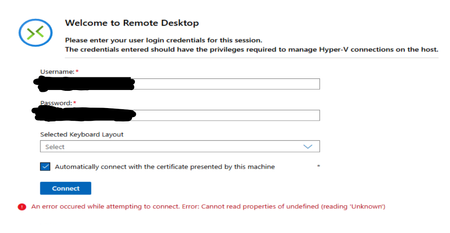
Hi all, I have 1 Server Cluster made up of 3 Server 2022 Hosts on which there is a large number of VMs running on Hyper-V. The typical process for accessing the VMs has been through Windows Admin Center, which is hosted on one of the VMs in the cluster. Around 1 week ago, it was no longer possible to connect to the VMs through Windows Admin Center as an infinite loading screen was presented. Sometimes, the following error shows up in VMConnect: The cluster and servers are still connected to WAC and all the VMs that are expected are present on WAC. Since then, the following things have been attempted: - Restart all servers - Rebuild WAC on Current VM - Build WAC on Fresh VM with the same and different network configuration, using current (2606) and previous (2511) versions of WAC - Build WAC on one of the hosts All these attempts result in the same error as seen before. Has anyone experienced this issue before? Or does anyone have any advice? Thank you in advance!Solved1.4KViews2likes13CommentsUnable to Uninstall Security Update (KB5094128) on Azure Hosted Windows Server 2022 VM
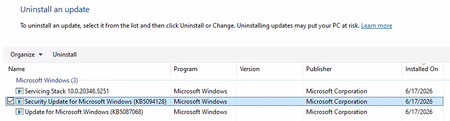
Hi All, I'm building up a system on Azure of Windows Server 2022 VMs for a PoC. Each Windows Server 2022 VM has been created using a company hardened golden image. After configuring the VM successfully, I am unable to run a software. Through research, the solution to run the software is to uninstall 'Security Update for Microsoft Windows (KB5094128)'. The issue is that I cannot uninstall the update normally. I have looked up various solutions and the following have been unsuccessful: Attempt #1 Powershell (Admin): sfc /scannow wusa /uninstall /kb:5094128 Result: Error 0x800f0905. Attempt #2 Powershell (Admin): Dism /Online /Cleanup-Image /CheckHealth Dism /Online /Cleanup-Image /ScanHealth Dism /Online /Cleanup-Image /RestoreHealth wusa /uninstall /kb:5094128 Result: No corruption detected, error 0x800f0905. Attempt #3 Powershell (Admin): net stop wuauserv net stop cryptSvc net stop bits net stop msiserver ren C:\Windows\SoftwareDistribution SoftwareDistribution.old ren C:\Windows\System32\catroot2 catroot2.old net start wuauserv net start cryptSvc net start bits net start msiserver wusa /uninstall /kb:5094128 Result: All services started and stopped. Error error 0x800f0905. Attempt #4 Windows Update Troubleshooter: Running the windows update troubleshooter gives the following output. The event viewer is suggesting there is a corrupted file error, but as seen above nothing is wanting to remove that file. Does anyone have any other options they could suggest? Or has anyone had success with this issue before? Is it a lost cause as we have to use company hardened golden images? Any suggestions would be appreciated!436Views0likes2CommentsXXX virtual machines should enable Azure Disk Encryption or EncryptionAtHost.
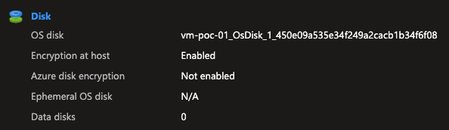
Hello everyone, I'm facing issues related to a policy: Linux virtual machines should enable Azure Disk Encryption or EncryptionAtHost. Windows virtual machines should enable Azure Disk Encryption or EncryptionAtHost. After enabling EncryptionAtHost, it appears as encrypted in the portal. However, the policy does not recognize that it is encrypted and shows it as non-compliant. The same happens when enabling Azure Disk Encryption (ADE): the policy still indicates that it is non-compliant. Has anyone else experienced this?1.4KViews0likes3Comments
Azure VM can't connect to FileShare
Hi guys, I am trying to connect an Azure VM (other subscription) to an Azure Storage Account (FileShare). I am using the "Enabled from selected virtual networks and IP addresses" and already add the public IP of the VM but when I try to map the File Share on Azure VM, I receive this error: CMDKEY: Credential added successfully. New-PSDrive : Access is denied At line:5 char:5 + New-PSDrive -Name Q -PSProvider FileSystem -Root "\\xxxxxxxx... + ~~~~~~~~~~~~~~~~~~~~~~~~~~~~~~~~~~~~~~~~~~~~~~~~~~~~~~~~~~~~~~~~~ + CategoryInfo : InvalidOperation: (Q:PSDriveInfo) [New-PSDrive], Win32Exception + FullyQualifiedErrorId : CouldNotMapNetworkDrive,Microsoft.PowerShell.Commands.NewPSDriveCommand If I permit all public connections everything works fine and I am able to map the FS also in an other VM that is in the same subscription and is permitted with VNET is able to connect too.3.7KViews0likes2Comments
Network Monitoring
Hi, I recently applied Network Security Groups on Virtual Networks (NSG). Now my question is, is it possible to monitor / record the network traffic? For example, I've configured many rules on the NSG, now a application on a Server won't work and my first guess is the NSG is blocking the communication. How do I see now which port the application is using so I can set a new rule to the NSG? I know when you already know the port you can check it in Network Watcher "IP flow verify and NSG diagnostics" as a whatif state. Traffic Analytics isn't the right answer too or am I seeing it wrong? Vnet Flow Logs should be the right thing. I configured it, applied traffic analytics and a account storage. Applied it for testing on a nic but I don't see anything practical for my use? The only thing Iwish is to see live or logged the traffic if the NSG blocked anything and troubleshoot.927Views0likes5CommentsCustomer Offerings: Hyper-V - Implementation, Migration, and Management
Happy April everyone! Brandon here, back once again to talk to you about a couple of new offerings that have just been released to assist our Unified customers with their on-premises virtualization needs! I continue to have the privilege of leading a great program and team helping customers to migrate from VMware to more cost-effective and/or modern solutions. These new offerings are <drum roll>: Hyper-V - Implementation, Migration, and Management Azure Local - Implementation, Migration, and Management NOTE: These offerings do not provide hands on keyboard support, do not create custom documentation for customers, and cannot provide direct support for any 3 rd party products that may be used in the process of migrations. Many customers are taking a closer look at Microsoft Hyper‑V as a strategic alternative to traditional virtualization platforms. Whether driven by changing licensing models, cost optimization, or the need for deeper hybrid cloud integration, a successful transition requires more than a technology shift—it requires a structured, outcome‑focused approach. While we are providing these new offerings to customers, you do also have the option of more extended engagements as well that are broader in scope and more tailored to the end goals while we work side by side with you. If you are a Unified customer and looking to move off of VMware to Hyper-V, or you just need help with your on-premises Microsoft virtualization technologies in general, have your account manager (CSAM) reach out to me! Planning to go at it alone?? I’m starting here for a very good reason… Virtually (no pun intended) every environment reviewed by my team (and that is a LOT) that was set up for a VMware migration, will have configuration issues, many times warranting a complete redesign and re-deployment. Problem 1: There are some potentially significant differences between the way VMware and Hyper-V are architected from the start, especially in areas of networking and storage, where mimicking methods used in the VMware world can actually lead to performance degradation in your target Hyper-V environment. Problem 2: To achieve feature parity, or near feature parity, your management method must also change. Additionally, if you are converting/migrating to Hyper-V, the available methods need to be determined, the terminology and functional differences identified and learned, well, honestly, I could go on for awhile on this, but I’ll spare you until we talk… Problem 3: Perhaps the most obvious is that this may be a new platform for your team, and its important for them to gain experience through guided actions and knowledge transfer on the fly for those questions they really have, which is exactly what we aim to provide in guiding implementations and migrations! You mentioned management and conversion tools, what do you mean?? Hyper‑V has several methods for management, which can vary based on the feature needs and environment size. As a simple example, if I have 1500 virtualization hosts and 30,000 virtual machines spread out globally, its probably not going to be as efficient to manage everything only through locally available consoles. The capabilities of these management methods are continuing to grow and improve based on customer feedback, along with feedback from the field team. Let’s take a quick look at these options: Native Windows tools: Hyper-V management console, Failover Clustering management console, Server Manager, etc This management method is typically used for small labs or smaller production environments (for migrations/conversions these methods do not provide feature parity with VMware). System Center Virtual Machine Manager (SCVMM) This management method is fully supported for environments of all sizes. For migrations/conversions this method provides feature parity with VMware for management and features, along with offering VMware migration/conversion capability (offline). If you are already using any product from the System Center suite (SCCM, SCOM, SCORCH, SCSM, or DPM) then this can prove to be a great no cost option for you! Windows Admin Center: Administration Mode (aMode) This management method is fully supported for environments of all sizes, however, is not designed as an infrastructure wide virtualization management method, but for server management and administration. If your environment isn’t extremely large, and VMware feature parity is not a necessity, this can provide a great no cost option for management of your physical and virtual servers. In addition, this method provides an online conversion option (currently public preview), allowing for a more seamless migration from VMware. Windows Admin Center: Virtualization Mode (vMode) (currently public preview) This management method is fully supported for environments of all sizes, and is designed solely for the purpose of managing the Hyper-V virtualization infrastructure, tying together the primary needs for virtualization fabric into an easy to navigate web-based UI. Azure You can Arc enable any Windows host or virtual machine and have a method of management and integration with cloud based services. In addition, these can work in conjunction with all of the above options to improve your management experience for your platform, and allows for the easy implementation and integration of many cloud based technologies (such as Hyper-V replica backups to ASR) NOTE: You can learn more about Windows Admin Center evolution here: Windows Admin Center Architectural Changes | Microsoft Community Hub A Structured Engagement Model Successful Hyper‑V implementations are built around a guided engagement model rather than a one‑size‑fits‑all checklist. Each engagement is tailored to the customer environment, acknowledging that differences in scale, workloads, hardware, and operational maturity directly influence the migration approach. The framework emphasizes collaboration, clarity of expectations, and incremental progress instead of disruptive “lift‑and‑shift” execution. Whether we are talking about a migration from another virtualization platform, or simply trying to reduce costs by implementing a new virtualization infrastructure, we’re here to help! Key Phases of a Hyper‑V Implementation and/or Migration Most Hyper‑V engagements progress through a common set of phases: Engagement scoping and technical discovery to understand goals and current state (this is the conversation I, or one of the TZ Leads in the VMware Migration Program have with customers) Planning and design aligned to business and operational outcomes, with a limited scope Deployment and configuration validation to ensure platform readiness Security and migration testing to reduce risk and confirm workload compatibility Optional feature enablement, including Azure Arc, to extend governance and management While these phases provide structure, the sequence and depth of each stage are adapted based on the customer environment and objectives. Key Outcomes for Customers Organizations that engage in Hyper-V implementation or migration efforts commonly achieve: Deeper familiarity with Microsoft virtualization technologies Successful deployment of PoC, pilot, or production environments Validated test migrations of virtual machines Identification and resolution of technical blockers Increased confidence in operational readiness These engagements are advisory and collaborative in nature, prioritizing customer enablement and success. Knowledge Transfer and Operational Readiness A central focus of a Hyper‑V engagement is ensuring that IT teams are prepared to operate the platform long after deployment completes. Knowledge transfer is embedded throughout the engagement through working sessions and direct participation in implementation activities. This approach helps organizations move confidently into steady‑state operations without relying on long‑term external support. As I mentioned above, if you do feel you will need longer term support, we have your back on that front as well. Looking Beyond Migration A Hyper‑V migration is often the first step in a broader transformation journey. Many organizations use this transition to enable hybrid management, strengthen security posture, and prepare for future application or cloud modernization initiatives. When approached strategically, Hyper‑V becomes a platform for long‑term innovation, not just a replacement hypervisor. Conclusion Moving from VMware to Hyper‑V is not simply a technical migration—it is an opportunity to modernize how infrastructure is managed and governed. With structured planning, guided execution, and a focus on operational readiness, organizations can transition with confidence to a virtualization platform built for today’s hybrid cloud realities and tomorrow’s growth. Thanks for reading, and maybe we’ll talk soon!