updates
8 Topics
Addressing PHP2Shell CVE-2026-109618 and CVE-2026-109619: upgrade guidance and Azure WAF mitigations
Written in collaboration with yuvalpery and Gunjan Jain Introduction Today, two critical remote code execution (RCE) vulnerabilities were disclosed in PHP. We strongly recommend that customers upgrade to a patched version of PHP as soon as possible. Upgrading is the only way to fully remediate these vulnerabilities. Read more on the PHP official website. Microsoft has been part of the coordinated industry response to these vulnerabilities, working alongside the PHP Foundation, Wiz, security researchers, and other industry partners to help protect customers. Azure Web Application Firewall (WAF) has developed mitigations against known exploitation patterns to provide an additional layer of protection while customers apply the PHP security updates. These protections are intended to complement patching and are not a replacement for it. About the vulnerabilities: CVE-2026-109618 - RCE via OOM corruption CVE-2026-109619- RCE via stale global state Both vulnerabilities can be exploited over the network without privileges or user interaction, with a high potential impact on confidentiality, integrity, and availability. The vulnerabilities relate to PHP handling of memory when a request terminates abnormally, for example due to memory exhaustion or a fatal error. Under certain conditions, improper memory handling could allow an attacker to achieve remote code execution. Fixed versions: 8.5.12, 8.4.27, 8.3.36, 8.2.35. Refer to vendor guidancefor patching of different versions of PHP. Recommended action: upgrade PHP We recommend that customers: Upgrade all PHP deployments to a patched version, including virtual machines, containers, base images, and platform runtimes. We suggest prioritizing internet-facing workloads. Rebuild and redeploy container images that include their own PHP runtime, since updating the host does not update PHP inside an image. Migrate to a supported PHP branch if the branch currently in use no longer receives security fixes. Treat the Azure WAF mitigations below as a temporary, supplementary measure. They address a specific technique and do not remediate the underlying vulnerabilities. Azure WAF protection If you are unable to upgrade PHP to a patched version immediately, apply the following mitigations in the interim - Azure Front Door WAF: Apply the mitigation using custom rules for request-side mitigation and enable the managed rule for response-side mitigation. Application Gateway WAF: Apply the mitigation using custom rules for request-side mitigation and enable the rewrite rule for response-side mitigation. Application Gateway for Container WAF: Apply the mitigation using custom rules for request-side mitigation. See below sections for details. Mitigation using custom rules These custom rules can help reduce exposure to selected request patterns associated with exploitation techniques for these vulnerabilities. Depending on application traffic, the rules may result in false positives and affect legitimate requests. They are intended as temporary mitigations and do not replace the need to upgrade PHP. Learn more: Azure WAF custom rules for PHP2Shell mitigation. Request-side signals alone may not be sufficient to reliably identify certain exploitation attempts. Signals in the server response can provide additional evidence that malicious activity has occurred, enabling more targeted mitigation with higher confidence and lower false positives. For this vulnerability, Azure WAF identifies known malicious patterns in the session and removes the potentially malicious elements from the response before it reaches the client. This provides an additional layer of protection for supported exploitation scenarios, while patching PHP remains necessary to fully address the underlying vulnerability. Azure Front Door WAF: managed rule A managed rule to handle potential attack vector in response is currently rolling out for Azure Front Door WAF, expected to complete October 28. Once the rule is available, its details are as follows: Rule group: MS-ThreatIntel-Response-CVEs Rule ID: 99006001 Default state: disabled. Customers need to enable the rule. Supported rulesets: DRS 2.0, 2.1 and 2.2. Unlike other WAF rules, this rule does not block or challenge any traffic. When the rule identifies malicious signals in the session that provides strong evidence of exploitation, it removes the potentially malicious elements from the response while leaving the remainder of the response unchanged. Mitigation for this rule takes effect only when the rule action is set to Block on anamoly. Please note that the response side mitigation does not generate WAF log entries or hit counts. Application Gateway WAF: rewrite rule Customers can apply an interim mitigation now using the HTTP header rewrite capability of Application Gateway, which is available on v2 SKUs. A WAF managed rule for Application Gateway is expected to roll out at a later date. Until then, we recommend the following rewrite rule: 1. Create a rewrite rule in a rewrite set associated with your routing rule(s). 2. Add a condition that evaluates the Set-Cookie response header against the following regular expression: ^PHPSESSID=(?:[a-zA-Z0-9-]|%2[Cc])*(?:[^a-zA-Z0-9;%-]|%(?!2[Cc]))+[a-zA-Z0-9-]*[^;]+; 3. Set the action to delete the matching Set-Cookie response header. Alternatively, the header can be set to a replacement value of your choice. Please note that setting a value overwrites the entire header, including attributes such as Path=/;. Additional considerations: The rule applies only to a Set-Cookie header that matches the pattern. Other Set-Cookie headers in the same response are not affected. We recommend validating the rule on a non-production gateway before broader deployment. For further information, see Rewrite HTTP headers and URL with Azure Application Gateway. Application Gateway for Containers (AGC): A WAF managed rule for Application Gateway for Containers is expected to roll out at a later date. In the interim, customers can apply the custom rules. Application Gateway for Containers does not support regex-based rewrite rules on HTTP response. Summary Service Available protection Recommended action Azure Front Door WAF Custom rules, managed rule 99006001 rolling out, expected to complete by 28 October 2026; mitigation using high confidence signals without blocking traffic. Upgrade PHP to a patched version. If you are unable to patch, apply custom rules in the interim. Application Gateway WAF Custom rules, header rewrite mitigation available now; managed rule expected to roll out later. Upgrade PHP to a patched version. If you are unable to patch, apply custom and rewrite rule in the interim. Application Gateway for Containers Custom rules, managed rule expected to roll out later. Upgrade PHP to a patched version. If you are unable to patch, apply custom rules. Conclusion Following PHP security guidance and upgrading to a patched version is the recommended and complete remediation. Azure WAF mitigations can help reduce exposure during the upgrade period, and we encourage customers to upgrades at the earliest opportunity. Changelog 10/21/2026 9:00 PM PST – Updated with additional guidance around custom rules 10/22/2026 9:00 AM PST – Updated rule rewrite regular expression20KViews1like3CommentsPublic Preview: Managed Identity support for graphical session recording
Overview Azure Bastion provides secure RDP and SSH access to Azure virtual machines directly via the Azure portal or via the native SSH/RDP client already installed on your local computer. Today, we are introducing public preview for managed identity support for session recording, giving administrators a seamless, identity-based way to authenticate Bastion when writing recordings to a designated storage account. Why Managed Identities? With managed identity support, Bastion authenticates directly to your storage account using an Azure identity, no additional credentials to configure or manage. You can use either a system-assigned or user-assigned managed identity depending on your needs. Authentication is handled automatically through Microsoft Entra ID, which means setup is straightforward: enable the identity, assign a role, and point Bastion at your storage container. For organizations operating at scale across many Bastion deployments and regions, this identity-based approach removes the need to manage credentials, aligns with Zero Trust principles, and lets you control access centrally through Azure RBAC. Getting Started in Azure Portal Prerequisites Ensure that Azure Bastion is deployed with the Premium SKU Ensure that a storage account with a dedicated container for session recordings is created Ensure that the storage account has the required CORS policy configured. Click here to set up the storage account for session recordings Ensure that users who need to view recordings have the Storage Blob Data Reader role on the storage account Steps Navigate to your Bastion resource in the Azure portal. Select Identity (Preview) in the left pane and turn the Status to On to enable a system-assigned managed identity. Wait for the configuration to complete. Select Azure role assignments, then select Add role assignment (Preview). Assign the Storage Blob Data Contributor role scoped to your storage account. Select Save, then navigate to the Configuration blade. Under Session Recording Configuration, select System Assigned Managed Identity and enter the Blob Container URI for your storage container. Navigate to the Session recordings blade to view and play back recorded sessions. Next Steps Learn more about configuring session recording with managed identities here and keep up to date with all things Azure Bastion in our What's New page.980Views0likes0CommentsPublic Preview: Custom WAF Block Status & Body for Azure Application Gateway
Introduction Azure Application Gateway Web Application Firewall (WAF) now supports custom HTTP status codes and custom response bodies for blocked requests. This Public Preview feature gives you more control over user experience and client-side handling, aligning with capabilities already available on Azure Front Door WAF. Why this matters Previously, WAF returned a fixed 403 response with a generic message. Now you can: Set a custom status code (e.g., 403, 429) to match your app logic. Provide a custom response body (e.g., a friendly error page or troubleshooting steps). Ensure consistency across all blocked requests under WAF policy. This feature improves user experience (UX), helps with compliance, and simplifies troubleshooting. Key capabilities Custom Status Codes: Allowed values: 200, 403, 405, 406, 429, 990–999. Custom Response Body: Up to 32 KB, base64-encoded for ARM/REST. Policy-level setting: Applies to all blocked requests under that WAF policy. Limit: Up to 20 WAF policies with custom block response per Application Gateway. Configure in the Azure Portal Follow these steps: Sign in to the https://portal.azure.com. Navigate to your WAF Policy linked to the Application Gateway. Under Settings, select Policy settings. In the Custom block response section: Block response status code: Choose from allowed values (e.g., 403 or 429). Block response body: Enter your custom message (plain text or HTML). Save the policy. Apply the policy to your Application Gateway if not already associated. Configure via CLI az network application-gateway waf-policy update \ --name MyWafPolicy \ --resource-group MyRG \ --custom-block-response-status-code 429 \ --custom-block-response-body "$(base64 custompage.html)" Configure via PowerShell Set-AzApplicationGatewayFirewallPolicy ` -Name MyWafPolicy ` -ResourceGroupName MyRG ` -CustomBlockResponseStatusCode 429 ` -CustomBlockResponseBody (Get-Content custompage.html -Encoding Byte | [System.Convert]::ToBase64String) Tip: For ARM/REST, the body must be base64-encoded. Best practices Use meaningful status codes (e.g., 429 for rate limiting). Keep the response body lightweight and informative. Test thoroughly to ensure downstream systems handle custom codes correctly. Resources Configure Custom Response code Learn more about Application Gateway WAF865Views0likes0CommentsPrescaling in Azure Firewall is now generally available
Azure Firewall protects your applications and workloads with cloud-native network security that automatically scales based on your traffic needs. Today, we’re excited to announce the general availability of prescaling in Azure Firewall – a new capability that gives you more control and predictability over how your firewall scales. Why pre-scaling? Today, Azure Firewall automatically scales in response to real-time traffic demand. For organizations with predictable traffic patterns – such as seasonal events, business campaigns, holidays, or planned migrations – the ability to plan capacity in advance can provide greater confidence and control. That’s where prescaling comes in. With prescaling, you can: Plan ahead– Set a baseline number of firewall capacity units to ensure capacity is already in place before demand rises. Stay flexible – Define both minimum and maximum capacity unit values, so your firewall always has room to grow while staying within your chosen bounds. See clearly – Monitor capacity trends with a new observed capacity metric and configure alerts to know when scaling events occur. You can think of it as adding extra checkout counters before a holiday rush – when the customers arrive, you’re already prepared to serve them without delays or bottlenecks. Example scenarios E-commerce sales events – Scale up before a holiday shopping promotion to handle the surge in online buyers. Workload migrations – Ensure sufficient capacity is ready during a large data or VM migration window. Seasonal usage – For industries like education, gaming, or media streaming, pre-scale ahead of known peak seasons. Getting started in Azure Portal Navigate to your Azure Firewall resource in the Azure Portal. Select Scaling options in settings. By default, every Azure Firewall starts in autoscaling mode. To enable prescaling, simply switch to pre-scaling mode in the Azure Portal and configure your desired capacity range: Minimum capacity: 2 or higher. Maximum capacity: up to 50, depending on your needs. Monitor the scaling behavior with the observed capacity metric. Billing and availability Pre-scaling uses a new Capacity Unit Hour meter. Charges apply based on the number of firewall instances you configure. Standard: $0.07 per capacity unit hour Premium: $0.11 per capacity unit hour ✨ Next steps Prescaling gives you predictable performance and proactive control over your firewall, helping you confidently handle the traffic patterns that matter most to your business. 🚀 Try prescaling today and share your feedback with the team. Learn more about how to configure and monitor this feature in the Azure Firewall prescaling documentation.1.8KViews0likes0CommentsOptimize Azure Firewall logs with selective logging
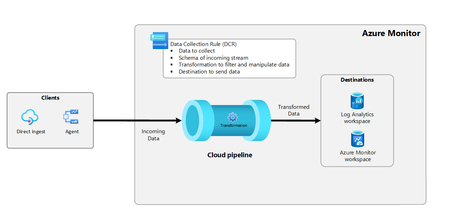
A common question from customers is whether Azure Firewall supports filtering or selecting which logs are sent to a Log Analytics workspace. This concern usually stems from the high cost of storing large volumes of data — especially in environments where the firewall inspects substantial amounts of network traffic. Azure Firewall now supports ingestion-time transformation of logs in Azure Log Analytics. This capability introduces selective and advanced filtering, giving customers more control over what data is collected and analyzed. In this blog post, we’ll explore a major new capability: Azure Firewall now supports ingestion-time transformations in Log Analytics — enabling flexible, cost-efficient logging through selective data collection. Why does it matter? For many enterprise customers, the cost of ingesting Azure Firewall logs into Log Analytics — especially at scale — can be significant. Depending on the logging mode (Basic or Analytics), ingestion costs can be substantial, potentially making it challenging to expand logging coverage across additional workloads. With ingestion-time transformations, users can filter logs by rows, columns, timestamps, and more — and apply transformations before ingestion. This ensures that only relevant and critical data is stored, helping reduce costs while retaining the necessary telemetry for analysis, threat detection, and compliance. Customer benefits Security monitoring: Log only suspicious traffic for more targeted threat detection. Cost optimization: Avoid ingesting and storing unnecessary data. Compliance: Use DCR (data collection rules) to filter and route logs to meet audit/reporting needs. Incident response: Focus on logs that matter, accelerating investigation time. Custom alerts: Build insights on top of curated, high-value logs. What are transformations in Azure Monitor? Ingestion-time transformations in Azure Monitor allow you to filter or modify incoming telemetry before it reaches your Log Analytics workspace. This happens in the cloud pipeline — after the data source (such as Azure Firewall) sends its logs, but before those logs are ingested and stored. Transformations are defined using DCR and written in Kusto Query Language (KQL). Each transformation runs against incoming records individually, letting you precisely control what gets stored – and what doesn’t. For example, you might collect only entries where the action column contains the word “deny”. That filter can be applied at ingestion time, so only those critical logs are stored. The diagram below shows how this works end-to-end, from data source to filtered ingestion. To learn more and estimate potential processing charges, refer to the official documentation. Transforming Azure Firewall logging In this section, we’ll walk through a few real-world use cases shared by customers — including how to create a DCR based on specific filtering criteria. Important: Ingestion-time transformations for Azure Firewall logs are supported only when using resource-specific logs. If you’re using legacy diagnostic settings, this capability is not available. To enable transformations, ensure your firewall is configured to send logs using the Azure Firewall resource-specific log schema. First, navigate to your Log Analytics workspace and locate the table where your Azure Firewall logs are stored (e.g., AZFWApplicationRule). Click the three-dot menu (…) on the right and select “Create transformation”. Creating a transformation is a 3 steps-process. Step 1 – Basics: Create a DCR to define how incoming data is processed and specify where it should be stored. Step 2 – Schema and transformation: Use the Transformation Editor to write a KQL query that filters the incoming data based on your criteria. Step 3 – Review: Review the table name, DCR name, and KQL query before clicking “Create”. This summary ensures everything is configured correctly. For more information on how to create a DCR, refer to the official documentation. Use case 1: Excluding alerts from low priority IDPS signatures This DCR transformation filters and reshapes incoming Azure Firewall IDPS logs before they're ingested into a Log Analytics workspace. source | where Action !contains "alert" and Severity != 3 | project TimeGenerated, Protocol, SourceIp, SourcePort, DestinationIp, DestinationPort, Action, SignatureId, Description, Severity Here's a breakdown of what it does: source: This refers to the incoming data stream — in this case, the AZFWIdpsSignature table (intrusion detection/prevention logs from Azure Firewall). | where Action !contains "alert" and Severity != 3: This line filters out any log entries where the Action contains "alert" (non-blocking detection events). Any entries where Severity equals 3 (which represents low severity events). The result: We’re keeping only more actionable or higher-severity entries that don’t just raise alerts but may involve blocks or higher-severity behaviors (e.g., deny actions, critical or warning severities). | project ...: The project statement selects and forwards only the specified columns to the Log Analytics workspace. When you run a query in your Log Analytics workspace, you’ll notice that only the specific columns defined in your transformation’s project statement are available — and they appear in the exact order specified in the query. Use case 2: Filtering out unnecessary logs (trusted or testing networks) This DCR transformation filters out log entries from specific source IP address ranges before they're ingested into Azure Monitor. In this scenario, the 10.0.200.x and 10.0.300.x ranges might represent trusted or test network segments that generate high volumes of traffic — traffic that don’t need to be logged. By excluding these IPs at ingestion time, you can significantly reduce unnecessary log volume and associated costs. source | where not( SourceIp startswith "10.0.200." or SourceIp startswith "10.0.300." ) | project TimeGenerated, Protocol, SourceIp, SourcePort, DestinationIp, DestinationPort, Action, ActionReason, Policy, RuleCollection, Rule Here's a breakdown of what it does: source: This refers to the incoming data stream — in this case, the AZFWNetworkRule table. | where not (…): Applies a filter to exclude logs that match the criteria inside. SourceIp startswith "10.0.200." and SourceIp startswith "10.0.300.": These conditions match any log where the SourceIp address falls within the 10.0.200.0/24 or 10.0.300.0/24 subnets (i.e., IPs like 10.0.200.1, 10.0.200.45, etc.). | project ...: The project statement selects and forwards only the specified columns to the Log Analytics workspace. Conclusion By leveraging ingestion-time transformations through DCR, organizations gain full control over which Azure Firewall logs are ingested in Log Analytics. This selective logging capability helps reduce noise, cut costs, and retain only high-value data for security, compliance, and operational insights. As Azure Firewall evolves these enhancements offer greater flexibility and efficiency for managing cloud-native network telemetry. Resources Azure updates | Microsoft Azure Monitoring data reference for Azure Firewall | Microsoft Learn Transformations Azure Monitor - Azure Monitor | Microsoft Learn Create a transformation in Azure Monitor - Azure Monitor | Microsoft Learn2.3KViews1like0CommentsBest Practices for Securing Access to VMs
Azure Bastion and Microsoft Entra PIM work together to secure VM access by eliminating the need for public IPs, enabling identity-based authentication, and enforcing Just-In-Time (JIT) access. Bastion provides secure RDP/SSH connections through Entra ID without local credentials, while Entra PIM ensures that users only receive time-limited, approved access. This combination supports a Zero Trust model by minimizing persistent privileges and reducing the overall attack surface.3.8KViews0likes0Comments