update
44 Topics
Windows 11 not updating to Windows 11 Insider Preview Feature Update (26220.7051)
Respected Madams/Sirs, I am facing a very unexpected problem while updating to Windows 11 Insider Preview Feature Update (26220.7051), which encounters an error and says, "couldn't extend system reserved partition". My disk has a lot of free space available, but the EFI, of course, was full with 6mb left, so I had to extend its capacity. To fix this, I tried numerous methods, but they eventually proved fruitless. Tried extending the EFI size (currently 100 MB) using GParted, but couldn't, so created a new EFI with a 500 MB size. Executed the necessary steps and commands to make sure the computer used the new EFI as its primary EFI. The computer boots using the new EFI, but the update error hasn't gone. Tried clearing unnecessary files from the original EFI. Nothing worked. Tried cleaning my hard disk, which of course might not be the key for this since the error is related to EFI, not the hard disk itself. Still, nothing worked. To put it short, I may have tried every method possible, but nothing has worked. I urgently require assistance. My current Windows version is Windows 11 Home, version 24H2, OS build is 26120.6982, on a Dell Inspiron Laptop Please help. Thanks!2.2KViews4likes7Comments
Win 10/11 file history is malfunctioning after an update why has not Microsoft fixed this issue yet?
Hello, I would like to ask whether other Windows 10/11 users have experienced the same File History problem. I also hope the Microsoft technical team can seriously investigate this issue. My laptop is running Windows 11 25H2. Before installing KB5101684, File History had always worked normally. In Control Panel → All Control Panel Items → File History, the backup time would update normally whenever files were backed up to my D: drive. Around July 28–29, 2026, at approximately 10:00 AM, before KB5101684 was installed, File History was still working normally. I want to make this very clear: I did not manually change my File History settings, delete Event Viewer entries, or modify or delete relevant registry settings. The problem started after KB5101684 was installed. I have already confirmed the following: File History is still enabled. The D: drive is working normally and can be accessed without any problems. After selecting Control Panel → All Control Panel Items → File History → Run now, files are indeed written to: D:\FileHistory\user\LAPTOP-GJTRIQFJ\Data\C\Users\user However, the "Last backup" time displayed by File History does not update correctly. Even after modifying a document, confirming that it was successfully saved, and then clicking Run now, the latest backup time and file versions do not update as expected. Under File Properties → Previous Versions, it still says: "There are no previous versions available." I also noticed that every time a backup runs, folders such as Desktop and Favorites under the FileHistory folder on the D: drive continue to have their modification dates changed, even when their contents have not actually been modified. What makes this even more concerning is that my Windows 10 22H2 desktop computer also started experiencing File History synchronization problems after installing KB5120249. In other words: Windows 11 25H2 → KB5101684 → File History problem Windows 10 22H2 → KB5120249 → File History problem This makes me seriously concerned that these problems may be related to a recent Windows Update change or regression affecting File History. To be honest, I am extremely frustrated with Microsoft. The problem is not simply that Windows has a bug. Any large operating system can have bugs. The real problem is that users have reported the issue, provided detailed testing results, identified the Windows versions and specific KB updates involved, provided the actual File History paths, and spent considerable time troubleshooting, yet it is already August and there still does not appear to be a clear official confirmation from Microsoft regarding whether these issues are related to KB5101684 or KB5120249. Users should not have to repeatedly troubleshoot the same problem without receiving a clear explanation or effective solution. I would like the Microsoft technical team to seriously investigate the following: Could KB5101684 be causing File History backup timestamps or version information to behave incorrectly on Windows 11 25H2? Could KB5120249 be causing similar File History problems on Windows 10 22H2? Why are files actually being written to the FileHistory directory while the "Last backup" time does not update correctly? Why does "Previous Versions" continue to report that no previous versions are available? Why do folders such as Desktop and Favorites have their modification dates changed during backup even when their contents have not been modified? Could this be a File History regression introduced by a recent Windows Update? Please do not simply ask users to repeatedly reset File History, reselect the backup drive, or recreate the File History configuration without investigating the underlying cause. Microsoft needs to determine what is actually happening. I would also like to ask other Windows 10/11 users who have experienced similar File History problems to leave a comment with the following information: Windows version KB update number Date when the problem started Whether the backup location is a local drive or network drive Whether the "Last backup" time is incorrect Whether "Previous Versions" is unavailable Whether files are still being written to the FileHistory folder Please also consider sharing this post or bringing it to the attention of other Windows users and the Microsoft technical team. The more independent cases Microsoft can compare, the easier it should be to determine whether this is a common problem. I am not asking Microsoft to guarantee that Windows will never have bugs. I am asking Microsoft to properly investigate problems that users have clearly reported, provide an explanation, and deliver an actual fix when appropriate. This issue has now continued into August, and I am extremely disappointed with the way the File History problem has been handled so far. Microsoft, please do not ignore this issue. Please investigate it seriously and provide users with a clear response and an actual solution. Thank you.1.9KViews3likes10Comments
Windows 11 25H2 – Update KB506881 causes unexpected reboots (no BSOD, silent restart)
Hey everyone, just wanted to report a serious issue I encountered with Windows 11 25H2 related to the update KB506881. After installing KB506881 my PC randomly rebooted without warning — no BSOD, no crash report, no error on screen. Only the event log showed “unexpected shutdown / Kernel-Power (Event ID 41)”. Removing the update completely solved the issue. Since uninstalling it, my system has been 100% stable with zero unexpected restarts. Reproducibility: Install KB506881 → system performs unexpected shutdowns / reboots Uninstall KB506881 → issue disappears immediately System details: Windows 11 25H2 (Build: 26200) AMD Ryzen 7800X3D (but issue seems unrelated to hardware) No BSOD / no memory dump / no bugcheck created Reliability Monitor only shows “Unexpected Shutdown” What I already did: Removed KB506881 manually → issue gone Blocked the update using PowerShell + scheduled task (hourly) to prevent Windows from reinstalling it Logs: Event Viewer → Windows Logs → System Shows: Kernel-Power 41 (unexpected shutdown) immediately after KB506881 installation. Has anyone else experienced unexpected reboots after KB506881? If yes, please comment so Microsoft can see how widespread this is. I also reported it via Microsoft Feedback Hub. Thanks!6.7KViews3likes13CommentsWon't let me update to Windows 11
I followed the instruction for the update to Windows 11 from Windows 10 Used PC Health Check to check if it was compatable Fixed all the issues that came up i.e. enabling TPM 2.0 Health Check says it is now compatable for Windows 11 But when I go to install it through the Windows Update section in Settings it says "PC currently doesn't meet the system requirements for Windows 11" But PC Health Check says otherwise, and to my knowledge it does meet all the correct requirements How can I fix this problem and update to Windows 11?Solved68KViews3likes11CommentsAnnouncing Windows 10 Insider Preview Build 19608
"[UPDATE 4/17] We’ve released Cumulative Update Build 19608.1006 (KB4557426) that contains a single fix to improve overall reliability of the OS." Hello Windows Insiders, today we’re releasing Windows 10 Insider Preview Build 19608 to Windows Insiders in the Fast ring. Windows Insider Blog3.7KViews3likes6Comments
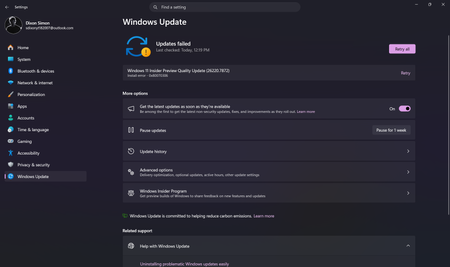
Unable to install the Windows Preview Update
I am unable to install the Windows Insider Preview update for the beta channel and I do not know how to fix it. I have retried around 5 or 6 times and still same error persists, It shows the following error. Windows 11 Insider Preview Quality Update (26220.7872) Install error - 0x80070306 Please help me fix this issue, Thank you.2KViews2likes9Comments
Wanted to join Beta Channel, ended up forced to upgrade to Windows 11 Insider Preview, how to stop?
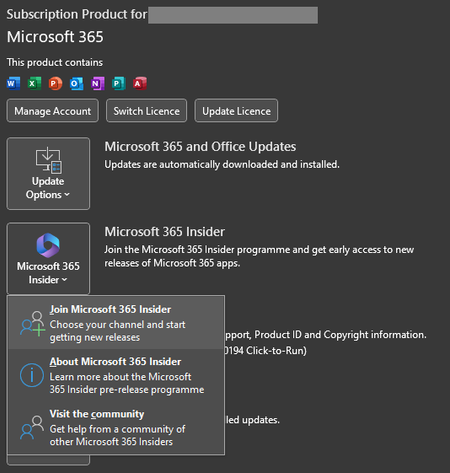
So, it all started with me wanting to join the Beta Channel for Excel since I wanted to have the new features available there. So, in Excel I couldn't find the Insider Button at Account menu even though I am a MS365 Subscriber. So, I thought I had to go to Windows Settings -> Update & Security -> Windows Insider Programme to use it. After I registered there, instead of showing me in Excel Beta Channel it now is downloading and installing Windows 11 Insider Preview, what I don't want and theoretically shouldn't be able to get since my processor is too bad, it tells me that in the same window at the right side. (I am currently on Windows 10 Home 22H2-19045.3324) I have already tried to leave the program and i am getting different response to that, the Windows Insider Programme in the settings tells me that I am still set to get Insider Preview builds and the Windows Update menu also. But when I click on Leave the Insider Programme in Windows Insider Programme it directs me to a page which says This email address is not registered as a Windows Insider.... And yes it's the same E-Mail address that's linked to the program and which was connected to the page that told me the E-Mail address is not registered. Also, Sidenote: Many buttons are not responding at all, clicking on fix the problem (see image) doesn't work, before that, changing Channels, adding E-Mail all did not work first time. And In Office clicking on Join MS365 Insider doesn't do anything either. This whole program seems verry unstable. My questions are: 1. How to undo all that so I don't must upgrade to Windows 11 Insider Preview 2. How to join Office Beta Channel the correct way?Solved4.5KViews2likes8Comments