sql
15 Topics
"Invalid Managed Identity" error in vulnerability assessments for SQL Managed Instance
On a recent case, a customer received the error "Invalid Managed Identity" when trying to scan a database. The error suggests that there is an issue with the managed identity or the RBAC permissions required, but the same error occurs when there is a connectivity issue between SQL Managed Instance and the storage account selected. Checking RBAC permissions The RBAC permissions can be manually checked in Azure Portal, or you can use the below script in Azure CLI, providing the resource details. #SQL Managed Instance Details $serverResourceGroup = '' $serverName = '' #Storage Account Details $storageAccountResourceGroup = '' $storageAccount = '' ############################################################################################################################## $sqlIdentity = ((az sql mi show -g $serverResourceGroup -n $serverName | ConvertFrom-Json).Identity).principalId $storageId = (az storage account show -g $storageAccountResourceGroup -n $storageAccount | ConvertFrom-Json).id $permissions = $NULL $permissions = az role assignment list --all --assignee $sqlIdentity | ConvertFrom-Json | Where-Object {$_.scope -eq $storageId -and $_.roleDefinitionName -eq 'Storage Blob Data Contributor'} if ($permissions -eq $NULL) {Write-Host "RBAC permissions do not exist"} else {Write-Host "RBAC Permissions exist"} It will return a simple message to confirm if the permissions exist. Connectivity issues If the permissions do exist, then it may be due to connectivity issues between SQL Managed Instance and the storage account. Listed below are ways to check this. Storage account networking configuration The storage account can be configured to allow the following access: Public - All Public - Selected networks Private If the access is set to Selected Networks, make sure the SQL Managed Instance subnet is in the list. If the access is private only, then the SQL Managed Instance would need to be able to resolve the Private IP in DNS. NSG/Firewall rules and routing Check that there are no rules blocking connections between each resource and that the routing is configured correctly. DNS settings If the DNS settings are custom or a private endpoint is being used, the DNS configuration for the SQL Managed Instance virtual network may need to be configured, for example, adding a private DNS zone. Network Peering If the connectivity is through a private endpoint in a different virtual network, check that there is communication between them, such as network peering. Disclaimer Please note that products and options presented in this article are subject to change. This article reflects the documentation in January 2026. I hope this article was helpful for you, please feel free to share your feedback in the comments section.374Views0likes0CommentsQTip: Getting timeouts and exceptions using Azure SQL DB Query Store
Requirements: Azure SQL Database SQL Server Management Studio (SSMS) Tables testcodes and testinvoice used for this demo 1-Configure Query Store to collect data and save as soon as possible to be able to review it * Data flush interval is the time to send information to disk ** Statistics collection interval is the time range to collect data , query store is not collecting one record by execution is collecting statistics of each execution and you can get max, min, avg but not excecution by excecution *** Query store capture mode ALL will collect information of all executions query store will not make any kind of filter 2-Create table testcodes CREATE TABLE [dbo].[testcodes]( [Code] [char](5) NULL, [Description] [nchar](10) NULL ) ON [PRIMARY] GO 3-Create table testinvoice CREATE TABLE [dbo].[testinvoice]( [code] [char](5) NULL, [pieces] [int] NULL ) ON [PRIMARY] GO 4-Add some codes to be used 5-Add some records to invoice Exception ... 6-Run query to get information from invoices and get description from codes select *,description=(select testcodes.Code from testcodes where testcodes.code=invoice.code) from testinvoice invoice Is possible to see execution without error 7-Now add in codes a second code BBB to force exception 8-Run query from point 6 again Result is an exception 9-Run query to see queries with exceptions or timeouts starting 2 days ago (declare @datestart as datetime = dateadd(D,-2,getdate());) declare @datestart as datetime = dateadd(D,-2,getdate()); declare @datefinish as datetime = getdate(); /* if you want to set to specific time */ --set @datestart = '2025-04-09 00:00:00'; --set @datefinish = '2025-04-09 23:59:59'; select rs.last_execution_time, rs.execution_type_desc, qt.query_sql_text, q.query_id, CONVERT(VARCHAR(1000), q.query_hash, 1) as strqueryhash, p.plan_id, rs.last_cpu_time, rs.last_duration, rs.count_executions, rs.last_rowcount, rs.last_logical_io_reads, rs.last_physical_io_reads, rs.last_query_max_used_memory, rs.last_tempdb_space_used, rs.last_dop, p.is_forced_plan, p.last_force_failure_reason, p.last_force_failure_reason_desc FROM sys.query_store_query_text AS qt JOIN sys.query_store_query AS q ON qt.query_text_id = q.query_text_id JOIN sys.query_store_plan AS p ON q.query_id = p.query_id JOIN sys.query_store_runtime_stats AS rs ON p.plan_id = rs.plan_id where rs.last_execution_time>= @datestart and rs.last_execution_time<=@datefinish and (rs.execution_type=3 or rs.execution_type=4) -- 3 timeout, 4 error --and qt.query_sql_text like '%actual%' --and q.query_hash=0x009C458D20394C37 --and p.plan_id=12 ORDER BY rs.last_execution_time DESC 10-In query there are some commented lines that you can use to add more filters or modify them To see all records comment line 20 declare @datestart as datetime = dateadd(D,-2,getdate()); declare @datefinish as datetime = getdate(); /* if you want to set to specific time */ --set @datestart = '2025-04-09 00:00:00'; --set @datefinish = '2025-04-09 23:59:59'; select rs.last_execution_time, rs.execution_type_desc, qt.query_sql_text, q.query_id, CONVERT(VARCHAR(1000), q.query_hash, 1) as strqueryhash, p.plan_id, rs.last_cpu_time, rs.last_duration, rs.count_executions, rs.last_rowcount, rs.last_logical_io_reads, rs.last_physical_io_reads, rs.last_query_max_used_memory, rs.last_tempdb_space_used, rs.last_dop, p.is_forced_plan, p.last_force_failure_reason, p.last_force_failure_reason_desc FROM sys.query_store_query_text AS qt JOIN sys.query_store_query AS q ON qt.query_text_id = q.query_text_id JOIN sys.query_store_plan AS p ON q.query_id = p.query_id JOIN sys.query_store_runtime_stats AS rs ON p.plan_id = rs.plan_id where rs.last_execution_time>= @datestart and rs.last_execution_time<=@datefinish --and (rs.execution_type=3 or rs.execution_type=4) -- 3 timeout, 4 error --and qt.query_sql_text like '%actual%' --and q.query_hash=0x009C458D20394C37 --and p.plan_id=12 ORDER BY rs.last_execution_time DESC Now you can see all records 11-Reproduce error several times within 1 minute to see value in execution count (number of executions inside of statistics collection interval) Timeout ... 12-Configure command timeout different to 0 for this demo use 10 (seconds) in parameters previous to connect Second option 12-Use query below that will run 1000 times and at some point will fail INSERT INTO [dbo].[testinvoice] SELECT * FROM [dbo].[testinvoice] GO 1000 13-Run query from point 9 to see data in query store Now you can reproduce and get data about all excecutions , exceptions and timeouts good luck!Setting up SQL Managed Instance Link to an Availability Group (Updated September 2025)
On a recent case, a customer was trying to set up SQL Managed Instance Link to partner with an on premise Always On Availability Group (AG). Using the public documentation will work, but there are some differences required to ensure a failover does not break the connection. Please note that Managed Instance Link can only be created with an availability group with a single database. This post will be using steps from the following documents. Prepare your environment for a link - Azure SQL Managed Instance Configure link with scripts - Azure SQL Managed Instance The steps to set this up are below Create a database master key on the AG nodes Enabling trace flags on the AG nodes (Optional) Testing network connectivity between SQL Managed Instance and the AG Create certificates on the AG nodes Import AG certificate public keys to SQL Managed Instance Import the certificate public key of the SQL Managed Instance to AG nodes Import Azure-trusted root certificate authority keys to AG nodes Alter the mirroring endpoint on AG nodes Create a distributed availability group on AG Set up the managed Instance Link Create a database master key Firstly, a master encryption key is required on all nodes of the AG if it does not already exist. The script below will not return any rows if it does not exist. -- Run on SQL Server USE master; GO SELECT * FROM sys.symmetric_keys WHERE name LIKE '%DatabaseMasterKey%'; If no rows are returned, the following query can be used. Keep a note of the passwords in a confidential and secure place. -- Run on SQL Server -- Create a master key USE master; GO CREATE MASTER KEY ENCRYPTION BY PASSWORD = '<strong_password>'; Enabling trace flags on AG nodes (Optional) To optimise the performance of the link, we recommend enabling the trace flags T1800 and T9567 on all nodes. Instructions on this are here and will require a restart of the service. Testing network connectivity between SQL Managed Instance and the AG Instructions on how to run the connectivity tests can be found here, and can be done by SSMS GUI or T-SQL. For these tests, the SQL Managed Instance will need to be able to connect to the Mirror endpoint using the IP of the availability group. The SQL Managed Instance IPs can can change (for example during maintenance). For that reason NSG and firewall rules should allow access to ports 5022 and 11000-11999 for the whole subnet range of the SQL Managed Instance. Create certificates on AG nodes The below query will need to be run on all AG nodes. Pay particular attention to the @cert_expiry_date variable to ensure it is a date in the future. It will need to be replaced after expiry. -- Create the SQL Server certificate for the instance link USE MASTER -- Customize SQL Server certificate expiration date by adjusting the date below DECLARE @cert_expiry_date AS varchar(max)='03/30/2025' -- Build the query to generate the certificate DECLARE @sqlserver_certificate_name NVARCHAR(MAX) = N'Cert_' + @@servername + N'_endpoint' DECLARE @sqlserver_certificate_subject NVARCHAR(MAX) = N'Certificate for ' + @sqlserver_certificate_name DECLARE @create_sqlserver_certificate_command NVARCHAR(MAX) = N'CREATE CERTIFICATE [' + @sqlserver_certificate_name + '] ' + char (13) + ' WITH SUBJECT = ''' + @sqlserver_certificate_subject + ''',' + char (13) + ' EXPIRY_DATE = '''+ @cert_expiry_date + ''''+ char (13) IF NOT EXISTS (SELECT name from sys.certificates WHERE name = @sqlserver_certificate_name) BEGIN PRINT (@create_sqlserver_certificate_command) -- Execute the query to create SQL Server certificate for the instance link EXEC sp_executesql @stmt = @create_sqlserver_certificate_command END ELSE PRINT 'Certificate ' + @sqlserver_certificate_name + ' already exists.' GO Import AG certificate public keys to SQL Managed Instance The public keys of the AG certificates need to be imported into the SQL Managed Instance. The below query will return the data required for the next step. -- Run on SQL Server -- Show the name and the public key of generated SQL Server certificate USE MASTER GO DECLARE @sqlserver_certificate_name NVARCHAR(MAX) = N'Cert_' + @@servername + N'_endpoint' DECLARE @PUBLICKEYENC VARBINARY(MAX) = CERTENCODED(CERT_ID(@sqlserver_certificate_name)); SELECT @sqlserver_certificate_name as 'SQLServerCertName' SELECT @PUBLICKEYENC AS SQLServerPublicKey; Example result The next step will need to be run in PowerShell and can be run through Azure Cloud Shell. Below is an example script to log in to Azure. # Run in Azure Cloud Shell (select PowerShell console) # Enter your Azure subscription ID $SubscriptionID = "<subscriptionid>" # Login to Azure and select subscription ID if ((Get-AzContext ) -eq $null) { echo "Logging to Azure subscription" Login-AzAccount } Select-AzSubscription -SubscriptionName $SubscriptionID Replace the values of $CertificateName, $PublicKeyEncoded and $ManagedInstanceName and then run this. # Run in Azure Cloud Shell (select PowerShell console) # =============================================================================== # POWERSHELL SCRIPT TO IMPORT SQL SERVER PUBLIC CERTIFICATE TO SQL MANAGED INSTANCE # ===== Enter user variables here ==== # Enter the name for the server SQLServerCertName certificate – for example, "Cert_sqlserver1_endpoint" $CertificateName = "<sqlservercertname>" # Insert the certificate public key blob that you got from SQL Server – for example, "0x1234567..." $PublicKeyEncoded = "<sqlserverpublickey>" # Enter your managed instance short name – for example, "sqlmi" $ManagedInstanceName = "<managedinstancename>" # ==== Do not customize the below cmdlets==== # Find out the resource group name $ResourceGroup = (Get-AzSqlInstance -InstanceName $ManagedInstanceName).ResourceGroupName # Upload the public key of the authentication certificate from SQL Server to Azure. New-AzSqlInstanceServerTrustCertificate -ResourceGroupName $ResourceGroup -InstanceName $ManagedInstanceName -Name $CertificateName -PublicKey $PublicKeyEncoded Repeat this step for all AG node values. Import the certificate public key of SQL Managed Instance to AG nodes Using the same PowerShell session, run this script to get the public key of the SQL Managed Instance certificate, replacing the value of the variable $ManagedInstanceName. # Run in Azure Cloud Shell (select PowerShell console) # =============================================================================== # POWERSHELL SCRIPT TO EXPORT MANAGED INSTANCE PUBLIC CERTIFICATE # ===== Enter user variables here ==== # Enter your managed instance short name – for example, "sqlmi" $ManagedInstanceName = "<managedinstancename>" # ==== Do not customize the following cmdlet ==== # Find out the resource group name $ResourceGroup = (Get-AzSqlInstance -InstanceName $ManagedInstanceName).ResourceGroupName # Fetch the public key of the authentication certificate from Managed Instance. Outputs a binary key in the property PublicKey. Get-AzSqlInstanceEndpointCertificate -ResourceGroupName $ResourceGroup -InstanceName $ManagedInstanceName -EndpointType "DATABASE_MIRRORING" | out-string</managedinstancename> On all nodes of the AG run the following query, replacing the certificate name and the value of the PublicKey with the output from the previous step. -- Run on SQL Server USE MASTER CREATE CERTIFICATE [<managedinstancefqdn>] FROM BINARY = <publickey></publickey></managedinstancefqdn> Import Azure-trusted root certificate authority keys to AG nodes Use the steps here to import the Microsoft PKI root-authority certificate and DigiCert PKI root-authority certificate onto all nodes of the AG. Alter the mirroring endpoint on AG nodes The mirroring endpoint on the AG nodes will also need to be updated to allow the Managed Instance to authenticate with the AG using the newly created certificate. This can be done by navigating to Server Objects > Endpoints > Database Mirroring. Right click on the endpoint and select Script Endpoint as > CREATE To > New Query Editor Window. Change CREATE ENDPOINT to ALTER ENDPOINT and add this command after AUTHENTICATION = WINDOWS NEGOTIATE CERTIFICATE, changing the cert_name value. CERTIFICATE [cert_name] Once updated, execute the query. For multiple Availability groups on the same instance, the next section would need to be repeated for each one. Create a distributed availability group on the AG (running against the primary server) Use this script to set up the distributed availability group, updating the sections in angle brackets (<>). The SQLServerIP will need to be the IP of the listener of the availability group. -- Run on SQL Server -- Create a distributed availability group for the availability group and database -- ManagedInstanceName example: 'sqlmi1' -- ManagedInstanceFQDN example: 'sqlmi1.73d19f36a420a.database.windows.net' USE MASTER CREATE AVAILABILITY GROUP [<dagname>] WITH (DISTRIBUTED) AVAILABILITY GROUP ON N'<agnameonsqlserver>' WITH ( LISTENER_URL = 'TCP://<sqlserverip>:<endpointport>', AVAILABILITY_MODE = ASYNCHRONOUS_COMMIT, FAILOVER_MODE = MANUAL, SEEDING_MODE = AUTOMATIC, SESSION_TIMEOUT = 20 ), N'<agnameonsqlmi>' WITH ( LISTENER_URL = 'tcp://<managedinstancefqdn>:5022;Server=[<managedinstancename>]', AVAILABILITY_MODE = ASYNCHRONOUS_COMMIT, FAILOVER_MODE = MANUAL, SEEDING_MODE = AUTOMATIC ); GO</managedinstancename></managedinstancefqdn></agnameonsqlmi></endpointport></sqlserverip></agnameonsqlserver></dagname> Set up the managed Instance Link The final step is to set up the link, the script for this is here. Please ensure that the $SQLServerIP is the IP of the AG listener and not the IP of the primary node. Once this is executed, the MI Link should be up and running and failing over to another node on the AG will not stop MI Link from syncing. Disclaimer Please note that products and options presented in this article are subject to change. This article reflects MI Link and the documentation in September 2025. I hope this article was helpful for you, please feel free to share your feedback in the comments section.6.9KViews1like4CommentsSQL MI Restore with valid SAS key failing with Operating System Error 86
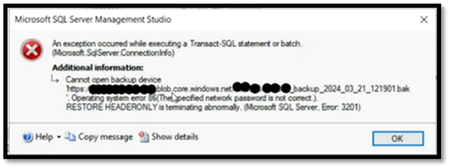
We will provide details about a workaround for resolving the "Operating System Error 86" encountered during database restoration from Azure Storage on SQL Managed Instance. In this scenario, the Storage Account was not behind firewall and the credential already had a valid SAS token.3.4KViews0likes1CommentHow to Change Collation of an Azure SQL Managed Instance When There Are Dependency Errors
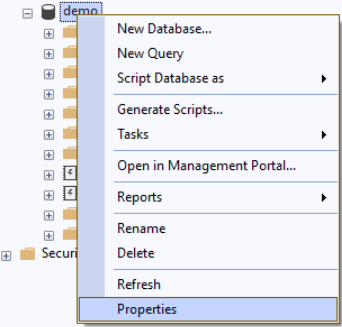
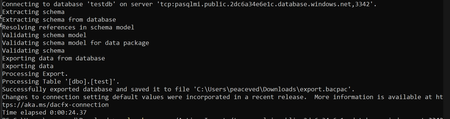
In this article, I will explain how to change the collation for your Azure SQL Managed Instance when the following scenario is encountered: You try to change the database collation with the following T-SQL: USE [master] GO ALTER DATABASE [testdb] COLLATE SQL_Latin1_General_CP1_CS_AS GO And it fails with the following message: Msg 5075, Level 16, State 1, Line 24 The column 'tablex.colx' is dependent on database collation. The database collation cannot be changed if a schema-bound object depends on it. Remove the dependencies on the database collation and then retry the operation. Steps in brief: Export the database to bacpac using SQLPackage. Modify the collation by editing the model.xml file. Import the database using SQLPackage and overriding the model.xml path. Change the database name or modify app connection string to use the new database. Considerations: Schedule a maintenance window for your application during the process and stop the workload to prevent data loss. Ensure you have the latest SQLPackage version: Download and install SqlPackage - SQL Server | Microsoft Learn Review the different connection strings depending on the connection method outlined in these examples: SqlPackage Export - SQL Server | Microsoft Learn This article applies to Azure SQL DB and Azure SQL Managed Instance. Steps in details: Start the maintenance window for your application. Export the database using SQLPackage: sqlpackage.exe /Action:Export /ssn:tcp:<ServerName>.database.windows.net,1433 /sdn:<DatabaseName> /su:<UserName> /sp:<Password> /tf:<TargetFile> Rename the *.bacpac file to *.zip so you can open it with the file explorer: Copy the model.xml to a local folder “C:\Temp\model.xml”. Edit the “C:\Temp\model.xml” with the desired collation and save the file. For example: <Property Name="Collation" Value="Thai_CI_AS" /> Rename the file extension modified in step 3 from *.zip back to *.bacpac. Run the import using sqlpackage.exe. Use the flag /ModelFilePath:C:\Temp\model.xml to override the model.xml in the .bacpac file. sqlpackage.exe /Action:Import /tsn:<server>.database.windows.net /tdn:<database> /tu:<user> /tp:<password> /sf:"C:\Temp\database.bacpac" /ModelFilePath:<path>model.xml When the import operation is completed, change the database name, or modify the application connection string to use the new database name. You can also check the new collation setting in the database properties using SSMS: Stop the maintenance window for your application and run the workload. Ensure that the application is working as expected.5KViews0likes0Comments
LicenseType parameter when you scale your Azure SQL Managed Instance
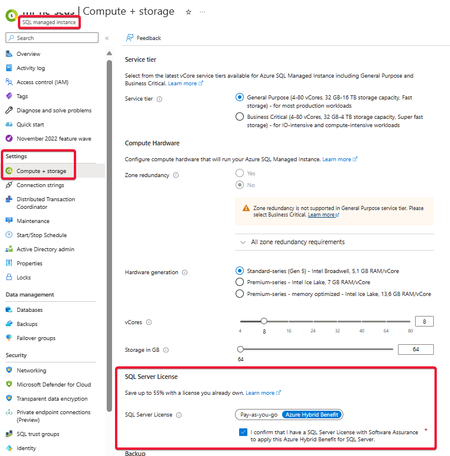
When you try to scale your Azure SQL Managed Instance and you face the following error message: "Configured pricing tier and vCore values require greater number of licenses than previous instance configuration. Please submit operation again with specified value for licenseType property." you have to review your License type.2.1KViews0likes0CommentsAzure SQL Database idle sessions are killed after about 30 minutes when "Proxy" connection policy
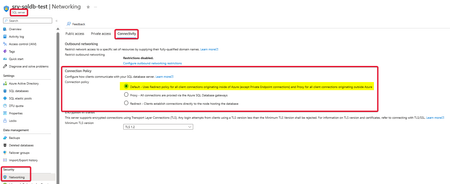
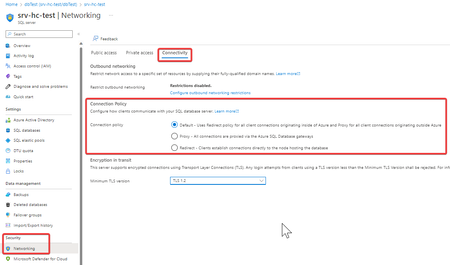
Let's see how the connection policy affects the idle sessions on our Azure SQL Database connections. As we will see, the Azure SQL Gateways will kill idle sessions after 30 minutes when "Proxy" connection policy is set.19KViews3likes5Comments