sql
1 TopicLogic Apps, Windows auth, the On-Premises Data Gateway and you
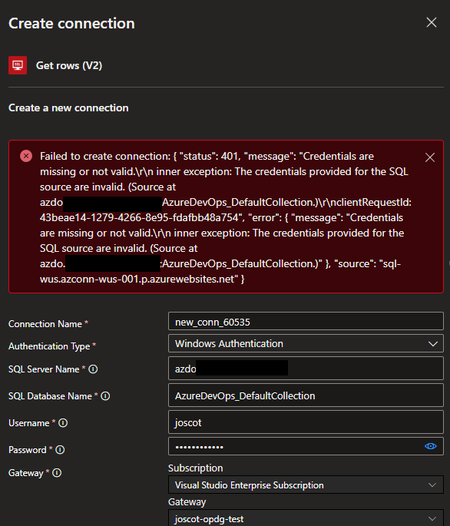
I was working with a customer recently who had a somewhat unusual situation, unusual in that I have become accustomed to most government customers having an Express Route or site-to-site VPN connection to connect their on-premises network to their Azure environment. However, this customer had a need to connect to an on-premises SQL instance via the on-premises data gateway (OPDG). The OPDG is installed as a Windows service on a machine inside the on-premises network and, when registered in Azure, allows Azure resources to connect to services on premises (more here). I did not have any direct experience with this tool but worked with the customer to get it installed on their network, which included getting it to work with their proxy (thanks to the larger Microsoft team for the assist and thanks to the customer for their patience figuring this out). We got the gateway registered in Azure and were ready to test it out. The customer is using Logic Apps and the SQL Connector to connect back to their on-premises SQL instance. The initial attempt to connect to SQL using SQL credentials was successful (Yay!!!) but the customer wanted to use Windows Authentication (which is a best practice). However, when trying to establish the connection with Windows Authentication, they were getting the error "status 401 - Credentials are missing or not valid...The credentials provided for the SQL source are invalid." Doing a little sleuthing in the Security logs on the SQL server, we could see that the authentication attempt being made, but with null credentials. Of course! We're passing our Windows credentials to the OPDG, but we haven't configured the gateway service account with delegation permissions to pass them on to SQL! To configure the on-premises data gateway account for delegation, do the following: Create a Service Principal Name (SPN) using the setspn command line tool for the OPDG service account: setspn -S gateway\gatewayMachineName domainname\gatewaySvcAcctName Open Active Directory Users and Computers (ADUC) and locate the OPDG service account Open the Delegation tab and select "Trust this user for delegation to specified services only" and "Use Kerberos Only" then add the services for which you want the OPDG to have delegation, e.g. SQL Server. Once this was done, we could create the Logic Apps SQL Connection successfully. A good check is to see if you can enumerate the list of tables in the database to which you are querying. As it turns out, there is fairly good documentation on this topic under the Power BI documentation, but searching for this under the context of Logic Apps didn't yield much success! In any case, I hope this helps someone else in the future!