sql
6 TopicsSAP on Azure General Update August 2022
Woolworths Australia goes live on Azure, new recommendations for SAP on Oracle direct from Oracle themselves. Disk Bursting and VM Bursting and new SSD v2 in preview. SQL Server 2022, ODBC 18 and Windows 2022 News for Windows customers and news for Linux customers Important guidance for sizing boot disks on Linux.Always On - Synchronize SAP login, jobs and objects
SQL Server AlwaysOn is one of the High Availability solutions available for an SAP system. It consists of two or more computers each hosting a SQL Server with a copy of the SAP database. A listener points to the actual primary copy and is used from the SAP system as the only connection point. For details how to setup and configure an SAP system together with SQL Server AlwaysOn see this blog post and its referenced blog posts. During the setup the SAP System is configured from the current primary node and all non-database related objects such as SQL Server Agent Jobs, logins etc. are created only on the current primary database. In a case of a (automatic) failover to one of the secondary nodes of AlwaysOn these objects are then missing. Jürgen has introduced a script (sap_helprevlogin) in his initial blog post about the database load after setting up AlwaysOn. This script will transfer only the logins, but will fall short on transferring jobs, server level permissions and other assignments. One of the SAP developers working in our team has built a comprehensive PowerShell script (sap_synchronize_always_on.ps1) to perform all these tasks and to transfer all the SAP objects from the initial installation to all the other nodes of the AlwaysOn system. The script connects to the primary instance, reads the configuration of the secondary nodes and then synchronizes the objects and jobs with these nodes. The script must be executed by a domain administrator which has SQL Server sysadmin privileges on all AlwaysOn instances. The script uses up to three input variables: The server name of the SQL Server instance or the listener name of the High-Availability group. The default is (local) The name of the SAP database, which must be in an High-Availability group on the given server Single login (optional): Only one login gets copied along with SAP CCMS jobs owned by the login. By default all logins mapped to the database are copied. The script will execute: Create a procedure CheckAccess in the master database (see this blog about the details about it) Discover which logins are mapped to the database Discover which SAP CCMS jobs belong to those logins If the job does not use CheckAccess then change the job step to use CheckAccess and run the job step in master Open a connection to each secondary and: Create procedure CheckAccess in the master database Create the logins if they don't exist already using the same sid. Create the jobs if they don't exist already. If a job exists and if the job does not CheckAccess then change the job step to use CheckAccess and run in master If new SAP CCMS jobs are added because of remote monitoring from a different SAP system using DBACOCKPIT, the script can be re-executed. It will then copy only new objects which have not been copied before. You can find this useful script attached, which makes the synchronization of the SAP Systems in an AlwaysOn environment so much easier. Please ensure that you test the execution in your test environment first, before you run it in production. Neither SAP nor Microsoft takes any responsibility from using this script, you run it on your own risk. Update January 2017: New script version that copies the sid<adm> and SAPService<SID> logins from the SAP System as well. Best regards | Bless! Clas & GuðmundurDeadlock Analysis (Advanced)
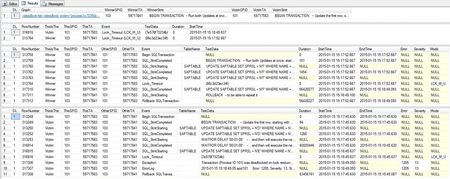
With this blog my small deadlock serie will be completed. We started with the basics , then we discussed several examples and today we will close up with a more advanced approach to solve deadlocks. The intention to build this solution was to get the complete transactions that led to the deadlock, as in some cases the first part of the deadlock (getting the first set of locks) is important to understand and to solve the deadlock. There are three phases in this approach: Collect, Prepare and Analyse, as also described in SAP note 1774085. Collect In the Collect phase we have to set up an SQL Server Profiler trace to get all the statements that belong to the participating threads. Download the attached documents to any directory. To set up and start the profiler trace, proceed as follows: Log on to your SQL Server with the <sid>adm user or any other local administrator Open the registry and navigate to [HKEY_LOCAL_MACHINE\SOFTWARE\Microsoft\Microsoft SQL Server\Instance Names\SQL] and find your SQL Server Instance name on the list (MSSQLSERVER = Default Instance). Keep the Data value of your instance (e.g. MSSQL.1). Change the registry key "NonAlertableErrors" at this place (replace <XXX> with the found data) [HKEY_LOCAL_MACHINE\SOFTWARE\Microsoft\Microsoft SQL Server\<XXX>\SQLServerAgent] Change "NonAlertableErrors"="1204,4002" to "NonAlertableErrors"="4002" Restart the SQL Server Agent Service. Open a new query window and switch to the master Database Load the script from the file Setup Delayed Profilerstop at Deadlock.docx and change the line that starts with set @DirectoryName = N'C:.....' to a file location with enough free space. The default is the directory c:\temp. You need at least 2.5 GB free space in this directory. Save and run the changed script. It will return the ID of the created trace (usually the number 2) and a list of active traces. The trace with the ID = 1 is the built-in default trace in SQL Server 2005 and higher. The script will create and start an SQL Profiler Trace, a SQL Agent Job and an Alert for the SQL Error 1204 (Deadlock). The trace will write 250MB trace files. In SQL 2005 and higher the number of files is limited to 10, under SQL 2000 there is no such limit of files created. Please watch the directory to avoid that the disk is filled up. You can delete older trace files, but you should keep at least the five newest files. As soon the error 1204 occurs in that database, the alert gets fired and will invoke the SQL Server Agent Job. The job will stop the trace after 20 seconds and will clean up all the created stored procedures and the job itself. If you want to stop the trace manually, just start the job with the name 'Stop Profiler at Deadlock'. This will stop the trace and will remove all the objects that the script has created. When done, revert the NonAlertableErrors in the registry to the original value and restart the SQL Server Agent Service. Prepare In this step, the trace is imported into a new database to analyze it. Open the SQL Server Management Studio and connect to the SQL Server instance, where you want to perform the analysis. This does not have to be the instance where the deadlocks occur. It is recommended to NOT run the analysis on the productive SQL Server instance, even when the deadlock occurs there. Open the script 'Step 1 - Read Into a Table.docx' into the query editor and do the following changes: Ensure that the name [DeadlockBlogAdv] is not used on your system as a database name or replace all [DeadlockBlogAdv] entries with a name of a temporary database. Change the path and filename of the line that looks like this: FROM fn_trace_gettable ('C:\Temp\SAP-SQLTrace-2012.10.09-14.11.21', default); Change it to the path and filename of the first file of the collected profiler trace of the Collect step. The SQL Server will then read this file and all subsequent files of the same trace that have the same name and trailing, increasing numbers (e.g. _1, _2 etc.). Execute the script. It creates the database and a trace table and reads the given trace file and all subsequent existing files into this table. Furthermore, it creates some helpful indices on the table to speed up the identification process of the deadlock transactions. If full text search is installed it creates a full text index on the TextData column to enable fuzzy searches. It returns the start and end time of the trace and the number of rows imported. As a last step it will shrink the log of the database as it is no longer needed. Open the script 'Step 2 - Create Data View. sql' and execute it in the same database as the first one. It creates a view over the Trace table to get more readable information from the trace. Analysis As we now have everything prepared, please open and execute the script 'Step 3 - Get Winner and Victims.docx'. It reads the deadlock graph(s) from the trace (the same graph(s) that you get when you follow SAP note 32129 ) and extracts the winner and victims of the deadlock. The result is separated in four sets: The first one gives you a clickable link to open the deadlock in a XML view and a overview over the transactions and their last statements. When you save the XML as a xdl file you can get the same output as in my last blog posts. The second set lists the exact time of the deadlock (when the lock timeout occurs) and the row numbers in the trace file. The third and fourth set gives you the complete transactions of the winner (top) and victim (bottom) transaction. The victim transaction always ends with a 'Lock_Timeout' followed by an exception in the EventClassDesc column which you find close to the bottom. The statement that caused the deadlock is shown before the 'Lock_timeout' as 'Statement Starting' with no matching 'Statement Completed'. The winner also shows a 'Lock_timeout' at the same time, but with the 'Statement Completed' of the Deadlock Statement right after the 'Lock_Timeout'. I have seen multiple victims against one winner. This happens when the winner has already a lot of log generated (see the basics ) and multiple, very fast victims loose against the winner in a short period of time. If the trace contains multiple deadlocks the output looks like this: The different deadlocks can be separated by the column DL (Deadlock) and the matching DL number. In this trace we captured three deadlocks, which are listed here. As an example you can see that in deadlock number 1 the winner and victim deadlocked twice against each other (at 17:22:44.410 and 17:22:44.680). The same is true for deadlock number 2. With this information, you can identify when (Column StartTime) each session (SPID) has acquired locks (TextData) on the given tables (Column TableName). This information can help you to understand the deadlock and then either to modify the application or to create or modify indexes to avoid the deadlock. Have a nice and deadlock free day.Deadlock Analysis (Examples)
As promised in my former blog about Deadlock Analysis we proceed today with the deadlock serie with examples and their solutions. Update Locks The first example is a Deadlock with two identical statements, doing deletes on table BC_MON_AGREGATES The statements are: DELETE FROM BC_MON_AGREGATES WHERE AGR_INTERVAL = @P0 AND START_TIME < ; As you can see in the deadlock graph both threads are having (at least) a X locks on a index named PK__BC_MON_A__3214EC272B5F6B28, the primary key on this table. And both are requesting an U lock on the same index. As the U locks are only used for checking if the row matches the WHERE condition, this constellation is very often seen when the threads are scanning the table or index instead of seeking through an index to find the rows. In this case the solution was to create an fitting index for the WHERE clause to get the two thread to seek instead to scan the index. RID Locks In the next case we see, that both threads are requesting RID locks on table GENSETC: The statements were: UPDATE GENSETC SET NAME = ,COMPONENT = ,GENSTATUS = @P3 WHERE PGMID = @P4 AND OBJECT = @P5 AND OBJNAME = P6 RID locks are only used if there is no clustered index on that table. If there is an clustered index, we will see KEY locks. The root cause for this deadlock was the missing clustered index as defined in the SAP dictionary (PGMID, OBJECT, OBJNAME). PAGE locks Here we see PAGE locks on table /1OT/FDA12IT2001: Both statements were running a DELETE on that table: DELETE FROM /1OT/FDA12IT2001 WHERE CLIENT = AND ORDID IN ( ,.....,@P101 ) PAGE locks are used when the SQL Server Optimizer expects a lot of rows to process. The PAGE locks are used from the beginning, means this is not an lock escalation, as there are only lock escalations from PAGE to TABLE and from ROW to TABLE, but not from ROW to PAGE. In this case the solution can be to disallow PAGE locks on the table, to reduce the IN clause or to create an fitting index for the WHERE clause (index on ORDID). Deadlock with a SELECT In the next deadlock we have an UPDATE and a SELECT deadlocking each other: The SELECT is easy to identify by the S locks it is using, the right one is the UPDATE using an fitting index (no scanning). How can a SELECT be part of a deadlock, as SAP is reading most of the data in "READ UNCOMMITED" ? The answer is, that this SELECT runs in "READ COMMITED" mode, means it only reads data that is is already committed and it will be blocked through U and X locks. The application that issues the UPDATE and SELECT statement has to analyze this deadlock and to avoid the parallel execution of these two statement by e.g. semaphores. Multiple Tables A deadlock not only happens between two threads, the SQL Server can detect deadlocks in any depth. A deadlock between three threads is looking like: The SQL Server will kill the thread with the least amount of log used, in this case the left one. In some case the remaining threads will deadlock again as a two node deadlock, but most of the time the deadlock is resolved by kill one out of the chain. The most impressive deadlock I saw was this one: This is a deadlock with 103 threads, the left end with the victim looks like: The victim was an UPDATE on BC_JMSQUEUE and all the other waiting ones were a DELETE on the same table. The root cause was, that there was no fitting index for the DELETE statement, which causes the DELETE to scan the table instead using an index. After creating the index, the problem was resolved. Different tables Deadlock can happen not only on the same table, but between different tables as well: We see a deadlock between table CBS_ACCESSQUEUE and CBS_LOCK. The statements are UPDATE statements on each table. These kind of deadlock are not easy to understand as it only shows the end of the deadlock. The two statements that let to the two initial locks (the KEY lock ACCESSQUEUE from the victim and the KEY lock on CBS_LOCK of the winner) are not part of the deadlock, but might be part of the problem. How to analyse such deadlocks will be part of my third post of this deadlock serie.