sql migration
14 TopicsSQL Server 2016 Reaches End of Support: A Customer Engineer's Perspective on What's Next
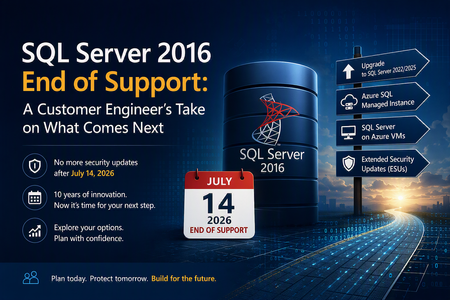
Why This Day Matters July 14, 2026 marks the end of Extended Support for SQL Server 2016. After today, organizations running SQL Server 2016 will no longer receive security updates, non-security hotfixes, or product support unless they have a specific support strategy in place. As a Customer Engineer, I've spent years helping customers navigate technology lifecycle events. This one feels particularly significant because SQL Server 2016 remains heavily deployed across enterprise environments. For official lifecycle dates and milestones, see the Microsoft Lifecycle Policy for SQL Server 2016: Reference: https://learn.microsoft.com/lifecycle/products/sql-server-2016 Why SQL Server 2016 Feels Different SQL Server 2016 introduced capabilities that many organizations still rely on today, including: Query Store Always Encrypted Native JSON Support Stretch Database Enhanced security and performance capabilities For many businesses, SQL Server 2016 became the standard data platform supporting ERP systems, billing applications, healthcare workloads, manufacturing systems, and custom line-of-business applications. Ten years is a long time in IT. During that period, databases often evolve from "just another server" into business-critical infrastructure. Learn more about SQL Server 2016 features: Reference: https://learn.microsoft.com/sql/sql-server/what-s-new-in-sql-server-2016 What "End of Support" Really Means One of the most common misconceptions I hear is: "Will my SQL Server stop working tomorrow?" No. The server will continue running. Applications will continue connecting. What changes is your risk profile. Organizations will no longer receive: Security updates Product fixes Technical support Regulatory assurance associated with supported software Microsoft's official guidance on end-of-support considerations can be found here: Reference: https://learn.microsoft.com/sql/sql-server/end-of-support/sql-server-end-of-support-overview Option 1: Upgrade to a Supported SQL Server Version For many organizations, the most straightforward path is upgrading to SQL Server 2022 or SQL Server 2025. Benefits include: Continued support Latest security protections Performance improvements New AI and data platform capabilities Before upgrading, review compatibility considerations and perform application testing. Reference: https://learn.microsoft.com/sql/database-engine/install-windows/upgrade-sql-server Reference: https://learn.microsoft.com/sql/sql-server/sql-server-release-notes Option 2: Move to Azure SQL Managed Instance Azure SQL Managed Instance is often my recommendation when customers want to reduce operational overhead while maintaining high SQL Server compatibility. Advantages include: Automated patching Built-in high availability Automated backups Near full SQL Server compatibility Reduced infrastructure management Learn more: Reference: https://learn.microsoft.com/azure/azure-sql/managed-instance/sql-managed-instance-paas-overview Option 3: Lift and Shift to SQL Server on Azure Virtual Machines For organizations seeking minimal application changes, SQL Server on Azure Virtual Machines can provide a familiar environment while eliminating hardware refresh requirements. This option also enables customers to take advantage of Extended Security Updates through Azure while planning broader modernization initiatives. Reference: https://learn.microsoft.com/azure/azure-sql/virtual-machines/windows/sql-server-on-azure-vm-iaas-what-is-overview Option 4: Purchase Extended Security Updates (ESUs) If immediate migration is not possible, Extended Security Updates provide up to three additional years of Critical security updates. ESUs can be valuable when: Vendor certification delays upgrades Hardware refresh projects are underway Business priorities prevent immediate migration However, ESUs should be viewed as a temporary bridge rather than a long-term strategy. Reference: https://learn.microsoft.com/sql/sql-server/end-of-support/sql-server-extended-security-updates Don't Skip the Assessment Phase The most successful migration projects begin with discovery and assessment. Common issues identified include: Deprecated features Compatibility concerns Linked Server dependencies SQL Agent jobs CLR integrations Legacy SSIS and SSRS workloads Resources that can help: https://learn.microsoft.com/azure/migrate/migrate-services-overview https://learn.microsoft.com/sql/sql-server/azure-arc/overview https://learn.microsoft.com/sql/dma/dma-overview Migration Tools Worth Evaluating Different migration scenarios require different tools. Microsoft provides several options: Data Migration Assistant (DMA) SQLPackage Azure Database Migration Service Managed Instance Link Distributed Availability Groups Comprehensive migration guidance: https://techcommunity.microsoft.com/blog/microsoftdatamigration/microsoft-options-to-migrate-sql-server-databases/4407666 https://learn.microsoft.com/azure/dms/dms-overview https://learn.microsoft.com/sql/tools/sqlpackage/sqlpackage Lessons Learned from Customer Engagements After supporting numerous SQL Server modernization projects, several themes consistently emerge: The database is rarely the hardest part. Applications and dependencies drive complexity. Downtime requirements significantly influence migration strategy. Organizations that start 6–9 months early typically experience smoother transitions. ESUs buy time, but they do not replace a modernization plan. For migration planning best practices: https://learn.microsoft.com/azure/cloud-adoption-framework/migrate/ Final Thoughts If you're reading this on or shortly after July 14, 2026, and SQL Server 2016 is still running in your environment, you're not alone. Whether your path forward is: SQL Server 2025 Azure SQL Managed Instance SQL Server on Azure Virtual Machines Extended Security Updates the most important step is to begin with an assessment and establish a modernization plan. SQL Server 2016 served organizations exceptionally well for nearly a decade. The conversation now is not about the end of SQL Server 2016. It's about preparing your data platform for the next decade.616Views3likes1Comment
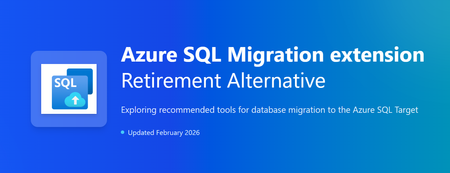
Alternatives After the Deprecation of the Azure SQL Migration Extension in Azure Data Studio
The Azure SQL Migration extension for Azure Data Studio is being deprecated and will be retired by February 28, 2026. As part of our unified and streamlined migration strategy for Azure SQL, we are consolidating all migration experiences into a consistent, scalable platform. If you are currently using the Azure SQL Migration extension, this blog will guide you through recommended replacement options for every phase of migration, whether you are moving to Azure SQL Managed Instance, SQL Server on Azure Virtual Machines, or Azure SQL Database. What is happening to the Azure SQL Migration extension in ADS? As you already know, Azure data studio will officially retire on February 28, 2026. The Azure SQL Migration extension in Azure Data Studio will also retire along with Azure Data Studio on February 28, 2026. The Azure SQL Migration extension will no longer be available in the marketplace of Azure Data Studio. What should you use instead? Below is the updated guidance for the migration tool categorized by migration phase and target. 1) Pre‑Migration: Discovery & Assessments Prior to migration, it is advisable to evaluate the SQL Server environment for readiness and to determine the right-sized Azure SQL SKU. Below are the recommended options: A) SQL Server enabled by Azure Arc Use the SQL Server migration experience in the Azure Arc portal for: Instance discovery at scale Migration assessments at scale, including: Readiness assessment for all Azure SQL targets. Performance-based, right-sized target recommendations. Projected Azure costs with the recommended target configuration. Reference: Steps to get started with the Azure Arc assessments- Deploy Azure Arc on your servers. SQL Server instances on Arc-enabled servers are automatically connected to Azure Arc. See options to optimize this. B) Automated assessments at scale using Azure DMS PowerShell and Azure CLI The Azure DataMigration modules in Azure PowerShell and Azure CLI can be used to automate assessments at scale. Learn more about how to do this. Here are the sample templates to automate the assessment workflow: Azure PowerShell DataMigration cmdlets DMS Azure CLI commands C) Azure Migrate For scenarios where assessments are required at data center level including different types of workloads like Applications, VM Servers and databases, use Azure Migrate to perform discovery and assessments at scale. Learn more about Azure Migrate. References: Review inventory Create SQL Assessment Review SQL Assessment 2) Migrations Based on the migration targets, here are the recommended tools you can use to carry out the migration: A. To Azure SQL Managed Instance The following options are available for migrating data to Azure SQL Managed Instance: 1. SQL Migration experience in Azure Arc For migrations to Azure SQL MI, leverage the streamlined SQL Migration experience in Azure Arc which lets you complete the end-to-end migration journey in a single experience. This experience provides: Evergreen assessments and right-fit Azure SQL target recommendation. Inline Azure SQL Target creation. Free Azure SQL MI Next generation General Purpose service that lets you experience the power of Azure SQL MI for free for 12 months. Near zero downtime migration using Managed Instance link powered by Distributed Availability Group technology. Secure connectivity. Reference blog: SQL Server migration in Azure Arc 2. Automated migration at scale using Azure DMS PowerShell and Azure CLI To Orchestrate migrations to Azure SQL MI at scale programmatically, use: DMS PowerShell cmdlets DMS Azure CLI commands Learn more about how to do this. B. To SQL Server on Azure Virtual Machines To migrate to SQL Server on Azure Virtual Machines, use: 1. Azure Database Migration Service (DMS) DMS supports migrating to SQL Server on Azure Virtual Machines using both online and offline methods. Your SQL Server backups can be in Azure Blob Storage or on a network SMB file share. For details on each option, see: Backups stored in Azure Blob Storage Backups maintained on network SMB file shares Note: The migration experience from SQL Server on-premises to SQL Server on Azure VM will soon be available in SQL Server enabled by Azure Arc. 2. Automated migration at scale using Azure DMS PowerShell and Azure CLI For programmatic migrations to Azure SQL Virtual Machines: DMS PowerShell cmdlets DMS Azure CLI commands Learn more about how to do this. 3. SSMS option: SQL Server Management Studio (SSMS) migration component If you can connect to both SQL Server on-premises and SQL Server running on Azure VM using SQL Server Management Studio, the migration component in SSMS can help you to migrate to SQL Server on Azure VM. For details, see SSMS Migration component. C. To Azure SQL Database Migrating a SQL Server database to Azure SQL Database typically involves migrating schema and data separately. Here are the options to perform offline and online migration to Azure SQL Database: 1. Offline migration to Azure SQL Database a. Azure Database Migration Service (DMS) portal experience Use Azure DMS portal to migrate both schema and data. Azure DMS uses Azure Data Factory and leverages the Self-hosted Integration Runtime (SHIR). Installation steps are here. b. Automated migration at scale using Azure DMS PowerShell and Azure CLI Use Azure DMS PowerShell and Azure CLI command line to orchestrate the schema and data migration to Azure SQL Database at scale: DMS PowerShell cmdlets DMS Azure CLI commands Learn more about how to do this. 2. Online migration to Azure SQL Database Using Striim To enable online migration of your mission critical databases to Azure SQL Database leverage Striim. Microsoft and Striim have entered a strategic partnership to enable continuous data replication from off-Azure SQL Servers to Azure SQL Database with near-zero downtime. For more details, refer to: Zero downtime migration from SQL Server to Azure SQL Database | Microsoft Community Hub Removing barriers to migrating databases to Azure with Striim’s Unlimited Database Migration program... To leverage the Striim program for migrations, please reach out to your Microsoft contact or submit the below feedback to get started. Summary The table below provides a summary of the available alternatives for each migration scenario. Migration Scenario Guided experience Automation experience Pre-Migration (Discovery + Assessment) SQL Migration experience in Azure Arc / Azure Migrate DMS PowerShell / Azure CLI To Azure SQL Managed Instance SQL Migration experience in Azure Arc DMS PowerShell / Azure CLI To SQL Server on Azure Virtual Machine DMS Azure Portal / SSMS migration component DMS PowerShell / Azure CLI To Azure SQL Database DMS Azure portal (offline & schema migration) / Striim (online migration) DMS PowerShell / Azure CLI (offline & schema migration) Final Thoughts Simplify your SQL migration journey and improve migration velocity to all Azure SQL targets, leverage the connected migration experiences in SQL Server enabled by Azure Arc, DMS, and SSMS. For SSMS, as a first step we brought the capabilities to perform assessment and migration to higher versions of SQL Server including to SQL Server on Azure Virtual Machines. As a next step, we are bringing cloud migration capabilities as well into SSMS. Feedback We love hearing from our customers. If you have feedback or suggestions for the product group, please use the following form: Feedback form As you begin your migration to Azure, we welcome your feedback. If you do not see suitable alternatives for any migration phases, use the feedback form to let us know so we can update the options accordingly.2.5KViews1like0Comments
Removing barriers to migrating databases to Azure with Striim’s Unlimited Database Migration program
Alok Pareek, co-founder and Executive Vice President of Product and Engineering at Striim Shireesh Thota, Corporate Vice President of Databases at Microsoft Every modernization strategy starts with data. It’s what enables advanced analytics and AI agents today, and prepares enterprises for what’s to come in the future. But before services like Microsoft Fabric, Azure AI Foundry, or Copilot can create that value, the underlying data needs to move into Microsoft’s cloud platforms. It’s within that first step, database migration, where the real complexity often lies. To simplify the process, Microsoft has expanded its investment in the Striim partnership. Striim continuously replicates data from existing databases into Azure in real time, enabling online migrations with zero downtime. Through this partnership, we have collaborated to enable modernization and migration into Azure at no additional cost to our customers. We’ve designed this Unlimited Database Migration program to accelerate adoption by making migrations easier to start, easier to scale, and easier to complete, all without disrupting business operations. Since launch, this joint program has already driven significant growth in customer adoption, indicating the demand for faster, more seamless modernization. And with Microsoft’s continued investment in this partnership, enterprises now have a proven, repeatable path to modernize their databases and prepare their data for the AI era. Watch or listen to our recent podcast episode (Apple Podcasts, Spotify, YouTube) to learn more. Striim’s Unlimited Migration Program Striim’s Unlimited Database Migration Program was designed to make modernization as straightforward as possible for Microsoft customers. Through this initiative, enterprises gain unlimited Striim licenses to migrate as many databases as they need at no additional cost. Highlights and benefits of the program include: Zero-downtime, zero-data-loss migrations. Supported sources include SQL Server, MongoDB, Oracle, MySQL, PostgreSQL, and Sybase. Supported targets include Azure Database for MySQL, Azure Database for PostgreSQL, Azure Cosmos DB, and Azure SQL. Mission-critical, heterogeneous workloads supported. Applies for SQL, Oracle, NoSQL, OSS. Drives faster AI adoption. Once migrated, data is ready for analytics & AI. Access is streamlined through Microsoft’s Cloud Factory Accelerator team, which manages program enrollment and coordinates the distribution of licenses. Once onboarded, customers receive installation walkthroughs, an enablement kit, and direct support from Striim architects. Cutover support, hands-on labs, and escalation paths are all built in to help migrations run smoothly from start to finish. Enterprises can start migrations quickly, scale across business units, and keep projects moving without slowing down for procurement hurdles. Now, migrations can begin when the business is ready, not when budgets or contracts catch up. How Striim Powers Online Migrations Within Striim’s database migrations, schema changes and metadata evolution are automatically detected and applied, preserving data accuracy and referential integrity. As the migration progresses, Striim automatically coordinates both the initial bulk load of historical data and the ongoing synchronization of live transactions. This ongoing synchronization keeps source and target systems in sync for as long as needed to actively test the target applications with real data before doing the cutoff, thereby minimizing risk. However, the foundation of Striim’s approach is log-based Change Data Capture (CDC), which streams database changes in real time from source to target with sub-second latency. This helps migrations avoid just moving the static snapshot of a database. Rather, they continuously replicate every update as it happens, so both environments remain aligned with minimal impact on operational systems throughout the process. While the snapshot (initial load) is being applied to the target system, Striim captures all the changes that occur. Once the initial load process is complete, Striim applies the changes using CDC, and from this point on, the source and target systems are in sync. This eliminates the need for shutting down the source system during the initial load process and enables customers to complete their migrations without any downtime of the source database. Striim is also designed to work across hybrid and multi-cloud architectures. It can seamlessly move workloads from on-premises databases, SaaS applications, or other clouds into Microsoft databases. By maintaining exactly-once delivery and ensuring downstream systems stay in sync, Striim can reduce risk and accelerates the path to modernization. Striim is available in the Azure Marketplace, giving customers a native, supported way to integrate it directly into their Azure environment. This means migrations can be deployed quickly, governed centrally, and scaled as business needs evolve, all while still aligning with Azure’s security and compliance standards. From Migration to Value With workloads fully landed in Azure, enterprises can immediately take advantage of the broader Microsoft data ecosystem. Fabric, Azure AI Foundry, and Copilot become available as extensions of the database foundation, allowing teams to analyze, visualize, and enrich data without delay. Enterprises can begin adopting Microsoft AI services with data that is current, trusted, and governed. Instead of treating migration as an isolated project, customers gain an integrated pathway to analytics and AI, creating value as soon as databases go live in Azure. How Enterprises Are Using the Program Today Across industries, we’re already seeing how this program changes the way enterprises approach modernization. Financial Services Moving from Oracle to Azure SQL, one global bank used Striim to keep systems in sync throughout the migration. With transactions flowing in real time, they stood up a modern fraud detection pipeline on Azure that identifies risks as they happen. Logistics For a logistics provider, shifting package-tracking data from MongoDB to Azure Cosmos DB meant customers could monitor shipments in real time. Striim’s continuous replication kept data consistent throughout the cutover, so the company didn’t have to trade accuracy for speed. Healthcare A provider modernizing electronic medical records from Sybase to Azure SQL relied on Striim to ensure clinicians never lost access. With data now in Azure, they can meet compliance requirements while building analytics that improve patient care. Technology InfoCert, a leading provider of digital trust services specializing in secure digital identity solutions, opted to migrate its critical Legalmail Enterprise application from Oracle to Azure Database for PostgreSQL. Using Striim and Microsoft, they successfully migrated 2 TB of data across 12 databases and completed the project within a six-month timeframe, lowering licensing costs, enhancing scalability, and improving security. What unites these stories is a common thread: once data is in Azure, it becomes part of a foundation that’s ready for analytics and AI. Accelerate Your Path to Azure Now, instead of database migration being the bottleneck for modernization, it’s the starting point for what comes next. With the Unlimited Database Migration Program, Microsoft and Striim have created a path that removes friction and clears the way for innovation. Most customers can simply reach out to their Microsoft account team or seller to begin the process. Your Microsoft representative will validate that your migration scenario is supported by Striim, and Striim will allocate the licenses, provide installation guidance, and deliver ongoing support. If you’re unsure who your Microsoft contact is, you can connect directly with Striim, and we’ll coordinate with Microsoft on your behalf. There’s no lengthy procurement cycle or complex setup to navigate. With Microsoft and Striim jointly coordinating the program, enterprises can begin migrations as soon as they’re ready, with confidence that support is in place from start to finish. Simplify your migration and move forward with confidence. Talk to your Microsoft representative or book a call with Striim team today to take advantage of the Unlimited Database Migration Program and start realizing the value of Azure sooner. Or if you’re attending Microsoft Ignite, visit Striim at booth 6244 to learn more, ask questions, and see how Striim and Microsoft can help accelerate your modernization journey together. 1.2KViews2likes0Comments
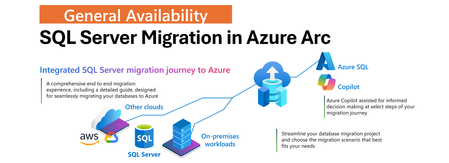
SQL Server migration in Azure Arc – Generally Available
We’re excited to announce General Availability of the SQL Server migration in Azure Arc. This experience is designed to simplify and accelerate SQL Server migration journey to Azure SQL Managed Instance offering a unified, end-to-end workflow directly within the Azure portal. About the solution SQL Server migration in Azur Arc integrates existing Azure Database Migration Service capabilities into Azure Arc by enabling the entire end to end migration journey with the following capabilities: Continuous database migration assessments with Azure SQL target recommendations and cost estimates. Seamless provisioning of Azure SQL Managed Instance as destination target, also with an option of free instance evaluation. Option to choose between two built-in migration methods: real-time database replication using Distributed Availability Groups (powered by MI link feature), or log shipping via backup and restore (powered by Log Replay Service feature). Unified interface that eliminates the need to use multiple tools or to jump between various places in Azure portal. Microsoft Copilot is integrated to assist you at select points during the migration journey. Learn more about SQL Server Migration in Azure Arc. Benefits of the solution Traditionally, migrating SQL Server workloads to Azure required juggling between multiple tools, various places in portal, and some manual steps. This new experience changes that by: Providing a single pane of glass in the Azure portal for the entire migration journey. Reducing migration timelines from months to days. Offering a choice of two migration methods – real-time replication or log-shipping Enabling validation of target environments using read-only replicas before cutover for real-time replication. Automatically capturing application client connection data to simplify mapping between applications and databases. Optional failback from Azure SQL Managed Instancy with configured upgrade policy for SQL Server 2022 and SQL Server 2025 with external tooling. Providing intelligent step-by-step guidance with Microsoft Copilot at select points of the migration journey, helping you make informed decisions. Start Your Migration Journey Today In case your SQL Server is Arc enabled, you could proceed right away to Azure portal. If you need to enable it, then onboard your SQL Server to Azure Arc today. In the portal, navigate to Arc enabled SQL Server resource, and on the left-hand side select Migration, then Database Migration. This is where you will navigate to the new database migration experience. Shown below is illustrated experience of the database migration experience you are expected to see. From the main screen, you can navigate through each stage of the migration journey - starting with the database migration readiness assessment, followed by selecting or provisioning an Azure SQL Managed Instance as the target destination, choosing the appropriate migration method, monitoring progress, and performing the final cutover. By selecting the Azure SQL Benefits tab, you’ll gain insights into the advantages of Azure SQL - helping you make well-informed decisions about your migration. By selecting the Tutorials tab, you will access information helping you getting started with the solution. We've also integrated Microsoft Copilot at select points in the journey for any guidance and support you might need to ensure confident and informed decision-making. For next steps, click on the button below: Get started with SQL Server Migration in Azure Arc today. Feedback We love hearing from our customers! Any feedback or suggestions for the product group, use the following online form to let us know: Provide feedback to the product group We hope that you will enjoy our solution, and we look forward to your feedback as you embark on your migration journey to Azure.1.3KViews1like0CommentsGeneral Availability - DMS's PowerShell, Azure CLI, and Python SDK
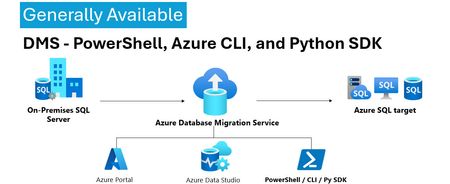
We’re excited to announce the General Availability (GA) of DMS client tools - PowerShell, Azure CLI, Python SDK and more. This milestone unlocks efficient, stable, and scalable automation options for database migration workflows—making it easier than ever to integrate DMS into your DevOps pipelines and enterprise migration strategies. 💡Introduction: With the general availability of DMS client tools - PowerShell, Azure CLI, Python SDK, users can now use stable release of: PowerShell module 1.0.0 (https://www.powershellgallery.com/packages/Az.DataMigration/1.0.0) Azure CLI extension 1.0.0 (https://learn.microsoft.com/en-us/cli/azure/datamigration?view=azure-cli-latest) DMS V2 APIs (version 2025-06-30) SDKs for multiple languages (listed below) SDKs Releases: Language GA Package / Link .Net https://www.nuget.org/packages/Azure.ResourceManager.DataMigration/1.0.0 Java https://central.sonatype.com/artifact/com.azure.resourcemanager/azure-resourcemanager-datamigration/1.1.0 Go https://pkg.go.dev/github.com/Azure/azure-sdk-for-go/sdk/resourcemanager/datamigration/armdatamigration/v2 Python azure-mgmt-datamigration · PyPI JavaScript https://www.npmjs.com/package/@azure/arm-datamigration/v/3.0.0 🔧 What’s New? Three new commands have been introduced in the latest releases of the SDK, PowerShell module, and CLI extension, as outlined below: New CLI Commands: az datamigration sql-db retry - Retry the failed SQL DB migrations. az datamigration sql-managed-instance delete - Delete Azure SQL MI’s Database Migration resource. az datamigration sql-vm delete - Delete Azure SQL VM’s Database Migration resource. New PowerShell Commands: Invoke-AzDataMigrationRetryToSqlDb - Retry the failed SQL DB migrations. Remove-AzDataMigrationToSqlManagedInstance - Delete Azure SQL MI’s Database Migration resource. Remove-AzDataMigrationToSqlVM - Delete Azure SQL VM’s Database Migration resource. 🚀Conclusion: With this GA / stable release, users can now: Use them to configure and execute migrations with full control. Automate migrations: DevOps teams can embed migration steps into CI/CD pipelines. Integrate into custom applications and orchestration tools. These support all the DMS migration scenarios—from simple lift-and-shift operations to complex logical migrations—while ensuring stability, and repeatability. For more details, refer: Documentation: Migrate databases at scale using Azure PowerShell / CLI PowerShell: Az.DataMigration Module Azure CLI: az datamigration Python SDK: azure-mgmt-datamigration · PyPI417Views2likes0CommentsMaking Azure DMS More Secure: Azure Portal Permission Enhancements
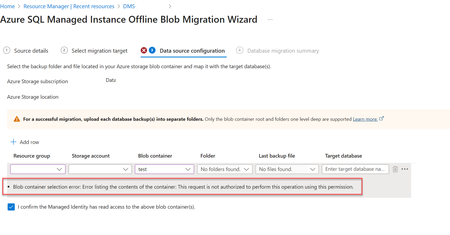
Migrating databases to Azure SQL Managed Instance or Azure SQL Virtual Machine is a critical step in modernizing enterprise infrastructure. With security and compliance top of mind, Azure Database Migration Service (DMS) has introduced key changes to its Azure portal experience—especially around permission for blob container access. Why the Change? Previously, in case of Azure Portal, DMS relied on account key-based access to Azure Blob Storage for listing and accessing backup files on the migration configuration page. While functional, this approach is not best in terms of security, especially for industries which prohibit the use of shared keys. Now, DMS's Azure portal uses security context of the current signed in user on the Azure portal to list and access backup files in the blob container, making it better security approach. Impact of the Change When migrating to Azure SQL Managed Instance or Azure SQL Virtual Machine via Azure portal make sure the current signed in user has Storage Blob Data Reader role on the Blob container that contains the backup files. This permission is needed to list folders and files in the blob container during migration setup via Azure portal only. If the current signed in user lacks the Storage Blob Data Reader role on the Blob container, users will encounter the following error: Error: "Blob container selection error: Error listing the contents of the container: This request is not authorized to perform this operation using this permission." Solution: Make sure the current signed in user has "Storage Blob Data Reader" role on the Blob container that contains the backup files. For more information, refer : Tutorial: Migrate SQL Server to Azure SQL Managed Instance - Azure Database Migration Service | Microsoft Learn Tutorial: Migrate SQL Server to SQL Server on Azure Virtual Machine Using Azure Data Studio - Azure Database Migration Service | Microsoft Learn341Views0likes0CommentsDMS - Support for Managed Identity for Azure SQL Managed Instance migration
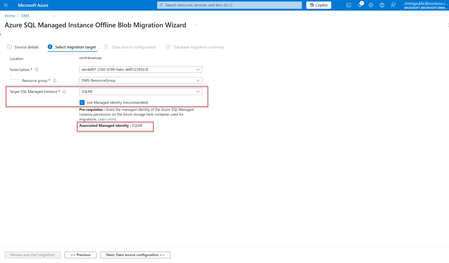
Azure Database Migration Service (DMS) has introduced a new feature that supports the use of Managed Identity for migrating to Azure SQL Managed Instance. This enhancement simplifies the migration process and ensures secure and seamless integration with Azure Database Migration services. In this blog post, we will dive into the prerequisites, permissions or role(s) required, and how to use this associated Managed identity for migrating to Azure SQL Managed Instance. Currently, this feature is supported through Azure Portal, PowerShell, and Az cmdlets. Prerequisites Before you begin the migration to Azure SQL Managed Instance using Managed identity, ensure that following prerequisites are in place: 1. The Target Azure SQL Managed Instance's associated Managed Identity: Azure Database Migration Service only supports Managed Identity that is associated with the target Azure SQL Managed Instance. How to identify the associated Managed Identity? Once you start the migration to Azure SQL Managed Instance using Azure Database Migration Service and on second page, select the target Azure SQL Managed instance, its associated Managed Identity will be displayed if "Use Managed Identity" is selected (default), as highlighted below. Alternatively, you can follow these steps: a) Go to the target Azure SQL Managed Instance's home page. b) On the left menu, under Security > Identity: If User-assigned Managed Identity is present, the associated Managed Identity will be same as selected under the Primary Identity. If there is no User-assigned Managed Identity and only System-assigned Managed Identity is enabled, the associated Managed Identity will be System-assigned Managed Identity and have the same name as the Azure SQL Managed Instance's name. For example, for ABCSQLMI - Azure SQL Managed Instance the System-assigned Managed Identity will be "ABCSQLMI". 2) Permissions: Assign the "Storage Blob Data Reader" role on the storage account to the target instance's associated Managed Identity. Steps to Assign Permissions In the Azure portal, go to the storage account that will be used in migration for keeping the backup files. On the left menu under Access Control (IAM), click on "+Add" > Add role assignment Select or search for builtin role "Storage Blob Data Reader", click Next. Assing this role access to Managed Identity by selecting the associated Managed Identity identified in the previous step as the member. Note: When migrating to Azure SQL Managed Instance or Azure SQL Virtual Machine via Azure portal make sure the signed in user has Storage Blob Data Reader access on the Blob container that contains the backup files. This permission is needed to list folders and files in the blob container during migration setup via Azure portal only. How to use associated Managed identity for migration? Upon initiating the migration to Azure SQL Managed Instance using Azure Database Migration Service, navigate to the second page and select the target Azure SQL Managed Instance. If the "Use Managed Identity" option is selected (default), the associated Managed Identity will be displayed and used for the migration (as shown in the first image above). Once Managed identity is used for the migration, DMS will utilize this Managed identity for reading the backup files on the Azure blob storage and thus removing the need for SAS keys. Limitations: Azure Database Migration Service supports Managed Identity that is associated with the target Azure SQL Managed Instance only. It can be either User assigned, or System assigned Managed identity. Currently, this feature is supported through Azure Portal only. Ensure that the storage account has the "Allow storage account key access" enabled. Benefits of using Managed Identity: Using Managed Identity for Azure SQL Managed Instance migrations offers several security benefits: Enhanced Security: Managed identities eliminate the need to use SAS key, reducing the risk of SAS key token exposure. Simplified Management: As associated Managed Identity of the target Azure SQL MI is used, it allows for seamless integration with Azure Database Migration services, making it easier to manage access permissions and roles. Improved Efficiency: The streamlined authentication process speeds up migrations and reduces the complexity of managing SAS keys. Improved Compliance: By using Managed Identity, user can ensure that they adhere to security best practices and compliance requirements, as it is managed securely by Azure. All the above benefits make Managed Identity better than SAS key token. Learn more. Conclusion The new feature supporting Managed Identity in Azure Database Migration Service for Azure SQL Managed Instance migrations offers a secure and efficient way to manage permissions during the migration process. By following the steps outlined above and leveraging the security benefits of Managed Identity, you can ensure a smooth and secure migration to Azure SQL Managed Instance.1KViews0likes0CommentsMigration Dashboard for SQL Server enabled by Azure Arc
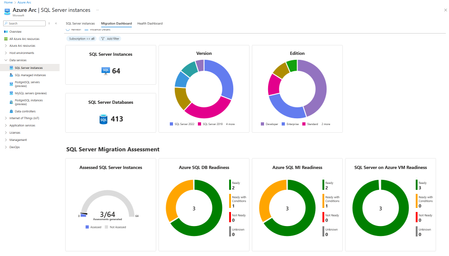
Overview We are excited to announce the new Migration Dashboard feature in the Azure portal. SQL Server enabled by Azure Arc, automatically produces an assessment for migration to Azure. This assessment plays a vital role in the success of your cloud migration and modernization journey. This dashboard provides visibility into the assessment coverage and migration readiness across all your SQL Server instances enabled by Azure Arc. How to view the Migration Dashboard Using this feature is simple. Navigate to the Azure portal and search for Azure Arc. Click through into the Azure Arc center. Under Data Services, click on SQL Server Instances. You will be presented with the list of SQL Server instances enabled by Azure Arc. Switch to the Migration Dashboard tab in the right pane to get the at-scale summary of your instances, the migration assessment coverage and migration readiness of your SQL Server enabled by Azure Arc. Understand the Migration Dashboard The dashboard: Provides an overview of SQL Server instances and databases discovered. Provides an overview of the SQL Server instances which have assessments generated. Provides migration readiness summary for each of the Azure SQL offerings. Provides rich filtering capabilities enabling you to tailor the view to your needs. The first section of the migration dashboard presents an overview of all SQL Server instances and databases accessible to you. You can also see the distribution of the instances by version and edition. The next section provides you with an overview of the migration assessment and migration readiness of the instances of SQL Server enabled by Azure Arc. You can see how many instances have assessments available. The migration readiness for each Azure SQL offering is separately shown. Call to Action We encourage you to use the Migration Dashboard to: Track Migration Assessment coverage across your SQL Server instances enabled by Azure Arc. Understand your migration readiness to the Azure SQL offerings. Here are a few steps to get started: Explore the Feature: Visit the Azure portal and take some time to familiarize yourself with the dashboard and the insights it provides. Join the Community: Share your experiences and insights with the Azure Arc community. Join our forums and participate in discussions to learn how others are leveraging this feature to optimize their server environments. Stay Informed: Keep up with the latest updates and best practices for SQL Server enabled by Azure Arc by following our blog and subscribing to our newsletter. We regularly share tips, tutorials, and success stories from our users. We are confident that the Migration Dashboard will be a valuable addition to your SQL Server migration journey to Azure. We look forward to your feedback and success stories as you begin to explore this new feature.1.1KViews2likes2CommentsClient Connection Summary for SQL Server enabled by Azure Arc
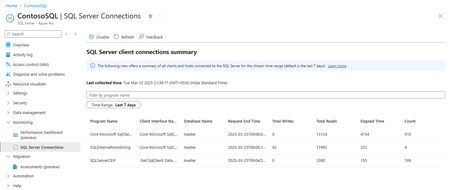
Overview We are excited to announce our new SQL Server client connection summary feature for SQL Server enabled by Azure Arc. This addition provides visibility to the clients connecting to your SQL Server instances, helping to simplify monitoring, security and management. Customers wanting to determine the clients that are connecting to their SQL Server instances need to poll the sys.dm_exec_sessions dynamic management view to identify these connections and track activity. With this feature in SQL Server enabled by Azure Arc, the agent is able to capture this information, providing visibility into which clients are connecting to your SQL Server instances. The system automatically polls the DMV at hourly intervals and aggregates these connections for you, enabling more informed decision-making and streamlined operations. How does it work? With this new feature: Hourly Data Collection: The monitoring agent collects client connection data at hourly intervals using the sys.dm_exec_sessions dynamic view. 30-Day Data Storage: The data is stored in telemetry for 30 days. This allows for extended analysis. Data Summarization: The unique client connections are summarized over a time period of your choice within the past 30 days. How to Use the Client Connection Summary Using this feature is simple. Follow these steps: Step 1: Enable the Client Connection Feature Navigate to the Azure portal and select your SQL Server enabled by Azure Arc instance. Under the "Monitoring" tab, navigate to the SQL Server Connections view. Ensure that the feature is enabled. If it is not, click the button to enable data collection. This initiates the task for collecting data at hourly intervals. Step 2: Access the Client Connection Summary Once enabled, you will soon start seeing an overview of client connections. Step 3: Analyze the Data Filter for specific program name values of interest. You can also change the Time Range as required and examine the data to understand connection patterns. Call to Action We encourage you to use the Client Connection Summary feature of SQL Server enabled by Azure Arc. Here are a few steps to get started: Explore the Feature: Visit the Azure portal and enable client connection tracking on your SQL Server instances. Take some time to familiarize yourself with the view and the insights it provides. Join the Community: Share your experiences and insights with the Azure Arc community. Join our forums and participate in discussions to learn how others are leveraging this feature to optimize their server environments. Stay Informed: Keep up with the latest updates and best practices for SQL Server enabled by Azure Arc by following our blog and subscribing to our newsletter. We regularly share tips, tutorials, and success stories from our users. We are confident that the Client Connection summary will be a valuable addition to your SQL Server management toolkit. We look forward to your feedback and success stories as you begin to explore this new feature.577Views3likes0Comments