signature
4 Topics
Microsoft Edge PDF Reader - signature validation warning for official signatures
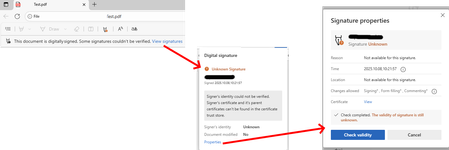
Since the last edge update we are running into the following issue, which triggers support tickets on our side. It seems that the edge internal PDF Reader now supports validation of digital PDF signatures. This new feature however is incomplete and causes a lot of confusion for edge users. "Official" signatures are labeled as "Unknown Signature" and "The validity of the signature is still unknown": "Official signatures" means qualified signatures from members of the EUTL - the European trust list as defined in ETSI TS 119 612 („Trusted Lists“): [...] the European Commission publishes a central list with links to the locations where the national trusted lists are published as notified by Member States. This central list, called the List Of Trusted Lists (LOTL), is available in both a human readable format and in a format suitable for automated (machine) processing XML. Parts of the edge PDF reader seems to come from *dobe itself which adds additional confusion since in their products (*dobe reader, acrobat etc) the signatures are correctly verified. They support this list for several years now (next to their own AATL list). I tried to find out whether this feature is 'work-in-progress' or it is a bug however the last published roadmap is quite old and doesn't give helpful information regarding this aspect. So my question is: Is full support of PDF signature validation including support of the EUTL planned and if so when?1.3KViews1like1Comment
MSEDGE "View the details of digital signatures in PDFs" not working
MSEDGE Version: 104.0.1293.70 (Official build) (64-bit) [Windows 10] PDFs tested: common e-invoice certificate-based digital signed PDFs, Word test PDFs normal or PDF/A compliant (with and without TLV signatures) MSEDGE config: via FLAG (Enable Digital Signature for PDF) or/and via Policy (PDFSecureMODE, https://docs.microsoft.com/en-us/DeployEdge/microsoft-edge-policies#pdfsecuremode ) None of the tested certificate-based digital signed PDFs opened by MSEDGE showed the top strip that allows the visualization and validation of the digital signature has the long publicized feature refers to. Does anyone have some feedback on this behavior? Why and when it should happen? Its publicized in the https://www.microsoftedgeinsider.com/en-us/whats-new on the "Try It" section, with the title "View the details of digital signatures in PDFs" (and even before since v90 or something like that) * https://techcommunity.microsoft.com/t5/articles/roadmap-for-pdf-reader-in-microsoft-edge/m-p/2175170 * https://docs.microsoft.com/en-us/deployedge/microsoft-edge-pdf#view-and-validate-certificate-based-digital-signatures * https://mspoweruser.com/edge-can-now-validate-digitally-signed-pdfs/8.2KViews0likes6Comments
OWA Signature Not Updating
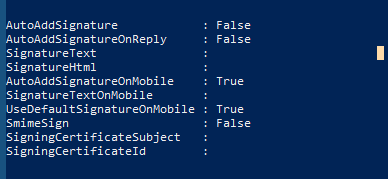
We are currently using Exclaimer to push out signatures to all users in our organization. A user using OWA is having the issue of showing double signatures. I ran the PS command Set-MailboxMessageConfiguration -Identity <username> -AutoAddSignature $False -AutoAddSignatureOnReply $False -SignatureText " “ -SignatureHTML " " and ran another PS command to see the user's current settings. Also, I switched the OWA policy through Exchange Admin to enable Email Signature under the User Experience, but the email signature portion under the OWA settings is still missing. Any thoughts would be appreciated.Solved1.4KViews0likes1Comment
Microsoft Powershell Signature Script - Stopped working with latest office 365
This is my first post on here, so I hope I get all the information across to you! Firstly, I know that there are paid solutions that can do this, but this solution has been working for the company that I work for a little while now. Therefore, I would like to get it working on all versions of office that we use on site - 2013 through to Office 365. Plus, it makes it a bit more interesting if something is maintained and created on site be it all slightly more difficult. I am a member of IT department and am completely stumped! The problem we see is that signatures have stopped pushing out to users with the latest office 365 build. On top of that, Microsoft won't let me update to this later version so therefore I am unable to diagnose the issue without great impact to certain affected users. I assume this as the signature screen looks completely different to mine but also have yet to confirm - will make this a priority this morning. The files and modified template files are reaching the Signature location within Windows Signature location, but the newest version of Office 365 does not pick this up. If I manually create a Signature within office the Files are all there, be it with a couple of extra files (rich text and text formats) as well as the ones created from the script but only the ones manually created appear in outlook. I am confident therefore it's not entirely the script but rather a change within outlook that has stopped the signatures from being pickup up Any ideas? Many thanks, Matthew # Gets the path to the user appdata folder $AppData = (Get-Item env:appdata).value # This is the default signature folder for Outlook $localSignatureFolder = $AppData+'\Microsoft\Signatures' # This is a shared folder on your network where the signature template should be $templateFilePath = **THE FILE PATH TO THE TEMPLATE SIGNAUTRE** # Get the current logged in username $un = $env:username # The following 5 lines will query AD and get an ADUser object with all information $filter = "(&(objectCategory=User)(samAccountName=$un))" $searcher = New-Object System.DirectoryServices.DirectorySearcher $searcher.Filter = $filter $ADUserPath = $searcher.FindOne() $ADUser = $ADUserPath.GetDirectoryEntry() # Now extract all the necessary information for the signature $name = $ADUser.DisplayName $email = $ADUser.mail $job = $ADUser.title $landline = $ADUser.telephonenumber $mobile = $ADUSer.mobile $office = $ADUser.physicalDeliveryOfficeName $so = $ADUser.description $adchangedate = $ADUser.whenChanged # Placeholder on html file association $namePlaceHolder = "\[DISPLAY_NAME\]" $emailPlaceHolder = "\[EMAIL\]" $jobPlaceHolder = "\[JOB_TITLE\]" $folderPlaceHolder = "\[FOLDER_PATH\]" $phonePlaceHolder = "\[TELEPHONE\]" $SOPlaceHolder = "\[SIGN_OFF\]" # Save it as <username>.htm $namefolder = $un + " (" + $email + ")_files"; $namefolder2 = $un + "_Reply (" + $email + ")_files"; $filename = $localSignatureFolder + "\" + $un + " (" + $email + ").htm"; $filename2 = $localSignatureFolder + "\" + $un + "_reply" + " (" + $email + ").htm"; $foldername = $localSignatureFolder + "\" + $namefolder; $foldername2 = $localSignatureFolder + "\" + $namefolder2; $templatefolderpath = $templateFilePath + "\Harboro_template_files\*"; $templatefolderpath2 = $templateFilePath + "\Harboro_Reply_template_files\*"; #NO EMAIL ON AD, NO SIGNATURE if ($email -ne "") { #change contents of template html file to work with the script below, only if template has been changed from the original #Asign varibale to pint at particlular file $rawtemp = get-content $templateFilePath"\Harboro_template.htm" $rawtemp2 = get-content $templateFilePath"\Harboro_Reply_template.htm" $check1 = ($rawtemp | Select-String -Pattern "Harboro_template_files").count $check2 = ($rawtemp2 | Select-String -Pattern "Harboro_Reply_template_files").count if ($check1 -ne 0 -or $check2 -ne 0) { #MAIN TEMPLATE CONTENTS $newContent = $rawtemp -replace "Harboro_template_files","[FOLDER_PATH]" $newContent | Set-Content -Path $templateFilePath"\Harboro_template.htm" -force #REPLY TEMPLATE CONTENTS $newContent2 = $rawtemp2 -replace "Harboro_Reply_template_files","[FOLDER_PATH]" $newContent2 | Set-Content -Path $templateFilePath"\Harboro_Reply_template.htm" -force #RESET THE RAWTEMP VARAIBLE WITH NEW FILE CONTENTS $rawtemp = get-content $templateFilePath"\Harboro_template.htm" $rawtemp2 = get-content $templateFilePath"\Harboro_Reply_template.htm" } #find place holders and convert them to users data from AD variables if ($so -eq "") { $sig = $rawtemp -replace $SOPlaceHolder,"" $rawtemp = $sig $sig2 = $rawtemp2 -replace $SOPlaceHolder,"" $rawtemp2 = $sig2 } else { $sig = $rawtemp -replace $SOPlaceHolder,$so $rawtemp = $sig $sig2 = $rawtemp2 -replace $SOPlaceHolder,$so $rawtemp2 = $sig2 } $sig = $rawtemp -replace $namePlaceHolder,$name $rawtemp = $sig $sig2 = $rawtemp2 -replace $namePlaceHolder,$name $rawtemp2 = $sig2 $sig = $rawtemp -replace $emailPlaceHolder,$email $rawtemp = $sig $sig2 = $rawtemp2 -replace $emailPlaceHolder,$email $rawtemp2 = $sig2 if ($mobile -ne "") { $phone = $landline + " Mobile: " + $Mobile } else { $phone = $landline } $sig = $rawtemp -replace $phonePlaceHolder,$phone $rawtemp = $sig $sig2 = $rawtemp2 -replace $phonePlaceHolder,$phone $rawtemp2 = $sig2 $sig = $rawtemp -replace $jobPlaceHolder,$job $rawtemp = $sig $sig2 = $rawtemp2 -replace $jobPlaceHolder,$job $rawtemp2 = $sig2 $sig = $rawtemp -replace $folderPlaceHolder,$namefolder $sig2 = $rawtemp2 -replace $folderPlaceHolder,$namefolder2 # Determines daylight saving $adchangedate = write-output $adchangedate $adchangedate = [DateTime]$adchangedate if ($adchangedate.IsDaylightSavingTime() -eq $true) { $adchangedate = $adchangedate.AddHours(1) } #IMAGES FOLDER #If Signature supporting folder exists checks if (Test-Path -Path $foldername) { $SourceDocs = Get-ChildItem –Path $templatefolderpath | foreach {Get-FileHash –Path $_.FullName} $DestDocs = Get-ChildItem –Path $foldername | foreach {Get-FileHash –Path $_.FullName} $count = (Compare-Object -ReferenceObject $SourceDocs -DifferenceObject $DestDocs -Property hash -PassThru).count $SourceDocs2 = Get-ChildItem –Path $templatefolderpath2 | foreach {Get-FileHash –Path $_.FullName} $DestDocs2 = Get-ChildItem –Path $foldername2 | foreach {Get-FileHash –Path $_.FullName} $count2 = (Compare-Object -ReferenceObject $SourceDocs2 -DifferenceObject $DestDocs2 -Property hash -PassThru).count # If changes in folder, then update else do nothing if ($count –ne 0){ Remove-Item -Path $foldername -recurse -force New-Item -Path $foldername -ItemType Directory Copy-Item -Path $templatefolderpath -Destination $foldername -PassThru -force; } if ($count2 –ne 0){ Remove-Item -Path $foldername2 -recurse -force New-Item -Path $foldername2 -ItemType Directory Copy-Item -Path $templatefolderpath2 -Destination $foldername2 -PassThru -force; } } else { # if folder does not exist then create directory New-Item -Path $foldername -ItemType Directory Copy-Item -Path $templatefolderpath -Destination $foldername -PassThru -force; New-Item -Path $foldername2 -ItemType Directory Copy-Item -Path $templatefolderpath2 -Destination $foldername2 -PassThru -force; } #MAIN SIGNATURE # Gets the last update time of the template. if(test-path $templateFilePath){ $templateLastModifiedDate = [datetime](Get-ItemProperty -Path $templateFilePath -Name LastWriteTime).lastwritetime } # Checks if there is a signature and its last update time if(test-path $filename){ $sigLastModifiedDate = [datetime](Get-ItemProperty -Path $filename -Name LastWriteTime).lastwritetime if((get-date $templateLastModifiedDate) -gt (get-date $sigLastModifiedDate)){ $sig > $filename } # If an AD change has been made and the created signature is older, then update signature. elseif(($adchangedate) -gt (get-date $sigLastModifiedDate)){ $sig > $filename } }else{ $sig > $filename } #REPLY SIGNATURE #CHECK IF THERE IS A SIGNATURE AND ITS LAST UPDATE TIME if(test-path $filename2){ $sigLastModifiedDate = [datetime](Get-ItemProperty -Path $filename2 -Name LastWriteTime).lastwritetime if((get-date $templateLastModifiedDate) -gt (get-date $sigLastModifiedDate)){ $sig2 > $filename2 } # If an AD change has been made and the created signature is older, then update signature. elseif(($adchangedate) -gt (get-date $sigLastModifiedDate)){ $sig2 > $filename2 } }else{ $sig2 > $filename2 } #SET DEFAULT SIGNATURE $MSWord = New-Object -ComObject word.application $EmailOptions = $MSWord.EmailOptions $EmailSignature = $EmailOptions.EmailSignature $EmailSignature.NewMessageSignature = $un + " (" + $email + ")" #insert the main signature name $EmailSignature.ReplyMessageSignature = $un + "_reply" + " (" + $email + ")" #insert the reply signature name $MSWord.Quit() }1.2KViews0likes0Comments