security & compliance
164 TopicsQuery on Azure Privileged Account Best Practices - including Licence assignment
Just curious as to what people's thoughts were around not assigning a mailbox (unless Global Admin), utilising AD password policies and only assigning the Azure P2 licence to AAD privileged accounts? TIA James48KViews0likes2CommentsA Beginner's Guide To Role-Based Access Control on Azure.
When creating access to systems, applications and environments it's important to keep security top of mind. Even working at a rapid pace it's important to consider what credentials and access we give to a resource. Examples of this kind of administration of roles could be access to a Windows Server or providing pull access to a Docker image from an Azure Kubernetes Cluster. These types of actions require some form of authentication and authorization in order to provide access. This guide provides you some information on getting started on understanding Azure RBAC with many of the articles you can find on Microsoft Docs and Microsoft Learn. Defining the difference Authorization and Authentication are the cornerstones of security for computing. Before we dig into examples, let's just define the words from Webster's dictionary. Authentication: an act, process, or method of showing something (such as an identity, a piece of art, or a financial transaction) to be real, true, or genuine : the act or process of authenticating something Authorization: The granting of power to perform various acts or duties To think about this in a practical sense, consider the hierarcy of a Wordpress CMS set of user roles. From Wordpress Docs, Summary of Roles Super Admin – somebody with access to the site network administration features and all other features. See the Create a Network article. Administrator – somebody who has access to all the administration features within a single site. Editor – somebody who can publish and manage posts including the posts of other users. Author – somebody who can publish and manage their own posts. Contributor – somebody who can write and manage their own posts but cannot publish them. Subscriber – somebody who can only manage their profile. When a user authenticates into Wordpress, the SQL database where user roles are stored then determines what rights the user will have when logged in. The Administrator user may be responsible for maintenance of plug-ins for the website. The admin would like to avoid users who are not part of the website maintenance plan to be able to install, delete or modify any of the plug-ins. By ensuring all of these users have a role that does not permit these rights, our website remains more reliable due to unplanned maintenance. The contributor role appears to be what's right: Contributor #Contributor delete_posts edit_posts read read Reusable Blocks In this case, the contributor role for someone who may be just posting new content update may make sense due to the specific set of roles the user is authorized to do. RBAC for Azure Role-Based Authentication (RBAC) is an authorization system built on Azure Resource Manager that provides fine-grained access management of Azure resources. Access management via RBAC on Azure allows you to better control the scope of what your users and applications can access along with what they authorized to do. What can I do with RBAC? Here are some examples of what you can do with RBAC: Allow one user to manage virtual machines in a subscription and another user to manage virtual networks Allow a DBA group to manage SQL databases in a subscription Allow a user to manage all resources in a resource group, such as virtual machines, websites, and subnets Allow an application to access all resources in a resource group Fundamentals The way you control access to resources using RBAC is to create role assignments. This is a key concept to understand – it's how permissions are enforced. A role assignment consists of three elements: security principal, role definition, and scope. User - An individual who has a profile in Azure Active Directory. You can also assign roles to users in other tenants. For information about users in other organizations, see Azure Active Directory B2B. Group - A set of users created in Azure Active Directory. When you assign a role to a group, all users within that group have that role. Service principal - A security identity used by applications or services to access specific Azure resources. You can think of it as a user identity (username and password or certificate) for an application. Managed identity - An identity in Azure Active Directory that is automatically managed by Azure. You typically use managed identities when developing cloud applications to manage the credentials for authenticating to Azure services. Azure RBAC roles Azure includes several built-in roles that you can use. The following lists four fundamental built-in roles. The first three apply to all resource types. Owner - Has full access to all resources including the right to delegate access to others. Contributor - Can create and manage all types of Azure resources but can't grant access to others. Reader - Can view existing Azure resources. User Access Administrator - Lets you manage user access to Azure resources. Different Azure resources also have built in roles to ensure secure access. By using RBAC we can ensure our DBA can log just into the development and UAT of our Azure SQL Database managed instances. We can assign them them with a the built in SQL Managed Instance Contributor role. This role permits users to manage SQL servers and databases, but not access to them, and not their security-related policies. How RBAC determines if a user has access to a resource The following are the high-level steps that RBAC uses to determine if you have access to a resource on the management plane. This is helpful to understand if you are trying to troubleshoot an access issue. A user (or service principal) acquires a token for Azure Resource Manager. The token includes the user's group memberships (including transitive group memberships). The user makes a REST API call to Azure Resource Manager with the token attached. Azure Resource Manager retrieves all the role assignments and deny assignments that apply to the resource upon which the action is being taken. Azure Resource Manager narrows the role assignments that apply to this user or their group and determines what roles the user has for this resource. Azure Resource Manager determines if the action in the API call is included in the roles the user has for this resource. If the user doesn't have a role with the action at the requested scope, access is not granted. Otherwise, Azure Resource Manager checks if a deny assignment applies. If a deny assignment applies, access is blocked. Otherwise access is granted. Next Steps You may want to learn more and get started you've got so many resources. Check out these links: What is role-based access control (RBAC) for Azure resources? Create custom roles for Azure resources with role-based access control (RBAC) Get $200 in Azure Credit 25KViews2likes1Comment
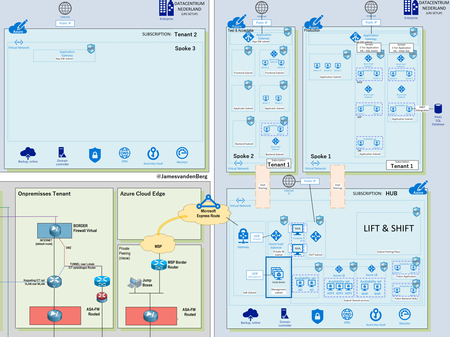
Microsoft Azure Hub-Spoke model by Enterprise Design 1 of 4
Microsoft Virtual Datacenter Transition to Azure (Hybrid Cloud) Microsoft Azure Hub-Spoke Architecture This Enterprise reference architecture shows how to implement a hub-spoke topology in Azure. The hub is a virtual network (VNet) in Azure that acts as a central point of connectivity to your on-premises network. The spokes are VNets that peer with the hub, and can be used to isolate workloads. Traffic flows between the on-premises datacenter and the hub through an ExpressRoute or VPN gateway connection. Read the complete Blogpost Journey to the Azure Cloud here17KViews0likes0Comments[Solved] Allow PIN support for Windows 10 devices
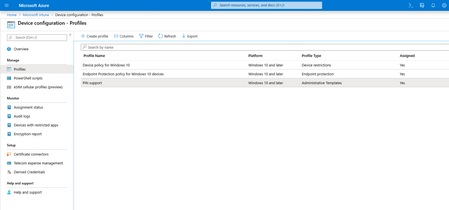
I want to allow my Windows 10 1909 (Hyper-V VM) to be able to use PIN for sign ins. I have created a non-administrator account and joined my VM during Windows installation to the AAD from the start. I also configured this for PIN policy in Windows 10 in Azure portal - Intune I created a group in Intune and put my VM device + User into that. then I assigned this profile that I created for PIN to that group. added my administrator user as the group owner. I've also read this article: https://support.microsoft.com/en-us/help/3201940/can-t-configure-a-pin-when-convenience-pin-and-hello-for-business-poli still, in my Windows 10 account settings, there is no sign of PIN. i've waited 2 hours, synced my device from AAD portal and also from Windows settings to receive the latest policies. still nothing. I'm running out of clues that why this is not working. any ideas? Thanks in advanceSolved17KViews0likes5Commentsaccess Azure File share on Azure AD joined Devices with Azure AD Credentials
Hi everyone We're currently testing Azure File for a customer. The customer already has an AVD environment, and we need an Azure File share for a specific application that runs on the AVD instance. We can mount the Azure File share on AVD with no problems and Azure AD credentials. All local and physical Windows Devices from the employees, which they use to open the AVD Application, are Azure AD joined. However, we also need to mount the Azure File share locally on every Azure AD joined Device. Problem is that we're not able to do that. We're able to mount the Azure File share with the storage account key, but this is a no-brainer. We're not giving out the storage account key to achieve this. Tbh, I'm not very fit in all these Azure Stuff but I think it's an authentication issue, because we're able to mount the Azure File share locally with the Storage Account Key. If we want to mount the share with the user logged on Azure AD credentials, it throws an error back that the network path could not be found (0x80070035). I think there is smth I'm missing out, which prevents me to mount the Azure File share on a Azure AD joined Devices and authenticate it with the user logged on AAD creds. Thanks for every reply, advice & help ❤️7.3KViews0likes3CommentsAzure CloudShell Permissions
Hi In a standard powershell session, importing the azuread module, connecting and executing the Revoke-AzureADUserAllRefreshToken command is no problem, however when running this command from the Azure CloudShell i get this error. Revoke-AzureADUserAllRefreshToken : Error occurred while executing RevokeUserAllRefreshTokens Code: Authorization_RequestDenied Message: Access to invalidate refresh tokens operation is denied. DateTimeStamp: Mon, 06 May 2019 01:23:07 GMT HttpStatusCode: Forbidden HttpStatusDescription: Forbidden HttpResponseStatus: CompletedSolved7.3KViews1like1Comment[FIXED] How to prevent sign in page from asking new users for additional security verification
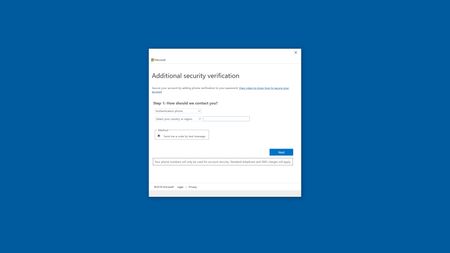
Update: thanks for all the suggestions, I figured out it was the Windows insider that was causing it. when I installed Windows 10 build 1909 on a Hyper-V VM and signed into it during installation using AAD, i was not asked to provide phone number. it was also a new user that I created with no admin rights. I'm trying to build an AAD-based environment, created few users with standard rights (non-administrators). when I go to one of my Windows 10 machines and try to join it to AAD using work/school account, after entering Email and password, I'm presented with this screen asking for phone number and verification. I'm looking for a way to stop it from appearing. there is another option in that drop down menu that is for using authenticator app to receive codes but I want to entirely disable this "additional security verification" for the users I create in my ADD.7.3KViews0likes5Comments
Unable to modify Conditional Access Policies
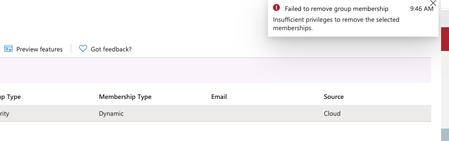
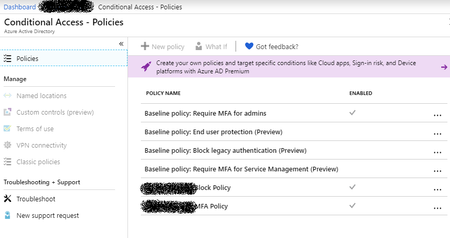
So we have O365, and the "free" Azure which comes with it. I think a colleague previously signed up for Enterprise Mobility & Security Trial for our tenancy, and configured some Azure Conditional Access policies. (See below) So as you can see we have one of the Baseline Policies enabled, and 2 more custom ones. But when i click them to edit/view what settings are in them i get the following So it seems the only option i have is to Delete the policy, but...i have no way of knowing what impact this will have. How can i end up with a policy i can't edit? Is it due to that trial of Enterprise Mobility & Security? Is there ANYWAY i can see the settings in this policy before i delete it. ThanksSolved6.8KViews0likes2CommentsManaging and Working with Azure Network Security Groups (NSG)
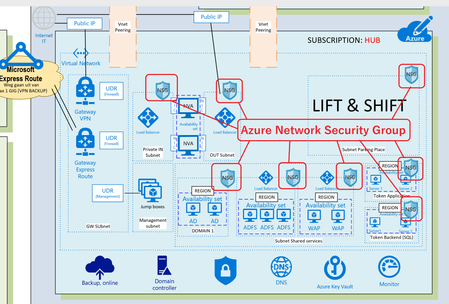
When you are implementing your Microsoft Azure Design like a HUB-Spoke model you have to deal with security of your Azure environment (Virtual Datacenter). One of them are Network Security Groups to protect your Virtual networks and make communication between Azure subnets possible in a Secure Azure Virtual Datacenter. You really have to plan your Azure Virtual networks and implement it by Architectural Design. Now I’m writing about Azure Network Security Groups which is important, but there are more items to deal with like : Naming Conventions in your Azure Virtual Datacenter Azure Subscriptions ( who is Owner, Contributor, or Reader? ) Azure Regions ( Where is my Datacenter in the world? ) Azure VNET and Sub-Nets ( IP-addresses ) Security of your Virtual Networks ( Traffic filtering, Routing ) Azure Connectivity ( VNET Peering between Azure Subscriptions, VPN Gateway ) Permissions (RBAC) Azure Policy ( Working with Blue prints ) How to Manage Microsoft Azure Network Security Groups (NSG) ? Read more on my blog about Infrastructure as Code (IaC) here with Azure DevOps and Visual Studio6.6KViews2likes0Comments