security & compliance
8 TopicsEnterprise Security Assessment: A Strategic Lens for Mission Critical Environments
Understanding Enterprise Security at Scale Understanding security posture at scale requires more than isolated control reviews or point‑in‑time assessments. The Enterprise Security Assessment (ESA) helps organizations understand their security posture across Azure, Microsoft 365, and hybrid environments from a true enterprise perspective. Instead of assessing individual services or workloads in isolation, ESA provides a single, enterprise‑wide view of security. By examining identity, data security, endpoints, threat protection, and cloud infrastructure together, ESA helps uncover gaps that often span multiple teams and platforms. This broader perspective enables clearer prioritization, stronger alignment across security teams, and a more resilient foundation for long‑term security improvement. ESA complements other Microsoft assessments, such as workload‑specific reviews, by connecting the bigger picture - to align security priorities across teams and platforms, fostering a more cohesive and resilient security approach. From Standard Engagement to Strategic Partnership An Enterprise Security Assessment is typically delivered as a focused engagement designed to establish an enterprise‑wide view of security posture. At Microsoft, we begin by reviewing Secure Score insights, analyzing a defined set of core security datasets, and correlating those signals across Azure and Microsoft 365. For many organizations, this approach works well. Collecting and evaluating these datasets provides a high‑level understanding of security posture, highlights common gaps, and identifies priority improvement areas. In standard enterprise environments, ESA delivers actionable insights with minimal disruption and sets a solid foundation for security improvements. How ESA Evolves in Mission‑Critical Environments In large or mission‑critical environments, security is often distributed across multiple teams and tools. Operational constraints, regulatory requirements, and business dependencies introduce complexity that standard assessments cannot fully capture. For mission‑critical customers, ESA goes beyond a baseline review and becomes more consultative. This typically includes: 📝 Structured discovery sessions across multiple security domains 🤝 Deep‑dive workshops with specialized teams 🎯 Validation of findings against real‑world operating models 🔄 Iterative analysis to validate findings against real operational conditions This ensures recommendations reflect how security is actually managed, not just how it is documented. Why Going Deeper Matters to Customers For organizations operating at scale, this consultative ESA approach delivers significantly more than a standard readout: A realistic, enterprise‑wide understanding of security posture, grounded in actual configurations and operating models Clear visibility into cross‑team dependencies and systemic risks Prioritized recommendations aligned to existing licenses, third‑party tools, and regulatory requirements A realistic, phased security roadmap focused on adoption, not theory The result is a clear starting point for security improvements that teams can execute with confidence. A Continuous Improvement Model ESA is not a one‑time exercise. For most customers, it becomes the foundation for ongoing security maturity. Once a baseline is established, future ESAs are faster and more efficient, allowing organizations to track progress, validate improvements, and maintain alignment as environments evolve. Over time, ESA functions as an annual enterprise security health check, supported by follow‑up reviews and continuous improvement. In mission‑critical environments, this means: The first ESA requires deeper engagement investment Building cross-team alignment takes time Future assessments become smoother and more efficient once a baseline is established Over time, ESA functions as an enterprise security health check that supports continuous improvement. It works best when treated as a starting point for continuous improvement, and Enterprise Security Alignment. What Customers Gain from an Enterprise Security Assessment A true enterprise view Visibility across identity, data, devices, cloud workloads, and threat signals - without losing sight of critical details. A customized security roadmap Recommendations aligned to existing licenses, third‑party tools, hybrid footprints, and regulatory requirements - making adoption realistic, not aspirational. Momentum and measurability Many organizations track progress using dashboards or scorecards to measure improvement and sustain focus over time. Repeatability Once a baseline is established, future ESAs become easier and more efficient - serving as a regular health check rather than a brand‑new effort. A consultative model ESA delivers far more value than a one‑time assessment by fostering collaboration, shared understanding, and long‑term alignment. A Foundation for Continuous Improvement Enterprise security is complex, especially at scale. In mission‑critical environments, security success depends on embracing complexity, aligning teams, and moving beyond a standard assessment playbook. An Enterprise Security Assessment is more than a snapshot. It’s an opportunity to build alignment, inform strategy, and create a resilient security foundation that evolves with the organization.1.4KViews3likes0Comments
Conditional Access for Canvas Apps with Entra
In today's Power Platform landscape, administrators have a tough task securing the ever-increasing inventory of Canvas Apps across their tenant. Canvas apps often connect to sensitive data, run on a variety of devices, and serve diverse groups of users. That is why Conditional Access has become one of the most powerful tools in an admin’s toolkit, giving you fine grained control over how, where, and under what conditions users can access your apps. In this post, I will walk through what Conditional Access means for canvas apps, how it empowers admins to maintain strong security without adding friction for legitimate users, and example steps to apply your own conditional access policies to an app with PowerShell. What Conditional Access Brings to Canvas Apps Conditional Access brings granular, app-level security controls from Microsoft Entra ID directly into Power Apps. Instead of applying blanket restrictions across the entire tenant, you can enforce requirements—like MFA, compliant devices, or trusted networks—only on the apps that need them. This lets you match security to the sensitivity of each individual app. Key Benefits for Admins Tailored Protection for Sensitive Apps Not every app requires strict controls. Conditional Access allows you to tighten security only for apps that handle sensitive or regulated data, without over restricting everything else. Control Access by Device Type Admins can easily block or allow specific device categories—like preventing mobile access to a high-risk app or requiring managed devices for apps that contain confidential information. Alignment With Zero Trust Conditional Access enforces identity, device, and session checks in real time, supporting a Zero Trust approach without adding unnecessary friction for legitimate users. Environment-Specific Flexibility You can apply stricter policies in production and lighter ones in development or testing, helping teams build efficiently while keeping sensitive environments locked down. A Stronger Security Model Conditional Access does not replace existing apps or data permissions—it complements them. App-level security roles control what users can do inside an app, while Conditional Access governs whether they can get into the app at all. Together, they create a much more robust security posture. How to enable conditional access for a Canvas App example In this example, I will detail steps to set up conditional access for a Canvas App to ensure tenant guest users are not able to access the app. Step 1: Create an Authentication Context in Entra ID Go to the Microsoft Entra Admin Center. Navigate to Protection → Conditional Access → Authentication context. Click + New authentication context. Name it (e.g., BlockGuests_PowerAppX) Enable Publish to apps Save and note the Authentication Context ID Step 2: Create a Conditional Access Policy Go to Conditional Access → Policies → + New policy. Name the policy (e.g., Block Guests from Power App X). Assignments: Users or workload identities: Include: Guest or external users Target resources: Choose Authentication context Select the one you created earlier Access controls: Grant: Select Block access Enable the policy and click Create. Step 3: Assign the Authentication Context to the Power App Use PowerShell to bind the Authentication Context to the specific Power App: Open PowerShell as Administrator. Connect to Power Apps Add-PowerAppsAccount Run the command to attach the context to your canvas app Set-AdminPowerAppConditionalAccessAuthenticationContextIds -EnvironmentName "<your-environment-name>" ` -AppName "<your-app-id>" ` -AuthenticationContextIds "<your-auth-context-id>" This binding tells Power Apps: “When this app opens, trigger the Conditional Access policy tied to this context.” Step 4: Test the Policy Try accessing the app as a guest user. You should see access blocked based on the Conditional Access policy. Wrap Up A Stronger Security Model Conditional Access does not replace existing apps or data permissions—it complements them. App-level security roles control what users can do inside an app, while Conditional Access governs whether they can get into the app at all. Together, they create a much more robust security posture. Bottom Line Conditional Access gives admins the flexibility to apply the right security to the right app. Whether you are enforcing MFA, restricting device types, or securing production environments, it helps you protect sensitive data without slowing down the organization. Documentation for further reading: Manage Power Apps - Power Platform | Microsoft Learn Demo from Power CAT: Conditional Access Policies for Canvas Apps - Power CAT Live838Views2likes1Comment
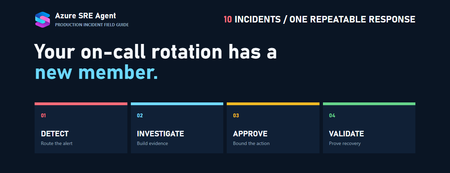
Your on-call rotation has a new member: 10 production incidents, end to end, with Azure SRE Agent
What this post is. A hands-on, reproducible walkthrough of ten real production failure modes — App Service, AKS, Azure SQL, Cosmos DB, VMs, VM Scale Sets, Application Gateway, and Service Bus — each one driven end to end by Azure SRE Agent: detection, hypothesis-driven investigation, ITSM ticketing, bounded remediation, recovery validation, and follow-up records. What this post is not. A claim that you install SRE Agent and all of this happens on day one. Every workflow below needs telemetry, scoped RBAC, a response plan, an approved action surface, and an ITSM integration. I'll be explicit about which parts are documented product behavior and which parts you have to wire yourself — because that distinction is the difference between a demo that works on stage and one that works at 3 AM. TL;DR The pattern Alert → agent investigates read-only → agent opens/updates the ticket with evidence → agent proposes a bounded action → human approves → agent executes → agent validates recovery → agent files the follow-up record The unlock Not "AI fixes prod." The unlock is that investigation — the 20 minutes of tab-switching between Azure Monitor, App Insights, deployment history, and Activity Log — is fully automated and consistent, and the fix arrives pre-justified with an evidence chain The guardrail Read-only automatic. Ticketing automatic. Production writes in Review mode. Guest-OS work through fixed-purpose runbooks, never a shell prompt The reality check SRE Agent hard-blocks delete / remove and all az keyvault commands, respects Azure management locks, and only one incident platform can be active at a time. Several patterns in this post need a custom tool or MCP server to complete the loop Time to first value One resource group, one alert rule, one response plan. You can reproduce use case #1 in an afternoon 1. Why the "investigation" half is the real prize Every conversation about AI in operations goes straight to remediation. "Will it restart my app?" That's the least interesting question, and it's the one with the most downside risk. Think about what actually consumes the minutes during a Sev1. The alert fires. Someone acknowledges. Then: Open Azure Monitor, confirm the metric is real and not a probe artifact Open Application Insights, find the dominant exception Open the deployment pipeline, find what shipped and when Open Activity Log, check whether someone changed configuration Open Resource Health, rule out a platform incident Open the other environment, confirm the previous version is healthy Assemble all of that into a sentence a human can act on That's twenty minutes of context assembly performed by a tired human, differently every time, with quality that depends entirely on who happens to be on call. It is the single most automatable part of incident response and the part nobody automates, because scripts can't reason about which of six hypotheses fits the evidence. This is exactly what root cause analysis in SRE Agent is designed for. The agent doesn't grep logs — it forms hypotheses and invalidates them: HYPOTHESIS 1: Recent deployment broke something ├─ Checked: Last deployment was 3 days ago ├─ Evidence: Error rate stable until 30 minutes ago └─ Result: INVALIDATED HYPOTHESIS 2: Database overloaded ├─ Checked: Azure SQL metrics (CPU, DTU, connections) ├─ Evidence: DTU at 98%, query duration 4x normal ├─ Traced: SELECT * FROM orders WHERE... taking 8.2s └─ Result: VALIDATED ROOT CAUSE: Orders table missing index on customer_id column. Query plan shows full table scan on 2.1M rows. RECOMMENDED ACTION: Add index on orders.customer_id Similar fix applied in INC-2341 (3 weeks ago) That last line — recalling a similar incident from three weeks ago — is the compounding part. Every thread produces a session insight: symptoms observed, steps that worked, root cause, and pitfalls to avoid. Thirty minutes after a thread goes quiet, the agent indexes those learnings. Next time the same resource misbehaves, that history surfaces first. So the framing for the rest of this post: remediation is the punchline, but investigation is the product. Every one of the ten use cases below has a large read-only phase you can turn on tomorrow with zero write permissions, and a small write phase you should gate behind approval for a long time. 2. What Azure SRE Agent actually does Before the use cases, here is the honest capability map, drawn from the product documentation rather than from a keynote. The three primary use cases Use case What it means Automate incidents Alert fires → agent queries monitoring tools, correlates signals across systems, identifies probable root cause, proposes mitigations Automate scheduled workflows Proactive health checks, compliance sweeps, and routine tasks on a schedule, with results routed to your incident platform or notification channel Investigate and advise Natural-language questions — "what changed in the last hour?" — answered with grounded citations The five extension primitives Everything you customize sits in one of five buckets: Primitive What it is When you reach for it Skills Procedural guidance ( SKILL.md ) plus optional attached tools; auto-loaded when relevant Team troubleshooting runbooks that should also execute Subagents / custom agents Purpose-built specialists invoked via /agent or routed to by a response plan A DatabaseExpert that owns every SQL incident Python tools Custom logic, transformations, API calls Anything that needs code, e.g. writing to the ServiceNow Table API MCP servers 40+ managed connectors (Datadog, New Relic, Splunk, Elastic, Dynatrace…) plus any custom MCP tool Bringing your non-Azure telemetry and your ITSM write surface into the loop Agent hooks Event-triggered automations at Stop and PostToolUse Policy enforcement, audit emission, blocking risky commands Six generic subagents ship built in — Explore, Plan, CodeReview, Bash, Verification, GeneralPurpose — and the agent can parallelize investigation, planning, review, shell, and verification work across them. A permission gate sits in front of all five primitives and evaluates every proposed tool call before it runs. Integrations you can assume Category Supported Monitoring Azure Monitor (metrics, logs, alerts, workbooks), Application Insights, Log Analytics, Grafana Incident platforms Azure Monitor Alerts, PagerDuty, ServiceNow — only one active at a time Source control / CI GitHub (repos, issues), Azure DevOps (repos, work items) Data Azure Data Explorer (Kusto), MCP servers Comms Slack, Microsoft Teams ⚠️ Design constraint worth internalizing early. Only one incident platform can be active at a time, and switching disconnects the current one. If your org runs PagerDuty for paging and ServiceNow for records of truth, you must pick which one the agent is bound to and reach the other through a connector or custom tool. Every use case below assumes ServiceNow is the bound platform. Skills vs. custom agents vs. knowledge files The three are constantly confused. This table settles it: Skills Custom agents Knowledge files Access Automatic when relevant Explicit ( /agent ) or routed by response plan Automatic search Tools Can attach Has its own None Context Uses thread context Shares thread context (no clean slate) Reference only Best for Team procedures with execution Domain specialists Runbooks, architecture docs Practical limits: a maximum of five concurrent active skills (oldest auto-unloads), knowledge base uploads up to 16 MB per file, and custom agent knowledge bases up to 1,000 files. 3. Anatomy of an agent-run incident Every use case in section 6 is an instance of this one shape. Learn it once. [[INCIDENT_FLOW_IMAGE]] Five properties make this shape safe, and they're worth stating as rules: The read phase has no blast radius. Turn it on everywhere, immediately, with Reader . One action per incident. Not "roll back and scale and restart." One bounded, reversible step, then re-measure. The proposed action is always the smallest reversible one. Swap a slot, don't redeploy. Bump one service tier, don't resize the cluster. Validation is a first-class phase, not a vibe. Define the metric, the threshold, and the duration before you approve. Technical recovery ≠ business recovery. Use case #10 makes this painfully clear. 4. Build the demo lab Everything below runs in a single throwaway resource group. Nothing here should touch a subscription you care about. 🧪 Lab hygiene. Create it, demo it, delete it. az group delete -n rg-sre-agent-demo --yes --no-wait when you're done. Several of these use cases deliberately break things. 4.1 Resource group and agent LOC=eastus2 RG=rg-sre-agent-demo az group create -n $RG -l $LOC Create the SRE Agent from the Azure portal and point it at $RG . Three things are created for you automatically: an Application Insights instance (this is where your audit trail lands), a Log Analytics workspace, a user-assigned managed identity (UAMI) — the identity every action runs as. 4.2 Choose a permission level deliberately At creation you pick one of two levels: Level Grants Use it when Reader Core monitoring roles + resource-type reader roles. Prompts for temporary elevation via on-behalf-of when it needs to act Start here. Production. Weeks 1–4 of any pilot Privileged Core monitoring roles + resource-type contributor roles Non-production, or after a proven pilot Regardless of level, these are always assigned: Role Scope Why Reader Resource group See resources and properties Log Analytics Reader Resource group Query logs and workspaces Monitoring Reader Resource group Read metrics Monitoring Contributor Subscription Acknowledge and close Azure Monitor alerts Grant additional access explicitly and narrowly: SUB=$(az account show --query id -o tsv) AGENT_MI=<agent-managed-identity-principal-id> # Read everywhere you want visibility az role assignment create \ --assignee $AGENT_MI \ --role "Reader" \ --scope "/subscriptions/$SUB" # Write ONLY where you intend the agent to act az role assignment create \ --assignee $AGENT_MI \ --role "Website Contributor" \ --scope "/subscriptions/$SUB/resourceGroups/$RG/providers/Microsoft.Web/sites/app-checkout-demo"</agent-managed-identity-principal-id> 📌 A sharp edge. You can't remove individual permissions from an agent — only entire resource groups. Removing a resource group from the agent's scope revokes all access to it. Plan your resource group boundaries as your blast-radius boundaries, because that's exactly what they are. 4.3 Connect ServiceNow Use a dedicated, least-privileged integration user — not a shared admin account. Method When What you need Basic auth Quick setup, PDI, testing Username + password, itil or admin role OAuth 2.0 Production ServiceNow OAuth app (client ID + secret); register redirect https://logic-apis-{region}.consent.azure-apim.net/redirect Scope the connection so you don't drown: Assignment group — essential on a shared enterprise instance Priority — Critical through Planning Category Scanner defaults worth knowing: Setting Value Scan interval 1 minute Incidents per page 20 Max incidents per cycle 220 (11 pages) Initial lookback 30 days Setup performs a real connectivity check by fetching an actual incident, so credential and endpoint mistakes surface immediately instead of six hours later when nothing syncs. 🚨 Delete the quickstart plan. Connecting an incident platform auto-creates a quickstart_handler response plan that runs in fully autonomous mode across all impacted services. If you then build your own plans, incidents get routed twice or to the wrong agent. Go to Builder → Incident response plans → Table view and delete it before you do anything else. 4.4 Connect deployment correlation Half the use cases below hinge on "what shipped three minutes before the spike." That correlation requires a source control connector: GitHub — repositories and issues Azure DevOps — repos and work items Connect one. Without it, the agent can still read Azure Activity Log and deployment history, but it can't reach commits, PRs, or work items. 4.5 Create the demo resources # 1 · App Service with a staging slot (use cases 1) az appservice plan create -g $RG -n plan-demo --sku P1V3 --is-linux az webapp create -g $RG -p plan-demo -n app-checkout-demo --runtime "DOTNETCORE:8.0" az webapp deployment slot create -g $RG -n app-checkout-demo --slot previous # 2 · AKS (use case 2) az aks create -g $RG -n aks-demo --node-count 3 --generate-ssh-keys --enable-addons monitoring # 3 · Azure SQL (use case 3) az sql server create -g $RG -n sqlsrv-sre-demo -u sqladmin -p "<use-a-generated-password>" az sql db create -g $RG -s sqlsrv-sre-demo -n db-customer --service-objective S1 # 4 · Cosmos DB (use case 4) az cosmosdb create -g $RG -n cosmos-sre-demo az cosmosdb sql database create -g $RG -a cosmos-sre-demo -n catalog az cosmosdb sql container create -g $RG -a cosmos-sre-demo -d catalog \ -n products --partition-key-path /category --throughput 400 # 5–7 · VMs (use cases 5, 6, 7) az vm create -g $RG -n vm-payments-linux --image Ubuntu2204 --size Standard_B2s --generate-ssh-keys az vm create -g $RG -n vm-claims-win --image Win2022Datacenter --size Standard_B2ms \ --admin-username azureadmin --admin-password "<use-a-generated-password>" # 8 · VM Scale Set (use case 8) az vmss create -g $RG -n vmss-api-demo --image Ubuntu2204 --instance-count 12 \ --upgrade-policy-mode automatic --generate-ssh-keys # 10 · Service Bus (use case 10) az servicebus namespace create -g $RG -n sb-sre-demo --sku Standard az servicebus queue create -g $RG --namespace-name sb-sre-demo -n order-events \ --enable-dead-lettering-on-message-expiration true</use-a-generated-password></use-a-generated-password> Install the Azure Monitor Agent on the VMs and associate a data collection rule — without guest telemetry, use cases 5, 6, and 7 have nothing to detect. 4.6 One custom agent per domain Don't build a single mega-agent. Build specialists and let response plans route to them: Custom agent Owns Attached tools DeploymentAnalyzer App Service, AKS, anything release-correlated RunAzCliReadCommands , GitHub connector, Kusto DatabaseExpert Azure SQL, Cosmos DB RunAzCliReadCommands , Kusto, read-only SQL diagnostics tool GuestOSResponder VM / VMSS / IIS RunAzCliReadCommands , fixed-purpose runbook tools only NetworkPathExpert Application Gateway, NSG, DNS, TLS RunAzCliReadCommands IntegrationExpert Service Bus, Event Hubs RunAzCliReadCommands , Kusto A custom agent definition is small: name: database_expert system_prompt: | You are a database specialist for this estate. Analyze query performance, diagnose connection and saturation issues, and recommend the smallest reversible mitigation. Never propose schema changes, index changes, plan forcing, or session termination — those are DBA-owned and require a change record. handoff_description: Handles Azure SQL and Cosmos DB troubleshooting tools: - execute_kusto_query - RunAzCliReadCommands allowed_skills: - azure-sql-saturation-runbook - cosmos-throughput-runbook Note what that system_prompt is really doing: it is narrowing the action space. Half of production safety with an agent is telling it, in plain English, which categories of fix are off the table. 4.7 Response plans Create one plan per domain, all starting in Review: Plan Filter Custom agent Mode appsvc-p1 Priority 1 + 2, service checkout DeploymentAnalyzer Review aks-p1 Priority 1, service orders-api DeploymentAnalyzer Review db-critical Priority 1 + 2, service customer-api DatabaseExpert Review vm-guest Priority 1 + 2, title contains disk , memory , CPU GuestOSResponder Review network-p1 Priority 1, title contains 502 , backend NetworkPathExpert Review integration-p1 Priority 1, service fulfillment IntegrationExpert Review Filters available: severity/priority (multiselect), impacted service, incident type, and title contains. Plans can be turned off without deleting them, which is exactly what you want during maintenance windows. 5. Set your guardrails before your first incident If you read only one section of this post, read this one. The guardrails are not paperwork; they are the reason this is deployable. 5.1 Run modes Mode Behavior Default Review Agent proposes; you approve or deny Agent-level default Autonomous Agent executes immediately and reports Per-plan and per-task default Two subtleties that bite people: Run modes are set per response plan and per scheduled task, not globally. The agent-level setting is only a fallback. And per-plan the default is Autonomous — so if you don't set it, you get autonomy. Review mode shows Approve/Deny only for Azure infrastructure operations (Azure CLI, ARM writes). Sending an email, posting to Teams, or querying an external source proceeds based on the agent's reasoning. To gate those, you need hooks or tool access policies. Only users holding the SRE Agent Administrator role can approve. Standard users cannot, and personal Microsoft accounts can't authorize on-behalf-of at all — it requires a work or school (Entra ID) account. 5.2 What the product blocks for you These are enforced at the command level, independent of your RBAC: Guardrail Behavior Delete operations The agent never runs delete or remove commands. It returns an error pointing you at the portal Key Vault All az keyvault commands are blocked, to prevent credential exposure Management locks Resources with ReadOnly locks can't be modified, regardless of permissions or run mode Subscription validation Subscription IDs are validated as well-formed GUIDs before execution 💡 Use the delete block architecturally. Put a ReadOnly management lock on anything that must never change during an incident — your Key Vaults, your production databases, your golden images. That lock is respected before every modification, which gives you a control that survives RBAC drift and misconfigured response plans. 5.3 Hooks: the guardrail you write yourself Two events are supported — Stop (agent about to return a final response) and PostToolUse (a tool finished). Hooks run as an LLM prompt or a sandboxed command script. Here is the single most useful hook for this entire post — a deterministic policy gate on shell execution: hooks: PostToolUse: - type: command matcher: "Bash|ExecuteShellCommand" timeout: 30 failMode: block script: | #!/usr/bin/env python3 import sys, json, re context = json.load(sys.stdin) command = context.get('tool_input', {}).get('command', '') dangerous = [ r'\brm\s+-rf\b', r'\bsudo\b', r'\bchmod\s+777\b', r'\bmkfs\b', r'\bdd\s+if=', r'\btruncate\b', r'\bDROP\s+TABLE\b', ] for pattern in dangerous: if re.search(pattern, command, re.IGNORECASE): print(json.dumps({"decision": "block", "reason": f"Blocked by policy: {pattern}"})) sys.exit(0) print(json.dumps({"decision": "allow"})) And a Stop hook that refuses to let the agent declare victory without evidence: hooks: Stop: - type: prompt model: ReasoningFast timeout: 30 prompt: | Review the agent's final response. $ARGUMENTS It is only acceptable if it contains ALL of: 1. The specific resource acted upon (full name or resource ID) 2. Metric values BEFORE and AFTER the action 3. The observation window over which recovery was confirmed 4. Who approved the action and at what UTC timestamp Respond with: {"ok": true} {"ok": false, "reason": "<what is="" missing="">"}</what> Hook mechanics you'll want on hand: Setting Default Range / notes timeout 30s 1–300s failMode allow allow or block maxRejections 3 1–25; prompt-type Stop hooks only matcher — Regex, anchored ^(pattern)$ , case-sensitive; * matches all Script size — 64 KB max Shebangs — #!/bin/bash , #!/usr/bin/env python3 ⚠️ The footgun: for Stop hooks, a rejection without a reason field is treated as approval. Always populate reason . Agent-level hooks and custom-agent-level hooks both run when both match; agent-level fires first. 5.4 The recommended production policy This is the policy I'd put in front of a change board: Allow read-only investigation automatically, everywhere. Allow automatic incident creation and work-note updates — after sanitization. Use Review mode for all production remediation. Require human approval for every production write. Use fixed-purpose runbooks instead of unrestricted VM shell access. Require separate approval for destructive or data-affecting actions. Initially require human confirmation before resolving an incident. 6. The ten use cases Each use case follows the same seven-part structure so you can skim to the one you're firefighting: What happened → How Azure Monitor detected it → How the agent found the cause → Agent action table → Recovery note → Try it yourself → Guardrails In the action tables, Type is one of: Type Meaning Read No blast radius. Safe to run automatically Decision Agent reasoning or an approval gate. No resource change Write (ITSM) Ticket create/update. Sanitized Write (Azure) Azure control-plane change. Approval required in production Write (Guest OS) Inside the VM, via a fixed-purpose runbook. Approval required Write (K8s/DevOps) Cluster or pipeline change. Approval required Validation Post-action measurement against defined thresholds Use case #1 — App Service: HTTP 500 after deployment The one you should build first. Clean trigger, bounded action, unambiguous validation. What happened Release 2026.03.12.4 was deployed to a production checkout App Service. The new code referenced an application setting that was never defined in the production slot. The application started fine — which is what makes this class of failure nasty — but every checkout operation that touched that setting returned HTTP 500. How Azure Monitor detected it Azure Monitor and Application Insights fired on a composite condition, not a single metric: HTTP 5xx rate above the operational threshold Failed availability tests Increased application exceptions Increased dependency failures Request latency above baseline P1 – Checkout App Service returning elevated HTTP 500 responses How the agent found the cause Identified the affected App Service and slot. Queried HTTP response and latency metrics. Queried Application Insights failed requests and exceptions. Identified the missing-setting exception as the dominant failure. Reviewed deployment history and Azure Activity Log. Correlated the error increase with release 2026.03.12.4 . Compared production against the previous deployment slot. Confirmed the previous slot remained healthy. Confirmed no matching Azure platform incident. Agent finding: HTTP 500 responses increased from 0.4% to 18% within three minutes of release 2026.03.12.4. Most failures reference a missing application setting. The previous deployment slot passes availability and dependency checks. Notice the shape of that sentence: a delta, a time correlation, and a known-good comparison. That's what makes it actionable rather than merely true. Agent action table # Action Type Detail 1 Investigate alert Read Reads HTTP 5xx rate, failed requests, latency, availability-test results 2 Analyze exceptions Read Identifies missing-configuration exception as dominant failure 3 Correlate deployment Read Finds release 2026.03.12.4 deployed three minutes before the spike 4 Compare slots Read Confirms previous slot healthy while production is failing 5 Rule out platform issue Read Checks Azure Resource Health and dependency health 6 Assess blast radius Read Determines checkout affected, unrelated services healthy 7 Create SNOW INC Write (ITSM) P1 against the Checkout CI, assigned to Application Operations 8 Update INC evidence Write (ITSM) Adds exceptions, deployment correlation, resource links, affected operations 9 Classify response Decision Classifies as deployment-caused; selects rollback 10 Pause release Write (DevOps) Pauses the failed release pipeline 11 Request approval Decision Requests approval to swap the previous healthy slot into production 12 Swap slot Write (Azure) Performs the approved swap only on the named App Service 13 Validate recovery Validation Confirms 5xx, latency, exceptions, dependencies, availability recover 14 Update/resolve INC Write (ITSM) Records approval, rollback, timestamps, recovery evidence 15 Create SNOW PRB Write (ITSM) Problem record for configuration-validation improvements Recovery note Production was reverted to the previous healthy deployment slot at 14:26 UTC. HTTP 500 responses declined from 18% to below 1%, and availability tests passed for 15 consecutive minutes. Preliminary cause: missing production configuration in release 2026.03.12.4. Try it yourself Break it: # Put a healthy build in the 'previous' slot first, then break production # by deploying code that reads an app setting which only exists in staging. az webapp config appsettings delete -g $RG -n app-checkout-demo \ --setting-names Checkout__PaymentProviderKey az webapp restart -g $RG -n app-checkout-demo Alert it: az monitor metrics alert create -g $RG -n "alert-checkout-5xx" \ --scopes "/subscriptions/$SUB/resourceGroups/$RG/providers/Microsoft.Web/sites/app-checkout-demo" \ --condition "total Http5xx > 20" \ --window-size 5m --evaluation-frequency 1m --severity 1 \ --description "P1 – Checkout App Service returning elevated HTTP 500 responses" Ask it (before the alert, to see the read phase in isolation): app-checkout-demo is returning HTTP 500s. Do not change anything. Investigate and tell me: 1. the dominant exception and its share of total failures 2. what deployed in the 30 minutes before the error rate changed 3. whether the 'previous' slot is healthy right now 4. whether Azure Resource Health shows a platform issue Give me the evidence chain and the smallest reversible mitigation. Expect it to propose: Proposed action: Swap slot 'previous' into production on app-checkout-demo Risk: brief connection drain (~10s). Fully reversible by swapping back. Validation: Http5xx < 1% and availability test passing for 15 minutes. [Approve] [Deny] Verify it: requests | where timestamp > ago(1h) | summarize failed = countif(success == false), total = count() by bin(timestamp, 1m) | extend failureRate = 100.0 * failed / total | render timechart 🎬 Best thing to record for a demo: the moment the Approve button appears with the evidence already attached. That single screen is the whole value proposition. Guardrails Scope write permissions to the named App Service, not the resource group. Verify the previous slot is healthy before swapping — a swap into a broken slot doubles the outage. Require human approval for production slot swaps. Preserve the failed deployment for analysis; don't let the pipeline overwrite it. Never grant subscription-level Contributor or Owner. Use case #2 — AKS: pods in CrashLoopBackOff What happened Image orders-api:4.18.0 referenced a configuration key that didn't exist in the production namespace. Eight of ten pods entered CrashLoopBackOff . The two survivors couldn't carry production traffic, producing latency and ingress 5xx. How Azure Monitor detected it Managed Prometheus / Container Insights detected: Unavailable replicas Increasing container restart count CrashLoopBackOff pod state Failed readiness and liveness checks Elevated ingress HTTP 5xx Reduced successful-request rate P1 – Orders API unavailable replicas in production AKS How the agent found the cause Identified the cluster, namespace, and deployment. Reviewed deployment availability and pod states. Examined logs from failing containers. Reviewed Kubernetes warning events. Compared current and previous ReplicaSets. Correlated the failure with revision 42. Identified the missing configuration key. Confirmed revision 41 was previously healthy. Checked node CPU, memory, storage, networking, status. Determined AKS infrastructure was healthy. Agent finding: Eight of ten Orders API pods entered CrashLoopBackOff during rollout of revision 42. Container logs show a missing configuration key. Revision 41, using image 4.17.6, was healthy. Step 10 is the one people skip. "Rule out the infrastructure" is what stops you from spending an hour on a node pool that was never the problem. Agent action table # Action Type Detail 1 Investigate workload Read Deployment status, unavailable replicas, readiness, restart counts 2 Analyze pod logs Read Startup failure from a missing configuration key 3 Analyze events Read Image pulls, mounts, scheduling, probes, container events 4 Correlate rollout Read Revision 42 deployed immediately before failure 5 Compare ReplicaSets Read Revision 41 was the previous healthy workload 6 Rule out infrastructure Read Nodes, memory, CPU, networking, storage healthy 7 Assess blast radius Read Eight of ten replicas unavailable 8 Create SNOW INC Write (ITSM) P1 against the Orders API CI 9 Update INC evidence Write (ITSM) Namespace, image, revision, errors, rollout correlation 10 Classify response Decision Application/configuration-caused 11 Request approval Decision Approval to pause and roll back revision 42 12 Pause failed rollout Write (K8s/DevOps) Prevents the release progressing or being reapplied 13 Roll back deployment Write (K8s) Rolls back only the named deployment to revision 41 14 Validate replicas Validation All expected replicas ready and stable 15 Validate application Validation Ingress errors decline; synthetic orders succeed 16 Update/resolve INC Write (ITSM) Revision, approval, rollback, recovery evidence 17 Create defect/task Write (ITSM) Add configuration validation to CI/CD Recovery note Orders API was rolled back from revision 42 to revision 41. All ten replicas are ready, restart counts have stabilized, ingress HTTP 5xx responses are below threshold, and synthetic order transactions are succeeding. Try it yourself Break it: az aks get-credentials -g $RG -n aks-demo kubectl create namespace orders kubectl create deployment orders-api -n orders --image=nginx:1.25 --replicas=10 kubectl rollout status deployment/orders-api -n orders # revision 41 equivalent, healthy # Now break it: point at an image whose entrypoint requires a missing env var kubectl set image deployment/orders-api -n orders orders-api=busybox:1.36 kubectl patch deployment orders-api -n orders --type=json -p='[ {"op":"add","path":"/spec/template/spec/containers/0/command", "value":["sh","-c","test -n \"$ORDERS_CONFIG_KEY\" || (echo \"FATAL: missing ORDERS_CONFIG_KEY\" >&2; exit 1); sleep 3600"]} ]' Watch it break: kubectl get pods -n orders -w kubectl rollout history deployment/orders-api -n orders Ask it: Pods in namespace 'orders' on aks-demo are crash looping. Read-only. Tell me: which revision introduced it, the exact container error, whether the node pool is healthy, and how many replicas are actually serving. Then tell me the last known-good revision and why you believe it was healthy. Expect it to propose: kubectl rollout undo deployment/orders-api -n orders --to-revision= scoped to that single deployment. Verify it: kubectl get deployment orders-api -n orders \ -o jsonpath='{.status.readyReplicas}/{.status.replicas}{"\n"}' kubectl get pods -n orders --no-headers | awk '{print $4}' | sort | uniq -c Guardrails Restrict access to the required cluster, namespace, and deployment. Do not grant cluster-admin . Require approval for rollback. Coordinate with GitOps reconciliation. If Flux or Argo owns that deployment, a kubectl rollout undo gets reverted within minutes and you've created a flapping outage. Either pause reconciliation first or roll back through Git. Do not permit namespace, persistent-volume, or cluster deletion. Use case #3 — Azure SQL Database: CPU saturation and timeouts The use case where the agent's job is to buy time, not to fix the problem. What happened A query execution plan changed after an application release. The new plan consumed substantially more CPU and workers. The database saturated, producing SQL dependency timeouts and failed customer requests. How Azure Monitor detected it Sustained CPU saturation Worker or session pressure Increased connection failures SQL dependency timeouts Query-duration deviation from baseline Degraded customer API success rate P1 – Customer API database saturation causing request timeouts How the agent found the cause Reviewed database CPU, workers, sessions, connections. Reviewed application SQL dependency failures. Checked for blocking and deadlocks. Ran approved read-only Query Store diagnostics. Identified the primary CPU-consuming query. Detected a recent execution-plan change. Correlated with an application release. Ruled out Azure service health and storage issues. Determined a temporary scale operation could restore service. Left permanent query remediation to the DBA team. Agent finding: Database CPU has remained saturated for 17 minutes. One query accounts for most recent CPU consumption and changed execution plan shortly before the incident. Application SQL dependency timeout rate is 23%. Step 10 is the design decision that makes this safe. The agent correctly diagnoses a plan regression and then deliberately does not fix it, because forcing a plan or dropping an index is a permanent, DBA-owned, change-controlled action. It buys capacity instead. Agent action table # Action Type Detail 1 Investigate database Read CPU, workers, sessions, connections, storage, availability 2 Analyze app impact Read SQL dependency latency, failures, affected API operations 3 Check blocking Read Approved diagnostics for blocking, deadlocks, connection growth 4 Analyze Query Store Read Highest-impact query and recent plan change 5 Correlate changes Read Recent application and database deployments 6 Rule out platform issue Read Service health, storage, database availability 7 Assess blast radius Read Affected applications; other databases healthy 8 Create SNOW INC Write (ITSM) P1 against the production database CI 9 Update INC evidence Write (ITSM) Utilization, query ID, timeouts, change correlation 10 Classify response Decision Scaling is mitigation; query changes remain DBA-owned 11 Calculate bounded scale Read Selects the smallest pre-approved capacity increase 12 Request approval Decision Database owner or incident commander 13 Scale database Write (Azure) Increases the affected database by one approved service step 14 Validate recovery Validation CPU, workers, timeouts, application success recover 15 Update INC Write (ITSM) Previous/new capacity, approval, timing, results 16 Create SNOW PRB Write (ITSM) Permanent query-remediation work 17 Create scale-down task Write (ITSM) Task/change to restore normal capacity after stability Recovery note Azure SQL capacity was temporarily increased by one approved service step. CPU declined from sustained saturation to 54%, and SQL dependency timeouts returned to baseline. Query Store indicates a probable execution-plan regression requiring permanent DBA remediation. Try it yourself Break it — generate a saturating workload against db-customer (an unindexed LIKE '%...%' scan in a tight loop from a container in the same region works fine on an S1). Alert it: az monitor metrics alert create -g $RG -n "alert-sql-cpu" \ --scopes "/subscriptions/$SUB/resourceGroups/$RG/providers/Microsoft.Sql/servers/sqlsrv-sre-demo/databases/db-customer" \ --condition "avg cpu_percent > 90" \ --window-size 5m --evaluation-frequency 1m --severity 1 \ --description "P1 – Customer API database saturation causing request timeouts" Ask it: db-customer is saturated. Read-only investigation. Identify the top CPU-consuming query, whether its plan changed recently, and what application release correlates. Do NOT propose index, schema, plan-forcing, or session-kill actions. Propose only the smallest temporary capacity step that restores service, and tell me what it costs per day and when we should scale back down. Read-only Query Store diagnostics the agent should run: SELECT TOP 10 qsq.query_id, qsp.plan_id, qsp.last_execution_time, SUM(qsrs.count_executions) AS executions, SUM(qsrs.avg_cpu_time * qsrs.count_executions) AS total_cpu_us FROM sys.query_store_query AS qsq JOIN sys.query_store_plan AS qsp ON qsp.query_id = qsq.query_id JOIN sys.query_store_runtime_stats AS qsrs ON qsrs.plan_id = qsp.plan_id JOIN sys.query_store_runtime_stats_interval AS qsrsi ON qsrsi.runtime_stats_interval_id = qsrs.runtime_stats_interval_id WHERE qsrsi.start_time > DATEADD(hour, -2, GETUTCDATE()) GROUP BY qsq.query_id, qsp.plan_id, qsp.last_execution_time ORDER BY total_cpu_us DESC; Expect it to propose: az sql db update -g $RG -s sqlsrv-sre-demo -n db-customer --service-objective S2 — exactly one step, on exactly that database. Guardrails Restrict scaling to the named database. Define minimum and maximum capacity. Require approval for scale-up and scale-down. Time-limit temporary capacity — an un-reversed emergency scale-up is how a P1 becomes a budget incident. Do not autonomously force plans, terminate sessions, modify indexes, or change schema. Track the temporary cost impact with an Azure Cost Management alert. Use case #4 — Azure Cosmos DB: HTTP 429 throttling The one where the correct root cause is "we're succeeding." What happened A marketing campaign increased Product Catalog traffic by roughly 40%. The Cosmos DB container hit its provisioned throughput ceiling. HTTP 429s increased, and client retries amplified application latency. How Azure Monitor detected it High normalized RU consumption Increased HTTP 429 responses Elevated server-side latency Application dependency failures Sustained operation near the throughput limit P2 – Cosmos DB throttling affecting Product Catalog requests How the agent found the cause Reviewed normalized RU consumption and throttled requests. Identified the affected database and container. Reviewed regional and partition behavior. Checked for hot-partition evidence. Reviewed application retry telemetry. Compared current traffic with the historical baseline. Correlated demand with the marketing campaign. Checked recent application deployments. Checked Azure service health. Determined the primary cause was legitimate demand. Agent finding: The Product Catalog container is at its configured throughput ceiling, and 21% of requests are being throttled. Traffic increased by approximately 40% following a campaign launch. No deployment or regional platform issue correlates with the event. Step 4 is the fork in the road. If consumption is uneven across partitions, more RU/s is money set on fire — the correct answer is an architecture change, not a scale-up. The agent has to check before it recommends. Agent action table # Action Type Detail 1 Investigate throttling Read RU consumption, 429 rate, latency, requests, availability 2 Identify scope Read Account, database, container, operations, regions 3 Analyze demand Read Compares traffic and RU consumption with historical patterns 4 Check partitions Read Looks for uneven partition consumption where telemetry permits 5 Analyze retries Read Determines whether client retries are amplifying the incident 6 Correlate events Read Links demand to campaign traffic; excludes release/platform issues 7 Assess blast radius Read Affected catalog operations; unaffected containers 8 Create SNOW INC Write (ITSM) P2 against the Product Catalog CI 9 Update INC evidence Write (ITSM) RU, throttling, latency, traffic, partition evidence 10 Classify response Decision Demand-driven unless hot-partition evidence exists 11 Calculate throughput Read Smallest increase within the cost ceiling 12 Request approval Decision Approval for a temporary throughput increase 13 Increase throughput Write (Azure) Raises throughput only to the approved maximum 14 Validate recovery Validation 429 rate and latency recover 15 Update/resolve INC Write (ITSM) Throughput, approval, cost implication, recovery 16 Create capacity task Write (ITSM) Work to return throughput to normal 17 Create SNOW PRB Write (ITSM) Partition or retry improvements, if required Recovery note Provisioned throughput was increased within the approved production limit. HTTP 429 responses declined from 21% to below 1%, and Product Catalog latency returned to baseline. The increase is temporary and will be reviewed after campaign traffic subsides. Try it yourself Break it: the container was created at 400 RU/s. Drive a few hundred reads per second at it and you'll be throttled within seconds. Alert it: az monitor metrics alert create -g $RG -n "alert-cosmos-429" \ --scopes "/subscriptions/$SUB/resourceGroups/$RG/providers/Microsoft.DocumentDB/databaseAccounts/cosmos-sre-demo" \ --condition "total TotalRequests where StatusCode == 429 > 100" \ --window-size 5m --evaluation-frequency 1m --severity 2 \ --description "P2 – Cosmos DB throttling affecting Product Catalog requests" Ask it: cosmos-sre-demo container 'products' is throttling. Read-only. Before recommending anything, tell me whether RU consumption is EVEN across physical partitions or concentrated. If it is concentrated, do not recommend a throughput increase — recommend an architecture problem record instead. If it is even, tell me the smallest RU/s that clears throttling and the daily cost delta. That prompt is the whole use case. Getting the agent to refuse the easy answer under a stated condition is the skill. Verify it: AzureDiagnostics | where ResourceProvider == "MICROSOFT.DOCUMENTDB" | where Category == "DataPlaneRequests" | summarize throttled = countif(statusCode_s == "429"), total = count() by bin(TimeGenerated, 1m) | extend throttleRate = 100.0 * throttled / total | render timechart Guardrails Define a maximum throughput ceiling the agent may not exceed. Restrict changes to the named container. Require approval for increases and reductions. Do not permit deletion, consistency-level changes, or region changes. Create cost alerts for prolonged increased throughput. Treat persistent hot partitions as an architecture issue, never as a scaling issue. Use case #5 — Azure VM: OS/root disk full The most operationally dangerous use case in this post, and the one with the most interesting guardrail design. What happened A legacy payment application generated excessive trace logs. Log rotation stopped working and the root filesystem filled. The VM stayed available at the Azure platform layer — heartbeat green, Resource Health fine — but the application stopped, because it could no longer write to disk. This is the classic "green dashboard, dead service" failure. Platform-layer monitoring alone will never catch it. How Azure Monitor detected it Azure Monitor Agent and guest telemetry detected: Critically low filesystem free space Rapid filesystem consumption Application process stopped Failed availability tests Elevated HTTP 5xx Healthy VM heartbeat but unhealthy application P1 – Legacy payment application unavailable due to full VM OS disk How the agent found the cause Confirmed the VM was online. Confirmed Azure Monitor Agent heartbeat. Identified the affected root/OS filesystem. Reviewed the free-space trend. Correlated application failure with disk exhaustion. Found 86 GB of growth in the application trace directory. Reviewed recent deployments and logging changes. Checked log-rotation status. Confirmed the files matched the approved cleanup policy. Excluded customer data, database files, audit logs, and system files. Agent finding: The VM is healthy at the Azure platform layer, but the OS volume has less than 1% free space. The approved application trace directory grew by 86 GB in six hours. The payment service stopped when it could no longer write to disk. Agent action table # Action Type Detail 1 Investigate VM Read VM, agent heartbeat, Azure platform health 2 Analyze filesystem Read Root volume and free-space trend 3 Correlate app failure Read Service stopped after disk exhaustion 4 Identify disk consumer Read Abnormal growth in an approved trace directory 5 Check changes Read Deployments, logging changes, rotation, scheduled tasks 6 Validate cleanup scope Read Candidate files meet approved path, type, and age rules 7 Protect data Decision Excludes databases, customer data, security logs, unknown files 8 Create SNOW INC Write (ITSM) P1 against the payment VM/application CI 9 Update INC evidence Write (ITSM) Disk usage, growth timeline, service impact, cleanup scope 10 Request approval Decision Approval for the restricted recovery runbook 11 Archive logs Write (Guest OS) Archives eligible files to protected Azure Storage 12 Remove eligible files Write (Guest OS) Removes only successfully archived, allowlisted files 13 Run log rotation Write (Guest OS) Executes the approved rotation operation 14 Restart service Write (Guest OS) Restarts only the named payment service if necessary 15 Validate recovery Validation Disk, application, archive, availability, growth stabilization 16 Update/resolve INC Write (ITSM) Bytes processed, exclusions, approval, results 17 Create SNOW PRB Write (ITSM) Permanent logging and rotation remediation Recovery note The approved recovery runbook archived and removed 82 GB of eligible application trace files. OS-volume free space is now 31%. The payment service was restarted and has passed health checks for 15 minutes. No database, customer, security, or system files were modified. That last sentence is not decoration. It is the sentence your auditor will read. Try it yourself Break it (lab VM only — this fills the root disk): az vm run-command invoke -g $RG -n vm-payments-linux \ --command-id RunShellScript --scripts " mkdir -p /var/log/payments/trace fallocate -l 24G /var/log/payments/trace/trace-$(date +%s).log df -h / " Ask it: vm-payments-linux root filesystem is nearly full and the payment service is down. Read-only first. Tell me: - exactly which directory grew, by how much, over what window - whether log rotation is configured and when it last ran - what changed in the last 24 hours that would explain it Then tell me which files are inside the approved cleanup allowlist (/var/log/payments/trace/*.log, older than 2h) and which are NOT, and confirm no database, audit, or customer data files are in scope. Do not delete anything. The critical design point. SRE Agent blocks delete and remove commands outright. You cannot have it rm those files through its Azure CLI surface, and you should be glad. The correct implementation is a fixed-purpose, version-controlled runbook that the agent invokes with tightly bounded parameters: # What the agent is allowed to call — one runbook, allowlisted parameters, nothing else az automation runbook start \ -g $RG --automation-account-name aa-sre-runbooks \ -n "Reclaim-TraceDiskSpace" \ --parameters vmName=vm-payments-linux \ allowedPath=/var/log/payments/trace \ pattern='*.log' \ minAgeHours=2 \ maxBytes=90000000000 \ archiveToContainer=payments-trace-archive \ requireArchiveBeforeDelete=true \ dryRun=false The runbook — not the agent — owns the destructive logic, and it enforces: path allowlist (refuse anything outside allowedPath ) filename pattern allowlist minimum file age maximum total bytes per execution successful archive verified before any deletion hard-refuse if any candidate file is unknown, or matches a protected pattern ( *.mdf , *.bak , /var/log/audit/* , *.key , *.pem ) a cooldown that prevents re-execution within N hours Verify it: az vm run-command invoke -g $RG -n vm-payments-linux \ --command-id RunShellScript \ --scripts "df -h /; systemctl is-active payments.service; ls -la /var/log/payments/trace | head" Guardrails Do not give SRE Agent unrestricted SSH or shell access. Ever. This is the single highest-leverage rule in this post. Use a version-controlled, fixed-purpose runbook. Allowlist paths, patterns, file ages, and maximum cleanup size. Stop if the responsible files are unknown. A disk filled by something you can't identify is a security event until proven otherwise. Require successful archival before deletion. Prevent repeated execution with a cooldown. Treat cleanup as temporary mitigation — the problem record is the fix. Use case #6 — Linux VM: anomalous CPU saturation Where "anomalous" is doing all the work. What happened Release 7.3.1 introduced an immediate retry loop when an inventory dependency failed. The application retried continuously without backoff, consuming nearly all VM CPU and causing request timeouts. How Azure Monitor detected it The alert deliberately combined conditions rather than firing on a threshold: CPU significantly outside the historical baseline Persistent saturation over multiple evaluations Increased request latency Increased dependency failures No approved maintenance or batch workload active P1 – Production order-processing Linux VM experiencing anomalous CPU saturation A static "CPU > 90%" rule on a batch-processing VM is a pager that everyone learns to ignore. The composite condition is what makes the alert worth waking someone — or an agent — for. How the agent found the cause Confirmed the VM was online. Compared current CPU with historical behavior. Identified the order-processing service as the main CPU consumer. Reviewed application request latency. Reviewed downstream dependency failures. Analyzed application retry logs. Correlated CPU growth with release 7.3.1. Excluded expected batch jobs. Excluded Azure maintenance or platform issues. Confirmed other application instances had sufficient capacity. Agent finding: CPU increased from a normal range of 35–50% to 98% four minutes after deployment 7.3.1. The order-processing service is repeatedly calling a failed dependency without backoff. No expected batch job or platform maintenance is active. Agent action table # Action Type Detail 1 Confirm anomaly Read Compares current CPU with the historical baseline 2 Analyze impact Read Latency, timeouts, availability, dependencies 3 Identify process Read Named order service is the primary CPU consumer 4 Correlate deployment Read Release 7.3.1, four minutes before saturation 5 Analyze logs Read Dependency retry loop without backoff 6 Rule out expected work Read Excludes batch, backup, maintenance, scheduled processing 7 Assess blast radius Read Traffic and available capacity on other instances 8 Create SNOW INC Write (ITSM) P1 against the Order Processing CI 9 Update INC evidence Write (ITSM) CPU, process, dependency, release, customer impact 10 Classify response Decision Rollback, not VM resize or arbitrary process termination 11 Request approval Decision Approval to drain, roll back, restart the service 12 Drain VM Write (Azure) Removes the VM from load-balancer rotation 13 Restore prior release Write (Guest OS/DevOps) Restores known-good version or configuration 14 Restart named service Write (Guest OS) Restarts only orders-service 15 Validate recovery Validation CPU, retries, latency, dependencies, health recover 16 Return to rotation Write (Azure) Restores traffic only after successful validation 17 Update/resolve INC Write (ITSM) Drain, rollback, restart, approval, results 18 Create defect Write (ITSM) Retry, backoff, and circuit-breaker remediation Steps 12 and 16 are the pattern to steal: drain before you touch, restore traffic only after validation passes. Most homegrown automation restarts a service while it's still taking traffic and turns a degradation into an outage. Recovery note Release 7.3.1 introduced a retry loop when the inventory dependency failed. After approval, the VM was drained, the previous release was restored, and orders-service was restarted. CPU declined from 98% to 43%, and application latency returned to baseline. Try it yourself Break it: az vm run-command invoke -g $RG -n vm-payments-linux \ --command-id RunShellScript --scripts " nohup bash -c 'while true; do curl -s -m 1 http://127.0.0.1:9/inventory >/dev/null 2>&1; done' & nohup bash -c 'while true; do :; done' & echo started " Ask it: CPU on vm-payments-linux is at 98%. Read-only. First: is this actually anomalous, or is it consistent with this VM's historical pattern for this hour and day of week? Show me the baseline. If anomalous: which process, which dependency is it calling, at what rate, and what deployed immediately before? Do NOT propose killing the top process or resizing the VM. Expect it to propose a drain → restore → restart sequence, with the drain step as a separate approval from the restart. Guardrails Do not automatically terminate the highest-CPU process. It is very often a legitimate workload, and occasionally it's a security incident you just destroyed the evidence for. Allow operations only for named services. Drain before service restart where possible. Escalate unknown or suspicious processes to security rather than remediating them. Limit restart attempts. Do not permanently resize the VM when the evidence points to faulty code. Resizing to survive a retry storm is buying hardware to host a bug. Use case #7 — Windows VM with IIS: memory leak What happened Release ClaimsPortal 5.9.0 introduced a memory leak in the Claims IIS application pool. Memory consumption climbed over several hours, paging began, request queues grew, and IIS returned HTTP 503. How Azure Monitor detected it Azure Monitor Agent collected available memory, committed bytes, paging activity, process working set, IIS request queues, HTTP 500/503 responses, and availability-test results. The alert required sustained abnormal growth, not a brief spike. P1 – Memory exhaustion affecting production IIS application How the agent found the cause Confirmed the VM and monitoring agent were healthy. Compared memory behavior with the historical baseline. Identified the relevant w3wp.exe process. Mapped it to the Claims application pool. Reviewed paging and request queues. Correlated HTTP 503 errors with low available memory. Reviewed Windows Event Logs. Correlated the growth with release 5.9.0. Excluded antivirus and scheduled-reporting activity. Confirmed another instance could carry traffic. Agent finding: Available memory declined from 42% to 4% over three hours. The Claims application pool grew from 1.8 GB to 11.6 GB without releasing memory after traffic normalized. Paging and HTTP 503 errors followed. The pattern began after release 5.9.0. "Without releasing memory after traffic normalized" is the sentence that distinguishes a leak from load. Cache growth under load is normal; failure to return afterwards is not. Agent action table # Action Type Detail 1 Confirm anomaly Read Memory, committed bytes, paging vs. baseline 2 Identify process Read Maps growing w3wp.exe to the Claims pool 3 Analyze IIS health Read Pools, queues, HTTP errors, availability 4 Correlate release Read Links sustained growth to release 5.9.0 5 Rule out other causes Read Excludes scheduled jobs, antivirus, maintenance 6 Assess capacity Read Confirms another instance can serve traffic 7 Create SNOW INC Write (ITSM) P1 against the Claims Portal CI 8 Update INC evidence Write (ITSM) Memory, paging, pool, release, HTTP impact 9 Classify response Decision Targeted recycling, not a full VM restart 10 Request approval Decision Approval to drain and recycle the named pool 11 Drain VM Write (Azure) Removes VM from load-balancer rotation 12 Capture diagnostics Write (Guest OS) Captures approved diagnostics to a protected location 13 Recycle app pool Write (Guest OS) Recycles only the Claims application pool 14 Validate recovery Validation Memory, paging, queues, HTTP errors, availability recover 15 Return to rotation Write (Azure) Restores traffic after health checks pass 16 Update/resolve INC Write (ITSM) Memory before/after, approval, stability 17 Create SNOW PRB Write (ITSM) Memory-leak remediation Step 12 before step 13 matters: recycling the pool destroys the evidence. Capture first. Recovery note Abnormal memory growth was isolated to the Claims application pool following release 5.9.0. The VM was drained, the approved application pool was recycled, and health checks passed before traffic was restored. Available memory increased from 4% to 61%, and HTTP 503 responses stopped. Try it yourself Break it (lab VM only): az vm run-command invoke -g $RG -n vm-claims-win ` --command-id RunPowerShellScript --scripts " Install-WindowsFeature Web-Server -IncludeManagementTools New-WebAppPool -Name 'ClaimsPool' # Simulate the leak \$leak = New-Object System.Collections.ArrayList 1..40 | ForEach-Object { [void]\$leak.Add((New-Object byte[] 100MB)) ; Start-Sleep -Milliseconds 200 } " Ask it: vm-claims-win available memory is at 4%. Read-only. Map the growing process to an IIS application pool. Show me the memory curve for the last 6 hours and tell me whether memory was released after traffic dropped. Correlate with deployment history. Then propose the most targeted possible mitigation — I do not want a VM restart. Expect it to propose: Restart-WebAppPool -Name "ClaimsPool" …and nothing else on that machine. Guardrails Recycle only the named application pool. Avoid full VM restart as the first response — it's a bigger hammer with a longer outage and it destroys the leak evidence. Do not copy memory dumps into ServiceNow. They contain credentials, tokens, and customer data. Store diagnostics in a secured location; put the link in the ticket. Prevent repeated automatic recycling — a pool that needs recycling every 40 minutes is an incident, not a routine. Escalate if the leak returns during the observation period. Use case #8 — Virtual Machine Scale Set: unhealthy instance The most autonomy-ready use case in the list, and the reason is stateless workloads. What happened A configuration extension failed while VMSS instance 17 was being provisioned. The VM was running but its application service never started. The instance failed application health probes and caused intermittent errors. How Azure Monitor detected it Reduced healthy backend count Application Health extension failure Backend health-probe failure VM extension provisioning failure Instance-specific errors Elevated intermittent HTTP 5xx P2 – Unhealthy VM Scale Set instance causing intermittent API failures How the agent found the cause Reviewed the VMSS healthy-instance count. Identified instance 17 as the only unhealthy instance. Reviewed backend health. Compared instance 17 with healthy instances. Checked the image and VMSS model. Reviewed VM extension state. Found the configuration extension failure. Reviewed boot and application diagnostics. Confirmed the workload was stateless. Confirmed eleven instances could carry production traffic. Agent finding: Instance 17 is the only unhealthy member of the 12-instance scale set. Its application health probe has failed since 09:18 UTC. The configuration extension failed during provisioning, and the application service never started. Eleven healthy instances can maintain service. Agent action table # Action Type Detail 1 Investigate VMSS Read Instance health, provisioning state, healthy count 2 Identify instance Read Instance 17 is the only unhealthy member 3 Analyze backend health Read Confirms the instance fails application probes 4 Compare instances Read Image, model, extensions, configuration 5 Find extension failure Read Locates the failed configuration extension 6 Review diagnostics Read Boot, extension, and application diagnostics 7 Assess safe capacity Read Eleven instances can carry traffic 8 Confirm statelessness Decision Replacement won't destroy required local state 9 Create SNOW INC Write (ITSM) P2 against the VMSS/application CI 10 Update INC evidence Write (ITSM) Instance, extension error, health, capacity evidence 11 Classify response Decision Replacement or reimage per approved procedure 12 Request approval Decision Approval to isolate and replace instance 17 13 Isolate instance Write (Azure) Ensures the instance receives no production traffic 14 Preserve evidence Read/Write Stores approved diagnostic evidence securely 15 Replace instance Write (Azure) Reimages or replaces only instance 17 16 Validate provisioning Validation Image, model, and extensions deploy successfully 17 Validate service Validation Backend health, capacity, customer errors recover 18 Update/resolve INC Write (ITSM) Replacement, approval, diagnostics, recovery 19 Create SNOW PRB Write (ITSM) Extension and image-validation improvement work Steps 8 and 7 are the gate. Replacing a stateless instance with eleven healthy peers is genuinely low risk. Replacing a stateful instance, or replacing one when you're already at minimum capacity, is an outage. Both must be confirmed, not assumed. Recovery note VMSS instance 17 was isolated after its configuration extension failed and the application service did not start. Diagnostic evidence was captured, and the instance was replaced after approval. The replacement passed extension, application, and backend health checks. The scale set has returned to 12 healthy instances. Try it yourself Break it: INSTANCE_ID=$(az vmss list-instances -g $RG -n vmss-api-demo \ --query "[5].instanceId" -o tsv) az vmss extension set -g $RG --vmss-name vmss-api-demo \ --name CustomScript --publisher Microsoft.Azure.Extensions \ --settings '{"commandToExecute":"exit 1"}' Ask it: vmss-api-demo has an unhealthy instance. Read-only. Identify which instance, since when, and the specific extension error. Confirm for me: (a) the workload is stateless, (b) how many healthy instances remain, and (c) whether remaining capacity can carry current traffic with 20% headroom. Only if all three are satisfied, propose a reimage of that single instance. Capture diagnostics before proposing anything. Expect it to propose: az vmss reimage -g $RG -n vmss-api-demo --instance-id $INSTANCE_ID Verify it: az vmss get-instance-view -g $RG -n vmss-api-demo --instance-id $INSTANCE_ID \ --query "vmHealth.status.code" az vmss list-instances -g $RG -n vmss-api-demo -o table Guardrails Confirm the workload is stateless before any replacement. Confirm sufficient healthy capacity first. Preserve diagnostic evidence before replacement — the instance is your only copy of the failure. Restrict permissions to the named VMSS. Limit simultaneous replacements. One at a time. An agent that reimages six instances because six probes failed has just caused the outage it was investigating. Do not permit deletion of the entire scale set. Use case #9 — Application Gateway: HTTP 502 from unhealthy backends The cross-component change nobody coordinated. What happened Customer Portal release 9.2 changed the backend listener from port 443 to 8443. Application Gateway remained configured to connect on 443. All backend probes failed and customers received HTTP 502. How Azure Monitor detected it Increased Application Gateway HTTP 502 responses Increased failed requests Four unhealthy backends Reduced healthy-host count Failed synthetic availability tests P1 – Application Gateway returning HTTP 502 due to unhealthy backends How the agent found the cause Reviewed Application Gateway metrics. Retrieved backend health. Identified the affected pool. Reviewed probe path, protocol, host header, and port. Reviewed backend settings. Confirmed the application responded on 8443. Confirmed the gateway used 443. Correlated the mismatch with release 9.2. Reviewed NSG, route, DNS, certificate, and WAF changes. Excluded networking, certificate, and platform-health issues. Agent finding: HTTP 502 responses began at 16:07 UTC. All four Customer Portal backends are unhealthy. Release 9.2 changed the backend listener to port 8443, while Application Gateway continues to use port 443. No NSG, routing, or certificate issue correlates with the incident. Step 9 is what separates a real investigation from a lucky guess. A 502 has at least six plausible causes — NSG, UDR, DNS, expired cert, WAF rule, backend down. The agent has to exclude them, in writing, before you trust the conclusion. Agent action table # Action Type Detail 1 Investigate gateway Read HTTP 502, failed requests, latency, backend counts 2 Inspect backend health Read Identifies four unhealthy Customer Portal backends 3 Review configuration Read Settings, probes, protocol, port, TLS, routing 4 Test backend state Read App responds on 8443 while gateway uses 443 5 Correlate changes Read Links mismatch to Customer Portal release 9.2 6 Rule out networking Read NSGs, routes, DNS, TLS, WAF, platform health 7 Assess blast radius Read Confirms the Customer Portal pool is unavailable 8 Create SNOW INC Write (ITSM) P1 against the portal/gateway CI 9 Update INC evidence Write (ITSM) 502s, backend, port, deployment, known-good configuration 10 Classify response Decision Restore the known-good backend listener 11 Request approval Decision Approval to restore source-controlled configuration 12 Restore listener Write (Application) Restores the application listener to approved port 443 13 Validate backend health Validation All four backends become healthy 14 Validate application Validation HTTP 502 declines; synthetic transactions pass 15 Verify controls Read Confirms no WAF, TLS, routing, or NSG control was weakened 16 Update/resolve INC Write (ITSM) Cause, restoration, approval, recovery 17 Create SNOW CHG Write (ITSM) Coordinated change for the intended port migration 18 Create SNOW PRB Write (ITSM) Cross-component deployment-validation work Step 12 is a genuinely important choice. There were two ways to fix this: change the application back to 443, or change the gateway to 8443. The agent restores the application to the known-good, source-controlled state rather than mutating the gateway to match an unapproved change. One of those is a rollback; the other is ratifying an unreviewed change during an outage. Then step 17 files a proper change record for the migration the team clearly intended to do. Step 15 exists because the fastest way to make a 502 disappear is to disable TLS validation. The agent must prove it didn't take the fast way. Recovery note Customer Portal release 9.2 changed the backend listener from port 443 to 8443 without a coordinated gateway change. The application listener was restored to the previous configuration. All four backends are healthy, HTTP 502 responses returned to baseline, and synthetic login tests passed for 15 minutes. Try it yourself Ask it: appgw-portal is returning 502s and all backends are unhealthy. Read-only. Walk me through the exclusion, explicitly, for each of: NSG, UDR/route table, DNS resolution, backend TLS certificate, WAF rule blocking, backend process down, and probe configuration mismatch. State which you ruled out and the evidence for each. Then tell me the known-good configuration and where it is source-controlled. Verify it: az network application-gateway show-backend-health \ -g $RG -n appgw-portal \ --query "backendAddressPools[].backendHttpSettingsCollection[].servers[].{addr:address,health:health}" -o table Guardrails Do not disable TLS validation. Not to test, not temporarily, not "just to confirm." Do not weaken NSGs or WAF policies as a mitigation. Use source-controlled configuration as the definition of "known-good." Restore a known-good state during the incident; migrate through a change record afterwards. Require approval for gateway or backend changes. Validate full application transactions, not just health probes. A probe returning 200 on /health proves very little. Use case #10 — Azure Service Bus: queue and dead-letter backlog The one that teaches the most important lesson in the entire post. What happened Release fulfillment-worker:6.4.0 couldn't deserialize messages containing a new deliveryWindow field. Consumer throughput dropped by 92%. The active backlog grew rapidly, and incompatible messages entered the dead-letter queue. How Azure Monitor detected it Increasing active-message count Increasing oldest-message age Dead-letter growth Reduced completed-message rate Consumer application errors Delayed downstream business processing P1 – Production order-event backlog delaying fulfillment How the agent found the cause Reviewed active, incoming, outgoing, and dead-letter counts. Calculated message arrival and completion rates. Confirmed the backlog was growing. Reviewed consumer instance health. Reviewed consumer errors and restarts. Checked downstream dependency health. Checked Service Bus authentication and authorization. Correlated the throughput decline with release 6.4.0. Found deserialization errors for the new field. Determined scaling more broken consumers would amplify failures. Agent finding: The order-events queue grew from 3,000 to 185,000 active messages in 35 minutes. Consumer throughput dropped by 92% immediately after release fulfillment-worker:6.4.0. Application logs show deserialization failures involving the new deliveryWindow field. Step 10 is the whole reason to use a reasoning agent instead of an autoscale rule. Every metric here screams "scale out the consumers." An HPA would have done exactly that, and every new replica would have dead-lettered messages faster. Agent action table # Action Type Detail 1 Investigate queue Read Active, incoming, outgoing, scheduled, DLQ counts 2 Calculate flow rates Read Confirms arrival exceeds completion; backlog growing 3 Inspect consumers Read Health, instance count, scaling, errors, dependencies 4 Analyze failures Read Deserialization exceptions involving the new field 5 Correlate release Read Links the 92% throughput reduction to release 6.4.0 6 Rule out Service Bus Read Health, authorization, throttling, networking, service status 7 Assess blast radius Read Backlog age and fulfillment impact 8 Protect message data Decision Prevents payloads or personal data entering ServiceNow 9 Create SNOW INC Write (ITSM) P1 against the fulfillment integration CI 10 Update INC evidence Write (ITSM) Backlog, age, flow, exception, release, business impact 11 Classify response Decision Rollback, not scaling broken consumers 12 Request approval Decision Approval to restore consumer 6.3.7 13 Roll back consumer Write (Azure/K8s) Rolls back through the approved deployment platform 14 Restore capacity Write (Azure/K8s) Restores approved consumer instance count 15 Validate processing Validation Consumer and downstream health 16 Validate backlog Validation Completion exceeds arrival; DLQ growth stops 17 Update INC Write (ITSM) Rollback, rates, estimated drain time, approval 18 Maintain incident Decision Keeps the incident open until backlog age meets the objective 19 Create SNOW CHG Write (ITSM) Separate controlled change for DLQ replay 20 Create SNOW PRB Write (ITSM) Message-contract compatibility remediation Recovery note Consumer release 6.4.0 could not deserialize messages containing the new deliveryWindow field. The fulfillment worker was rolled back to 6.3.7. Consumer throughput recovered, new dead-letter growth stopped, and the active backlog is draining at approximately 7,500 messages per minute. Dead-letter replay requires a separately approved procedure. The lesson: technical recovery is not business recovery Step 18 is the most important row in this entire post. At the moment of rollback, every technical signal is green. Consumers are healthy. Throughput has recovered. The DLQ has stopped growing. An agent optimizing for metrics would resolve the incident right there and go back to sleep. But there are still 185,000 unshipped orders and a dead-letter queue full of messages that need a separately approved replay procedure. Customers are still affected. The incident stays open until backlog age meets the business objective, not until the graphs look nice. Encode this in the response plan explicitly: Do not resolve this incident when consumer health recovers. Resolution criteria: 1. Completion rate exceeds arrival rate for 15 consecutive minutes, AND 2. Oldest active message age is under 5 minutes, AND 3. Dead-letter count has not increased for 30 minutes. DLQ replay is out of scope for this incident. File a separate change record. Try it yourself Break it: # Flood the queue while no consumer is running for i in $(seq 1 5000); do az servicebus queue message send -g $RG --namespace-name sb-sre-demo \ -q order-events --body "{\"orderId\":$i,\"deliveryWindow\":\"2026-08-09T10:00Z\"}" 2>/dev/null done az servicebus queue show -g $RG --namespace-name sb-sre-demo -n order-events \ --query "countDetails" -o json Ask it: order-events on sb-sre-demo has a growing backlog. Read-only. Give me: arrival rate, completion rate, current active count, oldest message age, DLQ count and DLQ growth rate, and the projected drain time at current rates. Then tell me why scaling out consumers is or is not the correct action here. Do not include any message payloads or customer data in your answer. That last line is not optional. Message bodies routinely contain names, addresses, and payment references — and everything the agent writes goes into a ticket. Verify it: az servicebus queue show -g $RG --namespace-name sb-sre-demo -n order-events \ --query "{active:countDetails.activeMessageCount, dlq:countDetails.deadLetterMessageCount}" -o json Guardrails Never automatically purge queues. Do not automatically replay dead-letter messages. Replay without idempotency guarantees means duplicate charges and duplicate shipments. Do not place message payloads in ServiceNow. Confirm idempotency before replay. Scale consumers only when the processing path is healthy. Require separate approval for replay or queue configuration changes. Keep the incident open until business recovery is confirmed. 7. The ITSM integration model Recommended incident fields Field Example Short description Production Orders API pods failing after deployment Configuration item prod-aks-orders-api Assignment group Container Platform Operations Impact High Urgency High Environment Production Azure resource ID Full affected Azure resource ID Azure alert ID Azure Monitor alert correlation identifier SRE investigation Link to the SRE Agent investigation thread Current impact Eight of ten replicas unavailable Probable cause Missing configuration in latest release Confidence High Proposed action Roll back to revision 41 Approval Approver and UTC timestamp Validation Ten replicas ready and synthetic tests passing Resolution Service restored through rollback The Confidence field earns its place. An agent that says "probable cause: missing configuration (confidence: low)" is far more useful than one that always sounds certain, because it tells the human how much to verify before approving. Fields the agent can set directly (preview): assignment_group , category , subcategory , impact , urgency , priority , short_description , and any custom u_* field. It cannot change incident state through field updates — acknowledge and resolve are separate, dedicated tools. Recommended agent-generated timeline Every work note should carry: Element Example Timestamp 2026-03-18 14:26 UTC Observation HTTP 500 rate increased to 18% Evidence Link to the Application Insights query Change correlation Incident started three minutes after deployment Probable cause Missing production application setting Confidence High Proposed action Swap to previous healthy slot Risk Temporary deployment rollback Approval Incident commander and timestamp Execution Slot-swap operation and result Validation 5xx below 1% for 15 minutes Follow-up Problem record for configuration validation Note that Evidence is a link, not a paste. This is a deliberate data-protection pattern: the ticket carries a pointer to the query, and the query results stay in the system that already has the right access controls. Deduplication strategy Do not create one incident per alert, pod, queue, or VMSS instance. Correlate on: application/business service + Azure resource ID + environment (production) + alert-rule family + active incident time window Related alerts attach to the existing incident as evidence or child alerts. Azure Monitor already merges recurring alerts into a single thread when it's the bound platform; for ServiceNow, this correlation key is yours to implement. Get this wrong and your first AKS incident produces eight incidents, eight investigations, and eight rollback proposals for the same deployment. Record responsibilities Record Purpose Example Incident (INC) Restore service quickly and safely App Service HTTP 500 outage Problem (PRB) Identify and remove the underlying cause Missing deployment configuration validation Change (CHG) Govern permanent or higher-risk production changes Coordinated Application Gateway port migration Engineering defect/task Correct application or automation behavior Add retry backoff to the Linux application The agent must clearly distinguish temporary mitigation from permanent correction. Every single use case above ends with a follow-up record, and that's not bureaucratic theatre — an agent that mitigates flawlessly and never files a problem record is an agent that lets the same outage recur forever while making the metrics look great. 8. Reality check: where you have to build This is the section that will save you a month. The PDF this post is built from is explicit that these are target response patterns, not guaranteed zero-configuration behavior. Having now checked each pattern against the product documentation, here is exactly where the gaps are and what fills them. # The pattern assumes What's actually documented What you must build 1 Agent creates a ServiceNow INC ServiceNow is an inbound platform. Documented writes: post discussion entries, acknowledge, resolve, plus field updates (preview) Incidents should originate in ServiceNow (via its own Azure Monitor integration) and flow in. If you truly need agent-initiated creation, add a Python tool or MCP server against the ServiceNow Table API 2 Agent creates PRB / CHG / defect records Not a documented first-class ServiceNow action Same: a custom tool against /api/now/table/problem and /change_request . This is ~30 lines of Python and worth doing properly, with a least-privileged integration user 3 ServiceNow and PagerDuty both connected Only one incident platform active at a time; switching disconnects the other Bind the agent to your system of record (ServiceNow). Reach the pager through a connector, Teams/Slack, or a webhook 4 Agent runs guest-OS cleanup ( rm , rotate, restart) delete and remove commands are blocked outright. az keyvault blocked. Management locks respected Wrap all guest-OS work in fixed-purpose Azure Automation runbooks or a constrained az vm run-command script, invoked with allowlisted parameters. See use case #5 5 Agent "pauses the release pipeline" Requires the GitHub or Azure DevOps connector, plus permissions on that pipeline Connect source control; grant pipeline permissions explicitly; test the pause path before you need it 6 Approval gate on every action Review mode shows Approve/Deny only for Azure infrastructure operations. Emails, Teams posts, and external queries proceed on the agent's reasoning Use hooks or tool access policies to gate non-Azure actions 7 Agent resolves incidents Supported — but during a pilot you don't want it Require human confirmation before resolve. Encode it in the response plan and enforce it with a Stop hook 8 One agent handles everything Response plans route to custom agents; skills cap at five concurrent active Build domain specialists (§4.6). A single mega-agent thrashes its skill budget 9 Autonomous mode by default is fine Per-plan default is Autonomous, and connecting a platform auto-creates an autonomous quickstart_handler Delete the quickstart plan. Set every plan to Review explicitly 10 Agent has broad subscription rights You can't remove individual permissions — only whole resource groups Design resource groups as blast-radius boundaries before onboarding None of these are blockers. All of them are a week of work you'd rather discover now than during your pilot readout. 9. Approval and autonomy policy The policy I would actually ship: Action category Recommended initial policy Read metrics, logs, traces, resource health Automatic Correlate deployments and configuration changes Automatic Create a ServiceNow incident Automatic after deduplication Add sanitized work notes Automatic Prepare a remediation plan Automatic Create a draft ServiceNow change Automatic, but not approve it Modify an Azure production resource Human approval required Execute a VM guest runbook Human approval required Roll back an application Human approval required Delete or replace a stateless VMSS instance Human approval required Resolve a ServiceNow incident Human confirmation during the pilot Delete data, purge queues, replay DLQ messages Separate explicit approval Autonomous remediation Only after a proven, bounded pilot Two notes on making this real: Start in Review and stay there longer than feels necessary. The documented recommendation is to observe for two to four weeks and then promote specific triggers you consistently approve. Not the agent — the triggers. Promotion should be per-response-plan and evidence-based: "we approved this exact rollback proposal eleven times without modification" is a reason to go autonomous. "It seems good" is not. Autonomy should be earned per action type, not per environment. "Autonomous in staging" is a fine starting rule, but the durable version is "autonomous for VMSS single-instance reimage where the workload is stateless and healthy capacity exceeds 80%" — a narrow, well-characterized action with a mechanical precondition. 10. Cross-cutting security controls Use a dedicated managed identity for SRE Agent. Scope Azure roles to selected resources or resource groups. Avoid broad Contributor and Owner assignments. Use fixed-purpose Automation runbooks for guest operations. Do not provide unrestricted SSH, shell, or PowerShell execution. Use a dedicated least-privileged ServiceNow integration identity. Prefer OAuth or a managed connector over stored credentials. Store required secrets in Key Vault — never in prompts. (The agent blocks az keyvault commands entirely, which helps.) Sanitize logs before posting them into ServiceNow. Do not post tokens, personal data, SQL text, message payloads, or memory dumps. Record every approval and production action. Define remediation cooldowns and maximum retry counts. Require post-action application validation. Retain existing manual runbooks as fallback. Use Azure Cost Management alerts for temporary scaling actions. What the platform gives you for free Worth knowing so you don't rebuild it: Layer Isolation model Compute Dedicated sandbox (micro VM) per agent; tool execution separate from the reasoning loop Database Separate database per agent Blob storage Separate blob storage per agent Network Per-agent proxy instance validating every outbound request Credentials Identity sidecar issues short-lived, per-call tokens; credentials never enter the reasoning context Token lifetimes: managed identity ~1 hour (auto-refreshed), OAuth refreshed 20 minutes before expiry, per-tool-call action tokens are single-use, blob SAS 1 hour refreshed at 45 minutes. Each tool invocation launches a fresh process whose entire tree terminates on completion — there are no persistent process pools, so one tool call cannot see another's environment. The audit trail Every az command is logged to your Application Insights as an AgentAzCliExecution custom event. This is your evidence for change management: customEvents | where name == "AgentAzCliExecution" | where timestamp > ago(30d) | project timestamp, command = tostring(customDimensions.command), resource = tostring(customDimensions.resourceId), succeeded = tostring(customDimensions.success), thread = tostring(customDimensions.threadId) | order by timestamp desc Run that query in front of your auditor once and most of the "but can we prove what it did" conversation ends. 11. A 30/60/90 pilot that survives contact with your CAB Phase Enabled capability 1 Detect Azure Monitor alerts 2 Create or correlate ServiceNow incidents 3 Perform read-only investigation 4 Add sanitized findings to ServiceNow 5 Recommend remediation without execution 6 Execute bounded actions after approval in Review mode 7 Validate technical and business recovery 8 Prepare incident resolution and follow-up records 9 Consider autonomy only for proven low-risk actions Phases 1–5 have zero production write risk and deliver most of the MTTR reduction. Do not rush past them to get to the demo-friendly part. The best first five candidates App Service deployment-slot rollback — clean trigger, reversible action, unambiguous validation AKS deployment rollback — same shape, one GitOps caveat VMSS unhealthy-instance replacement — stateless, bounded, easy precondition check Restricted VM disk-recovery runbook — high toil, high value, forces you to build the runbook pattern properly Automatic ServiceNow incident creation and timeline updates — the compounding one; every incident from here on is better documented than any incident before it These five share the properties you want: clear triggers, tightly bounded actions, measurable validation criteria, and practical escalation paths. What to measure in week one Before you enable a single write action, capture your baseline: Median time from alert to first accurate human diagnosis Percentage of incidents where the first hypothesis was wrong Median time from diagnosis to mitigation Percentage of incidents with a complete timeline in the ticket Percentage of incidents that produced a follow-up problem record The read-only phase moves the first, second, and fourth of those immediately. If it doesn't, your telemetry is the problem, not the agent — and that's a genuinely useful thing to discover in week one rather than week twelve. 12. Measuring whether it's actually working Under Monitor → Incident metrics: Metric What it shows Incidents reviewed Total incidents the agent processes Mitigated by agent Resolved autonomously Assisted by agent Agent helped; a human completed it Mitigated by user Human resolved using agent-provided information Pending user action Waiting on a human The counter-intuitive read: "Assisted by agent" and "Mitigated by user" are the healthy numbers during a pilot. A high "Mitigated by agent" count in month one means someone left autonomy on. Watch Pending user action closely. A growing queue there means either your approval routing is broken or the agent is proposing things nobody is comfortable approving — both are important signals, and both are invisible without this dashboard. Also check Monitor → Session insights periodically. Each insight card links back to the thread that generated it, so you can trace any learned pattern to its origin. If the agent has learned something wrong, this is where you find it — and #forget is how you fix it. 13. Resources Core documentation Overview of Azure SRE Agent Security and trust model Agent permissions Run modes Incident response Incident management platforms Incident response plans ServiceNow incident indexing Root cause analysis Execute mitigations Extensibility Custom agents Skills Agent hooks Scheduled tasks Memory and knowledge Closing The framing that makes this work isn't "AI runs my production." It's this: Your agent is the most junior person on the rotation — and the most thorough. It will never skip the Resource Health check. It will never forget to compare against the previous slot. It will never write "restarted it, seems fine" in a work note at 4 AM. And it will never, ever be allowed to rm -rf anything. Every guardrail in this post exists to keep it in that role. Scope the identity to resource groups. Keep production writes in Review. Wrap guest-OS work in runbooks with allowlists. Never let it purge a queue or replay a dead-letter message on its own. Keep the incident open until customers are actually served, not until the graphs look nice. Do that, and the ten workflows above stop being a slide deck and start being your Tuesday. Start with use case #1. One App Service, one slot, one alert rule, one response plan in Review mode. Watch it assemble an evidence chain you'd have spent twenty minutes building by hand, and then decide how much further you want to go. The ten scenarios in this post are target response patterns. Each one requires appropriate telemetry, scoped Azure RBAC, response-plan instructions, approved remediation tooling, and ITSM integration. Confirm current Azure SRE Agent and ServiceNow connector capabilities against Microsoft documentation before implementing — the product is moving quickly, and several capabilities referenced here are in preview.651Views1like0Comments
Service Principals in Microsoft Power Platform
Shared Passwords Are a Ticking Time Bomb Let’s be blunt: if your Power Platform automation runs on a shared service account password that three people know, you are one resignation away from every flow going dark, one password reset, one MFA change… That is all it takes. The fix? A service principal, a non‑human application identity in Microsoft Entra ID that authenticates with certificates, never logs in interactively, and keeps running no matter who leaves. In Power Platform, it shows up as an Application User in Dataverse and can own flows, manage Power BI datasets, run Dataverse operations, and power your CI/CD pipelines. Unlike a traditional shared service account (which carries the risk of password expiration, MFA prompts breaking automation, and credentials being overshared), a service principal authenticates using certificates or client secrets, has no mailbox, no interactive login, and cannot be accidentally used by a person. For organizations running Power Automate flows, calling APIs, running Power Platform Pipelines or managing environments programmatically, service principals offer a fundamentally more secure, auditable, and manageable identity. They enable least-privilege access, integrate cleanly with Conditional Access policies, and eliminate the single point of failure that comes with tying critical automation to an individual employee's account. This lack of tether to an individual account means workloads do not need to be reassigned once someone leaves your organization. Put more simply, if your Power Platform workloads are still running under a named user or a shared "svc_powerautomate@company.com" account, it's time to reconsider. Microsoft Advisory: “Best practice is to use service principals as the preferred identity model for Power Automate wherever supported, because shared user‑based service accounts introduce security, audit, and operational risks.” In this blog, we will highlight opportunities to strengthen your security posture across the Power Platform with Service Principals alongside ideas for when a Service Principal may not be applicable for your scenario. Getting Started: Setting up a service principal is straightforward. Everything is documented on Microsoft Learn: 🔗Register an app in Entra ID — Microsoft Learn 🔗Manage application users — Microsoft Learn 🔗Service principal owned flows — Microsoft Learn There are also many good blogs about step-by-step setup of the service principal, assigning permissions and assigning to an application user we won't be covering the setup here. Let's go into detail how you can utilize a Service Principal to secure your Power Platform workloads. Where Service Principals Shine in the Power Platform ⚡ Power Automate In Power Automate, service principals establish durable ownership and authentication for enterprise automation. Flows run under a non‑human application identity, eliminating dependency on individual users and preventing failures caused by password rotation, MFA enforcement, or user departure. Flow Ownership: Assign the service principal as the primary owner to ensure flows continue running regardless of personnel changes. Service Principal‑owned flows require either a Process license (~$150/flow/month, stackable up to 10 for 2.5M actions/day) or pay‑as‑you‑go billing via Azure. Authentication: Service principals authenticate using client credentials, removing the standard 90‑day connection expiry. Only the client secret or certificate has an expiration, which can be configured (up to 24 months). For production workloads, store secrets in Azure Key Vault with rotation alerts. Dataverse Connector: Dataverse is the only standard connector with native service principal sign‑in. Selecting Connect with Service Principal ensures all Dataverse actions execute under the application identity with full audit attribution. Non‑Service Principal Connectors: Connectors such as SharePoint, Outlook, and Teams require delegated user context by design. Where app‑only execution is required, the HTTP connector can be used to call Microsoft Graph with application permissions, introducing a premium dependency. ✓ Service Principal‑Friendly ✓ Microsoft Dataverse (native SP sign‑in) ✓ Custom connectors (app‑only OAuth) ✓ HTTP via Graph API (app permissions) ⚠ Requires User Context ⚠ SharePoint (standard connector) ⚠ Outlook / Office 365 ⚠ Teams (many actions) ⚠ Planner, OneDrive 🔗Support for service principal owned flows - Power Automate | Microsoft Learn 🔗 Manage connections to Dataverse — Microsoft Learn 📱 Power Apps and Dataverse Your Service Principal’s Application User executes Dataverse operations from flows triggered by model‑driven apps. Audit logs clearly separate automated changes from human activity. Assign custom security roles scoped to exact tables (skip System Admin), use separate Service Principalss per solution area, and know that canvas apps can trigger Service Principal‑backed flows behind the scenes. 🔗Create a Dataverse application user — Microsoft Learn 📊 Power BI This is where Service Principals quietly save organizations from one of the most common Power BI failures: dataset refresh breaking because the owner left. Take over semantic model ownership via the REST API and refreshes never fail from expired tokens again. Workspace access: add Service Principal as Member or Admin Semantic model ownership takeover via REST API Automated refresh from PowerShell, Logic Apps, Azure Data Factory, or custom apps XMLA endpoint access for model deployment and DAX queries (Premium/Fabric) App Owns Data embedding for external users without Power BI licenses Requirement: Tenant admin enables “Service principals can use Fabric APIs”. Service Principal added to workspace. API refresh needs Premium, Premium Per User, or Fabric capacity. 🔗Automate Premium tasks with Service Principals — Microsoft Learn 🔗Enhanced refresh REST API — Microsoft Learn 🛠️ Application Lifecycle Management (ALM) with Pipelines Power Platform Pipelines are a built-in option for application lifecycle management native to the Power Platform. Pipelines bring ALM automation and continuous integration and continuous delivery (CI/CD) functionality into a native service that's designed to be usable by all members of your low-code team, regardless of technical capability. To learn how to set up pipelines in Power Platform, Microsoft has some fantastic documentation as well as a learning path on Learn.microsoft to guide you through the process. We can utilize Service Principals in Pipelines as well. By default, a pipeline deploys as the requesting maker, meaning the maker needs elevated permissions to deploy to the target environment. Delegated deployments with Service Principals allow deployment without the maker needing elevated permissions in the downstream environment. The pipeline can run as a service principal (or pipeline stage owner), allowing makers to deploy without needing elevated permissions in target environments like production. Approvals may be required for security reasons, and can be automated or manual depending on your security requirements. 🔗PAC CLI: createserviceprincipal - Microsoft Learn 🛡️ Alternatives for Secure Workloads While service principals offer an avenue to securing most workload scenarios on the Power Platform, they cannot cover all workload scenarios. In these cases, there are alternative approaches. Azure Logic Apps support system-assigned and user-assigned managed identities, allowing workflows to authenticate directly to Azure resources without storing or managing any login credentials. This can offer an option when your workload can live outside Power Automate. Some teams opt to retain shared service accounts. This is not best practice, but when undertaken, there are steps to harden these accounts. Dedicated Entra Conditional Access policies to enforce MFA, restricting sign in locations and devices can provide additional protection. For password rotation, Azure Key Vault centralizes credential storage and enables automatic secret rotation, reducing the risk of stale or exposed passwords. Each of these approaches can be layered or combined with service principals depending on your organization's risk tolerance, licensing constraints, and connector support limitations. 🔗Governing Entra service accounts — Microsoft Learn All Your Options at a Glance Not sure which approach fits? Here is every option compared — from the gold standard to the fallback you hope to leave behind: Option MS Rec? Key Benefit Main Tradeoff Security SP + Process License Yes Gold standard. Certificate auth, clean audit. ~$150/flow/mo. Solutions required. Highest SP + Flow Groups Yes (GA May ’26) 1 license across up to 25 flows. Shared 250K/day action pool. Highest SP + Pay-as-you-go Yes Available today. No upfront cost. Variable cost. Azure sub needed. Highest Hybrid: SP + SA Pragmatic SP owns; SA for delegated connectors. SA still exists for connections. Med‑High Hardened SA Only No Simplest and no migration needed. Interactive login risk. MS discourages. Low Logic Apps + MI Yes (diff product) Zero credentials. Consumption billing. Full platform migration required. Highest ⚠ All costs are approximate and vary by enterprise agreement. Verify with your Microsoft representative. Microsoft‑validated: The dedicated service account fallback is a supported approach, not a workaround. Any alternative to service principals would need to be designed and accepted at the customer’s own risk. Summary Service principals replace shared, user‑based accounts with a non‑human application identity that is secure, auditable, and resilient. Eliminating password risk, improving governance, and ensuring Power Platform workloads continue running independent of employee lifecycle events across the entire platform. The result is higher security, operational stability, and governance consistency. The Bottom Line Service principals are not optional polish. They are how Microsoft expects you to run enterprise automation in 2026. One Entra ID app registration. Four products. Zero shared passwords. ✓ Blocking interactive admin logins is correct. No supported scenario requires it. ✓ Hybrid model when needed. Service Principals where supported, hardened service accounts where not. Both documented by Microsoft. ✓ Start with pay‑as‑you‑go. Pilot a batch. Measure costs. Then commit. No upfront purchase needed. Authors: Sheldon Dsouza + Marc Lotorto | Contributors: Rasha Al-Silmi, Ahmed Shaalan, Josh Flicker All guidance aligned with Microsoft Learn and validated by Microsoft Advisory, April 20262.5KViews1like2Comments
SharePoint NoAccess Sites: Search Indexing and Copilot Misconceptions Guide
What is NoAccess Mode in SharePoint? NoAccess mode is a site-level setting in SharePoint Online that restricts user access to the site without permanently deleting it. Think of it as putting the site behind a locked door, the content still exists, but no one can open it. Why Do Organizations Use It? Temporary Lockdown: When a site is under review, being decommissioned, or needs to be secured quickly. Compliance & Security: Helps prevent accidental data exposure during audits or ownership changes. Preserve Data: Unlike deleting a site, NoAccess keeps the content intact for future reference or migration. How Does It Affect Search and Copilot? Search Indexing: By default, NoAccess mode does not remove the site from the search index. This means files may still appear in search results unless additional controls (like Restricted Content Discovery or NoCrawl) are applied. Copilot Behavior: Copilot uses the same index as Microsoft Search. If a site remains indexed, Copilot can surface summaries or references to its content even if users can’t open the files. This is why governance settings like Restricted Access Control or disabling indexing are critical when using Copilot. Why does this happen? NoAccess blocks site access, not indexing. The site remains in the search index unless indexing is explicitly disabled or Restricted Content Discovery (RCD) is enabled. Security trimming still applies. Users will only see items they have direct permissions to (e.g., via shared links). They cannot open anything they don’t have access to. Copilot respects permissions. It uses the same security model as Microsoft Search and Graph, so it never bypasses access controls. Low Priority. Marking a site as NoAccess is a bulk operation that goes into a low priority queue, specifically to avoid system bottlenecks and ensure real-time content changes are prioritized over less critical updates which means it can take much longer than expected for those sites to stop appearing in search results. What are the options to fully hide content? Turn off Allow this site to appear in search results: This setting removes the site from indexing. Note: change the search setting BEFORE setting NoAccess to a site. Enable Restricted Content Discovery (RCD): This hides the site from search and Copilot while keeping it accessible to those with permissions. There is a PowerShell cmdlet available: Set-SPOSite –identity <site-url> -RestrictContentOrgWideSearch $true Please note that for larger sites, both the RCD and no-crawl processes may require a minimum of a week to reflect updates. According to the RCD documentation, sites with more than 500,000 pages could experience update times exceeding one week. What are the options to get Site Crawl information? When setting up the site for NoCrawl, you can run REST to see if the items are returning in search from that site. You can use a simple REST call like: https://contoso.sharepoint.com/_api/search/query?querytext='path:"<siteurl>"'&sourceid='8413cd39-2156-4e00-b54d-11efd9abdb89'&trimduplicates=false. You have to login into the tenant first. An XML object will be generated, please look for <d:TotalRows m:type="Edm.Int32">1</d:TotalRows> you will see the count going down, at some point the count will be equals to 0, that means all items were removed from index. You can use PnP to check the site settings, here an example - Enable/Disable Search Crawling on Sites and Libraries | PnP Samples, remember PnP is open source and it is not supported by Microsoft. Get-PnPSite | Select NoCrawl Key Takeaways Setting a SharePoint site to NoAccess does not automatically remove it from search or Copilot. Copilot and Search always enforce permissions users never see or access unauthorized content. For complete removal, disable site indexing or enable RCD. Monitor index status to confirm content is truly hidden. Understanding and managing these settings ensures secure, seamless experiences with Copilot and Microsoft Search. Helpful Resources Lock and unlock sites - SharePoint in Microsoft 365 | Microsoft Learn Enable/Disable Search Crawling on Sites and Libraries | PnP Samples Restrict discovery of SharePoint sites and content - SharePoint in Microsoft 365 | Microsoft Learn Contributors: Tania Menice