sap on azure
10 TopicsFrom Downtime Risk to Enterprise Resilience: SAP NetWeaver Java HA Journey with SUSE
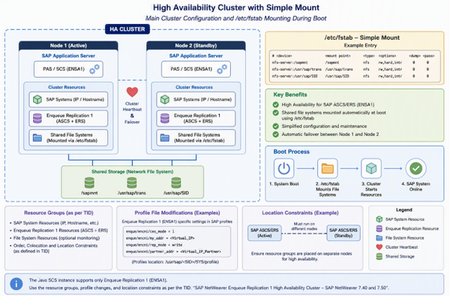
Introduction: For years, the IT team at a global manufacturing company had relied on SAP NetWeaver 7.50 Java to support critical business processes. The environment handled everything from employee self-service applications to business integrations across multiple regions. While the infrastructure was stable, one concern remained constant: SAP Central Services instance represented a potential single point of failure. Every maintenance window required careful planning. Any unexpected server outage could disrupt business operations, impact users worldwide, and create pressure on support teams to restore services as quickly as possible. Challenge: The SAP landscape was growing, and business stakeholders expected continuous availability. Traditional backup and recovery procedures could restore services, but you could not eliminate the downtime associated with infrastructure failures. The architecture team identified SAP Java Central Services as a critical component that needed enhanced protection. The objective was simple: Eliminate single points of failure. Automate failover during infrastructure issues. Minimize business disruption. Improve operational confidence. Solution: You adopted a SUSE High Availability solution built around clustered architecture. Multiple nodes were configured to work together, continuously monitoring the health of SAP services and infrastructure resources. Using SUSE HA, the environment could automatically detect failures and transfer workloads to a healthy node whenever required. Instead of relying on manual intervention, recovery became a coordinated and automated process. The architecture provided: Continuous monitoring of critical SAP components. Automated failover capabilities. Resource management through cluster policies. Improved service continuity during unplanned outages. Implementation: Deployment required close collaboration between SAP administrators, Linux engineers, and infrastructure architects. You carefully validated cluster configurations, tested failover scenarios, and documented operational procedures. Several disaster recovery simulations were conducted: Server shutdown tests. Network interruption scenarios. Service failure simulations. Planned maintenance activities. Each test demonstrated how the cluster could maintain application availability while reducing recovery times. Results: As the solution moved into production, confidence across the organization increased significantly. Business users experienced uninterrupted access to critical SAP services, while operations teams gained greater visibility into system health and cluster status. The organization realized several key benefits: Higher platform availability. Faster recovery from failures. Reduced operational risk. Improved maintenance flexibility. Enhanced business continuity. Lessons Learned: The project reinforced an important principle for enterprise SAP environments: High availability is not simply about recovering from failure, it's about designing systems that continue operating when failures occur. By combining SAP NetWeaver 7.50 Java Central Services with SUSE High Availability technology, the company transformed a potential business risk into a resilient and reliable platform capable of supporting mission-critical operations around the clock. Key Benefits of SUSE HA for SAP NetWeaver Java Central Services Elimination of Single Points of Failure SAP NetWeaver Java Central Services (SCS) is a critical component of the SAP Java stack. SUSE High Availability (HA) protects the SCS instance by clustering resources across multiple nodes, reducing the risk of service interruption caused by server failures. Automated Failover and Faster Recovery When a node or service fails, SUSE Pacemaker automatically detects the issue and transfers SAP services to a healthy node. This minimizes manual intervention and significantly decreases recovery time. Increased Business Continuity By maintaining service availability during infrastructure outages, SUSE HA helps ensure that business-critical SAP applications remain accessible to users, reducing operational disruptions. Reduced Downtime During Planned Maintenance Organizations can perform maintenance activities on cluster nodes with minimal impact to SAP services. Workloads can be shifted between nodes, helping ensure uninterrupted operations. Continuous Monitoring and Health Checks SUSE HA continuously monitors cluster resources, SAP processes, virtual IP addresses, and storage components. Early detection of issues helps improve overall system reliability. Improved Operational Efficiency Automated resource management reduces the need for manual failover procedures and allows administrators to focus on proactive platform management rather than reactive troubleshooting. Enhanced System Resilience The cluster architecture is designed to withstand hardware, operating system, network, and service failures, creating a more robust SAP landscape. Better Disaster Recovery Readiness Regular failover testing and cluster validation capabilities help organizations verify their recovery procedures and improve preparedness for unexpected outages. Enterprise-Grade Reliability for Mission-Critical Workloads For organizations running critical SAP business processes, SUSE HA provides the foundation for achieving high availability and meeting stringent uptime requirements. Conclusion: In modern SAP landscapes, resilience is a business requirement rather than a technical luxury. SUSE High Availability provides organizations with a robust foundation for protecting SAP NetWeaver Java workloads, reducing downtime, and ensuring that critical business services remain available when they are needed most. SUSE High Availability for SAP NetWeaver 7.50 Java Central Services enables organizations to build a resilient SAP platform by eliminating single points of failure, automating failover, and minimizing downtime. Through continuous monitoring, intelligent resource management, and cluster-based protection, businesses can improve service continuity, simplify operations, and ensure that mission-critical SAP workloads remain available when they are needed most. Reference links: SUSE HA for SAP NetWeaver 7.50 Java central services | SUSE | Support Center For the main cluster configuration and the automatic mounting of shared file systems during startup using entries defined in /etc/fstab, see the "High Availability Cluster with Simple Mount" section at the link below: https://documentation.suse.com/sbp/sap-15/html/SAP-S4HA10-setupguide-simplemount-sle15/index.html Refer to the resource groups outlined in the TID, together with the necessary SAP profile file modifications and location constraints documented in the "SAP NetWeaver Enqueue Replication 1 High Availability Cluster – SAP NetWeaver 7.40 and 7.50" guide linked below. These configurations are applicable since the Java SCS instance supports Enqueue Replication 1 (ENSA1) only: https://documentation.suse.com/sbp/sap-15/html/SAP-nw740-sle15-setupguide/index.htmlEnabling AI-Driven SAP Development with GitHub Copilot: Plans and Usage-Based Billing Transformation
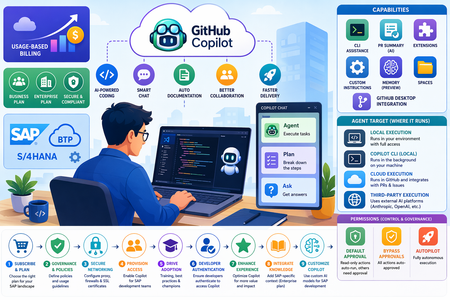
Introduction: Empower SAP customers with a strategic understanding of GitHub Copilot offerings, including plan options, value realization, account models, and key considerations for enterprise adoption. Through a guided, step-by-step setup in Visual Studio Code, SAP developers will gain hands-on experience with GitHub Copilot and Copilot Chat in real-world development scenarios. In addition, a practical exercise demonstrates how to configure and optimize Copilot within Visual Studio Code enabling SAP teams to effectively adopt AI-assisted development and accelerate application delivery. Imagine you are an SAP developer working within a fast-paced enterprise environment, tasked with delivering a new feature or extension for a business-critical application, such as SAP S/4HANA or SAP BTP. With limited familiarity with the existing codebase and tight delivery timelines, ensuring quality, performance, and reliability is essential. GitHub Copilot provides a powerful AI-assisted development experience that can help SAP developers accelerate delivery while maintaining high standards. It can interpret complex code, generate documentation, and assist in writing efficient, error-free code enabling teams to meet deadlines and deliver high-quality solutions with confidence. GitHub Copilot plans for SAP Customers: Starting June 1, 2026, GitHub is transitioning GitHub Copilot from a request-based billing model to a usage-based billing model. For SAP customers, this shift enables more granular cost alignment with actual AI usage across development teams, supporting improved transparency and budget control within SAP programs. Organizations and enterprises can leverage this model to better manage consumption across SAP development scenarios such as S/4HANA extensions, BTP applications, and integrations while optimizing costs based on real usage patterns. Individual SAP developers will also benefit from flexible billing aligned to their actual Copilot usage. GitHub Copilot Capabilities for SAP Development: GitHub Copilot offers a range of capabilities designed to support SAP developers across the entire development lifecycle from coding and testing to collaboration and deployment. GitHub Copilot in the CLI: SAP developers can use a chat-like interface directly in the terminal to interact with command-line tools. Copilot provides command suggestions and explanations, helping streamline development workflows for SAP integrations, deployments, and automation tasks. AI-Generated Pull Request Summaries: Copilot generates intelligent summaries of pull requests, highlighting key changes, impacted files, and areas requiring attention. This enables SAP teams to accelerate code reviews and improve collaboration especially in complex enterprise environments. (Not available in the Free plan.) GitHub Copilot Extensions Copilot Extensions allow SAP customers to integrate external tools and systems such as SAP BTP services or other enterprise platforms into the development workflow. These extensions can be customized and shared to support organization-specific SAP scenarios. Custom Instructions SAP teams can tailor Copilot responses by providing context about development standards, tools and project requirements ensuring outputs align with SAP best practices and enterprise guidelines. GitHub Copilot Memory (Public Preview) Copilot can learn from and retain context about a repository, improving the relevance and quality of suggestions. This is particularly valuable for SAP projects with complex codebases and domain-specific logic. GitHub Copilot Spaces Organize SAP project assets such as code, documentation, and specifications into contextual “Spaces.” This ensures Copilot delivers responses grounded in the appropriate SAP business and technical context. GitHub Copilot in GitHub Desktop Automatically generate commit messages and descriptions based on SAP code changes, improving consistency, traceability, and developer efficiency. GitHub Copilot Agents for SAP Development: GitHub Copilot Chat in Visual Studio Code provides specialized agents designed to support different stages of the SAP development lifecycle ranging from planning to implementation and knowledge exploration. Agent (Execution Agent) Use the Agent when you need to implement a specific SAP development task, such as building extensions, integrations, or enhancements for SAP S/4HANA or SAP BTP. The Agent can autonomously identify relevant files, propose code changes, execute supporting commands, and iteratively refine outputs to complete the task efficiently. Plan (Planning Agent) Use the Plan agent when you want to define a structured, step-by-step approach before implementation. This is particularly useful for SAP scenarios requiring careful design such as complex integrations or multi-system workflows. The Plan agent breaks down requirements into clear steps that can be executed by the Agent. Ask (Knowledge Agent) Use the Ask agent to explore SAP-related code, development patterns, or general technical concepts without making changes. This is ideal for understanding unfamiliar codebases, learning new SAP development paradigms, or clarifying architecture and best practices. Implementing GitHub Copilot in SAP Environments: SAP organizations can follow a structured approach to successfully set up and scale GitHub Copilot across development teams: Subscribe and Select the Right Plan Begin by subscribing to GitHub Copilot and selecting the appropriate plan (Business or Enterprise) based on your SAP landscape, governance needs, and scale of adoption. Establish Governance and Policies Define organizational policies to control how GitHub Copilot is used across SAP development scenarios. This includes enabling or restricting specific features to align with compliance, security, and SAP development standards. Configure Secure Networking Ensure secure connectivity by configuring proxy servers or firewalls to allow required Copilot endpoints. SAP customers may also need to manage SSL certificates to align with enterprise security requirements. Provision Access to Development Teams Enable GitHub Copilot for selected SAP developers or teams such as those working on SAP BTP extensions, integrations, or modernization initiatives. A phased rollout can help identify challenges and demonstrate early value before scaling organization wide. Drive Adoption Across SAP Teams Establish a structured enablement strategy including training, best practices, and internal champions to promote effective usage of Copilot within SAP development workflows. A self-service licensing model can further accelerate adoption. Support Developer Authentication In enterprise environments, ensure SAP developers complete the required authentication steps to access Copilot from their development tools, such as Visual Studio Code. Enhance the Copilot Experience SAP organizations can further optimize value by: Integrating knowledge bases to provide SAP-specific context (Enterprise plan) Customizing Copilot through tailored AI models aligned to SAP development needs Leveraging Copilot Extensions to integrate SAP tools and other enterprise systems into the development workflow Set Up GitHub Copilot in Visual Studio Code: For SAP developers, setting up GitHub Copilot is a simple process: Ensure you are using the latest version of Visual Studio Code to support modern SAP development workflows (e.g., SAP BTP and full-stack development). In the Status Bar, select the GitHub Copilot icon and choose Use AI Features to begin setup. Sign in with your GitHub account and follow the authentication prompts to enable access. If your account is already authenticated, select Set up Copilot to complete activation. Follow the guided steps to authorize Copilot within your development environment. If no subscription is assigned, SAP developers will be onboarded to the GitHub Copilot Free plan for initial evaluation. Once setup is complete, GitHub Copilot is ready to assist with SAP development tasks such as code generation, documentation, and optimization. Customize GitHub Copilot Settings for SAP Development: SAP developers can tailor GitHub Copilot behavior to align with enterprise development standards and project requirements: Access Settings by selecting the gear icon in the lower-left corner of Visual Studio Code. Navigate to GitHub Copilot configurations, organized into key areas: Code Editing Settings Configure inline code suggestions, next-edit predictions, and language-specific behaviors to support SAP development languages and frameworks. Chat Settings Customize how Copilot Chat behaves, including terminal integration helpful for managing SAP build, deployment, and integration tasks. Agent Settings Control advanced capabilities such as agent mode, request limits, and tool approvals to align with SAP governance, security, and compliance requirements. Selecting Where GitHub Copilot Agents Run in SAP Development: In addition to selecting the appropriate Copilot agent for a specific task, SAP developers can control where the agent executes using the Agent Target option in the Chat view. This capability determines how the agent interacts with SAP development environments and when results are delivered. Local Execution Runs directly within the developer’s environment with full access to the workspace, tools, and codebase. Ideal for SAP developers working on real-time coding tasks, exploring complex SAP codebases, or making controlled updates where step-by-step review is required. GitHub Copilot CLI (Local Background Execution) Executes tasks in the background on the developer’s machine. Suitable for SAP scenarios where predefined tasks such as script generation, automation, or batch updates can run while developers continue working on other SAP components. Cloud Execution Runs remotely in GitHub and integrates with workflows such as issues and pull requests. This option is well-suited for SAP teams collaborating on large-scale projects, enabling developers to delegate tasks, generate pull requests, and streamline code reviews across distributed teams. Third-Party Execution Uses external AI platforms (such as Anthropic or OpenAI) to run agents either locally or in the cloud. This provides flexibility for SAP customers to integrate advanced AI capabilities into their development workflows, depending on enterprise architecture and governance requirements. Controlling Agent Permissions (for SAP Customers): You can define how much autonomy your digital agents have by using the Permissions settings within the Chat experience. Adjusting these levels allows you to balance operational efficiency with governance and oversight an important consideration in SAP-driven business processes. Permission Level Description Default Approval Only low-risk, read-only actions are executed automatically. Most agent-initiated actions require user confirmation, ensuring control over business-critical operations and data changes. Bypass Approvals All agent actions are automatically approved without user prompts. This setting streamlines workflows but should be used with appropriate governance controls, especially in sensitive SAP environments. Autopilot Enables fully autonomous execution. The agent handles actions end-to-end, including responding to clarification requests, without user intervention. Ideal for well-defined scenarios, but requires strong trust, monitoring, and compliance alignment. Conclusion: GitHub Copilot offers SAP organizations a powerful way to modernize development through AI-assisted engineering. It combines intelligent code generation, contextual insights, and advanced features like agents, CLI integration, and memory to accelerate delivery while maintaining enterprise-grade quality and compliance. It’s usage-based billing model further enhances value by aligning costs with actual adoption, providing transparency, scalability, and control across scenarios such as S/4HANA extensions, SAP BTP applications, and integrations. With a structured approach, covering plan selection, governance, secure configuration, and phased rollout, organizations can integrate Copilot effectively while meeting SAP-specific standards. Ultimately, Copilot enables SAP teams to boost productivity, enhance collaboration, and drive innovation at scale, delivering faster time to market and sustained business value. Reference links: Plans for GitHub Copilot - GitHub Docs Usage-based billing for individuals - GitHub Docs Usage-based billing for organizations and enterprises - GitHub DocsThe Journey of Copilot: From Setup to Mastery for Azure SAP customers
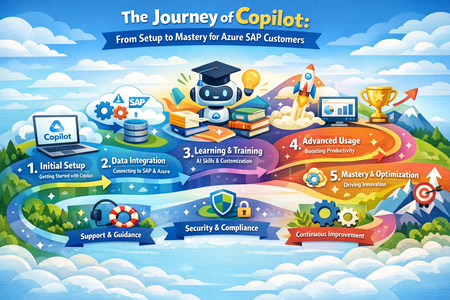
Introduction: GitHub Copilot integrates as an extension or plugin within developer tools commonly used in SAP and Azure scenarios, such as Visual Studio, Visual Studio Code, and other supported IDEs. These tools are often used alongside SAP development (e.g., ABAP, CAP, or integrations with S/4HANA and Azure services). Before you begin, ensure you have access to Copilot, through an organizational license (common in enterprise environments). Install GitHub Copilot Step 1: Install Required Extensions Open Visual Studio Code Go to Extensions (Ctrl + Shift + X) Install the following extensions: GitHub Copilot GitHub Copilot Chat GitHub Copilot for Azure (Microsoft extension) When installing the Azure extension, it may prompt you to install additional Azure tools, accepting all required components. Step 2: Sign in and Authenticate Sign in to your GitHub account Sign in to your Azure account Complete authentication in the browser Return to VS Code Both logins are required: GitHub → enables Copilot Azure → enables Azure resource access and tools Step 3: Enable and Verify Setup Open Copilot Chat (Ctrl + Alt + I) Check that Copilot is active Verify Azure integration by typing a test prompt: What Azure resources are deployed and running in my subscription? If you get a response → setup is successful Step 4: Configure Azure Context (Important for SAP) Set your Azure tenant / subscription (Entra ID) Ensure correct environment for: SAP on Azure (S/4HANA, SAP NetWeaver) SAP BTP extensions Optional: Enable Agent Mode for automation tasks (deployments, scripts) Get Started in Your SAP Development Environment Open your preferred IDE (Visual Studio, VS Code, or Eclipse with SAP tooling) Access the Copilot chat or assistant panel within the IDE Sign in with your GitHub account (and organizational account if required) Start using Copilot in your SAP development scenarios Use Copilot for SAP Workloads Inline suggestions Get real-time code suggestions for SAP-related languages (e.g., JavaScript, Java, ABAP extensions, CAP models) Ask questions in chat Understand existing logic, SAP APIs, or integration patterns (e.g., “Explain this service” or “How does this SAP function work?”) Generate and improve code Create boilerplate logic, unit tests, and integration code faster Identify performance or design improvements in existing SAP code Enhance with SAP Context Provide additional context (files, APIs, or SAP objects) to improve suggestions Optionally connect Copilot to SAP data or services using enterprise integrations Use Copilot to support: SAP BTP extensions S/4HANA integrations Fiori/UI5 development and APIs Once you start interacting with Copilot, it acts as an AI assistant within your SAP development workflow, helping you write code faster, understand existing logic, and accelerate innovation across your SAP and Azure landscape. The Hidden Layer: Network Configuration for SAP Customers As you begin using GitHub Copilot within your SAP development and integration environment, you may notice performance differences, especially when working within corporate networks. In most cases, Copilot connects securely to GitHub services over the internet using HTTPS, without requiring additional setup. However, in SAP enterprise environments where strict governance, security policies, and compliance controls are in place, network traffic is often routed through proxies, firewalls, or VPNs. What You Need to Know Copilot may require additional configuration when operating behind corporate proxies or firewalls Proxy settings can be configured: Directly within your IDE Or through environment variables such as HTTP_PROXY and HTTPS_PROXY Authentication to enterprise proxies may require: Basic credentials Or enterprise mechanisms such as Kerberos-based authentication Enterprise Considerations for SAP Landscapes Organizations may require custom SSL certificates for secure outbound connections Network security policies may restrict access to external services Required Copilot and GitHub endpoints must be allowed to ensure connectivity Why This Matters for SAP Customers In SAP environments especially those involving S/4HANA, SAP BTP, or hybrid/on‑premise systems network security is tightly controlled. Proper configuration ensures that Copilot can securely interact with external services while still complying with enterprise security standards. Once configured correctly, Copilot integrates seamlessly into your SAP development workflow, enabling secure, reliable, and high‑performance AI-assisted development within your governed enterprise environment. Configure Network Settings (if required) for Azure SAP Environments In Azure‑hosted SAP landscapes (such as S/4HANA on Azure, SAP BTP, or hybrid environments), network configuration plays a critical role in enabling GitHub Copilot securely. Network setup is primarily required in enterprise environments where security controls such as proxies, firewalls, VPNs, or Azure networking policies are enforced. Default Behavior GitHub Copilot connects securely over HTTPS No additional configuration is required in open network environments Proxy & Enterprise Network Configuration If your Azure SAP environment uses controlled outbound access: Configure proxy settings: HTTP_PROXY HTTPS_PROXY Directly within your IDE (Visual Studio, VS Code) Or via environment variables: Supported authentication methods: Basic authentication Kerberos (common in enterprise identity setups) Additional considerations: Ensure required GitHub/Copilot endpoints are allowed in Azure firewall or network security groups Install custom SSL certificates if your organization uses SSL inspection Note: Visual Studio typically inherits Windows/Azure VM proxy settings Troubleshooting Network Issues in Azure SAP Scenarios If Copilot stops responding or behaves inconsistently, the issue is often related to enterprise network controls in Azure or hybrid SAP architectures. Common Causes Proxy or firewall blocking outbound connectivity SSL certificate validation failures VPN or private network restrictions (ExpressRoute / private endpoints) Quick Diagnostics: Test connectivity from your Azure VM or development machine: curl --verbose https://copilot-proxy.githubusercontent.com/_ping If using a proxy: curl --verbose -x http://PROXY:PORT -i -L https://copilot-proxy.githubusercontent.com/_ping HTTP 200 → Connectivity is working Errors → Network blocking or configuration issue Recommended Troubleshooting Steps Verify proxy settings are correctly configured Check SSL certificates and trust chain Review Azure firewall, NSG, or proxy rules Validate required endpoints are reachable Enable verbose logs or diagnostics in your IDE for deeper analysis Best Practice for Azure SAP Customers Adopt a structured troubleshooting approach: Validate connectivity Trace the network path (proxy, firewall, DNS) Fix configuration issues systematically This aligns with the governance and operational discipline already used in SAP and Azure environments. Outcome: A Confident Copilot User in Azure SAP By following this approach, you move beyond basic usage and gain full control of Copilot within your enterprise landscape. You will be able to: Deploy and use Copilot across Azure SAP environments Integrate it securely within enterprise networking constraints Troubleshoot issues with confidence using systematic diagnostics Conclusion: GitHub Copilot is no longer a black box, it becomes a trusted, secure, and intelligent AI assistant seamlessly integrated into your Azure and SAP development ecosystem. As you adopt it into your workflow, development becomes faster, cleaner, and more efficient. More importantly, you gain a reliable partner that enhances productivity and supports innovation, ensuring that you are no longer coding alone, but collaborating with AI to deliver better outcomes. Reference links: https://docs.github.com/en/copilot/how-tos/set-up/install-copilot-extension Get Started with GitHub Copilot - Visual Studio (Windows) | Microsoft Learn https://learn.microsoft.com/en-us/azure/developer/github-copilot-azure/get-started?pivots=visual-studio-code Network settings for GitHub Copilot - GitHub Docs Troubleshooting network errors for GitHub Copilot - GitHub Docs GitHub Copilot for SAP ABAP in VS Code: Setup Guid... - SAP CommunityChaos Engineering vs. STAF for SAP: Resilience Validation vs. Functional Assurance
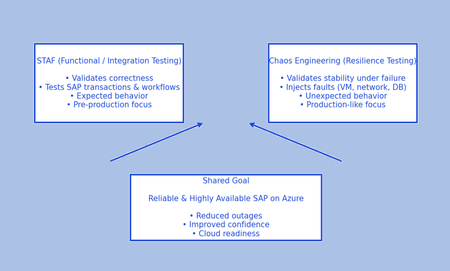
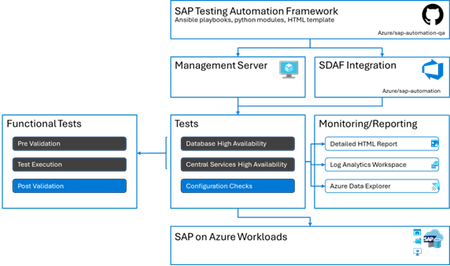
Introduction: As SAP environments transition to cloud platforms such as Azure, one strategic question consistently surfaces: “STAF proves SAP works, Chaos Engineering proves it survives. Why do we need both?” The short answer: STAF and Chaos Engineering serve different purposes and treating them as interchangeable can expose SAP production environments to unseen risk. A Quick Comparison for Mission Critical SAP Engagements In the world of SAP on Azure, reliability and resilience are non-negotiable. Two powerful approaches. Chaos Engineering for SAP and SAP Testing Automation Framework (STAF) help ensure mission-critical workloads remain robust. But what sets them apart, and how do they complement each other? Why This Matters SAP workloads often underpin core business processes. Downtime or misconfiguration can lead to significant operational and financial impact. While both Chaos Engineering and STAF aim to improve system reliability, they do so in very different ways. Chaos Engineering for SAP Chaos Engineering is about proactively testing resilience by introducing controlled failures into your environment. Using tools like Azure Chaos Studio, engineers simulate real-world disruptions such as VM shutdowns, DNS failures, or network latency, to validate how SAP systems recover under stress. Key Benefits: Identifies hidden weaknesses in architecture. Improves operational resilience through real-world failure scenarios. Enables game days and BCDR drills for mission-critical workloads. SAP Testing Automation Framework (STAF) STAF focuses on automating high availability (HA) and configuration compliance testing for SAP clusters on Azure. It uses Ansible playbooks and Python modules to execute controlled failover scenarios like node crashes or process termination and generates auditable reports. Key Benefits: Speeds up deployment readiness. Reduces manual testing effort. Validates HA configurations against best practices. Side-by-Side Comparison Aspect Chaos Engineering for SAP SAP Testing Automation Framework (STAF) Primary Goal Validate resiliency under unpredictable conditions Automate HA and configuration compliance testing Scope Infrastructure-level stress and failure injection SAP cluster failover and HA validation Approach Simulate real-world outages (VM shutdown, DNS failure) Controlled failover scenarios (node crash, process kill) Tools Used Azure Chaos Studio Ansible playbooks + Python modules Output Observability insights, recovery behavior reports Auditable HTML compliance reports Use Case BCDR drills, game days, proactive risk identification Pre-go-live readiness, periodic HA audits Complementarity Tests resilience beyond planned scenarios Ensures HA configuration meets best practices When to Use Each STAF → Before go-live or during periodic audits to validate HA setup. Chaos Engineering → For resilience testing under unexpected failures and operational stress. Key Takeaway These approaches are complementary, not competing. Use STAF for structured HA validation and compliance. Use Chaos Engineering for real-world resilience testing and operational confidence. Next Steps Explore Azure Chaos Studio for chaos experiments. Download STAF from GitHub and integrate it into your SAP deployment pipeline. Combine both for a comprehensive resiliency strategy. Conclusion: The two concepts of STAF and Chaos Engineering are not alternatives but complements to each other. While the former tests the accuracy of the SAP system and the business processes involved in its functionality, the latter tests the system in the real world with failures to confirm its ability to cope with such failures in the cloud environment of Azure. Therefore, the use of the STAF concept alone gives us the confidence that the SAP system works as expected, but the addition of Chaos Engineering gives us the confidence that the system will still work even when things go wrong. Ref links: SAP Testing Automation Framework (STAF): About SAP Testing Automation Framework | Microsoft Learn SAP Testing Automation Framework High Availability Testing | Microsoft Learn anukarnam/SAPTesting-Automation-Framework-: The SAP Test Automation Framework is a set of tools and solutions developed to simplify and automate the process of testing SAP systems and other associated third-party applications. It helps to overcome the challenges associated with manual testing by offering strong automation solutions. Chaos Engineering – Resilience & Failure Readiness: What is Azure Chaos Studio? - Azure Chaos Studio | Microsoft Learn Understand chaos engineering and resilience with Chaos Studio - Azure Chaos Studio | Microsoft Learn Using Azure Chaos Studio to Fortify SAP Systems Testing and Resiliency | Microsoft Community HubAzure SRE Agent Architecture and Creation: Practical Benefits for SAP on Azure Customers
Introduction: SRE Agent is an AI-powered service designed to support site reliability engineering practices through automation and intelligent decision-making. It reduces operational toil, improves uptime, and delivers consistent results by seamlessly integrating with Azure services and external systems to perform operational tasks with limited manual intervention. Azure SRE Agent reduces operational toil by automating routine and repetitive tasks, allowing teams to concentrate on high impact initiatives. Operational work frequently involves managing diverse Azure resources in combination with on-premises environments, often requiring orchestration across multiple tools. SRE Agent delivers an AI driven platform that unifies these systems and automates operational workflows from start to finish. How Azure SRE Agent Architecture and Creation Benefit SAP on Azure Customers: The SRE Agent architecture is particularly well suited for SAP workloads, which are inherently mission critical and span multiple Azure services, including compute, storage, networking, databases, and monitoring. By creating an Azure SRE Agent and associating it with SAP related resource groups, customers gain a unified operational control plane that continuously analyzes telemetry from Azure Monitor, logs, and metrics to identify issues impacting SAP availability, performance, and stability. Through automated diagnostics, root cause analysis, and guided or approval-based remediation, Azure SRE Agent significantly reduces manual troubleshooting during SAP incidents. In addition, its support for scheduled health checks, configuration validation, and compliance audits aligns closely with SAP best practices and change controlled environments, enabling customers to transition from reactive operations to a proactive, automated, and scalable model that improves uptime and operational confidence at scale. Centralized Azure Service Management Capabilities: This diagram illustrates Azure SRE Agent as the centralized automation and intelligence layer that manages Azure resources through Azure CLI and REST APIs, providing a unified control plane for operational tasks across the platform. From this single point, the agent connects to five core service domains: Compute (such as Virtual Machines, App Service, Container Apps, AKS, Functions and more), Storage (including Blob storage, file shares, managed disks, and storage accounts), Networking (covering Vnets, load balancers, application gateways, and network security groups), Databases (Azure SQL, Cosmos DB, PostgreSQL, MySQL, and Redis), and Monitoring & Management (Azure Monitor, Log Analytics, Application Insights, and Azure Resource Manager). Together, the layout shows how Azure SRE Agent enables consistent, automated, and scalable operations across diverse Azure services from a single, AI-driven management layer. Creating an SRE Agent in the Azure Portal: Access the Azure portal and complete the following steps to create an SRE Agent. From Home → Create a resource, search for “sre agent” in the Azure Marketplace. The results clearly highlight Azure SRE Agent (Preview) as an official Microsoft Azure service, confirming that it is provisioned like any other native Azure resource rather than an external tool or addon. Please select the Azure subscription in which the agent will be deployed and confirm the available Azure SRE Agent (Preview) plan. In the Basics step, select the subscription and resource group where the Azure SRE Agent will be created. You then provide agent specific details, including the agent's name and the Azure region in which the agent will be deployed and operated. This configuration ensures that the SRE Agent is established as a first-class Azure resource, governed, scoped, and managed using the same Azure constructs as any other native service. In this step, you define the level of access the agent will have over the Azure resource groups it manages, ensuring alignment with your organization’s security and governance requirements. Two permission levels are available: Reader: The agent has read only access to the assigned resource groups. It can observe resource state, analyze telemetry, and generate insights, but any remediation actions require temporary elevation using the user’s permissions after explicit approval. Privileged: The agent is granted permission to execute approved actions directly on detected resources and resource types within its assigned resource groups. This enables faster, more automated remediation while still operating within Azure RBAC controls and approval of workflows. This screen confirms that the Azure SRE Agent (Preview) has been successfully deployed in the Azure Portal. The banner “Your deployment is complete” indicates that all required resources were provisioned without errors and that the agent is now active in the selected subscription and resource group. This screen shows the Azure portal search experience after the Azure SRE Agent has been successfully deployed. By typing “my” in the top search bar, the portal surfaces both services and resources associated with the user’s subscription. Under the Resources section, the newly created Azure SRE Agent instance (for example, mysreapp) appears, confirming that the agent is now registered. Below screen shows the Azure SRE Agent chat interface for the deployed agent (mysreapp) within the Azure portal. It represents the primary interaction surface where users engage with Azure SRE Agent using natural language to monitor, diagnose, and remediate issues across the Azure resources associated with the agent. On the left navigation pane, users can manage chat threads, review activities, access the agent builder, monitor health and insights, and configure settings. The main panel displays a new chat thread with a prompt inviting the user to ask a question or execute a command. The quick action buttons (such as App Services, Container Apps and AKS) provide guided entry points to common operational scenarios, helping users get started quickly without needing to remember specific commands. Once the chat window opens, Azure SAP customers can begin interacting with the Azure SRE Agent using natural language to monitor and manage their SAP landscapes on Azure. To get started, try questions such as: What can you help me with my SAP systems? Which SAP subscriptions, resource groups, or SAP related resources are you managing? What alerts should I configure for my SAP workload (for example, SAP HANA, ASCS, or application servers)? Show me a comparison of successful requests versus errors for SAP dependent applications across all subscriptions. If you are troubleshooting a specific SAP issue, you can ask more targeted questions, for example: Why is my SAP system or SAP HANA database slow? Why is my SAP application or central services instance not responding? Can you investigate issues with my SAP workload? Can you retrieve key metrics (such as CPU, memory, disk I/O, or HANA latency) for my SAP resources? Conclusion: Azure SRE Agent empowers SAP customers with a centralized, AI driven operations layer built for managing complex, SAP landscapes on Azure. By integrating natively with Azure and using standard management interfaces, the agent delivers continuous, end-to-end visibility across the compute, storage, networking, database, and monitoring layers that underpin SAP workloads. This unified operational view enables teams to detect and understand issues affecting SAP availability, performance, and stability faster and with greater confidence. By combining automated diagnostics, intelligent root cause analysis, and guided or approval-based remediation, Azure SRE Agent dramatically reduces manual effort and accelerates incident resolution. Built-in support for proactive health checks, configuration validation, and compliance auditing aligns with SAP best practices and change controlled environments, allowing customers to move beyond reactive firefighting. Reference links: Tutorial: Troubleshoot an App Using Azure SRE Agent and Azure App Service Preview | Microsoft Learn Billing for Azure SRE Agent Preview | Microsoft Learn Incident Management in Azure SRE Agent Preview | Microsoft Learn1.1KViews3likes0CommentsSAP RISE & HANA Data Migration: AWS S3 to Azure Blob Storage via Azure Storage Mover
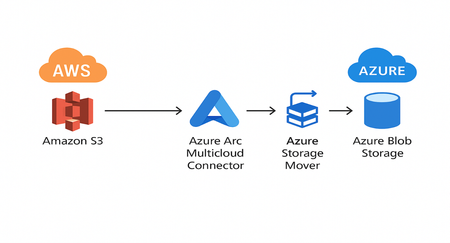
Introduction: Cloud migration using Azure Storage Mover enables high‑volume data transfer from Amazon S3 into Azure Blob Storage as part of SAP on Azure modernization initiatives, including RISE and SAP HANA deployments. Azure Arc multicloud connectors provide control‑plane integration with AWS, allowing Azure to authenticate and discover S3 buckets and expose them as managed external resources. Storage Mover then orchestrates the end‑to‑end data movement using S3 source and Blob target endpoints, supporting large‑scale migrations with telemetry, integrity validation, and incremental sync options. Migrated datasets land in Azure Blob Storage, where they can be consumed by SAP HANA, SAP Data Intelligence, SAP S/4Hana, BW/4Hana and downstream Azure analytics or backup workflows. The process completes as the data lands in Azure Blob Storage, establishing a cloud‑native destination for ongoing analytics, applications, or archival needs. This guide outlines the essential prerequisites, service limits, and configuration steps required to implement migration with clarity and operational confidence. End‑to‑End Migration with SAP Consumption Diagram: The migration process begins with Amazon S3, which serves as source storage containing the files and folders you intend to transfer to Azure. Azure then connects securely to your AWS environment through the Azure Arc Multicloud Connector, which authenticates to AWS, discovers your S3 buckets, and exposes their inventory to Azure as part of its cross‑cloud control‑plane integration. Once connected, Azure Storage Mover a fully managed migration engine executes the data transfer using the configured S3 source endpoint and Azure Blob target endpoint. Storage Mover supports large‑scale migrations of up to 500 million objects per job, provides incremental sync options, and offers detailed logging and job tracking for operational visibility. Once migrated datasets are staged in Azure Blob Storage, where they can be leveraged by SAP HANA, SAP Data Intelligence, SAP S/4HANA, BW/4HANA, and integrated Azure analytics or backup workflows. The cloud‑native destination that supports containers, lifecycle policies, and seamless integration with Azure analytics and application services such as Azure Synapse, Azure Data Factory, and AI workloads. 1) Prerequisites: An active Azure subscription with the required permissions to manage Azure Storage Mover and Azure Arc resources. An AWS account with access to the Amazon S3 bucket you plan to migrate. A destination Azure Storage account to receive the transferred data. An Azure Storage Mover resource already deployed in your Azure environment. 2) Service Limits: Supports up to 500 million objects per migration job. Allows a maximum of 10 concurrent migration jobs per subscription (higher limits available through support). Archived objects are not automatically rehydrated: Data in Deep Archive or Glacier must be restored before migration. Private networking is not supported: Secure data transfer is enforced using trusted Azure IP ranges. 3) Create Multicloud Connector for AWS: Use Azure Arc to connect AWS services to Azure, enabling discovery and data transfer operations. Steps include selecting subscription, region, AWS account ID, and adding Inventory and Storage Data Management solutions. 4) Configure Endpoints: AWS S3 Source Endpoint - Navigate to Storage Endpoints → Source endpoints → Add endpoint. Select the AWS S3 bucket from the multicloud connector. Azure Blob Storage Target Endpoint - Select your subscription, storage account, and blob container. Assign Storage Blob Data Contributor RBAC role. 5) Creating Migration Project & Job Definition: Create a migration project under Project Explorer. Add a Job Definition specifying source S3 endpoint and target Blob endpoint. Select migration mode: Mirror, Incremental, or Full copy. 6) Run & Monitor Migration Job: Start the job from the Job Properties pan. Monitor speed, progress %, and estimated completion time in Migration Overview. Review logs for warnings or transfer errors. 7) Post-Migration Validation: Verify data integrity and completeness. Conduct UAT testing. Enable incremental sync if needed. Optionally delete S3 bucket after migration is validated. Conclusion: The combined use of Azure Storage Mover and Azure Arc Multicloud Connector provides robust, scalable, and secure architecture for migrating data from Amazon S3 to Azure Blob Storage especially for SAP, RISE, and HANA modernization scenarios. By extending Azure’s control plane into AWS, Arc enables authenticated discovery of S3 buckets while Storage Mover orchestrates high‑throughput, policy‑driven data movement using defined source and target endpoints. With support for large object counts, telemetry, and sync capabilities, the solution ensures operational visibility and data integrity throughout the migration lifecycle. Once transferred, data lands in Azure Blob Storage, ready to integrate with SAP HANA, SAP Data Intelligence, SAP S/4HANA, BW/4HANA, and Azure-native analytics and AI services, establishing a high‑performance foundation for SAP workloads in the cloud. Reference links: Migrate data from Amazon S3 to Azure Storage - Azure Data Factory | Microsoft Learn 3476767 - How-To: Connect S/4HANA on premise with Azure Blob | SAP Knowledge Base ArticleMigration from SAP ERP On-Premises to SAP S/4HANA in Microsoft Azure
This describes the tool guided migration of an on-premises SAP ERP system into Microsoft Azure, combined with a system conversion to SAP S/4HANA. The Software Update Manager (SUM) acts as the technical engine for the conversion. I will also explain how the SAP Cloud Appliance Library streamlines this process through a step-by-step approach. In general, there are three primary paths for migrating to SAP S/4HANA: Selective Data Transition New Implementation SAP S/4HANA System Conversion 1.System Conversion It will break down into the Preparation Phase and Realization Phase. Preparation Phase System Requirements This phase ensures that the current SAP ECC system, infrastructure, database, and operating system meet the minimum prerequisites for a conversion to SAP S/4HANA. Key activities include: Verifying supported OS, DB, and Unicode requirements Checking add-ons and thirdparty components Confirming hardware capacity (CPU, RAM, storage) Assessing source release compatibility for SUM execution This step forms the technical foundation before any planning can begin. Maintenance Planner SAP Maintenance Planner validates and prepares the system stack for conversion. It checks: Active add-ons and their compatibility Installed components and required upgrade paths Target SAP S/4HANA release stack Required XML file generation for SUM Outcome: A stack XML file used by SUM to guide the technical conversion. Simplification Item Check (SICheck) SICheck analyzes the ECC system for mandatory functional and technical changes required by SAP S/4HANA. This includes: Identifying simplification items (Example: Finance, Logistics, master data changes) Highlighting inconsistencies in custom or standard objects Showing mandatory actions before conversion (Example: Customer Vendor Integration (CVI) for Business Partner (BP), Open Item Management updates) This provides a detailed “to-do list” to bring the system into an S/4HANAcompliant state. Custom Code Preparation This phase ensures that custom developments (Zprograms, enhancements, exits) will work on the S/4HANA environment. Activities include: Running ABAP Test Cockpit (ATC) checks Identifying usage-based custom code via SAP Readiness Check / UPL Adapting code for removed or deprecated data structures (Example: MATDOC, tables replaced in S/4HANA) Planning remediation for performance or syntax changes This ensures custom code does not break after conversion. Realization Phase Software Update Manager (SUM) The Software Update Manager serves as the technical engine for system conversion. It performs: Database migration to SAP HANA Software component upgrade to S/4HANA Data conversion and migration Technical downtime execution Post-processing of the system landscape SUM combines upgrade, migration, and conversion into one guided procedure. You can perform the conversion using the in-place option, allowing the existing SAP ECC system to remain on-premises. Alternatively, you can combine the move with a transition to a hyperscaler, an approach that becomes particularly powerful in the context of RISE with SAP. RISE with SAP provides a comprehensive, modular cloud transformation offering that bundles software, infrastructure, and managed services into a single contract. It enables organizations to modernize their SAP landscape by running SAP S/4HANA in a hyperscaler environment (such as Microsoft Azure) while SAP takes responsibility for technical operations at the application layer. This includes lifecycle management, technical monitoring, SLA-backed operations, security patching, and upgrading orchestration. RISE also supports business transformation through embedded tools, extensibility options, and continuous innovation. By integrating your system conversion with RISE with SAP, you can streamline the journey to S/4HANA, reduce operational overhead, shift from CAPEX (Capital Expenditure) to OPEX (Operational Expenditure), and accelerate innovation using cloud-scale capabilities while SUM delivers the technical conversion engine underneath. Application-Specific Follow-Up Activities After the technical conversion, functional teams’ complete configuration and validation tasks specific to their modules. Example: Finance: Activation of Universal Journal, data reconciliation, asset accounting migration Logistics: Credit management migration, new ATP setup Security: Role and authorization adjustments SAP Basis and ABAP team: Fiori activation and launchpad configurations Techno functional: Business validation and testing SAP Basis: Cutover activities and golive preparation These steps ensure that the converted system is functional, optimized, and ready for productive use. Summary View: Phase Step Purpose Preparation System Requirements Ensure technical foundation is ready Maintenance Planner Validate system stack & generate XML SICheck Identify required functional simplifications Custom Code Preparation Analyze & adapt custom developments Realization Software Update Manager Perform technical upgrade & data conversion Application Follow-up Complete module-specific configuration & validation New implementation: New Implementation with DMO (Database Migration Option) A New Implementation (Greenfield approach) means building a completely new SAP S/4HANA system and migrating selected data into it. How DMO fits in: DMO is not used on the new S/4HANA system itself, instead it is used on the source ECC system when needed to support the transition process. You would use DMO when you want to: Upgrade and/or migrate the old ECC system to the SAP HANA database temporarily Enable smoother extraction of data using SAP Migration Cockpit or 3rdparty ETL tools Prepare the source system technically and functionally before data migration to the new S/4HANA system DMO prepares the old system, but the final target is a clean, newly installed S/4HANA instance. We have two options when using the Software Update Manager (SUM): DMO with System Move: In this scenario, SUM begins the procedure on the source system and then continues execution on the target system. This is typically used when migrating to a new host or infrastructure while performing the upgrade and database migration in one combined process. DMO Migration Option – Move to SAP S/4HANA on a Hyperscaler (DMOVE2S4): Here, SUM starts an additional application server that runs in the target environment but still belongs to the source system landscape. This enables a controlled transition to a hyperscaler environment (such as Azure) while completing the conversion and migration steps required for SAP S/4HANA. In both cases, several preparatory tasks must be completed in the target environment, such as: Selective Data Transition (SDT) with DMO: Selective Data Transition is a hybrid approach between Brownfield and Greenfield. It allows moving only the data you choose, such as: Specific company codes Selected historical periods Organizational carveouts M&A (Merger and acquisition) landscape consolidation How DMO fits in: DMO is typically used as the first step in preparing the source ECC system. It migrates the source ECC system to SAP HANA Performs required technical upgrades Ensures compatibility with the S/4HANA data model Prepares system objects so that selective extraction tools (SNP, Natuvion, CBS, etc.) can run After DMO, partner tools extract selected data into the target S/4HANA system. DMO modernizes and upgrades the source system, enabling selective extraction and migration. Target Environment Preparation Tasks (for DMO with System Move & DMOVE2S4) Before SUM can execute migration steps in the target environment, several technical preparations must be completed. These ensure that the new infrastructure (IaaS, or hyperscaler) is fully ready for the handover from the source system. Provisioning the Target Infrastructure You must set up a clean, properly sized environment that will serve as the new application host or target system. This includes: Creating virtual machines or hosts (on hyperscaler) Ensuring CPU, RAM, and storage meet SAP sizing guidelines Preparing appropriate disk layout for /usr/sap, /sapmnt, /hana/shared, and log/data volumes (for HANA scenarios) Operating System Preparation The OS must meet SAP and SUM prerequisites: Install a certified OS version (Example: RHEL, SLES, Windows if applicable) Apply required OS patches and kernel versions Configure OS locales, time synchronization, and system limits (ulimits, transparent huge pages, UUID config) Create SAP system users (Example: <sid>adm, sidadm, sapadm) if not automatically provisioned Network and Connectivity Setup DMO requires bidirectional connectivity between source and target systems: Open required TCP ports (e.g., DIAG, RFC, HANA SQL ports, SAP Host Agent ports) Validate hostname resolution using DNS or /etc/hosts Set up VPN, ExpressRoute, or Peering if migrating to a hyperscaler Ensure no restrictive firewalls block SUM or SAP Host Agent communication SAP Host Agent Installation SUM requires a functional Host Agent on the target system: Install SAP Host Agent (latest version recommended) Configure Host Agent service user and permissions Validate connectivity from source to target Host Agent File System Preparation Depending on your architecture: Set up NFS shares for /sapmnt (if shared in distributed system environments) Prepare directories for SUM extraction and temporary files Ensure proper ownership and permissions: sidadm:sapsys Database Preparation For HANA-based targets: Provision SAP HANA DB following sizing guidelines Configure data and log volumes with recommended I/O throughput Install the correct HANA version compatible with your SUM stack Validate HANA OS parameters (vm.dirty_background_ratio, thp, huge pages) Ensure network configuration supports SAP HANA replication if needed Software Staging and Media Preparation For SUM to continue the target: Download and stage SAP software media (kernel, stack files, SAP HANA installation media, archives) Ensure directories are accessible to SUM during the handover phase Upload SUM SAR files and extract them on the target host if required by your scenario Security and User Setup Depending on your landscape: Configure secure shell (SSH) trust between source and target (for SUM) Set up service users and groups (sapsys, <sid>adm) Validate OS-level sudo rules if needed for certain scripts or root actions Parameter Alignment Between Source & Target To ensure SUM can continue seamlessly: Synchronize system parameters (Example: time zone, code page, locale) Ensure consistent SAP profiles (DEFAULT.PFL, instance profiles) Confirm kernel patch levels where required Storage & Backup Preparation Before running SUM: Configure snapshot policies if supported by your hyperscaler Ensure backup tools or agents are installed (Azure Backup, thirdparty agents) Validate I/O throughput to avoid SUM performance bottlenecks during migration Validation & Health Checks Before starting SUM: Run OS validation scripts provided by SAP Test Host Agent connectivity from the source system Confirm network speed between source ↔ target meets SAP minimum requirements Validate free disk space for SUM logs, dumps, and temporary directories Summary Comparison Approach Target System Role of DMO When to Use New Implementation Brandnew S/4HANA installation Prepares source ECC (HANA migration + upgrade) before extracting data Modernization, redesign, bestpractice adoption Selective Data Transition Part-new, part-reused S/4HANA system Prepares source ECC (technical readiness for selective extraction) Carveouts, mergers, consolidations, partial history moves System Conversion – Data Migration Option to Microsoft Azure: The diagram illustrates a coordinated, tool driven, end-to-end migration path where: The Customer sets direction and validates outcomes Maintenance Planner creates a certified conversion plan SAP CAL automatically provisions the Azure target landscape SUM executes all technical conversion and database migration steps Together, these components create a standardized, repeatable, and automated path to move from SAP ERP on-premises to SAP S/4HANA on Microsoft Azure. Conclusion: The Database Migration Option (DMO) of the Software Update Manager provides a powerful and flexible framework for transitioning SAP systems to SAP S/4HANA whether through a classic system conversion, a new implementation scenario, or a selective data transition approach. Both DMO with System Move and DMOVE2S4 extend these capabilities by enabling migrations to new infrastructure or hyperscale environments while maintaining a controlled, SAP supported technical procedure. Regardless of which DMO scenario is selected, success hinges thoroughly preparing the target environment. Proper provisioning of infrastructure, operating system configuration, network readiness, SAP Host Agent installation, file system setup, software staging, and security alignment ensure a smooth and stable handover from source to target. These preparation activities minimize technical risk, reduce downtime, and enable SUM to execute migration and conversion with high reliability. By combining SAP’s proven migration tooling with a well-prepared target landscape, organizations can confidently modernize their SAP footprint, leverage hyperscale scalability, and move toward a future ready SAP S/4HANA platform aligned with cloud transformation strategies. Reference links: SUM & DMO on SAP Help Portal: Software Update Manager | SAP Help Portal SAP Note 2377305 – DMO: Database Migration Option: https://me.sap.com/notes/2377305 SAP Readiness Check: Integration Between SAP Readiness Check and SAP Cloud ALM | SAP Help Portal SAP CAL Homepage: https://cal.sap.com/ RISE with SAP Overview: RISE with SAP | Transformation journey to SAP Business Suite RISE with SAP S/4HANA Cloud documentation: https://help.sap.com/docs/RISE_WITH_SAP SAP on Azure migration: SAP on Azure Migration – SAP Intelligent Enterprise | Microsoft Azure1.9KViews2likes0CommentsMSL correction from clone to multistate HANA DB Cluster SUSE activation
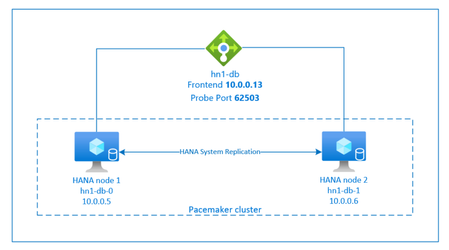
Introduction: SAP HANA system replication involves configuring one primary node and at least one secondary node. Any changes made to the data on the primary node are replicated to the secondary node synchronously. This ensures that we have a consistent and up-to-date backup, which is crucial for maintaining the integrity and availability of our data. Problem Description: Azure VM was in a degraded state causing a major outage since the SAP cluster was unable to start. Node health score (-1000000) did not reset automatically after redeploying and remained until manual intervention. Consider below execution if your cluster nodes are running on SLES 12 or later: Please note that promotable is not supported. Replace <placeholders> with your instance number and HANA system ID. sudo crm configure primitive rsc_SAPHana_<HANA SID>HDB<instance number> ocf:suse:SAPHana operations $id="rsc_sap<HANA SID>_HDB<instance number>-operations" op start interval="0" timeout="3600" op stop interval="0" timeout="3600" op promote interval="0" timeout="3600" op monitor interval="60" role="Master" timeout="700" op monitor interval="61" role="Slave" timeout="700" params SID="<HANA SID>" InstanceNumber="<instance number>" PREFER_SITE_TAKEOVER="true" DUPLICATE_PRIMARY_TIMEOUT="7200" AUTOMATED_REGISTER="false" sudo crm configure ms msl_SAPHana_<HANA SID>HDB<instance number> rsc_SAPHana<HANA SID>_HDB<instance number> meta notify="true" clone-max="2" clone-node-max="1" target-role="Started" interleave="true" sudo crm resource meta msl_SAPHana_<HANA SID>_HDB<instance number> set priority 100 Cutover steps: These steps encompass pre-steps, execution steps, post-validation steps, and the rollback plan. First, we have the pre-steps, which involve preparations and checks that need to be completed before we proceed with the main execution. This ensures that everything is in order and ready for the next phase. Next, we move on to the execution steps. These are the core actions that need to be carried out to ensure the task is completed accurately and efficiently. It's crucial that we follow these steps meticulously to avoid any issues. Post-validation steps come after the execution. This phase involves verifying the results and ensuring that everything works as expected. Pre-Steps: Check cluster status: crm status crm configure show SAPHanaSR-showAttr Ensure no pending operations or failed resources: crm_mon -1 Confirm replication is healthy: hdbnsutil -sr_state SAPHanaSR-showAttr Backup current configuration: crm configure show > /root/cluster_config_backup.txt Execution Steps: Enable maintenance mode: sudo crm configure property maintenance-mode=true Delete the incorrect clone resource: crm configure delete msl_SAPHana_<SID>_HDB<instance> Recreate using ms primitive: sudo crm configure ms msl_SAPHana_<SID>_HDB<instance> rsc_SAPHana_<SID>_HDB<instance> meta notify="true" clone-max="2" clone-node-max="1" target-role="Started" interleave="true" maintenance="true" sudo crm resource meta msl_SAPHana_<HANA SID>_HDB<instance number> set priority 100 Disable maintenance mode: crm configure property maintenance-mode=false Refresh resource and disable maintenance: sudo crm resource refresh msl_SAPHana_<SID> wait 10 seconds Check HSR status match in all SAPHanaSR-showAttr and crm_mon -A -1 and hdbnsutil -sr_state sudo crm resource maintenance msl_SAPHana_<SID> off Post Validation steps: crm status crm configure show SAPHanaSR-showAttr Rollback Plan: Enable maintenance mode: crm configure property maintenance-mode=true sudo crm resource maintenance msl_SAPHana_<SID> on Restore configuration from backup: "crm configure load update /root/cluster_config_backup.txt" Recreate the previous clone configuration if needed: crm configure clone msl_SAPHana_<SID>_HDB<instance> rsc_SAPHana_<SID>_HDB<instance> \ meta notify=true clone-max=2 clone-node-max=1 target-role=Started interleave=true promotable=true Disable maintenance and refresh resources: crm configure property maintenance-mode=false sudo crm resource refresh msl_SAPHana_<SID> wait 10 seconds sudo crm resource maintenance msl_SAPHana_<SID> off Perform below steps during actual execution: Task Description Team Pre Step: Submit a CAB request for approval Basis Perform Pre-checks · Check cluster status: SBD,pacemaker, coro services, sbd messages, isscsi, constraint crm status crm configure show SAPHanaSR-showAttr · Ensure no pending operations or failed resources: crm_mon -R1 -Af -1 · Confirm replication is healthy: hdbnsutil -sr_state · Backup current configuration: Pre-change crm configure show > /hana/shared/SID/dbcluster_backup_prechange.txt crm configure show | sed -n '/primitive rsc_SAPHana_SID_HD/,/^$/p' crm configure show | sed -n '/clone msl_SAPHana_SID_HD/,/^$/p' Basis Execution Get Go ahead from Leadership team Basis Step 0 – Put cluster into maintenance mode Basis crm resource maintenance g_ip_SID_HD on Basis #Backup current configuration: When cluster, msl, g_ip is in maintenance crm configure show > /hana/shared/SID/dbcluster_backup_prehealth.txt Basis Step 1 – (If not already done) clear Node 1 health and ensure topology/azure-events are running on both nodes (this avoids scheduler surprises when we re-manage) Basis #Execute on m1vms*(Ideally it can be executed on any node) crm_attribute -N vm** -n '#health-azure' -v 0 crm_attribute --node vm** --delete --name "azure-events-az_curNodeState" crm_attribute --node vm**--delete --name "azure-events-az_pendingEventIDs" SOPS crm resource cleanup health-azure-events-cln crm resource cleanup cln_SAPHanaTopology_SID_HD Basis #Backup current configuration: When health correct is complete and msl correction remaining. crm configure show > /hana/shared/SID/dbcluster_backup_premsl.txt Basis Step 2 – Convert the wrapper inside a single atomic transaction We delete the promotable clone wrapper only (not the primitive), then create the ms wrapper with the same name msl_SAPHana_SID_HD so existing colocation/order constraints that reference the name keep working. Basis # Remove the promotable clone wrapper (keeps rscSAPHanaSIDHD primitive intact) crm configure delete msl_SAPHana_SID_HD Basis # Recreate as multi-state (ms) for classic agents sudo crm configure ms msl_SAPHana_SID_HD rsc_SAPHana_SID_HD meta notify="true" clone-max="2" clone-node-max="1" target-role="Started" interleave="true" maintenance="true" Basis sudo crm resource meta msl_SAPHana_SID_HD set priority 100 Basis Step 3 – Re‑enable cluster management of IP and HANA Basis Prechecks by MSFT, SUSE Teams MSFT/SUSE Precheck by BASIS Team Basis crm configure property maintenance-mode=false crm resource refresh msl_SAPHana_SID_HD wait 10 seconds crm resource maintenance msl_SAPHana_SID_HD off crm resource maintenance g_ip_SID_HD off Basis Validation Basis crm_mon -R1 -Af -1 crm status crm configure show SAPHanaSR-showAttr Basis Rollback Plan Enable maintenance mode: Basis crm configure property maintenance-mode=true crm resource maintenance msl_SAPHana_SID_HD on crm resource maintenance g_ip_SID_HD on Basis Restore configuration from backup: Decide to which state we need to revert and use respective backup Basis crm configure load update /hana/shared/SID/dbcluster_backup_prechange/prehealth/premsl.txt Basis Recreate the previous clone configuration if needed: Basis crm configure clone msl_SAPHana_SID_HD rsc_SAPHana_SID_HD meta notify=true clone-max=2 clone-node-max=1 target-role=Started interleave=true promotable=true maintenance="true" Basis Disable maintenance and refresh resources: Basis crm configure property maintenance-mode=false crm resource refresh msl_SAPHana_SID_HD wait 10 seconds crm resource maintenance msl_SAPHana_SID_HD off crm resource maintenance g_ip_SID_HD off Basis Important Points: 1. Are there known version-specific considerations when migrating from clone to ms? If you are using SAPHanaSR, please ensure you are using 'ms'. On the other hand, if you are working with SAPHanaSR-angi, you should use 'clone'. There are 3 different sets of HANA resource agents and SRHook scripts, two older ones and one newer one. 2. Does this change apply across the board on SUSE OS and/or Pacemaker versions? The packages for the older ones are: SAPHanaSR which is for Scale-Up HANA clusters. SAPHanaSR-ScaleOut which is for Scale-Out HANA clusters. The package for the new one is: SAPHanaSR-angi which is for both Scale-up and Scale-out clusters. (angi stands for "advanced next generation interface"). When using the older SAPHanaSR or SAPHanaSR-ScaleOut resource agents and SRHook scripts, SUSE only supports the multi-state (ms) clone type for the SAPHanaSR (scale-up) or SAPHanaController (scale-out) resource. The older resource agents and scripts are supported on all Service Packs of SLES for SAP 12 and 15. When using the newer SAPHanaSR-angi resource agents and scripts, SUSE only supports the regular clone type for the SAPHanaController resource (scale-up AND scale-out) with the "promotable=true" meta-attribute set on the clone. The newer "angi" resource agents and scripts are supported on SLES for SAP 15 SP5 and higher and on SLES for SAP 16 when it is released later this year. So, with SLES for SAP 15 SP5 and higher, you can use either the older or the newer resource agents and scripts. For all Service Packs of SLES for SAP 12 and Service Packs of SLES for SAP 15 prior to SP5, you must use the older resource agents and scripts. Starting with SLES for SAP 16, you must use the new angi resource agents and scripts. Installing the new SAPHanaSR-angi package will automatically uninstall the older SAPHanaSR or SAPHanaSR-ScaleOut packages if they are already installed. SUSE has published a blog on how to migrate from the older resource agents and scripts to the newer ones provided in the reference suse link. Conclusion: Let us set up and ensure that system replication is active. This is crucial to avoid any business disruptions during our critical operational hours. By taking these steps, we can seamlessly enhance the cluster architecture and resilience of our systems. Implementing these replication strategies will not only bolster our business continuity measures but also significantly improve our overall resilience. This means our operations will run more smoothly and efficiently, allowing us to handle future demands with ease. Reference MS links: High availability for SAP HANA on Azure VMs on SLES | Microsoft Learn https://www.suse.com/c/how-to-upgrade-to-saphanasr-angi/Gen1 to Gen2 Azure VM Upgrade in Rolling Fashion
Introduction: Azure offers Trusted Launch. This seamless solution is designed to significantly enhance the security of our Generation 2 virtual machines (VMs), providing robust protection against advanced and persistent attack techniques. Trusted Launch is composed of several coordinated infrastructure technologies, each of which can be enabled independently. These technologies work in harmony to create multiple layers of defense, ensuring our virtual machines remain secure against sophisticated threats. With Trusted Launch, we can confidently improve our security posture and safeguard our VMs from potential vulnerabilities. Upgrading of Azure VMs from Generation 1 (Gen1) to Generation 2 (Gen2) involves several steps to ensure a smooth transition without data loss or disruptions. Rolling fashion upgrade process: First and foremost, it is crucial to have a complete backup of virtual machines before starting the upgrade. This step is essential to protect valuable data in case of any unforeseen issues that may arise during the process. Having a backup will give you peace of mind and ensure that data is safe and secure. It is crucial to perform any new process or implementation in pre-production systems first. This step is vital to ensure that we can identify and resolve any potential issues before moving to the production environment. By doing so, we can maintain the integrity and stability of our systems, ultimately serving our customers better. Please run the pre-validation steps before you bring down the VM. SSH into VM: Connect to the Gen1 Linux VM. Identify Boot Device with sudo : bootDevice=$(echo "/dev/$(lsblk -no pkname $(df /boot | awk 'NR==2 {print $1}'))") Check Partition Type (must return 'gpt'): sudo blkid $bootDevice -o value -s PTTYPE Validate EFI System Partition (e.g., /dev/sda2 or 3): sudo fdisk -l $bootDevice | grep EFI | awk '{print $1}' Check EFI Mountpoint (/boot/efi must be in /etc/fstab): sudo grep -qs '/boot/efi' /etc/fstab && echo '/boot/efi present in /etc/fstab' || echo '/boot/efi missing /boot/efi present in /etc/fstab' Example: Once the complete backup is in place and the pre-validation steps are completed, we will need the SAP Basis team to proceed with stopping the application. As part of our planned procedure, once the application has been taken down, the Unix team will proceed to shut down the operating system on the ERS servers. Azure team to follow below steps and perform the Gen upgrade on the selected approved servers: Example: Example: Example: Start the VM: Start-AzVM -ResourceGroupName myResourceGroup -Name myVm (Or) Start from Azure Portal Login into Azure Portal to check the VM Generation is successfully changed to V2. Example: Unix team to validate OS on approved servers. SAP Basis team to generate a new license key based on the new hardware to apply and start the application. Unix team to perform failover of ASCS cluster. SAP Basis team to stop the application server. Unix team to shutdown OS on ERS for selected VM’s and validate the OS. SAP Basis team to apply the new Hardware key and start the application. Unix team to perform failover of ASCS cluster. Azure team to work on capacity analysis to find the path forward for hosting Mv2 VMs on the same PPG group. Once successfully completed test rollback on at least one app server for rollback planning. Here are the other methods to achieve this: Method 1: Using Trusted Launch Direct Upgrade Prerequisites Check: Ensure your subscription is onboarded to preview feature Gen1ToTLMigrationPreview under Microsoft. Compute namespace. The VM should be configured with Trusted launch supported size family and OS version. Also have a successful backup in place. Update Guest OS Volume: Update guest OS volume with GPT Disk layout and EFI system partition. Use PowerShell-based orchestration script for MBR2GPT validation and conversion. Enable Trusted Launch:Deallocate the VM using Stop-AzVM. Enable Trusted launch by setting -SecurityType to TrustedLaunch using Update-AzVM command. Stop-AzVM -ResourceGroupName myResourceGroup -Name myVm, Update-AzVM -ResourceGroupName myResourceGroup -VMName myVm -SecurityType TrustedLaunch -EnableSecureBoot $true -EnableVtpm $true Validate and Start VM:Validate the security profile in the updated VM configuration. Start the VM and verify that you can sign in using RDP or SSH. Method 2: Using Azure Backup Verify Backup Data: Ensure you have valid and up-to-date backups of your Gen1 VMs, including both OS disks and data disks. Verify that the backups are successfully completed and can be restored. Create Gen2 VMs: Create new Gen2 VMs with the desired specifications and configuration. There's no need to start them initially, just have them created and ready for when we need them. Restore VM Backups: In the Azure Portal, go to the Azure Backup service. Select "Recovery Services vaults" from the left-hand menu, and then select your existing backup vault that contains the backups of the Gen1 VMs. Inside the recovery services vault, go to the "Backup Items" section and select the VM you want to restore. Initiate a restore operation for the VM. During the restore process, choose the target resource group and the target VM (which should be the newly created Gen2 VM). Restore OS Disk: Choose to restore the OS disk of the Gen1 VM to the newly created Gen2 VM. Azure Backup will restore the OS disk to the new VM, effectively migrating it to Generation 2. Restore Data Disks: Once the OS disk is restored and the Gen2 VM is operational, proceed to restore the data disks. Repeat the restore process for each data disk, attaching them to the Gen2 VM as needed. Verify and Test: Verify that the Gen2 VM is functioning correctly, and all data is intact. Test thoroughly to ensure all applications and services are running as expected. Decommission Gen1 VMs (Optional): Once the migration is successful, and you have verified that the Gen2 VMs are working correctly please decommission the original Gen1 VMs. Important Notes: Before proceeding with any production migration, thoroughly test this process in a non-production environment to ensure its success and identify any potential issues. Make sure you have a backup of critical data and configurations before attempting any migration. While this approach focuses on using Azure Backup for restoring the VMs, there are other migration strategies available that may better suit your specific scenario. Evaluate them based on your requirements and constraints. Remember, migrating VMs between generations involves changes in the underlying virtual hardware, so thorough testing and planning are essential to ensure a smooth transition without data loss or disruptions. Why Generation2 upgrade without Trusted launch is not supported? Trusted Launch provides foundational compute security for our VMs at no additional cost, which means we can enhance our security posture without incurring extra expenses. Moreover, Trusted Launch VMs are largely on par with Generation 2 VMs in terms of features and performance. This means that upgrading to Generation 2 VMs without enabling Trusted Launch does not provide any added benefits. Unsupported Gen1 VM configurations: Gen1 to Trusted launch VM upgrade is NOT supported if Gen1 VM is configured with below options: Operating system: Windows Server 2016, Azure Linux, Debian, and any other operating system not listed under Trusted launch supported operating system (OS) version. Ref link: Trusted Launch for Azure VMs - Azure Virtual Machines | Microsoft Learn VM size: Gen1 VM configured with VM size not listed under Trusted launch supported size families. Ref link: Trusted Launch for Azure VMs - Azure Virtual Machines | Microsoft Learn Azure Backup: Gen1 VM configured with Azure Backup using Standard policy. As workaround, migrate Gen1 VM backups from Standard to Enhanced policy. Ref link: Move VM backup - standard to enhanced policy in Azure Backup - Azure Backup | Microsoft Learn Conclusion: We will enhance Azure virtual machines by transitioning from Gen1 to Gen2. By implementing these approaches, we can seamlessly unlock improved security and performance of systems. This transition will not only bolster our security measures but also significantly enhance the overall performance, ensuring our operations run more smoothly and efficiently. Let us make this upgrade to ensure virtual machines are more robust and capable of handling future demands. Ref links: Upgrade Gen1 VMs to Trusted launch - Azure Virtual Machines | Microsoft Learn GitHub - Azure/Gen1-Trustedlaunch: aka.ms/Gen1ToTLUpgrade Enable Trusted launch on existing Gen2 VMs - Azure Virtual Machines | Microsoft LearnDeep dive into Pacemaker cluster for Azure SAP systems optimization
Introduction: Azure Pacemaker offers a centralized management platform that streamlines the process of monitoring and maintaining pacemakers. With this innovative service, you can ensure the safety and well-being of your systems through automated alerts and comprehensive management tools. By leveraging Azure Pacemaker, organizations can experience enhanced efficiency and peace of mind knowing that their pacemakers are being managed optimally. The centralized platform simplifies the management process, making it easier to keep track of devices and promptly respond to any issues that may arise. Current customer challenges: Configuration: Common misconfigurations occur when customers don’t follow up-to-date HA setup guidance from learn.microsoft.com, leading to failover issues. Testing: Manual testing causes untested failover scenarios and config drift. Limited expertise in HA tools complicates troubleshooting. Key Use Cases for SAP HA Testing Automation: I wanted to discuss some important updates regarding our testing and validation procedures to ensure that we continue to maintain the highest standards in our work. First off, we need to automate the validation process on new OS versions. This will help us ensure that the Pacemaker cluster configuration remains up-to-date and functions smoothly with the latest OS releases. By doing this, we can promptly address any compatibility issues that might arise. Next, we should implement loop tests to run on a regular cadence. These tests will enable us to catch regressions early and ensure that our customer systems remain robust and reliable over time. It's essential to have continuous monitoring in place to maintain optimal performance. Furthermore, we must validate our high availability (HA) configurations according to the documented SAP on Azure best practices. This will ensure effective failover and quick recovery, minimize downtime and maximize system uptime. Adhering to these best practices will significantly enhance our HA capabilities. SAP Testing Automation Framework (Public Preview): The most recommended approach for validating Pacemaker configurations in SAP HANA clusters, which is through the SAP Deployment Automation Framework (SDAF) and its High Availability Testing Framework. This framework includes a comprehensive set of automated test cases designed to validate cluster behavior under various scenarios such as primary node crashes, manual resource migrations, and service failures. Additionally, it rigorously checks OS versions, Azure roles for fencing, SAP parameters, and Pacemaker/Corosync configurations to ensure everything is set up correctly. Low-level administrative commands are employed to validate the captured values against best practices, particularly focusing on constraints and meta-attributes. This thorough validation process ensures that our clusters are reliable, resilient, and adhering to industry standards. SAP System High Availability on Azure: SAP HANA Scale-UP: SAP Central Services: Support Matrix: Linux Distribution: Distribution Supported Release SUSE Linux Enterprise Server (SLES) 15 SP4, 15 SP5, 15 SP6 Red Hat Enterprise Linux (RHEL) 8.8, 8.10, 9.2, 9.4 High Availability Configuration Patterns: Component Type Cluster Type Storage SAP Central Services ENSA1 or ENSA2 Azure Fencing Agent Azure Files or ANF SAP Central Services ENSA1 or ENSA2 ISCSI (SBD device) Azure Files or ANF SAP HANA Scale-up Azure Fencing Agent Azure Managed Disk or ANF SAP HANA Scale-up ISCSI (SBD device) Azure Managed Disk or ANF High Availability Tests scenarios: Test Type Database Tier (HANA) Central Services Configuration Checks HA Resource Parmeter Validation Azure Load Balancer Configuration HA Resource Parmeter Validation SAPControl Azure Load Balancer Configuration Failover Tests HANA Resource Migration Primary Node Crash ASCS Resource Migration ASCS Node Crash Process & Services Index Server Crash Node Kill Kill SBD Service Message Server Enqueue Server Enqueue Replication Server SAPStartSRV process Network Tests Block network Block network Infrastructure Virtual machine crash Freeze file system (storage) Manual Restart HA Failover to Node Reference links: SLES: Set up Pacemaker on SUSE Linux Enterprise Server (SLES) in Azure | Microsoft Learn Troubleshoot startup issues in a SUSE Pacemaker cluster - Virtual Machines | Microsoft Learn RHEL: Set up Pacemaker on RHEL in Azure | Microsoft Learn Troubleshoot Azure fence agent issues in an RHEL Pacemaker cluster - Virtual Machines | Microsoft Learn STAF: GitHub - Azure/sap-automation-qa: This is the repository supporting the quality assurance for SAP systems running on Azure. Conclusion: This innovative tool is designed to significantly streamline and enhance the high availability deployment of SAP systems on Azure by reducing potential misconfigurations and minimizing manual effort. Please note that since this framework performs multiple failovers sequentially to validate the cluster behavior. It is not recommended to be run on production systems directly. It is intended for use in new high availability deployments that are not yet live / non-business critical systems.