remote desktop
30 Topics
Remote Desktop Web Audio Not Passing (Correctly)
Hello! I manage an RDS farm (WEB/GW, CB, DB, HST etc) at work, and it's been working great aside from Audio Passthrough. Clients will connect to the RD Website and then launch a remote app of their choosing. However, when the client is on the remote app PC and uses their audio (via an app or just using mmsys.cpl) the remote session will just freeze and be unusable. All RDS Infra is on at least Win. Server 2019+. All GPO Settings have been properly configured, as well as collection, CAP/RAP, and browser settings. I have confirmed launching RDP (mstsc.exe) session from my local laptop to the remote app PC (through the HST) does work without any issue, so I am led to believe there is something wrong with RD Web. RD Web Client Pkg is on the latest version. Any advice is greatly appreciated as I am banging my head against the wall trying to get it to work with RD Web. Cheers308Views0likes1CommentRemote Access via HTTPS RDP Web Client on Windows Server 2022 - Installation Issue Solved .
Step 1: Install Remote Desktop Services** * Install the **Remote Desktop Services** role using (note role and feature installation) * Choose **Quick Start** for the deployment type. * Select **RD Connection Broker** as the default server. * Choose **Session-based desktop deployment**. > *Note: If you need a virtual machine–based environment, ensure Hyper-V or another virtualization platform is installed on the server.* * The following roles will be installed automatically: * Remote Desktop Session Host * Remote Desktop Gateway * Remote Desktop Licensing * Remote Desktop Web Access --- Step 2: Configure Core RDS Components** Configure all the following roles on the **same server** (or on different servers if desired): * RD Connection Broker * RD Gateway * RD Licensing * RD Web Access Use a **domain user** account that has administrative privileges (Domain Administrator or Server Administrator group). --- Step 3: Configure Certificates** * Open **Server Manager** → **Remote Desktop Services** → **Deployment Overview**. * Click **Tasks** → **Edit Deployment Properties**. * Under **Certificates**, create a **self-signed certificate** and apply it to all roles: * RD Connection Broker * RD Gateway * RD Licensing * RD Web Access > Make sure all roles use the **same certificate**. --- Step 4: Configure RD Gateway Policies** * Go to **Tools** → **Remote Desktop Services** → **RD Gateway Manager**. * Create a policy for: * **User authentication** * **Network access** > Allow only ports **443** (HTTPS) and **3389** (RDP). --- Step 5: Configure Quick Session Collection** * If a collection is not created automatically, create one by: * Navigating to **Server Manager** → **Remote Desktop Services** → **Collections**. * Choose the same server and create a new **QuickSessionCollection**. * Under **RemoteApp Programs**, add and publish the desired programs. * Check accessibility by browsing to: `https://<your‑FQDN>/RDWeb/` --- Access via Web Only (Web Client Setup) -------------------------------------------------------------------- To access Remote Desktop only via the browser, install the **Web Client package**. --- **Step 1: Export the Self-Signed Certificate** * Open **Run** → type `certlm.msc` * Navigate to **Personal** → **Certificates** * Select the certificate created for the **RD Connection Broker** * Export the certificate (e.g., to `C:\temp\abcde.cer`) --- #### **Step 2: Install and Publish Web Client Package** Open **Windows PowerShell 5.1** and run: ```powershell Install-Module PowerShellGet -Force Install-Module RDWebClientManagement Import-Module RDWebClientManagement # Clean up any stale IIS locks Reset-IISServerManager -Confirm:$false Remove-Module IISAdministration -ErrorAction SilentlyContinue Import-Module RDWebClientManagement # Install the Web Client Install-RDWebClientPackage # Import the exported certificate Import-RDWebClientBrokerCert "C:\temp\abcde.cer" # Publish the Web Client for production Publish-RDWebClientPackage -Type Production -Latest ``` --- #### **Step 3: Access the Web Client** Visit: `https://<your-serverFQDN>/RDWeb/webclient/index.html` If the page does not appear: * Restart the **Default Web Site** in **IIS Manager**. * Ensure the **webclient** folder is present under the IIS site directory. * Check if the correct certificate is applied under **Bindings** in IIS.
2025-01 Cumulative Update for Windows Server 2019 KB5050008 Causing Slow Performance and Freezing
We had this same problem back in August with the 2024-08 Cumulative Update for Windows Server 2019 KB5041578, slow performance and freezing. Here we go again with KB5050008. Remote Desktop does not respond. It freezes up for minutes. We have SQL Server and Terminal Server on this Windows Server 2019 and people can't access it through Remote Desktop. I had to uninstall KB5050008. The server went back to normal. I don't a repeat of this with every Windows Server update. Please advise.3.1KViews0likes2Comments
Remote Desktop permissions
I have setup Remote Desktop on my Server 2022. Admins are able to log in without issues. I have added users that are not part of the admin group in GP and on the remote desktop element. But the users that are not part of the admin group are not able to login. Any suggestions?206Views0likes1Comment
AD DS Users in Remote Desktop Users group receive not authorized for remote login
Hello, thanks for checking! My AD DS config was lost. I have now built a new PDC for AD DS. I have recreated users and given them remote permissions via remote tab on user details, I have added them to administrators group, and I have added them to Remote Desktop Users group. I have joined "PC1" I can confirm the user can login via console, but when attempting to remote in, is receiving "The connection was denied because the user account is not authorised for remote login." The only user that can use RDP at this time is domain 'administrator'. It was working previously. I have verified that the PC1 has remote desktop enabled, and can connect via domain 'administrator' I would appreciate any insight into this matter!Solved647Views0likes2Comments
Remote Desktop Connection Broker with SmartCard authentication
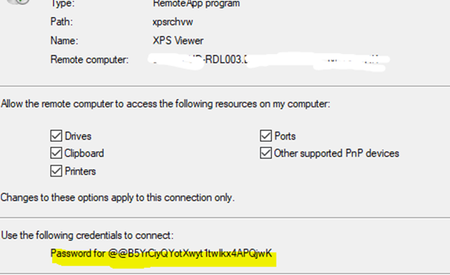
Yubikey's have been been rolled out to our end users and reports of 'not being able to run more than one published remote app' have started to flood in. Windows username/password authentication works fine, users without force 'smart card' login can authenticate with the RDweb resources (or even via work resources in their start menu) and run multiple remote apps with no issues. Current setup is one RD Broker server hosting RD Collections, multiple RDH servers bolted on. What I have found so far: Smart card user loads up a remote app, a credential box is presented and the pin is presented, the 1st remote app loads up. Smart card user loads up a 2nd remote app, a credential box appears, under more options, we note that the second connection is using 'the following credential to connect: Password for @@B5YrCiy********' as per below. Selecting OK passes these credentials to the broker and the connection fails. These seems be some kind of user hash? relating to the smartcard? but either way this is presented (not a pin) then you kill the 'RemoteApp and Desktop Connection Runtime' application: then close down this second remote app connection, then reload the remote app connection again. You notice the credentials are cleared and the user can re-present their smart card pin and successfully load up 2 remote apps: So here is my thinking... Smart Card credentials are supplied to the broker and the 'RemoteApp and Desktop Connection Runtime' application holds/cashes these? Killing this application forces 'NEW' remote app connects to re-authenticate with the broker, allowing the next remote app session. Im sure other org's must be using smart card authentication with their RD broker with multiple RD session hosts? for some reason, connecting to our Rd Farm with smart card/pin does not allow a seamless experience when wanting multiple remote apps...... Password auth is seemless.1.4KViews1like1Comment
Windows Server 2022 Standard - Limitation in RDP sessions with active GPU on Hyper-V DDA?
Hello community, we have a testsetup and try to find out is there any limitation in the number of users when a GPU is installed on a Windows Server 2022 single session host. Our test setup is a 32 Cores CPU AMD Epyc 256GB of RAM 2x Nvidia RTX A5000 2TB NVMe storage Hyper-V GPU DDA to one VM We have created 30 Testuser and set the following groupe policies: Disabled UDP protocol only TCP Disabled WDDM driver Set physical graphics adapter to use for all RDP sessions But currently we get the issue DWM.exe is crashing after the 19 session is opening and all other user 20,21,22,23 can never connect. User which is disconnecting and trying to connect get an error during the start of the RDP session. It makes no difference if 1 or 2 GPU are connected to the VM. But if we check the hardware usage, we have a lot of free resources. Is there any limitation or any idea what we can do? Splitting the VM to different smaller VM is in our case not an option regarding the running software what we need. When we deactivating the setting Set physical graphics adapter to use for all RDP sessions All users can login to server and it seems to be the GPU are working maybee for browser, office etc. but OpenGL, DirectX etc. is not available what is bad. I hope you can support here and explain if there is any settings, limitations etc. Thanks!1.4KViews0likes1Comment
Problems with a shared local printer through remote desktop windows server 2019
We have a computer outside premises that uses a remote application installed in our server with an rdp file, they access the app and print with their local printer (not instaled in server because this is outside our intranet, they conect to our intranet via VPN etc) So, randomly the printer stops getting shared when connecting to the remote app and the only thing we can do is reboot the entire server. We still haven't located if it's related to a stopped service and which one. EDIT: i found an event around the day we were notified the printer isn't visible is related with the register Microsoft-Windows-TerminalServices-PnPDevices/Administrador and it just says "Redirection of additional supported devices is disabled by policy " I don't know if it has anything to do.1KViews0likes0CommentsThe RDP service is operational, but it's not listening on port 3389
We have a Windows Server 2022 system and we are facing a significant issue with RDP freezing. The "umrdpservice" and "termservice" services are running without any problems, but when using the "netstat" command, it shows that the server is not listening on port 3389, which is the standard RDP port. I've tried various solutions, but the problem has persisted for a year, even though I regularly update the system. I've taken actions like increasing the session limit, but with no success. This issue is accompanied by an event log message: "RD Session Host Server session creation failed. The relevant status code was Only one usage of each socket address (protocol/network address/port) is normally permitted." However, this warning doesn't seem to contain specific information, as there is no second service that would be using the same port. The problem is that RDP connections can unexpectedly disconnect even up to 30 times a day, without any specific pattern in terms of timing. Please assist in finding a solution to this problem. It's worth noting that this issue is only present on Windows Server 2022, while versions 2019 and earlier do not experience these problems.1.1KViews0likes0CommentsRemote Desktop HTML5 use a web account to sign in to the remote computer.
Hi everyone, We have multiple RDS servers 2019, domain joined with HTML5 installed use application proxy. I know there is an option to download the RDS file which can probably allow connecting with web authentication and MFA. But when I try this on our servers, I don't have this option. Does anyone know if this option is applicable? Thanks, Rahamim.684Views0likes0Comments