query editor
1 TopicAzure SQL Query Editor Won't Connect? Start Here
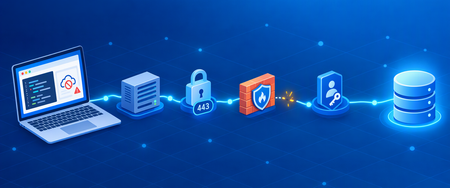
The Azure portal loads fine, you open Query Editor, and then you get "failed to fetch" or a vague connection error. It's tempting to assume the database is down, or to look for "the Query Editor IP" to add to your firewall. Usually, it's neither. Query Editor runs in your browser, so the problem can start on your laptop, your corporate proxy, the SQL firewall, your sign-in, or the database itself. The quickest fix is to work out which of those layers is failing before you change any server rules. How Query Editor actually connects There's no single Microsoft source IP to allowlist. For public connections to the query editor, you need to add your outbound IP address to the server's allowed firewall rules to access your databases. The IP that matters are the one your network presents to the internet, not an Azure address. Private Link changes this. You don't need to add your IP address to the SQL server firewall rules if you have a Private Link connection set up on the server, and you connect to the server from within the private virtual network. In that case, focus on DNS and whether you're really inside the right network. Check port 443 first Starting in March 2026, the Azure SQL query editor uses only TCP port 443. If something on your network blocks that traffic, you'll see messages about local network settings or proxy configuration. A quick test from PowerShell: Test-NetConnection <server-name>.database.windows.net -Port 443 If TcpTestSucceeded is False, the problem is on the client or network side. Keep in mind that opening 443 locally doesn't replace the SQL server firewall or Private Link setup. You still need both. Proxies and TLS inspection Corporate proxies cause more of these failures than people expect. If you see an error about the X-CSRF-Signature header, verify that your computer's clock is set to the right time and time zone, and if you're behind a proxy, make sure that the request header X-CSRF-Signature isn't being modified or dropped. A simple check: try Query Editor from a clean network, such as a phone hotspot. If it works there but not on the corporate network, talk to your network team, not the database team. Authentication and database users Being signed in to the portal doesn't give you access to the database. For Microsoft Entra sign-in, your database must be configured with Microsoft Entra authentication, and you must have a Microsoft Entra user created in the database. If you see "The server is not currently configured to accept this token," the fix is usually a contained user: CREATE USER [user@contoso.com] FROM EXTERNAL PROVIDER; Serverless databases that are paused On serverless databases, the "not currently available" message often just means your serverless database is currently paused. Selecting Continue starts the resume. Wait approximately one minute, refresh the page, and try again. Know the tool's limits Query Editor is built for quick queries, not everything. The query editor has a five-minute timeout for query execution. Also, the query editor doesn't support connecting to the logical server's master database. For either of those cases, use SSMS or VS Code with the MSSQL extension. Trying SSMS from the same machine is also a good diagnostic, because it shows whether the issue is with the browser path or with general connectivity. Symptom to layer: a quick reference What you see Likely layer First thing to try "Failed to fetch" / local network settings message Browser or client network Test-NetConnection on port 443 Works on hotspot, fails on corporate network Proxy / TLS inspection Ask network team to check header handling X-CSRF-Signature error Clock or proxy Fix system time, check proxy Firewall / client IP not allowed error SQL server firewall Add your current outbound IP only Fails from outside VNet with Private Link Private networking Check DNS resolves to the private endpoint "Not configured to accept this token" Authentication Create the contained Entra user "Database not currently available" Serverless pause Wait about a minute and retry One last word on firewall rules Please don't open wide IP ranges just to get Query Editor working. Add the specific outbound IP you need, remove it when you're done, and use Private Link for anything that needs ongoing access. Most Query Editor failures turn out to be network or identity issues, not database problems. Find the layer first and the fix is usually small. Reference: Azure Portal Query Editor - Azure SQL Database | Microsoft Learn