powerpoint
10 TopicsHow to Set Up Copilot Skills in PowerPoint (and Build Your Own)
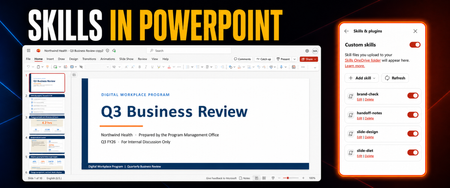
How to Set Up Copilot Skills in PowerPoint (and Build Your Own) You have a deck you rebuild every month. The business review, the project update, the readout for leadership. Every time, the same work. Cut the bullets down. Fix the capitalization someone else broke. Take 20 slides down to 7 so an executive will read it. Copilot in PowerPoint does all of that, and it's good at it. Then next month you open a new deck and type the whole thing out again, because Copilot doesn't remember how you like it done. That's the problem skills solve. I help organizations roll out Copilot in front of thousands of users, and skills are the feature I see the fewest people using. Plenty of teams are paying for it and have never turned it on. What a skill is A skill is a pattern you wrote down once. Take the thing you explain to Copilot over and over. Put it in a file with a name, a description, and a set of instructions. Save it. From then on you point Copilot at the skill instead of retyping the prompt, and you get the same result without rebuilding it. Monthly business review formatting. Your team's deck standards. The way you like speaker notes written. All of it becomes something you call by name. Two things before you start A Microsoft 365 Copilot license. Skills live in the Copilot pane inside PowerPoint. No Copilot in your Office apps, no skills. Choose Your Model. Open the Copilot pane, you can leave the model to "Auto" or find the model picker, and switch to your preferred GPT or Claude model. **Update** Skills in PowerPoint should now work with both OpenAI and Anthrophic models Turning skills on Open Copilot in PowerPoint. Hit the plus button at the bottom of the pane, then Choose skills. You'll already have a few there from Microsoft. Run one before you build anything of your own. You can also call a skill by name. Type @ and the skill name in your prompt, the same way you'd mention a person, and Copilot runs that one. Once you know what you have, it beats going through the menu every time. I opened Background and context on a text-heavy slide and asked it to visualize the slide. It created a new slide and generated an image that carried the same information in a format I could read at a glance. Side by side with the original, it wasn't close. Skill plus prompt The image was good, and it was an image, so I couldn't edit any of it. So I asked, in plain language: I like this, can you make it more native PowerPoint so I can edit it? Keep the structure. It rebuilt the whole thing with real PowerPoint objects and kept the layout that made it work. I wasn't running any branding at that point and it still came out clean. Skill first, then prompt. That combination is where most of the value sits. The skill gets you 80 percent of the way with no typing, and the prompt handles the part only you know. Building your own Go back to the plus button, Choose skills, then Manage skills. There's a Custom skills section, and it'll be greyed out until you have skills of your own. Don't hand-write the skill file. Grab Microsoft's documentation page, the one PowerPoint links to from the Manage skills pane: https://support.microsoft.com/en-us/powerpoint/copilot/copilot-in-powerpoint-skills Paste that URL into Copilot and say: using this link, help me build a PowerPoint skill that does X. Copilot reads the requirements and writes a file that fits the format. You're using AI to build AI, and it saves you more than typing. Skill files have real formatting rules, and Copilot will meet them instead of you finding each one through a failed upload. The format itself is short. A skill is a folder with a SKILL.md file in it. The file opens with a frontmatter block between three-dash delimiters holding a name and a description, and everything below that is your instructions. Spend your time on the description. That's the part telling Copilot when to reach for the skill, so a vague one means it never fires. If somebody sent you a skill, paste that in too and let Copilot clean it up. Where skills live In Manage skills, if you've never set this up, you'll see an option to create your skills library. Click it and Copilot creates the folder in your OneDrive. Pay attention to the path, because you'll need it: OneDrive > Documents > Copilot > Microsoft PowerPoint > skills Each skill is its own folder with a SKILL.md file inside. Drop new skills in there and they show up in PowerPoint. One catch: after you add something to OneDrive, refresh PowerPoint. It has to reload the folder. If you added a skill and it isn't showing, that's usually why. The other one that will bite you is the folder name. It has to match the name inside the SKILL.md file. Copilot skips any folder where those two don't line up, and it skips it quietly. No error, no warning, the skill is missing. If you refreshed and it's still not there, check that next. Two ways to add a skill, and the limit on one of them You don't have to touch OneDrive at all. In Manage skills, Add skill lets you upload an .md file, or type a skill in by hand with a name, description, and instructions. PowerPoint builds the folder structure and the file for you. I lost time on this one. The box where you type or paste a skill in caps at 1024 characters. I had Copilot write me a few skills, they came out longer than that, and I got errors that didn't explain themselves. I built them with Copilot, so I assumed they were fine. That cap is on the typed box. Uploading an .md file, or dropping the folder straight into OneDrive, doesn't have it. So if you have a long skill, don't cut it down to fit. Upload it as a file instead. Three skills on one bad deck Here's what I have built: Brand check. Reviews wording, terminology, and capitalization against our team's deck standards. No layout changes. Handoff notes. Writes speaker notes for someone else to deliver. I write the deck knowing I might not be the one presenting it, and my notes are useless to anybody but me. Slide diet. Takes a long deck, cuts the fluff, consolidates what's left. Slide design. The visual pass. I ran three of them on a plain deck, in order. Brand check went first. Text only. It consolidated some lines, rewrote a few, and fixed capitalization. Slide diet went second. It broke walls of text into bullets and cut what wasn't earning its place. Five bullets beat a paragraph block, and it made that call without being told. Slide design went last. This is the one where you sit back and let it work. Black text on white turned into something branded and visual, with the information in an order that reads. Three skills, and a deck I didn't want to read became one I'd present. Brand kits One more thing in that same plus menu: Brand. A brand kit holds your colors, fonts, and icons. You can build one for yourself, or your organization can publish one for everybody in the tenant. Pair a brand kit with a design skill and decks come out on-brand without anyone checking hex codes by hand. What it cost and what it saved The full run took 30 to 40 minutes, and the design pass was about 10 of that. Copilot needs time to work through a deck. This isn't instant. Building that by hand, at the quality it came out at, is 4 to 8 hours. A full day. The documentation Microsoft's page for all of this is here: https://support.microsoft.com/en-us/powerpoint/copilot/copilot-in-powerpoint-skills It has the format requirements, the three ways to add a skill, and how to edit or delete one. Worth a read before you build your second skill. One thing that page points to is worth knowing: the SKILL.md format is an open spec, not a PowerPoint invention. So the skills you write here aren't stuck in PowerPoint. Where to start Pick the pattern you repeat most, not the hardest deck you own. Write down what you'd tell a new hire about how you do it. That's your first skill. Hand it to Copilot, let it write the file, drop it in the folder, refresh PowerPoint. Then be curious, and go push some buttons.1.3KViews0likes2Comments95% Efficiency creating Contract Renewal J&A with M365 Copilot
Episode 1: “The COR Files – Automating the Annual Grind” In the world of federal procurement, Contracting Officer’s Representatives (CORs) are the unsung heroes. Managing contracts, ensuring they contracts are executed effectively and in compliance with the FAR. Among their many responsibilities, every contract requires full and open competition unless "the agency head determines that it is not in the public interest" (FAR 6.302-7); or maybe it's due to use of brand name (FAR 11.104). No matter the reason, when an exception is required the COR will prepare a Justification and Approval (J&A) document showing salient physical, functional, or performance characteristics of the solution. During a recent Prompt Design engagement at the Microsoft Innovation Hub, Washington DC, a COR walked us through the process they have to do for each of the 800 contracts their office manages. Each year, as many as 800 contracts go through a J&A. Depending on familiarity with the contract this can take 4-5 hours of research, organization, documentation, and even creating a presentation. We have over 100 people who, as a tertiary responsibility, must create these or risk a contract being lost and the organization has to start from zero in bidding the solution again. However, in 30 minutes of brainstorming and testing, their Prompt Design team developed the following M365 Copilot prompt. The COR then used Copilot in PowerPoint to automatically generate a slide deck from the output, applied the agency PowerPoint template, and they were done. The result? What normally took half a day was completed in under 30 minutes. Under 5 minutes to create the salient characteristics and the PowerPoint slides, the remaining time reviewing the content and validating its accuracy. “As a Contracting Officer's Representative, I want to develop salient characteristics about [NAME OF TECH] to write a justification and approval using my OneDrive folders [REFERENCE FOLDER NAME OF TECHNOLOGY DOCUMENTATION]. Reference old procurement documents [REFERENCE FOLDER NAME OF SAMPLE PROCUREMENT DOCUMENTS] to help understand the expected format.” When scaled across an agency managing 800 IT contracts, the COR estimates a potential savings of as much as 3,600 hours annually and more than 95% efficiency gained. What ways has your agency successfully used M365 Copilot to gain efficiencies in the annual grind? Copilot+Alt+Gov COPILOT+ALT+GOV is a series dedicated to sharing government use cases for generative AI from real government employees. In the spirit of reproducing these results in as many agencies as possible, we will work to share as much information about the process, the use cases, and the impact of these use cases. If you have a use case YOU want to share, reach out to and me, we'd love to work with you on it! Learn more at aka.ms/copilotgov438Views3likes0CommentsImmersive Reader comes to PowerPoint and OneDrive plus more updates for Dyslexia Awareness Month
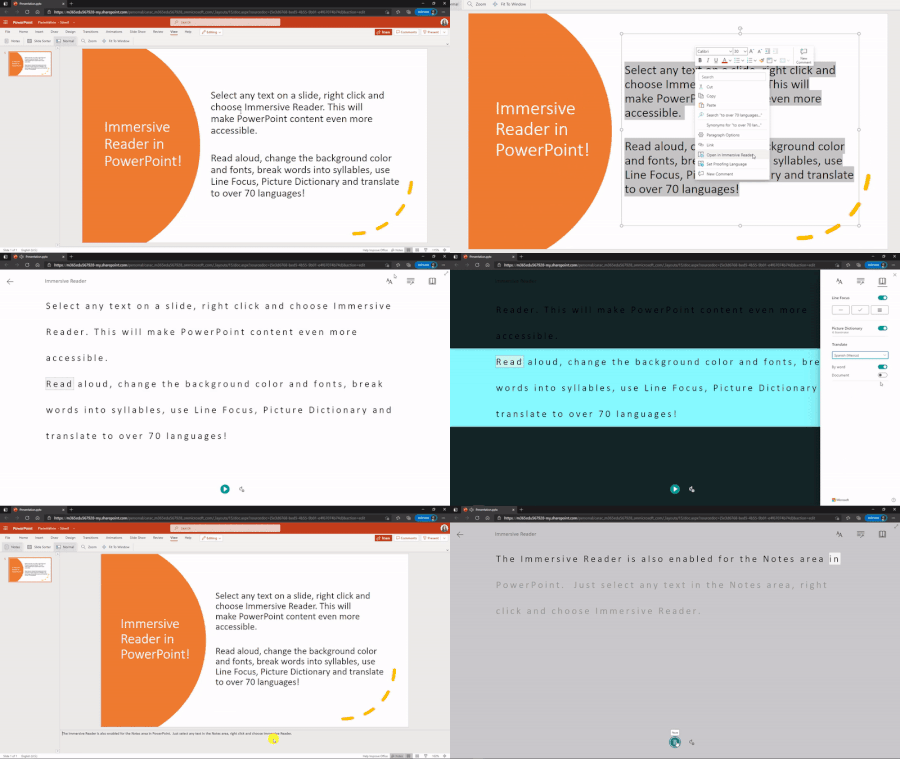
PowerPoint gets more inclusive One of the top requests we’ve heard from students, parents and educators has been to add the Immersive Reader to PowerPoint. It has also been a top UserVoice request for the PowerPoint team. Today we are thrilled to announce that we are adding the Immersive Reader to PowerPoint in two areas. 26KViews4likes3Comments
Immersive Reader comes to PowerPoint for the web, OneDrive, SharePoint and MakeCode
We are thrilled to announce that the Immersive Reader is rolling out to four additional Microsoft apps and services, including PowerPoint for the web, OneDrive, SharePoint and MakeCode. This set up updates that bring this powerful literacy tool to even more places!17KViews1like3CommentsRecord Slide Show in PowerPoint for Mac coming soon, plus additional PPT updates available today
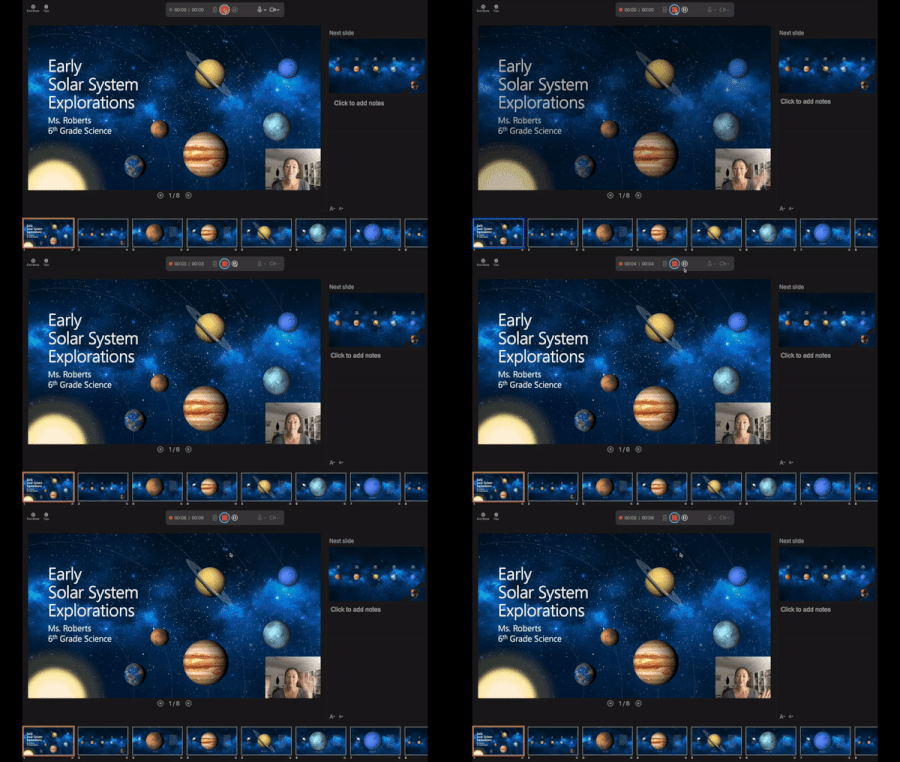
We’re excited to announce that new updates are now available on PowerPoint for Mac that allow users to record presenter video and inking during their Record Slide Show sessions. These new capabilities will enable you to create more robust recorded presentations. We hope that this feature can help simplify your presentation recording process and better engage your audience.11KViews1like2CommentsEasy Learning and Testing with PowerPoint and Forms – HLS Show Me How
In this HLS Show Me How video I demonstrate how a nurse could easily create training for a shared workstation using PowerPoint and the new Insert > Forms capability. While this use case addresses nurses and surgical scrubbing it can easily be applied in a myriad of use cases.