power apps
25 Topics
Building Low‑Code Apps for Nonprofits with Power Apps: A Practical Technical Guide
Nonprofits often rely on spreadsheets, paper forms, or disconnected systems to manage programs. These approaches can limit visibility, create inefficiencies, and increase administrative overhead. Microsoft Power Apps provides a low‑code platform that enables organizations to build custom applications—such as intake systems, volunteer check‑ins, case management tools, and inventory tracking—without requiring traditional software development. This guide explores the core architecture of Power Apps and how nonprofits can build scalable, secure, and maintainable solutions that align with their programs and workflows. Power Apps Architecture for Nonprofits Power Apps is part of the broader Microsoft Power Platform, which includes Dataverse, Power Automate, and connectors working together to create complete business applications. 1. Canvas Apps Canvas apps are highly customizable, user-interface–first applications that allow you to design the experience using a drag‑and‑drop approach while defining logic with Power Fx formulas. These apps give you full control over layout and behavior, making them ideal for mobile and task-specific workflows. Best suited for: Client intake Volunteer check‑in Surveys Mobile field work Learn more: Complete guide to building canvas applications - Power Apps | Microsoft Learn 2. Model‑Driven Apps Model-driven apps are data-first, structured applications built on Microsoft Dataverse, where the interface is automatically generated based on your data model, relationships, and business rules. These apps prioritize consistency, scalability, and governance over custom design. Best suited for: Case management Donor pipelines Program tracking Learn more: Overview of building a model-driven app with Power Apps - Power Apps | Microsoft Learn 3. Dataverse Dataverse is the secure, cloud-based relational data platform for Power Apps, providing structured data storage, governance, and enterprise scalability. It serves as the foundation for model-driven apps and a robust backend for canvas apps, enabling organizations to manage data, enforce business rules, and integrate across systems. Key capabilities: Relational tables and data relationships Role-based and field-level security Business rules and validation logic Audit logging and compliance support API access for integrations Learn more: Dataverse documentation - Power Apps | Microsoft Learn 4. Connectors Connectors act as the integration layer of Power Apps, enabling secure communication between your application and external systems. They allow apps to read, write, and automate data across a wide range of services without requiring custom code. Connectors nonprofit integrations: SharePoint (documents and simple lists) Excel (lightweight tracking and prototypes) SQL Server (high-volume structured data) Dynamics 365 (CRM and fundraising) Azure services (cloud storage, AI, functions) Salesforce (stakeholder management) Custom APIs for specialized systems Learn more: List of all Power Apps connectors | Microsoft Learn Technical Best Practices Data Layer Use Dataverse for sensitive data or relational data Use SharePoint for lightweight applications Use SQL for high‑volume or transactional systems Security Apply role‑based access controls Use environment variables for configuration Enable audit logs for compliance and tracking Performance Limit controls per screen Use delegable queries for large datasets Cache reference data when appropriate How to Build a Nonprofit Intake App (Technical How‑To) Building an intake app involves combining data, a form interface, and simple logic. Step 1: Create Your Data (Where Information Lives) Before building the app, you need a place to store your intake information. In Power Apps, this is done using Dataverse, which acts like a secure, structured database behind the scenes. You’ll create a table (similar to a spreadsheet) with fields such as: Client Name Date of Birth Program Notes Intake Date 👉 Learn more about how data works in Power Apps: Dataverse documentation - Power Apps | Microsoft Learn Step 2. Build the Intake Form (What Users See) Once your data is set up, you create a Canvas App, which is the form your staff or volunteers will use. Power Apps automatically turns your data fields into: Text boxes Dropdowns Date pickers This gives you a mobile-friendly intake form that works on phones, tablets, or desktops. 👉 Learn more about building apps: Official Microsoft Power Apps documentation - Power Apps | Microsoft Learn Step 3: Make the Form Work (Submitting Data) To make the intake form functional, you add simple logic so that when someone clicks Submit, their information is saved automatically. This is done using Power Fx, a formula language similar to Excel. 👉 Learn more about formulas: Microsoft Power Fx overview - Power Platform | Microsoft Learn With just a few formulas, your app can: Save data Show confirmation messages Reset the form for the next client Step 4: (Optional) Add Automation After a form is submitted, you can automatically trigger actions like: Sending confirmation emails Notifying staff Creating follow-up tasks 👉 Learn more about automation: Official Microsoft Power Automate documentation - Power Automate | Microsoft Learn 5. Share the App with Your Team Once your intake app is ready, you can share it with staff and volunteers so they can start using it right away. You can access it: On mobile devices Inside Microsoft Teams In a web browser Final Thought Power Apps enables nonprofits to move beyond fragmented tools and build custom, integrated solutions that match their workflows—without the cost and complexity of traditional development. With the right approach to architecture, data, and governance, organizations can create systems that are secure, scalable, and built for long-term impact.352Views0likes1CommentFrom Chalkboards to Cloud: How the Greater Austin YMCA Is Transforming Child Care Through Technology
How do you launch a first-of-its-kind childcare model in a rapidly growing city? For the Greater Austin YMCA, the answer was bold: a sweeping digital transformation powered by Microsoft tools like Teams, OneNote, and PowerApps. The result? Seamless collaboration across departments and the successful launch of two YMCA Tomorrow Academy TM early education centers—innovative, tech-enabled learning environments designed to meet one of the community’s greatest needs. A New Vision for Early Childhood Education The YMCA Tomorrow Academy is more than just childcare. It’s a nurturing, purpose-built space where children from six weeks to five years old can thrive. The curriculum emphasizes early literacy, STEM, creative arts, and nature play—supported by the YMCA’s holistic Constellation of Care TM model, which includes family wellness, nutrition, hygiene, and parent-teacher engagement. But building these centers require more than vision—it demanded real-time contributions and detailed collaboration from every department across the Greater Austin YMCA. The Digital Pivot That Made It Possible Before 2021, the YMCA’s operations still included many cumbersome analog components. Staff drove to meetings, shared paper documents, and relied on walkie-talkies that often failed. That changed when Kathy Kuras became President and CEO in February 2021 and brought her experience from the YMCA of Greater Boston, where she had helped modernize operations with Microsoft’s support. Kuras and her leadership team partnered with Microsoft to overhaul the Y’s technology footprint, introducing tools like Teams, OneNote, and BizApps to connect staff across locations and streamline workflows. “These tools are central to the hub of the work that gets done,” says Kuras. “They make work more efficient, respectful of people’s time, and intuitive.” From facilities to marketing to classroom staff, everyone became part of a unified digital ecosystem. “Our staff would say, ‘Our CEO uses this, our CMO uses this, and I’m a teacher and I’m using it now,’” says COO Shaq Brown. “That togetherness was a big culture shift.” A Child’s Words That Say It All When 4-year-old Lennon Pool told his mom, “I love it here,” after his first day at the Dove Springs YMCA Tomorrow Academy, it was music to her ears. His mom, Andie Connors-Pool, is also the Director of People at the Greater Austin YMCA—and deeply involved in the Academy’s development. “There have been times my kids don’t want to leave at the end of the day,” Connors-Pool says. “They’re just hugging on their teachers. You don’t get that everywhere.” Thanks to Microsoft tools, teachers can now update curriculum, track enrollment, and communicate instantly. “Gone are the days of broken walkie-talkies,” Connors-Pool adds. “Now, if someone needs a break, they just send a quick Teams message.” A Model for the Nation The success of the YMCA Tomorrow Academy has already sparked interest from other YMCAs across the country. “They’re knocking on our door,” says Brown. “We’re still iterating, but the interest is real.” With plans to launch four to five more academies by 2030, the Greater Austin YMCA is focused on placing them in communities with the greatest need. The challenge now is securing funding and building partnerships to scale the model. “It’s a first-of-its-kind for us in Greater Austin,” says CMO Sarah Inbau, “with the potential to scale across Texas—and nationally.” Technology That Feels Like Home At the heart of this transformation is a simple goal: to make families feel supported, safe, and connected. The YMCA Tomorrow Academy is proof that when technology, teamwork, and heart come together, extraordinary things can happen. From chalkboards to cloud-based collaboration, the Greater Austin YMCA is building a future where every child has a place to thrive—and where a child’s joyful “I love it here” is the ultimate measure of success. To learn more about the YMCA Tomorrow Academy and its impact, visit: How a technology overhaul helped the Greater Austin YMCA fill a childcare gap - Source151Views0likes0CommentsBuild a Custom CRM in a Weekend Using Microsoft Power Platform
Introduction You don’t need a massive budget or a team of developers to build a Customer Relationship Management (CRM) system. With Microsoft Power Platform, you can create a tailored CRM solution for your organization in just a weekend—no code required. Whether you’re tracking donors, clients, volunteers, or stakeholders, this guide walks you through the process using Power Apps, Dataverse, and Power Automate. Tools You’ll Use Power Apps (Canvas App) Dataverse (or SharePoint Lists if you’re on a tight budget) Power Automate (for workflows) Optional: Power BI for reporting Step-by-Step Guide 1. Define Your Core Entities Think about what you need to track: Contacts, Organizations, Interactions, Opportunities? Create a quick list of fields (e.g., Name, Email, Status, Last Contacted) 2. Set Up Your Dataverse Tables Go to Power Apps > Tables > New Table Create your entities and fields (e.g., Contact table with columns for name, email, and relationship status) 3. Build a Canvas App Use the Power Apps Canvas App from blank Connect it to your Dataverse tables Add screens for: Home/Dashboard Contact list (Gallery) Contact details/edit form Add new contact 4. Automate with Power Automate Example flow: “When a new contact is added, send a welcome email” Add flows for reminders to follow up, or flag inactive contacts Check out this blog for an example power automate flow creation Streamlining Non-Profit Operations with Power Automate Templates (Video Tutorial Included) | Microsoft Community Hub 5. Test and Share Share the app with your team 6. Use Security Roles in Dataverse to Manage Access Once your CRM is ready, you’ll want to control who can view, edit, or manage different parts of the system. That’s where Dataverse security roles come in. Here’s how to set them up: 1. Go to the Power Platform Admin Center Visit https://admin.powerplatform.microsoft.com Select the environment where your CRM lives 2. Open Security Roles Navigate to Environments > [Your Environment] > Settings Under Users + Permissions, click Security roles 3. Create a New Role Click + New role Name it something like CRM_ReadOnly, CRM_Admin, or CRM_Contributor Click Create 4. Set Table Permissions In the role editor, go to the Core Records or Custom Entities tab For each table (e.g., Contacts, Interactions), set permissions: Read = Organization (for full visibility) Create/Edit/Delete = User or None, depending on the role Example: A read-only user would have Read = Organization, and all other permissions set to None 5. Assign the Role to Users Go to Users + Permissions > Users Select the user(s) you want to assign the role to Click Manage roles, check your new role, and click Save 6. Test It Out Have the user log in and confirm they can only access what they’re supposed to Pro Tips: You can assign multiple roles to a user—permissions are cumulative Use Teams in Dataverse to manage access for groups For sensitive fields (like donation amounts), use Field-level security Use Business Rules in Dataverse to add logic without code (e.g., auto-fill fields) Theme the app to match your org’s branding Version it: Save iterations as you go, especially before big changes Final Thoughts This type of solution is ideal for teams that have outgrown spreadsheets but don’t want the cost or complexity of traditional CRM tools. With the Power Platform, you’re in control of the features, experience, and data—and you can iterate fast.3.6KViews0likes0CommentsSharePoint and Power Apps: Managing Roles and Permissions
One of the key aspects of SharePoint security is managing permissions at the list or item level, which allows you to control who can view or edit the data. This granular control is essential for maintaining the integrity and confidentiality of sensitive information within your organization. By effectively managing permissions, you can ensure that only authorized personnel have access to specific data, thereby reducing the risk of unauthorized access. Whether you choose to restrict access to the entire list for simplicity or use item-level permissions for more advanced scenarios, SharePoint provides the tools you need to keep your data secure. Restrict Access to the Entire SharePoint List This happens in SharePoint itself, not Power Apps. You need to manage permissions at the list or item level: Go to your SharePoint site > Open the List. Click on the gear ⚙️ > List settings. Under Permissions and Management, click Permissions for this list. Stop inheriting permissions (click the ribbon command: Stop Inheriting Permissions). Remove default access groups (like "Members" or "Visitors"). Add a specific SharePoint group or individuals who should have full access —an admin or manager, not end users. End users will only interact with the list through Power Apps — they don’t need direct list access. Please keep in mind that if users need to edit entries, they must have access to the list. Without proper permissions, they won't be able to see or edit the list. The next user permissions option is ideal for users who need to edit their own entries. Use Item-Level Permissions in SharePoint This is only advisable if you can enforce it consistently: Go to List settings > Under Advanced settings. Scroll to Item-level Permissions. Choose: ✅ Read access: Only their own ✅ Create and Edit access: Only their own This works well only if users are submitting forms (e.g., time-off requests) that shouldn’t be visible to others. Prevent Users from Viewing or Editing Power App Code This is configured through Power Apps and Microsoft Admin Center. Limit Who Has Access to Edit the App In Power Apps Studio: Go to File > Share. Remove or do not add users as Co-owners. Instead, share as Users only — give them “Can use” permission. Use Environment Roles (Dataverse or Environment Scope) In the Power Platform Admin Center (https://admin.powerplatform.microsoft.com): Go to Environments > Click your environment > Security roles. Set roles so users: Are not Environment Admins or Makers. Only have User roles in production environments. Summary of What to Check: Task Where Goal Limit list access SharePoint List Settings Prevent users from directly viewing data Use item-level permissions SharePoint Advanced Settings Let users only see/edit their own submissions Limit app editing Power Apps Share Panel Ensure only owners can edit Secure environment roles Power Platform Admin Center Block access to Maker/Admin capabilities1.9KViews0likes0CommentsBuilding a Power App with SharePoint: A Series for Nonprofits
Introduction to the Series ➡️ Next: Building a Power App with SharePoint: An Overview Welcome to our step-by-step series on building a functional Power App connected to a SharePoint List — designed specifically with nonprofits in mind. Whether you're a nonprofit staff member looking to simplify your internal workflows or a tech-savvy volunteer eager to streamline operations, this series is for you. We’ll walk you through creating a simple yet powerful app that helps track records, use filters, and guide users through intuitive navigation — all using low-code Power Platform tools. This app can serve as a foundational template for many nonprofit scenarios like volunteer intake, service tracking, or resource request forms. Each blog post in this series will build on the last, using a SharePoint List as our backend and Power Apps as the frontend. 🎥 Take a Quick Look at the App Want a quick look at the final product before diving into the steps? Watch this short video overview of the custom Power App we built using SharePoint Lists and Power Apps. What We’ll Cover in This Series Here’s what you can expect across the series: Blog 1: Why Power Apps + SharePoint? A Nonprofit-Friendly Overview We’ll explain what SharePoint is, why it’s a powerful tool for storing data, and how it works seamlessly with Power Apps to create simple, low-code solutions for your organization. Blog 2: Building a Power App with SharePoint — Setting Up Your SharePoint List Before jumping into Power Apps, you’ll need a SharePoint List to hold your data. This post walks through how to create a list, configure the right columns, and prepare it to integrate with your app. Blog 3: Creating the Power App — Screens, Forms, and Filters In this final part, we’ll walk you through connecting your list to Power Apps, building the form screen, adding a view screen with filters, and setting up basic navigation to create a clean user experience. Who This Is For This guide is tailored for nonprofit professionals, accidental techies, or small teams trying to make the most of Microsoft 365 tools they already have. You don’t need a development background — just curiosity and a desire to build something helpful! Before You Begin To follow along, you’ll need: Access to Power Apps A SharePoint List you can connect to Basic familiarity with how Microsoft 365 works By the end of this series, you’ll have a working Power App that can be used as-is or adapted to suit your nonprofit’s needs. Let’s get started! 📚 Explore the Series Series Introduction An Overview of the SharePoint/PowerApps Combination Setting Up Your SharePoint List Building Your Power App960Views0likes0CommentsEnhancing Nonprofit Operations: Power Apps and Power Automate Integration
Why Nonprofits Should Embrace Power Apps and Power Automate Power Apps and Power Automate are part of Microsoft’s Power Platform, designed to provide robust, scalable, and cost-effective solutions for organizations of all sizes. For nonprofits, these tools present a golden opportunity to customize and automate processes without the need for extensive technical expertise or a hefty budget. Cost-Effective Solutions: Microsoft offers nonprofits significant discounts on its software, including Power Apps and Power Automate, making it a budget-friendly choice. Customizability: Both tools can be tailored to address the unique needs of any nonprofit, whether it’s tracking donors, managing volunteers, or automating grant application workflows. Improved Efficiency: Automating repetitive manual tasks reduces errors and saves time, enabling organizations to focus on what matters most—their mission. Enhanced Collaboration: These tools integrate seamlessly with other Microsoft products like Teams, SharePoint, and Dynamics, making information sharing and teamwork more fluid. "Using Power Apps and Power Automate was a turning point for us. We no longer spend hours manually tracking donations and managing schedules. It’s like gaining an extra team member without the added cost!" – Sarah M., Director of Operations, Helping Hands Foundation A Step-by-Step Guide: Automating Donation Tracking The following guide provides an example of how nonprofits can use Power Apps and Power Automate to enhance their operations effectively. While this guide is a helpful starting point, please note that it may not apply to every situation, as each organization’s needs are unique. Step 1: Define Your Needs Start by identifying what aspects of donation tracking need improvement. Do you want to automate the acknowledgment process? Is it vital to have an updated database of donors in real time? Step 2: Create a Power App Use Power Apps to build a user-friendly form where donors can input their information, such as name, email, and donation amount. Customize the app with your organization’s branding to ensure a professional look. Step 3: Set Up Power Automate Design an automated workflow using Power Automate. For example, configure the flow to: Send a confirmation email to the donor immediately after they submit the form. Update your donor database in SharePoint or Excel. Generate a donation acknowledgment letter for your records. Step 4: Test and Refine Before launching your app and automation workflow, test the system thoroughly to ensure it performs as expected. Make adjustments as necessary to improve functionality and usability. Step 5: Launch and Monitor Roll out your new system and monitor its performance. Use the analytics features in Power Platform to gather insights into donor behavior and workflow efficiency. Unleashing the Potential of Customization No two nonprofits are alike, and Power Apps and Power Automate recognize this by offering unparalleled customization. Whether it’s building a dashboard to track project milestones or creating a workflow to process grant applications, these tools can be adapted to meet your specific needs. Their flexibility ensures that your nonprofit can evolve and innovate as your organization grows. Impact Beyond Efficiency The benefits of these tools extend beyond operational efficiency. By automating routine tasks, organizations can allocate their saved time and resources to programs that directly impact the communities they serve. Power Apps and Power Automate empower nonprofits to operate more strategically, making every dollar and minute count. Call to Action Are you ready to take your nonprofit operations to the next level? Explore the endless possibilities of Power Apps and Power Automate today. Begin with a small project like donation tracking or volunteer management and experience the transformative impact firsthand. For guidance, check out Brandon Antoine's blog about getting started with Power Apps and Streamlining Non-Profit Operations with Power Automate Templates (Video Tutorial Included) | Microsoft Community Hub To deepen your understanding further, visit Microsoft’s Power Platform Overview and their Nonprofit Offerings to access resources designed specifically for your organization’s needs. Your mission is too important to be bogged down by inefficiencies. Leverage technology, embrace innovation, and let your nonprofit shine brighter than ever!570Views0likes0CommentsEnhancing Nonprofit Collaboration with SharePoint (Part 2)
Welcome back to our series on SharePoint for nonprofits! In Part 1, we explored how hub sites and nested pages help nonprofits build a centralized, structured intranet that supports internal communication and content organization. In this post, we’ll look at more SharePoint tools that help your team stay informed, manage data efficiently, and automate internal processes—ultimately improving collaboration across your entire nonprofit. Communication Sites: Keeping Your Organization Informed Communication sites in SharePoint serve as internal news hubs, ensuring that employees, volunteers, and board members stay informed. Key Features of Communication Sites: Company Announcements: Share news, updates, and newsletters with the entire organization. Event Calendars: Provide visibility into upcoming meetings, fundraising events, and training sessions. Resource Libraries: Store essential documents such as grant templates, donor reports, and legal policies in an easily accessible format. Mobile Accessibility: Team members can stay connected from anywhere with SharePoint’s mobile-friendly experience SharePoint Lists and Libraries: More Than Just Storage Beyond document management, SharePoint Lists and Libraries function as powerful databases that help nonprofits track critical information such as donor records, volunteer registrations, and grant applications. Key Benefits: Customizable Views: Sort and filter data based on specific needs. Integration with Power Automate: Automate workflows such as volunteer onboarding or approval processes. Version Control: Keep track of document changes and prevent data loss. 💡 Example: Use a SharePoint list to track grant applications with custom columns for deadline, status, and reviewer. Combine it with Power Automate to notify reviewers when new applications are submitted. Customizing SharePoint with Power Platform For nonprofits looking to further enhance SharePoint’s capabilities, integrating with Microsoft Power Platform provides automation and customization options. Power Automate: Automate processes like approval workflows and email notifications. Power Apps: Create custom apps to manage program applications or volunteer registrations. Power BI: Generate reports from SharePoint data to gain insights into fundraising or program impact. Real-World Example: Hampton HR Ticketing System One nonprofit, Hampton University Proton Therapy Institute, implemented a SharePoint-based HR ticketing system to streamline employee requests such as benefits inquiries, payroll issues, and policy clarifications. Using a custom-built Power App connected to a SharePoint list, employees could submit tickets through a user-friendly interface. HR staff managed these tickets via the SharePoint List - utilizing custom views, drop downs, and shareable links per case entry for collaboration across the HR team. The Power App-SharePoint Customization has the ability to run automated workflows powered by Power Automate for notifications and escalations. The system was also designed to integrate with Power BI, enabling the HR team to generate real-time reports on ticket trends, resolution times, and team performance—all without leaving the Microsoft ecosystem Explore the Blog Series for a Step-by-Step Guide to Building a Power App from a SharePoint List Conclusion: Bringing It All Together With the right tools in place, SharePoint can be a nonprofit’s digital backbone—supporting everything from document sharing to cross-team collaboration and real-time reporting. By implementing: Hub sites for unified structure Communication sites for internal news Lists & libraries for managing operations Power Platform tools for automation and insight ...your nonprofit can drive transparency, save time, and stay mission-focused. 🔗 Check Out These Links to Learn More Introduction to SharePoint Communication Sites Lists in Microsoft 365 Power Automate for SharePoint Build Power Apps with SharePoint Data Visualize SharePoint Data with Power BI464Views0likes0CommentsIntegrating Power Apps with Power BI for Nonprofits
Benefits of Integrating Power Apps with Power BI for Nonprofits Power Apps and Power BI, both part of Microsoft's Power Platform, provide a dynamic duo of tools that can significantly enhance nonprofit operations. Here are the key benefits: Enhanced Decision-Making: With Power BI's robust data visualization capabilities, nonprofits can create interactive dashboards that provide real-time insights into fundraising efforts, volunteer engagement, or program outcomes. These insights empower organizations to make data-driven decisions. Streamlined Processes: By integrating Power Apps with Power BI, nonprofits can create custom apps that interact with their Power BI dashboards. For example, a volunteer coordinator could use a Power App to update volunteer hours, and the changes would immediately reflect in a Power BI dashboard. Cost Efficiency: Power Apps allows nonprofits to build tailored solutions without expensive software development, while Power BI offers affordable data analytics tools, often with nonprofit-specific pricing from Microsoft. Increased Collaboration: Teams can access the same data and applications, fostering better collaboration across departments and ensuring alignment with organizational goals. Scalability: These tools can grow with the organization, whether it's a small local nonprofit or a large international NGO. Best Practices for Successful Implementation To ensure a smooth and effective integration of Power Apps and Power BI, nonprofits should consider the following best practices: Define Clear Goals: Identify specific problems you want to solve or questions you want to answer with the integration. Engage Stakeholders: Involve team members from different departments to ensure the tools meet diverse needs and foster organization-wide buy-in. Start Small: Begin with a pilot project to explore the tools' capabilities and refine your approach before scaling up. Invest in Training: Provide staff with training on Power Apps and Power BI to maximize their potential and ensure user adoption. Leverage Existing Templates: Microsoft offers pre-built templates for Power Apps and Power BI that can save time and effort. Ensure Data Security: Use Microsoft’s built-in security features to protect sensitive data, especially when dealing with donor and volunteer information. Step-by-Step Guide: Using Power Apps and Power BI for Volunteer Tracking This guide is specifically designed to help nonprofits streamline volunteer hour tracking using Power Apps and Power BI. While the focus here is on volunteer management, these tools offer immense flexibility and can be adapted for numerous other purposes, such as donor engagement, program monitoring, and resource allocation. Step 1: Identify Your Needs Consider the challenge your nonprofit faces—in this case, the need to efficiently track volunteer hours. Your goal is to implement a system where volunteers can log their hours easily, and management can access real-time data for better decision-making. Step 2: Create a Data Source Set up a dependable database using Microsoft Excel, SharePoint, or Dataverse to store volunteer information, including names, event details, and hours logged. Ensure the data structure is clear and adaptable for future scaling. Step 3: Build a Power App With Power Apps, design an intuitive mobile app where volunteers can log their hours effortlessly. Include essential fields like volunteer name, event name, hours worked, and any notes. Step 4: Connect Power BI Integrate your data source with Power BI to create a dynamic dashboard. Use visuals to display total hours, participation by event, and trends over time, enabling your team to monitor engagement and improve planning. Step 5: Integrate the App with the Dashboard Ensure the Power App syncs seamlessly with your Power BI dashboard so that updates made in the app are automatically reflected in your analytics. Step 6: Test and Deploy Run a pilot with a small group of volunteers to test the app and dashboard. Collect feedback to refine the system before rolling it out to your entire organization. Step 7: Continual Improvement Regularly review how the app and dashboard are being utilized. Use feedback and evolving needs to refine the tools, ensuring they remain effective and user-friendly over time. Remember, the integration of Power Apps and Power BI isn’t limited to volunteer tracking. Nonprofits can use these powerful tools for various other applications, such as enhancing donor engagement, tracking program outcomes, and optimizing resource management. The versatility of these platforms makes them a valuable asset for any mission. Conclusion: Take the First Step Today Integrating Power Apps and Power BI can be a game-changer for nonprofit organizations, offering a cost-effective way to streamline processes, enhance decision-making, and deepen engagement with stakeholders. We invite you to explore these tools and discover how they can benefit your mission. Start small, experiment, and share your success stories with the nonprofit community. Together, we can leverage technology to create a greater impact. References and Resources Microsoft Power Platform Overview Power Apps Templates for Nonprofits Power BI Tutorials and Documentation Microsoft Tech for Social Impact Resources For more inspiration and support, join the nonprofit tech community and share your experiences.786Views0likes0CommentsBuilding a Power App with SharePoint: An Overview
➡️ Next: Setting Up Your SharePoint List Welcome to the first blog in our series walking nonprofit teams through understanding how to build a Power App using SharePoint as the backend. In the Series Introduction blog, we covered what you can expect to learn throughout this journey — from setting up SharePoint lists to customizing your Power App and beyond. If you haven’t read that yet, I recommend starting there to get a full picture of the series and its goals. Whether you're trying to replace spreadsheets, streamline internal processes, or create a lightweight application that works seamlessly within your Microsoft 365 environment — this guide is for you. We’ll break everything down step-by-step in a way that’s accessible to those without a developer background, focusing on real-world nonprofit scenarios. This first post will give you an overview of why Power Apps + SharePoint is a smart combination for nonprofits, some of the things to watch out for, and what to expect in the rest of this series. Why Use SharePoint and Power Apps Together? There are many no-code and low-code tools out there, but for nonprofits already using Microsoft 365, this combo has some big advantages. 💰 Cost and Licensing Advantages If your nonprofit already has Microsoft 365 through a donation or nonprofit license, you likely already have everything you need to get started: SharePoint Online is included with most Microsoft 365 nonprofit plans. Power Apps for Microsoft 365 allows you to build canvas apps that connect to SharePoint Lists without needing premium Power Apps licenses. This means you can often build simple internal tools — like intake forms, event trackers, request systems, or contact databases — without paying extra for software. 🔗 Deep Microsoft 365 Integration Power Apps and SharePoint are both Microsoft products, which means they work beautifully together out of the box. Some examples: Your app can use Azure AD login to show users only their data. SharePoint security settings can control who can read or edit what. You can embed your Power App directly on a SharePoint page or Teams tab. Files, calendars, and Outlook-based automation (via Power Automate) are all easily connected. This makes it much easier to deploy tools within your existing ecosystem. 🔐 Easy Permission Control for Non-Technical Users SharePoint permissions are very customizable, yet easy to manage once you get the hang of it. For example: You can create a SharePoint List where staff can submit requests but not edit each other’s. Supervisors can get extra edit/view access — without editing Power App settings directly. You don’t need IT staff to control who sees what — just basic SharePoint admin know-how. This lets your team manage sensitive data access without complicated role-based systems. 🧱 Simple List Structure with Room to Grow SharePoint Lists are essentially Excel spreadsheets with superpowers. They give you: Columns for different data types (text, dropdowns, people fields, dates, etc.) Built-in version history Attachments Easy filtering and sorting Views for different user roles or purposes And while they’re simple to set up, you can scale them up over time — connecting them to automation (Power Automate), dashboards (Power BI), and more. Common Pitfalls and When Not to Use SharePoint This combination isn’t perfect for every use case. Here are a few things to watch out for: Complex relational data? SharePoint Lists don’t work well for apps with deeply connected tables like you’d see in a CRM. Dataverse is better for those. High-volume apps? SharePoint Lists have a 5,000-item view threshold and slower performance at scale. Consider performance and filtering strategies. Need for public access? SharePoint + Power Apps is great for internal tools. If your audience is external (like a volunteer signup form for the public), you’ll need a different approach. Mobile limitations? Power Apps can be mobile-friendly, but design carefully — SharePoint-connected apps often need tweaking for mobile usability. Watch for delegation warnings. SharePoint has limitations when it comes to how Power Apps can filter, sort, or retrieve large datasets (called “delegation limits”). For most simple apps, this won’t be a problem — but it’s good to design with it in mind. We’ll touch on this later in the series. Still, for internal tools used by staff or trusted volunteers, this setup offers an unmatched combination of power and affordability. What’s Next in This Series? In the next post, we’ll begin building your app by setting up your SharePoint List. That list will serve as your app’s “database,” and how you structure it upfront will shape what’s possible later on. Here’s a sneak peek at what’s ahead: Upcoming blogs: 🗂 Creating Your SharePoint List – how to structure your list for Power Apps 🧩 Building the App with Power Apps – connecting your list and designing the layout ⚙️ Permissions & Publishing – controlling access and rolling it out to users Each blog will include screenshots, plain-language tips, and walkthroughs that align with the accompanying video series — which we’ll link to as it’s released. Final Thoughts Power Apps + SharePoint offers a low-cost, scalable, secure way to build apps that work for your nonprofit team — especially if you’re already in the Microsoft ecosystem. Even if you’ve never built an app before, this series will help you get from idea to launch, one step at a time. Let’s build together! 📚 Explore the Series Series Introduction An Overview of the SharePoint/PowerApps Combination Setting Up Your SharePoint List Building Your Power App1.3KViews0likes0CommentsBuilding a Power App with SharePoint: Setting Up Your SharePoint List
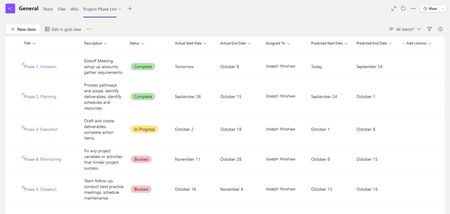
⬅️ Previous: An Overview of the SharePoint/PowerApps Combination ➡️ Next: Building Your Power App What We’ll Cover Creating a SharePoint list from scratch Choosing column types to match your data needs Setting up lookup columns and choice fields Best practices for organizing and naming columns Preparing your list for integration with Power Apps Creating Your SharePoint List Log in to SharePoint: Navigate to your SharePoint site. SharePoint can also be accessed via m365.cloud.microsoft, signing into your account and then clicking in the upper left corner of the window, select App launcher > SharePoint. (If not in left corner please look for “Apps”) Create a List: Go to the site contents and select "New"> "List". --> 3.Start a New List: Click “New List” and choose a blank list or template. If you have an existing excel or CSV file with columns you have already written, you can also import as well. First choose import from excel Then select a file on the SharePoint site or Upload a file 3. If you have multiple sheets in the file, you can select the table or sheet and choose the column type for each column. Choosing the Right Column Types Below, see the list of options when you are importing from ESV or CSV. Each column in your SharePoint list stores a different type of data. Choosing the right type helps your app work efficiently. Common column types include: Single line of text: For short text entries (names, titles). Multiple lines of text: For longer notes or descriptions. Choice: Predefined options for consistent data entry (e.g., status: Active, Inactive). Number: For numerical data (e.g., quantity, age). Date and time: For dates such as event dates or registration timestamps. Lookup: To reference data from another SharePoint list. Make sure to match your columns to the data you’ll collect. 4. Name Your List: Give your list a name (e.g., "Employee Directory"). 5. Add Columns: Add the necessary columns to your list (e.g., Name, Email, Department). If you imported from a file, feel free to add any more columns you may have needed or adjust the column types by clicking on the Column – Column Settings-Edit. Option B for Step 1: Using Microsoft Lists Open Microsoft Lists: Go to Microsoft Lists or access it via the Microsoft 365 app launcher. 2. Start a New List: Click “New List” and choose a blank list or template. 3. Configure the List: Name your list (e.g., "Employee Directory"). Select the desired color and icon if you wish. Choose whether to save it to My lists (private) or a SharePoint site (team-based). 4. Add Columns: Add custom columns such as Name, Email, Department, etc. Note: Whether you create your list in SharePoint or Microsoft Lists, it can be connected to PowerApps the same way in the next step. Tip: When starting from a SharePoint List that has no data, it is helpful to add one line of test data to see how the fields populate within the Power App. Take the time to add an entry before we begin to create the app. Best Practices for Organizing Your List Use clear and consistent column names (avoid spaces or special characters when possible). Keep your list structure simple—complex relationships can be handled later in Power Apps or Power Automate. Limit the number of columns to only those you need to keep performance smooth. Add columns for auditing if needed, such as “Created By” and “Modified Date.” These can be system generated following the steps below: Click on Add Column-Show or hide columns-Select Column-Apply Preparing Your List for Power Apps Once your SharePoint list is ready: Double-check your columns and data types. Add some sample data to test with later. Avoid complex calculated columns that Power Apps might not support fully. Ensure you have proper permissions to connect the list to Power Apps Conclusion Your SharePoint list is the foundation of your Power App. Taking time to set it up thoughtfully will save you time and headaches down the road, making your app more reliable and user-friendly. In our next blog, we’ll jump into Power Apps Studio to connect your SharePoint list and start building your app interface. Stay tuned! Additional information: Setting Up Views Views help you filter and organize your list data directly in SharePoint. Setting up a custom view lets users see just the data relevant to them. Create views based on common filters (e.g., “Pending Approvals” or “Active Volunteers”) Set a default view that makes sense for most users In this example application, I will create an HR view that displays the fields the HR team will manage first in the list. To add a view, click on + Add View on the top right of the list Best Practices for SharePoint Lists with Power Apps Keep your list simple and clean for better app performance Limit choice columns to fewer than 20 options for usability Avoid using complex column types that don’t work well with Power Apps Regularly maintain and clean your list data to prevent errors Plan your list structure early to avoid major changes later 📚 Explore the Series Series Introduction An Overview of the SharePoint/PowerApps Combination Setting Up Your SharePoint List Building Your Power App1.4KViews0likes0Comments