phi-3
15 TopicsEssential Microsoft Resources for MVPs & the Tech Community from the AI Tour
Unlock the power of Microsoft AI with redeliverable technical presentations, hands-on workshops, and open-source curriculum from the Microsoft AI Tour! Whether you’re a Microsoft MVP, Developer, or IT Professional, these expertly crafted resources empower you to teach, train, and lead AI adoption in your community. Explore top breakout sessions covering GitHub Copilot, Azure AI, Generative AI, and security best practices—designed to simplify AI integration and accelerate digital transformation. Dive into interactive workshops that provide real-world applications of AI technologies. Take it a step further with Microsoft’s Open-Source AI Curriculum, offering beginner-friendly courses on AI, Machine Learning, Data Science, Cybersecurity, and GitHub Copilot—perfect for upskilling teams and fostering innovation. Don’t just learn—lead. Access these resources, host impactful training sessions, and drive AI adoption in your organization. Start sharing today! Explore now: Microsoft AI Tour Resources.
Getting Started with the AI Dev Gallery
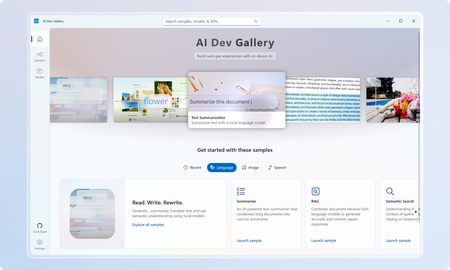
March Update: The Gallery is now available on the Microsoft Store! The AI Dev Gallery is a new open-source project designed to inspire and support developers in integrating on-device AI functionality into their Windows apps. It offers an intuitive UX for exploring and testing interactive AI samples powered by local models. Key features include: Quickly explore and download models from well-known sources on GitHub and HuggingFace. Test different models with interactive samples over 25 different scenarios, including text, image, audio, and video use cases. See all relevant code and library references for every sample. Switch between models that run on CPU and GPU depending on your device capabilities. Quickly get started with your own projects by exporting any sample to a fresh Visual Studio project that references the same model cache, preventing duplicate downloads. Part of the motivation behind the Gallery was exposing developers to the host of benefits that come with on-device AI. Some of these benefits include improved data security and privacy, increased control and parameterization, and no dependence on an internet connection or third-party cloud provider. Requirements Device Requirements Minimum OS Version: Windows 10, version 1809 (10.0; Build 17763) Architecture: x64, ARM64 Memory: At least 16 GB is recommended Disk Space: At least 20GB free space is recommended GPU: 8GB of VRAM is recommended for running samples on the GPU Using the Gallery The AI Dev Gallery has can be navigated in two ways: The Samples View The Models View Navigating Samples In this view, samples are broken up into categories (Text, Code, Image, etc.) and then into more specific samples, like in the Translate Text pictured below: On clicking a sample, you will be prompted to choose a model to download if you haven’t run this sample before: Next to the model you can see the size of the model, whether it will run on CPU or GPU, and the associated license. Pick the model that makes the most sense for your machine. You can also download new models and change the model for a sample later from the sample view. Just click the model drop down at the top of the sample: The last thing you can do from the Sample pane is view the sample code and export the project to Visual Studio. Both buttons are found in the top right corner of the sample, and the code view will look like this: Navigating Models If you would rather navigate by models instead of samples, the Gallery also provides the model view: The model view contains a similar navigation menu on the right to navigate between models based on category. Clicking on a model will allow you to see a description of the model, the versions of it that are available to download, and the samples that use the model. Clicking on a sample will take back over to the samples view where you can see the model in action. Deleting and Managing Models If you need to clear up space or see download details for the models you are using, you can head over the Settings page to manage your downloads: From here, you can easily see every model you have downloaded and how much space on your drive they are taking up. You can clear your entire cache for a fresh start or delete individual models that you are no longer using. Any deleted model can be redownload through either the models or samples view. Next Steps for the Gallery The AI Dev Gallery is still a work in progress, and we plan on adding more samples, models, APIs, and features, and we are evaluating adding support for NPUs to take the experience even further If you have feedback, noticed a bug, or any ideas for features or samples, head over to the issue board and submit an issue. We also have a discussion board for any other topics relevant to the Gallery. The Gallery is an open-source project, and we would love contribution, feedback, and ideation! Happy modeling!7.2KViews5likes3CommentsAI Toolkit for Visual Studio Code: October 2024 Update Highlights
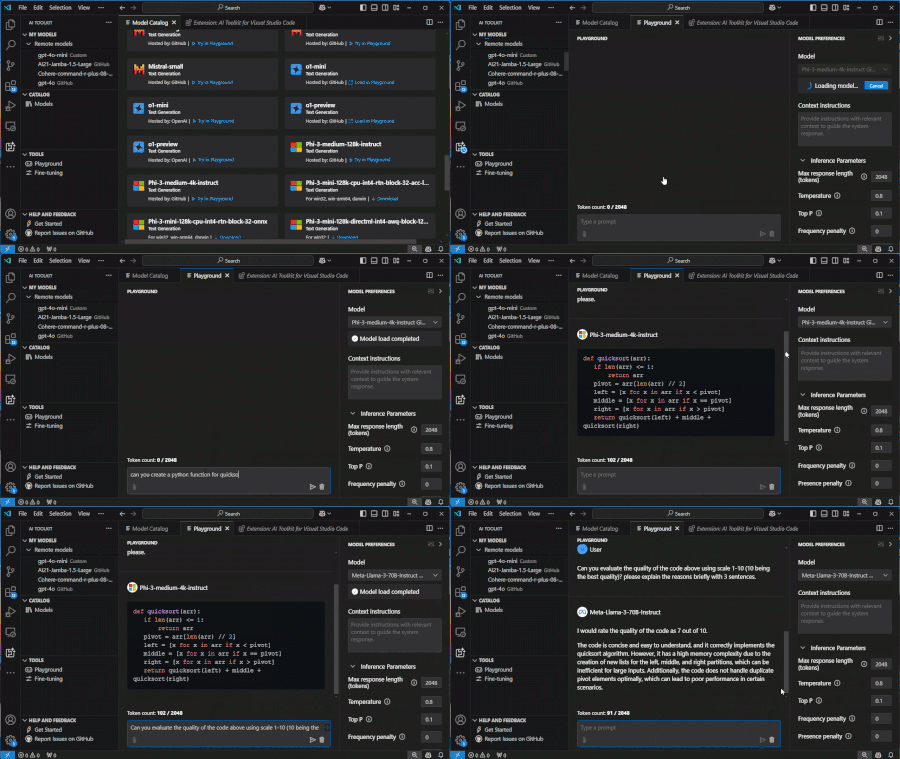
The AI Toolkit’s October 2024 update revolutionizes Visual Studio Code with game-changing features for developers, researchers, and enthusiasts. Explore multi-model integration, including GitHub Models, ONNX, and Google Gemini, alongside custom model support. Dive into multi-modal capabilities for richer AI testing and seamless multi-platform compatibility across Windows, macOS, and Linux. Tailored for productivity, the enhanced Model Catalog simplifies choosing the best tools for your projects. Try it now and share feedback to shape the future of AI in VS Code!3.2KViews4likes0CommentsGetting Started - Generative AI with Phi-3-mini: A Guide to Inference and Deployment
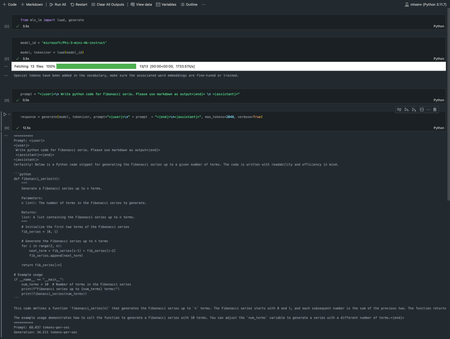
Getting started with Microsoft Phi-3-mini - Inference Phi-3-mini models, Discover how Phi-3-mini, a new series of models from Microsoft, enables deployment of Large Language Models (LLMs) on edge devices and IoT devices. Learn how to use Semantic Kernel, Ollama/LlamaEdge, and ONNX Runtime to access and infer phi3-mini models, and explore the possibilities of generative AI in various application scenarios52KViews4likes13CommentsBuilding a Smart Building HVAC Digital Twin with AI Copilot Using Foundry Local
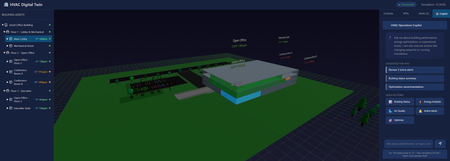
Introduction Building operations teams face a constant challenge: optimizing HVAC systems for energy efficiency while maintaining occupant comfort and air quality. Traditional building management systems display raw sensor data, temperatures, pressures, CO₂ levels—but translating this into actionable insights requires deep HVAC expertise. What if operators could simply ask "Why is the third floor so warm?" and get an intelligent answer grounded in real building state? This article demonstrates building a sample smart building digital twin with an AI-powered operations copilot, implemented using DigitalTwin, React, Three.js, and Microsoft Foundry Local. You'll learn how to architect physics-based simulators that model thermal dynamics, implement 3D visualizations of building systems, integrate natural language AI control, and design fault injection systems for testing and training. Whether you're building IoT platforms for commercial real estate, designing energy management systems, or implementing predictive maintenance for building automation, this sample provides proven patterns for intelligent facility operations. Why Digital Twins Matter for Building Operations Physical buildings generate enormous operational data but lack intelligent interpretation layers. A 50,000 square foot office building might have 500+ sensors streaming metrics every minute, zone temperatures, humidity levels, equipment runtimes, energy consumption. Traditional BMS (Building Management Systems) visualize this data as charts and gauges, but operators must manually correlate patterns, diagnose issues, and predict failures. Digital twins solve this through physics-based simulation coupled with AI interpretation. Instead of just displaying current temperature readings, a digital twin models thermal dynamics, heat transfer rates, HVAC response characteristics, occupancy impacts. When conditions deviate from expectations, the twin compares observed versus predicted states, identifying root causes. Layer AI on top, and operators get natural language explanations: "The conference room is 3 degrees too warm because the VAV damper is stuck at 40% open, reducing airflow by 60%." This application focuses on HVAC, the largest building energy consumer, typically 40-50% of total usage. Optimizing HVAC by just 10% through better controls can save thousands of dollars monthly while improving occupant satisfaction. The digital twin enables "what-if" scenarios before making changes: "What happens to energy consumption and comfort if we raise the cooling setpoint by 2 degrees during peak demand response events?" Architecture: Three-Tier Digital Twin System The application implements a clean three-tier architecture separating visualization, simulation, and state management: The frontend uses React with Three.js for 3D visualization. Users see an interactive 3D model of the three-floor building with color-coded zones indicating temperature and CO₂ levels. Click any equipment, AHUs, VAVs, chillers, to see detailed telemetry. The control panel enables adjusting setpoints, running simulation steps, and activating demand response scenarios. Real-time charts display KPIs: energy consumption, comfort compliance, air quality levels. The backend Node.js/Express server orchestrates simulation and state management. It maintains the digital twin state as JSON, the single source of truth for all equipment, zones, and telemetry. REST API endpoints handle control requests, simulation steps, and AI copilot queries. WebSocket connections push real-time updates to the frontend for live monitoring. The HVAC simulator implements physics-based models: 1R1C thermal models for zones, affinity laws for fan power, chiller COP calculations, CO₂ mass balance equations. Foundry Local provides AI copilot capabilities. The backend uses foundry-local-sdk to query locally running models. Natural language queries ("How's the lobby temperature?") get answered with building state context. The copilot can explain anomalies, suggest optimizations, and even execute commands when explicitly requested. Implementing Physics-Based HVAC Simulation Accurate simulation requires modeling actual HVAC physics. The simulator implements several established building energy models: // backend/src/simulator/thermal-model.js class ZoneThermalModel { // 1R1C (one resistance, one capacitance) thermal model static calculateTemperatureChange(zone, delta_t_seconds) { const C_thermal = zone.volume * 1.2 * 1000; // Heat capacity (J/K) const R_thermal = zone.r_value * zone.envelope_area; // Thermal resistance // Internal heat gains (occupancy, equipment, lighting) const Q_internal = zone.occupancy * 100 + // 100W per person zone.equipment_load + zone.lighting_load; // Cooling/heating from HVAC const airflow_kg_s = zone.vav.airflow_cfm * 0.0004719; // CFM to kg/s const c_p_air = 1006; // Specific heat of air (J/kg·K) const Q_hvac = airflow_kg_s * c_p_air * (zone.vav.supply_temp - zone.temperature); // Envelope losses const Q_envelope = (zone.outdoor_temp - zone.temperature) / R_thermal; // Net energy balance const Q_net = Q_internal + Q_hvac + Q_envelope; // Temperature change: Q = C * dT/dt const dT = (Q_net / C_thermal) * delta_t_seconds; return zone.temperature + dT; } } This model captures essential thermal dynamics while remaining computationally fast enough for real-time simulation. It accounts for internal heat generation from occupants and equipment, HVAC cooling/heating contributions, and heat loss through the building envelope. The CO₂ model uses mass balance equations: class AirQualityModel { static calculateCO2Change(zone, delta_t_seconds) { // CO₂ generation from occupants const G_co2 = zone.occupancy * 0.0052; // L/s per person at rest // Outdoor air ventilation rate const V_oa = zone.vav.outdoor_air_cfm * 0.000471947; // CFM to m³/s // CO₂ concentration difference (indoor - outdoor) const delta_CO2 = zone.co2_ppm - 400; // Outdoor ~400ppm // Mass balance: dC/dt = (G - V*ΔC) / Volume const dCO2_dt = (G_co2 - V_oa * delta_CO2) / zone.volume; return zone.co2_ppm + (dCO2_dt * delta_t_seconds); } } These models execute every simulation step, updating the entire building state: async function simulateStep(twin, timestep_minutes) { const delta_t = timestep_minutes * 60; // Convert to seconds // Update each zone for (const zone of twin.zones) { zone.temperature = ZoneThermalModel.calculateTemperatureChange(zone, delta_t); zone.co2_ppm = AirQualityModel.calculateCO2Change(zone, delta_t); } // Update equipment based on zone demands for (const vav of twin.vavs) { updateVAVOperation(vav, twin.zones); } for (const ahu of twin.ahus) { updateAHUOperation(ahu, twin.vavs); } updateChillerOperation(twin.chiller, twin.ahus); updateBoilerOperation(twin.boiler, twin.ahus); // Calculate system KPIs twin.kpis = calculateSystemKPIs(twin); // Detect alerts twin.alerts = detectAnomalies(twin); // Persist updated state await saveTwinState(twin); return twin; } 3D Visualization with React and Three.js The frontend renders an interactive 3D building view that updates in real-time as conditions change. Using React Three Fiber simplifies Three.js integration with React's component model: // frontend/src/components/BuildingView3D.jsx import { Canvas } from '@react-three/fiber'; import { OrbitControls } from '@react-three/drei'; export function BuildingView3D({ twinState }) { return ( {/* Render building floors */} {twinState.zones.map(zone => ( selectZone(zone.id)} /> ))} {/* Render equipment */} {twinState.ahus.map(ahu => ( ))} ); } function ZoneMesh({ zone, onClick }) { const color = getTemperatureColor(zone.temperature, zone.setpoint); return ( ); } function getTemperatureColor(current, setpoint) { const deviation = current - setpoint; if (Math.abs(deviation) < 1) return '#00ff00'; // Green: comfortable if (Math.abs(deviation) < 3) return '#ffff00'; // Yellow: acceptable return '#ff0000'; // Red: uncomfortable } This visualization immediately shows building state at a glance, operators see "hot spots" in red, comfortable zones in green, and can click any area for detailed metrics. Integrating AI Copilot for Natural Language Control The AI copilot transforms building data into conversational insights. Instead of navigating multiple screens, operators simply ask questions: // backend/src/routes/copilot.js import { FoundryLocalClient } from 'foundry-local-sdk'; const foundry = new FoundryLocalClient({ endpoint: process.env.FOUNDRY_LOCAL_ENDPOINT }); router.post('/api/copilot/chat', async (req, res) => { const { message } = req.body; // Load current building state const twin = await loadTwinState(); // Build context for AI const context = buildBuildingContext(twin); const completion = await foundry.chat.completions.create({ model: 'phi-4', messages: [ { role: 'system', content: `You are an HVAC operations assistant for a 3-floor office building. Current Building State: ${context} Answer questions about equipment status, comfort conditions, and energy usage. Provide specific, actionable information based on the current data. Do not speculate beyond provided information.` }, { role: 'user', content: message } ], temperature: 0.3, max_tokens: 300 }); res.json({ response: completion.choices[0].message.content, model: 'phi-4', timestamp: new Date().toISOString() }); }); function buildBuildingContext(twin) { const alerts = twin.alerts.filter(a => a.active); const zoneStatus = twin.zones.map(z => `${z.name}: ${z.temperature.toFixed(1)}°F (setpoint: ${z.setpoint}°F), CO₂: ${z.co2_ppm}ppm, ${z.occupancy} people` ); return ` Zones: ${zoneStatus.join('\n')} Active Alerts: ${alerts.length} ${alerts.map(a => `- ${a.severity}: ${a.message}`).join('\n')} Energy: ${twin.kpis.total_power_kw.toFixed(1)} kW Chiller: ${twin.chiller.percent_load}% load, ${twin.chiller.cop.toFixed(2)} COP `.trim(); } Example interactions: User: "Why is the third floor conference room warm?" AI: "The Executive Suite on Floor 3 is currently 75.2°F, 3 degrees above the 72°F setpoint. This is due to high occupancy (8 people) and VAV-F3-EXEC operating at reduced airflow (285 CFM vs 450 CFM capacity). AHU-2 is supplying adequate cool air at 55°F. Recommend checking VAV damper position—it may be partially stuck." User: "What's our current energy usage?" AI: "Total building power consumption is 47.3 kW. Breakdown: Chiller (24.1 kW, 51%), AHU fans (12.8 kW, 27%), Pumps (7.2 kW, 15%), Other (3.2 kW, 7%). Chiller is operating at 62% load with a COP of 4.8, which is efficient for current conditions." User: "Activate demand response level 2" AI: "I cannot directly control building systems for safety reasons. To activate DR Level 2, use the Control Panel and click 'Demand Response' → 'Level 2'. This will raise cooling setpoints by 3°F and reduce auxiliary loads, targeting 15% energy reduction." The AI provides grounded, specific answers citing actual equipment IDs and metrics. It refuses to directly execute control commands, instead guiding operators to explicit control interfaces, a critical safety pattern for building systems. Fault Injection for Testing and Training Real building operations experience equipment failures, stuck dampers, sensor drift, communication losses. The digital twin includes comprehensive fault injection capabilities to train operators and test control logic: // backend/src/simulator/fault-injector.js const FAULT_CATALOG = { chillerFailure: { description: 'Chiller compressor failure', apply: (twin) => { twin.chiller.status = 'FAULT'; twin.chiller.cooling_output = 0; twin.alerts.push({ id: 'chiller-fault', severity: 'CRITICAL', message: 'Chiller compressor failure - no cooling available', equipment: 'CHILLER-01' }); } }, stuckVAVDamper: { description: 'VAV damper stuck at current position', apply: (twin, vavId) => { const vav = twin.vavs.find(v => v.id === vavId); vav.damper_stuck = true; vav.damper_position_fixed = vav.damper_position; twin.alerts.push({ id: `vav-stuck-${vavId}`, severity: 'HIGH', message: `VAV ${vavId} damper stuck at ${vav.damper_position}%`, equipment: vavId }); } }, sensorDrift: { description: 'Temperature sensor reading 5°F high', apply: (twin, zoneId) => { const zone = twin.zones.find(z => z.id === zoneId); zone.sensor_drift = 5.0; zone.temperature_measured = zone.temperature_actual + 5.0; } }, communicationLoss: { description: 'Equipment communication timeout', apply: (twin, equipmentId) => { const equipment = findEquipmentById(twin, equipmentId); equipment.comm_status = 'OFFLINE'; equipment.stale_data = true; twin.alerts.push({ id: `comm-loss-${equipmentId}`, severity: 'MEDIUM', message: `Lost communication with ${equipmentId}`, equipment: equipmentId }); } } }; router.post('/api/twin/fault', async (req, res) => { const { faultType, targetEquipment } = req.body; const twin = await loadTwinState(); const fault = FAULT_CATALOG[faultType]; if (!fault) { return res.status(400).json({ error: 'Unknown fault type' }); } fault.apply(twin, targetEquipment); await saveTwinState(twin); res.json({ message: `Applied fault: ${fault.description}`, affectedEquipment: targetEquipment, timestamp: new Date().toISOString() }); }); Operators can inject faults to practice diagnosis and response. Training scenarios might include: "The chiller just failed during a heat wave, how do you maintain comfort?" or "Multiple VAV dampers are stuck, which zones need immediate attention?" Key Takeaways and Production Deployment Building a physics-based digital twin with AI capabilities requires balancing simulation accuracy with computational performance, providing intuitive visualization while maintaining technical depth, and enabling AI assistance without compromising safety. Key architectural lessons: Physics models enable prediction: Comparing predicted vs observed behavior identifies anomalies that simple thresholds miss 3D visualization improves spatial understanding: Operators immediately see which floors or zones need attention AI copilots accelerate diagnosis: Natural language queries get answers in seconds vs. minutes of manual data examination Fault injection validates readiness: Testing failure scenarios prepares operators for real incidents JSON state enables integration: Simple file-based state makes connecting to real BMS systems straightforward For production deployment, connect the twin to actual building systems via BACnet, Modbus, or MQTT integrations. Replace simulated telemetry with real sensor streams. Calibrate model parameters against historical building performance. Implement continuous learning where the twin's predictions improve as it observes actual building behavior. The complete implementation with simulation engine, 3D visualization, AI copilot, and fault injection system is available at github.com/leestott/DigitalTwin. Clone the repository and run the startup scripts to explore the digital twin, no building hardware required. Resources and Further Reading Smart Building HVAC Digital Twin Repository - Complete source code and simulation engine Setup and Quick Start Guide - Installation instructions and usage examples Microsoft Foundry Local Documentation - AI integration reference HVAC Simulation Documentation - Physics model details and calibration Three.js Documentation - 3D visualization framework ASHRAE Standards - Building energy modeling standardsAdding AI Personality to Browser Games
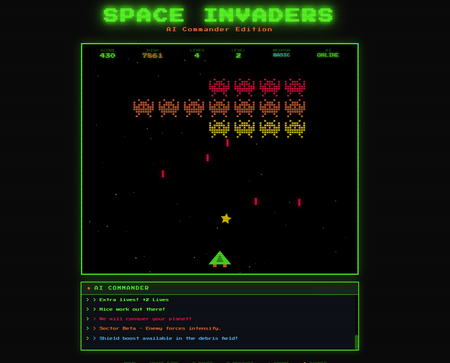
Introduction Browser games traditionally follow predictable patterns, fixed text messages, static tutorials, scripted NPC responses. Players see the same "Game Over" message whether they nearly won or failed spectacularly. Tutorial text remains identical regardless of player skill level. The game experience, while fun, lacks the dynamic reactivity of human-moderated gameplay. What if your Space Invaders game could comment on gameplay in real-time? Taunt players when they miss easy shots? Celebrate close victories with personalized messages? Adjust difficulty suggestions based on actual performance metrics? This article demonstrates exactly that: integrating AI-powered dynamic commentary into a browser game using Spaceinvaders-FoundryLocal, vanilla JavaScript, and Microsoft Foundry Local. You'll learn how to integrate local AI into client-side games, design AI personality systems that enhance rather than distract, implement context-aware commentary generation, and architect optional AI features that don't break core gameplay when unavailable. Whether you're building educational games, interactive training simulations, or simply adding personality to entertainment projects, this approach provides a blueprint for AI-enhanced gaming experiences. Why Local AI Transforms Browser Gaming Adding AI to games sounds expensive, cloud API costs scale with player counts, introducing per-gameplay pricing that makes free-to-play models challenging. Privacy concerns emerge when gameplay data leaves user devices. Latency affects real-time experiences, waiting 2 seconds for commentary after an action breaks immersion. Network requirements exclude offline play. Local AI solves all these challenges simultaneously. Foundry Local runs Small Language Models (SLMs) entirely on player devices, no API costs, no data leaving the machine, no network dependency. Inference happens in milliseconds, enabling truly real-time responses. Games work offline after initial load, perfect for mobile or low-connectivity scenarios. SLMs excel at personality-driven tasks like game commentary. They don't need perfect factual recall or complex reasoning, they generate entertaining, contextually relevant text based on game state. A 1.5B parameter model produces engaging taunts and celebration messages indistinguishable from hand-written content, while running easily on mid-range laptops. Integrating AI as an optional enhancement demonstrates good architecture. Core gameplay must function perfectly without AI, commentary enhances the experience but failure doesn't break the game. This graceful degradation pattern ensures maximum compatibility while offering AI features to capable devices. Architecture: Progressive Enhancement with AI The Spaceinvaders-FoundryLocal implementation uses progressive enhancement, the game fully works without AI, but adds dynamic personality when available: The base game implements classic Space Invaders mechanics entirely in vanilla JavaScript. Player ship movement, bullet physics, enemy patterns, collision detection, scoring, and power-up systems all operate independently of AI. This ensures universal compatibility across browsers, devices, and network conditions. The AI layer adds dynamic commentary through a backend Node.js proxy. The proxy runs locally, communicates with Foundry Local, and provides game context to the AI for generating personalized messages. The game polls the proxy periodically, sending current game state (score, accuracy, wave number, power-up usage) and receiving commentary responses. The architecture flow for AI-enhanced gameplay: Player Action (e.g., destroys enemy) ↓ Game Updates State (score += 100, accuracy tracked) ↓ Game Checks AI Status (polling every 5 seconds) ↓ If AI Available: Send Game Context to Backend → { event: 'wave_complete', score: 2500, accuracy: 78%, wave: 3 } ↓ Backend builds prompt with context ↓ Foundry Local generates comment ↓ Return commentary to game → "Wave 3 conquered! Your 78% accuracy shows improving skills." ↓ Display in game UI (animated text bubble) This design demonstrates several key patterns: Zero-dependency core: Game playable immediately, AI adds value incrementally Graceful degradation: If AI unavailable, game shows generic messages Asynchronous enhancement: AI runs in background, never blocks gameplay Context-aware generation: Commentary reflects actual player performance Local-first architecture: Everything runs on player's machine—no servers, no tracking Implementing Context-Aware AI Commentary Effective game commentary requires understanding current gameplay context. The AI needs to know what just happened, how the player is performing, and what makes this moment interesting: // llm.js - AI integration module export class GameAI { constructor() { this.baseURL = 'http://localhost:3001'; // Local proxy server this.available = false; this.checkAvailability(); } async checkAvailability() { try { const response = await fetch(`${this.baseURL}/health`, { method: 'GET', timeout: 2000 }); this.available = response.ok; return this.available; } catch (error) { console.log('AI server not available (optional feature)'); this.available = false; return false; } } async generateComment(gameContext) { if (!this.available) { return this.getFallbackComment(gameContext.event); } try { const response = await fetch(`${this.baseURL}/api/comment`, { method: 'POST', headers: { 'Content-Type': 'application/json' }, body: JSON.stringify(gameContext) }); if (!response.ok) { throw new Error('AI request failed'); } const data = await response.json(); return data.comment; } catch (error) { console.error('AI comment generation failed:', error); return this.getFallbackComment(gameContext.event); } } getFallbackComment(event) { // Static messages when AI unavailable const fallbacks = { 'wave_complete': 'Wave cleared!', 'player_hit': 'Shields damaged!', 'game_over': 'Game Over. Try again!', 'high_score': 'New high score!', 'power_up': 'Power-up collected!' }; return fallbacks[event] || 'Good job!'; } } The backend processes game context and generates contextually relevant commentary: // server.js - Node.js backend proxy import express from 'express'; import { FoundryLocalClient } from 'foundry-local-sdk'; const app = express(); const foundry = new FoundryLocalClient({ endpoint: process.env.FOUNDRY_LOCAL_ENDPOINT || 'http://127.0.0.1:5272' }); app.use(express.json()); app.use(express.cors()); // Allow browser game to connect app.get('/health', (req, res) => { res.json({ status: 'AI available', model: 'phi-3.5-mini' }); }); app.post('/api/comment', async (req, res) => { const { event, score, accuracy, wave, lives, combo } = req.body; // Build context-rich prompt const prompt = buildCommentPrompt(event, { score, accuracy, wave, lives, combo }); try { const completion = await foundry.chat.completions.create({ model: 'phi-3.5-mini', messages: [ { role: 'system', content: `You are an AI commander providing brief, encouraging commentary for a Space Invaders game. Be energetic, supportive, and sometimes humorous. Keep responses to 1-2 sentences maximum. Reference specific game metrics when relevant.` }, { role: 'user', content: prompt } ], temperature: 0.9, // High temperature for creative variety max_tokens: 50 }); const comment = completion.choices[0].message.content.trim(); res.json({ comment, model: 'phi-3.5-mini', timestamp: new Date().toISOString() }); } catch (error) { console.error('AI generation error:', error); res.status(500).json({ error: 'Commentary generation failed' }); } }); function buildCommentPrompt(event, context) { switch(event) { case 'wave_complete': return `The player just completed wave ${context.wave} with score ${context.score}. Their shooting accuracy is ${context.accuracy}%. ${context.lives} lives remaining. Generate an encouraging comment about their progress.`; case 'player_hit': return `The player got hit by an enemy! They now have ${context.lives} lives left. Score: ${context.score}. Provide a brief motivational comment to keep them engaged.`; case 'game_over': if (context.accuracy > 70) { return `Game over at wave ${context.wave}, score ${context.score}. The player had ${context.accuracy}% accuracy - pretty good! Generate an encouraging comment acknowledging their skill.`; } else { return `Game over at wave ${context.wave}, score ${context.score}. Accuracy was ${context.accuracy}%. Provide a supportive comment with a tip for improvement.`; } case 'combo_streak': return `Player achieved a ${context.combo}x combo streak! Score: ${context.score}. Generate an excited celebration comment.`; case 'power_up_used': return `Player activated a ${context.power_up_type} power-up. Generate a brief tactical comment about using it effectively.`; default: return `General gameplay comment. Score: ${context.score}, Wave: ${context.wave}.`; } } const PORT = 3001; app.listen(PORT, () => { console.log(`✓ Game AI server running on http://localhost:${PORT}`); console.log(`✓ Foundry Local endpoint: ${process.env.FOUNDRY_LOCAL_ENDPOINT || 'http://127.0.0.1:5272'}`); }); This backend demonstrates several best practices: Context-sensitive prompting: Different events get different prompt templates with relevant metrics Personality consistency: System message establishes tone and style guidelines Brevity constraints: max_tokens: 50 ensures comments don't overwhelm UI Creative variety: High temperature (0.9) produces diverse commentary on repeated events Performance-aware feedback: Comments adapt based on accuracy, lives remaining, combo streaks Integrating AI into Game Loop Without Performance Impact Games require 60 FPS to feel smooth, any blocking operation creates stutter. AI integration must be completely asynchronous and non-blocking: // game.js - Main game loop class SpaceInvadersGame { constructor() { this.ai = new GameAI(); this.lastAIUpdate = 0; this.aiUpdateInterval = 5000; // Poll AI every 5 seconds this.pendingAIRequest = false; // ... other game state } update(deltaTime) { // Core game logic (always runs) this.updatePlayer(deltaTime); this.updateEnemies(deltaTime); this.updateBullets(deltaTime); this.checkCollisions(); this.updatePowerUps(deltaTime); // AI commentary (optional, async) this.updateAI(deltaTime); } updateAI(deltaTime) { this.lastAIUpdate += deltaTime; // Only check AI periodically, never block gameplay if (this.lastAIUpdate >= this.aiUpdateInterval && !this.pendingAIRequest) { this.requestAICommentary(); } } async requestAICommentary() { // Check if there's an interesting event to comment on const event = this.getSignificantEvent(); if (!event) return; this.pendingAIRequest = true; // Fire-and-forget async request this.ai.generateComment({ event: event.type, score: this.score, accuracy: this.calculateAccuracy(), wave: this.currentWave, lives: this.lives, combo: this.comboMultiplier }) .then(comment => { this.displayAIComment(comment); this.lastAIUpdate = 0; }) .catch(error => { console.log('AI comment failed (non-critical):', error); }) .finally(() => { this.pendingAIRequest = false; }); } getSignificantEvent() { // Determine what's worth commenting on if (this.justCompletedWave) { this.justCompletedWave = false; return { type: 'wave_complete' }; } if (this.justGotHit) { this.justGotHit = false; return { type: 'player_hit' }; } if (this.comboMultiplier >= 5) { return { type: 'combo_streak' }; } return null; // Nothing interesting right now } displayAIComment(comment) { // Show comment in animated text bubble const bubble = document.createElement('div'); bubble.className = 'ai-comment-bubble'; bubble.textContent = comment; document.getElementById('game-container').appendChild(bubble); // Animate in setTimeout(() => bubble.classList.add('show'), 50); // Remove after 4 seconds setTimeout(() => { bubble.classList.remove('show'); setTimeout(() => bubble.remove(), 500); }, 4000); } calculateAccuracy() { if (this.shotsFired === 0) return 0; return Math.round((this.shotsHit / this.shotsFired) * 100); } } This integration pattern ensures: Zero gameplay impact: AI runs completely asynchronously—game never waits for AI Periodic updates only: Check AI every 5 seconds, not every frame (60 FPS → minimal CPU overhead) Event-driven commentary: Only request comments for significant moments, not continuous chatter Non-blocking display: Comments appear as animated overlays that don't interrupt gameplay Graceful failure: AI errors logged but never shown to players—game continues normally Designing AI Personality Systems Effective game AI has consistent personality that enhances rather than distracts. The system message establishes tone, response templates ensure variety, and context awareness makes commentary relevant: // Enhanced system message for consistent personality const AI_COMMANDER_PERSONALITY = ` You are AEGIS, an AI defense commander providing tactical commentary for a Space Invaders-style game. Your personality traits: - Enthusiastic but professional military commander tone - Celebrate victories with tactical language ("Excellent flanking maneuver!") - Acknowledge defeats with constructive feedback ("Regroup and maintain formation!") - Reference specific metrics to show you're paying attention - Keep responses to 1-2 sentences maximum - Use occasional humor but stay in character - Be encouraging even when player struggles Examples of your style: - "Wave neutralized! Your 85% accuracy shows precision targeting." - "Shield integrity compromised! Fall back and reassess the battlefield." - "Impressive combo multiplier! Sustained fire superiority achieved." - "That power-up spread pattern cleared the sector perfectly." `; // Context-aware response variety const RESPONSE_TEMPLATES = { wave_complete: { high_performance: [ "Your {accuracy}% accuracy led to decisive victory, Commander!", "Wave {wave} eliminated with tactical excellence!", "Strategic brilliance! {accuracy}% hit rate maintained." ], medium_performance: [ "Wave {wave} cleared. Solid tactics, Commander.", "Sector secured. Your {accuracy}% accuracy shows improvement potential.", "Objective achieved. Recommend tightening shot discipline." ], low_performance: [ "Wave {wave} cleared, but {accuracy}% accuracy needs work.", "Victory secured. Focus on accuracy in next engagement.", "Mission accomplished, though your hit rate needs improvement." ] }, player_hit: { lives_critical: [ "Critical damage! Only {lives} lives remain - exercise extreme caution!", "Shields failing! {lives} backup systems active.", "Red alert! Hull integrity at {lives} units." ], lives_okay: [ "Shields damaged. {lives} lives remaining. Stay focused!", "Hit sustained. {lives} backup systems online.", "Damage taken. Maintain defensive posture." ] } }; function selectResponseTemplate(event, context) { const templates = RESPONSE_TEMPLATES[event]; if (!templates) return; // Choose template category based on context let category; if (event === 'wave_complete') { if (context.accuracy >= 75) category = templates.high_performance; else if (context.accuracy >= 50) category = templates.medium_performance; else category = templates.low_performance; } else if (event === 'player_hit') { category = context.lives <= 2 ? templates.lives_critical : templates.lives_okay; } // Randomly select from category for variety const template = category[Math.floor(Math.random() * category.length)]; // Fill in context variables return template .replace('{accuracy}', context.accuracy) .replace('{wave}', context.wave) .replace('{lives}', context.lives); } This personality system creates: Consistent character: AEGIS always sounds like a military commander, never breaks character Context-appropriate responses: Different situations trigger different tones (celebration vs concern) Natural variety: Template randomization prevents repetitive commentary Metric awareness: Specific references to accuracy, lives, waves show AI is "watching" Encouraging feedback: Even in failure scenarios, provides constructive guidance Key Takeaways and Game AI Design Patterns Integrating AI into browser games demonstrates that advanced features don't require cloud services or complex infrastructure. Local AI enables personality-driven enhancements that run entirely on player devices, cost nothing at scale, and work offline. Essential principles for game AI integration: Progressive enhancement architecture: Core gameplay must work perfectly without AI—commentary enhances but isn't required Asynchronous-only integration: Never block game loop for AI—60 FPS gameplay is non-negotiable Context-aware generation: Commentary reflecting actual game state feels intelligent, generic messages feel robotic Personality consistency: Well-defined character voice creates memorable experiences Graceful failure handling: AI errors should be invisible to players—fallback to static messages Performance-conscious polling: Check AI every few seconds, not every frame Event-driven commentary: Only generate responses for significant moments This pattern extends beyond games, any interactive application benefits from context-aware AI personality: educational software providing personalized encouragement, fitness apps offering adaptive coaching, productivity tools giving motivational feedback. The complete implementation with game engine, AI integration, backend proxy, and deployment instructions is available at github.com/leestott/Spaceinvaders-FoundryLocal. Clone the repository to experience AI-enhanced gaming—just open index.html and start playing immediately, then optionally enable AI features for dynamic commentary. Resources and Further Reading Space Invaders with AI Repository - Complete game with AI integration Quick Start Guide - Play immediately or enable AI features Microsoft Foundry Local Documentation - SDK and model reference MDN Game Development - Browser game development patterns HTML5 Game Devs Forum - Community discussions and techniquesAccelerate Phi-3 use on macOS: A Beginner's Guide to Using Apple MLX Framework
Learn how to use macOS and Apple Silicon to speed up machine learning models with this easy guide. We’ll cover the Apple MLX Framework, a tool that helps you run and fine-tune models like Phi-3-mini right on your Mac. First, install MLX by running pip install mlx-lm in your terminal. You can then use commands to run or fine-tune models. Apple's Metal Performance Shaders make this possible by using your Mac's GPU. We'll also show you how to use LoRA for better fine-tuning results and compare the performance of different models.14KViews2likes0CommentsGetting Started - Generative AI with Phi-3-mini: Running Phi-3-mini in Intel AI PC
In 2024, with the empowerment of AI, we will enter the era of AI PC. On May 20, Microsoft also released the concept of Copilot + PC, which means that PC can run SLM/LLM more efficiently with the support of NPU. We can use models from different Phi-3 family combined with the new AI PC to build a simple personalized Copilot application for individuals. This content will combine Intel's AI PC, use Intel's OpenVINO, NPU Acceleration Library, and Microsoft's DirectML to create a local Copilot.33KViews2likes2CommentsGetting started with Microsoft Phi-3-mini - Try running the Phi-3-mini on iPhone with ONNX Runtime
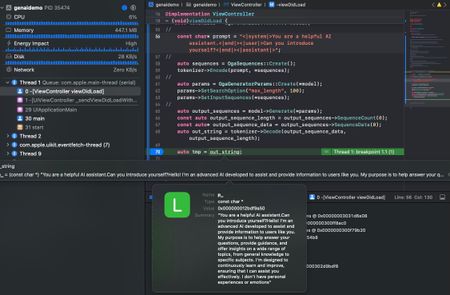
In this article, we explore how to deploy generative AI applications to mobile devices, specifically on iPhone, using ONNX Runtime. We cover the steps to compile ONNX Runtime for iOS and then create an App application in Xcode. We also show you how to copy the ONNX quantized INT4 model to the project and add the C++ API to generate text. This is a preliminary exploration of deploying generative AI on mobile devices, but it provides a good starting point for further development.20KViews2likes2CommentsOn-Premises Manufacturing Intelligence
Manufacturing facilities face a fundamental dilemma in the AI era: how to harness artificial intelligence for predictive maintenance, equipment diagnostics, and operational insights while keeping sensitive production data entirely on-premises. Industrial environments generate proprietary information, CNC machining parameters, quality control thresholds, equipment performance signatures, maintenance histories, that represents competitive advantage accumulated over decades of process optimization. Sending this data to cloud APIs risks intellectual property exposure, regulatory non-compliance, and operational dependencies that manufacturing operations cannot accept. Traditional cloud-based AI introduces unacceptable vulnerabilities. Network latency of 100-500ms makes real-time decision support impossible for time-sensitive manufacturing processes. Internet dependency creates single points of failure in environments where connectivity is unreliable or deliberately restricted for security. API pricing models become prohibitively expensive when analyzing thousands of sensor readings and maintenance logs continuously. Most critically, data residency requirements for aerospace, defense, pharmaceutical, and automotive industries make cloud AI architectures non-compliant by design ITAR, FDA 21 CFR Part 11, and customer-specific mandates require data never leaves facility boundaries. This article demonstrates a sample solution for manufacturing asset intelligence that runs entirely on-premises using Microsoft Foundry Local, Node.js, and JavaScript. The FoundryLocal-IndJSsample repository provides production-ready implementation with Express backend, HTML/JavaScript frontend, and comprehensive Foundry Local SDK integration. Facilities can deploy sophisticated AI-powered monitoring without external dependencies, cloud costs, data exposure risks, or network requirements. Every inference happens locally on facility hardware with predictable performance and zero data egress. Why On-Premises AI Matters for Industrial Operations The case for local AI inference in manufacturing extends beyond simple preference, it addresses fundamental operational, security, and compliance requirements that cloud solutions cannot satisfy. Understanding these constraints shapes architectural decisions that prioritize reliability, data sovereignty, and cost predictability. Data Sovereignty and Intellectual Property Protection Manufacturing processes represent years of proprietary research, optimization, and competitive advantage. Equipment configurations, cycle times, quality thresholds, and maintenance schedules contain intelligence that competitors would value highly. Sending this data to third-party cloud services, even with contractual protections, introduces risks that manufacturing operations cannot accept. On-premises AI ensures that production data never leaves the facility network perimeter. Telemetry from CNC machines, hydraulic systems, conveyor networks, and control systems remains within air-gapped environments where physical access controls and network isolation provide demonstrable data protection. This architectural guarantee of data locality satisfies both internal security policies and external audit requirements without relying on contractual assurances or encryption alone. Operational Resilience and Network Independence Factory floors frequently operate in environments with limited, unreliable, or intentionally restricted internet connectivity. Remote facilities, secure manufacturing zones, and legacy industrial networks cannot depend on continuous cloud access for critical monitoring functions. When network failures occur, whether from ISP outages, DDoS attacks, or infrastructure damage, AI capabilities must continue operating to prevent production losses. Local inference provides true operational independence. Equipment health monitoring, anomaly detection, and maintenance prioritization continue functioning during network disruptions. This resilience is essential for 24/7 manufacturing operations where downtime costs can exceed tens of thousands of dollars per hour. By eliminating external dependencies, on-premises AI becomes as reliable as the local power supply and computing infrastructure. Latency Requirements for Real-Time Decision Making Manufacturing processes involve precise timing where milliseconds determine quality outcomes. Automated inspection systems must classify defects before products leave the production line. Safety interlocks must respond to hazardous conditions before injuries occur. Predictive maintenance alerts must trigger before catastrophic equipment failures cascade through production lines. Cloud-based AI introduces latency that incompatible with these requirements. Network round-trips to cloud endpoints typically require 100-500 milliseconds, in some case latency is unacceptable for real-time applications. Local inference with Foundry Local delivers sub-50ms response times by eliminating network hops, enabling true real-time AI integration with SCADA systems, PLCs, and manufacturing execution systems. Cost Predictability at Industrial Scale Manufacturing facilities generate enormous volumes of time-series data from thousands of sensors, producing millions of data points daily. Cloud AI services charge per API call or per token processed, creating unpredictable costs that scale linearly with data volume. High-throughput industrial applications can quickly accumulate tens of thousands of dollars in monthly API fees. On-premises AI transforms this variable operational expense into fixed capital infrastructure costs. After initial hardware investment, inference costs remain constant regardless of query volume. For facilities analyzing equipment telemetry, maintenance logs, and operator notes continuously, this economic model provides cost certainty and eliminates budget surprises. Regulatory Compliance and Audit Requirements Regulated industries face strict data handling requirements. Aerospace manufacturers must comply with ITAR controls on technical data. Pharmaceutical facilities must satisfy FDA 21 CFR Part 11 requirements for electronic records. Automotive suppliers must meet customer-specific data residency mandates. Cloud AI services complicate compliance by introducing third-party data processors, cross-border data transfers, and shared infrastructure concerns. Local AI simplifies regulatory compliance by eliminating external data flows. Audit trails remain within the facility. Data handling procedures avoid third-party agreements. Compliance demonstrations become straightforward when AI infrastructure resides entirely within auditable physical and network boundaries. Architecture: Manufacturing Intelligence Without Cloud Dependencies The manufacturing asset intelligence system demonstrates a practical architecture for deploying AI capabilities entirely on-premises. The design prioritizes operational reliability, straightforward integration patterns, and maintainable code structure that facilities can adapt to their specific requirements. System Components and Technology Stack The implementation consists of three primary layers that separate concerns and enable independent scaling: Foundry Local Layer: Provides the local AI inference runtime. Foundry Local manages model loading, execution, and resource allocation. It supports multiple model families (Phi-3.5, Phi-4, Qwen2.5) with automatic hardware acceleration detection for NVIDIA GPUs (CUDA), Intel GPUs (OpenVINO), ARM Qualcomm (QNN) and optimized CPU inference. The service exposes a REST API on localhost that the backend layer consumes for completions. Backend Service Layer: An Express Node.js application that serves as the integration point between the AI runtime and the manufacturing data systems. This layer implements business logic for equipment monitoring, maintenance log classification, and conversational interfaces. It formats prompts with equipment context, calls Foundry Local for inference, and structures responses for the frontend. The backend persists chat history and provides RESTful endpoints for all AI operations. Frontend Interface Layer: A standalone HTML/JavaScript application that provides operator interfaces for equipment monitoring, maintenance management, and AI assistant interactions. The UI fetches data from the backend service and renders dashboards, equipment status views, and chat interfaces. No framework dependencies or build steps are required, the frontend operates as static files that any web server or file system can serve. Data Flow for Equipment Analysis Understanding how data moves through the system clarifies integration points and extension opportunities. When an operator requests AI analysis of equipment status, the following sequence occurs: The frontend collects equipment context including asset ID, current telemetry values, alert status, and recent maintenance history. It constructs an HTTP request to the backend's equipment summary endpoint, passing this context as query parameters or request body. The backend retrieves additional context from the equipment database, including specifications, normal operating ranges, and historical performance patterns. The backend constructs a detailed prompt that provides the AI model with comprehensive context: equipment specifications, current telemetry with alarming conditions highlighted, recent maintenance notes, and specific questions about operational status. This prompt engineering is critical, the model's accuracy depends entirely on the context provided. Generic prompts produce generic responses; detailed, structured prompts yield actionable insights. The backend calls Foundry Local's completion API with the formatted prompt, specifying temperature, max tokens, and other generation parameters. Foundry Local loads the configured model (if not already in memory) and generates a response analyzing the equipment's condition. The inference occurs locally with no network traffic leaving the facility. Response time typically ranges from 500ms to 3 seconds depending on prompt complexity and model size. Foundry Local returns the generated text to the backend, which parses the response for structured information if required (equipment health classifications, priority levels, recommended actions). The backend formats this analysis as JSON and returns it to the frontend. The frontend renders the AI-generated summary in the equipment health dashboard, highlighting critical findings and recommended operator actions. Prompt Engineering for Maintenance Log Classification The maintenance log classification feature demonstrates effective prompt engineering for extracting structured decisions from language models. Manufacturing facilities accumulate thousands of maintenance notes, operator observations, technician reports, and automated system logs. Automatically classifying these entries by severity enables priority-based work scheduling without manual review of every log entry. The classification prompt provides the model with clear instructions, classification categories with definitions, and the maintenance note text to analyze: const classificationPrompt = `You are a manufacturing maintenance expert analyzing equipment log entries. Classify the following maintenance note into one of these categories: CRITICAL: Immediate safety hazard, equipment failure, or production stoppage HIGH: Degraded performance, abnormal readings requiring same-shift attention MEDIUM: Scheduled maintenance items or routine inspections LOW: Informational notes, normal operations logs Provide your response in JSON format: { "classification": "CRITICAL|HIGH|MEDIUM|LOW", "reasoning": "Brief explanation of classification decision", "recommended_action": "Specific next steps for maintenance team" } Maintenance Note: ${maintenanceNote} Classification:`; const response = await foundryClient.chat.completions.create({ model: currentModelAlias, messages: [{ role: 'user', content: classificationPrompt }], temperature: 0.1, // Low temperature for consistent classification max_tokens: 300 }); Key aspects of this prompt design: Role definition: Establishing the model as a "manufacturing maintenance expert" activates relevant knowledge and reasoning patterns in the model's training data. Clear categories: Explicit classification options with definitions prevent ambiguous outputs and enable consistent decision-making across thousands of logs. Structured output format: Requesting JSON responses with specific fields enables automated parsing and integration with maintenance management systems without fragile text parsing. Temperature control: Setting temperature to 0.1 reduces randomness in classifications, ensuring consistent severity assessments for similar maintenance conditions. Context isolation: Separating the maintenance note text from the instructions with clear delimiters prevents prompt injection attacks where malicious log entries might attempt to manipulate classification logic. This classification runs locally for every maintenance log entry without API costs or network delays. Facilities processing hundreds of maintenance notes daily benefit from immediate, consistent classification that routes critical issues to technicians automatically while filtering routine informational logs. Model Selection and Performance Trade-offs Foundry Local supports multiple model families with different memory requirements, inference speeds, and accuracy characteristics. Choosing appropriate models for manufacturing environments requires balancing these trade-offs against hardware constraints and operational requirements: Qwen2.5-0.5b (500MB memory): The smallest available model provides extremely fast inference (100-200ms responses) on limited hardware. Suitable for simple classification tasks, keyword extraction, and high-throughput scenarios where response speed matters more than nuanced understanding. Works well on older servers or edge devices with constrained resources. Phi-3.5-mini (2.1GB memory): The recommended default model balances accuracy with reasonable memory requirements. Provides strong reasoning capabilities for equipment analysis, maintenance prioritization, and conversational assistance. Response times of 1-3 seconds on modern CPUs are acceptable for interactive dashboards. This model handles complex prompts with detailed equipment context effectively. Phi-4-mini (3.6GB memory): Increased model capacity improves understanding of technical terminology and complex equipment relationships. Best choice when analyzing detailed maintenance histories, interpreting sensor correlation patterns, or providing nuanced operational recommendations. Requires more memory but delivers noticeably improved analysis quality for complex scenarios. Qwen2.5-7b (4.7GB memory): The largest supported model provides maximum accuracy and sophisticated reasoning. Ideal for facilities with modern server hardware where best-possible analysis quality justifies longer inference times (3-5 seconds). Consider this model for critical applications where operator decisions depend heavily on AI recommendations. Facilities can download all models during initial setup and switch between them based on specific use cases. Use faster models for real-time dashboard updates and automated classification. Deploy larger models for detailed equipment analysis and maintenance planning where operators can wait several seconds for comprehensive insights. Implementation: Equipment Monitoring and AI Analysis The practical implementation reveals how straightforward on-premises AI integration can be with modern JavaScript tooling and proper architectural separation. The backend service manages all AI interactions, shielding the frontend from inference complexity and providing clean REST interfaces. Backend Service Architecture with Express The Node.js backend initializes the Foundry Local SDK client and exposes endpoints for equipment operations: const express = require('express'); const { FoundryLocalClient } = require('foundry-local-sdk'); const cors = require('cors'); const app = express(); const PORT = process.env.PORT || 3000; // Initialize Foundry Local client const foundryClient = new FoundryLocalClient({ baseURL: 'http://localhost:8008', // Default Foundry Local endpoint timeout: 30000 }); // Middleware configuration app.use(cors()); // Enable cross-origin requests from frontend app.use(express.json()); // Parse JSON request bodies // Health check endpoint for monitoring app.get('/api/health', (req, res) => { res.json({ ok: true, service: 'manufacturing-ai-backend' }); }); // Start server app.listen(PORT, () => { console.log(`Manufacturing AI backend running on port ${PORT}`); console.log(`Foundry Local endpoint: http://localhost:8008`); }); This foundational structure establishes the Express application with CORS support for browser-based frontends and JSON request handling. The Foundry Local client connects to the local inference service running on port 8008, no external network configuration required. Equipment Summary Generation with Context-Rich Prompts The equipment summary endpoint demonstrates effective context injection for accurate AI analysis: app.get('/api/assets/:id/summary', async (req, res) => { try { const assetId = req.params.id; const asset = equipmentDatabase.find(a => a.id === assetId); if (!asset) { return res.status(404).json({ error: 'Asset not found' }); } // Construct detailed equipment context const contextPrompt = buildEquipmentContext(asset); // Generate AI analysis const completion = await foundryClient.chat.completions.create({ model: 'phi-3.5-mini', messages: [{ role: 'user', content: contextPrompt }], temperature: 0.3, max_tokens: 500 }); const analysis = completion.choices[0].message.content; res.json({ assetId: asset.id, assetName: asset.name, analysis: analysis, generatedAt: new Date().toISOString() }); } catch (error) { console.error('Equipment summary error:', error); res.status(500).json({ error: 'AI analysis failed', details: error.message }); } }); The equipment context builder assembles comprehensive information for accurate analysis: function buildEquipmentContext(asset) { const alerts = asset.alerts.filter(a => a.severity !== 'INFO'); const telemetry = asset.currentTelemetry; return `Analyze the following manufacturing equipment status: Equipment: ${asset.name} (${asset.id}) Type: ${asset.type} Location: ${asset.location} Current Telemetry: - Temperature: ${telemetry.temperature}°C (Normal range: ${asset.specs.tempRange}) - Vibration: ${telemetry.vibration} mm/s (Threshold: ${asset.specs.vibrationThreshold}) - Pressure: ${telemetry.pressure} PSI (Normal: ${asset.specs.pressureRange}) - Runtime: ${telemetry.runHours} hours (Next maintenance due: ${asset.nextMaintenance}) Active Alerts: ${alerts.map(a => `- ${a.severity}: ${a.message}`).join('\n')} Recent Maintenance History: ${asset.recentMaintenance.slice(0, 3).map(m => `- ${m.date}: ${m.description}`).join('\n')} Provide a concise operational summary focusing on: 1. Current equipment health status 2. Any concerning trends or anomalies 3. Recommended operator actions if applicable 4. Maintenance priority level Summary:`; } This context-rich approach produces accurate, actionable analysis because the model receives equipment specifications, current telemetry with context, alert history, maintenance patterns, and structured output guidance. The model can identify abnormal conditions accurately rather than guessing what values seem unusual. Conversational AI Assistant with Manufacturing Context The chat endpoint enables natural language queries about equipment status and operational questions: app.post('/api/chat', async (req, res) => { try { const { message, conversationId } = req.body; // Retrieve conversation history for context const history = conversationStore.get(conversationId) || []; // Build plant-wide context for the query const plantContext = buildPlantOperationsContext(); // Construct system message with domain knowledge const systemMessage = { role: 'system', content: `You are an AI assistant for a manufacturing facility's operations team. You have access to real-time equipment data and maintenance records. Current Plant Status: ${plantContext} Provide specific, actionable responses based on actual equipment data. If you don't have information to answer a query, clearly state that. Never speculate about equipment conditions beyond available data.` }; // Include conversation history for multi-turn context const messages = [ systemMessage, ...history, { role: 'user', content: message } ]; const completion = await foundryClient.chat.completions.create({ model: 'phi-3.5-mini', messages: messages, temperature: 0.4, max_tokens: 600 }); const assistantResponse = completion.choices[0].message.content; // Update conversation history history.push( { role: 'user', content: message }, { role: 'assistant', content: assistantResponse } ); conversationStore.set(conversationId, history); res.json({ response: assistantResponse, conversationId: conversationId, timestamp: new Date().toISOString() }); } catch (error) { console.error('Chat error:', error); res.status(500).json({ error: 'Chat request failed', details: error.message }); } }); The conversational interface enables operators to ask natural language questions and receive grounded responses based on actual equipment data, citing specific asset IDs, current metric values, and alert statuses rather than speculating. Deployment and Production Operations Deploying on-premises AI in industrial settings requires consideration of hardware placement, network architecture, integration patterns, and operational procedures that differ from typical web application deployments. Hardware and Infrastructure Requirements The system runs on standard server hardware without specialized AI accelerators, though GPU availability improves performance significantly. Minimum requirements include 8GB RAM for the Phi-3.5-mini model, 4-core CPU, and 50GB storage for model files and application data. Production deployments benefit from 16GB+ RAM to support larger models and concurrent analysis requests. For facilities with NVIDIA GPUs, Foundry Local automatically utilizes CUDA acceleration, reducing inference times by 3-5x compared to CPU-only execution. Deploy the backend service on dedicated server hardware within the factory network. Avoid running AI workloads on the same systems that host critical SCADA or MES applications due to resource contention concerns. Network Architecture and SCADA Integration The AI backend should reside on the manufacturing operations network with firewall rules permitting connections from operator workstations and monitoring systems. Do not expose the backend service directly to the internet, all access should occur through the facility's internal network with authentication via existing directory services. Integrate with SCADA systems through standard industrial protocols. Configure OPC-UA clients to subscribe to equipment telemetry topics and forward readings to the AI backend via REST API calls. Modbus TCP gateways can bridge legacy PLCs to modern APIs by polling register values and POSTing updates to the backend's telemetry ingestion endpoints. Security and Compliance Considerations Many manufacturing facilities operate air-gapped networks where physical separation prevents internet connectivity entirely. Deploy Foundry Local and the AI application in these environments by transferring model files and application packages via removable media during controlled maintenance windows. Implement role-based access control (RBAC) using Active Directory integration. Configure the backend to validate user credentials against LDAP before serving AI analysis requests. Maintain detailed audit logs of all AI invocations including user identity, timestamp, equipment queried, and model version used. Store these logs in immutable append-only databases for compliance audits. Key Takeaways Building production-ready AI systems for industrial environments requires architectural decisions that prioritize operational reliability, data sovereignty, and integration simplicity: Data locality by architectural design: On-premises AI ensures proprietary production data never leaves facility networks through fundamental architectural guarantees rather than configuration options Model selection impacts deployment feasibility: Smaller models (0.5B-2B parameters) enable deployment on commodity hardware without specialized accelerators while maintaining acceptable accuracy Fallback logic preserves operational continuity: AI capabilities enhance but don't replace core monitoring functions, ensuring equipment dashboards display raw telemetry even when AI analysis is unavailable Context-rich prompts determine accuracy: Effective prompts include equipment specifications, normal operating ranges, alert thresholds, and maintenance history to enable grounded recommendations Structured outputs enable automation: JSON response formats allow automated systems to parse classifications and route work orders without fragile text parsing Integration patterns bridge legacy systems: OPC-UA and Modbus TCP gateways connect decades-old PLCs and SCADA systems to modern AI without replacing functional control infrastructure Resources and Further Exploration The complete implementation with extensive comments and documentation is available in the GitHub repository. Additional resources help facilities customize and extend the system for their specific requirements. FoundryLocal-IndJSsample GitHub Repository – Full source code with JavaScript backend, HTML frontend, and sample data files Quick Start Guide and Documentation – Installation instructions, API documentation, and troubleshooting guidance Microsoft Foundry Local Documentation – Official SDK reference, model catalog, and deployment guidance Sample Manufacturing Data – Example equipment telemetry, maintenance logs, and alert structures Backend Implementation Reference – Express server code with Foundry Local SDK integration patterns OPC Foundation – Industrial communication standards for SCADA and PLC integration Edge AI for Beginners - Online FREE course and resources for learning more about using AI on Edge Devices Why On-Premises AI Cloud AI services offer convenience, but they fundamentally conflict with manufacturing operational requirements. Understanding these conflicts explains why local AI isn't just preferable, it's mandatory for production environments. Data privacy and intellectual property protection stand paramount. A CNC machining program represents years of optimization, feed rates, tool paths, thermal compensation algorithms. Quality control measurements reveal product specifications competitors would pay millions to access. Sending this data to external APIs, even with encryption, creates unacceptable exposure risk. Every API call generates logs on third-party servers, potentially subject to subpoenas, data breaches, or regulatory compliance failures. Latency requirements eliminate cloud viability for real-time decisions. When a thermal sensor detects bearing temperature exceeding safe thresholds, the control system needs AI analysis in under 50 milliseconds to prevent catastrophic failure. Cloud APIs introduce 100-500ms baseline latency from network round-trips alone, before queue times and processing. For safety systems, quality inspection, and process control, this latency is operationally unacceptable. Network dependency creates operational fragility. Factory floors frequently have limited connectivity, legacy equipment, RF interference, isolated production cells. Critical AI capabilities cannot fail because internet service drops. Moreover, many defense, aerospace, and pharmaceutical facilities operate air-gapped networks for security compliance. Cloud AI is simply non-operational in these environments. Regulatory requirements mandate data residency. ITAR (International Traffic in Arms Regulations) prohibits certain manufacturing data from leaving approved facilities. FDA 21 CFR Part 11 requires strict data handling controls for pharmaceutical manufacturing. GDPR demands data residency in approved jurisdictions. On-premises AI simplifies compliance by eliminating cross-border data transfers. Cost predictability at scale favors local deployment. A high-volume facility generating 10,000 equipment events per day, each requiring AI analysis, would incur significant cloud API costs. Local models have fixed infrastructure costs that scale economically with usage, making AI economically viable for continuous monitoring. Application Architecture: Web UI + Local AI Backend The FoundryLocal-IndJSsample implements a clean separation between data presentation and AI inference. This architecture ensures the UI remains responsive while AI operations run independently, enabling real-time dashboard updates without blocking user interactions. The web frontend serves a single-page application with vanilla HTML, CSS, and JavaScript, no frameworks, no build tools. This simplicity is intentional: factory IT teams need to audit code, customize interfaces, and deploy on legacy systems. The UI presents four main interfaces: Plant Asset Overview (real-time health cards for all equipment), Asset Health (AI-generated summaries and trend analysis), Maintenance Logs (classification and priority routing), and AI Assistant (natural language interface for operations queries). The Node.js backend runs Express as the HTTP server, handling static file serving, API routing, and WebSocket connections for real-time updates. It loads sample manufacturing data from JSON files, equipment telemetry, maintenance logs, historical events, simulating the data streams that would come from SCADA systems, PLCs, and MES platforms in production. Foundry Local provides the AI inference layer. The backend uses foundry-local-sdk to communicate with the locally running service. All model loading, prompt processing, and response generation happens on-device. The application detects Foundry Local automatically and falls back to rule-based analysis if unavailable, ensuring core functionality persists even when AI is offline. Here's the architectural flow for asset health analysis: User Request (Web UI) ↓ Express API Route (/api/assets/:id/summary) ↓ Load Equipment Data (from JSON/database) ↓ Build Analysis Prompt (Equipment ID, telemetry, alerts) ↓ Foundry Local SDK Call (local AI inference) ↓ Parse AI Response (structured insights) ↓ Return JSON Result (with metadata: model, latency, confidence) ↓ Display in UI (formatted health summary) This architecture demonstrates several industrial system design principles: Offline-first operation: Core functionality works without internet connectivity, with AI as an enhancement rather than dependency Graceful degradation: If AI fails, fall back to rule-based logic rather than crashing operations Minimal external dependencies: Simple stack reduces attack surface and simplifies air-gapped deployment Data locality: All processing happens on-premises, no external API calls Real-time updates: WebSocket connections enable push-based event streaming for dashboard updates Setting Up Foundry Local for Industrial Applications Industrial deployments require careful model selection that balances accuracy, speed, and hardware constraints. Factory edge devices often run on limited hardware—industrial PCs with modest GPUs or CPU-only configurations. Model choice significantly impacts deployment feasibility. Install Foundry Local on the industrial edge device: # Windows (most common for industrial PCs) winget install Microsoft.FoundryLocal # Verify installation foundry --version For manufacturing asset intelligence, model selection trades off speed versus quality: # Fast option: Qwen 0.5B (500MB, <100ms inference) foundry model load qwen2.5-0.5b # Balanced option: Phi-3.5 Mini (2.1GB, ~200ms inference) foundry model load phi-3.5-mini # High quality option: Phi-4 Mini (3.6GB, ~500ms inference) foundry model load phi-4 # Check which model is currently loaded foundry model list For real-time monitoring dashboards where hundreds of assets update continuously, qwen2.5-0.5b provides sufficient quality at speeds that don't bottleneck refresh cycles. For detailed root cause analysis or maintenance report generation where quality matters most, phi-4 justifies the slightly longer inference time. Industrial systems benefit from proactive model caching during downtime: # During maintenance windows, pre-download models foundry model download phi-3.5-mini foundry model download qwen2.5-0.5b # Models cache locally, eliminating runtime downloads The backend automatically detects Foundry Local and selects the loaded model: // backend/services/foundry-service.js import { FoundryLocalClient } from 'foundry-local-sdk'; class FoundryService { constructor() { this.client = null; this.modelAlias = null; this.initializeClient(); } async initializeClient() { try { // Detect Foundry Local endpoint const endpoint = process.env.FOUNDRY_LOCAL_ENDPOINT || 'http://127.0.0.1:5272'; this.client = new FoundryLocalClient({ endpoint }); // Query which model is currently loaded const models = await this.client.models.list(); this.modelAlias = models.data[0]?.id || 'phi-3.5-mini'; console.log(`✅ Foundry Local connected: ${this.modelAlias}`); } catch (error) { console.warn('⚠️ Foundry Local not available, using rule-based fallback'); this.client = null; } } async generateCompletion(prompt, options = {}) { if (!this.client) { // Fallback to rule-based analysis return this.ruleBasedAnalysis(prompt); } try { const startTime = Date.now(); const completion = await this.client.chat.completions.create({ model: this.modelAlias, messages: [ { role: 'system', content: 'You are an industrial asset intelligence assistant analyzing manufacturing equipment.' }, { role: 'user', content: prompt } ], temperature: 0.3, // Low temperature for factual analysis max_tokens: 400, ...options }); const latency = Date.now() - startTime; return { content: completion.choices[0].message.content, model: this.modelAlias, latency_ms: latency, tokens: completion.usage?.total_tokens }; } catch (error) { console.error('Foundry inference error:', error); return this.ruleBasedAnalysis(prompt); } } ruleBasedAnalysis(prompt) { // Fallback logic for when AI is unavailable // Pattern matching and heuristics return { content: '(Rule-based analysis) Equipment status: Monitoring...', model: 'rule-based-fallback', latency_ms: 5, tokens: 0 }; } } export default new FoundryService(); This service layer demonstrates critical production patterns: Automatic endpoint detection: Tries environment variable first, falls back to default Model auto-discovery: Queries Foundry Local for currently loaded model rather than hardcoding Robust error handling: Every API call wrapped in try-catch with fallback logic Performance tracking: Latency measurement enables monitoring and capacity planning Conservative temperature: 0.3 temperature reduces hallucination for factual equipment analysis Implementing AI-Powered Asset Health Analysis Equipment health monitoring forms the core use case, synthesizing telemetry from multiple sources into actionable insights. Traditional monitoring systems show raw metrics (temperature, vibration, pressure) but require expert interpretation. AI transforms this into natural language summaries that any operator can understand and act upon. Here's the API endpoint that generates asset health summaries: // backend/routes/assets.js import express from 'express'; import foundryService from '../services/foundry-service.js'; import { getAssetData } from '../data/asset-loader.js'; const router = express.Router(); router.get('/api/assets/:id/summary', async (req, res) => { try { const assetId = req.params.id; // Load equipment data const asset = await getAssetData(assetId); if (!asset) { return res.status(404).json({ error: 'Asset not found' }); } // Build analysis prompt with context const prompt = buildHealthAnalysisPrompt(asset); // Generate AI summary const analysis = await foundryService.generateCompletion(prompt); // Structure response res.json({ asset_id: assetId, asset_name: asset.name, summary: analysis.content, model_used: analysis.model, latency_ms: analysis.latency_ms, timestamp: new Date().toISOString(), telemetry_snapshot: { temperature: asset.telemetry.temperature, vibration: asset.telemetry.vibration, runtime_hours: asset.telemetry.runtime_hours }, active_alerts: asset.alerts.filter(a => a.active).length }); } catch (error) { console.error('Asset summary error:', error); res.status(500).json({ error: 'Analysis failed' }); } }); function buildHealthAnalysisPrompt(asset) { return ` Analyze the health of this manufacturing equipment and provide a concise summary: Equipment: ${asset.name} (${asset.id}) Type: ${asset.type} Location: ${asset.location} Current Telemetry: - Temperature: ${asset.telemetry.temperature}°C (Normal: ${asset.specs.normal_temp_range}) - Vibration: ${asset.telemetry.vibration} mm/s (Threshold: ${asset.specs.vibration_threshold}) - Operating Pressure: ${asset.telemetry.pressure} PSI - Runtime: ${asset.telemetry.runtime_hours} hours - Last Maintenance: ${asset.maintenance.last_service_date} Active Alerts: ${asset.alerts.map(a => `- ${a.severity}: ${a.message}`).join('\n')} Recent Events: ${asset.recent_events.slice(0, 3).map(e => `- ${e.timestamp}: ${e.description}`).join('\n')} Provide a 3-4 sentence summary covering: 1. Overall equipment health status 2. Any concerning trends or anomalies 3. Recommended actions or monitoring focus Be factual and specific. Do not speculate beyond the provided data. `.trim(); } export default router; This prompt construction demonstrates several best practices for industrial AI: Structured data presentation: Organize telemetry, specs, and alerts in clear sections with labels Context enrichment: Include normal operating ranges so AI can assess abnormality Explicit constraints: Instruction to avoid speculation reduces hallucination risk Output formatting guidance: Request specific structure (3-4 sentences, covering key points) Temporal context: Include recent events so AI understands trend direction Example AI-generated asset summary: { "asset_id": "CNC-L2-M03", "asset_name": "CNC Mill #3", "summary": "Equipment is operating outside normal parameters with elevated temperature at 92°C, significantly above the 75-80°C normal range. Thermal Alert indicates possible coolant flow issue. Vibration levels remain acceptable at 2.8 mm/s. Recommend immediate inspection of coolant system and thermal throttling may impact throughput until resolved.", "model_used": "phi-3.5-mini", "latency_ms": 243, "timestamp": "2026-01-30T14:23:18Z", "telemetry_snapshot": { "temperature": 92, "vibration": 2.8, "runtime_hours": 12847 }, "active_alerts": 2 } This summary transforms raw telemetry into actionable intelligence—operations staff immediately understand the problem, its severity, and the appropriate response, without requiring deep equipment expertise. Maintenance Log Classification with AI Maintenance departments generate hundreds of logs daily, technician notes, operator observations, inspection reports. Manually categorizing and prioritizing these logs consumes significant time. AI classification automatically routes logs to appropriate teams, identifies urgent issues, and extracts key information. The classification endpoint processes maintenance notes: // backend/routes/maintenance.js router.post('/api/logs/classify', async (req, res) => { try { const { log_text, equipment_id } = req.body; if (!log_text || log_text.length < 10) { return res.status(400).json({ error: 'Log text required (min 10 chars)' }); } const classificationPrompt = ` Classify this maintenance log entry into appropriate categories and priority: Equipment: ${equipment_id || 'Unknown'} Log Text: "${log_text}" Classify into EXACTLY ONE primary category: - MECHANICAL: Physical components, bearings, belts, motors - ELECTRICAL: Power systems, sensors, controllers, wiring - HYDRAULIC: Pumps, fluid systems, pressure issues - THERMAL: Cooling, heating, temperature control - SOFTWARE: PLC programming, HMI issues, control logic - ROUTINE: Scheduled maintenance, inspections, calibration Assign priority level: - CRITICAL: Immediate action required, safety or production impact - HIGH: Resolve within 24 hours, performance degradation - MEDIUM: Schedule within 1 week, minor issues - LOW: Routine maintenance, cosmetic issues Extract key details: - Symptoms described - Suspected root cause (if mentioned) - Recommended actions Return ONLY a JSON object with this exact structure: { "category": "MECHANICAL", "priority": "HIGH", "symptoms": ["grinding noise", "vibration above 5mm/s"], "suspected_cause": "bearing wear", "recommended_actions": ["inspect bearings", "order replacement parts"] } `.trim(); const analysis = await foundryService.generateCompletion(classificationPrompt); // Parse AI response as JSON let classification; try { // Extract JSON from response (AI might add explanation text) const jsonMatch = analysis.content.match(/\{[\s\S]*\}/); classification = JSON.parse(jsonMatch[0]); } catch (parseError) { // Fallback parsing if JSON extraction fails classification = parseClassificationText(analysis.content); } // Validate classification const validCategories = ['MECHANICAL', 'ELECTRICAL', 'HYDRAULIC', 'THERMAL', 'SOFTWARE', 'ROUTINE']; const validPriorities = ['CRITICAL', 'HIGH', 'MEDIUM', 'LOW']; if (!validCategories.includes(classification.category)) { classification.category = 'ROUTINE'; } if (!validPriorities.includes(classification.priority)) { classification.priority = 'MEDIUM'; } res.json({ original_log: log_text, classification, model_used: analysis.model, latency_ms: analysis.latency_ms, timestamp: new Date().toISOString() }); } catch (error) { console.error('Classification error:', error); res.status(500).json({ error: 'Classification failed' }); } }); function parseClassificationText(text) { // Fallback parser for when AI doesn't return valid JSON // Extract category, priority, and details using regex patterns const categoryMatch = text.match(/category[":]\s*(MECHANICAL|ELECTRICAL|HYDRAULIC|THERMAL|SOFTWARE|ROUTINE)/i); const priorityMatch = text.match(/priority[":]\s*(CRITICAL|HIGH|MEDIUM|LOW)/i); return { category: categoryMatch ? categoryMatch[1].toUpperCase() : 'ROUTINE', priority: priorityMatch ? priorityMatch[1].toUpperCase() : 'MEDIUM', symptoms: [], suspected_cause: 'Unknown', recommended_actions: [] }; } This implementation demonstrates several critical patterns for structured AI outputs: Explicit output format requirements: Prompt specifies exact JSON structure to encourage parseable responses Defensive parsing: Try JSON extraction first, fall back to text parsing if that fails Validation with sensible defaults: Validate categories and priorities against allowed values, default to safe values on mismatch Constrained classification vocabulary: Limit categories to predefined set rather than open-ended categories Priority inference rules: Guide AI to assess urgency based on safety, production impact, and timeline Example classification output: POST /api/logs/classify { "log_text": "Hydraulic pump PUMP-L1-H01 making grinding noise during startup. Vibration readings spiked to 5.2 mm/s this morning. Possible bearing wear. Recommend inspection.", "equipment_id": "PUMP-L1-H01" } Response: { "original_log": "Hydraulic pump PUMP-L1-H01 making grinding noise...", "classification": { "category": "MECHANICAL", "priority": "HIGH", "symptoms": ["grinding noise during startup", "vibration spike to 5.2 mm/s"], "suspected_cause": "bearing wear", "recommended_actions": ["inspect bearings", "schedule replacement if confirmed worn"] }, "model_used": "phi-3.5-mini", "latency_ms": 187, "timestamp": "2026-01-30T14:35:22Z" } This classification automatically routes the log to the mechanical maintenance team, marks it high priority for same-day attention, and extracts actionable details, all without human intervention. Building the Natural Language Operations Assistant The AI Assistant interface enables operations staff to query equipment status, ask diagnostic questions, and get contextual guidance using natural language. This interface bridges the gap between complex SCADA systems and operators who need quick answers without navigating multiple screens. The chat endpoint implements contextual conversation: // backend/routes/chat.js router.post('/api/chat', async (req, res) => { try { const { message, conversation_id } = req.body; if (!message || message.length < 3) { return res.status(400).json({ error: 'Message required (min 3 chars)' }); } // Load conversation history if exists const history = conversation_id ? await loadConversationHistory(conversation_id) : []; // Build context from current plant state const plantContext = await buildPlantContext(); // Construct system prompt with operational context const systemPrompt = ` You are an operations assistant for a manufacturing facility. Answer questions about equipment status, maintenance, and operational issues. Current Plant Status: ${plantContext} Guidelines: - Provide specific, actionable answers based on current data - Reference specific equipment IDs when relevant - Suggest appropriate next steps for issues - If information is unavailable, say so clearly - Use concise language suitable for busy operators Do not speculate about issues without data to support it. `.trim(); // Build message chain with history const messages = [ { role: 'system', content: systemPrompt }, ...history.map(h => ({ role: h.role, content: h.content })), { role: 'user', content: message } ]; // Generate response const response = await foundryService.generateCompletion( message, { messages } // Pass full conversation context ); // Save conversation const newConversationId = conversation_id || generateConversationId(); await saveConversationTurn(newConversationId, message, response.content); res.json({ response: response.content, conversation_id: newConversationId, model_used: response.model, latency_ms: response.latency_ms, timestamp: new Date().toISOString() }); } catch (error) { console.error('Chat error:', error); res.status(500).json({ error: 'Chat failed' }); } }); async function buildPlantContext() { const assets = await getAllAssets(); // Summarize plant-wide status const criticalAlerts = assets.flatMap(a => a.alerts.filter(alert => alert.severity === 'CRITICAL') ); const equipmentStatus = assets.map(a => `${a.id}: ${a.status} (Temp: ${a.telemetry.temperature}°C, Alerts: ${a.alerts.length})` ); return ` Total Equipment: ${assets.length} Critical Alerts: ${criticalAlerts.length} Equipment Status Summary: ${equipmentStatus.join('\n')} `.trim(); } Example conversational interactions: User: "What's wrong with Line 2?" AI: "Line 2 has elevated issues. CNC-L2-M03 is running 12°C above normal temperature at 92°C with a thermal alert active. This has caused 28% below-target throughput as the equipment throttles to prevent damage. The coolant system requires immediate inspection—flow rate dropped to 3.2 L/min from the normal 5.5 L/min, indicating a potential blockage or pump failure. Other Line 2 equipment (CONV-L2-B01, PLC-L2-MAIN) is operating normally." User: "How's the hydraulic pump performing?" AI: "PUMP-L1-H01 has a high-priority maintenance alert. Grinding noise was reported during startup with vibration at 5.2 mm/s, exceeding the 4.0 mm/s threshold. This pattern suggests bearing wear. Current operational status shows the pump is running but degraded. Recommend inspection today to prevent catastrophic failure. Bearing replacement typically requires 2-4 hours downtime." User: "What should I prioritize this shift?" AI: "Priority order for this shift: 1) CNC-L2-M03 coolant inspection (CRITICAL - impacting production, safety risk), 2) PUMP-L1-H01 bearing check (HIGH - prevent failure progression), 3) Routine inspections on CONV-L1-B02 (scheduled maintenance). Focus immediate attention on Line 2 thermal issues. Line 1 is stable." The assistant provides grounded, specific responses citing actual equipment IDs, current metrics, and actionable priorities. This data-grounded approach maintains operational credibility, operators quickly learn to trust responses that reference specific equipment conditions they can independently verify on SCADA systems. Real-World Industrial Scenario: Thermal Event Response To understand the system's practical value, consider how it supports operators during an actual equipment incident. This scenario simulates realistic manufacturing conditions where multiple issues develop simultaneously and operators need rapid situational awareness. Scenario Setup: Assembly Line Degradation During Shift B operations on a Tuesday evening at a precision manufacturing facility, multiple equipment anomalies develop on production lines. The plant overview dashboard begins displaying elevated alert counts. Telemetry monitoring detects concerning patterns across Assembly Line 2 equipment. CNC mill CNC-L2-M03 reports sustained high temperature at 92°C compared to normal operating range of 65-75°C. Coolant flow sensors indicate 40% reduction from baseline levels—dropping from 5.5 L/min to 3.2 L/min. Equipment throughput has decreased 28% as thermal management systems automatically throttle spindle speeds to prevent damage. The mill has accumulated 12,847 runtime hours with next scheduled maintenance in 153 hours. Simultaneously, hydraulic pump PUMP-L1-H01 on Line 1 logged a maintenance note during startup: "Grinding noise observed during pump startup, vibration spike detected." Automated vibration sensors registered 5.2 mm/s compared to the 4.0 mm/s alarm threshold. The pump's condition monitoring system flagged bearing wear as probable cause based on frequency analysis of vibration signatures. The shift supervisor, monitoring the plant overview dashboard, sees both alerts flagged as high priority. Traditional response would require accessing SCADA screens, checking telemetry history, reviewing maintenance logs across multiple systems, correlating patterns, and consulting equipment experts, consuming 15-20 minutes of investigation time while equipment conditions potentially worsen. AI-Assisted Response Workflow Instead, the supervisor uses the AI Assistant interface to rapidly assess the situation. The workflow demonstrates how local AI transforms incident response: Step 1 - Initial Assessment Query: Supervisor types "What's the current plant status?" The AI assistant analyzes the complete equipment database and returns: "Plant status as of 22:14: 14 assets monitored, 2 high-priority alerts active. Critical issues: CNC-L2-M03 thermal event (92°C, coolant flow reduced 40%, throughput down 28%). High-priority: PUMP-L1-H01 mechanical degradation (bearing wear suspected, 5.2 mm/s vibration). All other equipment operating within normal parameters. Recommend immediate attention to Line 2 thermal issue—production impact and potential equipment damage risk." Step 2 - Detailed Equipment Analysis: Supervisor navigates to Asset Health tab and selects CNC-L2-M03 for detailed analysis. Within 1.8 seconds, the AI summary generates: "CNC-L2-M03 Health Summary: DEGRADED - IMMEDIATE ACTION REQUIRED Current Status: Elevated thermal condition with active coolant flow issue. Operating temperature 92°C exceeds normal range (65-75°C) by 22%. Coolant flow rate 3.2 L/min indicates 42% reduction from baseline 5.5 L/min. Impact Assessment: Throughput reduced 28% due to automatic thermal throttling. Spindle speed limited to 65% capacity to prevent thermal damage. Current production rate: 18 parts/hour vs. target 25 parts/hour. Root Cause Analysis: Coolant flow reduction suggests blockage in cooling circuit or coolant pump degradation. Temperature rise pattern correlates with gradual flow reduction observed over past 6 hours. Recommended Actions: 1. Immediate: Verify coolant reservoir level and pump operation 2. Inspect: Check cooling circuit for blockages or debris 3. Monitor: Temperature trend every 15 minutes until resolved 4. Consider: Production pause if temperature exceeds 95°C Maintenance Priority: HIGH - Production impact and equipment damage risk if unresolved. Estimated repair time: 1-2 hours for coolant system service." Step 3 - Maintenance Log Classification: When the pump maintenance note is entered, the AI classification system analyzes it and returns structured classification within 240ms: { "classification": { "category": "MECHANICAL", "priority": "HIGH", "symptoms": ["grinding noise during startup", "vibration spike to 5.2 mm/s", "frequency pattern indicates bearing wear"], "suspected_cause": "bearing wear - inner race degradation probable", "recommended_actions": [ "schedule bearing inspection within 8 hours", "prepare replacement bearings (6208-2RS)", "plan maintenance window: 2-4 hours", "order backup pump if repair extended" ], "estimated_downtime": "2-4 hours for bearing replacement" } } Step 4 - Decision Support and Prioritization: Supervisor asks "What should I prioritize tonight?" The AI synthesizes all context: "Priority recommendations for Shift B: IMMEDIATE (next 30 minutes): - CNC-L2-M03: Dispatch maintenance to coolant system NOW. Production impacted, equipment damage risk if temperature continues rising. Impact: $2,400/hour revenue loss at current throughput reduction. HIGH (within 4 hours): - PUMP-L1-H01: Schedule bearing inspection for line changeover at 02:00. Pump operational but degraded—plan bearing replacement parts and backup pump. Risk: Catastrophic failure if bearing fully degrades. STANDARD (this week): - CONV-L1-B02: Scheduled inspection per maintenance calendar - Routine: Daily checklist completion for all lines Resource allocation: Focus maintenance team lead on CNC thermal issue. Assign technician to prepare pump bearing replacement kit during current production run." Outcome: Rapid Response Enabled by Local AI The AI-assisted workflow reduced incident assessment time from 15-20 minutes to under 3 minutes. The supervisor immediately dispatched maintenance to investigate CNC-L2-M03's coolant system, identified as root cause. Technicians found debris blocking a cooling circuit junction, 5-minute clearance procedure restored coolant flow to 5.3 L/min. Equipment temperature dropped to 73°C within 10 minutes, and full production throughput resumed. For the hydraulic pump, bearing inspection was scheduled during planned line changeover at 02:00, preventing emergency production stoppage. Bearings were replaced preemptively, avoiding the catastrophic pump failure that would have caused 6-8 hours of unplanned downtime. Total downtime avoided: 8+ hours. Revenue protection: ~$48,000 based on facility's production value. All decisions made with AI running entirely on local edge device, no cloud dependency, no data exposure, no network latency impact. The complete incident response workflow operated on facility-controlled infrastructure with full data sovereignty. Key Takeaways for Manufacturing AI Deployment Building production-ready AI systems for industrial environments requires architectural decisions that prioritize operational reliability, data sovereignty, and integration pragmatism over cutting-edge model sophistication. Several critical lessons emerge from implementing on-premises manufacturing intelligence: Data locality through architectural guarantee: On-premises AI ensures proprietary production data never leaves facility networks not through configuration but through fundamental architecture. There are no cloud API calls to misconfigure, no data upload features to accidentally enable, no external endpoints to compromise. This physical data boundary satisfies security audits and competitive protection requirements with demonstrable certainty rather than contractual assurance. Model selection determines deployment feasibility: Smaller models (0.5B-2B parameters) enable deployment on commodity server hardware without specialized AI accelerators. These models provide sufficient accuracy for industrial classification, summarization, and conversational assistance while maintaining sub-3-second response times essential for operator acceptance. Larger models improve nuance but require GPU infrastructure and longer inference times that may not justify marginal accuracy gains for operational decision-making. Graceful degradation preserves operations: AI capabilities enhance but never replace core monitoring functions. Equipment dashboards must display raw telemetry, alert states, and historical trends even when AI analysis is unavailable. This architectural separation ensures operations continue during AI service maintenance, model updates, or system failures. AI becomes value-add intelligence rather than critical dependency. Context-rich prompts determine accuracy: Generic prompts produce generic responses unsuitable for operational decisions. Effective industrial prompts include equipment specifications, normal operating ranges, alert thresholds, maintenance history, and temporal context. This structured context enables models to provide grounded, specific recommendations citing actual equipment conditions rather than hallucinated speculation. Prompt engineering matters more than model size for operational accuracy. Structured outputs enable automation: JSON response formats with predefined fields allow automated systems to parse classifications, severity levels, and recommended actions without fragile natural language parsing. Maintenance management systems can automatically route work orders, trigger alerts, and update dashboards based on AI classification results. This structured integration scales AI beyond human-read summaries into automated workflow systems. Integration patterns bridge legacy and modern: OPC-UA clients and Modbus TCP gateways connect decades-old PLCs and SCADA systems to modern AI backends without replacing functional control infrastructure. This evolutionary approach enables AI adoption without massive capital equipment replacement. Manufacturing facilities can augment existing investments rather than ripping and replacing proven systems. Responsible AI through grounding and constraints: Industrial AI must acknowledge limits and avoid speculation beyond available data. System prompts should explicitly instruct models: "If you don't have information to answer, clearly state that" and "Do not speculate about equipment conditions beyond provided data." This reduces hallucination risk and maintains operator trust. Operators must verify AI recommendations against domain expertise, position AI as decision support augmenting human judgment, not replacing it. Getting Started: Installation and Deployment Implementing the manufacturing intelligence system requires Foundry Local installation, Node.js backend deployment, and frontend hosting, achievable within a few hours for facilities with existing IT infrastructure and server hardware. Prerequisites and System Requirements Hardware requirements depend on selected AI models. Minimum configuration supports Phi-3.5-mini model (2.1GB): 8GB RAM, 4-core CPU (Intel Core i5/AMD Ryzen 5 or better) 50GB available storage for model files and application data Windows 11/Server 2025 distribution. Recommended production configuration: 16GB+ RAM (supports larger models and concurrent requests), 8-core CPU or NVIDIA GPU (RTX 3060/4060 or better for 3-5x inference acceleration), 100GB SSD storage, gigabit network interface for intra-facility communication. Software prerequisites: Node.js 18 or newer (download from nodejs.org or install via system package manager), Git for repository cloning, modern web browser (Chrome, Edge, Firefox) for frontend access, Windows: PowerShell 5.1+. Foundry Local Installation and Model Setup Install Foundry Local using system-appropriate package manager: # Windows installation via winget winget install Microsoft.FoundryLocal # Verify installation foundry --version # macOS installation via Homebrew brew install microsoft/foundrylocal/foundrylocal Download AI models based on hardware capabilities and accuracy requirements: # Fast option: Qwen 0.5B (500MB, 100-200ms inference) foundry model download qwen2.5-0.5b # Balanced option: Phi-3.5 Mini (2.1GB, 1-3 second inference) foundry model download phi-3.5-mini # High quality option: Phi-4 Mini (3.6GB, 2-5 second inference) foundry model download phi-4-mini # Check downloaded models foundry model list Load a model into the Foundry Local service: # Load default recommended model foundry model run phi-3.5-mini # Verify service is running and model is loaded foundry service status The Foundry Local service will start automatically and expose a REST API on localhost:8008 (default port). The backend application connects to this endpoint for all AI inference operations. Backend Service Deployment Clone the repository and install dependencies: # Clone from GitHub git clone https://github.com/leestott/FoundryLocal-IndJSsample.git cd FoundryLocal-IndJSsample # Navigate to backend directory cd backend # Install Node.js dependencies npm install # Start the backend service npm start The backend server will initialize and display startup messages: Manufacturing AI Backend Starting... ✓ Foundry Local client initialized: http://localhost:8008 ✓ Model detected: phi-3.5-mini ✓ Sample data loaded: 6 assets, 12 maintenance logs ✓ Server running on port 3000 ✓ Frontend accessible at: http://localhost:3000 Health check: http://localhost:3000/api/health Verify backend health: # Test backend API curl http://localhost:3000/api/health # Expected response: {"ok":true,"service":"manufacturing-ai-backend"} # Test Foundry Local integration curl http://localhost:3000/api/models/status # Expected response: {"serviceRunning":true,"model":"phi-3.5-mini"} Frontend Access and Validation Open the web interface by navigating to web/index.html in a browser or starting from the backend URL: # Windows: Open frontend directly start http://localhost:3000 # macOS/Linux: Open frontend open http://localhost:3000 # or xdg-open http://localhost:3000 The web interface displays a navigation bar with four main sections: Overview: Plant-wide dashboard showing all equipment with health status cards, alert counts, and "Load Scenario" button to populate sample data Asset Health: Equipment selector dropdown, telemetry display, active alerts list, and "Generate AI Summary" button for detailed analysis Maintenance: Text area for maintenance log entry, "Classify Log" button, and classification result display showing category, priority, and recommendations AI Assistant: Chat interface with message input, conversation history, and natural language query capabilities Running the Sample Scenario Test the complete system with included sample data: Load scenario data: Click "Load Scenario Inputs" button in Overview tab. This populates equipment database with CNC-L2-M03 thermal event, PUMP-L1-H01 vibration alert, and baseline telemetry for all assets. Generate asset summary: Navigate to Asset Health tab, select "CNC-L2-M03" from dropdown, click "Generate AI Analysis". Within 2-3 seconds, detailed health summary appears explaining thermal condition, coolant flow issue, impacts, and recommended actions. Classify maintenance note: Go to Maintenance tab, enter text: "Grinding noise on startup, vibration 5.2 mm/s, suspect bearing wear". Click "Classify Log". AI categorizes as MECHANICAL/HIGH priority with specific repair recommendations. Ask operational questions: Open AI Assistant tab, type "What's wrong with Line 2?" or "Which equipment needs attention?" AI responds with specific equipment IDs, current conditions, and prioritized action list. Production Deployment Considerations For actual manufacturing facility deployment, several additional configurations apply: Hardware placement: Deploy backend service on dedicated server within manufacturing network zone. Avoid co-locating AI workloads with critical SCADA/MES systems due to resource contention. Use physical server or VM with direct hardware access for GPU acceleration. Network configuration: Backend should reside behind facility firewall with access restricted to internal networks. Do not expose AI service directly to internetm use VPN for remote access if required. Implement authentication via Active Directory/LDAP integration. Configure firewall rules permitting connections from operator workstations and monitoring systems only. Data integration: Replace sample JSON data with connections to actual data sources. Implement OPC-UA client for SCADA integration, connect to MES database for production schedules, integrate with CMMS for maintenance history. Code includes placeholder functions for external data source integration, customize for facility-specific systems. Model selection: Choose appropriate model based on hardware and accuracy requirements. Start with phi-3.5-mini for production deployment. Upgrade to phi-4-mini if analysis quality needs improvement and hardware supports it. Use qwen2.5-0.5b for high-throughput scenarios where speed matters more than nuanced understanding. Test all models against validation scenarios before production promotion. Monitoring and maintenance: Implement health checks monitoring Foundry Local service status, backend API responsiveness, model inference latency, and error rates. Set up alerting when inference latency exceeds thresholds or service unavailable. Establish procedures for model updates during planned maintenance windows. Keep audit logs of all AI invocations for compliance and troubleshooting. Resources and Further Learning The complete implementation with detailed comments, sample data, and documentation provides a foundation for building custom manufacturing intelligence systems. Additional resources support extension and adaptation to specific facility requirements. FoundryLocal-IndJSsample GitHub Repository – Complete source code with JavaScript backend, HTML/CSS/JS frontend, sample manufacturing data, and comprehensive README Installation and Configuration Guide – Detailed setup instructions, API documentation, troubleshooting procedures, and deployment guidance Microsoft Foundry Local Documentation – Official SDK reference, model catalog, hardware requirements, and performance tuning guidance Sample Manufacturing Data Format – JSON structure examples for equipment telemetry, maintenance logs, alert definitions, and operational events Backend Implementation Reference – Express server architecture, Foundry Local SDK integration patterns, API endpoint implementations, and error handling OPC Foundation – Industrial communication standards (OPC-UA, OPC DA) for SCADA system integration and PLC connectivity ISA Standards – International Society of Automation standards for industrial systems, SCADA architecture, and manufacturing execution systems EdgeAI for Beginner - Learn more about Edge AI using these course materials The manufacturing intelligence implementation demonstrates that sophisticated AI capabilities can run entirely on-premises without compromising operational requirements. Facilities gain predictive maintenance insights, natural language operational support, and automated equipment analysis while maintaining complete data sovereignty, zero network dependency, and deterministic performance characteristics essential for production environments.