orchestrations
2 TopicsImplementing / Migrating the BizTalk Server Aggregator Pattern to Azure Logic Apps Standard
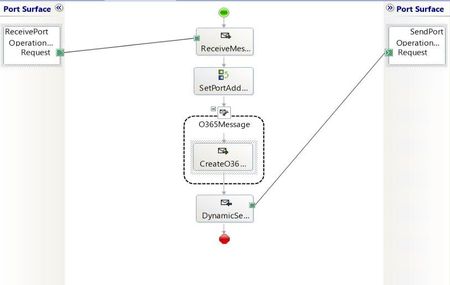
While the article focuses on the migration path from BizTalk Server, the template is equally suited for new (greenfield) implementations any team looking to implement the Aggregator pattern natively in Azure Logic Apps can deploy it directly from the Azure portal without prior BizTalk experience. The template source code is open source and available in the Azure LogicAppsTemplates GitHub repository. For full details on the original BizTalk implementation, see the BizTalk Server Aggregator SDK sample. Why is it important? BizTalk Server End of life has been confirmed and if you have not started your migration to Logic Apps, you should start soon. This is one of many articles in BizTalk Migration. More information can be found here: https://aka.ms/biztalkeolblog. The migration at a glance: BizTalk orchestration vs. Logic Apps workflow The BizTalk SDK implements the pattern through an orchestration (Aggregate.odx) that uses correlation sets, receive shapes, loop constructs, and send pipelines. The Logic Apps Standard template replicates the same logic using a stateful workflow with Azure Service Bus and CorrelationId-based grouping. The BizTalk solution includes: Component Purpose Aggregate.odx Main orchestration that collects correlated messages and executes the send pipeline FFReceivePipeline.btp Receive pipeline with flat file disassembler Invoice.xsd Document schema for invoice messages InvoiceEnvelope.xsd Envelope schema for output interchange PropertySchema.xsd Property schema with promoted properties for correlation XMLAggregatingPipeline.btp Send pipeline to assemble collected messages into XML interchange The Azure Logic Apps Standard implementation The Logic Apps Standard workflow replicates the same Aggregator pattern using a stateful workflow with Azure Service Bus as the message source and CorrelationId-based grouping. The template is publicly available in the Azure portal templates gallery. Figure 2: The “Aggregate messages from Azure Service Bus by CorrelationId” template in the Azure portal templates gallery, published by Microsoft. Receives messages from Service Bus in batches, groups them by CorrelationId, decodes flat files, and responses with the aggregated result via HTTP. Side-by-side comparison: BizTalk Server vs. Azure Logic Apps Understanding how each component maps between platforms is essential for a smooth migration: Concept BizTalk Server (Aggregate.odx) Azure Logic Apps Standard Messaging infrastructure MessageBox database (SQL Server) Azure Service Bus (cloud-native PaaS) Message source Receive Port / Receive Location Service Bus trigger (peekLockQueueMessagesV2) Message decoding Receive Pipeline (Flat File Disassembler) Decode_Flat_File_Invoice action (FlatFileDecoding) Correlation mechanism Correlation Sets on promoted properties (DestinationPartnerURI) CorrelationId from Service Bus message properties Message accumulation Loop shape + Message Assignment shapes ForEach loop + CorrelationGroups dictionary variable Completion condition Loop exit (10 messages or 1-minute timeout) Batch-based: processes all messages in current batch Aggregated message construction Construct Message shape + XMLAggregatingPipeline Build_Aggregated_Messages ForEach + Compose actions Result delivery Send Port (file, HTTP, or other adapter) HTTP Response or any other regarding business need Error handling Exception Handler shapes + SuspendMessage.odx Scope + error handler actions Schema support BizTalk Flat File Schemas (XSD) Same XSD schemas in Artifacts/Schemas folder State management Orchestration dehydration/rehydration Stateful workflow with run history Key architectural differences Aspect BizTalk Server Azure Logic Apps Standard Processing model Convoy pattern (long-running, event-driven) Batch-based (processes N messages per trigger) Scalability BizTalk Host instances (manual scaling) Elastic scale (Azure App Service Plan) Retry logic Adapter-level retries Built-in HTTP retry policy (3 attempts, 10s interval) Architecture Monolithic orchestration Decoupled: aggregation + downstream processing Monitoring BizTalk Admin Console / HAT Azure portal run history + Azure Monitor Schema reuse BizTalk project schemas Direct XSD reuse in Artifacts/Schemas Deployment MSI / BizTalk deployment ARM templates, Azure DevOps, GitHub Actions How the workflow works 1. Trigger: Receive messages from Service Bus The workflow uses the built-in Service Bus trigger to retrieve messages in batches from a non-session queue. This is analogous to BizTalk's Receive Location polling the message source. 2. Process and correlate: Group messages by CorrelationId Each message is processed sequentially (like BizTalk's ordered delivery). The workflow: Extracts the CorrelationId from Service Bus message properties (equivalent to BizTalk's promoted property used in the Correlation Set) Decodes flat file content with zero refactoring using the XSD schema (equivalent to BizTalk's Flat File Disassembler pipeline component) Groups messages into a dictionary keyed by CorrelationId (equivalent to BizTalk's loop + message assignment pattern) 3. Build aggregated output Once all messages in the batch are processed, the workflow constructs a result object for each correlation group containing the CorrelationId, message count and the array of decoded messages. 4. Deliver results The aggregated output is sent to a target workflow via HTTP POST, following a decoupled architecture pattern. This is analogous to BizTalk's Send Port delivering the result to the destination system. You can substitute this action for another endpoint as needed. This, will depend on your business case. Azure Service Bus: The cloud-native replacement for BizTalk’s MessageBox In BizTalk Server, the MessageBox database is the central hub for all message routing, subscription-based delivery, and correlation. It’s the engine that enables patterns like the Aggregator — messages are published to the MessageBox, and the orchestration subscribes to them based on promoted properties and correlation sets. In Azure Logic Apps Standard, there is no MessaeBox equivalent. Instead, Azure Service Bus serves as the cloud-native messaging backbone. Service Bus provides the same publish/subscribe semantics, message correlation (via the built-in CorrelationId property), peek-lock delivery, and reliable queuing — but as a fully managed, elastically scalable PaaS service with no infrastructure to maintain. This is a fundamental shift in architecture: you move from a centralized SQL Server-based message broker (MessageBox) to a distributed, cloud-native messaging service (Service Bus) that scales independently and integrates natively with Logic Apps through the built-in Service Bus connector. Important: Service Bus is not available on-premises. However, RabbitMQ is available to cover these needs, on-premises. RabbitMQ offers a fantastic alternative for customers looking to replicate BizTalk message routing, subscription-based delivery, and correlation. Decode Flat File Invoice: Reuse your BizTalk schemas with zero refactoring One of the biggest concerns during any BizTalk migration is: “What happens to our flat file schemas and message formats?” The workflow template includes a Decode Flat File action (type FlatFileDecoding) that converts positional or delimited flat file content into XML — exactly like BizTalk’s Flat File Disassembler pipeline component. The key advantage: your original BizTalk XSD flat file schemas work as-is. Upload them to the Logic Apps Artifacts/Schemas folder and reference them by name in the workflow — no modifications, no refactoring. This means: Your existing message formats don’t change — upstream and downstream systems continue sending and receiving the same flat file messages Your BizTalk schemas are directly reusable — the same Invoice.xsd from your BizTalk project works seamlessly with the FlatFileDecoding action Migration effort is significantly reduced — no need to redesign schemas, re-validate message structures, or update trading partner agreements Time-to-production is faster — focus on workflow logic and connectivity instead of rewriting message definitions Notice that, if you need to process XML data, as your data might arrive in XML format, use the XML Operations: Validate, Transform, Parse, and Compose XML with schema. You can find more information at Compose XML using Schemas in Standard Workflows - Azure Logic Apps | Microsoft Learn. The message with correlation Id Each message in the Service Bus queue is a flat file invoice the same positional/delimited text format used in the BizTalk SDK sample. Here's an example: INVOICE12345 DestinationPartnerURI:http://www.contoso.com?ID=1E1B9646-48CF-41dd-A0C0-1014B1CE5064 BILLTO,US,John Connor,123 Cedar Street,Mill Valley,CA,90952 101-TT Plastic flowers 10 4.99 Fragile handle with care 202-RR Fertilizer 1 10.99 Lawn fertilizer 453-XS Weed killer 1 5.99 Lawn weed killer The message structure combines positional and delimited fields: Line 1: Invoice identifier (fixed-length record) Line 2: Destination partner URI — in BizTalk, this value is promoted as a context property and used in the Correlation Set to group related messages Line 3: Bill-to header (comma-delimited: country, name, address, city, state, ZIP) Line 4: Line items (positional fields: item code, description, quantity, unit price, notes) Why CorrelationId is essential In BizTalk Server, the orchestration promotes `DestinationPartnerURI` from the message body into a context property and uses it as the Correlation Set to match related messages. This requires a Property Schema, promoted properties, and pipeline configuration. In Azure Logic Apps Standard, correlation is decoupled from the message body. The `CorrelationId` is a native Azure Service Bus message property with a first-class header set by the message producer when sending to the queue. This means: No schema changes needed: the flat file content stays exactly the same No property promotion: Service Bus provides the correlation identifier out of the box Simpler architecture: the workflow reads `CorrelationId` directly from the message metadata, not from the payload Producer flexibility any system sending to Service Bus can set the `CorrelationId` header using standard SDK methods, without modifying the message body This is why the Aggregator pattern maps so naturally to Service Bus: the correlation mechanism that BizTalk implements through promoted properties and correlation sets is already built into the messaging infrastructure. Step-by-step guide: Deploy the template from the Azure portal The “Aggregate messages from Azure Service Bus by CorrelationId” template is publicly available in the Azure Logic Apps Standard templates gallery. Follow these steps to deploy it: Prerequisites Before you begin, make sure you have: An Azure subscription. If you don’t have one, sign up for a free Azure account . An Azure Logic Apps Standard resource deployed in your subscription. If you need to create one, see Create an example Standard logic app workflow . An Azure Service Bus namespace with a non-session queue configured. A flat file XSD schema (for example, Invoice.xsd) ready to upload to the logic app’s Artifacts/Schemas folder. A target workflow with an HTTP trigger to receive the aggregated results (optional, can be created after deployment). Step 1: Open the templates gallery Sign in to the Azure portal. Navigate to your Standard logic app resource. On the logic app sidebar menu, select Workflows. On the logic app sidebar menu, select Workflows. On the Workflows page, select + Create to create a new workflow. In the “Create a new workflow” pane, select Use Template to open the templates gallery and select Create button. Step 2: Find the Aggregator template In the templates gallery, use the search box and type “Aggregate” or “Aggregator”. Optionally, filter by: o Connectors: Select Azure Service Bus o Categories: All Locate the template named “Aggregate messages from Azure Service Bus by CorrelationId”. o The template card shows the labels Workflow and Event as the solution type and trigger type. o The template is published by Microsoft. Step 3: Review the template details Select the template card to open the template overview pane. On the Summary tab, review: o Connections included in this template: Azure Service Bus (in-app connector) o Prerequisites: Requirements for Azure Service Bus, flat file schema, and connection configuration o Details: Description of the Aggregator enterprise integration pattern implementation Source code: Link to the GitHub repository Select the Workflow tab to preview the workflow design that the template creates and when you are ready select Use this template. Step 4: Provide workflow information In the Create a new workflow from template pane, on the Basics tab: o Workflow name: Enter a name for your workflow, for example, wf-aggregator-invoices o State type: Select Stateful (recommended for aggregation scenarios that require run history and reliable processing) Select Next. Step 5: Create connections On the Connections tab, create the Azure Service Bus connection: o Select Connect next to the Service Bus connection. o Provide your Service Bus connection string or select the managed identity authentication option. For managed identity (recommended), make sure your logic app’s managed identity has the Azure Service Bus Data Receiver role on the Service Bus namespace. 2. Select Next. Step 6: Configure parameters On the Parameters tab, provide values for the workflow parameters: Parameter Description Example value Azure Service Bus queue name The queue to monitor for incoming messages invoice-queue Maximum batch size Number of messages per batch (1-100) 10 Flat file schema name XSD schema name in Artifacts/Schemas Invoice.xsd Default CorrelationId Fallback value for messages without CorrelationId NO_CORRELATION_ID Target workflow URL HTTP endpoint of the downstream workflow https://your-logicapp.azurewebsites.net/... Target workflow timeout HTTP call timeout in seconds 60 Enable sequential processing Maintain message order true 2. Select Next. Step 7: Review and create On the Review + create tab, review all the provided information. Select Create. When the deployment completes, select Go to my workflow. Step 8: Upload the flat file schema Navigate to your logic app resource in the Azure portal. On the sidebar menu, under Artifacts, select Schemas. Select + Add and upload your Invoice.xsd. Confirm the schema appears in the list. Notice that: for this scenario we are using the Invoice.xsd schema, you can/must use the schema your scenario needs. Step 9: Verify and test On the workflow sidebar, select Designer to review the created workflow. Verify all actions are configured correctly. Send test messages to your Service Bus queue with different CorrelationId values. Monitor the Run history to verify successful execution and aggregation. For more information on creating workflows from templates, see Create workflows from prebuilt templates in Azure Logic Apps. Conclusion The Aggregator pattern is a cornerstone of enterprise integration, and migrating it from BizTalk Server to Azure Logic Apps Standard doesn’t mean starting from scratch. By using this template, you can: Reuse your existing XSD flat file schemas directly from your BizTalk projects Replace BizTalk Correlation Sets with CorrelationId-based message grouping via Azure Service Bus Deploy in minutes from the Azure portal templates gallery Scale elastically with Azure App Service Plan Monitor with Azure-native tools instead of the BizTalk Admin Console The template is open source and available at: GitHub PR: Azure/LogicAppsTemplates#108 Template name in Azure portal: “Aggregate messages from Azure Service Bus by CorrelationId” Source code: GitHub repository Whether you’re migrating from BizTalk Server or building a new integration solution from scratch, this template gives you a solid, production-ready starting point. I encourage you to try it, customize it for your scenarios, and contribute back to the community. Resources BizTalk Server Aggregator SDK sample Create workflows from prebuilt templates in Azure Logic Apps Create and publish workflow templates for Azure Logic Apps Flat file encoding and decoding in Logic Apps Azure Service Bus connector overview BizTalk to Azure migration guide BizTalk Migration Starter tool584Views0likes0Comments