open source
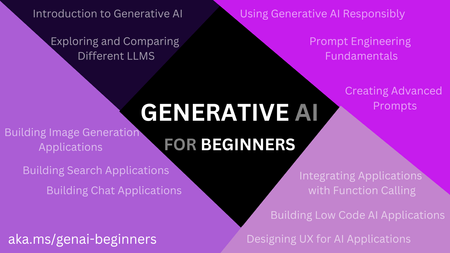
18 TopicsGenerative AI for Beginners - A 12-Lesson Course
Are you fascinated by the world of Artificial Intelligence and its endless possibilities? Are you a beginner eager to dive into the realm of Generative AI? If so, you're in the right place! In this blog post, we're excited to introduce you to a comprehensive 12-lesson course designed to teach you everything you need to know to start building Generative AI applications58KViews12likes7CommentsStop Drawing Architecture Diagrams Manually: Meet the Open-Source AI Architecture Review Agents
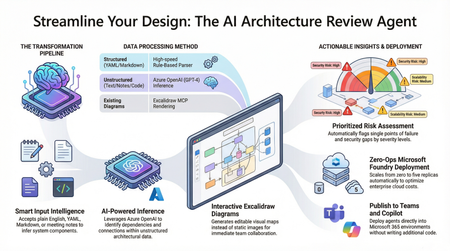
Designing and documenting software architecture is often a battle against static diagrams that become outdated the moment they are drawn. The Architecture Review Agent changes that by turning your design process into a dynamic, AI-powered workflow. In this post, we explore how to leverage Microsoft Foundry Hosted Agents, Azure OpenAI, and Excalidraw to build an open-source tool that instantly converts messy text descriptions, YAML, or README files into editable architecture diagrams. Beyond just drawing boxes, the agent acts as a technical co-pilot, delivering prioritized risk assessments, highlighting single points of failure, and mapping component dependencies. Discover how to eliminate manual diagramming, catch security flaws early, and deploy your own enterprise-grade agent with zero infrastructure overhead.18KViews7likes5CommentsEmpowering the AI Generation: Microsoft's Open-Source Initiative
In a world increasingly driven by open collaboration and community-driven innovation, Microsoft has undergone a remarkable transformation. The tech giant is on a mission to provide students, startups, AI developers, and entrepreneurs with the tools and resources they need to build groundbreaking solutions. Embracing open source is at the heart of this journey.7.3KViews3likes1CommentIntegrating Microsoft Foundry with OpenClaw: Step by Step Model Configuration
Step 1: Deploying Models on Microsoft Foundry Let us kick things off in the Azure portal. To get our OpenClaw agent thinking like a genius, we need to deploy our models in Microsoft Foundry. For this guide, we are going to focus on deploying gpt-5.2-codex on Microsoft Foundry with OpenClaw. Navigate to your AI Hub, head over to the model catalog, choose the model you wish to use with OpenClaw and hit deploy. Once your deployment is successful, head to the endpoints section. Important: Grab your Endpoint URL and your API Keys right now and save them in a secure note. We will need these exact values to connect OpenClaw in a few minutes. Step 2: Installing and Initializing OpenClaw Next up, we need to get OpenClaw running on your machine. Open up your terminal and run the official installation script: curl -fsSL https://openclaw.ai/install.sh | bash The wizard will walk you through a few prompts. Here is exactly how to answer them to link up with our Azure setup: First Page (Model Selection): Choose "Skip for now". Second Page (Provider): Select azure-openai-responses. Model Selection: Select gpt-5.2-codex , For now only the models listed (hosted on Microsoft Foundry) in the picture below are available to be used with OpenClaw. Follow the rest of the standard prompts to finish the initial setup. Step 3: Editing the OpenClaw Configuration File Now for the fun part. We need to manually configure OpenClaw to talk to Microsoft Foundry. Open your configuration file located at ~/.openclaw/openclaw.json in your favorite text editor. Replace the contents of the models and agents sections with the following code block: { "models": { "providers": { "azure-openai-responses": { "baseUrl": "https://<YOUR_RESOURCE_NAME>.openai.azure.com/openai/v1", "apiKey": "<YOUR_AZURE_OPENAI_API_KEY>", "api": "openai-responses", "authHeader": false, "headers": { "api-key": "<YOUR_AZURE_OPENAI_API_KEY>" }, "models": [ { "id": "gpt-5.2-codex", "name": "GPT-5.2-Codex (Azure)", "reasoning": true, "input": ["text", "image"], "cost": { "input": 0, "output": 0, "cacheRead": 0, "cacheWrite": 0 }, "contextWindow": 400000, "maxTokens": 16384, "compat": { "supportsStore": false } }, { "id": "gpt-5.2", "name": "GPT-5.2 (Azure)", "reasoning": false, "input": ["text", "image"], "cost": { "input": 0, "output": 0, "cacheRead": 0, "cacheWrite": 0 }, "contextWindow": 272000, "maxTokens": 16384, "compat": { "supportsStore": false } } ] } } }, "agents": { "defaults": { "model": { "primary": "azure-openai-responses/gpt-5.2-codex" }, "models": { "azure-openai-responses/gpt-5.2-codex": {} }, "workspace": "/home/<USERNAME>/.openclaw/workspace", "compaction": { "mode": "safeguard" }, "maxConcurrent": 4, "subagents": { "maxConcurrent": 8 } } } } You will notice a few placeholders in that JSON. Here is exactly what you need to swap out: Placeholder Variable What It Is Where to Find It <YOUR_RESOURCE_NAME> The unique name of your Azure OpenAI resource. Found in your Azure Portal under the Azure OpenAI resource overview. <YOUR_AZURE_OPENAI_API_KEY> The secret key required to authenticate your requests. Found in Microsoft Foundry under your project endpoints or Azure Portal keys section. <USERNAME> Your local computer's user profile name. Open your terminal and type whoami to find this. Step 4: Restart the Gateway After saving the configuration file, you must restart the OpenClaw gateway for the new Foundry settings to take effect. Run this simple command: openclaw gateway restart Configuration Notes & Deep Dive If you are curious about why we configured the JSON that way, here is a quick breakdown of the technical details. Authentication Differences Azure OpenAI uses the api-key HTTP header for authentication. This is entirely different from the standard OpenAI Authorization: Bearer header. Our configuration file addresses this in two ways: Setting "authHeader": false completely disables the default Bearer header. Adding "headers": { "api-key": "<key>" } forces OpenClaw to send the API key via Azure's native header format. Important Note: Your API key must appear in both the apiKey field AND the headers.api-key field within the JSON for this to work correctly. The Base URL Azure OpenAI's v1-compatible endpoint follows this specific format: https://<your_resource_name>.openai.azure.com/openai/v1 The beautiful thing about this v1 endpoint is that it is largely compatible with the standard OpenAI API and does not require you to manually pass an api-version query parameter. Model Compatibility Settings "compat": { "supportsStore": false } disables the store parameter since Azure OpenAI does not currently support it. "reasoning": true enables the thinking mode for GPT-5.2-Codex. This supports low, medium, high, and xhigh levels. "reasoning": false is set for GPT-5.2 because it is a standard, non-reasoning model. Model Specifications & Cost Tracking If you want OpenClaw to accurately track your token usage costs, you can update the cost fields from 0 to the current Azure pricing. Here are the specs and costs for the models we just deployed: Model Specifications Model Context Window Max Output Tokens Image Input Reasoning gpt-5.2-codex 400,000 tokens 16,384 tokens Yes Yes gpt-5.2 272,000 tokens 16,384 tokens Yes No Current Cost (Adjust in JSON) Model Input (per 1M tokens) Output (per 1M tokens) Cached Input (per 1M tokens) gpt-5.2-codex $1.75 $14.00 $0.175 gpt-5.2 $2.00 $8.00 $0.50 Conclusion: And there you have it! You have successfully bridged the gap between the enterprise-grade infrastructure of Microsoft Foundry and the local autonomy of OpenClaw. By following these steps, you are not just running a chatbot; you are running a sophisticated agent capable of reasoning, coding, and executing tasks with the full power of GPT-5.2-codex behind it. The combination of Azure's reliability and OpenClaw's flexibility opens up a world of possibilities. Whether you are building an automated devops assistant, a research agent, or just exploring the bleeding edge of AI, you now have a robust foundation to build upon. Now it is time to let your agent loose on some real tasks. Go forth, experiment with different system prompts, and see what you can build. If you run into any interesting edge cases or come up with a unique configuration, let me know in the comments below. Happy coding!12KViews2likes2CommentsUnlocking DevOps Magic: Dive into the Azure Kubernetes Service Wonderland in Visual Studio Code!
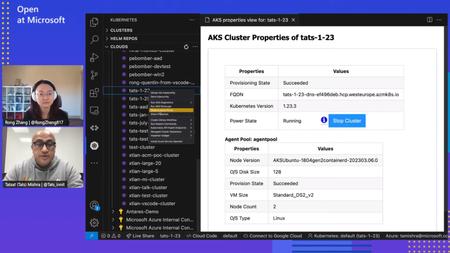
To facilitate and enhance the Azure Kubernetes Service experience for this audience, the open-source community has introduced a valuable tool known as the AKS VSCode Tools Extension.2.7KViews2likes0CommentsAzure Open Source Day 7th March 2023
Join us to learn about open-source technologies and how to build intelligent, scalable apps faster and easier. Discover new capabilities in cloud-native architectures, microservices, and data management using Azure and open-source technologies. Get insights and best practices from industry leaders and ask experts your questions during the live chat Q&A. Register now for this free digital event.4KViews2likes1CommentRunning Phi-4 Locally with Microsoft Foundry Local: A Step-by-Step Guide
In our previous post, we explored how Phi-4 represents a new frontier in AI efficiency that delivers performance comparable to models 5x its size while being small enough to run on your laptop. Today, we're taking the next step: getting Phi-4 up and running locally on your machine using Microsoft Foundry Local. Whether you're a developer building AI-powered applications, an educator exploring AI capabilities, or simply curious about running state-of-the-art models without relying on cloud APIs, this guide will walk you through the entire process. Microsoft Foundry Local brings the power of Azure AI Foundry to your local device without requiring an Azure subscription, making local AI development more accessible than ever. So why do you want to run Phi-4 Locally? Before we dive into the setup, let's quickly recap why running models locally matters: Privacy and Control: Your data never leaves your machine. This is crucial for sensitive applications in healthcare, finance, or education where data privacy is paramount. Cost Efficiency: No API costs, no rate limits. Once you have the model downloaded, inference is completely free. Speed and Reliability: No network latency or dependency on external services. Your AI applications work even when you're offline. Learning and Experimentation: Full control over model parameters, prompts, and fine-tuning opportunities without restrictions. With Phi-4's compact size, these benefits are now accessible to anyone with a modern laptop—no expensive GPU required. What You'll Need Before we begin, make sure you have: Operating System: Windows 10/11, macOS (Intel or Apple Silicon), or Linux RAM: Minimum 16GB (32GB recommended for optimal performance) Storage: At least 5 - 10GB of free disk space Processor: Any modern CPU (GPU optional but provides faster inference) Note: Phi-4 works remarkably well even on consumer hardware 😀. Step 1: Installing Microsoft Foundry Local Microsoft Foundry Local is designed to make running AI models locally as simple as possible. It handles model downloads, manages memory efficiently, provides OpenAI-compatible APIs, and automatically optimizes for your hardware. For Windows Users: Open PowerShell or Command Prompt and run: winget install Microsoft.FoundryLocal For macOS Users (Apple Silicon): Open Terminal and run: brew install microsoft/foundrylocal/foundrylocal Verify Installation: Open your terminal and type. This should return the Microsoft Foundry Local version, confirming installation: foundry --version Step 2: Downloading Phi-4-Mini For this tutorial, we'll use Phi-4-mini, the lightweight 3.8 billion parameter version that's perfect for learning and experimentation. Open your terminal and run: foundry model run phi-4-mini You should see your download begin and something similar to the image below Available Phi Models on Foundry Local While we're using phi-4-mini for this guide, Foundry Local offers several Phi model variants and other open-source models optimized for different hardware and use cases: Model Hardware Type Size Best For phi-4-mini GPU chat-completion 3.72 GB Learning, fast responses, resource-constrained environments with GPU phi-4-mini CPU chat-completion 4.80 GB Learning, fast responses, CPU-only systems phi-4-mini-reasoning GPU chat-completion 3.15 GB Reasoning tasks with GPU acceleration phi-4-mini-reasoning CPU chat-completion 4.52 GB Mathematical proofs, logic puzzles with lower resource requirements phi-4 GPU chat-completion 8.37 GB Maximum reasoning performance, complex tasks with GPU phi-4 CPU chat-completion 10.16 GB Maximum reasoning performance, CPU-only systems phi-3.5-mini GPU chat-completion 2.16 GB Most lightweight option with GPU support phi-3.5-mini CPU chat-completion 2.53 GB Most lightweight option, CPU-optimized phi-3-mini-128k GPU chat-completion 2.13 GB Extended context (128k tokens), GPU-optimized phi-3-mini-128k CPU chat-completion 2.54 GB Extended context (128k tokens), CPU-optimized phi-3-mini-4k GPU chat-completion 2.13 GB Standard context (4k tokens), GPU-optimized phi-3-mini-4k CPU chat-completion 2.53 GB Standard context (4k tokens), CPU-optimized Note: Foundry Local automatically selects the best variant for your hardware. If you have an NVIDIA GPU, it will use the GPU-optimized version. Otherwise, it will use the CPU-optimized version. run the command below to see full list of models foundry model list Step 3: Test It Out Once the download completes, an interactive session will begin. Let's test Phi-4-mini's capabilities with a few different prompts: Example 1: Explanation Phi-4-mini provides a thorough, well-structured explanation! It starts with the basic definition, explains the process in biological systems, gives real-world examples (plant cells, human blood cells). The response is detailed yet accessible. Example 2: Mathematical Problem Solving Excellent step-by-step solution! Phi-4-mini breaks down the problem methodically: 1. Distributes on the left side 2. Isolates the variable terms 3. Simplifies progressively 4. Arrives at the final answer: x = 11 The model shows its work clearly, making it easy to follow the logic and ideal for educational purposes Example 3: Code Generation The model provides a concise Python function using string slicing ([::-1]) - the most Pythonic approach to reversing a string. It includes clear documentation with a docstring explaining the function's purpose, provides example usage demonstrating the output, and even explains how the slicing notation works under the hood. The response shows that the model understands not just how to write the code, but why this approach is preferred - noting that the [::-1] slice notation means "start at the end of the string and end at position 0, move with the step -1, negative one, which means one step backwards." This showcases the model's ability to generate production-ready code with proper documentation while being educational about Python idioms. To exit the interactive session, type `/bye` Step 4: Extending Phi-4 with Real-Time Tools Understanding Phi-4's Knowledge Cutoff Like all language models, Phi-4 has a knowledge cutoff date from its training data (typically several months old). This means it won't know about very recent events, current prices, or breaking news. For example, if you ask "Who won the 2024 NBA championship?" it might not have the answer. The good thing is, there's a powerful work-around. While Phi-4 is incredibly capable, connecting it to external tools like web search, databases, or APIs transforms it from a static knowledge base into a dynamic reasoning engine. This is where Microsoft Foundry's REST API comes in. Microsoft Foundry provides a simple API that lets you integrate Phi-4 into Python applications and connect it to real-time data sources. Here's a practical example: building a web-enhanced AI assistant. Web-Enhanced AI Assistant This simple application combines Phi-4's reasoning with real-time web search, allowing it to answer current questions accurately. Prerequisites: pip install foundry-local-sdk requests ddgs Create phi4_web_assistant.py: import requests from foundry_local import FoundryLocalManager from ddgs import DDGS import json def search_web(query): """Search the web and return top results""" try: results = list(DDGS().text(query, max_results=3)) if not results: return "No search results found." search_summary = "\n\n".join([ f"[Source {i+1}] {r['title']}\n{r['body'][:500]}" for i, r in enumerate(results) ]) return search_summary except Exception as e: return f"Search failed: {e}" def ask_phi4(endpoint, model_id, prompt): """Send a prompt to Phi-4 and stream response""" response = requests.post( f"{endpoint}/chat/completions", json={ "model": model_id, "messages": [{"role": "user", "content": prompt}], "stream": True }, stream=True, timeout=180 ) full_response = "" for line in response.iter_lines(): if line: line_text = line.decode('utf-8') if line_text.startswith('data: '): line_text = line_text[6:] # Remove 'data: ' prefix if line_text.strip() == '[DONE]': break try: data = json.loads(line_text) if 'choices' in data and len(data['choices']) > 0: delta = data['choices'][0].get('delta', {}) if 'content' in delta: chunk = delta['content'] print(chunk, end="", flush=True) full_response += chunk except json.JSONDecodeError: continue print() return full_response def web_enhanced_query(question): """Combine web search with Phi-4 reasoning""" # By using an alias, the most suitable model will be downloaded # to your device automatically alias = "phi-4-mini" # Create a FoundryLocalManager instance. This will start the Foundry # Local service if it is not already running and load the specified model. manager = FoundryLocalManager(alias) model_info = manager.get_model_info(alias) print("🔍 Searching the web...\n") search_results = search_web(question) prompt = f"""Here are recent search results: {search_results} Question: {question} Using only the information above, give a clear answer with specific details.""" print("🤖 Phi-4 Answer:\n") return ask_phi4(manager.endpoint, model_info.id, prompt) if __name__ == "__main__": # Try different questions question = "Who won the 2024 NBA championship?" # question = "What is the latest iPhone model released in 2024?" # question = "What is the current price of Bitcoin?" print(f"Question: {question}\n") print("=" * 60 + "\n") web_enhanced_query(question) print("\n" + "=" * 60) Run It: python phi4_web_assistant.py What Makes This Powerful By connecting Phi-4 to external tools, you create an intelligent system that: Accesses Real-Time Information: Get news, weather, sports scores, and breaking developments Verifies Facts: Cross-reference information with multiple sources Extends Capabilities: Connect to databases, APIs, file systems, or any other tool Enables Complex Applications: Build research assistants, customer support bots, educational tutors, and personal assistants This same pattern can be applied to connect Phi-4 to: Databases: Query your company's internal data APIs: Weather services, stock prices, translation services File Systems: Analyze documents and spreadsheets IoT Devices: Control smart home systems The possibilities are endless when you combine local AI reasoning with real-world data access. Troubleshooting Common Issues Service not running: Make sure Foundry Local is properly installed and the service is running. Try restarting with foundry --version to verify installation. Model downloads slowly: Check your internet connection and ensure you have enough disk space (5-10GB per model). Out of memory: Close other applications or try using a smaller model variant like phi-3.5-mini instead of the full phi-4. Connection issues: Verify that no other services are using the same ports. Foundry Local typically runs on http://localhost:5272. Model not found: Run foundry model list to see available models, then use foundry model run <model-name> to download and run a specific model. Your Next Steps with Foundry Local Congratulations! You now have Phi-4 running locally through Microsoft Foundry Local and understand how to extend it with external tools like web search. This combination of local AI reasoning with real-time data access opens up countless possibilities for building intelligent applications. Coming in Future Posts In the coming weeks, we'll explore advanced topics using Hugging Face: Fine-tuning Phi models on your own data for domain-specific applications Phi-4-multimodal: Analyze images, process audio, and combine multiple data types Advanced deployment patterns: RAG systems and multi-agent orchestration Resources to Explore EdgeAI for Beginners Course: Comprehensive 36-45 hour course covering Edge AI fundamentals, optimization, and production deployment Phi-4 Technical Report: Deep dive into architecture and benchmarks Phi Cookbook on GitHub: Practical examples and recipes Foundry Local Documentation: Complete technical documentation and API reference Module 08: Foundry Local Toolkit: 10 comprehensive samples including RAG applications and multi-agent systems Keep experimenting with Foundry Local, and stay tuned as we unlock the full potential of Edge AI! What will you build with Phi-4? Share your ideas and projects in the comments below!5.1KViews1like1CommentFrom Local to Global: A Journey with Co-op Translator to Share Learning Resources Worldwide
I used the Co-op Translator to translate my English presentation materials from an MLSA session into Punjabi (pa) and Hindi (hi), allowing students to access content in their preferred languages. You can view the translated results in my GitHub repository. This guide covers how I integrated Azure services to provide multilingual support, configuring the project environment, and using the Co-op Translator Python package to handle both markdown and image translation.604Views1like2Comments