onenote
78 TopicsWhat's New in Microsoft EDU webinars - October 2026
Join the Microsoft Education Product team on Wednesday, October 28 at 8am Pacific Time or 4pm Pacific time for a webinar exploring the latest updates in Microsoft Education! Discover new tools and exciting features designed to save educators time, personalize learning, and boost student engagement. We'll share demos, practical tips, and ways to get started with these powerful tools. You'll also have time to ask the team any questions that are top of mind. Agenda: ✅ Teach module in Copilot ✅ Study & Learn agent ✅ Microsoft Learning Zone ✅ Copilot Notebooks ✅ Teams for EDU ✅ OneNote Class Notebook ✅ Learning Activities Register for Wednesday, October 28th at 8am Pacific time: https://aka.ms/WNIEDUOct28Option1 Register for Wednesday, October 28th at 4pm Pacific time: https://aka.ms/WNIEDUOct28Option2 Whether you're an educator, school leader, or IT professional, come discover what's new and what's possible with Microsoft EDU! Mike Tholfsen Group Product Manager Microsoft Education365Views0likes0CommentsPreview the new Microsoft 365 LTI® for your LMS
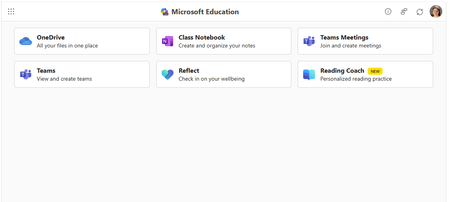
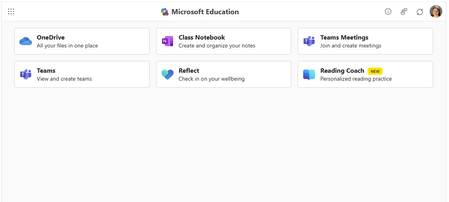
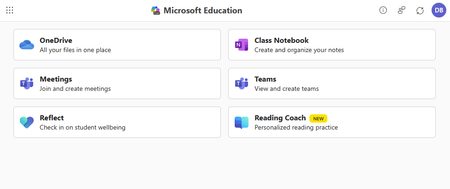
Enhance your LMS with the power of Microsoft 365 We are excited to announce the public preview of Microsoft 365 LTI. Experience the full potential of Microsoft 365 directly within your Learning Management System (LMS) through a simple to integrate learning tool interoperability (LTI). Microsoft 365 LTI makes LMS integrations simple, with a powerful tool designed to introduce new capabilities to streamline and simplify deployment. Deploy and access the new Microsoft 365 LTI in your LMS with the overview and deployment guides. At-a-glance: The Microsoft 365 LTI is now in Public Preview, bringing all your favorite Microsoft Education tools into a single, seamless experience inside your LMS. No more juggling multiple integrations - just streamlined access to everything educators and students need, right where they work. This includes: Unified access to OneDrive, Teams, Class Notebook, Reflect, and more, directly in your LMS Add content, create assignments, and schedule meetings - all from one place No need to enable multiple tools separately or clutter your LMS menus Replaces deprecated Teams Meetings and Team Classes LTI tools Expanding support for Microsoft Assignments, OneDrive, OneNote Class Notebooks, and Reflect Available for Canvas, Schoology, Blackboard, D2L Brightspace, Moodle, and more Let’s dive into the new Microsoft 365 LTI to streamline your learning management system experience We are bringing our Microsoft Education capabilities for learning management systems together into a single tool and streamlined user experience. Educators will be able to access Learning Accelerators, Reflect, OneDrive, Teams, and more in their LMS courses, without having to enable multiple tools separately, and without overcrowding menus where LTI tools are surfaced. Whether adding content to a module, creating an assignment, or scheduling a meeting for a class, you will be able to easily access Microsoft Education related features directly in your LMS workflow. Microsoft 365 LTI debuts with replacements for the deprecated Teams Meetings and Team Classes LTI tools that sunset on 9/15/2025. The capabilities of Microsoft Assignments, OneDrive, OneNote Class Notebooks, and Reflect will also be added to the Microsoft 365 LTI in preview, and those existing LTIs will continue to be supported as their capabilities transition. Microsoft 365 LTI will be available for all currently supported LMS platforms, including Canvas by Instructure, PowerSchool Schoology Learning, Blackboard by Anthology, D2L/Brightspace, and Moodle™, and for any LTI 1.3 Advantage compliant platform. Learning Accelerators and AI-enhanced assignments in your LMS (without Microsoft Teams) With the Microsoft 365 LTI, you will be able to use Learning Accelerators, multiple-document submissions, AI rubric and instructions generation, AI-assisted feedback, auto-graded Forms and other Microsoft Education assignment capabilities directly within your learning management system (LMS), without the need to create and sync a Microsoft Team for your class. Assignments in Microsoft 365 LTI no longer require Teams, enabling more LMS users to benefit from advanced, AI-enhanced capabilities that were formerly exclusive to Microsoft Teams for Education. Assignments can be created, managed, completed, and graded, without leaving your LMS, and grades and feedback will sync automatically to the LMS gradebook. This capability is included automatically in the new Microsoft 365 LTI tool. Existing, Teams-based assignments will continue to work and can be copied to new courses, so no migration is necessary. This enhancement will apply to all currently supported LMS platforms, including Canvas, Schoology, Blackboard, D2L Brightspace, and Moodle. Teams and Teams Meetings Microsoft 365 LTI replaces the former Teams Classes LTI and Teams Meetings LTI tools, with improved user experience. Users can easily schedule, manage, and launch meetings from directly within their LMS course. The tool provides streamlined views of future and past meetings, consolidated attendance reports, and a new “Meet Now” capability. Automatic rostering in Class Notebooks returns with the Microsoft 365 LTI In March, we announced the retirement of automatically adding newly rostered students and co-educators to OneNote Class Notebooks provisioned through the LMS using the LTI 1.1 integration. This much-loved feature is back in the new Class Notebook app in Microsoft 365 LTI. Any instructor in the LMS course can create a Class Notebook and all co-educators and students automatically added to the notebook, even as the LMS roster changes. In addition, the new integration enables OneNote with the benefits of LTI 1.3 conformance and a modernized provisioning flow for educators to easily deploy new Class Notebooks for their courses. Existing notebooks created in the LTI 1.1 integration will continue to work, and sections and pages can be easily copied to new notebooks. OneDrive and Microsoft 365 files with embedded editors and new placements The new Microsoft 365 LTI tool expands beyond the capabilities of the existing OneDrive LTI tool. The full capabilities of Word, PowerPoint, and Excel, including Microsoft 365 Copilot, are now available within the LMS experience for attaching content resources, collaborative documents (including Collaborations for Canvas Courses and Groups!), and students editing and submitting Microsoft 365 documents as an assignment without leaving the LMS. Documents can be embedded or linked into courses and other LMS activities like discussions, announcements, pages, with proper management of permissions to prevent oversharing, and with dedicated course-level storage to support proper document lifecycle management, assignment workflows, and use of Microsoft 365 Copilot. Easily add Reflect to your classroom toolset Microsoft 365 LTI provides easy access to Microsoft Reflect to support student wellbeing in the classroom. Educators can create check-ins, view responses, and monitor trends within an LMS course. Users can access activities from Microsoft and partners such as Calm to support physical and mental wellbeing. For more information, and to keep up with future product announcements Please visit the Microsoft Tech Community Education Blog and subscribe to keep up with what’s new in Microsoft Education. We also hold bi-monthly office hours every first and third Thursday where lots of LMS + Microsoft 365 customers come to discuss scenarios and get assistance from peers, please join us! Microsoft 365 LTI Office Hours 1 st and 3 rd Thursday of each month @11am EST Join link: https://aka.ms/LTIOfficeHours We can’t wait to hear your feedback! Try out the preview today. How to get help or send feedback For any issues deploying the integration, our Education Support team is here to help. Please visit https://aka.ms/EduSupport Once deployed, the Teams Assignments integration has links to Contact Support and Send Feedback from right within the app. These can be found in the user voice menu in the upper right on any view that appears within the LMS. Learn more about Microsoft feedback for your organization. Learning Tools Interoperability® (LTI®) is a trademark of the 1EdTech Consortium, Inc. (1edtech.org) The word Moodle and associated Moodle logos are trademarks or registered trademarks of Moodle Pty Ltd or its related affiliates.11KViews3likes8CommentsWhat's New in Microsoft EDU - Back to School 2026 webinar
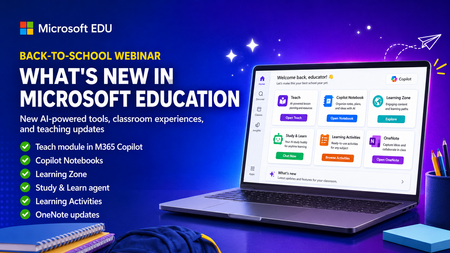
Get ready for back to school (Northern Hemisphere) with the latest product updates from Microsoft Education. In this webinar, we’ll showcase new AI-powered tools, teaching resources, and product updates designed to help educators save time, personalize learning, and support every student. You’ll see what’s new across Microsoft 365 Copilot, Teams for Education, OneNote, and more, including: ✅ Teach module in Microsoft 365 Copilot ✅ Copilot Notebooks ✅ Study and Learn agent ✅ Learning Zone ✅ Teams for EDU updates ✅ The latest OneNote EDU updates And more! Join us for practical demonstrations, helpful tips, and new ideas you can put to work as you prepare for a successful school year. And don't worry if you can't make it live, we will be recorded and posting this on the Microsoft Education YouTube channel afterwards. 📅 When: Wednesday, August 26th @ 8am Pacific Time 🔗 Register here: https://df.events.teams.microsoft.com/event/df.8c4f06fc-399f-4603-8023-f5fd92601bd1@72f988bf-86f1-41af-91ab-2d7cd011db47?source=copyLinkOneEventsShareDialog Mike Tholfsen Group Product Manager Microsoft Education756Views1like1CommentClassic LTI App Retirements, Preview of OneDrive LTI Migration Tool for Canvas
Classic Microsoft LTI® Apps Retiring in 2026: What You Need to Know and How to Prepare Microsoft is continuing its investment in a unified, modern Microsoft 365 LTI experience. As part of this evolution, several classic Microsoft LTI apps will be retired in September 2026. This post outlines: Which classic LTI apps are retiring and when What happens to existing course links and content created in classic LTIs retiring What actions you should take now to prepare, and start transitioning to Microsoft 365 LTI New migration tooling available to support transition Classic Microsoft LTI® Apps Retiring September 17, 2026 As we shared last September in our Microsoft 365 LTI GA release Blog, the following classic Microsoft LTI apps will be retired on September 17, 2026: Microsoft OneDrive LTI (1.3) OneNote Class Notebook LTI (1.1) Microsoft Reflect LTI (1.3) Microsoft Teams Assignments LTI (1.3) After September 17, 2026, any links or placements of these classic apps in courses will stop working. However, the files, notebooks, assignments, and check-ins created by these classic apps will continue to be available to copy and reuse. Replacements for these classic experiences are now available through the unified Microsoft 365 LTI built on the LTI® 1.3 Advantage standard. This delivers modern security, simplified identity mapping with Microsoft Entra, LMS enrollment and grade syncing, and a single deployment model for LMS administrators. We’ll continue to update our migration guides as additional tools and guidance become available. NEW: Preview the OneDrive LTI Migration Tool for Canvas Canvas LMS Customers: We are excited to announce that the Microsoft OneDrive LTI Migration Tool for Canvas is now available in Preview! This tool helps institutions using Canvas LMS migrate OneDrive content links from the classic Microsoft OneDrive LTI app to the new Microsoft 365 LTI app — preserving existing file links in courses so educators and students experience a seamless transition. For new preview deployments: detailed deployment instructions are available in the Canvas migration guide, which has been updated with configuration steps and guidance for using the migration tool. If you participated in the private preview: If you have already deployed the OneDrive LTI Migration Tool in Canvas during the private preview, no action is required. Your existing deployment will continue to work as part of the Public Preview, and in GA. If you deployed the private preview in a testing environment, we suggest that you follow the new Canvas migration guide in your production environment. Below is guidance to assist with transition from the other classic LTI apps and on additional LMS platforms. We will continue to communicate updates to this guidance as it evolves. If you use the classic Microsoft OneDrive LTI 1.3 with an LMS other than Canvas Deploy Microsoft 365 LTI with the OneDrive app enabled and guide educators to use the new Microsoft 365 LTI (Microsoft Education menus) to create file links or embeds in course content. Disable/hide/remove placements of the classic Microsoft OneDrive LTI app in your LMS but do not uninstall or disable the app. Files linked or embedded with the classic Microsoft OneDrive LTI will stop working when the app is retired, so those links and embeds must be replaced using the new Microsoft 365 LTI (Microsoft Education) app ahead of the retirement date. OneNote Class Notebook LTI 1.1 (All LMS platforms) The new OneNote Class Notebook LTI 1.3 integration is now available in the Microsoft 365 LTI app, with automatic roster sync and streamlined setup. Deploy Microsoft 365 LTI with the OneNote Class Notebook app enabled, and guide educators to use the new app. Disable/hide/remove placements of the classic OneNote integration, but do not uninstall the app to avoid migration issues during transition. While there is no direct migration path from OneNote Class Notebook LTI 1.1 notebooks to Microsoft 365 LTI Class Notebooks, educators can copy sections/pages from one notebook to another using the right-click menu on Sections and Pages (and selecting “Move/Copy”) in OneNote on Windows, OneNote Web, and OneNote for Mac. Instructions are also available for content transfer using OneNote on Mac, iOS, or Android. Microsoft Teams Assignments LTI 1.3 (All LMS platforms) Deploy Microsoft 365 LTI with the Assignments app enabled, and guide educators to create assignments using the new app. Disable/hide/remove placements of the legacy Teams Assignments LTI app as soon as you install the new Microsoft 365 LTI and enable the Assignments app, and guide you users to copy their existing assignments using the new app. Teams Assignments created by the classic LTI 1.3 app can be reused as in the new Microsoft 365 LTI Assignments experience (which does not require a Team) Assignments created in the LMS or via the Assignments app in Microsoft Teams can be copied and reused using the Create from Existing functionality in the Microsoft 365 LTI (Microsoft Education) Assignment instructor flow. Microsoft Reflect LTI 1.3 (All LMS platforms) Deploy Microsoft 365 LTI with the Reflect app enabled, and guide educators to create new Reflects in the new Microsoft 365 LTI experience. There is no migration path for reflects created in the classic Reflect LTI 1.3 app to the Reflect experience in the new Microsoft 365 LTI Reflect app. We recommend transitioning to the new Reflect experience in Microsoft 365 LTI as soon as possible, and remove the classic app ahead of the September 17, 2026 retirement. Stay Connected We love hearing from you! There are a few ways to stay engaged with Microsoft and your peers on the LMS integrations. Follow this blog! Click Register at the top right to create an account and profile for the Microsoft Tech Community and Follow the Education Blog so you don’t miss any of our updates. Join the free Education Insiders Program to preview updates, get support from other community members, meet the team, and influence the roadmap. Join us for Microsoft 365 LTI office hours to connect with your peers and share feedback directly with Microsoft experts. When: 1st and 3rd Thursday of each month @ 11AM EST Where: https://aka.ms/LTIOfficeHours Getting help and giving feedback LMS and Microsoft 365 admins can contact Microsoft Education Support to help resolve configuration and deployment issues, for themselves or on behalf of users. Educators and Learners can contact support or give feedback directly from the app through the help and feedback menu. TJ Vering Principal Product Manager Microsoft Education https://linkedin.com/in/tvering Learning Tools Interoperability® (LTI®) is a trademark of the 1EdTech Consortium, Inc. (https://1edtech.org/)1.9KViews0likes0CommentsOneDrive, Assignments, and Learning Accelerators are now Generally Available in Microsoft 365 LTI
Enhance your LMS with the power of Microsoft 365 Today, Microsoft is announcing general availability of the OneDrive and Assignments (including Learning Accelerators) experiences as part of Microsoft 365 LTI®—bringing seamless integration of Microsoft 365 tools into learning platforms to simplify workflows and enhance teaching and learning whether you’re using Canvas, Schoology, Brightspace, Blackboard, Moodle or other LMS platforms. Microsoft 365 LTI makes it easier than ever for educators and students to leverage the full suite of Microsoft 365 Education tools within existing workflows. And now, the OneDrive, Assignments and Learning Accelerators (Reading Progress, Speaker Progress and more) experiences previewed in July with the new Microsoft 365 LTI build on all the capabilities of the classic tools and add additional features in one convenient tool. Educators and students benefit from a more seamless and up-to-date LMS experience with Microsoft 365 Education. Teach and learn with confidence knowing that Microsoft 365 LTI is backed by Microsoft's industry-leading security and compliance tools with Microsoft 365 Education. Deploy and access the new Microsoft 365 LTI in your LMS today with the overview and deployment guides. IMPORTANT: If you have deployed the Microsoft 365 LTI previously, you do not need to redeploy in your LMS – however, we do recommend reviewing the deployment guide for any new recommendations or deployment guidance, and revisit your Admin Settings to check your M365 Admin Consent status and review the apps enabled for your educators to have access to in their courses. Classic LTI retirements Microsoft OneDrive LTI, OneNote LTI, Teams Assignments LTI and Reflect LTI are set to retire next September 17, 2026. The Microsoft 365 LTI replaces these separate LTI tools going forward and we encourage you to start proactively migrating your course this term. You will find migration guidance in our admin documentation to help take steps now. We will continue to provide any additional migration guidance as necessary OneDrive and Microsoft 365 files with embedded editors and new placements The new Microsoft 365 LTI tool expands beyond the capabilities of the existing OneDrive LTI tool with capabilities for Word, PowerPoint, and Excel, including Microsoft 365 Copilot - and is now available within your LMS experience by embedding or linking documents, videos, PDFs, and images into course materials like assignments, discussions, modules, announcements and more. Microsoft 365 LTI orchestrates management of permissions to prevent oversharing, and with dedicated course-level storage to support proper document lifecycle management, assignment workflows, and use of Microsoft 365 Copilot. With Canvas, Collaborations are supported along with students editing and submitting Microsoft 365 documents as an external tool assignment without leaving your LMS. This functionality replaces the classic Microsoft OneDrive LTI which will retire September 17, 2026. Learning Accelerators and AI-enhanced assignments available in your LMS - without the requirement for Microsoft Teams With Assignments in Microsoft 365 LTI, you will be able to use Learning Accelerators, multiple-document submissions, AI rubric and instructions generation, AI-assisted feedback, auto-graded Forms and other assignment capabilities directly within your learning management system (LMS), without the need to create and sync a Microsoft Team for your class. Assignments in Microsoft 365 LTI no longer require Teams access, enabling more LMS users to benefit from AI-enhanced experiences that were formerly exclusive to Microsoft Teams for Education. And Assignments can be created, managed, completed, and graded, without leaving your LMS with grades and feedback available to sync automatically to the LMS gradebook. New: Improve student speaking and presenting skills in 13 languages with Speaker Progress Exciting new AI Feedback features for educators to leverage, students can practice for in-class presentations or save class time by presenting and turning in their presentations for grading. This capability is included automatically in the new Microsoft 365 LTI tool. Existing, Teams-based assignments will continue to work and can be copied to new courses, so no migration is necessary. The assignments functionality in Microsoft 365 LTI replaces the classic Teams Assignments which will retire September 17, 2026. Dive into the new Microsoft 365 LTI to streamline your LMS experience We are bringing our Microsoft 365 Education capabilities for learning management systems together into a single, unified tool to streamline the user experience. Educators will be able to access Learning Accelerators, Reflect, OneDrive, Teams, and more in their LMS courses, without having to enable multiple tools separately, and without overcrowding menus where LTI tools surface. Whether adding content to a module, creating an assignment, or scheduling a meeting for a class, you will be able to easily access Microsoft 365 Education related features directly in your LMS workflow. Microsoft 365 LTI is available for supported LMS platforms, including Canvas by Instructure, PowerSchool Schoology Learning, Blackboard by Anthology, D2L/Brightspace, Moodle™, and for any LTI 1.3 Advantage compliant platform. Migration guidance and tools Guidance for migrating users from the classic LTI tools to the Microsoft 365 LTI can be found in our First Time Configuration guide. We strongly recommend guiding users to leverage the new experiences for OneDrive, Assignments, Reflect and OneNote Class Notebooks in the Microsoft 365 LTI as the classic experiences are set to retire on September 17 th , 2026. We are working on additional guidance to help with migration of existing content ahead of classic LTI retirements, and more information will be available soon. Compliance and regulatory resources Visit the Microsoft Service Trust Portal to learn how Microsoft cloud services protect your data, and how you can manage cloud data security and compliance for your organization. You will find our latest HECVAT assessment along with other resources for Microsoft 365 LTI and all Microsoft apps and services. For more information, and to keep up with future product announcements Please visit the Microsoft Tech Community Education Blog and subscribe to keep up with what’s new in Microsoft Education. We also hold bi-monthly office hours every first and third Thursday where lots of LMS + Microsoft 365 customers come to discuss scenarios and get assistance from peers, please join us. Microsoft 365 LTI Office Hours 1 st and 3 rd Thursday of each month at 11am EST Join link: https://aka.ms/LTIOfficeHours How to get help or send feedback For any issues deploying the integration, our Education Support team is here to help. Please visit https://aka.ms/EduSupport Once deployed, there are links to Contact Support and Send Feedback from right within the app. These can be found in the user voice menu in the upper right on any view that appears within the LMS. Learn more about Microsoft feedback for your organization. Learning Tools Interoperability® (LTI®) is a trademark of the 1EdTech Consortium, Inc. (1edtech.org) The word Moodle and associated Moodle logos are trademarks or registered trademarks of Moodle Pty Ltd or its related affiliates.1.8KViews1like1CommentWhat's new in OneNote for EDU - Back to School 2025
It’s back-to-school time, and OneNote EDU is rolling out fresh updates to make life easier for educators and students alike! In this article, we’ll cover the latest OneNote features and updates for education, including: Built-in Class Notebook toolbar in OneNote on Windows and for Mac (no more need to download the add-in!) – How to enable it and why it’s great New Microsoft 365 LTI 1.3 integration – Streamlined LMS access to Class Notebook, Assignments, Reflect, and more Broader OneNote updates – Merge table cells (finally!) and a new option to “paste text only” Education Insiders Program (EIP) – How to join and help shape the future of Class Notebook Let’s dive in and get you ready for an amazing school year with OneNote! 1. Enable the Class Notebook Toolbar natively in OneNote on Windows and for Mac Class Notebook features are now built directly into OneNote on desktop – no separate add-in required! This means if you’re using OneNote on Windows or for Mac, you already have the Class Notebook tools; you just might need to turn them on. Enabling the native toolbar gives you all the goodies (page distribution, review student work, etc.) right on the ribbon while ensuring you always have the latest updates and better performance than the old add-in. Why this matters: A built-in toolbar means one less installation to worry about and more reliable updates. Schools no longer need to deploy the legacy add-in for Class Notebook on each device. It’s simpler for IT and ensures every teacher has the Class Notebook tools by default. How to enable the Class Notebook toolbar: In OneNote for Windows (Microsoft 365), click File > Options > General. Under Class Notebook, check the box for “Enable Class Notebook” and select OK. The Class Notebook tab will appear on your OneNote ribbon, loaded with all the Class Notebook features you know and love. (Tip: If you previously installed the add-in, you might see two Class Notebook tabs. You can remove the old add-in to avoid confusion.) For more details, check out the Enable the Class Notebook Toolbar in OneNote Desktop support article. 2. New Microsoft 365 LTI 1.3 Integration for LMS The new Microsoft 365 LTI app brings OneNote Class Notebook along with other Microsoft 365 Education experiences like Microsoft Assignments, OneDrive/Microsoft 365 files, Teams for collaboration, Teams Meetings and more to your learning management system (LMS). It is compatible with any LTI 1.3 Advantage Platform, and setup instructions can be found here: https://aka.ms/LMSAdminDocs. Key benefits of the new M365 LTI integration: All-in-one access: Once your LMS admin installs the Microsoft 365 LTI, educators and students get one-click access to OneNote Class Notebook, assignments, OneDrive, Teams meetings, Reflect check-ins and more – right from your LMS course. No more juggling separate LTI apps for each tool. Automatic roster sync: Class Notebook now supports auto-rostering with LTI 1.3. When you create a Class Notebook through the LMS, all learners and educators in that course are automatically added to the notebook as students and teachers/co-teachers respectively (and will be added automatically if they join later). This beloved feature, previously in older LTI integration, is back – saving you setup time. Assignments and grades in your LMS: Using the new LTI, you can create Microsoft Assignments (with Learning Accelerator tools like Reading Progress, etc.) directly in your LMS. Students submit without leaving the LMS, and grades sync back to the LMS gradebook. It brings the power of Teams Assignments into the LMS environment, no Teams class needed. Streamlined and up-to-date: The Microsoft 365 LTI replaces several legacy LTI tools (like the old “Teams Classes LTI” and separate OneNote LTI 1.1 app). This reduces confusion and upkeep. Getting started with the new LTI is simple for IT admins, with full documentation here. If you’re an educator, check with your IT about enabling the Microsoft 365 LTI for your courses. 3. Broader OneNote updates: merge table cells and paste text only The OneNote team has been hard at work on core improvements that benefit both educators and students. Here are two notable updates rolling out: Merge table cells in OneNote on Windows and for Mac: You asked, and it’s finally here – the ability to merge cells in a table. This means you can take any adjacent cells (horizontal or vertical) in a OneNote table and combine them into one cell (just like in Word or Excel). Paste text only in OneNote on Windows, for Mac, and for the web: Ever copy-paste some text into OneNote only to have it bring in crazy fonts or colors from a website or another document? We hear you – and now in OneNote you can use the familiar shortcut Ctrl + Shift + V (Windows) or Cmd + Shift + V (Mac) to paste plain text, stripping out all the source formatting. The pasted content will match your current notebook’s font style. This also works via the right-click menu: choose Paste > Keep Text Only. It’s a small quality-of-life change that can save a ton of cleanup time, especially when gathering materials from various sources into your lesson plans or content library. Read more about this here: Paste text only in OneNote on Windows, for Mac, and for the web All these updates are either available now or rolling out to OneNote users: Merge table cells is currently in preview for Office Insiders (as of late July 2025) and will reach all OneNote desktop clients in the coming updates. Paste Text Only is rolling out to OneNote for the web users and OneNote users running the most recent versions on Windows and on Mac. Features are released over some time to ensure things are working smoothly, so don’t worry if you can’t see it quite yet. 4. Join the Education Insiders Program (EIP) Lastly, a call to action for passionate educators: if you love getting early access to new features or want to provide direct feedback to the OneNote and Class Notebook team, consider joining the Education Insiders Program (EIP). This is a free community for K-12 and higher-ed tech leaders, teachers, and IT administrators who use Microsoft tools. As an Education Insider, you can: Preview and influence new features: Get invites to try out early builds or pilot programs (with your school’s Office 365 tenant) and share feedback before features launch worldwide. For example, insiders often get to test things like the latest Class Notebook updates and provide input. Participate in the Class Notebook insiders channel: There’s a dedicated Class Notebook discussion space where you can discuss ideas, ask questions, and interact with Microsoft product managers and other educators. It’s a direct line to share what you’d love to see in OneNote. Sound interesting? Sign up for EIP via this form. Once accepted, you’ll be plugged into the insider community, including the Class Notebook channel where you can weigh in on the future of OneNote. (By joining EIP, you’ll help shape products like OneNote – many of the features in this blog (such as merged table cells and the new LTI integration) were influenced by feedback from educators. We’d love to have your voice in the mix!) We hope these updates get you excited for back to school with OneNote. Whether you’re empowering students with more organized Class Notebooks, integrating OneNote more seamlessly into your LMS, or just enjoying a smoother note-taking experience, there’s a lot to look forward to this year. Try out these new features in your classroom workflow, and let us know what you think. You can drop your thoughts in the comments or join the conversation in the Education Insiders community. Here’s to a successful and innovative school year ahead with OneNote! 💜 Which new OneNote EDU feature are you most excited about? Let us know in the comments, and have a fantastic start to the school year!2.5KViews2likes2CommentsMicrosoft 365 LTI is now Generally Available
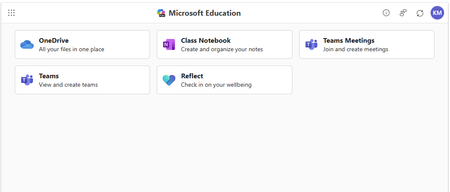
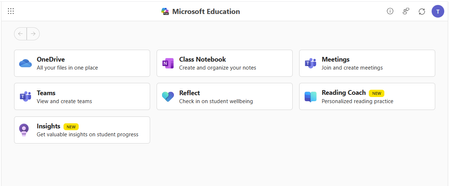
Today, Microsoft is announcing a unified LTI® designed to make LMS integrations simple, with powerful capabilities to streamline and simplify deployment. Microsoft 365 LTI enhances your LMS platform whether you’re using Canvas, Schoology, Brightspace, Blackboard, Moodle™, or any other LTI 1.3 capable platform, making it easier than ever for educators and students to leverage the full suite of Microsoft 365 tools within their existing LMS workflows. The new Microsoft 365 LTI combines all the capabilities of the individual tools into one convenient tool--instead of managing multiple LTI integrations, you’ll have one unified solution that is more functional and easier to deploy and maintain. Educators and learners will benefit from a more seamless and up-to-date LMS experience for Microsoft 365 Education. Teach and learn with confidence knowing that Microsoft 365 LTI is backed by Microsoft's industry-leading security and compliance tools with Microsoft 365. Deploy and access the new Microsoft 365 LTI in your LMS with the overview and deployment guides. IMPORTANT: If you've already deployed the Microsoft 365 LTI in preview, you do not need to redeploy in your LMS – However there are a few action items for LMS admins with existing deployments: Review the deployment guide for any updates Revisit your Admin Settings, to review the apps enabled you wish your educators to have access to in their courses Ask your M365 Admin to re-consent to permissions to grant the app additional permission to display Meeting Recordings with the M365 Consent link Microsoft 365 LTI release debuts with OneNote Cass Notebook, Teams, Meetings and Reflect – all generally available. Microsoft Assignments, OneDrive, and Reading Coach join these experiences in preview and will transition to GA as ready. At-a-glance: The Microsoft 365 LTI is now generally available, bringing all your favorite Microsoft Education tools into a single, seamless experience inside your LMS. No more juggling multiple integrations - just streamlined access to everything educators and students need, right where they work. This includes: Unified access to OneDrive, Teams, Class Notebook, Reflect, and more, directly in your LMS Add content, create assignments, and schedule meetings - all from one place New – Reading Coach bringing reading self-practice for students to your LMS No need to enable multiple tools separately or clutter your LMS menus Available for all currently supported LMS platforms, including Canvas by Instructure, PowerSchool Schoology Learning, Blackboard by Anthology, D2L/Brightspace, and Moodle™, and for any LTI 1.3 Advantage compliant platform. Existing LTI retirements: Replaces deprecated Teams Meetings and Team Classes LTI tools sunsetting September 15, 2025 Replaces Microsoft OneDrive LTI, OneNote LTI, Teams Assignments LTI and Reflect LTI as they retire next September 17, 2026 Dive into the new Microsoft 365 LTI to streamline your LMS experience We are bringing our Microsoft 365 Education capabilities for learning management systems together into a single, unified tool to streamline the user experience. Educators will be able to access Learning Accelerators, Reflect, OneDrive, Teams, and more in their LMS courses, without having to enable multiple tools separately, and without overcrowding menus where LTI tools surface. Whether adding content to a module, creating an assignment, or scheduling a meeting for a class, you will be able to easily access Microsoft 365 Education related features directly in your LMS workflow. Microsoft 365 LTI is available for supported LMS platforms, including Canvas by Instructure, PowerSchool Schoology Learning, Blackboard by Anthology, D2L/Brightspace, and Moodle™, and for any LTI 1.3 Advantage compliant platform. Learning Accelerators and AI-enhanced assignments in your LMS - without Microsoft Teams (Preview) With the Microsoft 365 LTI, you will be able to use Learning Accelerators, multiple-document submissions, AI rubric and instructions generation, AI-assisted feedback, auto-graded Forms and other Microsoft Education assignment capabilities directly within your learning management system (LMS), without the need to create and sync a Microsoft Team for your class. Assignments in Microsoft 365 LTI no longer require Teams, enabling more LMS users to benefit from advanced, AI-enhanced capabilities that were formerly exclusive to Microsoft Teams for Education. Assignments can be created, managed, completed, and graded, without leaving your LMS, and grades and feedback will sync automatically to the LMS gradebook. This capability is included automatically in the new Microsoft 365 LTI tool. Existing, Teams-based assignments will continue to work and can be copied to new courses, so no migration is necessary. The assignments functionality in Microsoft 365 LTI replaces the classic Teams Assignments LTI which will retire next September 17, 2026. NEW! - Introducing Reading Coach in your LMS (Preview) Support independent reading with confidence. The Reading Coach student experience is now available in your LMS—offering students personalized reading practice, real-time feedback on fluency and pronunciation, with engaging AI-generated stories, library passages, and the option to add their own content to keep practice fun and fresh. Available now in preview. Teams and Teams Meetings Microsoft 365 LTI replaces the former Teams Classes LTI and Teams Meetings LTI tools which reach end of life on September 15, 2025. The new Teams and Teams Meetings experiences continue in Microsoft 365 LTI with improved user experiences where users can easily schedule, manage, and launch meetings from directly within their LMS course. The tool provides streamlined views of future and past meetings, attendance insights, and a “Meet Now” capability. NEW! view all of your meeting recordings on one place in the Recordings and files tab! Automatic rostering in Class Notebooks returns with the Microsoft 365 LTI In March, we announced the retirement of automatically adding newly rostered students and co-educators to OneNote Class Notebooks provisioned through the LMS using the LTI 1.1 integration. This much-loved feature is back in the new Class Notebook app in Microsoft 365 LTI. Any instructor in the LMS course can create a Class Notebook and all co-educators and students are automatically added to the notebook--even as the LMS roster changes. In addition, the new integration enables OneNote with the benefits of LTI 1.3 conformance and a modernized provisioning flow for educators to easily deploy new Class Notebooks for their courses. Existing notebooks created in the LTI 1.1 integration will continue to work, and sections and pages can be easily copied to new notebooks. The OneNote Class Notebook app in Microsoft 365 LTI replaces the classic OneNote LTI which will retire next September 17, 2026. OneDrive and Microsoft 365 files with embedded editors and new placements (Preview) The new Microsoft 365 LTI tool expands beyond the capabilities of the existing OneDrive LTI tool. The full capabilities of Word, PowerPoint, and Excel, including Microsoft 365 Copilot, are now available within the LMS experience for attaching content resources, collaborative documents (including Collaborations for Canvas Courses and Groups), and students editing and submitting Microsoft 365 documents as an assignment without leaving the LMS. Documents can be embedded or linked into courses and other LMS activities including discussions, announcements, pages, with proper management of permissions to prevent oversharing, and with dedicated course-level storage to support proper document lifecycle management, assignment workflows, and use of Microsoft 365 Copilot. This functionality replaces the classic Microsoft OneDrive LTI which will retire September 17, 2026. Easily add Reflect to your classroom Microsoft 365 LTI also provides easy access to Microsoft Reflect to support student wellbeing in the classroom. Educators can create check-ins, view responses, and monitor trends within an LMS course. Users can access activities from Microsoft and partners such as Calm to support physical and mental wellbeing. The Reflect app in Microsoft 365 LTI replaces the classic Reflect LTI which will retire next September 17, 2026. For more information, and to keep up with future product announcements Please visit the Microsoft Tech Community Education Blog and subscribe to keep up with what’s new in Microsoft Education. You may also sign up to receive email notifications of previews and releases of Microsoft 365 LTI We also hold bi-monthly office hours every first and third Thursday where lots of LMS + Microsoft 365 customers come to discuss scenarios and get assistance from peers, please join us. Microsoft 365 LTI Office Hours 1 st and 3 rd Thursday of each month @11am EST Join link: https://aka.ms/LTIOfficeHours How to get help or send feedback For any issues deploying the integration, our Education Support team is here to help. Please visit https://aka.ms/EduSupport Once deployed, the Microsoft 365 LTI integration has links to Contact Support and Send Feedback from right within the app. These can be found in the user voice menu in the upper right on any view that appears within the LMS. Learn more about Microsoft feedback for your organization. We can’t wait to hear your feedback! Try out the Microsoft 365 LTI today! Learning Tools Interoperability® (LTI®) is a trademark of the 1EdTech Consortium, Inc. (1edtech.org) The word Moodle and associated Moodle logos are trademarks or registered trademarks of Moodle Pty Ltd or its related affiliates.5.8KViews1like0CommentsNew OneNote Class Notebook LTI 1.3 integration in the Microsoft 365 LTI app
OneNote Class Notebook is entering a new era with a modern, unified LTI® 1.3 integration (as part of the Microsoft 365 LTI app) that brings back automatic roster sync and streamlines how educators and students use Class Notebooks within their LMS. This update is designed to benefit both educators and IT admins, making it easier to set up Class Notebooks and keep them in sync with course enrollments. In this article, we’ll cover the key new features, use cases, and next steps -- and how the new integration replaces the older LTI 1.1 tool (which is retiring in 2026). Quick recap: OneNote Class Notebook OneNote Class Notebook is a digital binder designed for classrooms, giving educators and students a flexible space to organize and collaborate. Each notebook includes a personal workspace for every student, a content library for handouts, and a collaboration space for group work. Educators can distribute pages, provide feedback, and manage class materials all in one place, while students can take notes, complete assignments, and access resources anytime, on any device--to make learning more organized and interactive. Seamless Class Notebook setup for educators Setup is simple. Once your LMS has the Microsoft 365 LTI app, any instructor can create a Class Notebook right from the course. Check out the more detailed instructions here. Open the Microsoft 365 LTI app in your course. Select Class Notebook. Customize the learner notebook sections (or accept defaults). Create and then Open Notebook. Your notebook is automatically shared with all students and instructors as they access the notebook. Students can launch the notebook from the LMS with single sign-on, making access seamless. Automatic roster sync returns Automatic roster sync is back with LTI 1.3. When you create a Class Notebook via your LMS, students and instructors are added with the right permissions and stay in sync as the course roster changes, with no need for manual updates. This results in less admin work and fewer access gaps as your notebook stays current with your class list. Powered by LTI 1.3 – Unified, Secure, and Future-Ready LTI 1.3 (with LTI Advantage) brings modern security and interoperability as part of the unified Microsoft 365 LTI app -- which covers Class Notebook, Assignments, OneDrive files, Teams, Reflect, and more -- to meet current standards and work reliably across LTI 1.3-compatible LMS platforms. For admins, one LTI app means simpler deployment and fewer plugins to manage, while configuration settings help you choose which components (OneNote, Teams, etc.) to enable or disable within the Microsoft 365 for your organization. This gives schools flexibility to roll out tools at your own pace. This new LTI integration also includes automatic identity mapping and course enrollment syncing. Meanwhile, educators gain access to a single hub for Microsoft 365 tools and can surface (or hide) components that are approved by the administrator. For educators using Class Notebook, provisioning is streamlined: launching Class Notebook creates and links the right OneNote space to the course with minimal friction. Key dates: Transitioning from classic LTI and next steps The classic OneNote Class Notebook LTI 1.1 will retire on September 17, 2026, so it’s best to plan to move to the Microsoft 365 LTI app before then. Existing Notebooks will still work, and you can copy pages/sections into new Notebooks as needed. Educators: once your administrator has installed the new Microsoft 365 LTI app, look for it in your course, choose Class Notebook, and follow the prompts to create a Notebook in just a few clicks. You can see detailed steps here. Admins: To deploy the Microsoft 365 LTI 1.3 app in your LMS, check out prerequisites, configuration steps, and troubleshooting tips in the official deployment guide is available on Microsoft Learn at aka.ms/LMSAdminDocs. Check out the deep dive video Watch the video below to get quick tips and see the OneNote Class Notebook LTI 1.3 integration (and more) in action in the new Microsoft 365 LTI app! Join the community! Microsoft also holds bi-monthly office hours every first and third Thursday of each month, where LMS platform customers and Microsoft 365 customers join from around the world to ask questions, share feedback, discuss scenarios, and get assistance from Microsoft and peers. Feel free to join us: Microsoft 365 LTI Office Hours 1st and 3rd Thursday of each month @11am EST Join link: https://aka.ms/LTIOfficeHours You can also join the free Education Insiders Program to preview updates, get support from other Class Notebook community members, meet the team, and influence the roadmap. Need help with a specific issue? Contact Microsoft Education support at aka.ms/EduSupport. We can’t wait to hear your feedback! Learning Tools Interoperability® (LTI®) is a trademark of the 1EdTech Consortium, Inc. (1edtech.org)1KViews0likes0CommentsA comprehensive list of helpful Microsoft Education professional development materials
We are happy to announce that we have aggregated a set of useful Microsoft Educator resources that are designed to help you become proficient in Microsoft technologies and learn more innovative classroom skills.21KViews9likes7CommentsMath Progress in Microsoft Teams for Education - globally rolling out and generally available
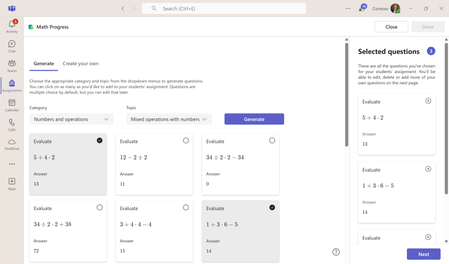
Today, we’re pleased to announce Math Progress, a new Learning Accelerator, is now generally available in Microsoft Teams for Education for all supported languages. Math Progress streamlines assignment creation and provides student performance insights to help educators identify course trends at the individual or class level. And it’s easy to keep students on track by addressing mistakes or common misconceptions to accelerate learning. As a powerful formative assessment tool, Math Progress simplifies lesson planning by providing educators with activities and quizzes designed on math concepts that students are prepared to learn. To create a new Math Progress assignment, Educators can go into the Assignments module in Teams for Education, choose the Create button, and then Learning Accelerators -> Math Progress. Saves educators' time Educators can use an intelligent question generator to create a robust set of relevant math problems which include some answers as distractors based on common mistakes to help students think more critically as they build their knowledge. Educators can customize assignments by choosing the following options: Show your work - offers students the option to upload images or share links to OneNote pages to show their work. Student rating - optionally requests students share feedback on the level of difficulty for each question (easy, hard, or just right) to self-identify concepts where students may struggle. Shuffle question order - randomly reorders problems for each student to improve assignment integrity. Addresses mistakes and misconceptions Once students submit their work, it’s automatically graded and mistakes are detected, along with common misconceptions these mistakes may support. Once an assignment is assessed and sent back to students, they’re supported with step-by-step guidance to each problem to help students learn the correct solution. Provides actionable insights Educators can review rich insights on each student’s progress over time and benchmark with the class performance metrics, including the overall grade, number of points, most frequent question difficulty rating, and mistakes and misconceptions identified in this and other assignments to help better understand learning trends. Learn more about Math Progress, visit Microsoft Learn: Support building mathematics skills with Math Progress – Training | Microsoft Learn7KViews3likes1Comment