onedrive message center
58 TopicsOneDrive and SharePoint at Microsoft Ignite 2026: What to Expect
Microsoft Ignite returns November 17–20, 2026, at Moscone Center in San Francisco and online. OneDrive and SharePoint are the knowledge platform for Copilot and agents. This year at Ignite we're excited to show you how this foundational platform helps people securely create, share, and collaborate on content, and turn it into knowledge that people, Copilot, and agents can use in the flow of work. What: Learn more about Microsoft Ignite | Full session scheduler Where: San Francisco, CA and digital pass (free) - https://register.ignite.microsoft.com/ When: November 17-20, 2026 Engage: Stay up to date with all the latest news for OneDrive and SharePoint Microsoft Community LinkedIn @OneDrive on X @SharePoint on X Whether you are modernizing information architecture, preparing content for AI, helping people find what matters faster, or bringing OneDrive and SharePoint into the flow of work, the session lineup offers practical guidance and product insight. Start with these featured breakouts, check out the lightning talks and hands-on labs. Take a moment to explore what excites you most and add them to your Ignite schedule builder to get ready! Start with the featured breakouts Breakout Sessions Date/Time/ Location Session ID Title Summary Tuesday, 11/17 2:00 PM – 2:45 PM Moscone West Level 2 Room 2002 BRK218 SharePoint: Modernize your knowledge foundation for the AI era Most organizations already have the content they need—but it is often scattered across files, sites, and business processes. This session explores how Copilot in SharePoint can help transform that content into organizational knowledge by modernizing information architecture, enriching content with AI, scaling expertise through reusable skills, and strengthening Copilot and agent experiences across Microsoft 365. Thursday, 11/19 2:45–3:30 PM Marriott Marquis Lower B2 Yerba Buena Salon 7 BRK219 AI in the Flow of Work: OneDrive for the AI Era See how OneDrive is becoming an intelligent content layer for AI-powered productivity across Microsoft 365. Through demos and real-world scenarios, this session shows how Copilot in OneDrive can help people find knowledge faster, uncover insights, automate tasks, and collaborate more effectively—while keeping individuals and teams in the flow of work. Thursday, 11/19 4:00 – 4:45PM AMC Metreon Level 3 Theater 12 BRK217 Real-World AI Transformation with Copilot in SharePoint Organizations are moving beyond AI experiments and into production. Through real-world examples and customer stories, this session explores how Copilot in SharePoint can help modernize knowledge management, organize content at scale, automate business processes, preserve expertise, and strengthen Copilot experiences. Attendees will gain practical approaches for turning scattered content into organizational knowledge—and transforming that knowledge into action across the enterprise. Explore theater sessions, lightning talks and a hands-on lab Round out your schedule with three focused, 15-minute lightning talks, plus a hands-on Copilot in SharePoint lab. Theater, Lightning and Lab Sessions Date/Time/ Location Session ID Title Summary Tuesday, 11/17 4:40-5:05 PM Moscone South The Hub Theater D THR852 Why AI Fails Without a Knowledge Strategy Employees spend hours searching for information spread across emails, chats, meetings, documents, and business systems. AI can only be as effective as the knowledge it can access and understand. Discover how organizations can move beyond AI assistants that answer questions and toward AI systems that understand people, projects, content, relationships, and business context. Leave with actionable next steps to help your organization unlock more value from its knowledge and AI investments. Wednesday, 11/ 18 9:50–10:05 AM Moscone South The Hub Lightning Talk 8 LTG1167 Deploy OneDrive Sync with Confidence: The Desktop Playbook Learn how to successfully deploy and manage OneDrive Sync across your organization. Explore deployment best practices, configuration tips, user adoption strategies, and troubleshooting guidance to deliver a reliable and scalable file sync experience for your users. Thursday 11/19 9:00–9:15 AM Moscone South The Hub Lightning Talk 2 LTG1168 The foundation of Trusted AI: SharePoint security and resiliency Trusted AI starts with trusted content. As agents and Copilot experiences become integral to business workflows in Microsoft 365, SharePoint security and resiliency are more critical than ever. Join us to see how SharePoint, the #1 citation source of Copilot, protects organizational knowledge, ensures resilience against threats and disruptions, and provides the trusted foundation for AI at enterprise scale. Thursday, 11/19 4:15 PM - 4:30 PM Moscone South The Hub Lightning Talk 4 LTG1166 Your Work, Anywhere: The New OneDrive Experience Across Web and Mobile Work happens everywhere, and OneDrive is evolving to help you stay productive wherever you are. Explore the latest OneDrive experiences across web and mobile, designed to help you quickly find, organize, and act on content from any device. See new innovations, real-world productivity scenarios, and how OneDrive helps you stay connected, streamline tasks, and work smarter across Microsoft 365. Tuesday 11/17 2:00 PM - 3:15 PM Moscone West Level 2, Room 2007 Wednesday 11/18 4:00 PM - 5:15 PM Moscone West Level 2, Room 200 Thursday 11/19 4:30 PM - 5:45 PM Moscone West Level 2, Room 200 Friday 11/20 10:45 AM - 12:00 PM Moscone West Level 2, Room 200 LAB650 Build a Knowledge-Powered Workspace with Copilot in SharePoint Learn how to transform content into organizational knowledge and put AI to work across your team. You'll use Copilot in SharePoint to organize information, enrich content with metadata, create pages and reports, build reusable skills, and automate common processes. Along the way, you'll see how better-organized knowledge helps strengthen Copilot experiences across Microsoft 365. Leave with practical techniques you can apply immediately to build a modern, AI-powered knowledge workspace. Visit us at the OneDrive and SharePoint Expert Meet up Connect with OneDrive and SharePoint product experts, ask questions, and continue the conversation beyond the sessions. We’re excited to connect with you! Where to find us: Copilot Neighborhood | Expert Meet Up Station Look for: SharePoint and OneDrive Booth #13 Located in: The Hub, Moscone South Build your Ignite schedule Curious about what else Microsoft has in store for Ignite? There are many more sessions across the full spectrum of the Microsoft stack. So, make sure to explore the full session catalog and start selecting your list of favorites to create a personalized Ignite experience today. Learn more Microsoft Ignite 2026 session catalog SharePoint Showcase blog Copilot in SharePoint blog OneDrive blog Microsoft OneDrive: Customer Office Hours Sync Up by Microsoft 365934Views0likes0CommentsNOW ON DEMAND | OneDrive Office Hours | November 2024 |
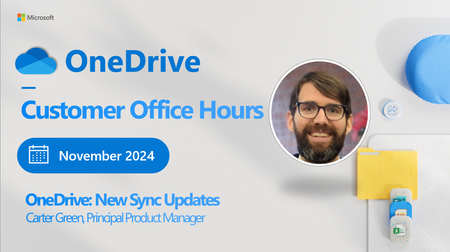
Are you ready to connect with OneDrive product makers this month? We’re gearing up for the next call. Join the OneDrive product team live each month on our monthly OneDrive Customer Office Hours to hear what's top of mind, get insights into roadmap updates, and dig into a special topic. Each call includes live Q&A where you'll have a chance to ask the OneDrive product team any question about OneDrive - The home of your files. 😎 Use this Teams link to register and join live: aka.ms/OneDriveOfficeHours. Each call is recorded and made available on demand shortly after. Our next call is Wednesday, November 20th, 2024, 8:00am - 9:00am PDT. This month's special topic: “New OneDrive Sync Updates" with Carter Green, Principal Product Manager on the Microsoft team. Our goal is to simplify the way you create and access the files you need, get the information you are looking for, and manage your tasks efficiently. We can't wait to share, listen, and engage - monthly! Anyone can join this one-hour webinar to ask us questions, share feedback, and learn more about the features we’re releasing soon and our roadmap. Note: Our monthly public calls are not an official support tool. To open support tickets, go to see Get support for Microsoft 365; distinct support for educators and education customers is available, too. Stay up to date on Microsoft OneDrive adoption on adoption.microsoft.com. Join our community to catch all news and insights from the OneDrive community blog. And follow us on Twitter: @OneDrive. Thank you for your interest in making your voice heard and taking your knowledge and depth of OneDrive to the next level. You can ask questions and provide feedback in the event Comments below and we will do our best to address what we can during the call. 😎 Register and join live: aka.ms/OneDriveOfficeHours. See you there, Rob Nunez (Product Marketing Manager – Microsoft)1.9KViews0likes0CommentsNOW ON DEMAND| OneDrive Office Hours | January 2025
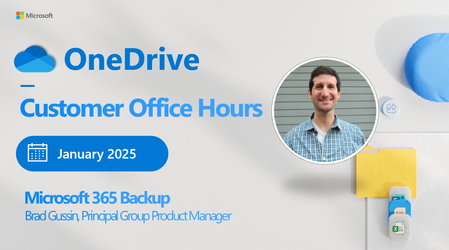
Are you ready to connect with OneDrive product makers this month? We’re gearing up for the next call. Are you ready to connect with OneDrive product makers this month? We’re gearing up for the next call. Join the OneDrive product team live each month on our monthly OneDrive Customer Office Hours to hear what's top of mind, get insights into roadmap updates, and dig into a special topic. Each call includes live Q&A where you'll have a chance to ask the OneDrive product team any question about OneDrive - The home of your files. 😎 Use these links to Register and join live: aka.ms/OneDriveOfficeHours. Save the calendar invite so you never miss a call-https://aka.ms/OfficeHoursCalendar Each call is recorded and made available on demand shortly after. Our next call is Wednesday, January 15th, 2025, 8:00am - 9:00am PDT. This month's special topic: “Microsoft 365 Backup" with Brad Gussin, Principal Product Manager on the Microsoft team. Watch now OnDemand! Our goal is to simplify the way you create and access the files you need, get the information you are looking for, and manage your tasks efficiently. We can't wait to share, listen, and engage - monthly! Anyone can join this one-hour webinar to ask us questions, share feedback, and learn more about the features we’re releasing soon and our roadmap. Note: Our monthly public calls are not an official support tool. To open support tickets, go to see Get support for Microsoft 365; distinct support for educators and education customers is available, too. Stay up to date on Microsoft OneDrive adoption on adoption.microsoft.com. Join our community to catch all news and insights from the OneDrive community blog. And follow us on Twitter: @OneDrive. Thank you for your interest in making your voice heard and taking your knowledge and depth of OneDrive to the next level. You can ask questions and provide feedback in the event Comments below and we will do our best to address what we can during the call. 😎 Register and join live: aka.ms/OneDriveOfficeHours. See you there, Rob Nunez (Product Marketing Manager – Microsoft)1.6KViews0likes2CommentsNOW ON DEMAND| OneDrive Office Hours | February 2025
Join the OneDrive product team live each month on our monthly OneDrive Customer Office Hours to hear what's top of mind, get insights into roadmap updates, and dig into a special topic. Each call includes live Q&A where you'll have a chance to ask the OneDrive product team any question about OneDrive - The home of your files. 😎 Use these links to: Register and join live: aka.ms/OneDriveOfficeHours. Save the calendar invite so you never miss a call-https://aka.ms/OfficeHoursCalendar Each call is recorded and made available on demand shortly after. Our next call is Wednesday, February 19th, 2025, 8:00am - 9:00am PDT. This month's special topic: "Ask Us Anything" with the OneDrive team. We are giving the full time open for your questions-and our product teams are eager to have some great conversations with you all! Our goal is to simplify the way you create and access the files you need, get the information you are looking for, and manage your tasks efficiently. We can't wait to share, listen, and engage - monthly! Anyone can join this one-hour webinar to ask us questions, share feedback, and learn more about the features we’re releasing soon and our roadmap. Note: Our monthly public calls are not an official support tool. To open support tickets, go to see Get support for Microsoft 365; distinct support for educators and education customers is available, too. Stay up to date on Microsoft OneDrive adoption on adoption.microsoft.com. Join our community to catch all news and insights from the OneDrive community blog. And follow us on Twitter: @OneDrive. Thank you for your interest in making your voice heard and taking your knowledge and depth of OneDrive to the next level. You can ask questions and provide feedback in the event Comments below and we will do our best to address what we can during the call. 😎 Register and join live: aka.ms/OneDriveOfficeHours.1.3KViews0likes0CommentsNOW ON DEMAND| OneDrive Office Hours | March 2025
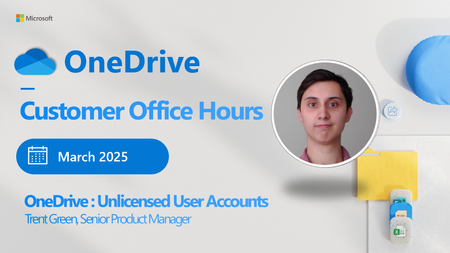
Join the OneDrive product team live each month on our monthly OneDrive Customer Office Hours to hear what's top of mind, get insights into roadmap updates, and dig into a special topic. Each call includes live Q&A where you'll have a chance to ask the OneDrive product team any question about OneDrive - The home of your files. 😎 Use these links to: Register and join live: aka.ms/OneDriveOfficeHours. Save the calendar invite so you never miss a call-https://aka.ms/OfficeHoursCalendar Each call is recorded and made available on demand shortly after. Our next call is Wednesday, March 12th, 2025, 8:00am - 9:00am PDT. This month's special topic: "Unlicensed User Accounts" with the Trent Green. We have heard your feedback and are doing a follow up session tied to this topic. We will have our product teams on call ready to answer your questions. Our goal is to simplify the way you create and access the files you need, get the information you are looking for, and manage your tasks efficiently. We can't wait to share, listen, and engage - monthly! Anyone can join this one-hour webinar to ask us questions, share feedback, and learn more about the features we’re releasing soon and our roadmap. Note: Our monthly public calls are not an official support tool. To open support tickets, go to see Get support for Microsoft 365; distinct support for educators and education customers is available, too. Stay up to date on Microsoft OneDrive adoption on adoption.microsoft.com. Join our community to catch all news and insights from the OneDrive community blog. And follow us on Twitter: @OneDrive. Thank you for your interest in making your voice heard and taking your knowledge and depth of OneDrive to the next level. You can ask questions and provide feedback in the event Comments below and we will do our best to address what we can during the call. 😎 Register and join live: aka.ms/OneDriveOfficeHours.1KViews0likes1CommentOneDrive Office Hours | April 2025
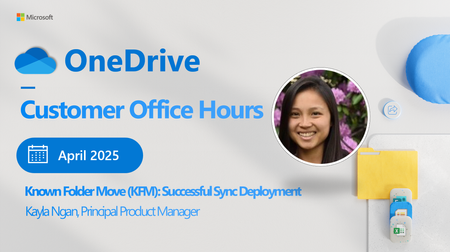
Join the OneDrive product team live each month on our monthly OneDrive Customer Office Hours to hear what's top of mind, get insights into roadmap updates, and dig into a special topic. Each call includes live Q&A where you'll have a chance to ask the OneDrive product team any question about OneDrive - The home of your files. New way to register and watch on-demand! We heard your feedback, and we now have a single destination for all of your Office Hours content. From registration, to watching our previous sessions, you can find it all on our new homepage: Go to : aka.ms/OneDriveOfficeHours to see upcoming session to register, and rewatch previous topics! Save the calendar invite so you never miss a call-https://aka.ms/OfficeHoursCalendar Each call is recorded and made available on demand shortly after. Get ready for our next call Our next call is Wednesday, April 16th, 2025, 8:00am - 9:00am PDT. This month's special topic: "Known Folder Move (KFM): Successful Sync Deployment" with the Kayla Ngan. We will have our product teams on call ready to answer your questions. Our goal is to simplify the way you create and access the files you need, get the information you are looking for, and manage your tasks efficiently. We can't wait to share, listen, and engage - monthly! Anyone can join this one-hour webinar to ask us questions, share feedback, and learn more about the features we’re releasing soon and our roadmap. Note: Our monthly public calls are not an official support tool. To open support tickets, go to see Get support for Microsoft 365; distinct support for educators and education customers is available, too. Stay up to date on Microsoft OneDrive adoption on adoption.microsoft.com. Join our community to catch all news and insights from the OneDrive community blog. And follow us on Twitter: @OneDrive. Thank you for your interest in making your voice heard and taking your knowledge and depth of OneDrive to the next level. You can ask questions and provide feedback in the event Comments below and we will do our best to address what we can during the call. 😎 Register and join live: aka.ms/OneDriveOfficeHours.884Views0likes0CommentsNOW ON DEMAND| OneDrive Office Hours | June 2025
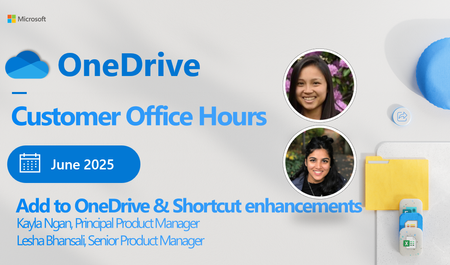
Join the OneDrive product team live each month on our monthly OneDrive Customer Office Hours to hear what's top of mind, get insights into roadmap updates, and dig into a special topic. Each call includes live Q&A where you'll have a chance to ask the OneDrive product team any question about OneDrive - The home of your files. New way to register and watch on-demand! We heard your feedback, and we now have a single destination for all of your Office Hours content. From registration, to watching our previous sessions, you can find it all on our new homepage: Go to: aka.ms/OneDriveOfficeHours to see upcoming session to register, and rewatch previous topics! Save the calendar invite so you never miss a call-https://aka.ms/OfficeHoursCalendar Each call is recorded and made available on demand shortly after. Get ready for our next call Our next call is Wednesday, June 18th, 2025, 8:00am - 9:00am PDT. This month's special topic: "Add to OneDrive & Shortcut Enhancements" with the Kayla Ngan and Lesha Bhansali. We will have our product teams on call ready to answer your questions. Our goal is to simplify the way you create and access the files you need, get the information you are looking for, and manage your tasks efficiently. We can't wait to share, listen, and engage - monthly! Anyone can join this one-hour webinar to ask us questions, share feedback, and learn more about the features we’re releasing soon and our roadmap. Note: Our monthly public calls are not an official support tool. To open support tickets, go to see Get support for Microsoft 365; distinct support for educators and education customers is available, too. Stay up to date on Microsoft OneDrive adoption on adoption.microsoft.com. Join our community to catch all news and insights from the OneDrive community blog. And follow us on Twitter: @OneDrive. Thank you for your interest in making your voice heard and taking your knowledge and depth of OneDrive to the next level. You can ask questions and provide feedback in the event Comments below and we will do our best to address what we can during the call. 😎 Register and join live: aka.ms/OneDriveOfficeHours.913Views0likes0CommentsFeature deep dive: Using PDFs in OneDrive and our journey thus far
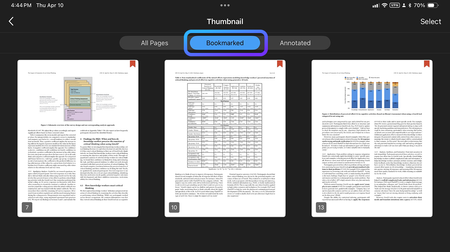
PDFs are incredibly popular, used for everything from business documents to everyday tasks at home. In fact, over 100 billion PDFs were added to OneDrive and SharePoint in just last year – and its popularity as a file format shows no signs of slowing down. We can bet you’re fans of using PDF’s, and so we’re excited to walk you through everything you can do with this popular file format in OneDrive. Whether you're annotating documents, bookmarking pages, or merging PDF documents, OneDrive offers a robust set of tools to make managing PDFs effortless and efficient. There’s already so many things you can do with your PDF’s whether you’re using OneDrive at home or at work: Freemium PDF features in OneDrive OneDrive for Consumer OneDrive for Business Annotation and markup tools Easily collaborate and share feedback by using digital ink, highlighting text, drawing shapes, and inserting sticky notes directly onto your PDF files. ⚫ ⚫ Bookmark PDF pages Navigate effortlessly through lengthy documents by adding bookmarks to important sections, just like using tabs in a physical book. ⚫ (OneDrive for iOS/iPadOS and Android only.) ⚫ (OneDrive for iOS/iPadOS and Android only.) Change the appearance of your PDF Enhance your reading experience by adjusting the background color of your PDFs to dark mode, sepia mode, or light mode. Ideal for reading in different lighting conditions. ⚫ (OneDrive for Android only.) ⚫ (OneDrive for Android only.) Rotate PDF pages Correct the orientation of scanned documents by rotating individual or multiple pages 90° clockwise. Perfect for fixing upside-down or sideways pages. ⚫ ⚫ Jump to specific PDF page Quickly access specific sections by jumping directly to any page in your PDF documents with just a click. ⚫ ⚫ Display table of content Effortlessly navigate through long documents using the clickable table of contents. ⚫ (Coming soon to OneDrive for web) ⚫ (Coming soon to OneDrive for web) Premium PDF features in OneDrive OneDrive for Consumer [1] OneDrive for Business [2] Extract PDF pages Easily extract specific pages from your PDF documents to create new, smaller files. Ideal for sharing only the most relevant sections. ⚫ ⚫ Merge PDFs Seamlessly combine multiple PDFs into a single, organized document. Perfect for consolidating reports, presentations, and more. ⚫ ⚫ [1] Premium features are available to OneDrive users with M365 Basic, M365 Personal and Family subscriptions. [2] Premium features are accessible to all OneDrive commercial users with SharePoint in their subscription plan. Let’s take a look first at the features that you can use for free on OneDrive. Enhance Collaboration with Annotation and Markup Tools PDFs are used in a variety of collaboration scenarios, and to help, we are releasing new annotation and markup features for easier collaboration. Imagine you’re working on a project with your team, and you need to share feedback or highlight important sections of a PDF. Instead of sending endless emails or starting chats, you can simply use the PDF annotation tools available in OneDrive. These features allow you to use digital, hand-drawn ink, highlight text, draw shapes, and even insert sticky notes directly onto your PDF. The annotations and notes appear on your document when you share them with other colleagues via OneDrive. Here's how you can easily annotate a PDF in OneDrive: Find the PDF you want to annotate in your OneDrive and tap to open it. At the bottom of the screen, tap on Annotation to enter editing mode. Choose an annotation tool from the bottom of the screen or select a drawing markup tool from the top. Change the pen color by tapping on the color picker at the bottom of the screen and choose from any of the preset colors. You can also adjust the thickness and transparency of the ink here. When you're done, just tap Done at the top left of the screen, and then tap Save at the top right, to save your changes back to OneDrive. Now when you share your annotated PDF via OneDrive, your colleagues will see your annotations too. Navigate PDFs Effortlessly with Bookmarks Scrolling through a lengthy PDF document and trying to locate a specific section can be a frustrating experience, right? That's where the PDF bookmark feature is handy. Think of bookmarks in PDFs as your personal navigation tool, much like the tabs you might use in a physical book. They allow you and recipients to easily jump directly to important sections with just a click, making your reading experience smoother and more enjoyable. To use bookmarks: At the bottom of the screen, tap Bookmark to add a bookmark to the current page you’re viewing. After adding a bookmark, you'll see a confirmation dialog at the top of the screen. To view all the pages with bookmarks, tap the Thumbnail icon at the top right of the screen. At the top of the screen, tap Bookmarked to see only the pages with bookmarks. From this view, you can also navigate to a specific page by tapping on it. From the All Pages view, you can select multiple pages to add new bookmarks or remove existing ones. Jump to Specific Sections with Table of Contents Also helping you to more easily navigate a lengthy PDF is OneDrive’s handy Table of Contents feature. When your PDF has an embedded table of contents, OneDrive will display the chapter or section titles along with their page numbers, making it a snap to jump to specific chapters or sections. To view a PDF’s table of contents: If the PDF includes the necessary metadata for a table of contents, you'll see an icon at the top right of the screen. Clicking on it, opens the table of contents. The table of contents with clickable chapters or sections will appear on the left side of the screen. Optimized PDF Viewing with Reading Mode You might have to read a PDF under varying lighting conditions. You can maximize your comfortability and readability of your document by adjusting the Appearance of that PDF. When viewing a PDF in OneDrive, you can adjust the background to dark mode, sepia mode, or light mode, making it easy to read no matter the type of environment. To change the appearance of a PDF: Open a PDF in OneDrive for Android and tap to expand the bottom sheet of the screen. Tap Appearance. In the Appearance window, select the colored circle for day, night, or sepia mode. Adjusting a PDF’s Orientation with Page Rotation With PDF page rotation, you can simply adjust the orientation of any of the pages within a PDF document. This is especially useful for fixing multi-page scanned documents that may have been saved upside down or sideways. With the Rotation feature, you can choose to rotate all pages or just specific ones within your PDF. To rotate a single page: Open the OneDrive iOS or Android app, then open the PDF with the page you want to rotate. Scroll to the page which you want to rotate. Press anywhere there isn’t text. Once a menu pops up, tap Rotate to rotate the page 90 degrees clockwise. To rotate multiple pages: Open the OneDrive iOS or Android app, then open the PDF with the pages you want to rotate. At the top of your screen, tap the grid icon to show a thumbnail view of the PDF’s pages. Tap Select. Tap to select the pages which you want to rotate or tap Select all if you want to rotate them all. Tap the rotate icon on the toolbar along the bottom of your screen to rotate all the selected pages 90 degrees clockwise. Exploring OneDrive’s Premium PDF Features Now that we’ve explored all the free PDF features available, let’s dive into some exciting features available to our M365 Consumer customers with M365 Basic, M365 Personal, or M365 Family, and to our M365 Business customers with SharePoint Premium.. Extract Pages from PDFs For our M365 paid customers, you can easily split a PDF into multiple smaller PDFs using the Extract tool. This makes it simple to pick and separate the pages you need, creating a brand-new (shorter) PDF file in just a snap! How to split a PDF file using the Extract feature on OneDrive for Web: Open the PDF file you want to split. At the top left of the screen, click Extract action Select page(s) to extract then click Extract on top left of the screen. Choose where you’d like to save the new PDF file. You can also rename the file at the bottom of the save dialog then click Save here. When finished, a confirmation dialog appears at the bottom of the screen. This feature also works on OneDrive on iOS, iPadOS, and Android. Here’s how: Open the PDF file you want to split. At the top left of the screen, tap see more button (…) to see the new menu. Select Extract from the menu options. Merge Multiple PDFs While the Extract feature let’s you pick out individual pages from a PDF, the Merge feature lets you easily combine multiple PDF files into a single PDF. It’s a simple as picking the files you want to merge, and voila – you’ve got a brand-new, merged PDF saved directly to your OneDrive or SharePoint Document Library. Here’s how you can easily merge multiple PDF files into one PDF on OneDrive for web: Open one of the PDF files you want to combine in OneDrive for Web. At the top left of the screen, click Merge action. Choose two or more PDF files you want to merge from the merge dialog box. You can drag and drop the files to rearrange their order. Once done, click Next. Choose where you’d like to save the new PDF file. You can also rename the file at the bottom of the save dialog then click Save here. When finished, a confirmation dialog appears at the bottom of the screen. Just like Extract, you can also use Merge on OneDrive on iOS, iPadOS, and Android: Open one of the PDF files you want to combine in OneDrive. At the top left of the screen, tap see more button (…) to see the new menu. Select Merge. Thanks We've been on a focused journey enhancing the PDF features in OneDrive, because we know that for so many of our customers, it’s their file format of choice. We hope you find our new and existing PDF features in OneDrive useful in your life at work or at home. But we don't want to stop here, and we need your feedback to keep improving! Dive into these features, give them a spin, and let us know what you think. What works great? What could be better? And most importantly, what do you want to see next? Drop your comments below or fill this short survey directly. Your insights are invaluable, and together, we can make OneDrive the ultimate tool for all your PDF needs. Happy exploring! 📄✨ About the Author Belle Podeanu is a product manager at Microsoft. She collaborates with Office, Edge, and other platforms to provide comprehensive cross-device functionalities for OneDrive and SharePoint, including productivity features and Copilot-enabled experiences. In her free time, she enjoys playing soul-like games, ARPGs, MMOs, and asymmetrical games. Stay updated on OneDrive and SharePoint news by connecting with Belle here.6.4KViews1like7Comments