office
34 Topics
PowerShell script to change font of office apps
Hi, We are using Microsoft 365 for Enterprise for delivery office apps to users via Microsoft Intune. Currently the default font for all office apps is Calibri and now users want that it should change to Arial, 11 font. Is there a way in Powershell to make that change. I have been suggested ways to do it with .net objects or Interop. Can someone please share a sample PowerShell script or a full script to make that change. Thanks, Ashish Arya39KViews0likes18Comments
New-ApplicationAccessPolicy
Any idea if this cmdlet has been retired or replaced by RBAC, I'm trying to execute this command but I'm getting the not recognized error in Powershell. Please suggest if I'm missing any modules which needs to be installed prior to execution. thanks in advanceSolved6.8KViews0likes4Comments
Creating script to export reports on users and their OneDrive for external sharing
Greetings, I was wondering if anyone has an idea of how to make a script that allows me to see who are the members in an Azure AD Security Group and see if they have External Sharing Capabilities enabled or not. So far I have this snippet that returns list of users in a designated security group: Get-AzureADGroupMember -ObjectId "<Security Group ObjectId>" Note: You have to run Connect-AzureAD before running the "Get-AzureADGroupMember" command. But it doesn't tell me the sharing options for those users. However, if I use this snippet...it returns all of the OneDrive in the tenant with owner and sharing capabilities. The thing is, I don't want to see all of them, just the ones that I move to the security group in AD. Get-SPOSite -IncludePersonalSite $true -Limit all -Filter "Url -like '-my.sharepoint.com/personal/'" | select Owner, Url, SharingCapability NOTE: Run Connect-SPOService -url <a href="<a href="https://domain-admin.sharepoint.com" target="_blank">https://domain-admin.sharepoint.com</a>" target="_blank"><a href="https://domain-admin.sharepoint.com</a" target="_blank">https://domain-admin.sharepoint.com</a</a>> before the "Get-SPOSite" command. What I want at the end of it all is to have a list of users that are inside the security group and tell if they have external sharing capabilities or not.Solved5.9KViews0likes4Comments
Using powershell to create folders within users onedrive
Hi all, I'm experiencing several issues with different PowerShell versions when trying to create folders in OneDrive for users in bulk. PowerShell 5.1 does not recognize Connect-PnPOnline. PowerShell 7 does not recognize Connect-SPOService. I have been following the instructions from this guide, which worked on my previous device. However, I’m unable to get it to work on my new device. My goal is to create folders within specific users' OneDrive accounts. Could you please assist me in resolving this? Thank you!5.3KViews0likes26CommentsHow to split rows into column by specific delimiter
Hello. Good afternoon! Well, being direct: The question of the output of the ";" to "," I solved it... I have a routine that generates a CSV file, and it looks like this: A B C D E F G 1,2,3,4,5a 5b 5c 5d,6,7 I would like it to look like this: A B C D E F G 1,2,3,4,5a,6,7 1,2,3,4,5b,6,7 1,2,3,4,5c,6,7 1,2,3,4,5d,6,7 But the fundamental issue is that I need to preserve the contents of the other columns, replicating them to the rows... As in the situation... While column E is 5a, 5b, 5c... Columns A, B, C and D must repeat their contents... To achieve this scenario, I have opened it in Excel and done the "data transformation", asking it to divide the column by the space delimiter. This operation, due to manual intervention, ends up taking longer than it should... Via Powershell, how could I do this?5.2KViews0likes3Comments
Data from Excel file to find specific files in folder
Hello, I'm trying to include data from specific ranges (contain files names) in a worksheet from Excel file in order to find this data in folders. After many searches, I couldn't get the way to accomplish it. Here the powershell script : $emplacement = "D:\DOCUMENTAIRE\" $myFolders = @( "File A", "File B", "File C", "File D", "File E", "File F", "File G", "File H", "File I", "File J", "File K", "File L" ) $nbDocuments=0 $Excel = New-Object -ComObject Excel.Application $Workbook = $Excel.Workbooks.Open('D:\PROJET_DOCUMENTAIRE\Suivi_v1.0.xlsx') $workSheet = $Workbook.Sheets.Item(1) $WorkSheet.Name.Range Write-Host "NUM;FOLDER;AGENCY;TYPE;DOMAIN;FILE" For($i=0;$i -lt $myFolders.Length;$i++) { $files = Get-ChildItem -Path $emplacement$($myFolders[$i]) | Where-Object { $_.Name -match ' ' } For($j=0;$j -lt $files.Length;$j++) { $explode_content = $files[$j].ToString().Split("_") $nbDocuments++ Write-Host "$nbDocuments;$($myFolders[$i]);$($explode_content[0]);$($explode_content[1]);$($explode_content[2]);$($files[$j])" } } $files | export-csv C:\Users\Admin\Desktop\List.csv -delimiter ';' Write-Host "---------------------------------" Write-Host "Total documents : $nbDocuments" Write-Host "---------------------------------" cmd / c pause Thank you in advance for your help ! Math3.9KViews0likes3Comments
BATCH Run a Word Macro
I would like to run a word macro (for converting files to PDF without any markup comments) for many files in a given folder I pieced this together from other powerShell scripts I had and it doesn't work Param( [Parameter(Mandatory=$True)] [string]$FilePath ) $Files = Get-ChildItem "$FilePath\*.docx" $Word = New-Object -ComObject Word.Application Foreach ($File in $Files) { # open a Word document, filename from the directory $Doc = $Word.Documents.Open($File.FullName) #run Macro to Export to PDF without comments $Doc.Run("NoCommentsPDF") $Doc.Close() } (I got the macro from MVP Doug Robbins) [here is the macro and a link to the thread on a diffrerent Microsoft Q&A where I received this With ActiveWindow.View.RevisionsFilter .Markup = wdRevisionsMarkupNone .View = wdRevisionsViewFinal End With With ActiveDocument .ExportAsFixedFormat Left(.FullName, InStr(.FullName, ".") - 1), wdExportFormatPDF, True, wdExportOptimizeForPrint End With https://answers.microsoft.com/en-us/msoffice/forum/all/default-saveaspdfexport-settings/4b8a7543-de5e-4c45-9ddb-2945d03a1cd43.8KViews0likes1CommentActivating project moca?
Hey I am trying to activate Office365 Moca for Outlook using this: https://docs.microsoft.com/sv-se/powershell/module/exchange/set-owamailboxpolicy?view=exchange-ps https://docs.microsoft.com/en-us/microsoft-365/community/yet-another-tool-why-you-will-probably-love-project-moca-aka-outlook-spaces Additional information for admins: This feature is shipped off by default. You can enable it via PowerShell. For reference check Set-OwaMailboxPolicy. Connecting using Connect-ExchangeOnline -UserPrincipalName <UPN> Trying this command: Set-OwaMailboxPolicy -ProjectMocaEnabled $true But i get this error message cmdlet Set-OwaMailboxPolicy at command pipeline position 1 Supply values for the following parameters: Cannot display the prompt for "Identity" because type "Microsoft.Exchange.Configuration.Tasks.MailboxPolicyIdParameter" cannot be loa ded. + CategoryInfo : ResourceUnavailable: (:) [], PromptingException + FullyQualifiedErrorId : System.Management.Automation.Host.PromptingException + PSComputerName : outlook.office365.com Also tried Set-OwaMailboxPolicy -Identity <upn> -ProjectMocaEnabled $true Connection works. Module version (get-module) Script 2.0.3 ExchangeOnlineManagement Any suggestions?3.3KViews0likes1CommentPrinter Driver not found in DriverStore even though the file is there
I have a script that installs printer drivers onto a machine. It has worked perfectly for years up until yesterday. This is the script: # This script works on Windows 8 or newer since the add-printer cmdlets are't available on Windows 7. # Download the HP Univeral Printing PCL 6 driver. # To find\extract the .inf file, run 7-zip on the print driver .exe and go to the folder in Powershell and run this command: get-childitem *.inf* |copy-item -destination "C:\examplefolder" Otherwise it's hard to find the .inf files. $driversrc="\\10.1.1.21\sysprep\Printer Drivers\ApeosC2570\ffac7070pcl6220420w636iml\Software\PCL\amd64\Common\001\FFSOBPCLA.inf" Write-Host "Reading from here: $driversrc" $driver = "FF Apeos C2570 PCL 6" $address = "10.1.1.31" $portnamesuffix = "_1" $portname = "$address$portnamesuffix" $name = "Admin Apeos C2570" $sleep = "3" # The invoke command can be added to specify a remote computer by adding -computername. You would need to copy the .inf file to the remote computer first though. # This script has it configured to run on the local computer that needs the printer. # The pnputil command imports the .inf file into the Windows driverstore. # The .inf driver file has to be physically on the local or remote computer that the printer is being installed on. Invoke-Command {pnputil.exe -a $driversrc } Add-PrinterDriver -Name $driver Start-Sleep $sleep #Get the infos of all printer $Printers = Get-WmiObject -Class Win32_Printer $PrinterPorts = Get-PrinterPort $PrinterName = $name # This creates the TCP\IP printer port. It also will not use the annoying WSD port type that can cause problems. # WSD can be used by using a different command syntax though if needed. Try { Write-Verbose "Get the specified printer info." $Printer = $PrinterPorts | Where{$_.Name -eq "$portname"} If (! $Printer) { Write-Verbose "Adding printer port." Add-PrinterPort -Name $portname -PrinterHostAddress $address Write-Host "$portname has been successfully added." } Else { Write-Warning "Port already exists." } } Catch { $ErrorMsg = $_.Exception.Message Write-Host $ErrorMsg -BackgroundColor Red } start-sleep $sleep Try { Write-Verbose "Get the specified printer info." $Printer = $Printers | Where{$_.Name -eq "$PrinterName"} If (! $Printer) { Write-Verbose "Adding printer." Add-Printer -DriverName $driver -Name $name -PortName $portname Write-Host "$PrinterName has been successfully added." } Else { Write-Warning "$PrinterName is already installed!." } } Catch { $ErrorMsg = $_.Exception.Message Write-Host $ErrorMsg -BackgroundColor Red } Start-Sleep $sleep #Update the infos of all printer $Printers = Get-WmiObject -Class Win32_Printer Try { Write-Verbose "Get the specified printer info." $Printer = $Printers | Where{$_.Name -eq "$PrinterName"} If($Printer) { Write-Verbose "Setting the default printer." $Printer.SetDefaultPrinter() | Out-Null Write-Host "$PrinterName has been successfully set as the default printer." } Else { Write-Warning "Cannot find $PrinterName, can't set it as the default printer." } } Catch { $ErrorMsg = $_.Exception.Message Write-Host $ErrorMsg -BackgroundColor Red } Try { If($Printer) { Write-Verbose "Setting printer defaults." Set-PrintConfiguration -PrinterName $PrinterName -Color $false -DuplexingMode TwoSidedLongEdge | Out-Null Write-Host "$PrinterName has printing defaults set." } Else { Write-Warning "Cannot find the specified printer, can't set printer defaults." } } Catch { $ErrorMsg = $_.Exception.Message Write-Host $ErrorMsg -BackgroundColor Red } Get-PrintConfiguration -PrinterName $PrinterName # This prints a list of installed printers on the local computer. This proves the newly added printer works. Write-Warning "You must manually set the printer Output Color Preference to Black and White. Do it now!" get-printer |Out-Printer -Name $name Write-Host "If all went well a page should be printing out on the printer now." When I run the commands manually, the error persists. This is the error: Add-PrinterDriver : The specified driver does not exist in the driver store. dd-PrinterDriver -Name "[Name]" -InfPath "[Path]" PS C:\Windows\System32] At line:1 char:1 + Add-PrinterDriver -Name "[Name]" -InfPath "[Path]" + ~~~~~~~~~~~~~~~~~~~~~~~~~~~~~~~~~~~~~~~~~~~~~~~~~~~~~~~~~~~~~~~~~~~~~ + CategoryInfo : NotSpecified: (MSFT_PrinterDriver:ROOT/StandardCimv2/MSFT_PrinterDriver) [Add-PrinterDri ver], CimException + FullyQualifiedErrorId : HRESULT 0x80070705,Add-PrinterDriver I want to know if there is a reason that the driver is not getting found in the DriverStore despite my being able to locate it. And whether others have this issue, it appears as if it's a windows issue.3.2KViews0likes9CommentsTurning off sharing with externals on all sharepoint sites, teams and groups?
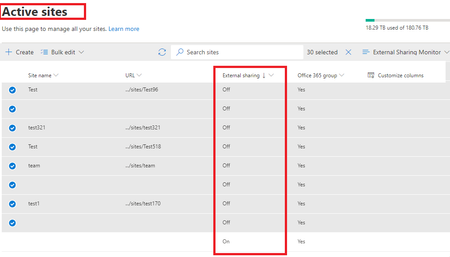
Hi, I am looking to see if it's possible thru powershell to turn off the sharing capability of all sharepoint sites. groups and team sites? It's very hard to go thru every 30 sharepoint sites/groups and edit bulking them when there's over 1,000. This what I mean.... Is it possible to do in PowerShell?Solved2.5KViews0likes5Comments