office 365 proplus
75 Topics
Office Home & Business 2019 license no longer recognized after reinstall ("No license found")
Hello everyone, I'm looking for some help because Microsoft Support has not been able to solve this issue. I own a genuine perpetual license of Office Home & Business 2019 for Mac, linked to my Microsoft account since August 2019. The license is still listed under Services & Subscriptions, but Office no longer activates. My hardware MacBook Pro (Retina, 13-inch, Late 2012) Model: MacBookPro10,2 Intel Core i5 8 GB RAM macOS Ventura 13.7.8 Installed using OpenCore Legacy Patcher Office version originally working: 16.78 Later tested with 16.101 and 16.93 Same result on every version What happened Office had already been successfully activated and worked normally. I was able to: create documents edit documents save documents After restarting the Mac, Office suddenly requested activation again. Since then it has never activated successfully. Initially Office failed to activate with an unknown error. After completely uninstalling and reinstalling Office using Microsoft's installer, the activation process changed. I can now successfully sign in with my Microsoft account, but after authentication Office displays: "No license found for this account." My Office Home & Business 2019 license is still present in my Microsoft account under Services & Subscriptions. Even though my Microsoft account clearly owns Office Home & Business 2019 for Mac. Microsoft account The license appears correctly under: Services & Subscriptions Office Home & Business 2019 for Mac Added to my account on August 7, 2019. The website instructs me to open an Office application and sign in to activate. Everything I've already tried Uninstalled Office completely Installed Office again using Microsoft's installer Installed Office 16.78 Installed Office 16.93 Updated to Office 16.101 Removed Office containers Removed Group Containers Deleted OneAuth cache Deleted Entrabroker cache Removed activation tokens Cleared Office preferences Signed out and signed back into Microsoft account Deleted Office credentials from Keychain Reinstalled Microsoft AutoUpdate Verified no MDM profile exists Verified Internet Accounts Verified Microsoft account Microsoft Support remotely accessed my Mac and repeated all troubleshooting steps Nothing solved the issue. Additional information Running: defaults read com.microsoft.office returns: OfficeActivationLicense = NoLicense although: OfficeActivationEmailAddress = email address removed for privacy reasons is correctly detected. The activation window successfully reaches Microsoft's login page. Office now asks for my Microsoft account credentials. Authentication completes successfully. After a few seconds Office reports: "No license found for this account." It then offers only two options: Buy Microsoft 365 Use another account Microsoft Support remotely connected to my Mac, completely removed Office, installed a newer official installer, and the problem remained exactly the same. My question Has anyone experienced this after reinstalling Office 2019? Could this be: a licensing server issue? an incompatibility introduced after Office 2019 reached end of support? an activation problem related to OpenCore Legacy Patcher? something else? I would really appreciate any suggestions. Thank you very much. Additional notes: The Office license has been associated with the same Microsoft account since 2019. The same installation was successfully activated and worked normally before the problem started. The issue only appeared after restarting the Mac. Microsoft Support has already remotely accessed my computer and could not resolve the problem.766Views2likes8Comments
How can specific users be exempted from a tenant-scoped Microsoft 365 Apps Policy?
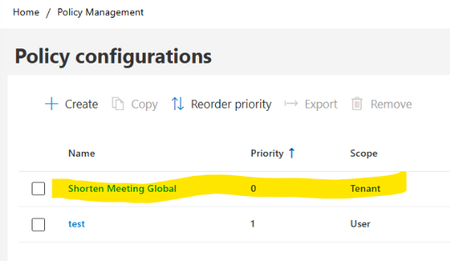
Hello, I am looking for guidance regarding Microsoft 365 Apps Cloud Policy Service behavior and policy precedence. Current configuration: In Microsoft 365 Apps Admin Center → Policy Management (config.office.com), we have the following policies: Policy 1 Name: Shorten Meeting Global Scope: Tenant Priority: 0 Configured settings: Shorten appointments and meetings = Enabled Reduce the end time of short appointments and meetings = 5 minutes Reduce the end time of long appointments and meetings = 10 minutes Policy 2 Name: Test Scope: User (Security Group) Priority: 1 Assigned only to a dedicated test group Relevant settings configured as Not Configured Observed client behavior: On corporate-managed devices, affected users receive the following registry values: HKCU\Software\Policies\Microsoft\Cloud\Office\16.0\Outlook\Options\Calendar shortenevents = End_Early endearlyshort = 5 endearlylong = 10 The Outlook option: File > Options > Calendar > Shorten appointments and meetings is greyed out. Additional validation: Using the same Microsoft 365 account on an external non-corporate device: The above registry path is not present. The Outlook option is editable. Testing performed: A user-scoped Cloud Policy was created and assigned to a dedicated security group. For the "Shorten appointments and meetings" setting, only the following options are available: Enabled Not Configured There is no Disabled option. but the Tenant policy continued to apply and the Outlook option remained locked. Questions Is there a supported way to exempt specific users from a tenant-scoped Microsoft 365 Apps Cloud Policy when the setting only supports "Enabled" and "Not Configured" and does not provide a "Disabled" option? Does Not Configured in a User-scoped policy allow evaluation to continue to the lower-priority Tenant policy? If policy precedence is changed so that: Test Policy = Priority 0 Tenant Policy = Priority 1 would the User policy potentially suppress the Tenant setting? Is there a supported way in Microsoft 365 Apps Cloud Policy Service to provide exceptions for specific users while keeping the Tenant policy as the organizational default? Has anyone successfully implemented an exclusion or override scenario for the "Shorten appointments and meetings" setting? Any guidance or documentation references would be greatly appreciated. Thank you.
Microsoft 365 Apps SHOULD NOT overwrite Office 2019/2021 one-time retail installs
I want to raise a serious concern about Microsoft 365 Apps being imposed over existing Office 2019/2021 installations that were activated with legitimate one-time installation retail keys. In our case, these are not Microsoft 365 subscriptions and they are not licenses we can simply deactivate and reactivate freely. They are one-time installation retail keys. Once the product has been installed and activated, removing Office and reinstalling it later can make the original key unusable or trigger “already used” activation problems. That is precisely why the current behavior is so damaging. We have PCs with legitimate Office 2019/2021 installations. These machines did not request a migration to Microsoft 365 Apps. However, after internet connection, Office update activity, or Microsoft account interaction, Office appears to silently update, convert, or replace the existing retail installation with the Microsoft 365 Apps version. This is not a minor inconvenience. It creates a serious licensing and operational problem: -A valid one-time Office 2019/2021 installation is replaced by Microsoft 365 Apps without clear, explicit consent. -The original retail installation is no longer cleanly usable. -Fixing the issue requires uninstalling Office, removing Click-to-Run/licensing/account leftovers, and reinstalling the previous Office 2019/2021 version. -But because these keys are one-time installation keys, that reinstall process can render the original key unusable or create activation failures. -In practice, a forced Microsoft 365 conversion can destroy the value of a legitimate one-time Office license. From a user’s perspective, this looks less like a normal software update and more like an exploitative commercial strategy: using Microsoft’s control over Office updates, account sign-ins, Click-to-Run, and activation systems to push already-paid retail users toward Microsoft 365 subscriptions. Even if Microsoft does not intend that result, the practical effect is that users who already paid for Office 2019/2021 can lose practical access to their licensed product and are then nudged toward paying again through a subscription. This should not happen. A perpetual or one-time installation Office license and Microsoft 365 Apps are different products with different licensing models. Microsoft should not silently replace or convert one into the other because a Microsoft 365 account exists on the PC, because the user signs into Office, because OneDrive is present, or because Office updates are enabled. At minimum, Microsoft should provide: -A clear opt-in confirmation before replacing, converting, upgrading, or rebranding Office 2019/2021 retail installations as Microsoft 365 Apps. -A supported way to block Microsoft 365 Apps from taking over one-time installation Office versions. -A clean removal tool that fully removes Microsoft 365 Apps, Click-to-Run leftovers, licensing remnants, and account-based activation conflicts. -A reliable way to restore the original Office 2019/2021 retail installation without invalidating or losing the original one-time key. -Clear separation between Windows account sign-in, OneDrive sign-in, Microsoft 365 entitlement, and local Office retail activation. Users who purchased legitimate one-time installation Office licenses should not be forced into Microsoft 365 Apps by unclear update behavior. If Microsoft wants users to move to Microsoft 365, that should be a deliberate, informed choice — not a silent process that leaves the user cleaning up the installation and losing access to a paid retail license. I am not asking how to install Microsoft 365. I am asking Microsoft to stop Microsoft 365 Apps from taking over valid one-time Office 2019/2021 installations without explicit consent.
Issue with viewing mode for E5 licensed users
I'm a sysadmin for a Health care provider in Sweden and we have an issue with users with an E5 license loading into Office apps in view-mode. As far as I know we are a coupe of organisations providing health care that have this same issue. Background: We have a mix of F3 and E5 licenses and sometimes the F3 licensed users need to view documents that contains info that isn't allowed to be saved in the cloud. To minimize the popups that show up when a user starts word unlicensed we have a GPO (viewer mode) that says that it should open i view-mode. Per my understanding this GPO is device based and not user based. However, this also affects the users of E5 license who regularly change workstations, easily 5-10 devices in a day. Since they should be able to view and edit documents in office apps it causes frustration and confusion when they load into view-mode and have to log out and then in again (or update license) and restart the program. Our computers devices are Microsoft Entra hybrid joined and shared computer licensing is enabled. Are there any solutions or viable workarounds for this issue? It's not complicated for users to handle but frustrating and causes a lot of tickets to the support team. Unsure if I'll be able to participate due to the time zone difference but will appreciate any and all help. /Per EkholmNew add-in inventory report for Configuration Manager
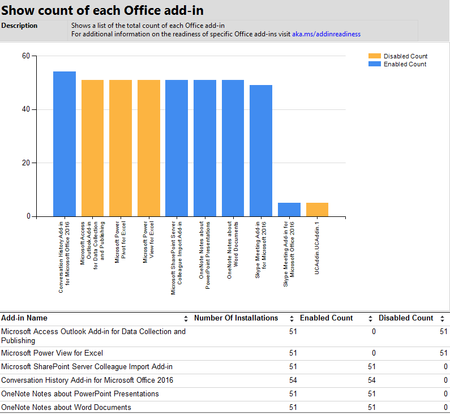
Today a new report was released to the GitHub community site that allows you to collect and view an inventory of the Office Add-ins that are in use by the clients that you manage with System Center Configuration Manager (2012 R2 or later). This report gathers the inventory of each Office add-in that is installed as well as the device that has it installed and the status (enabled, disabled) allowing you to determine which add-ins are in use as well as the impact based on the number of installations. This report also provides a link to Microsoft's Office ProPlus Add-in Readiness report which you can view from http://aka.ms/addinreadiness. To get this new report, download it directly from GitHub at https://github.com/OfficeDev/Office-IT-Pro-Deployment-Scripts/tree/master/Office-ProPlus-Management/Get-OfficeAddins17KViews2likes5Comments
SSO issues in Word and Excel, but not Outlook
Hi, Strange issue started a month ago at a customer site. They use RDS with Office 365 installed. Historically this has been working fine, then it randomly stopped signing in properly for all users. We can't point it down to anything specific however. Network / User / Settings all look good. What is strange is on first login to Outlook, it says it's done SSO but says unlicensed. A simple restart then would show it licensed. We have managed to work round that issue by saving the license folder \appdata\local\microsoft\office\ to the UPD. So for this, a month ago, new and existing users would just sign in and it worked. Then something changed and users were being asked to sign in every time. So we have made this change to include \appdata\local to the UPD - now users only see this problem once (a month). While not as good as it was a month ago, it is acceptable. However, and this is what I need help with. SSO is NOT working at all from Word / Excel. Open Word Blank Micrsoft Sign In box pops up. You have to type username and hit enter You then have to type your password and hit Sign In That popup then goes away, but at the tope right of Word, it still shows "Sign In". When you go to Account, it still has a Sign in box. BUT... if you now close and reopen word, both of those show the signed in user. The problem here is that this doesn't persist over the UPD, so happens every time the users open Word or Excel. As this is used by a business app to open docs, it's actually breaking the process and we need to fix this. I have been having a look at SSO info, because it feels like something fairly low level has changed with how this works, but can't find anything helpful, hence posting here after about a month of searching and trying things. It's not very helpful when you have MS links like: How to use Remote Connectivity Analyzer to troubleshoot single sign-on issues for Microsoft 365, Azure, or Intune https://learn.microsoft.com/en-us/microsoft-365/troubleshoot/active-directory/single-sign-on-issues How to run Remote Connectivity Analyzer to test SSO authentication To run Remote Connectivity Analyzer to test SSO authentication, follow these steps: Open a web browser, and then browse to https://www.testconnectivity.microsoft.com/tests/SingleSignOn/input. However, that page just hangs with LOADING written on it. Then on the change notes for this page we see that it was removed in 2022! Version 4.0.15 (October 2022) Removed the Single Sign-on Test now that basic authentication in Exchange Online is being disabled. Quick note on the setup. AD is synced to Entra using Entra Connect (Password Hash Sync + SSO enabled), latest version. SSO URLs are added to Internet trusted sites as per setup instructions. Network has been tested and all URLS accessible and working for the user. User is on RDS on fully updated Server 2016 and is on the latest Office 365 app updates. So I guess my first question is: 1) Does SSO still work for Word and Excel? Is it a realistic expectation that the user will sign in to the PC and then Word and Excel will automatically sign in for the user (proper seamless single sign on) like it was doing only a month or so ago? 2) What can I do to test and troubleshoot this if it should be working? I have been trying for a month, so I have already tried a lot of things. But maybe I am missing some tests? Any info to help get this working again (or that it's no longer possible and we missed that instruction from MS) would be ideal. Thanks in advance8.1KViews0likes23Comments
Whats happens when Office Retail user signs in with Microsoft 365 account
Hi all, i have a situation where users are being migrated, so E3 some F3 but wanted to know what happens when user who is using Office 2016 Retail signs in to their Office with Microsoft 365 account that doesn't have Microsoft apps enabled or available. Does Office Retail continue to work as normal, is anything blocked or restricted? Anything to be mindful of? ThanksSolved352Views0likes2Comments
Office bypassing Target Version set by Intune
Ok so I was managing my Microsoft patches through Intune. A while back Microsoft sent out this message…. https://docs.microsoft.com/en-us/DeployOffice/other/devices-updating-monthly-enterprise-channel I believe I had opted out but recently our machines have started updating to the Monthly channel. So if this is true that we are now moved to Monthly channel how do we control it moving forward? I have done some of my own research and came across the following but still not sure what is what. If you log in here - https://admin.microsoft.com Go to settings, org settings, Office installation updates. You have some items here. If you click on Organization profile in the same window you have "Release preferences" If you log in here - https://config.office.com Go to servicing, Monthly enterprise, settings. You can choose criteria, rollout, etc Also I know in the past to troubleshoot a single device the reg keys you wanted to look at were: HKEY_LOCAL_MACHINE\SOFTWARE\Policies\Microsoft\office\16.0\common\officeupdate Updatebranch updatedeadline updatetargetversion HKEY_LOCAL_MACHINE\SOFTWARE\Microsoft\Office\ClickToRun\Configuration CDNBaseURL ClientversionToReport UpdateChannel Though I think now that it is managed from https://config.office.com this is the new key to look @ HKEY_LOCAL_MACHINE\SOFTWARE\Policies\Microsoft\cloud\office\16.0\Common\officeupdate instead of the old one HKEY_LOCAL_MACHINE\SOFTWARE\Policies\Microsoft\office\16.0\common\officeupdate Any input on the above would be great.15KViews0likes12Comments
Microsoft 365 Apps for Enterprise - Auto sign in and Activation using Domain User Credentials
Hi, I use shared computer activation but every new user who sign-in for the first time required to login with their account and do manual activation. it burdens users all the time to do this. there is a way to do when a user logs in to Microsoft 365 Apps he will do it automatically in shared computer activation without him having to do all that. i would love a solution using domain user credentials. Rodriguez_591Can we detach Viva Connections from teams ?
Hello Everyone , Is there a way that we can create Viva Connections as a separate application (Detached from MS Teams) ? It would be helpful because we need it to be a standalone not to be linked in MS teams. Also Please enlighten me if we can create a Sharepoint Site as a windows/mac desktop application. It would be great to know thanks.