nvidia
2 TopicsRunning Text to Image and Text to Video with ComfyUI and Nvidia H100 GPU
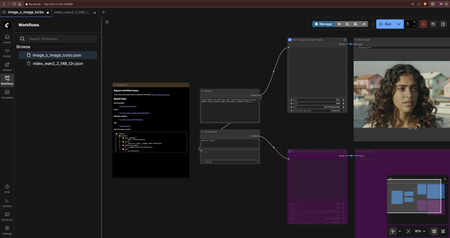
This guide provides instructions on how to set up and run Text to Image and Text to Video generation using ComfyUI with an Nvidia H100 GPU on Azure VMs. ComfyUI is a node-based user interface for Stable Diffusion and other AI models. It allows users to create complex workflows for image and video generation using a visual interface. With the power of GPUs, you can significantly speed up the generation process for high-quality images and videos. A video format is available for watching. Steps to create the infrastructure Option 1. Using Terraform (Recommended) In this guide, the provided Terraform template available here: ai-course/550_comfyui_on_vm at main · HoussemDellai/ai-course will create the following: Create the infrastructure for Ubuntu VM with Nvidia H100 GPU Install CUDA drivers on the VM Install ComfyUI on the VM Download the models for Text to Image (Z-Image-Turbo) and Text to Video generation (Wan 2.2 and LTX-2) Deploy the Terraform template using the following commands: # Initialize Terraform terraform init # Review the Terraform plan terraform plan tfplan # Apply the Terraform configuration to create resources terraform apply tfplan This should take about 15 minutes to create all the resources with the configuration defined in the Terraform files. The following resources will be created: If you choose to use Terraform, after the deployment is complete, you can access the ComfyUI portal using the output link shown in the Terraform output. It should look like this http://<VM_IP_ADDRESS>:8188. And that should be the end of the setup. You can then proceed to use ComfyUI for Text to Image and Text to Video generation as described in the later sections. Option 2. Manual Setup 0. Create a Virtual Machine with Nvidia H100 GPU Create an Azure virtual machine with Nvidia H100 GPUs like sku: Standard NC40ads H100 v5. Choose a Linux distribution of your choice like Ubuntu Pro 24.04 LTS. 1. Install Nvidia GPU and CUDA Drivers SSH into the Ubuntu VM and install the CUDA drivers by following the official Microsoft documentation: Install CUDA drivers on N-series VMs. # 1. Install ubuntu-drivers utility: sudo apt-get update sudo apt-get install ubuntu-drivers-common -y # 2. Install the latest NVIDIA drivers: sudo ubuntu-drivers install # 3. Download and install the CUDA toolkit from NVIDIA: wget https://developer.download.nvidia.com/compute/cuda/repos/ubuntu2404/x86_64/cuda-keyring_1.1-1_all.deb sudo dpkg -i cuda-keyring_1.1-1_all.deb sudo apt-get update sudo apt-get -y install cuda-toolkit-13-1 # 4. Reboot the system to apply changes sudo reboot The machine will now reboot. After rebooting, you can verify the installation of the NVIDIA drivers and CUDA toolkit. # 5. Verify that the GPU is correctly recognized (after reboot): nvidia-smi # 6. We recommend that you periodically update NVIDIA drivers after deployment. sudo apt-get update sudo apt-get full-upgrade -y 2. Install ComfyUI on Ubuntu Follow the instructions from the ComfyUI Wiki to install ComfyUI on your Ubuntu VM using Comfy CLI: Install ComfyUI using Comfy CLI. # Step 1: System Environment Preparation # ComfyUI requires Python 3.12 or higher (Python 3.13 is recommended). Check your Python version: python3 --version # If Python is not installed or the version is too low, install it following these steps: sudo apt-get update sudo apt-get install python3 python3-pip python3-venv -y # Create Virtual Environment # Using a virtual environment can avoid package conflict issues python3 -m venv comfy-env # Activate the virtual environment source comfy-env/bin/activate # Note: You need to activate the virtual environment each time before using ComfyUI. To exit the virtual environment, use the deactivate command. # Step 2: Install Comfy CLI # Install comfy-cli in the activated virtual environment: pip install comfy-cli # Step 3: Install ComfyUI using Comfy CLI with NVIDIA GPU Support # use 'yes' to accept all prompts yes | comfy install --nvidia # Step 4: Install GPU Support for PyTorch pip install torch torchvision torchaudio --extra-index-url https://download.pytorch.org/whl/cu130 # Note: Please choose the corresponding PyTorch version based on your CUDA version. Visit the PyTorch website for the latest installation commands. # Step 5. Launch ComfyUI # By default, ComfyUI will run on http://localhost:8188. # and don't forget the double -- comfy launch --background -- --listen 0.0.0.0 --port 8188 Note that you can run ComfyUI with different modes based on your hardware capabilities: --cpu: Use CPU mode, if you don't have a compatible GPU --lowvram: Low VRAM mode --novram: Ultra-low VRAM mode 3. Using ComfyUI for Text to Image Once ComfyUI is running, you can access the web interface via your browser at http://<VM_IP_ADDRESS>:8188 (replace <VM_IP_ADDRESS> with the actual IP address of your VM). Note that you should ensure that the VM's network security group (NSG) allows inbound traffic on port 8188. You can create Text to Image generation workflows using the templates available in ComfyUI. Go to Workflows and select a Text to Image template to get started. Choose Z-Image-Turbo Text to Image as an example. After that, ComfyUI will detect that there are some missing models to download. You will need to download each model into its corresponding folder. For example, the Stable Diffusion model should be placed in the models/Stable-diffusion folder. The models download links and their corresponding folders are shown in the ComfyUI interface. Let's download the required models for Z-Image-Turbo. cd comfy/ComfyUI/ wget -P models/text_encoders/ https://huggingface.co/Comfy-Org/z_image_turbo/resolve/main/split_files/text_encoders/qwen_3_4b.safetensors wget -P models/vae/ https://huggingface.co/Comfy-Org/z_image_turbo/resolve/main/split_files/vae/ae.safetensors wget -P models/diffusion_models/ https://huggingface.co/Comfy-Org/z_image_turbo/resolve/main/split_files/diffusion_models/z_image_turbo_bf16.safetensors wget -P models/loras/ https://huggingface.co/tarn59/pixel_art_style_lora_z_image_turbo/resolve/main/pixel_art_style_z_image_turbo.safetensors Note that here you can either use comfy model download command or wget to download the models into their corresponding folders. Once the models are downloaded, you can run the Text to Image workflow in ComfyUI. You can also change the parameters as needed like the prompt. When ready, click the Run blue button at the top right to start generating the image. It will take some time depending on the size of the image and the complexity of the prompt. Then you should see the generated image in the output node. 5. Using ComfyUI for Text to Video To use ComfyUI for Text to Video generation, you can select a Text to Video template from the Workflows section. Choose Wan 2.2 Text to Video as an example. Then you will need to install the required models. wget -P models/text_encoders/ https://huggingface.co/Comfy-Org/Wan_2.1_ComfyUI_repackaged/resolve/main/split_files/text_encoders/umt5_xxl_fp8_e4m3fn_scaled.safetensors wget -P models/vae/ https://huggingface.co/Comfy-Org/Wan_2.2_ComfyUI_Repackaged/resolve/main/split_files/vae/wan_2.1_vae.safetensors wget -P models/diffusion_models/ https://huggingface.co/Comfy-Org/Wan_2.2_ComfyUI_Repackaged/resolve/main/split_files/diffusion_models/wan2.2_t2v_low_noise_14B_fp8_scaled.safetensors wget -P models/diffusion_models/ https://huggingface.co/Comfy-Org/Wan_2.2_ComfyUI_Repackaged/resolve/main/split_files/diffusion_models/wan2.2_t2v_high_noise_14B_fp8_scaled.safetensors wget -P models/loras/ https://huggingface.co/Comfy-Org/Wan_2.2_ComfyUI_Repackaged/resolve/main/split_files/loras/wan2.2_t2v_lightx2v_4steps_lora_v1.1_high_noise.safetensors wget -P models/loras/ https://huggingface.co/Comfy-Org/Wan_2.2_ComfyUI_Repackaged/resolve/main/split_files/loras/wan2.2_t2v_lightx2v_4steps_lora_v1.1_low_noise.safetensors Models for LTX-2 Text to Video can be downloaded similarly. wget -P models/checkpoints/ https://huggingface.co/Lightricks/LTX-2/resolve/main/ltx-2-19b-dev-fp8.safetensors wget -P models/text_encoders/ https://huggingface.co/Comfy-Org/ltx-2/resolve/main/split_files/text_encoders/gemma_3_12B_it_fp4_mixed.safetensors wget -P models/latent_upscale_models/ https://huggingface.co/Lightricks/LTX-2/resolve/main/ltx-2-spatial-upscaler-x2-1.0.safetensors wget -P models/loras/ https://huggingface.co/Lightricks/LTX-2/resolve/main/ltx-2-19b-distilled-lora-384.safetensors wget -P models/loras/ https://huggingface.co/Lightricks/LTX-2-19b-LoRA-Camera-Control-Dolly-Left/resolve/main/ltx-2-19b-lora-camera-control-dolly-left.safetensors Models for Qwen Image 2512 Text to Image can be downloaded similarly. wget -P models/text_encoders/ https://huggingface.co/Comfy-Org/Qwen-Image_ComfyUI/resolve/main/split_files/text_encoders/qwen_2.5_vl_7b_fp8_scaled.safetensors wget -P models/vae/ https://huggingface.co/Comfy-Org/Qwen-Image_ComfyUI/resolve/main/split_files/vae/qwen_image_vae.safetensors wget -P models/diffusion_models/ https://huggingface.co/Comfy-Org/Qwen-Image_ComfyUI/resolve/main/split_files/diffusion_models/qwen_image_2512_fp8_e4m3fn.safetensors wget -P models/loras/ https://huggingface.co/lightx2v/Qwen-Image-Lightning/resolve/main/Qwen-Image-Lightning-4steps-V1.0.safetensors Models for Flux2 Klein Text to Image 9B can be downloaded similarly. wget -P models/text_encoders/ https://huggingface.co/Comfy-Org/flux2-klein-9B/resolve/main/split_files/text_encoders/qwen_3_8b_fp8mixed.safetensors wget -P models/vae/ https://huggingface.co/Comfy-Org/flux2-dev/resolve/main/split_files/vae/flux2-vae.safetensors wget -P models/diffusion_models/ https://huggingface.co/black-forest-labs/FLUX.2-klein-base-9b-fp8/resolve/main/flux-2-klein-base-9b-fp8.safetensors wget -P models/diffusion_models/ https://huggingface.co/black-forest-labs/FLUX.2-klein-9b-fp8/resolve/main/flux-2-klein-9b-fp8.safetensors Important notes Secure Boot is not supported using Windows or Linux extensions. For more information on manually installing GPU drivers with Secure Boot enabled, see Azure N-series GPU driver setup for Linux. Src: https://learn.microsoft.com/en-us/azure/virtual-machines/extensions/hpccompute-gpu-linux Sources - Install CUDA drivers on N-series VMs: https://learn.microsoft.com/en-us/azure/virtual-machines/linux/n-series-driver-setup#install-cuda-drivers-on-n-series-vms - Install ComfyUI using Comfy CLI: https://comfyui-wiki.com/en/install/install-comfyui/install-comfyui-on-linux Disclaimer The sample scripts are not supported under any Microsoft standard support program or service. The sample scripts are provided AS IS without warranty of any kind. Microsoft further disclaims all implied warranties including, without limitation, any implied warranties of merchantability or of fitness for a particular purpose. The entire risk arising out of the use or performance of the sample scripts and documentation remains with you. In no event shall Microsoft, its authors, or anyone else involved in the creation, production, or delivery of the scripts be liable for any damages whatsoever (including, without limitation, damages for loss of business profits, business interruption, loss of business information, or other pecuniary loss) arising out of the use of or inability to use the sample scripts or documentation, even if Microsoft has been advised of the possibility of such damages.Running multimedia AI models on Container Apps with Serverless GPU (A100 & T4)
A video format is available for watching. Prerequisites - An Azure account with sufficient permissions to create resources. - Terraform installed on your local machine. Infrastructure Provisioning Clone the Github repository and navigate to the project directory. Initialize Terraform and apply the configuration to provision the necessary Azure resources, including a resource group, virtual network, log analytics workspace, container app environment, storage account, and container app for downloading models. terraform init terraform apply --auto-approve The following resources will be created: ComfyUI Deployment The ComfyUI application is deployed as a containerized workload on Azure Container Apps. The deployment includes a job that downloads the necessary models for ComfyUI to function properly. The aca_job_download_models.tf file defines a job that runs a container with the necessary commands to download the models for ComfyUI. The job is configured to run on Consumption worksload profile and has a timeout of 1200 seconds. The download-models-comfyui.sh script contains the commands to download the models from Hugging Face and save them to the appropriate directory in the ComfyUI application. Monitoring and Analytics The Azure Log Analytics workspace is set up to collect logs and metrics from the container app environment. You can use Azure Monitor to view and analyze the logs and metrics for your ComfyUI deployment. To view the properties and the usage of the GPU behind Container Apps, the command nvidia-smi is helpful. Start using ComfyUI Now that ComfyUI is provisioned, accessible on the FQDN exposed by Container Apps and the models are downloaded, you can run the Text to Image workflow in ComfyUI. You can also change the parameters as needed like the prompt. When ready, click the Run blue button at the top right to start generating the image. It will take some time depending on the size of the image and the complexity of the prompt. Then you should see the generated image in the output node. Using ComfyUI for Text to Video To use ComfyUI for Text to Video generation, you can select a Text to Video template from the Workflows section. Choose Wan 2.2 Text to Video as an example. This will open the workflow to generate a video based on a text input. Important Notes The storage account key is required to create the storage link in your Container Apps environment. Container Apps does not support identity-based access to Azure file shares. For that it is mandatory to disable Secure Transfer at the Storage Account (more details). Because of an issue with the Terraform provider, it won't create the Serverless GPU (A100 & T4) workload profiles. You will need to create them manually in the Azure Portal after running terraform apply. Azure File Shares supports both SMB and NFS. Container Apps also supports both. To mount NFS Azure Files, you must use a Container Apps environment with a custom VNet. The Storage account must be configured to allow access from the VNet either using Service Endpoint or Private Endpoint (more details) The NFS protocol can only be used from a machine inside of a virtual network, that is why we use a Private Endpoint. 🔍 SMB vs NFS — What’s the Difference? SMB (Server Message Block) and NFS (Network File System) are two protocols used to provide shared file storage over a network. They serve similar purposes but have different strengths, performance characteristics, and typical use cases. NFS is native for Linux. Consumption profile details Profile names vCPU range Memory range GPU type Regions Consumption 0.25 - 4 0.5 - 8 GB N.A All supported regions Consumption-GPU-NC8as-T4 0.25 - 8 0.5 - 56 GB NVIDIA T4 To see a full list of available regions, see serverless GPU supported regions Consumption-GPU-NC24-A100 0.25 - 24 0.5 – 220 GiB NVIDIA A100 In Serverless GPU profiles, the GPU cost is in addition to the active usage vCPU and RAM prices for your Container App. You pay for the entire GPU cost, even if your Container App only uses a fraction of the GPU's resources. But, for CPU and Memory, you only pay for the resources your Container App actually reserves. To reduce cost, it is very important to right-size the vCPU and Memory for your Container App when using Serverless GPU profiles. You can use Azure Monitor to track the actual resource usage of your Container App and adjust the vCPU and Memory accordingly. To get the supported profiles for a specific region, you can use the Azure CLI command: az containerapp env workload-profile list-supported --location swedencentral -o table # Location Name # ------------- ------------------------- # swedencentral D4 # swedencentral D8 # swedencentral D16 # swedencentral D32 # swedencentral E4 # swedencentral E8 # swedencentral E16 # swedencentral E32 # swedencentral Consumption # swedencentral Flex # swedencentral Consumption-GPU-NC24-A100 # swedencentral Consumption-GPU-NC8as-T4 Here is the vCPU, Memory and GPU consumption for the NC A100 v4 and NC T4 v3 Serverless GPU profiles with ComfyUI when running typical workloads. You can notice that ComfyUI doesn't consume the entire compute power in terms of vCPU and Memory. That is why in Terraform, it is specified that the resource request is less than what the VM offers. That allows to reduce the cost. Disclaimer The sample scripts are not supported under any Microsoft standard support program or service. The sample scripts are provided AS IS without warranty of any kind. Microsoft further disclaims all implied warranties including, without limitation, any implied warranties of merchantability or of fitness for a particular purpose. The entire risk arising out of the use or performance of the sample scripts and documentation remains with you. In no event shall Microsoft, its authors, or anyone else involved in the creation, production, or delivery of the scripts be liable for any damages whatsoever (including, without limitation, damages for loss of business profits, business interruption, loss of business information, or other pecuniary loss) arising out of the use of or inability to use the sample scripts or documentation, even if Microsoft has been advised of the possibility of such damages.