models
3 TopicsAgentic Code Fixing with GitHub Copilot SDK and Foundry Local
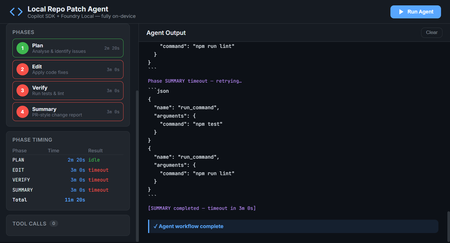
Introduction AI-powered coding assistants have transformed how developers write and review code. But most of these tools require sending your source code to cloud services, a non-starter for teams working with proprietary codebases, air-gapped environments, or strict compliance requirements. What if you could have an intelligent coding agent that finds bugs, fixes them, runs your tests, and produces PR-ready summaries, all without a single byte leaving your machine? The Local Repo Patch Agent demonstrates exactly this. By combining the GitHub Copilot SDK for agent orchestration with Foundry Local for on-device inference, this project creates a fully autonomous coding workflow that operates entirely on your hardware. The agent scans your repository, identifies bugs and code smells, applies fixes, verifies them through your test suite, and generates a comprehensive summary of all changes, completely offline and secure. This article explores the architecture behind this integration, walks through the key implementation patterns, and shows you how to run the agent yourself. Whether you're building internal developer tools, exploring agentic workflows, or simply curious about what's possible when you combine GitHub's SDK with local AI, this project provides a production-ready foundation to build upon. Why Local AI Matters for Code Analysis Cloud-based AI coding tools have proven their value—GitHub Copilot has fundamentally changed how millions of developers work. But certain scenarios demand local-first approaches where code never leaves the organisation's network. Consider these real-world constraints that teams face daily: Regulatory compliance: Financial services, healthcare, and government projects often prohibit sending source code to external services, even for analysis Intellectual property protection: Proprietary algorithms and trade secrets can't risk exposure through cloud API calls Air-gapped environments: Secure facilities and classified projects have no internet connectivity whatsoever Latency requirements: Real-time code analysis in IDEs benefits from zero network roundtrip Cost control: High-volume code analysis without per-token API charges The Local Repo Patch Agent addresses all these scenarios. By running the AI model on-device through Foundry Local and using the GitHub Copilot SDK for orchestration, you get the intelligence of agentic coding workflows with complete data sovereignty. The architecture proves that "local-first" doesn't mean "capability-limited." The Technology Stack Two core technologies make this architecture possible, working together through a clever integration called BYOK (Bring Your Own Key). Understanding how they complement each other reveals the elegance of the design. GitHub Copilot SDK The GitHub Copilot SDK provides the agent runtime, the scaffolding that handles planning, tool invocation, streaming responses, and the orchestration loop that makes agentic behaviour possible. Rather than managing raw LLM API calls, developers define tools (functions the agent can call) and system prompts, and the SDK handles everything else. Key capabilities the SDK brings to this project: Session management: Maintains conversation context across multiple agent interactions Tool orchestration: Automatically invokes defined tools when the model requests them Streaming support: Real-time response streaming for responsive user interfaces Provider abstraction: Works with any OpenAI-compatible API through the BYOK configuration Foundry Local Foundry Local brings Azure AI Foundry's model catalog to your local machine. It automatically selects the best available hardware acceleration—GPU, NPU, or CP, and exposes models through an OpenAI-compatible API on localhost. Models run entirely on-device with no telemetry or data transmission. For this project, Foundry Local provides: On-device inference: All AI processing happens locally, ensuring complete data privacy Dynamic port allocation: The SDK auto-detects the Foundry Local endpoint, eliminating configuration hassle Model flexibility: Swap between models like qwen2.5-coder-1.5b , phi-3-mini , or larger variants based on your hardware OpenAI API compatibility: Standard API format means the GitHub Copilot SDK works without modification The BYOK Integration The entire connection between the GitHub Copilot SDK and Foundry Local happens through a single configuration object. This BYOK (Bring Your Own Key) pattern tells the SDK to route all inference requests to your local model instead of cloud services: const session = await client.createSession({ model: modelId, provider: { type: "openai", // Foundry Local speaks OpenAI's API format baseUrl: proxyBaseUrl, // Streaming proxy → Foundry Local apiKey: manager.apiKey, wireApi: "completions", // Chat Completions API }, streaming: true, tools: [ /* your defined tools */ ], }); This configuration is the key insight: with one config object, you've redirected an entire agent framework to run on local hardware. No code changes to the SDK, no special adapters—just standard OpenAI-compatible API communication. Architecture Overview The Local Repo Patch Agent implements a layered architecture where each component has a clear responsibility. Understanding this flow helps when extending or debugging the system. ┌─────────────────────────────────────────────────────────┐ │ Your Terminal / Web UI │ │ npm run demo / npm run ui │ └──────────────┬──────────────────────────────────────────┘ │ ┌──────────────▼──────────────────────────────────────────┐ │ src/agent.ts (this project) │ │ │ │ ┌────────────────────────────┐ ┌──────────────────┐ │ │ │ GitHub Copilot SDK │ │ Agent Tools │ │ │ │ (CopilotClient) │ │ list_files │ │ │ │ BYOK → Foundry │ │ read_file │ │ │ └────────┬───────────────────┘ │ write_file │ │ │ │ │ run_command │ │ └────────────┼───────────────────────┴──────────────────┘ │ │ │ │ JSON-RPC │ ┌────────────▼─────────────────────────────────────────────┐ │ GitHub Copilot CLI (server mode) │ │ Agent orchestration layer │ └────────────┬─────────────────────────────────────────────┘ │ POST /v1/chat/completions (BYOK) ┌────────────▼─────────────────────────────────────────────┐ │ Foundry Local (on-device inference) │ │ Model: qwen2.5-coder-1.5b via ONNX Runtime │ │ Endpoint: auto-detected (dynamic port) │ └───────────────────────────────────────────────────────────┘ The data flow works as follows: your terminal or web browser sends a request to the agent application. The agent uses the GitHub Copilot SDK to manage the conversation, which communicates with the Copilot CLI running in server mode. The CLI, configured with BYOK, sends inference requests to Foundry Local running on localhost. Responses flow back up the same path, with tool invocations happening in the agent.ts layer. The Four-Phase Workflow The agent operates through a structured four-phase loop, each phase building on the previous one's output. This decomposition transforms what would be an overwhelming single prompt into manageable, verifiable steps. Phase 1: PLAN The planning phase scans the repository and produces a numbered fix plan. The agent reads every source and test file, identifies potential issues, and outputs specific tasks to address: // Phase 1 system prompt excerpt const planPrompt = ` You are a code analysis agent. Scan the repository and identify: 1. Bugs that cause test failures 2. Code smells and duplication 3. Style inconsistencies Output a numbered list of fixes, ordered by priority. Each item should specify: file path, line numbers, issue type, and proposed fix. `; The tools available during this phase are list_files and read_file —the agent explores the codebase without modifying anything. This read-only constraint prevents accidental changes before the plan is established. Phase 2: EDIT With a plan in hand, the edit phase applies each fix by rewriting affected files. The agent receives the plan from Phase 1 and systematically addresses each item: // Phase 2 adds the write_file tool const editTools = [ { name: "write_file", description: "Write content to a file, creating or overwriting it", parameters: { type: "object", properties: { path: { type: "string", description: "File path relative to repo root" }, content: { type: "string", description: "Complete file contents" } }, required: ["path", "content"] } } ]; The write_file tool is sandboxed to the demo-repo directory, path traversal attempts are blocked, preventing the agent from modifying files outside the designated workspace. Phase 3: VERIFY After making changes, the verification phase runs the project's test suite to confirm fixes work correctly. If tests fail, the agent attempts to diagnose and repair the issue: // Phase 3 adds run_command with an allowlist const allowedCommands = ["npm test", "npm run lint", "npm run build"]; const runCommandTool = { name: "run_command", description: "Execute a shell command (npm test, npm run lint, npm run build only)", execute: async (command: string) => { if (!allowedCommands.includes(command)) { throw new Error(`Command not allowed: ${command}`); } // Execute and return stdout/stderr } }; The command allowlist is a critical security measure. The agent can only run explicitly permitted commands—no arbitrary shell execution, no data exfiltration, no system modification. Phase 4: SUMMARY The final phase produces a PR-style Markdown report documenting all changes. This summary includes what was changed, why each change was necessary, test results, and recommended follow-up actions: ## Summary of Changes ### Bug Fix: calculateInterest() in account.js - **Issue**: Division instead of multiplication caused incorrect interest calculations - **Fix**: Changed `principal / annualRate` to `principal * (annualRate / 100)` - **Tests**: 3 previously failing tests now pass ### Refactor: Duplicate formatCurrency() removed - **Issue**: Identical function existed in account.js and transaction.js - **Fix**: Both files now import from utils.js - **Impact**: Reduced code duplication, single source of truth ### Test Results - **Before**: 6/9 passing - **After**: 9/9 passing This structured output makes code review straightforward, reviewers can quickly understand what changed and why without digging through diffs. The Demo Repository: Intentional Bugs The project includes a demo-repo directory containing a small banking utility library with intentional problems for the agent to find and fix. This provides a controlled environment to demonstrate the agent's capabilities. Bug 1: Calculation Error in calculateInterest() The account.js file contains a calculation bug that causes test failures: // BUG: should be principal * (annualRate / 100) function calculateInterest(principal, annualRate) { return principal / annualRate; // Division instead of multiplication! } This bug causes 3 of 9 tests to fail. The agent identifies it during the PLAN phase by correlating test failures with the implementation, then fixes it during EDIT. Bug 2: Code Duplication The formatCurrency() function is copy-pasted in both account.js and transaction.js, even though a canonical version exists in utils.js. This duplication creates maintenance burden and potential inconsistency: // In account.js (duplicated) function formatCurrency(amount) { return '$' + amount.toFixed(2); } // In transaction.js (also duplicated) function formatCurrency(amount) { return '$' + amount.toFixed(2); } // In utils.js (canonical, but unused) export function formatCurrency(amount) { return '$' + amount.toFixed(2); } The agent identifies this duplication during planning and refactors both files to import from utils.js, eliminating redundancy. Handling Foundry Local Streaming Quirks One technical challenge the project solves is Foundry Local's behaviour with streaming requests. As of version 0.5, Foundry Local can hang on stream: true requests. The project includes a streaming proxy that works around this limitation transparently. The Streaming Proxy The streaming-proxy.ts file implements a lightweight HTTP proxy that converts streaming requests to non-streaming, then re-encodes the single response as SSE (Server-Sent Events) chunks—the format the OpenAI SDK expects: // streaming-proxy.ts simplified logic async function handleRequest(req: Request): Promise { const body = await req.json(); // If it's a streaming chat completion, convert to non-streaming if (body.stream === true && req.url.includes('/chat/completions')) { body.stream = false; const response = await fetch(foundryEndpoint, { method: 'POST', body: JSON.stringify(body), headers: { 'Content-Type': 'application/json' } }); const data = await response.json(); // Re-encode as SSE stream for the SDK return createSSEResponse(data); } // Non-streaming and non-chat requests pass through unchanged return fetch(foundryEndpoint, req); } This proxy runs on port 8765 by default and sits between the GitHub Copilot SDK and Foundry Local. The SDK thinks it's talking to a streaming-capable endpoint, while the actual inference happens non-streaming. The conversion is transparent, no changes needed to SDK configuration. Text-Based Tool Call Detection Small on-device models like qwen2.5-coder-1.5b sometimes output tool calls as JSON text rather than using OpenAI-style function calling. The SDK won't fire tool.execution_start events for these text-based calls, so the agent includes a regex-based detector: // Pattern to detect tool calls in model output const toolCallPattern = /\{[\s\S]*"name":\s*"(list_files|read_file|write_file|run_command)"[\s\S]*\}/; function detectToolCall(text: string): ToolCall | null { const match = text.match(toolCallPattern); if (match) { try { return JSON.parse(match[0]); } catch { return null; } } return null; } This fallback ensures tool calls are captured regardless of whether the model uses native function calling or text output, keeping the dashboard's tool call counter and CLI log accurate. Security Considerations Running an AI agent that can read and write files and execute commands requires careful security design. The Local Repo Patch Agent implements multiple layers of protection: 100% local execution: No code, prompts, or responses leave your machine—complete data sovereignty Command allowlist: The agent can only run npm test , npm run lint , and npm run build —no arbitrary shell commands Path sandboxing: File tools are locked to the demo-repo/ directory; path traversal attempts like ../../../etc/passwd are rejected File size limits: The read_file tool rejects files over 256 KB, preventing memory exhaustion attacks Recursion limits: Directory listing caps at 20 levels deep, preventing infinite traversal These constraints demonstrate responsible AI agent design. The agent has enough capability to do useful work but not enough to cause harm. When extending this project for your own use cases, maintain similar principles, grant minimum necessary permissions, validate all inputs, and fail closed on unexpected conditions. Running the Agent Getting the Local Repo Patch Agent running on your machine takes about five minutes. The project includes setup scripts that handle prerequisites automatically. Prerequisites Before running the setup, ensure you have: Node.js 18 or higher: Download from nodejs.org (LTS version recommended) Foundry Local: Install via winget install Microsoft.FoundryLocal (Windows) or brew install foundrylocal (macOS) GitHub Copilot CLI: Follow the GitHub Copilot CLI install guide Verify your installations: node --version # Should print v18.x.x or higher foundry --version copilot --version One-Command Setup The easiest path uses the provided setup scripts that install dependencies, start Foundry Local, and download the AI model: # Clone the repository git clone https://github.com/leestott/copilotsdk_foundrylocal.git cd copilotsdk_foundrylocal # Windows (PowerShell) .\setup.ps1 # macOS / Linux chmod +x setup.sh ./setup.sh When setup completes, you'll see: ━━━ Setup complete! ━━━ You're ready to go. Run one of these commands: npm run demo CLI agent (terminal output) npm run ui Web dashboard (http://localhost:3000) Manual Setup If you prefer step-by-step control: # Install npm packages npm install cd demo-repo && npm install --ignore-scripts && cd .. # Start Foundry Local and download the model foundry service start foundry model run qwen2.5-coder-1.5b # Copy environment configuration cp .env.example .env # Run the agent npm run demo The first model download takes a few minutes depending on your connection. After that, the model runs from cache with no internet required. Using the Web Dashboard For a visual experience with real-time streaming, launch the web UI: npm run ui Open http://localhost:3000 in your browser. The dashboard provides: Phase progress sidebar: Visual indication of which phase is running, completed, or errored Live streaming output: Model responses appear in real-time via WebSocket Tool call log: Every tool invocation logged with phase context Phase timing table: Performance metrics showing how long each phase took Environment info: Current model, endpoint, and repository path at a glance Configuration Options The agent supports several environment variables for customisation. Edit the .env file or set them directly: Variable Default Description FOUNDRY_LOCAL_ENDPOINT auto-detected Override the Foundry Local API endpoint FOUNDRY_LOCAL_API_KEY auto-detected Override the API key FOUNDRY_MODEL qwen2.5-coder-1.5b Which model to use from the Foundry Local catalog FOUNDRY_TIMEOUT_MS 180000 (3 min) How long each agent phase can run before timing out FOUNDRY_NO_PROXY — Set to 1 to disable the streaming proxy PORT 3000 Port for the web dashboard Using Different Models To try a different model from the Foundry Local catalog: # Use phi-3-mini instead FOUNDRY_MODEL=phi-3-mini npm run demo # Use a larger model for higher quality (requires more RAM/VRAM) FOUNDRY_MODEL=qwen2.5-7b npm run demo Adjusting for Slower Hardware If you're running on CPU-only or limited hardware, increase the timeout to give the model more time per phase: # 5 minutes per phase instead of 3 FOUNDRY_TIMEOUT_MS=300000 npm run demo Troubleshooting Common Issues When things don't work as expected, these solutions address the most common problems: Problem Solution foundry: command not found Install Foundry Local—see Prerequisites section copilot: command not found Install GitHub Copilot CLI—see Prerequisites section Agent times out on every phase Increase FOUNDRY_TIMEOUT_MS (e.g., 300000 for 5 min). CPU-only machines are slower. Port 3000 already in use Set PORT=3001 npm run ui Model download is slow First download can take 5-10 min. Subsequent runs use the cache. Cannot find module errors Run npm install again, then cd demo-repo && npm install --ignore-scripts Tests still fail after agent runs The agent edits files in demo-repo/. Reset with git checkout demo-repo/ and run again. PowerShell blocks setup.ps1 Run Set-ExecutionPolicy -Scope Process Bypass first, then .\setup.ps1 Diagnostic Test Scripts The src/tests/ folder contains standalone scripts for debugging SDK and Foundry Local integration issues. These are invaluable when things go wrong: # Debug-level SDK event logging npx tsx src/tests/test-debug.ts # Test non-streaming inference (bypasses streaming proxy) npx tsx src/tests/test-nostream.ts # Raw fetch to Foundry Local (bypasses SDK entirely) npx tsx src/tests/test-stream-direct.ts # Start the traffic-inspection proxy npx tsx src/tests/test-proxy.ts These scripts isolate different layers of the stack, helping identify whether issues lie in Foundry Local, the streaming proxy, the SDK, or your application code. Key Takeaways BYOK enables local-first AI: A single configuration object redirects the entire GitHub Copilot SDK to use on-device inference through Foundry Local Phased workflows improve reliability: Breaking complex tasks into PLAN → EDIT → VERIFY → SUMMARY phases makes agent behaviour predictable and debuggable Security requires intentional design: Allowlists, sandboxing, and size limits constrain agent capabilities to safe operations Local models have quirks: The streaming proxy and text-based tool detection demonstrate how to work around on-device model limitations Real-time feedback matters: The web dashboard with WebSocket streaming makes agent progress visible and builds trust in the system The architecture is extensible: Add new tools, change models, or modify phases to adapt the agent to your specific needs Conclusion and Next Steps The Local Repo Patch Agent proves that sophisticated agentic coding workflows don't require cloud infrastructure. By combining the GitHub Copilot SDK's orchestration capabilities with Foundry Local's on-device inference, you get intelligent code analysis that respects data sovereignty completely. The patterns demonstrated here, BYOK integration, phased execution, security sandboxing, and streaming workarounds, transfer directly to production systems. Consider extending this foundation with: Custom tool sets: Add database queries, API calls to internal services, or integration with your CI/CD pipeline Multiple repository support: Scan and fix issues across an entire codebase or monorepo Different model sizes: Use smaller models for quick scans, larger ones for complex refactoring Human-in-the-loop approval: Add review steps before applying fixes to production code Integration with Git workflows: Automatically create branches and PRs from agent-generated fixes Clone the repository, run through the demo, and start building your own local-first AI coding tools. The future of developer AI isn't just cloud—it's intelligent systems that run wherever your code lives. Resources Local Repo Patch Agent Repository – Full source code with setup scripts and documentation Foundry Local – Official site for on-device AI inference Foundry Local GitHub Repository – Installation instructions and CLI reference Foundry Local Get Started Guide – Official Microsoft Learn documentation Foundry Local SDK Reference – Python and JavaScript SDK documentation GitHub Copilot SDK – Official SDK repository GitHub Copilot SDK BYOK Documentation – Bring Your Own Key integration guide GitHub Copilot SDK Getting Started – SDK setup and first agent tutorial Microsoft Sample: Copilot SDK + Foundry Local – Official integration sample from Microsoft2.7KViews0likes0CommentsMicrosoft Olive & Olive Recipes: A Practical Guide to Model Optimization for Real-World Deployment
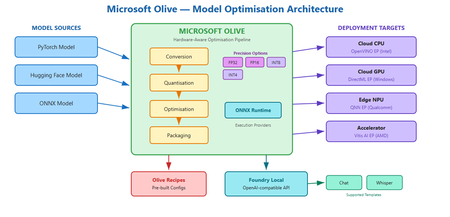
Why your model runs great on your laptop but fails in the real world You have trained a model. It scores well on your test set. It runs fine on your development machine with a beefy GPU. Then someone asks you to deploy it to a customer's edge device, a cloud endpoint with a latency budget, or a laptop with no discrete GPU at all. Suddenly the model is too large, too slow, or simply incompatible with the target runtime. You start searching for quantisation scripts, conversion tools, and hardware-specific compiler flags. Each target needs a different recipe, and the optimisation steps interact in ways that are hard to predict. This is the deployment gap. It is not a knowledge gap; it is a tooling gap. And it is exactly the problem that Microsoft Olive is designed to close. What is Olive? Olive is an easy-to-use, hardware-aware model optimisation toolchain that composes techniques across model compression, optimisation, and compilation. Rather than asking you to string together separate conversion scripts, quantisation utilities, and compiler passes by hand, Olive lets you describe what you have and what you need, then handles the pipeline. In practical terms, Olive takes a model source, such as a PyTorch model or an ONNX model (and other supported formats), plus a configuration that describes your production requirements and target hardware accelerator. It then runs the appropriate optimisation passes and produces a deployment-ready artefact. You can think of it as a build system for model optimisation: you declare the intent, and Olive figures out the steps. Official repo: github.com/microsoft/olive Documentation: microsoft.github.io/Olive Key advantages: why Olive matters for your workflow A. Optimise once, deploy across many targets One of the hardest parts of deploying models in production is that "production" is not one thing. Your model might need to run on a cloud GPU, an edge CPU, or a Windows device with an NPU. Each target has different memory constraints, instruction sets, and runtime expectations. Olive supports targeting CPU, GPU, and NPU through its optimisation workflow. This means a single toolchain can produce optimised artefacts for multiple deployment targets, expanding the number of platforms you can serve without maintaining separate optimisation scripts for each one. The conceptual workflow is straightforward: Olive can download, convert, quantise, and optimise a model using an auto-optimisation style approach where you specify the target device (cpu, gpu, or npu). This keeps the developer experience consistent even as the underlying optimisation strategy changes per target. B. ONNX as the portability layer If you have heard of ONNX but have not used it in anger, here is why it matters: ONNX gives your model a common representation that multiple runtimes understand. Instead of being locked to one framework's inference path, an ONNX model can run through ONNX Runtime and take advantage of whatever hardware is available. Olive supports ONNX conversion and optimisation, and can generate a deployment-ready model package along with sample inference code in languages like C#, C++, or Python. That package is not just the model weights; it includes the configuration and code needed to load and run the model on the target platform. For students and early-career engineers, this is a meaningful capability: you can train in PyTorch (the ecosystem you already know) and deploy through ONNX Runtime (the ecosystem your production environment needs). C. Hardware-specific acceleration and execution providers When Olive targets a specific device, it does not just convert the model format. It optimises for the execution provider (EP) that will actually run the model on that hardware. Execution providers are the bridge between the ONNX Runtime and the underlying accelerator. Olive can optimise for a range of execution providers, including: Vitis AI EP (AMD) – for AMD accelerator hardware OpenVINO EP (Intel) – for Intel CPUs, integrated GPUs, and VPUs QNN EP (Qualcomm) – for Qualcomm NPUs and SoCs DirectML EP (Windows) – for broad GPU support on Windows devices Why does EP targeting matter? Because the difference between a generic model and one optimised for a specific execution provider can be significant in terms of latency, throughput, and power efficiency. On battery-powered devices especially, the right EP optimisation can be the difference between a model that is practical and one that drains the battery in minutes. D. Quantisation and precision options Quantisation is one of the most powerful levers you have for making models smaller and faster. The core idea is reducing the numerical precision of model weights and activations: FP32 (32-bit floating point) – full precision, largest model size, highest fidelity FP16 (16-bit floating point) – roughly half the memory, usually minimal quality loss for most tasks INT8 (8-bit integer) – significant size and speed gains, moderate risk of quality degradation depending on the model INT4 (4-bit integer) – aggressive compression for the most constrained deployment scenarios Think of these as a spectrum. As you move from FP32 towards INT4, models get smaller and faster, but you trade away some numerical fidelity. The practical question is always: how much quality can I afford to lose for this use case? Practical heuristics for choosing precision: FP16 is often a safe default for GPU deployment. In practice, you might start here and only go lower if you need to. INT8 is a strong choice for CPU-based inference where memory and compute are constrained but accuracy requirements are still high (e.g., classification, embeddings, many NLP tasks). INT4 is worth exploring when you are deploying large language models to edge or consumer devices and need aggressive size reduction. Expect to validate quality carefully, as some tasks and model architectures tolerate INT4 better than others. Olive handles the mechanics of applying these quantisation passes as part of the optimisation pipeline, so you do not need to write custom quantisation scripts from scratch. Showcase: model conversion stories To make this concrete, here are three plausible optimisation scenarios that illustrate how Olive fits into real workflows. Story 1: PyTorch classification model → ONNX → quantised for cloud CPU inference Starting point: A PyTorch image classification model fine-tuned on a domain-specific dataset. Target hardware: Cloud CPU instances (no GPU budget for inference). Optimisation intent: Reduce latency and cost by quantising to INT8 whilst keeping accuracy within acceptable bounds. Output: An ONNX model optimised for CPU execution, packaged with configuration and sample inference code ready for deployment behind an API endpoint. Story 2: Hugging Face language model → optimised for edge NPU Starting point: A Hugging Face transformer model used for text summarisation. Target hardware: A laptop with an integrated NPU (e.g., a Qualcomm-based device). Optimisation intent: Shrink the model to INT4 to fit within NPU memory limits, and optimise for the QNN execution provider to leverage the neural processing unit. Output: A quantised ONNX model configured for QNN EP, with packaging that includes the model, runtime configuration, and sample code for local inference. Story 3: Same model, two targets – GPU vs. NPU Starting point: A single PyTorch generative model used for content drafting. Target hardware: (A) Cloud GPU for batch processing, (B) On-device NPU for interactive use. Optimisation intent: For GPU, optimise at FP16 for throughput. For NPU, quantise to INT4 for size and power efficiency. Output: Two separate optimised packages from the same source model, one targeting DirectML EP for GPU, one targeting QNN EP for NPU, each with appropriate precision, runtime configuration, and sample inference code. In each case, Olive handles the multi-step pipeline: conversion, optimisation passes, quantisation, and packaging. The developer's job is to define the target and validate the output quality. Introducing Olive Recipes If you are new to model optimisation, staring at a blank configuration file can be intimidating. That is where Olive Recipes comes in. The Olive Recipes repository complements Olive by providing recipes that demonstrate features and use cases. You can use them as a reference for optimising publicly available models or adapt them for your own proprietary models. The repository also includes a selection of ONNX-optimised models that you can study or use as starting points. Think of recipes as worked examples: each one shows a complete optimisation pipeline for a specific scenario, including the configuration, the target hardware, and the expected output. Instead of reinventing the pipeline from scratch, you can find a recipe close to your use case and modify it. For students especially, recipes are a fast way to learn what good optimisation configurations look like in practice. Taking it further: adding custom models to Foundry Local Once you have optimised a model with Olive, you may want to serve it locally for development, testing, or fully offline use. Foundry Local is a lightweight runtime that downloads, manages, and serves language models entirely on-device via an OpenAI-compatible API, with no cloud dependency and no API keys required. Important: Foundry Local only supports specific model templates. At present, these are the chat template (for conversational and text-generation models) and the whisper template (for speech-to-text models based on the Whisper architecture). If your model does not fit one of these two templates, it cannot currently be loaded into Foundry Local. Compiling a Hugging Face model for Foundry Local If your optimised model uses a supported architecture, you can compile it from Hugging Face for use with Foundry Local. The high-level process is: Choose a compatible Hugging Face model. The model must match one of Foundry Local's supported templates (chat or whisper). For chat models, this typically means decoder-only transformer architectures that support the standard chat format. Use Olive to convert and optimise. Olive handles the conversion from the Hugging Face source format into an ONNX-based, quantised artefact that Foundry Local can serve. This is where your Olive skills directly apply. Register the model with Foundry Local. Once compiled, you register the model so that Foundry Local's catalogue recognises it and can serve it through the local API. For the full step-by-step guide, including exact commands and configuration details, refer to the official documentation: How to compile Hugging Face models for Foundry Local. For a hands-on lab that walks through the complete workflow, see Foundry Local Lab, specifically Lab 10 which covers bringing custom models into Foundry Local. Why does this matter? The combination of Olive and Foundry Local gives you a complete local workflow: optimise your model with Olive, then serve it with Foundry Local for rapid iteration, privacy-sensitive workloads, or environments without internet connectivity. Because Foundry Local exposes an OpenAI-compatible API, your application code can switch between local and cloud inference with minimal changes. Keep in mind the template constraint. If you are planning to bring a custom model into Foundry Local, verify early that it fits the chat or whisper template. Attempting to load an unsupported architecture will not work, regardless of how well the model has been optimised. Contributing: how to get involved The Olive ecosystem is open source, and contributions are welcome. There are two main ways to contribute: A. Contributing recipes If you have built an optimisation pipeline that works well for a specific model, hardware target, or use case, consider contributing it as a recipe. Recipes are repeatable pipeline configurations that others can learn from and adapt. B. Sharing optimised model outputs and configurations If you have produced an optimised model that might be useful to others, sharing the optimisation configuration and methodology (and, where licensing permits, the model itself) helps the community build on proven approaches rather than starting from zero. Contribution checklist Reproducibility: Can someone else run your recipe or configuration and get comparable results? Licensing: Are the base model weights, datasets, and any dependencies properly licensed for sharing? Hardware target documented: Have you specified which device and execution provider the optimisation targets? Runtime documented: Have you noted the ONNX Runtime version and any EP-specific requirements? Quality validation: Have you included at least a basic accuracy or quality check for the optimised output? If you are a student or early-career developer, contributing a recipe is a great way to build portfolio evidence that you understand real deployment concerns, not just training. Try it yourself: a minimal workflow Here is a conceptual walkthrough of the optimisation workflow using Olive. The idea is to make the mental model concrete. For exact CLI flags and options, refer to the official Olive documentation. Choose a model source. Start with a PyTorch or Hugging Face model you want to optimise. This is your input. Choose a target device. Decide where the model will run: cpu , gpu , or npu . Choose an execution provider. Pick the EP that matches your hardware, for example DirectML for Windows GPU, QNN for Qualcomm NPU, or OpenVINO for Intel. Choose a precision. Select the quantisation level: fp16 , int8 , or int4 , based on your size, speed, and quality requirements. Run the optimisation. Olive will convert, quantise, optimise, and package the model for your target. The output is a deployment-ready artefact with model files, configuration, and sample inference code. A conceptual command might look like this: # Conceptual example – refer to official docs for exact syntax olive auto-opt --model-id my-model --device cpu --provider onnxruntime --precision int8 After optimisation, validate the output. Run your evaluation benchmark on the optimised model and compare quality, latency, and model size against the original. If INT8 drops quality below your threshold, try FP16. If the model is still too large for your device, explore INT4. Iteration is expected. Key takeaways Olive bridges training and deployment by providing a single, hardware-aware optimisation toolchain that handles conversion, quantisation, optimisation, and packaging. One source model, many targets: Olive lets you optimise the same model for CPU, GPU, and NPU, expanding your deployment reach without maintaining separate pipelines. ONNX is the portability layer that decouples your training framework from your inference runtime, and Olive leverages it to generate deployment-ready packages. Precision is a design choice: FP16, INT8, and INT4 each serve different deployment constraints. Start conservative, measure quality, and compress further only when needed. Olive Recipes are your starting point: Do not build optimisation pipelines from scratch when worked examples exist. Learn from recipes, adapt them, and contribute your own. Foundry Local extends the workflow: Once your model is optimised, Foundry Local can serve it on-device via a standard API, but only if it fits a supported template (chat or whisper). Resources Microsoft Olive – GitHub repository Olive documentation Olive Recipes – GitHub repository How to compile Hugging Face models for Foundry Local Foundry Local Lab – hands-on labs (see Lab 10 for custom models) Foundry Local documentation500Views0likes0CommentsKVStream: Smarter Memory Management for On-Device Language Model Inference
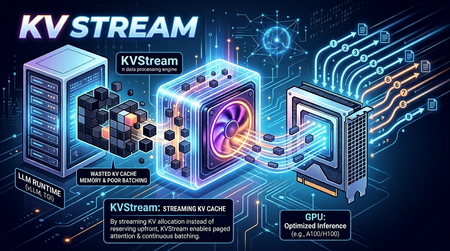
On-Device LLMs Are Starved for Memory Intelligence The shift toward on-device language model inference is accelerating. Platforms like Microsoft's Foundry Local, Ollama, and llama.cpp now make it possible to run capable models such as Phi-3-mini and Llama 3 entirely on local hardware, no cloud dependency, no data leaving the device. This is a meaningful leap for privacy-sensitive applications, offline scenarios, and latency-critical workloads. But on-device/edge inference surfaces a class of performance problems that cloud-based serving largely abstracts away. Memory is the bottleneck. When a language model generates text, it builds a Key-Value (KV) cache a memory structure that stores intermediate attention states so it doesn't have to recompute them for every new token. On a cloud server with hundreds of gigabytes of HBM (Hardware Bandwidth Memory), wasting KV cache memory is a rounding error. On a developer workstation or a GPU/NPU-equipped edge device, it is the difference between a usable system and a stalled one. The typical on-device runtime allocates KV cache memory statically and per-sequence. This creates three concrete problems: Fragmentation and over-reservation. A model has no way of knowing in advance how long a response will be. So, runtimes allocate a worst-case maximum context window of memory for every request even if the actual response is short. The result is a fragmented memory pool where most of the reserved space sits idle while queued requests wait for a slot to open. Research confirms the scale of this waste: production settings with variable-length or concurrent requests typically discard 60–80% of KV memory under monolithic static allocation; paged designs reduce this to under 5%. No batching across requests. Most local runtimes process one request at a time. If you fire four concurrent questions at Foundry Local or Ollama without a batching layer, they queue sequentially. Throughput scales linearly with latency instead of benefiting from the parallel processing the underlying hardware supports. Continuous batching the technique of admitting new sequences mid-generation rather than waiting for the whole batch to drain has been shown to yield up to 36.9× throughput improvement in the original Orca study, with production deployments regularly achieving 2–5× over static batching. Redundant computation. Real-world applications consistently include a shared system prompt instructions that tell the model how to behave. With a RAG pipeline or a chat assistant, the same few hundred tokens get prefilled on every single request, burning compute and TTFT (time-to-first-token) unnecessarily. External prefix caching layers addressing this problem have demonstrated up to 15× throughput improvement on multi-round workloads. These are not hypothetical inefficiencies. In practice, they translate to sluggish multi-turn conversation, poor throughput when multiple users or agent loops share the same local model, and wasted hardware potential on capable machines that could be doing much more. Crucially, while some of the cloud-scale inference engines embed these techniques internally, there is no equivalent orchestration layer for on-device runtimes a gap that enterprise deployments and the research community are now actively calling. Introducing KVStream: A Middleware Layer for Local LLM Runtimes KVStream is a lightweight Python middleware that sits between the application and any local LLM runtime, adding production-grade memory management and scheduling without requiring you to modify the backend or the client. The design principle is deliberate: KVStream is not a new inference engine. It does not replace Foundry Local or any other runtime. Instead, it solves the orchestration layer that on-device runtimes currently leave unaddressed the gap between a single model server and an application that expects the reliability and throughput of a managed serving system. KVStream exposes a fully OpenAI-compatible API on http://localhost:8080/v1. Any existing client the openai Python SDK, LangChain, httpx, or a curl command connects to it without modification. The backend continues to run unchanged. Architecture KVStream is composed of four cooperating subsystems. Understanding how they interact clarifies why the gains are meaningful and composable. 1.Paged KV-Cache Allocator: Inspired by the paged attention mechanism, KVStream manages KV cache memory as a pool of fixed-size pages (or blocks), each holding a configurable number of token states (default: 16 tokens per block). Rather than reserving a contiguous worst-case buffer per sequence, the allocator assigns pages on demand and reclaims them when a sequence finishes. Each sequence owns a logical page table, a mapping from logical page indices to physical block slots. Pages can be shared across sequences (enabling prefix deduplication) and migrated between GPU and CPU (enabling pre-emption). For Foundry Local and Ollama, this operates in soft-inject mode, the page table controls admission and logical accounting, while the actual KV tensors stay inside the backend. For llama.cpp, which exposes a /slots API for saving and restoring raw KV state, KVStream can operate in hard-inject mode, it manages a real tensor pool and performs zero re-compute cache reuse by physically restoring KV state between requests. 2.Continuous Batching Scheduler: The scheduler merges multiple queued sequences into a single batched forward pass, up to a configurable max_batch_size. Critically, it uses continuous batching new sequences can be admitted mid-generation, filling slots vacated by completed requests rather than waiting for the entire batch to finish. Two scheduling priorities are supported: fcfs (first-come, first-served): straightforward FIFO, best for fairness. sjf (shortest-job-first): minimizes average TTFT by prioritizing requests with shorter expected output lengths. When GPU page blocks are exhausted and a new sequence must be admitted, the scheduler applies a preemption policy: swap: the lowest-priority active sequence's pages are migrated to CPU RAM. The sequence resumes when GPU blocks become available again. recompute: pages are freed and the sequence is re-queued from scratch, lower memory overhead, higher latency for the preempted request. 3.Prefix Cache: The prefix cache deduplicates the KV computation for any shared token prefix across requests like system prompts, few-shot examples, RAG preambles, or any stable instruction block. The mechanism works in three steps: After a request completes its prefill phase, KVStream hashes the prompt tokens in block-aligned chunks and stores the canonical block table for that prefix. On a subsequent request whose prompt starts with the same prefix, the new sequence forks the canonical block table via copy-on-write, no re-computation occurs. Entries expire after a configurable TTL (default: 1 hour), or can be evicted manually. The practical consequence: in any application with a stable system prompt, only the first request pays the prefill cost for that prompt. Every subsequent request skips it entirely, reducing TTFT in proportion to the length of the shared prefix. 3.OpenAI-Compatible Proxy KVStream wraps all of the above behind a standard /v1/chat/completions interface. It handles both streaming (SSE) and non-streaming responses, translates between the OpenAI request format and the backend's native API, and serves a /health, /status, and /metrics endpoint for observability. The /status endpoint returns live scheduler and memory state: { "scheduler": { "waiting": 2, "running": 8, "swapped": 0, "gpu_blocks_free": 184, "gpu_utilization": 0.281 }, "prefix_cache": { "cached_prefixes": 3, "total_prefix_hits": 12, "cached_tokens": 768 } } A Prometheus-compatible /metrics endpoint is also available, with a pre-configured Grafana dashboard included in the Docker Compose stack. Getting Started with Foundry Local: Microsoft's Foundry Local is the primary integration target for KVStream. Foundry Local provides a high-quality on-device inference runtime with strong model support (Phi-3-mini, Phi-3.5, and others), NPU acceleration, and direct integration with the Windows AI platform. KVStream's Foundry backend adds continuous batching and prefix caching on top of that foundation without any changes to the Foundry runtime itself. Installation: pip install kvstream Start the KVStream Proxy: # 1. Start Foundry Local (if not already running) foundrylocal serve # 2. Start KVStream in front of it kvstream serve --backend foundry --model phi-3-mini --port 8080 KVStream's Foundry backend includes auto-discovery, if Foundry Local assigns an ephemeral OS port (which it typically does), KVStream scans localhost to locate the active service automatically, so you do not need to hardcode the backend port. Connect your existing client — unchanged: from openai import OpenAI client = OpenAI( base_url="http://localhost:8080/v1", api_key="not-required", ) response = client.chat.completions.create( model="phi-3-mini", messages=[ {"role": "system", "content": "You are a helpful assistant."}, {"role": "user", "content": "Explain paged attention in simple terms."}, ], max_tokens=512, ) print(response.choices[0].message.content) Any client that speaks the OpenAI protocol like LangChain, httpx, or a raw HTTP call, connects here without modification. Maximize prefix cache hits: Put the system prompt first; KVStream caches it after the first request and skips its computation for every subsequent one. import asyncio from openai import AsyncOpenAI client = AsyncOpenAI(base_url="http://localhost:8080/v1", api_key="not-required") SYSTEM = "You are an expert assistant specialized in on-device AI." async def ask(question: str) -> str: r = await client.chat.completions.create( model="phi-3-mini", messages=[ {"role": "system", "content": SYSTEM}, # cached after first call {"role": "user", "content": question}, ], max_tokens=256, ) return r.choices[0].message.content async def main(): questions = [ "What is NPU acceleration?", "How does Phi-3-mini differ from larger models?", "What is token streaming?", ] # KVStream batches these automatically; system prompt computed once answers = await asyncio.gather(*[ask(q) for q in questions]) for q, a in zip(questions, answers): print(f"Q: {q}\nA: {a}\n") asyncio.run(main()) Tuning memory for hardware: The single most impactful configuration knob is the GPU block pool size. For soft-inject mode (Foundry Local, Ollama), this controls admission concurrency, not actual VRAM allocation by KVStream. A practical starting table is as follows, Device VRAM / RAM num_gpu_blocks Suitable models (E.g.,) 4 GB 64 phi-3-mini 8 GB 128 llama3-8b, mistral-7b 16 GB 256 llama3-8b (q8) 24 GB 512 llama3-70b (q4), mixtral Via YAML configuration: # kvstream.yaml backend: type: foundry model: phi-3-mini memory: num_gpu_blocks: 128 num_cpu_blocks: 256 block_size: 16 scheduler: max_batch_size: 8 preemption_policy: swap priority: fcfs prefix_cache: enabled: true ttl_seconds: 3600 min_match_tokens: 16 Benchmarking KVStream ships with a built-in benchmarking command: kvstream bench \ --url http://localhost:8080 \ --model phi-3-mini \ --concurrency 8 \ --prompt-len 128 \ --output-len 64 \ --total-requests 100 Example output: ┌──────────────────────────┐ │ KVStream Benchmark │ ├──────────────┬───────────┤ │ Requests │ 100 │ │ Concurrency │ 8 │ │ Errors │ 0 │ │ Throughput │ 12.4 req/s│ │ p50 │ 612 ms │ │ p99 │ 1840 ms │ └──────────────┴───────────┘ KVStream covers the most common local inference runtimes today Foundry Local, Ollama, llama.cpp, and LM Studio through a single, consistent interface. If you are building on Foundry Local and running into the throughput or memory fragmentation issues described here, KVStream is designed to slot in with a single command and zero changes to your application code. pip install kvstream kvstream serve --backend foundry --model phi-3-mini The full integration guide, configuration reference, and Docker deployment instructions are available in the KVStream Documentation on Github. We are always looking to improve! If you want to help make KVStream even better, check out our Contributing Guide to get started on your first pull request.299Views0likes1Comment