microsoft edge
2 TopicsNew Security Controls in Edge for Business
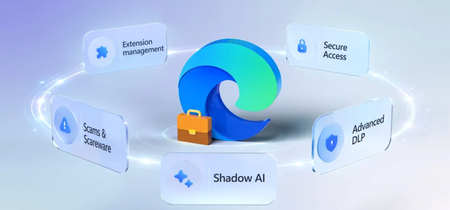
Extend Conditional Access, Purview DLP, and Defender controls into every session, across managed and unmanaged devices. Block sensitive data from reaching unsanctioned AI services, lock contractors into your data boundary on devices you don’t manage, and control clipboard and screenshot actions by location. Manage extensions by permission type from the Microsoft 365 admin center and shut down scareware before users respond. Jeremy Chapman, Microsoft 365 Director, shares how to deploy these controls using the security stack you already have. Contractors access your SharePoint. Saves redirect to your OneDrive. Edge for Business enforces your data protection policies on unmanaged devices through Intune App Protection Policies — no dedicated device required. Check it out. Your clipboard, with a corporate boundary. Copy from work, paste in work. Edge for Business blocks paste into unapproved apps automatically. Try it here. Help shut down threats. Edge for Business uses on-device AI and computer vision to detect and block fake support scam pages in real time. See how it works. QUICK LINKS: 00:00 — Security built into the browser 01:30 — Shadow AI Data Blocking 03:03 — Contractor Work Profiles 04:22 — Configuration 05:16 — Advanced DLP & Clipboard Controls 06:29 — How to set it up 07:07 — Extension Management 09:20 — Protect from threats 10:13 — Wrap up Link References To get started, check out https://aka.ms/EdgeforBusiness Unfamiliar with Microsoft Mechanics? As Microsoft’s official video series for IT, you can watch and share valuable content and demos of current and upcoming tech from the people who build it at Microsoft. Subscribe to our YouTube: https://www.youtube.com/c/MicrosoftMechanicsSeries Talk with other IT Pros, join us on the Microsoft Tech Community: https://techcommunity.microsoft.com/t5/microsoft-mechanics-blog/bg-p/MicrosoftMechanicsBlog Watch or listen from anywhere, subscribe to our podcast: https://microsoftmechanics.libsyn.com/podcast Keep getting this insider knowledge, join us on social: Follow us on Twitter: https://twitter.com/MSFTMechanics Share knowledge on LinkedIn: https://www.linkedin.com/company/microsoft-mechanics/ Enjoy us on Instagram: https://www.instagram.com/msftmechanics/ Loosen up with us on TikTok: https://www.tiktok.com/@msftmechanics Video Transcript: -They say the most secure device is the one that isn’t connected, but in reality, more than half of the work we do happens in one app, the browser. It’s always connected, always in use, and it’s constantly exposed to threat activity. It’s the one place where identity, data, and apps come together, and it’s also where security has to be enforced. Microsoft Edge for Business applies security controls directly inside the browser, where the activity is happening. Threat signals are evaluated in real time during the session, without routing traffic through external proxies. And controls are enforced, powered through native integration with the Microsoft security stack with identity and access management in Microsoft Entra, data security controls in Purview, and threat detection and response in Defender. -In fact, just as you manage users and applications today, Edge allows browser sessions to be governed on a managed device and by using a work profile also on unmanaged devices. A work profile provides a separate browser space linked to the user’s work account in Microsoft Entra to keep company data isolated from personal browsing. -When a user is signed into their work profile your existing security policies such as access controls through Conditional Access, data security, with Data Loss Prevention controls and extension restrictions, can be enforced. This lets you establish clear boundaries for what’s allowed and what isn’t, without disrupting how people work. Let me make this real, by showing you how policies are applied in practice across five common everyday scenarios, starting with Shadow AI apps and services and preventing company data leakage. Here, I’m an employee on my managed device using the consumer AI service, DeepSeek. -In this case, our company has already flagged it as an unsanctioned AI app and blocks it from being used with sensitive work information. So, I’ll type in a prompt that includes details about an acquisition that Contoso is planning. This is classified as confidential information, and tied to existing DLP policies in Microsoft Purview So, when I hit submit, the prompt is blocked in real time, with a clear explanation for why. The sensitive data never leaves the browser and is never sent to DeepSeek. And the user is guided to use trusted AI, in this case Copilot, for our organization. -Importantly, these same protections would also apply across all Edge profiles on my managed device whether work, personal or guest profiles. In fact, let me show you how this was set up using policies. This uses a Microsoft Purview Data Loss Prevention Policy to protect Inline web traffic. This is a pay-as-you-go licensed option, which is scoped to managed cloud apps and it can be targeted using adaptive app scopes for all unmanaged AI apps. And its enforcement is set to Edge for Business, as you can see here. The rest is configured like any other Purview DLP policy that you’re already using. Next, let me show you how Edge work profiles create a secure boundary for temporary or contract workers to securely access company data without exposing it to their personal environment. Using Work Profiles in Edge, you can enforce policies that require contractors to sign-in to an account in your company’s Microsoft Entra directory to access internal information. -Here, I’m logged into Microsoft Edge as a contractor at Woodgrove working temporarily for Contoso. I have an acquisition document open in Word online, which is stored in a Contoso SharePoint site. Importantly, I’m using my Work Profile with an Entra ID account that Contoso provisioned for me on my corporate device, which is managed by my employer, Woodgrove. -Let’s see what happens if I try to download a local copy of this file containing sensitive information. And you can see it redirects the save to a Contoso-managed OneDrive location, so it never leaves Contoso’s information protection boundary. Even when the device is controlled by another organization, Edge for Business still enforces Contoso’s data protection policies through the work profile. So, as a contractor, I get the access I need, and my contracting company stays in control without the added cost and complexity of giving me a dedicated device or virtual machine. Now let me show you how this was configured using policy. It starts with giving contract workers an account in your directory so that you can apply management policies to them, along with a eligible Microsoft 365 license, including Business Premium or E3. -From there, in Microsoft Intune, you’ll use an App Protection Policy, like this one I’ve started. In Properties, we can see that it’s applied to Microsoft Edge. And when I open Data Protection, there are controls to receive and send data, as well as controls to prevent cut/copy/paste from or to external accounts, docs, locations and apps. These ensure that those activities stay within your work profile boundary. In the same policy, you can also allow or block printing org data. Once you’ve done that, your policies are contained within that profile even if you don’t manage their device. Let’s move onto our next scenario, Advanced DLP. If you’re using information protection policies in Microsoft Purview, those protections natively work in the Edge browser to protect your sensitive data without requiring any add-ons or extensions. -For example, if I try to capture a screenshot from a protected spreadsheet, the action is blocked. And any actions you’ve restricted by policy, like printing or downloading local copies, those are also enforced directly in the browser. And since not every protection is one size fits all, there are granular controls that permit working with sensitive information in trusted locations, but block it in untrusted locations. -Here, I’m working on a Power BI dashboard with sensitive information and I’ll copy that to my clipboard. Now if I move to a trusted location within my security boundary, like this Word Online document stored on our SharePoint site, I am allowed to paste the information from my clipboard into the doc. That said though, for any location outside of our company security boundary like this personal messaging app, I’m blocked from pasting sensitive information with a clear message telling me why. Now these protections extend to Microsoft Edge running across device platforms. Let me show you how this was set up as an admin. -First, in Microsoft Defender Settings under Cloud apps and Conditional Access App control, you can enable Edge for Business protection. And to ensure that the data security policies you set are enforced, the Enforce usage of Edge for Business makes it the browser required to access company resources. In Microsoft Entra, you’ll configure a Conditional Access policy to grant access only when an App Protection Policy is in place. -Then, in Microsoft Purview, you can use Data Loss Prevention policies with Edge for Business protections in scope. And building on those in-browser controls, let’s take a look at how you can manage extensions and control what’s allowed to run on users’ devices. In fact, extensions are one of the biggest security and data risk surfaces in the browser. They have deep access to browser data, and without control, they can become a direct path for sensitive information to leave your organization. When a user in your organization on a managed or unmanaged device using a work profile attempts to install an unallowed extension, they are blocked. -Optionally, you can allow users to request exceptions to the block, in this case, a tenant administrator needs to approve the request. In fact, let’s take a look at the Edge for Business management options. From the Microsoft 365 admin center, under Settings you’ll find new management controls for Edge for Business. This is where you can monitor extensions and you’ll see that the one request our user just made is already in my queue. -Below that, you’ll find security insights to ensure that your users’ Edge browsers are up-to-date. And moving over to the Configuration Policies tab, you can manage browser settings for users in your organization, including policies for extensions. In fact, I’ll click into this policy that I’ve created and then going into its settings, you’ll see that these policies apply across operating system platforms. And in Extensions, you can allow or block extensions, hosted apps, themes and scripts, decide whether users are allowed to install external extensions, not from the Edge add-ons store. Under that are defined locations where users can install external extensions from, and then permissions and URLs you can block interactions with defined URLs and explicitly allow extensions to interact with other host URLs. -Then for blocked extensions, you can permit users to make requests for the extensions you block, like we saw before with our user. And specifically, you can block extensions based on the types of permissions they request, like clipboard access, desktop capture, scripting and system memory. Finally, there are also options to explicitly allow managed extensions from the Edge add-on store, as well as sidebar apps, or external extensions using their their Extension ID, Name and Description from the Chrome web store. -Now, extensions are one way that risk can enter the browser, but they’re not the only way. Threats can also come directly from the web itself. So let’s switch from controlling what runs in the browser to protecting users from what they encounter online, like scams and scareware. These full-screen takeover pages are designed to pressure users into calling fake support or handing over control of their device. In a corporate setting, that creates a real risk of data exposure and unauthorized access. Now unlike site reputation-based detection, Edge helps mitigate this in real time with AI-powered on-device protection, it uses on-device computer vision for screen content to automatically block scareware, removing the burden from the user. This capability is policy configurable and enabled by default on systems with more than 2GB of RAM and four four CPU cores. -So that’s how Microsoft Edge for Business keeps your users and data secure, enforcing your existing security controls directly in the browser, where identity, apps, and data come together. To learn more and get started, check out aka.ms/EdgeforBusiness And keep watching Microsoft Mechanics for the latest deep dives and updates. Thanks for watching!1.7KViews2likes1Comment