microsoft defender for cloud
37 Topics
Microsoft Defender XDR / Defender for Endpoint data connectors inconsistent failures
Hello, We are deploying our SOC (Sentinel) environments via Bicep. Now the Defender XDR ( MicrosoftThreatProtection) and Defender for Endpoint ( MicrosoftDefenderAdvancedThreatProtection) data connectors are failing to deploy inconsistantly. It seems to be a known issue due to the following posts: - https://github.com/Azure/SimuLand/issues/23 - https://techcommunity.microsoft.com/t5/microsoft-sentinel/quot-missing-consent-invalid-license-quot-defender-for-endpoint/m-p/3027212 - https://github.com/Azure/Azure-Sentinel/issues/5007 Next to this issue I see almost no development on the data connectors API, is there some news to be spread how to enable data connectors automated in the future, since it seems to be moving to Content Hub. It is hard to find any docs about how to deploy this for example via Bicep!? Also I have a question regarding 'Tenant-based Microsoft Defender for Cloud (Preview)' data connector. We deploy this now via GenericUI data connector kind, but this has no option to enable it via automation. Same as the question in the previous paragraph, how would this be made possible?1.3KViews0likes1Comment
Monitoring work from home
My boss has asked me if there is a way to see just how "busy" people who are working from home are. I have this data in Sentinel: Entra sign-in logs Defender for Endpoint logs Office 365 logs Most, if not all, on premise AD login events Netskope (current ZTNA solution) logs I have my known office location IPs so i could just exclude those and look for activity from other IPs however many times people will work in the morning or on the way to work appearing from a non corporate IP, come into the office appearing to come from a corporate IP, and then from home again in the evening. I need a way to query Sentinel looking for people who appear to be working but not coming from Corp IP. If they came from different IPs on the same day including Corp check to see if those non Corp are before and after business hours and exclude those. Anyone know of a good query to achieve this? Or maybe a tool that can extract and generate a report?226Views0likes0CommentsSentinel - Defender XDR KQL Queries Library
Hello all, I’ve been building something over the past few weeks that I think the security community might find useful. https://goxdr.fyi is a searchable KQL query library for Microsoft Sentinel and Defender XDR. The name comes from a nickname my colleagues gave me (GoX) combined with XDR. I also picked up https://goxdr.fyi as a short and easy to remember domain for it. You can check it out here: https://goxdr.fyi The idea came from my own day to day work as someone working in IAM and SOC operations. I constantly find myself writing and refining KQL queries for threat hunting, detection engineering and incident investigation. Over time I realized I had a growing collection of queries that I kept going back to and I thought why not make these available to others? It currently has 117 queries covering identity security, BEC/AiTM detection, NTLM and LDAP attack hunting, OAuth governance, AI/Copilot security, Sentinel alert trending, SOC performance metrics and more. Some of these queries are ones I wrote from scratch based on real scenarios I encountered in production environments. Others are community queries I tested and validated in my own setup. Only the ones I found genuinely useful and that actually worked against real data made it in. Each query comes with a description explaining what it detects and why it matters, along with severity levels, platform tags (Sentinel, XDR or both) and a copy button so you can paste it directly into Advanced Hunting or use it as the basis for an Analytics Rule. The site is open source, hosted on GitHub Pages and licensed under CC BY 4.0. No sign-up, no paywall, no tracking. The source is available. I’ll keep adding queries as new scenarios come up. If there’s enough interest I’m also considering adding Cortex XQL queries for Palo Alto environments. Suggestions, feedback or ideas for new detections are always welcome. Feel free to reach out. Thanks314Views0likes0Comments
Understand New Sentinel Pricing Model with Sentinel Data Lake Tier
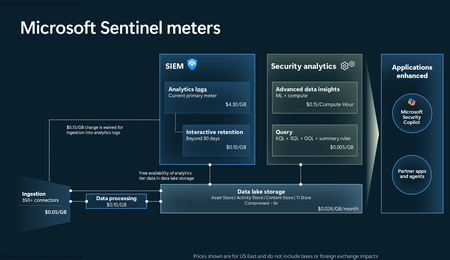
Introduction on Sentinel and its New Pricing Model Microsoft Sentinel is a cloud-native Security Information and Event Management (SIEM) and Security Orchestration, Automation, and Response (SOAR) platform that collects, analyzes, and correlates security data from across your environment to detect threats and automate response. Traditionally, Sentinel stored all ingested data in the Analytics tier (Log Analytics workspace), which is powerful but expensive for high-volume logs. To reduce cost and enable customers to retain all security data without compromise, Microsoft introduced a new dual-tier pricing model consisting of the Analytics tier and the Data Lake tier. The Analytics tier continues to support fast, real-time querying and analytics for core security scenarios, while the new Data Lake tier provides very low-cost storage for long-term retention and high-volume datasets. Customers can now choose where each data type lands—analytics for high-value detections and investigations, and data lake for large or archival types—allowing organizations to significantly lower cost while still retaining all their security data for analytics, compliance, and hunting. Please flow diagram depicts new sentinel pricing model: Now let's understand this new pricing model with below scenarios: Scenario 1A (PAY GO) Scenario 1B (Usage Commitment) Scenario 2 (Data Lake Tier Only) Scenario 1A (PAY GO) Requirement Suppose you need to ingest 10 GB of data per day, and you must retain that data for 2 years. However, you will only frequently use, query, and analyze the data for the first 6 months. Solution To optimize cost, you can ingest the data into the Analytics tier and retain it there for the first 6 months, where active querying and investigation happen. After that period, the remaining 18 months of retention can be shifted to the Data Lake tier, which provides low-cost storage for compliance and auditing needs. But you will be charged separately for data lake tier querying and analytics which depicted as Compute (D) in pricing flow diagram. Pricing Flow / Notes The first 10 GB/day ingested into the Analytics tier is free for 31 days under the Analytics logs plan. All data ingested into the Analytics tier is automatically mirrored to the Data Lake tier at no additional ingestion or retention cost. For the first 6 months, you pay only for Analytics tier ingestion and retention, excluding any free capacity. For the next 18 months, you pay only for Data Lake tier retention, which is significantly cheaper. Azure Pricing Calculator Equivalent Assuming no data is queried or analyzed during the 18-month Data Lake tier retention period: Although the Analytics tier retention is set to 6 months, the first 3 months of retention fall under the free retention limit, so retention charges apply only for the remaining 3 months of the analytics retention window. Azure pricing calculator will adjust accordingly. Scenario 1B (Usage Commitment) Now, suppose you are ingesting 100 GB per day. If you follow the same pay-as-you-go pricing model described above, your estimated cost would be approximately $15,204 per month. However, you can reduce this cost by choosing a Commitment Tier, where Analytics tier ingestion is billed at a discounted rate. Note that the discount applies only to Analytics tier ingestion—it does not apply to Analytics tier retention costs or to any Data Lake tier–related charges. Please refer to the pricing flow and the equivalent pricing calculator results shown below. Monthly cost savings: $15,204 – $11,184 = $4,020 per month Now the question is: What happens if your usage reaches 150 GB per day? Will the additional 50 GB be billed at the Pay-As-You-Go rate? No. The entire 150 GB/day will still be billed at the discounted rate associated with the 100 GB/day commitment tier bucket. Azure Pricing Calculator Equivalent (100 GB/ Day) Azure Pricing Calculator Equivalent (150 GB/ Day) Scenario 2 (Data Lake Tier Only) Requirement Suppose you need to store certain audit or compliance logs amounting to 10 GB per day. These logs are not used for querying, analytics, or investigations on a regular basis, but must be retained for 2 years as per your organization’s compliance or forensic policies. Solution Since these logs are not actively analyzed, you should avoid ingesting them into the Analytics tier, which is more expensive and optimized for active querying. Instead, send them directly to the Data Lake tier, where they can be retained cost-effectively for future audit, compliance, or forensic needs. Pricing Flow Because the data is ingested directly into the Data Lake tier, you pay both ingestion and retention costs there for the entire 2-year period. If, at any point in the future, you need to perform advanced analytics, querying, or search, you will incur additional compute charges, based on actual usage. Even with occasional compute charges, the cost remains significantly lower than storing the same data in the Analytics tier. Realized Savings Scenario Cost per Month Scenario 1: 10 GB/day in Analytics tier $1,520.40 Scenario 2: 10 GB/day directly into Data Lake tier $202.20 (without compute) $257.20 (with sample compute price) Savings with no compute activity: $1,520.40 – $202.20 = $1,318.20 per month Savings with some compute activity (sample value): $1,520.40 – $257.20 = $1,263.20 per month Azure calculator equivalent without compute Azure calculator equivalent with Sample Compute Conclusion The combination of the Analytics tier and the Data Lake tier in Microsoft Sentinel enables organizations to optimize cost based on how their security data is used. High-value logs that require frequent querying, real-time analytics, and investigation can be stored in the Analytics tier, which provides powerful search performance and built-in detection capabilities. At the same time, large-volume or infrequently accessed logs—such as audit, compliance, or long-term retention data—can be directed to the Data Lake tier, which offers dramatically lower storage and ingestion costs. Because all Analytics tier data is automatically mirrored to the Data Lake tier at no extra cost, customers can use the Analytics tier only for the period they actively query data, and rely on the Data Lake tier for the remaining retention. This tiered model allows different scenarios—active investigation, archival storage, compliance retention, or large-scale telemetry ingestion—to be handled at the most cost-effective layer, ultimately delivering substantial savings without sacrificing visibility, retention, or future analytical capabilities.Solved3.9KViews2likes6CommentsTenant-based Microsoft Defender for Cloud Connector
As the title states the connector is connect but no alerts show in Sentinel. Alerts are in Defender for Cloud they do not show in Sentinel. Data connector is connected, law exports are configured to send to law rg. What's missing?495Views0likes5Comments
Microsoft 365 defender alerts not capturing fields (entities) in azure sentinel
We got an alert from 365 defenders to azure sentinel ( A potentially malicious URL click was detected). To investigate this alert we have to check in the 365 defender portal. We noticed that entities are not capturing (user, host, IP). How can we resolve this issue? Note: This is not a custom rule.2.8KViews1like3Comments
How to exclude IPs & accounts from Analytic Rule, with Watchlist?
We are trying to filter out some false positives from a Analytic rule called "Service accounts performing RemotePS". Using automation rules still gives a lot of false mail notifications we don't want so we would like to try using a watchlist with the serviceaccounts and IP combination we want to exclude. Anyone knows where and what syntax we would need to exlude the items on the specific Watchlist? Query: let InteractiveTypes = pack_array( // Declare Interactive logon type names 'Interactive', 'CachedInteractive', 'Unlock', 'RemoteInteractive', 'CachedRemoteInteractive', 'CachedUnlock' ); let WhitelistedCmdlets = pack_array( // List of whitelisted commands that don't provide a lot of value 'prompt', 'Out-Default', 'out-lineoutput', 'format-default', 'Set-StrictMode', 'TabExpansion2' ); let WhitelistedAccounts = pack_array('FakeWhitelistedAccount'); // List of accounts that are known to perform this activity in the environment and can be ignored DeviceLogonEvents // Get all logon events... | where AccountName !in~ (WhitelistedAccounts) // ...where it is not a whitelisted account... | where ActionType == "LogonSuccess" // ...and the logon was successful... | where AccountName !contains "$" // ...and not a machine logon. | where AccountName !has "winrm va_" // WinRM will have pseudo account names that match this if there is an explicit permission for an admin to run the cmdlet, so assume it is good. | extend IsInteractive=(LogonType in (InteractiveTypes)) // Determine if the logon is interactive (True=1,False=0)... | summarize HasInteractiveLogon=max(IsInteractive) // ...then bucket and get the maximum interactive value (0 or 1)... by AccountName // ... by the AccountNames | where HasInteractiveLogon == 0 // ...and filter out all accounts that had an interactive logon. // At this point, we have a list of accounts that we believe to be service accounts // Now we need to find RemotePS sessions that were spawned by those accounts // Note that we look at all powershell cmdlets executed to form a 29-day baseline to evaluate the data on today | join kind=rightsemi ( // Start by dropping the account name and only tracking the... DeviceEvents // ... | where ActionType == 'PowerShellCommand' // ...PowerShell commands seen... | where InitiatingProcessFileName =~ 'wsmprovhost.exe' // ...whose parent was wsmprovhost.exe (RemotePS Server)... | extend AccountName = InitiatingProcessAccountName // ...and add an AccountName field so the join is easier ) on AccountName // At this point, we have all of the commands that were ran by service accounts | extend Command = tostring(extractjson('$.Command', tostring(AdditionalFields))) // Extract the actual PowerShell command that was executed | where Command !in (WhitelistedCmdlets) // Remove any values that match the whitelisted cmdlets | summarize (Timestamp, ReportId)=arg_max(TimeGenerated, ReportId), // Then group all of the cmdlets and calculate the min/max times of execution... make_set(Command, 100000), count(), min(TimeGenerated) by // ...as well as creating a list of cmdlets ran and the count.. AccountName, AccountDomain, DeviceName, DeviceId // ...and have the commonality be the account, DeviceName and DeviceId // At this point, we have machine-account pairs along with the list of commands run as well as the first/last time the commands were ran | order by AccountName asc // Order the final list by AccountName just to make it easier to go through | extend HostName = iff(DeviceName has '.', substring(DeviceName, 0, indexof(DeviceName, '.')), DeviceName) | extend DnsDomain = iff(DeviceName has '.', substring(DeviceName, indexof(DeviceName, '.') + 1), "")356Views0likes1Comment