microsoft copilot studio
2 TopicsNew Microsoft Certified: AI Agent Builder Associate Certification
Building agents for real-world workflows takes more than prompts. Show you are ready to design and manage secure, enterprise‑ready agents in Microsoft Copilot Studio with Exam AB-620 (beta). As organizations shift from early AI experiments to deploying agents in real business workflows, the need for builders who can create dependable, production‑ready agents is growing quickly. Teams are looking for professionals who know how to move beyond demos and build agents that are ready for production from day one. To support that need we’re introducing the Microsoft Certified: AI Agent Builder Associate Certification to validate your ability to drive business process transformation using agents built in Microsoft Copilot Studio, integrations with Azure and Microsoft Foundry, multi-agent solution design patterns, workflow automation, and integrations with enterprise systems. To earn this new Microsoft Certification, you need to pass Exam AB-620: Designing and Building Integrated AI Agent Solutions in Copilot Studio, currently in beta. Is this the right Certification for you? By passing Exam AB-620, you earn the Microsoft Certified: AI Agent Builder Associate Certification, demonstrating that you have the skills to design, build, and manage advanced agent solutions in production environments. It proves that you can: Plan and configure agent solutions. Integrate and extend Copilot Studio agents. Test and manage agents. As a candidate for this Certification, you’re a professional developer or advanced builder who builds, extends, and integrates custom agents for enterprise-grade solutions. You typically work as an IT app developer, consultant, or independent software vendor (ISV) partner, building scalable AI solutions for organizations and customers by using Copilot Studio and related platforms. You’re proficient with Power Fx, Microsoft Dataverse, Microsoft Power Platform environments and components, Microsoft 365 Copilot, Foundry, and adaptive cards. You have intermediate knowledge of generative AI concepts, including models, orchestration, retrieval‑augmented generation (RAG), Model Context Protocol (MCP), and Agent2Agent (A2A) protocol. And you have hands-on experience with prompt engineering, REST APIs, and common integration patterns. You have experience configuring agents in Copilot Studio using enterprise knowledge sources, instructions, tools, and topics, and you build and integrate agents that: Connect to MCP servers, APIs, and custom or prebuilt connectors. Automate tasks, including computer‑using actions. Support multi‑agent and advanced orchestration scenarios involving agents built in Foundry, Microsoft Fabric, Copilot Studio, or external frameworks via A2A protocol. Use enterprise knowledge sources, such as ServiceNow, SAP, and similar systems. Perform advanced actions through APIs and external services. You collaborate with business process subject matter experts (SMEs), agent developers, Microsoft 365 and Copilot administrators, Microsoft Power Platform administrators, Foundry administrators, and solution architects. Ready to prove your agent builder skills? Take advantage of the discounted beta exam offer. The first 300 people who take Exam AB-620 (beta) on or before May 12, 2026, can get 80% off. To receive the discount, when you register for the exam and are prompted for payment, use code AB620Sunny26. This is not a private access code. The seats are offered on a first-come, first-served basis. As noted, you must take the exam on or before May 12, 2026. Please note that this discount is not available in Turkey, Pakistan, India, or China. How to prepare Get ready to take Exam AB-620 (beta): Review the Exam AB-620 (beta) page for details and training options, with self-paced training modules being released on a rolling basis starting April 23rd. The Exam AB-620 study guide explores key topics covered in the exam. Connect with Microsoft Training Services Partners in your area for in-person offerings. Need other preparation ideas? Check out Just How Does One Prepare for Beta Exams? Ready to get started? You can take Certification exams online, from your home or office. Get the details in Online proctored exams: What to expect and how to prepare. Remember, only the first 300 candidates can get 80% off Exam AB-620 (beta) with code AB620Sunny26 on or before May 12, 2026. Beta exam rescoring begins when the exam goes live, with final results released approximately 10 days later. For more details, read Creating high-quality exams: The path from beta to live. Stay tuned for general availability of this Certification in June 2026. Additional information For more AI business solution Certification updates, read our recent blog post, The AI job boom continues: Build the skills that move business forward. Follow our credentials news on The Skills Hub blog as we roll out additional new Certifications in April, May, and June 2026. Join our Microsoft Worldwide Learning SME Group for Credentials on LinkedIn for beta exam alerts and opportunities to help shape future Microsoft learning and assessments. If you want to learn more about Microsoft Credentials, visit AI Skills Navigator.1.3KViews2likes0CommentsBuild autonomous agents in Copilot Studio | Your MCPs, your models & multi-agent
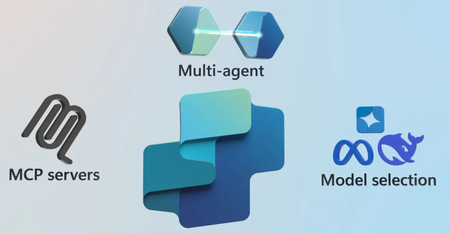
Use triggers to launch processes from signals like approval emails, connect to the right data with Model Context Protocol (MCP) for faster, more accurate responses, and coordinate multiple agents to handle everything from task assignments to inventory planning. Choose AI models that fit each job, prompt agents to generate detailed documents, and test their reasoning in real time. Jeremy Chapman, Director of Microsoft 365, shows how to transform repetitive work into scalable, intelligent systems. Automate your planning. Skip manual steps by letting your agent instantly build launch plans and assign tasks when projects kick off. Get started with Copilot Studio. Your API is not an MCP. Help your agents find the right info faster so they respond with more accuracy and context. See how MCP simplifies data access. Select the best AI model for the job at hand. Choose from options like your favorite GPT or specialized options from Azure AI Foundry. Check out model selection in Microsoft Copilot Studio. QUICK LINKS: 00:00 — Build an agent with Microsoft Copilot Studio 00:41 — Automate project planning 01:22 — How agents work 02:47 — Define tools and triggers 03:58 — Model Context Protocol (MCP) 05:44 — Use prompt tools to auto-create key docs 06:22 — Choose the right model 07:13 — Test your agent 08:08 — Wrap up Link References To get started building your own agents go to https://copilotstudio.microsoft.com Check out our lab at https://aka.ms/MCSMCPLab Unfamiliar with Microsoft Mechanics? As Microsoft’s official video series for IT, you can watch and share valuable content and demos of current and upcoming tech from the people who build it at Microsoft. Subscribe to our YouTube: https://www.youtube.com/c/MicrosoftMechanicsSeries Talk with other IT Pros, join us on the Microsoft Tech Community: https://techcommunity.microsoft.com/t5/microsoft-mechanics-blog/bg-p/MicrosoftMechanicsBlog Watch or listen from anywhere, subscribe to our podcast: https://microsoftmechanics.libsyn.com/podcast Keep getting this insider knowledge, join us on social: Follow us on Twitter: https://twitter.com/MSFTMechanics Share knowledge on LinkedIn: https://www.linkedin.com/company/microsoft-mechanics/ Enjoy us on Instagram: https://www.instagram.com/msftmechanics/ Loosen up with us on TikTok: https://www.tiktok.com/@msftmechanics Video Transcript: -Building AI agents to automate the repetitive and complex things you do every day without using any code just got better. You can now more efficiently connect agents to information using the new AI-optimized MCP standard. Select the specific AI model you want and even easily have your agent work together with other agents. -In fact, today I’ll show you how to build an agent with Microsoft Copilot Studio in just a few minutes. In this case, I’ve chosen an often complex but common task, project planning, that I want to automate. So here our project has just been given the green light to move forward after initial ideation and stakeholder approval. Now let me show you my running agent and how it can automate parts of the launch planning process. First, my agent works autonomously to reason over and determine if this email is an approval email. Once identified, this email becomes a trigger for the planning process to start. Here you can see it’s actually created a new team with a virtual assistant that highlights the key phases and milestones. -Under the covers, the agent has referred to the knowledge we’ve assigned to it and used Microsoft Planner to create and to assign tasks to people for each phase. If you’ve never automated something like this, it might seem kind of complex, but it’s pretty simple. Let me show you how this agent works. So I’m in Copilot Studio, and to speed things up a little bit, let me reverse-engineer what’s behind it. This agent overview page shows all the components of the agent in a single view. At the top, there’s a description of the agent with its primary components. Then on the right, there’s a test pane that I can use to test the agent at any stage as I build it out. -To build a launch plan, I have written instructions to describe exactly what I need the agent to do, and this is more or less how I would describe it to any member of the team. So here I’ve instructed it to monitor the inbox for that launch email like we saw before, then generate a plan, including the tasks with each task owner and the deadlines defined. Notify those task owners and stakeholders about their tasks and deadlines so that they aren’t surprised. Make sure that all of this is maintained and synced in Microsoft Planner, and my favorite part, coordinate with other agents. In this case, I’ve asked our Zava Launch Planning agent to work with our Zava Inventory Planning agent. -Then under that, I’ve defined quite a few important knowledge sources. So you can see competitor analysis here from a web source, product documentation, and a best practices repo from SharePoint, even two individual reference files, a Word document for marketing collateral, and also A PDF with our Launch Process Library with details on team member specialization and task timeframes. So at this stage we’ve kind of laid out all the expectations for how the agent should operate and the knowledge resources that it should refer to, but I still need to define the tools and the triggers to perform and activate the process automation. -I’ll start in Tools, where I can get more specific with exactly the kind of actions I want the agent to take, like sending emails, creating and assigning tasks, and looking up supplier and component data for inventory. Below that in Triggers is an important configuration because this is actually what makes our agent autonomous. Remember, it sprung into action only once it identified that there was an approval email. And in Agents, you can see that the Zava Inventory Planning agent is also defined here. This agent actually reviews relevant inventory status and will give my agent accurate estimates to generate the product launch plan. Back up in Tools, let me show you the options there for adding a new tool. You can see that I can search, and there are suggestions as well as options for defining connectors to bring in data. And I can also add a flow to run steps in a process using Power Automate. -There’s a new option for Model Context Protocol, or MCP, as well. I’m going to pause here for a second in case you’re new to Model Context Protocol, or maybe you just think it’s a new name for APIs. Your API is not an MCP. That’s because MCP is designed to structure data specifically for AI models so that they can understand and use information sources more easily. Unlike traditional APIs, which are packed with extra details for both read and write operations so that software developers have the control over the output of their apps, MCPs, on the other hand, are task-focused and are built uniquely to enable and guide AI’s actions, giving it the context and instructions it needs to make quick decisions on what to do next. -The MCP primarily supports read operations to look up and also retrieve information, where the MCP points to specific resources like files, database records or images, each packaged with metadata to describe the resource and how it should be used to perform the task. This helps AI to quickly find and also make sense of the most relevant information in order to generate and format its response back. This means, using MCP, your AI agents are generally more efficient and accurate than they would be using other options. In fact, your IT team has an incentive to build them to minimize operational costs. And if you’re in IT and want to get an MCP server running, check out our lab at aka.ms/MCSMCPLab. -Now let’s get back to our specific agent in Copilot Studio. By selecting MCP, I can see a list of the MCP servers that my IT team has made available to me. In this case, if I click into Tools, you’ll see the Supplier SKU and Component Data we saw before is actually an MCP server, and it’s enabled and ready to go. So until now, I’ve shown you how we created our project plan, but we also need a go-to-market document describing how we’ll launch, promote, and sell it. So let’s add that to the agent. So back in the Overview tab, I’ll add another tool. Hitting New tool will show me all the options. Here you’ll see another one for Prompt, which lets you analyze and transform text, documents, images, and data using AI with a prompt. So I’ll go ahead and choose that. -Now I’ll add a prompt with instructions for creating a go-to-market strategy document. As with prompting, the more detailed the prompt, the better the generated response will be. And that’s all it takes. Of course, the generated response can also depend on the AI model that you choose, and for most things, the default model will work just fine. I can alternatively choose from the models I have available to me, or I can even head over to Azure AI Foundry to browse over thousands of models. This is great, especially if you have specialized tasks that need specialized skills. So, for example, if I wanted one for forecasting, I can narrow down the list here by choosing my preferred deployment option. I’ll pick serverless. Under inference task, I’ll pick the forecasting category, and it finds a match that I could use maybe later for a sales forecasting agent after our launch. For now, back in Copilot Studio, I’ll keep GPT-4o mini as a good general-purpose model. So now I’ll save my prompt, which takes just a second, then just confirm by adding it to my agent. And that’s it. -And now with everything configured and added, I can test it out to see if it works. So I’ll type in my prompt, “Test the launch planner agent based on the last approval email received in my inbox,” and then submit that. And you can see its thought process here over on the left. That way you can make sure it’s doing what you want it to do. In the middle of the screen is our MCP server data with raw records it discovered and used. And that same information is shown on the right in our response. -Now with the document ready to go, let’s take a look at it in Word. So here’s our go-to-market document. As I scroll down, you can see that the document is pretty thorough. It’s got all the right details and all the right insights. It’s even used our standard go-to-market strategy templates for consistency. And you’ll notice also on the top that because it’s fully integrated with our Microsoft Purview policies for our company, it’s even applied the right label and protections. So between the automated generation of our launch plan and GTM doc, something that might’ve taken weeks before, now just takes a few minutes, and, again, I didn’t need to use any code. -So to get started building your own agents, just head over to copilotstudio.microsoft.com. Keep watching Microsoft Mechanics for the latest AI tech, and thanks for watching.1.2KViews0likes0Comments