m365 apps
13 TopicsToken Limit Exceeded? What's Actually Going On and What to Do About It ?
Hi All, Based on some recent experience across the organisation with token limit issues, I wanted to put my thoughts down and actually dig into what's happening under the hood, rather than just chalking it up to "we need a bigger plan." If you work anywhere near the Microsoft ecosystem these days, you're probably touching more AI tools than you realize. Copilot in Word and Excel, GitHub Copilot while you code, Copilot Studio if you're building agents, maybe Security Copilot or Copilot for Sales depending on your role, and increasingly Azure AI Foundry if your team is building anything custom. I work across a good chunk of this stack day to day, and at some point, almost everyone runs into the same wall: "Token limit exceeded." "You've reached your usage limit." "Upgrade to continue." The first instinct is usually to assume you did something wrong wrote too much, uploaded too big a file, or just need a fatter subscription. Sometimes that's the actual story. But honestly, often, that error message is standing in for three completely different problems that all happen to look identical from the outside. One is about how much text a model can physically process at once. One is about your license or credits running dry. And one has nothing to do with size at all it's just about how fast you're sending requests. Once you know which of these three, you're dealing with, the fix becomes obvious. Until then, "upgrade your plan" feels like the only lever you've got even when it isn't. This post walks through what a token is, why Microsoft's various Copilots each handle this differently, and what habits genuinely cut down on these interruptions instead of just throwing money at the problem. Part 1: So What Is a Token, Really? A token isn't a word, and it isn't a character it's somewhere in between. It's the small chunk of text a model's tokenizer breaks your input into before it can do anything with it. Take a word like "unbelievable." A tokenizer might split it into three pieces something like "un," "believ," and "able." Short, everyday words usually come out as a single token. But code, technical jargon, acronyms, and non-English text tend to fragment into a lot more tokens than you'd guess just by looking at the word count. This is why every AI tool has a ceiling on how much it can handle in one go, and that ceiling isn't measured in words or characters it's measured in tokens. Your prompt, any documents or emails it pulls in as context, the back-and-forth history of your conversation, and the response itself all draw from the same pool. Once that pool runs dry, something has to give: the tool truncates, rejects the request outright, or quietly summarizes older context to make room. The part that trips people up: token count doesn't map cleanly to word count. A short, dense paragraph full of code or acronyms can eat up more tokens than a much longer plain-English message. Part 2: Three Different Limits, One Confusing Error Message This isn't always obvious upfront, even to a lot of admins managing these tools: "token limit exceeded" is really a stand-in phrase for three separate limits, and they don't behave the same way. This isn't unique to Microsoft either every major AI platform bundles these same three things behind similarly vague error messages. Microsoft's stack just makes a good case study because so many of us touch multiple pieces of it in the same week. The context window is the ceiling on how much text a specific model can process in a single request everything from your prompt to retrieved documents to chat history. This is tied to the model itself, not your subscription. Swap from one model to another inside the same tool, and this ceiling can move without you doing anything differently. Your license, credits, or feature allowance is a completely separate thing. This is what Microsoft 365 Copilot plans track through AI credits and feature limits, and it's what Copilot Studio measures through Copilot credits at the environment level. A single action summarizing an inbox, generating an agent response, running an analysis deducts from this pool regardless of how small your actual prompt felt. Run out, and you get blocked, even if you're nowhere near any context window limit. The rate limit is about speed, not size. Copilot Studio, for instance, enforces quotas measured in requests per minute or per hour to keep the system stable under load. Send messages too quickly, which happens easily with automations, flows, or bots, and you can get throttled even with a tiny prompt and plenty of credits left. The reason this matters: a plan upgrade only ever fixes the second one. If you're actually running into the model's context window or getting rate-limited, paying for a bigger license won't change anything, and that mismatch is exactly where most of the frustration comes from. Part 3: How This Plays Out Across the Microsoft AI Stack The Microsoft ecosystem isn't one AI tool wearing different outfits it's genuinely several different systems, each handling tokens and limits in its own way. Here's a tour of the ones people run into most. Microsoft 365 Copilot (the one living inside Word, Excel, Outlook, Teams) doesn't work off a single published token number the way a developer tool would. Instead, it dynamically pulls together your prompt, recent chat history, and relevant snippets retrieved from Microsoft Graph your files, emails, and messages and quietly summarizes or drops older material to stay within bounds. Where this usually breaks isn't the context window at all; it's the AI credit and feature-limit system running out, often without much warning until you're mid-task. GitHub Copilot Chat is more like a traditional developer tool. It has a fixed, published token window tied to whichever model you've selected, and that limit applies consistently whether you're in the browser, VS Code, or the CLI. The failure mode here is usually a long conversation or a big multi-file context quietly creeping past that ceiling. Copilot Studio, where a lot of custom agent-building happens, runs on Copilot credits per interaction, plus its own requests-per-minute and requests-per-hour quotas at the environment level. If you're grounding an agent in SharePoint content, there's also a separate file-size ceiling to watch content over a certain size can get silently excluded from generative answers depending on your tenant's licensing. Azure AI Foundry (recently renamed to Microsoft Foundry, in case you've seen both names floating around) is where this gets more directly in your control. If your team is building custom applications on top of Azure OpenAI or other models in the Foundry catalog, which now includes everything from GPT to Phi to Claude to Llama, you're working with explicit, published context windows per model, and you're billed per token rather than per credit. It's a different mental model entirely: less "you hit a wall," more "you're paying by the word, so design accordingly." Security Copilot, if your org uses it for threat analysis and incident response, runs on its own capacity model pooled compute units at the tenant level rather than a simple per-user cap. It's easy to assume this behaves like M365 Copilot license limits; it doesn't. Copilot for Sales, embedded in Outlook and Teams for CRM-connected work, and Copilot in Power BI, which now goes beyond generating summaries to actually helping build and refine semantic models, both draw from their own feature-specific allowances layered on top of whatever base Microsoft 365 or Power Platform license you're on. And then there's the multi-model wrinkle that trips up teams the most: because tools like Copilot Studio and GitHub Copilot let you choose between GPT-based models, Claude, and others, the exact same prompt can have a different effective context window and a different token cost purely based on which model handled it that day. This is a big, underrated reason behind the "it worked fine yesterday, why not now" complaint. Part 4: What Actually Helps ? Some of this is genuinely outside your control, but a fair amount isn't. If you're just using these tools day to day, the single biggest habit shift is not letting conversations run forever. Long threads in Copilot Chat or Copilot Studio keep accumulating history, and that history eats into the same budget as whatever you're asking right now. Starting fresh periodically costs you nothing and buys back a lot of headroom. Large documents are worth splitting up before you feed them in, especially for SharePoint-grounded agents, where oversized files can get quietly excluded rather than cleanly rejected you won't necessarily know it happened unless you're looking for it. And it's worth resisting the urge to default to the heaviest, most capable model for every single task. Lighter models are usually faster, cheaper, and often sit under a more generous limit than the flagship ones, and most everyday tasks genuinely don't need the biggest model available. Before you go asking IT for a license upgrade, it's worth a quick sanity check on which limit you actually hit. If it's a rate limit, waiting a minute and retrying usually solves it outright. If it's a context window problem, trimming your prompt or starting a new session fixes it. An upgrade only helps if you've genuinely run out of credits or feature allowance, and that's worth confirming before you file the request. If you're on the building side Copilot Studio agents, Foundry applications, anything with RAG-style grounding a couple of things pay off quickly. Keep an eye on credit or token consumption proactively rather than discovering it's gone when the agent goes down mid-conversation. Be deliberate about what goes into system prompts and orchestration instructions, since those draw from the same budget as the end user's actual message, often invisibly to whoever's chatting with the agent. And spend real time getting chunk size right for knowledge sources too large and you're burning budget on irrelevant context, too small and the agent loses the thread. Part 5: Quick Checklist Before You Escalate Is this actually a context window problem -prompt, history, and attachments too big for the model in use? Have you genuinely run out of credits or feature allowance on your plan? Could this be a rate limit -too many requests too fast, especially from a flow or automation? Did the underlying model change since last time, quietly shifting the effective window? For Studio or Foundry work, is this a tenant or environment-level limit rather than something tied to you personally? Closing Thoughts Tokenization is one of those things that stays completely invisible right up until it isn't. Across a stack as sprawling as Microsoft's M365 Copilot, GitHub Copilot, Copilot Studio, Foundry, Security Copilot, and everything layered on top "token limit exceeded" almost never means one single thing. It means you've hit one of three very different walls, and each one needs a different response. If your team builds or maintains any of these tools, this is genuinely worth putting in front of people early. Most of the "why did this break" tickets in this space aren't about tokens at all. They're about nobody knowing which limit actually got hit, or where in this increasingly large ecosystem it happened. I'm curious how this shows up for others has your team standardized on one model across these tools, or are you juggling several depending on the task? I'd love to hear what patterns you've run into. Cheers, and happy reading. - By Surya Vennapusa, MCT1.6KViews3likes2CommentsGet in Sync with OneDrive's biggest moments of 2024!
Wow, what an incredible year of updates, new innovations, announcements, and of course, time with you all-our valuable customers, partners, and OneDrive users to gain valuable feedback that helps drive our product to be great! I wanted to wrap up the year with highlights of some of our key moments to and share resources for you to indulge in. Reflecting on OneDrive's Recent Innovations As we look back on our journey this year, we’ve introduced many features and updates to the OneDrive experience. From AI-powered capabilities to improved user interfaces, these updates help you work faster and more efficiently. Some of those highlights include: Copilot in OneDrive (Web) One of the exciting features we announced was the general availability of Copilot in OneDrive for web. Copilot is there to help you work faster and smarter by generating summaries for large documents, comparing differences between multiple files, and answering complex questions using stored data. Whether generating ideas for new documents or quickly finding insights, Copilot became a valuable productivity companion. Copilot in OneDrive: Comparing files in a table Faster performance online or offline We've taken enhanced OneDrive's web experience for our users. Now, you can view, edit, and organize your files at lightning speed—even when you're offline. Whether you're browsing through large libraries or filtering documents, everything feels faster, smoother, and more responsive. Colored Folders on Windows We introduced colored folders in Windows File Explorer, bringing a splash of color to file organization. You can customize folders with different colors, making it easier to organize and locate files. Whether managing personal projects or work documents, colored folders added a touch of personalization to file management. Colored folders in Windows File Explorer Sync Admin Report Export Capability (Public Preview) For our IT admins, we rolled out the Sync Admin report export capability in public preview this year. Enabling you to export detailed sync reports, gaining valuable insights into your sync performance and troubleshooting sync-related concerns more effectively. Enhanced OneDrive Search experience We understand that searching for specific files among a mountain of documents can be time consuming. That's why we introduced a suite of enhancements to OneDrive, designed to optimize the search experience. These updates made it quicker and easier for you to locate the files you need, making the whole process faster and more efficient than ever before. OneDrive’s next generation improvements As part of our continued commitment to bring the best OneDrive experience to you all, we introduced new enhancements to work better across M365 apps. The integration of the OneDrive app in Outlook allows you to access your OneDrive files directly from Outlook, making it easier to share and collaborate on documents without leaving your email. And we can’t forget about Media view helping you find and enjoy your media files easier than ever. Whether you're organizing your photos or reviewing videos, this streamlined experience keeps your media content at your fingertips. OneDrive Media view These updates marked significant milestones in our journey to enhance the OneDrive experience. We are looking forward to continuing to innovate and bring you more exciting features and improvements in the near future! OneDrive Event-AI Innovations for a New Era of Work and Home This past October we had our second annual OneDrive event where we unveiled a powerful lineup of new features designed to help you work smarter, stay organized, and relive life’s best moments. OneDrive Event Visual We introduced OneDrive agents custom AI assistants, created by you and grounded in your rich content that exists in your files. We also got a glimpse of OneDrive's improved search capabilities and faster performance, both online and offline. New features and AI-driven features to improve security and management. For our customers who use OneDrive in their personal lives, we shared a look at the new OneDrive mobile app- a vibrant, photos-first experience. With a refreshed UI, users can rediscover, search, and share their favorite photo memories easier than ever. When users back up their phone’s photos to OneDrive, they can enjoy AI-curated memories of meaningful moments. Sit back, grab a snack, and see all these announcements and more! Microsoft OneDrive: AI Innovations for a New Era of Work and Home OneDrive Office Hours One of our favorite monthly occurrences from our product teams is our chance to connect with you directly. Each month we have hosted webinars on multiple special topics across OneDrive and leave time for great conversations and Q&A at the end. Customer Office Hours promo visual If you’ve missed any of this year’s session here is a list of our OnDemand content ready for your viewing pleasure: August-Copilot in OneDrive September-File Picker: seamless collaboration and file management October-Unlicensed OneDrive user accounts November-New Sync updates To stay updated on the latest Office Hours: Follow our blogs on Tech community Download the recurring calendar invite so you don’t miss out! Save the link https://aka.ms/OneDriveOfficeHours to register every month. Sync-Up Podcast Whether you love hearing about deep dive conversations with members of our product teams or seeing behind the scenes for some of our big events, the Sync Up Podcast has got you covered. Sync Up Podcast Episodes: OneDrive's Year in Review & Unlicensed User Changes In Focus—Designing for Copilot Data on the Move—Migrating to OneDrive From Waterfalls to Weekly Releases—Engineering Excellence with Steven Bailey and John Selbie Listen on your favorite platforms: Show: https://aka.ms/SyncUp | Apple Podcasts: https://aka.ms/SyncUp/Apple | Spotify: https://aka.ms/SyncUp/Spotify | RSS: https://aka.ms/SyncUp/RSS Your feedback is valuable to us! Please take our quick survey to suggest topics you'd like to see! A New Year of Innovation As we wrap up this incredible year, it was amazing to reflect on all the progress we've made together. From the introduction of AI-powered features to enhanced user experiences, OneDrive has truly evolved thanks to your feedback and support. Looking ahead, we're excited about the future and the innovations yet to come. We can't wait to continue this journey with you, bringing even more enhancements and features that will make your OneDrive experience better than ever. Thank you for being a part of our community and for your continued support. Here's to another year of growth, innovation, and success 🚀!5.7KViews1like2CommentsGCCH M365 Webinar (June): Info Protection and Sensitivity Labels and new Teams Update
Our June GCCH M365 Webinar: Connect - Collaborate - Create included a discussion around Microsoft Information Protection, the Purview Roadmap, and new Teams. Recording here: https://www.microsoft.com/en-us/videoplayer/embed/RW1mCB71.3KViews0likes0CommentsDIB Secure Communications and Employee Experience Showcase - Dec 5
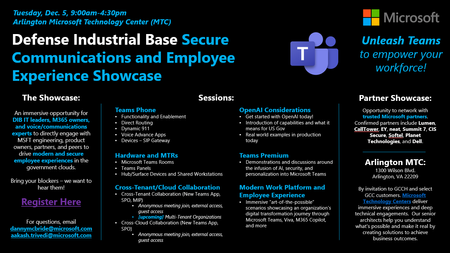
We are pleased to GCCH and select GCC customers to the first DIB Secure Communications and Employee Experience Showcase at the Microsoft Technology Center (MTC) on Tuesday, December 5, from 9am-4:30pm. This showcase is a one-day, immersive opportunity for DIB IT leaders, M365 owners, and voice/communications experts to directly engage with MSFT engineering, product owners, partners, and peers in the defense space to drive modern and secure employee experiences in the government clouds. We will be hosting interactive sessions around Teams Phone, Cross-Tenant Collaboration, Open AI, Microsoft Teams Rooms (MTRs), Devices and frontline worker solutions, Teams Premium, and the art-of-the-possible M365 employee experience. Leadership and facilitators will be announced in the coming weeks. In addition, there will be a strong partner presence at the event, providing opportunities to network and learn more about their enablement and support for our offerings. Thus far, the following partners have been confirmed: Lumen, Call Tower, Summit 7, CIS Secure, Planet Technologies, Softel Communications, and EY. Light breakfast and lunch will be provided. To register, please complete the form here: DIB Secure Communications and Employee Experience Showcase. Updates, resources, and calendar invites will be sent to the email address provided. Reach out to Danny McBride at dannymcbride@microsoft.com for more information or questions.3.8KViews0likes0CommentsSeptember '23 M365 GCCH Webinar
Dave Jennings, Principal Technical Manager (Teams), reviewed the new Teams app coming to GCCH for Public Preview in October. Recording here: https://www.microsoft.com/en-us/videoplayer/embed/RW1c5kr (start at the 14-minute mark) Helpful Resources: New Microsoft Teams Adoption https://adoption.microsoft.com/en-us/new-microsoft-teams/ Deploy New Teams as Part of 365 Apps https://learn.microsoft.com/en-us/microsoftteams/new-teams-deploy-with-m365apps Bulk Install the New Teams Client https://learn.microsoft.com/en-us/microsoftteams/new-teams-bulk-install-client Current New Teams Known Limitations https://learn.microsoft.com/en-us/microsoftteams/new-teams-known-issues Prerequisites for New Teams with Mac https://learn.microsoft.com/en-us/microsoftteams/new-teams-mac-install-prerequisites New Teams End User Training https://support.microsoft.com/en-us/office/try-the-new-microsoft-teams-2d4a0c96-fa52-43f8-a006-4bfbc62cf6c5 Introducing the New Microsoft Teams https://techcommunity.microsoft.com/t5/microsoft-teams-blog/introducing-the-new-microsoft-teams-now-in-preview/ba-p/3774406 What's New for Security in the New Microsoft Teams Client? https://techcommunity.microsoft.com/t5/microsoft-teams-blog/what-s-new-for-security-in-the-new-microsoft-teams/ba-p/3804261 Microsoft Teams: Advantages of the New Architecture https://techcommunity.microsoft.com/t5/microsoft-teams-blog/microsoft-teams-advantages-of-the-new-architecture/ba-p/3775704 The Era of New Teams https://www.microsoft.com/en-us/microsoft-365/blog/2023/03/27/welcome-to-the-new-era-of-microsoft-teams/ Enable the New Microsoft Teams Toggle for your Organization https://techcommunity.microsoft.com/t5/microsoft-teams-blog/enable-the-new-microsoft-teams-toggle-for-your-organization/ba-p/37813453.8KViews0likes0CommentsM365 A5 - How to purchase Windows Server CALs for Students on a EES?
Hi All Just checking the cheapest way to cover Students for using on-premise Windows Server? MS have removed this from the Student Use Benefit (SUB) under M365 A5! 1) Can i use the Student Option? 2) Can i use the External Connector License? 3) Or do i need to purchase WS Cal for each Student? Thanks805Views0likes0CommentsJune M365 Webinar: Connect - Collaborate - Create (Task Management in M365)
Tamara Bredemus from Planet Technologies reviewed M365 products, including Excel, OneNote, To Do, Planner, Lists, and Project, describing how each function and supports different Task Management use cases. Q&A from Session (awaiting answers to some questions from Product Groups): Timeline for the To Do desktop app in GCCH - Currently only To Do web app available in GCCH. No timeline for desktop app.4.3KViews1like0Comments