log analytics
6 Topics
Securing multicloud (Azure, AWS & GCP) with Microsoft Defender for Cloud: Connector best practices
Many organizations run workloads across multiple cloud providers and need to maintain a strong security posture while ensuring interoperability. Microsoft Defender for Cloud is a cloud-native application protection platform (CNAPP) solution that helps secure these environments by providing unified visibility and protection for resources in AWS and GCP alongside Azure. Planning for multicloud security with Microsoft Defender for Cloud As customers adopt Microsoft Defender for Cloud in multicloud environments, Microsoft provides several resources to support planning, deployment, and scalable onboarding: Planning Guides: Multicloud Protection Planning Guide that walks through key design considerations for securing multicloud with Microsoft Defender for Cloud. Deployment Guides: Connect your Azure subscriptions - Microsoft Defender for Cloud. With the right planning and adoption strategy, onboarding to Microsoft Defender for Cloud can be smooth and predictable. However, support cases show that some common challenges can still arise during or after onboarding AWS or GCP environments. Below, we walk through frequent multicloud scenarios, their symptoms, and recommended troubleshooting steps. Common multicloud connector problems and how to resolve them 1. Problem: Removed cloud account still appears in Microsoft Defender for Cloud The AWS/GCP account is deleted or removed from your organization, but in Microsoft Defender for Cloud it still appears under connected environments. Additionally, security recommendations for resources in the deleted account may still show up in recommendations page. Cause Microsoft Defender for Cloud does not automatically delete a cloud connector when the external account is removed. The security connector in Azure is a separate object that remains unless explicitly removed. Microsoft Defender for Cloud isn’t aware that the AWS/GCP side was decommissioned as there’s no automatic callback to Azure when an AWS account is closed. Therefore, the connector and its last known data linger until manually removed. Solution Delete the connector to clean up the stale entry. Use one of the following methods. Option 1: Use the Azure portal Sign in to the Azure portal. Go to Microsoft Defender for Cloud > Environment settings. Select the AWS account or GCP project that no longer exists. Select Delete to remove the connector. Option 2: REST API Delete the connector by using the REST API: Security Connectors - Delete - REST API (Azure Defender for Cloud). Note: If a multicloud organization connector was set up and the organization was later decommissioned or some accounts were removed, there would be several connectors to clean up. Start by deleting the organization’s management account connector, then remove any remaining child connectors. Removing connectors in this order helps prevent leftover dependencies. Additional guidance see: What you need to know when deleting and re-creating the security connector(s) in Defender for Cloud. 2. Problem: Identity provider is missing or partially configured After running the AWS CloudFormation template, the connector setup fails. Microsoft Defender for Cloud shows the AWS environment in an error state because the identity link between Azure and AWS is not established. On the AWS side, the CloudFormation stack exists, but the required OIDC identity provider or the IAM role trust policy that allows Microsoft Defender for Cloud to assume the role via web identity federation is missing or misconfigured. Cause The AWS CloudFormation template doesn’t match the correct Azure subscription or tenant. This can happen if: You were signed in to the wrong Azure directory when generating the template. You deployed the template to a different AWS account than intended. In both cases, the Azure and AWS IDs won’t align, and the connector setup will fail. Solution Verify your Azure directory and subscription. In the Azure portal, go to Directories + subscriptions and make sure the correct directory and subscription are selected before you set up the connector. Clean up the incorrect configuration In AWS, delete the CloudFormation stack and any IAM roles or identity providers it created. In Microsoft Defender for Cloud, remove the failed connector from Environment settings. Re-create the connector. Follow the steps in Connect your Azure subscriptions - Microsoft Defender for Cloud to generate and deploy a new CloudFormation template using the correct Azure and AWS accounts. Verify the connection. After the connection succeeds, the AWS environment shows Healthy in Microsoft Defender for Cloud. Resources and recommendations begin appearing within about an hour. 3. Problem: Duplicate security connector prevents onboarding When an AWS or GCP connector is added in Microsoft Defender for Cloud, onboarding fails with an error that indicates another connector with the same hierarchyId already exists. In the Azure portal, the environment shows Failed, and no resources appear in Microsoft Defender for Cloud. Cause Microsoft Defender for Cloud allows only one connector per cloud account within the same Microsoft Entra ID tenant. The hierarchyId uniquely identifies the cloud account (for example, an AWS account ID or a GCP project ID). If the account was previously onboarded in another Azure subscription within the same tenant, you can’t onboard it again until the existing connector is removed. Solution Find and remove the existing connector and then retry onboarding. Step 1: Identify the existing connector Sign in to the Azure portal. Go to Microsoft Defender for Cloud > Environment settings. Check each subscription in the same tenant for a pre-existing AWS account or GCP project connector. If you have access, you can also query Azure Resource Graph to locate existing connectors: | resources | where type == "microsoft.security/securityconnectors" | project name, location, properties.hierarchyIdentifier, tenantId, subscriptionId Step 2: Remove the duplicate connector Delete the connector that uses the same hierarchyId. Follow the steps outlined in the previous troubleshooting scenario for deleting security connectors. Step 3: Retry onboarding After the connector is removed, add the AWS or GCP connector again in the target subscription. If the error persists, verify that all duplicate connectors were deleted and allow a short time for changes to propagate. Conclusion Microsoft Defender for Cloud supports a strong multicloud security strategy, but cloud security is an ongoing effort. Onboarding multicloud environments is only the first step. After onboarding, regularly review security recommendations, alerts, and compliance posture across all connected clouds. With the right configuration, Microsoft Defender for Cloud provides a single source of truth to maintain visibility and control as threats continue to evolve. Further Resources: Microsoft Defender for Cloud – Multicloud Security Planning Guide – Start here to design your strategy for AWS/GCP integration, with guidance on prerequisites and best practices. Connect your AWS account - Microsoft Defender for Cloud. Connect your GCP project - Microsoft Defender for Cloud. Troubleshoot connectors guide - Microsoft Defender for Cloud. We hope this guide helps you successfully implement end-to-end ingestion of Microsoft Intune logs into Microsoft Sentinel. If you have any questions, feel free to leave a comment below or reach out to us on X @MSFTSecSuppTeam.972Views3likes0Comments
Part 3: Unified Security Intelligence - Orchestrating GenAI Threat Detection with Microsoft Sentinel
Why Sentinel for GenAI Security Observability? Before diving into detection rules, let's address why Microsoft Sentinel is uniquely positioned for GenAI security operations—especially compared to traditional or non-native SIEMs. Native Azure Integration: Zero ETL Overhead The problem with external SIEMs: To monitor your GenAI workloads with a third-party SIEM, you need to: Configure log forwarding from Log Analytics to external systems Set up data connectors or agents for Azure OpenAI audit logs Create custom parsers for Azure-specific log schemas Maintain authentication and network connectivity between Azure and your SIEM Pay data egress costs for logs leaving Azure The Sentinel advantage: Your logs are already in Azure. Sentinel connects directly to: Log Analytics workspace - Where your Container Insights logs already flow Azure OpenAI audit logs - Native access without configuration Azure AD sign-in logs - Instant correlation with identity events Defender for Cloud alerts - Platform-level AI threat detection included Threat intelligence feeds - Microsoft's global threat data built-in Microsoft Defender XDR - AI-driven cybersecurity that unifies threat detection and response across endpoints, email, identities, cloud apps and Sentinel There's no data movement, no ETL pipelines, and no latency from log shipping. Your GenAI security data is queryable in real-time. KQL: Built for Complex Correlation at Scale Why this matters for GenAI: Detecting sophisticated AI attacks requires correlating: Application logs (your code from Part 2) Azure OpenAI service logs (API calls, token usage, throttling) Identity signals (who authenticated, from where) Threat intelligence (known malicious IPs) Defender for Cloud alerts (platform-level anomalies) KQL's advantage: Kusto Query Language is designed for this. You can: Join across multiple data sources in a single query Parse nested JSON (like your structured logs) natively Use time-series analysis functions for anomaly detection and behavior patterns Aggregate millions of events in seconds Extract entities (users, IPs, sessions) automatically for investigation graphs Example: Correlating your app logs with Azure AD sign-ins and Defender alerts takes 10 lines of KQL. In a traditional SIEM, this might require custom scripts, data normalization, and significantly slower performance. User Security Context Flows Natively Remember the user_security_context you pass in extra_body from Part 2? That context: Automatically appears in Azure OpenAI's audit logs Flows into Defender for Cloud AI alerts Is queryable in Sentinel without custom parsing Maps to the same identity schema as Azure AD logs With external SIEMs: You'd need to: Extract user context from your application logs Separately ingest Azure OpenAI logs Write correlation logic to match them Maintain entity resolution across different data sources With Sentinel: It just works. The end_user_id, source_ip, and application_name are already normalized across Azure services. Built-In AI Threat Detection Sentinel includes pre-built detections for cloud and AI workloads: Azure OpenAI anomalous access patterns (out of the box) Unusual token consumption (built-in analytics templates) Geographic anomalies (using Azure's global IP intelligence) Impossible travel detection (cross-referencing sign-ins with AI API calls) Microsoft Defender XDR (correlation with endpoint, email, cloud app signals) These aren't generic "high volume" alerts—they're tuned for Azure AI services by Microsoft's security research team. You can use them as-is or customize them with your application-specific context. Entity Behavior Analytics (UEBA) Sentinel's UEBA automatically builds baselines for: Normal request volumes per user Typical request patterns per application Expected geographic access locations Standard model usage patterns Then it surfaces anomalies: "User_12345 normally makes 10 requests/day, suddenly made 500 in an hour" "Application_A typically uses GPT-3.5, suddenly switched to GPT-4 exclusively" "User authenticated from Seattle, made AI requests from Moscow 10 minutes later" This behavior modeling happens automatically—no custom ML model training required. Traditional SIEMs would require you to build this logic yourself. The Bottom Line For GenAI security on Azure: Sentinel reduces time-to-detection because data is already there Correlation is simpler because everything speaks the same language Investigation is faster because entities are automatically linked Cost is lower because you're not paying data egress fees Maintenance is minimal because connectors are native If your GenAI workloads are on Azure, using anything other than Sentinel means fighting against the platform instead of leveraging it. From Logs to Intelligence: The Complete Picture Your structured logs from Part 2 are flowing into Log Analytics. Here's what they look like: { "timestamp": "2025-10-21T14:32:17.234Z", "level": "INFO", "message": "LLM Request Received", "request_id": "a7c3e9f1-4b2d-4a8e-9c1f-3e5d7a9b2c4f", "session_id": "550e8400-e29b-41d4-a716-446655440000", "prompt_hash": "d3b07384d113edec49eaa6238ad5ff00", "security_check_passed": "PASS", "source_ip": "203.0.113.42", "end_user_id": "user_550e8400", "application_name": "AOAI-Customer-Support-Bot", "model_deployment": "gpt-4-turbo" } These logs are in the ContainerLogv2 table since our application “AOAI-Customer-Support-Bot” is running on Azure Kubernetes Services (AKS). Steps to Setup AKS to stream logs to Sentinel/Log Analytics From Azure portal, navigate to your AKS, then to Monitoring -> Insights Select Monitor Settings Under Container Logs Select the Sentinel-enabled Log Analytics workspace Select Logs and events Check the ‘Enable ContainerLogV2’ and ‘Enable Syslog collection’ options More details can be found at this link Kubernetes monitoring in Azure Monitor - Azure Monitor | Microsoft Learn Critical Analytics Rules: What to Detect and Why Rule 1: Prompt Injection Attack Detection Why it matters: Prompt injection is the GenAI equivalent of SQL injection. Attackers try to manipulate the model by overriding system instructions. Multiple attempts indicate intentional malicious behavior. What to detect: 3+ prompt injection attempts within 10 minutes from similar IP let timeframe = 1d; let threshold = 3; AlertEvidence | where TimeGenerated >= ago(timeframe) and EntityType == "Ip" | where DetectionSource == "Microsoft Defender for AI Services" | where Title contains "jailbreak" or Title contains "prompt injection" | summarize count() by bin (TimeGenerated, 1d), RemoteIP | where count_ >= threshold What the SOC sees: User identity attempting injection Source IP and geographic location Sample prompts for investigation Frequency indicating automation vs. manual attempts Severity: High (these are actual attempts to bypass security) Rule 2: Content Safety Filter Violations Why it matters: When Azure AI Content Safety blocks a request, it means harmful content (violence, hate speech, etc.) was detected. Multiple violations indicate intentional abuse or a compromised account. What to detect: Users with 3+ content safety violations in a 1 hour block during a 24 hour time period. let timeframe = 1d; let threshold = 3; ContainerLogV2 | where TimeGenerated >= ago(timeframe) | where isnotempty(LogMessage.end_user_id) | where LogMessage.security_check_passed == "FAIL" | extend source_ip=tostring(LogMessage.source_ip) | extend end_user_id=tostring(LogMessage.end_user_id) | extend session_id=tostring(LogMessage.session_id) | extend application_name = tostring(LogMessage.application_name) | extend security_check_passed = tostring (LogMessage.security_check_passed) | summarize count() by bin(TimeGenerated, 1h),source_ip,end_user_id,session_id,Computer,application_name,security_check_passed | where count_ >= threshold What the SOC sees: Severity based on violation count Time span showing if it's persistent vs. isolated Prompt samples (first 80 chars) for context Session ID for conversation history review Severity: High (these are actual harmful content attempts) Rule 3: Rate Limit Abuse Why it matters: Persistent rate limit violations indicate automated attacks, credential stuffing, or attempts to overwhelm the system. Legitimate users who hit rate limits don't retry 10+ times in minutes. What to detect: Users blocked by rate limiter 5+ times in 10 minutes let timeframe = 1h; let threshold = 5; AzureDiagnostics | where ResourceProvider == "MICROSOFT.COGNITIVESERVICES" | where OperationName == "Completions" or OperationName contains "ChatCompletions" | extend tokensUsed = todouble(parse_json(properties_s).usage.total_tokens) | summarize totalTokens = sum(tokensUsed), requests = count(), rateLimitErrors = countif(httpstatuscode_s == "429") by bin(TimeGenerated, 1h) | where count_ >= threshold What the SOC sees: Whether it's a bot (immediate retries) or human (gradual retries) Duration of attack Which application is targeted Correlation with other security events from same user/IP Severity: Medium (nuisance attack, possible reconnaissance) Rule 4: Anomalous Source IP for User Why it matters: A user suddenly accessing from a new country or VPN could indicate account compromise. This is especially critical for privileged accounts or after-hours access. What to detect: User accessing from an IP never seen in the last 7 days let lookback = 7d; let recent = 1h; let baseline = IdentityLogonEvents | where Timestamp between (ago(lookback + recent) .. ago(recent)) | where isnotempty(IPAddress) | summarize knownIPs = make_set(IPAddress) by AccountUpn; ContainerLogV2 | where TimeGenerated >= ago(recent) | where isnotempty(LogMessage.source_ip) | extend source_ip=tostring(LogMessage.source_ip) | extend end_user_id=tostring(LogMessage.end_user_id) | extend session_id=tostring(LogMessage.session_id) | extend application_name = tostring(LogMessage.application_name) | extend security_check_passed = tostring (LogMessage.security_check_passed) | extend full_prompt_sample = tostring (LogMessage.full_prompt_sample) | lookup baseline on $left.AccountUpn == $right.end_user_id | where isnull(knownIPs) or IPAddress !in (knownIPs) | project TimeGenerated, source_ip, end_user_id, session_id, Computer, application_name, security_check_passed, full_prompt_sample What the SOC sees: User identity and new IP address Geographic location change Whether suspicious prompts accompanied the new IP Timing (after-hours access is higher risk) Severity: Medium (environment compromise, reconnaissance) Rule 5: Coordinated Attack - Same Prompt from Multiple Users Why it matters: When 5+ users send identical prompts, it indicates a bot network, credential stuffing, or organized attack campaign. This is not normal user behavior. What to detect: Same prompt hash from 5+ different users within 1 hour let timeframe = 1h; let threshold = 5; ContainerLogV2 | where TimeGenerated >= ago(timeframe) | where isnotempty(LogMessage.prompt_hash) | where isnotempty(LogMessage.end_user_id) | extend source_ip=tostring(LogMessage.source_ip) | extend end_user_id=tostring(LogMessage.end_user_id) | extend prompt_hash=tostring(LogMessage.prompt_hash) | extend application_name = tostring(LogMessage.application_name) | extend security_check_passed = tostring (LogMessage.security_check_passed) | project TimeGenerated, prompt_hash, source_ip, end_user_id, application_name, security_check_passed | summarize DistinctUsers = dcount(end_user_id), Attempts = count(), Users = make_set(end_user_id, 100), IpAddress = make_set(source_ip, 100) by prompt_hash, bin(TimeGenerated, 1h) | where DistinctUsers >= threshold What the SOC sees: Attack pattern (single attacker with stolen accounts vs. botnet) List of compromised user accounts Source IPs for blocking Prompt sample to understand attack goal Severity: High (indicates organized attack) Rule 6: Malicious model detected Why it matters: Model serialization attacks can lead to serious compromise. When Defender for Cloud Model Scanning identifies issues with a custom or opensource model that is part of Azure ML Workspace, Registry, or hosted in Foundry, that may be or may not be a user oversight. What to detect: Model scan results from Defender for Cloud and if it is being actively used. What the SOC sees: Malicious model Applications leveraging the model Source IPs and users accessed the model Severity: Medium (can be user oversight) Advanced Correlation: Connecting the Dots The power of Sentinel is correlating your application logs with other security signals. Here are the most valuable correlations: Correlation 1: Failed GenAI Requests + Failed Sign-Ins = Compromised Account Why: Account showing both authentication failures and malicious AI prompts is likely compromised within a 1 hour timeframe l let timeframe = 1h; ContainerLogV2 | where TimeGenerated >= ago(timeframe) | where isnotempty(LogMessage.source_ip) | extend source_ip=tostring(LogMessage.source_ip) | extend end_user_id=tostring(LogMessage.end_user_id) | extend session_id=tostring(LogMessage.session_id) | extend application_name = tostring(LogMessage.application_name) | extend security_check_passed = tostring (LogMessage.security_check_passed) | extend full_prompt_sample = tostring (LogMessage.full_prompt_sample) | extend message = tostring (LogMessage.message) | where security_check_passed == "FAIL" or message contains "WARNING" | join kind=inner ( SigninLogs | where ResultType != 0 // 0 means success, non-zero indicates failure | project TimeGenerated, UserPrincipalName, ResultType, ResultDescription, IPAddress, Location, AppDisplayName ) on $left.end_user_id == $right.UserPrincipalName | project TimeGenerated, source_ip, end_user_id, application_name, full_prompt_sample, prompt_hash, message, security_check_passed Severity: High (High probability of compromise) Correlation 2: Application Logs + Defender for Cloud AI Alerts Why: Defender for Cloud AI Threat Protection detects platform-level threats (unusual API patterns, data exfiltration attempts). When both your code and the platform flag the same user, confidence is very high. let timeframe = 1h; ContainerLogV2 | where TimeGenerated >= ago(timeframe) | where isnotempty(LogMessage.source_ip) | extend source_ip=tostring(LogMessage.source_ip) | extend end_user_id=tostring(LogMessage.end_user_id) | extend session_id=tostring(LogMessage.session_id) | extend application_name = tostring(LogMessage.application_name) | extend security_check_passed = tostring (LogMessage.security_check_passed) | extend full_prompt_sample = tostring (LogMessage.full_prompt_sample) | extend message = tostring (LogMessage.message) | where security_check_passed == "FAIL" or message contains "WARNING" | join kind=inner ( AlertEvidence | where TimeGenerated >= ago(timeframe) and AdditionalFields.Asset == "true" | where DetectionSource == "Microsoft Defender for AI Services" | project TimeGenerated, Title, CloudResource ) on $left.application_name == $right.CloudResource | project TimeGenerated, application_name, end_user_id, source_ip, Title Severity: Critical (Multi-layer detection) Correlation 3: Source IP + Threat Intelligence Feeds Why: If requests come from known malicious IPs (C2 servers, VPN exit nodes used in attacks), treat them as high priority even if behavior seems normal. //This rule correlates GenAI app activity with Microsoft Threat Intelligence feed available in Sentinel and Microsoft XDR for malicious IP IOCs let timeframe = 10m; ContainerLogV2 | where TimeGenerated >= ago(timeframe) | where isnotempty(LogMessage.source_ip) | extend source_ip=tostring(LogMessage.source_ip) | extend end_user_id=tostring(LogMessage.end_user_id) | extend session_id=tostring(LogMessage.session_id) | extend application_name = tostring(LogMessage.application_name) | extend security_check_passed = tostring (LogMessage.security_check_passed) | extend full_prompt_sample = tostring (LogMessage.full_prompt_sample) | join kind=inner ( ThreatIntelIndicators | where IsActive == "true" | where ObservableKey startswith "ipv4-addr" or ObservableKey startswith "network-traffic" | project IndicatorIP = ObservableValue ) on $left.source_ip == $right.IndicatorIP | project TimeGenerated, source_ip, end_user_id, application_name, full_prompt_sample, security_check_passed Severity: High (Known bad actor) Workbooks: What Your SOC Needs to See Executive Dashboard: GenAI Security Health Purpose: Leadership wants to know: "Are we secure?" Answer with metrics. Key visualizations: Security Status Tiles (24 hours) Total Requests Success Rate Blocked Threats (Self detected + Content Safety + Threat Protection for AI) Rate Limit Violations Model Security Score (Red Team evaluation status of currently deployed model) ContainerLogV2 | where TimeGenerated > ago (1d) | extend security_check_passed = tostring (LogMessage.security_check_passed) | summarize SuccessCount=countif(security_check_passed == "PASS"), FailedCount=countif(security_check_passed == "FAIL") by bin(TimeGenerated, 1h) | extend TotalRequests = SuccessCount + FailedCount | extend SuccessRate = todouble(SuccessCount)/todouble(TotalRequests) * 100 | order by SuccessRate 1. Trend Chart: Pass vs. Fail Over Time Shows if attack volume is increasing Identifies attack time windows Validates that defenses are working ContainerLogV2 | where TimeGenerated > ago (14d) | extend security_check_passed = tostring (LogMessage.security_check_passed) | summarize SuccessCount=countif(security_check_passed == "PASS"), FailedCount=countif(security_check_passed == "FAIL") by bin(TimeGenerated, 1d) | render timechart 2. Top 10 Users by Security Events Bar chart of users with most failures ContainerLogV2 | where TimeGenerated > ago (1d) | where isnotempty(LogMessage.end_user_id) | extend end_user_id=tostring(LogMessage.end_user_id) | extend security_check_passed = tostring (LogMessage.security_check_passed) | where security_check_passed == "FAIL" | summarize FailureCount = count() by end_user_id | top 20 by FailureCount | render barchart Applications with most failures ContainerLogV2 | where TimeGenerated > ago (1d) | where isnotempty(LogMessage.application_name) | extend application_name=tostring(LogMessage.application_name) | extend security_check_passed = tostring (LogMessage.security_check_passed) | where security_check_passed == "FAIL" | summarize FailureCount = count() by application_name | top 20 by FailureCount | render barchart 3. Geographic Threat Map Where are attacks originating? Useful for geo-blocking decisions ContainerLogV2 | where TimeGenerated > ago (1d) | where isnotempty(LogMessage.application_name) | extend application_name=tostring(LogMessage.application_name) | extend source_ip=tostring(LogMessage.source_ip) | extend security_check_passed = tostring (LogMessage.security_check_passed) | where security_check_passed == "FAIL" | extend GeoInfo = geo_info_from_ip_address(source_ip) | project sourceip, GeoInfo.counrty, GeoInfo.city Analyst Deep-Dive: User Behavior Analysis Purpose: SOC analyst investigating a specific user or session Key components: 1. User Activity Timeline Every request from the user in time order ContainerLogV2 | where isnotempty(LogMessage.end_user_id) | project TimeGenerated, LogMessage.source_ip, LogMessage.end_user_id, LogMessage. session_id, Computer, LogMessage.application_name, LogMessage.request_id, LogMessage.message, LogMessage.full_prompt_sample | order by tostring(LogMessage_end_user_id), TimeGenerated Color-coded by security status AlertInfo | where DetectionSource == "Microsoft Defender for AI Services" | project TimeGenerated, AlertId, Title, Category, Severity, SeverityColor = case( Severity == "High", "🔴 High", Severity == "Medium", "🟠 Medium", Severity == "Low", "🟢 Low", "⚪ Unknown" ) 2. Session Analysis Table All sessions for the user ContainerLogV2 | where TimeGenerated > ago (1d) | where isnotempty(LogMessage.end_user_id) | extend end_user_id=tostring(LogMessage.end_user_id) | where end_user_id == "<username>" // Replace with actual username | extend application_name=tostring(LogMessage.application_name) | extend source_ip=tostring(LogMessage.source_ip) | extend session_id=tostri1ng(LogMessage.session_id) | extend security_check_passed = tostring (LogMessage.security_check_passed) | project TimeGenerated, session_id, end_user_id, application_name, security_check_passed Failed requests per session ContainerLogV2 | where TimeGenerated > ago (1d) | extend security_check_passed = tostring (LogMessage.security_check_passed) | where security_check_passed == "FAIL" | extend end_user_id=tostring(LogMessage.end_user_id) | extend session_id=tostring(LogMessage.session_id) | extend security_check_passed = tostring (LogMessage.security_check_passed) | summarize Failed_Sessions = count() by end_user_id, session_id | order by Failed_Sessions Session duration ContainerLogV2 | where TimeGenerated > ago (1d) | where isnotempty(LogMessage.session_id) | extend security_check_passed = tostring (LogMessage.security_check_passed) | where security_check_passed == "PASS" | extend end_user_id=tostring(LogMessage.end_user_id) | extend session_id=tostring(LogMessage.session_id) | extend application_name=tostring(LogMessage.application_name) | extend source_ip=tostring(LogMessage.source_ip) | summarize Start=min(TimeGenerated), End=max(TimeGenerated), count() by end_user_id, session_id, source_ip, application_name | extend DurationSeconds = datetime_diff("second", End, Start) 3. Prompt Pattern Detection Unique prompts by hash Frequency of each pattern Detect if user is fuzzing/testing boundaries Sample query for user investigation: ContainerLogV2 | where TimeGenerated > ago (14d) | where isnotempty(LogMessage.prompt_hash) | where isnotempty(LogMessage.full_prompt_sample) | extend prompt_hash=tostring(LogMessage.prompt_hash) | extend full_prompt_sample=tostring(LogMessage.full_prompt_sample) | extend application_name=tostring(LogMessage.application_name) | summarize count() by prompt_hash, full_prompt_sample | order by count_ Threat Hunting Dashboard: Proactive Detection Purpose: Find threats before they trigger alerts Key queries: 1. Suspicious Keywords in Prompts (e.g. Ignore, Disregard, system prompt, instructions, DAN, jailbreak, pretend, roleplay) let suspicious_prompts = externaldata (content_policy:int, content_policy_name:string, q_id:int, question:string) [ @"https://raw.githubusercontent.com/verazuo/jailbreak_llms/refs/heads/main/data/forbidden_question/forbidden_question_set.csv"] with (format="csv", has_header_row=true, ignoreFirstRecord=true); ContainerLogV2 | where TimeGenerated > ago (14d) | where isnotempty(LogMessage.full_prompt_sample) | extend full_prompt_sample=tostring(LogMessage.full_prompt_sample) | where full_prompt_sample in (suspicious_prompts) | extend end_user_id=tostring(LogMessage.end_user_id) | extend session_id=tostring(LogMessage.session_id) | extend application_name=tostring(LogMessage.application_name) | extend source_ip=tostring(LogMessage.source_ip) | project TimeGenerated, session_id, end_user_id, source_ip, application_name, full_prompt_sample 2. High-Volume Anomalies User sending too many requests by a IP or User. Assuming that Foundry Projects are configured to use Azure AD and not API Keys. //50+ requests in 1 hour let timeframe = 1h; let threshold = 50; AzureDiagnostics | where ResourceProvider == "MICROSOFT.COGNITIVESERVICES" | where OperationName == "Completions" or OperationName contains "ChatCompletions" | extend tokensUsed = todouble(parse_json(properties_s).usage.total_tokens) | summarize totalTokens = sum(tokensUsed), requests = count() by bin(TimeGenerated, 1h),CallerIPAddress | where count_ >= threshold 3. Rare Failures (Novel Attack Detection) Rare failures might indicate zero-day prompts or new attack techniques //10 or more failures in 24 hours ContainerLogV2 | where TimeGenerated >= ago (24h) | where isnotempty(LogMessage.security_check_passed) | extend security_check_passed=tostring(LogMessage.security_check_passed) | where security_check_passed == "FAIL" | extend application_name=tostring(LogMessage.application_name) | extend end_user_id=tostring(LogMessage.end_user_id) | extend source_ip=tostring(LogMessage.source_ip) | summarize FailedAttempts = count(), FirstAttempt=min(TimeGenerated), LastAttempt=max(TimeGenerated) by application_name | extend DurationHours = datetime_diff('hour', LastAttempt, FirstAttempt) | where DurationHours >= 24 and FailedAttempts >=10 | project application_name, FirstAttempt, LastAttempt, DurationHours, FailedAttempts Measuring Success: Security Operations Metrics Key Performance Indicators Mean Time to Detect (MTTD): let AppLog = ContainerLogV2 | extend application_name=tostring(LogMessage.application_name) | extend security_check_passed=tostring (LogMessage.security_check_passed) | extend session_id=tostring(LogMessage.session_id) | extend end_user_id=tostring(LogMessage.end_user_id) | extend source_ip=tostring(LogMessage.source_ip) | where security_check_passed=="FAIL" | summarize FirstLogTime=min(TimeGenerated) by application_name, session_id, end_user_id, source_ip; let Alert = AlertEvidence | where DetectionSource == "Microsoft Defender for AI Services" | extend end_user_id = tostring(AdditionalFields.AadUserId) | extend source_ip=RemoteIP | extend application_name=CloudResource | summarize FirstAlertTime=min(TimeGenerated) by AlertId, Title, application_name, end_user_id, source_ip; AppLog | join kind=inner (Alert) on application_name, end_user_id, source_ip | extend DetectionDelayMinutes=datetime_diff('minute', FirstAlertTime, FirstLogTime) | summarize MTTD_Minutes=round(avg (DetectionDelayMinutes),2) by AlertId, Title Target: <= 15 minutes from first malicious activity to alert Mean Time to Respond (MTTR): SecurityIncident | where Status in ("New", "Active") | where CreatedTime >= ago(14d) | extend ResponseDelay = datetime_diff('minute', LastActivityTime, FirstActivityTime) | summarize MTTR_Minutes = round (avg (ResponseDelay),2) by CreatedTime, IncidentNumber | order by CreatedTime, IncidentNumber asc Target: < 4 hours from alert to remediation Threat Detection Rate: ContainerLogV2 | where TimeGenerated > ago (1d) | extend security_check_passed = tostring (LogMessage.security_check_passed) | summarize SuccessCount=countif(security_check_passed == "PASS"), FailedCount=countif(security_check_passed == "FAIL") by bin(TimeGenerated, 1h) | extend TotalRequests = SuccessCount + FailedCount | extend SuccessRate = todouble(SuccessCount)/todouble(TotalRequests) * 100 | order by SuccessRate Context: 1-3% is typical for production systems (most traffic is legitimate) What You've Built By implementing the logging from Part 2 and the analytics rules in this post, your SOC now has: ✅ Real-time threat detection - Alerts fire within minutes of malicious activity ✅ User attribution - Every incident has identity, IP, and application context ✅ Pattern recognition - Detect both volume-based and behavior-based attacks ✅ Correlation across layers - Application logs + platform alerts + identity signals ✅ Proactive hunting - Dashboards for finding threats before they trigger rules ✅ Executive visibility - Metrics showing program effectiveness Key Takeaways GenAI threats need GenAI-specific analytics - Generic rules miss context like prompt injection, content safety violations, and session-based attacks Correlation is critical - The most sophisticated attacks span multiple signals. Correlating app logs with identity and platform alerts catches what individual rules miss. User context from Part 2 pays off - end_user_id, source_ip, and session_id enable investigation and response at scale Prompt hashing enables pattern detection - Detect repeated attacks without storing sensitive prompt content Workbooks serve different audiences - Executives want metrics; analysts want investigation tools; hunters want anomaly detection Start with high-fidelity rules - Content Safety violations and rate limit abuse have very low false positive rates. Add behavioral rules after establishing baselines. What's Next: Closing the Loop You've now built detection and visibility. In Part 4, we'll close the security operations loop with: Part 4: Platform Integration and Automated Response Building SOAR playbooks for automated incident response Implementing automated key rotation with Azure Key Vault Blocking identities in Entra Creating feedback loops from incidents to code improvements The journey from blind spot to full security operations capability is almost complete. Previous: Part 1: Securing GenAI Workloads in Azure: A Complete Guide to Monitoring and Threat Protection - AIO11Y | Microsoft Community Hub Part 2: Part 2: Building Security Observability Into Your Code - Defensive Programming for Azure OpenAI | Microsoft Community Hub Next: Part 4: Platform Integration and Automated Response (Coming soon)
Microsoft Defender for Cloud - strategy and plan towards Log Analytics Agent (MMA) deprecation
Log Analytics agent (also known as MMA) is on a deprecation path and will be retired in Aug 2024. The purpose of this blogpost is to clarify how Microsoft Defender for Cloud will align with this plan and what is the impact on customers.108KViews2likes28CommentsHow to configure Security Events collection with Azure Monitor Agent
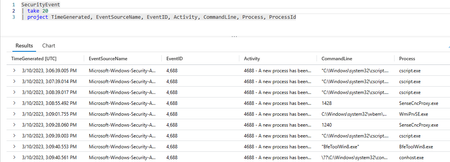
Security events collection (for Windows systems only) is done with the help of a guest agent. This has been possible so far with the legacy Log Analytics agent and the Defender for Servers auto-provisioning experience, and is also possible for Microsoft Sentinel users, via the Log Analytics and Azure Monitor Agent (AMA) data connectors. However, if you are not a Sentinel user yet and you are using Defender for Servers with the new AMA experience, it is still possible to collect security events, as you will learn next.27KViews6likes2CommentsIdentify Azure VMs which are not monitored by Security Center
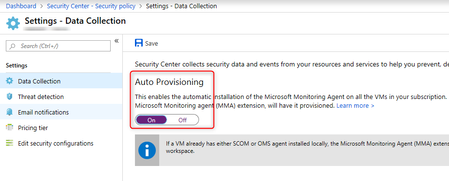
And use an input file to onboard them to Security Center automatically The link for the scripts used in this blog can be found at the end of the blog. Looking to increase your Secure Score? Look here. Security Center offers a couple of options to have your Virtual Machines (VMs) in Azure automatically protected. This provides great benefits by protecting your resources against threats and helps you get more secure in a fast and efficient way. To safeguard your VMs, Security Center requires the installation of the Microsoft Monitoring Agent (MMA). The easiest way to have that automatically done for you, is to enable Auto Provisioning: This installs the (MMA) automatically to all your VMs in your subscription. Another great option is to assign a built-in Azure Policy, which will also install the MMA upon creation of a VM and can also take care of remediations, in case someone has removed the MMA: VMs which don’t have the MMA installed, are flagged by Azure Policy as non-compliant. Are you not using the automatic MMA installation options? There might be exceptions for which you don’t want the MMA automatically installed in your subscription. Although you can define a scope and exceptions in Azure Policy, it is not meant to change frequently, since you must update the Azure Policy assignment to reflect the change. If for whatever reason you have chosen not to use automatic installations of the MMA, then you obviously have a concern if your resources are properly protected (and you should!) The challenge is how to get insights into the VMs that are not protected. Security Center offers your recommendations and one of those is to install the MMA: Clicking on the recommendation reveals which VMs are not protected. Using PowerShell to retrieve a list of all unprotected VMs Another option to get insights into which VMs are not protected by Security Center, is to use PowerShell. This offers a great way to enable automation for not only creating such a list, but also to bulk install the MMA on VMs that you identify. First, let’s get a list of VMs which are not protected by Security Center: The script will create an output CSV file, which you can import in Excel and would give you filtering capabilities for every column. You can filter on subscriptions, resource groups and filter if the MMA extension has been installed: Automatically install the MMA VM Extension based on an input file Now that you have insights into which VMs are not protected by Security Center, you can create an input file which only contains the VMs that you want the MMA to be installed on. Keep the headers as they are and just copy your filtered view in a new CSV file, like this: Now run the second script which will take your input CSV file: With these two scripts you can pick and choose which VMs you would want to protect with Security Center in case you cannot use the automatic agent installation capabilities. The sample scripts used in this blog can be found here: Looking to increase your Secure Score? Look here.