learning management systems
1 TopicClassic LTI App Retirements, Preview of OneDrive LTI Migration Tool for Canvas
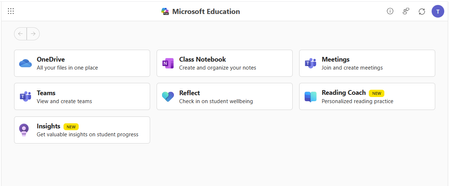
Classic Microsoft LTI® Apps Retiring in 2026: What You Need to Know and How to Prepare Microsoft is continuing its investment in a unified, modern Microsoft 365 LTI experience. As part of this evolution, several classic Microsoft LTI apps will be retired in September 2026. This post outlines: Which classic LTI apps are retiring and when What happens to existing course links and content created in classic LTIs retiring What actions you should take now to prepare, and start transitioning to Microsoft 365 LTI New migration tooling available to support transition Classic Microsoft LTI® Apps Retiring September 17, 2026 As we shared last September in our Microsoft 365 LTI GA release Blog, the following classic Microsoft LTI apps will be retired on September 17, 2026: Microsoft OneDrive LTI (1.3) OneNote Class Notebook LTI (1.1) Microsoft Reflect LTI (1.3) Microsoft Teams Assignments LTI (1.3) After September 17, 2026, any links or placements of these classic apps in courses will stop working. However, the files, notebooks, assignments, and check-ins created by these classic apps will continue to be available to copy and reuse. Replacements for these classic experiences are now available through the unified Microsoft 365 LTI built on the LTI® 1.3 Advantage standard. This delivers modern security, simplified identity mapping with Microsoft Entra, LMS enrollment and grade syncing, and a single deployment model for LMS administrators. We’ll continue to update our migration guides as additional tools and guidance become available. NEW: Preview the OneDrive LTI Migration Tool for Canvas Canvas LMS Customers: We are excited to announce that the Microsoft OneDrive LTI Migration Tool for Canvas is now available in Preview! This tool helps institutions using Canvas LMS migrate OneDrive content links from the classic Microsoft OneDrive LTI app to the new Microsoft 365 LTI app — preserving existing file links in courses so educators and students experience a seamless transition. For new preview deployments: detailed deployment instructions are available in the Canvas migration guide, which has been updated with configuration steps and guidance for using the migration tool. If you participated in the private preview: If you have already deployed the OneDrive LTI Migration Tool in Canvas during the private preview, no action is required. Your existing deployment will continue to work as part of the Public Preview, and in GA. If you deployed the private preview in a testing environment, we suggest that you follow the new Canvas migration guide in your production environment. Below is guidance to assist with transition from the other classic LTI apps and on additional LMS platforms. We will continue to communicate updates to this guidance as it evolves. If you use the classic Microsoft OneDrive LTI 1.3 with an LMS other than Canvas Deploy Microsoft 365 LTI with the OneDrive app enabled and guide educators to use the new Microsoft 365 LTI (Microsoft Education menus) to create file links or embeds in course content. Disable/hide/remove placements of the classic Microsoft OneDrive LTI app in your LMS but do not uninstall or disable the app. Files linked or embedded with the classic Microsoft OneDrive LTI will stop working when the app is retired, so those links and embeds must be replaced using the new Microsoft 365 LTI (Microsoft Education) app ahead of the retirement date. OneNote Class Notebook LTI 1.1 (All LMS platforms) The new OneNote Class Notebook LTI 1.3 integration is now available in the Microsoft 365 LTI app, with automatic roster sync and streamlined setup. Deploy Microsoft 365 LTI with the OneNote Class Notebook app enabled, and guide educators to use the new app. Disable/hide/remove placements of the classic OneNote integration, but do not uninstall the app to avoid migration issues during transition. While there is no direct migration path from OneNote Class Notebook LTI 1.1 notebooks to Microsoft 365 LTI Class Notebooks, educators can copy sections/pages from one notebook to another using the right-click menu on Sections and Pages (and selecting “Move/Copy”) in OneNote on Windows, OneNote Web, and OneNote for Mac. Instructions are also available for content transfer using OneNote on Mac, iOS, or Android. Microsoft Teams Assignments LTI 1.3 (All LMS platforms) Deploy Microsoft 365 LTI with the Assignments app enabled, and guide educators to create assignments using the new app. Disable/hide/remove placements of the legacy Teams Assignments LTI app as soon as you install the new Microsoft 365 LTI and enable the Assignments app, and guide you users to copy their existing assignments using the new app. Teams Assignments created by the classic LTI 1.3 app can be reused as in the new Microsoft 365 LTI Assignments experience (which does not require a Team) Assignments created in the LMS or via the Assignments app in Microsoft Teams can be copied and reused using the Create from Existing functionality in the Microsoft 365 LTI (Microsoft Education) Assignment instructor flow. Microsoft Reflect LTI 1.3 (All LMS platforms) Deploy Microsoft 365 LTI with the Reflect app enabled, and guide educators to create new Reflects in the new Microsoft 365 LTI experience. There is no migration path for reflects created in the classic Reflect LTI 1.3 app to the Reflect experience in the new Microsoft 365 LTI Reflect app. We recommend transitioning to the new Reflect experience in Microsoft 365 LTI as soon as possible, and remove the classic app ahead of the September 17, 2026 retirement. Stay Connected We love hearing from you! There are a few ways to stay engaged with Microsoft and your peers on the LMS integrations. Follow this blog! Click Register at the top right to create an account and profile for the Microsoft Tech Community and Follow the Education Blog so you don’t miss any of our updates. Join the free Education Insiders Program to preview updates, get support from other community members, meet the team, and influence the roadmap. Join us for Microsoft 365 LTI office hours to connect with your peers and share feedback directly with Microsoft experts. When: 1st and 3rd Thursday of each month @ 11AM EST Where: https://aka.ms/LTIOfficeHours Getting help and giving feedback LMS and Microsoft 365 admins can contact Microsoft Education Support to help resolve configuration and deployment issues, for themselves or on behalf of users. Educators and Learners can contact support or give feedback directly from the app through the help and feedback menu. TJ Vering Principal Product Manager Microsoft Education https://linkedin.com/in/tvering Learning Tools Interoperability® (LTI®) is a trademark of the 1EdTech Consortium, Inc. (https://1edtech.org/)1.9KViews0likes0Comments