le audio
2 TopicsShare the Moment: Listen Together with Shared Audio
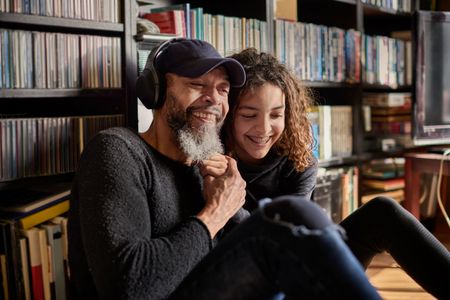
I was traveling with a friend on a long flight when I asked them if they wanted to watch a movie with me on my laptop. We both pulled out our earbuds and learned that only one set of earbuds can be used at a time. We then awkwardly shared one earbud each until we both couldn’t get over the surrounding noise, so they handed me back my earbud and I finished the movie by myself Bluetooth Classic Audio was built to replace the wire of your audio accessory, with a design that enables one audio stream to go to only one accessory. You used to be out of luck if you wanted to use a second set of headphones or speakers at the same time. Since then, the way we use PCs has changed. We watch movies with our family, study with classmates, and share Windows together. In this time, Bluetooth audio standards have also evolved with the introduction of LE Audio, allowing Windows to evolve with it. Shared audio is rolling out for Windows 11, version 25H2 and 26H1 Two people on one PC, listening together wirelessly Shared audio can be used during the times you’re with someone in an environment where you’d prefer to listen to videos, music, or calls together through your own Bluetooth headphones. For those friends on a flight above, who wanted to watch a movie together, shared audio now lets them do that. Or, siblings in the back seat during a road trip can watch their shows together while their parents focus on the road. Both listeners can hear the movie or show through their own favorite headphones - without disturbing others. Shared audio can also help friends studying in the library late at night. Both students can connect their earbuds or headphones to the same laptop and listen to a recorded lecture together before finals, pausing to discuss as they go. When they need a break, they can switch to a shared playlist and jump between songs. Shared audio fits naturally into how people already spend time together and works across a variety of Bluetooth LE Audio accessories - headphones, earbuds, speakers and assistive devices like hearing aids and cochlear implants. Whether it's entertainment, productivity, or accessibility, shared audio makes it easier to listen without compromise. How to use It To use shared audio, pair and connect two compatible LE Audio accessories with your Windows 11 PC. Then open Quick Settings by clicking the speaker icon in your taskbar. Find and click the “Shared audio” button, which you may have to scroll down the list of buttons to find. Select the two accessories you’d like to share audio between. You’ll only see Bluetooth LE Audio accessories here that are compatible with shared audio. Select “Share” to start. When sharing, existing volume controls in Windows continue to work for when the dialogue during a movie is too quiet or an action scene is too loud. You can also fine tune the volume of individual accessories via the sliders in the "Shared audio" menu or from accessories directly to ensure a comfortable experience for both listeners. While sharing, an icon will be added to the taskbar. This acts as a reminder that audio is being shared, and when clicked, is a quick way back to the “Shared audio” menu to manage the sharing session. How it works Shared audio works by transmitting audio using standardized Bluetooth LE Audio broadcast streams. This stream is then received by the two paired, connected, and capable accessories selected by the user. For these accessories, Windows also acts as a broadcast assistant and tunes the connected headphones directly into the broadcast stream. Windows stays connected to the accessory during the sharing session for media control, volume control, and other experiences like battery levels to prevent an unfortunate surprise of a dead battery halfway through a movie. When sharing, shared audio becomes the default audio output, and all other Bluetooth audio output and input endpoints are not available. For voice capture and calls, use a microphone that is integrated or plugged into your PC. Once sharing stops, Windows reverts to normal operation, and all other Bluetooth audio experiences continue as expected. What you need to get started To use shared audio, you'll need: Two compatible connected LE Audio accessories Check your LE Audio headphones, earbuds, or assistive hearing devices for broadcast support. A Windows 11 PC with LE Audio broadcast support, enabled by the hardware and driver Many new PCs will support broadcast, but you will need to check with your PC manufacturer. A supported version of Windows 11: Version 24H2, build 26100.8522 or newer. Version 25H2, build 26200.8522 or newer. Version 26H1, build 28000.2179 or newer. Resources for developers If you're building Windows applications that output audio, or developing Bluetooth LE Audio hardware, Shared Audio works as another audio endpoint and no application changes are needed. PC makers can find LE Audio driver requirements and WHCP certification guidance for broadcast with the Device.BusController.Bluetooth.LEAudioBroadcast requirement. The Bluetooth® word mark and logos are registered trademarks owned by Bluetooth SIG, Inc. and any use of such marks by Microsoft is under license. Other trademarks and trade names are those of their respective owners.9.9KViews3likes3Comments