langchain
12 TopicsDemocratizing Data: Unleashing Power of AI Analytics with LangChain and Azure OpenAI Services
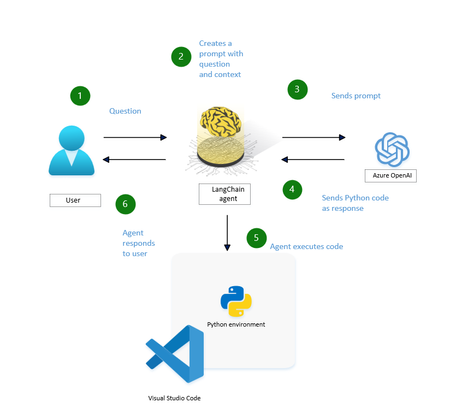
Explore how LangChain and Azure OpenAI Services are revolutionizing data analytics. Discover the transformative potential of Generative AI and Large Language Models in making data analytics accessible to everyone, irrespective of their coding expertise or data science background. Dive into the behind-the-scenes magic of the LangChain agent and learn how it simplifies the user experience by dynamically generating Python code for data analysis.5.1KViews0likes0CommentsHow to build Tool-calling Agents with Azure OpenAI and Lang Graph
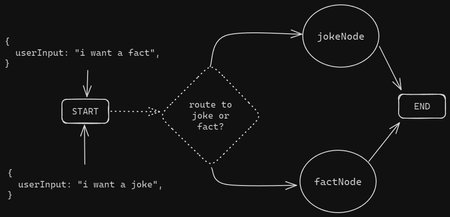
Introducing MyTreat Our demo is a fictional website that shows customers their total bill in dollars, but they have the option of getting the total bill in their local currencies. The button sends a request to the Node.js service and a response is simply returned from our Agent given the tool it chooses. Let’s dive in and understand how this works from a broader perspective. Prerequisites An active Azure subscription. You can sign up for a free trial here or get $100 worth of credits on Azure every year if you are a student. A GitHub account (not necessarily) Node.js LTS 18 + VS Code installed (or your favorite IDE) Basic knowledge of HTML, CSS, JS Creating an Azure OpenAI Resource Go over to your browser and key in portal.azure.com to access the Microsoft Azure Portal. Over there navigate to the search bar and type Azure OpenAI. Go ahead and click on + Create. Fill in the input boxes with appropriate, for example, as shown below then press on next until you reach review and submit then finally click on Create. After the deployment is done, go to the deployment and access Azure AI Foundry portal using the button as show below. You can also use the link as demonstrated below. In the Azure AI Foundry portal, we have to create our model instance so we have to go over to Model Catalog on the left panel beneath Get Started. Select a desired model, in this case I used gpt-35-turbo for chat completion (in your case use gpt-4o). Below is a way of doing this. Choose a model (gpt-4o) Click on deploy Give the deployment a new name e.g. myTreatmodel, then click deploy and wait for it to finish On the left panel go over to deployments and you will see the model you have created. Access your Azure OpenAI Resource Key Go back to Azure portal and specifically to the deployment instance that we have and select on the left panel, Resource Management. Click on Keys and Endpoints. Copy any of the keys as shown below and keep it very safe as we will use it in our .env file. Configuring your project Create a new project folder on your local machine and add these variables to the .env file in the root folder. AZURE_OPENAI_API_INSTANCE_NAME= AZURE_OPENAI_API_DEPLOYMENT_NAME= AZURE_OPENAI_API_KEY= AZURE_OPENAI_API_VERSION="2024-08-01-preview" LANGCHAIN_TRACING_V2="false" LANGCHAIN_CALLBACKS_BACKGROUND = "false" PORT=4556 Starting a new project Go over to https://github.com/tiprock-network/mytreat.git and follow the instructions to setup the new project, if you do not have git installed, go over to the Code button and press Download ZIP. This will enable you get the project folder and follow the same procedure for setting up. Creating a custom tool In the utils folder the math tool was created, this code show below uses tool from Langchain to build a tool and the schema of the tool is created using zod.js, a library that helps in validating an object’s property value. The price function takes in an array of prices and the exchange rate, adds the prices up and converts them using the exchange rate as shown below. import { tool } from '@langchain/core/tools' import { z } from 'zod' const priceConv = tool((input) =>{ //get the prices and add them up after turning each into let sum = 0 input.prices.forEach((price) => { let price_check = parseFloat(price) sum += price_check }) //now change the price using exchange rate let final_price = parseFloat(input.exchange_rate) * sum //return return final_price },{ name: 'add_prices_and_convert', description: 'Add prices and convert based on exchange rate.', schema: z.object({ prices: z.number({ required_error: 'Price should not be empty.', invalid_type_error: 'Price must be a number.' }).array().nonempty().describe('Prices of items listed.'), exchange_rate: z.string().describe('Current currency exchange rate.') }) }) export { priceConv } Utilizing the tool In the controller’s folder we then bring the tool in by importing it. After that we pass it in to our array of tools. Notice that we have the Tavily Search Tool, you can learn how to implement in the Additional Reads Section or just remove it. Agent Model and the Call Process This code defines an AI agent using LangGraph and LangChain.js, powered by GPT-4o from Azure OpenAI. It initializes a ToolNode to manage tools like priceConv and binds them to the agent model. The StateGraph handles decision-making, determining whether the agent should call a tool or return a direct response. If a tool is needed, the workflow routes the request accordingly; otherwise, the agent responds to the user. The callModel function invokes the agent, processing messages and ensuring seamless tool integration. The searchAgentController is a GET endpoint that accepts user queries (text_message). It processes input through the compiled LangGraph workflow, invoking the agent to generate a response. If a tool is required, the agent calls it before finalizing the output. The response is then sent back to the user, ensuring dynamic and efficient tool-assisted reasoning. //create tools the agent will use //const agentTools = [new TavilySearchResults({maxResults:5}), priceConv] const agentTools = [ priceConv] const toolNode = new ToolNode(agentTools) const agentModel = new AzureChatOpenAI({ model:'gpt-4o', temperature:0, azureOpenAIApiKey: AZURE_OPENAI_API_KEY, azureOpenAIApiInstanceName:AZURE_OPENAI_API_INSTANCE_NAME, azureOpenAIApiDeploymentName:AZURE_OPENAI_API_DEPLOYMENT_NAME, azureOpenAIApiVersion:AZURE_OPENAI_API_VERSION }).bindTools(agentTools) //make a decision to continue or not const shouldContinue = ( state ) => { const { messages } = state const lastMessage = messages[messages.length -1] //upon tool call we go to tools if("tool_calls" in lastMessage && Array.isArray(lastMessage.tool_calls) && lastMessage.tool_calls?.length) return "tools"; //if no tool call is made we stop and return back to the user return END } const callModel = async (state) => { const response = await agentModel.invoke(state.messages) return { messages: [response] } } //define a new graph const workflow = new StateGraph(MessagesAnnotation) .addNode("agent", callModel) .addNode("tools", toolNode) .addEdge(START, "agent") .addConditionalEdges("agent", shouldContinue, ["tools", END]) .addEdge("tools", "agent") const appAgent = workflow.compile() The above is implemented with the following code: Frontend The frontend is a simple HTML+CSS+JS stack that demonstrated how you can use an API to integrate this AI Agent to your website. It sends a GET request and uses the response to get back the right answer. Below is an illustration of how fetch API has been used. const searchAgentController = async ( req, res ) => { //get human text const { text_message } = req.query if(!text_message) return res.status(400).json({ message:'No text sent.' }) //invoke the agent const agentFinalState = await appAgent.invoke( { messages: [new HumanMessage(text_message)] }, {streamMode: 'values'} ) //const agentFinalState_b = await agentModel.invoke(text_message) /*return res.status(200).json({ answer:agentFinalState.messages[agentFinalState.messages.length - 1].content })*/ //console.log(agentFinalState_b.tool_calls) res.status(200).json({ text: agentFinalState.messages[agentFinalState.messages.length - 1].content }) } There you go! We have created a basic tool-calling agent using Azure and Langchain successfully, go ahead and expand the code base to your liking. If you have questions you can comment below or reach out on my socials. Additional Reads Azure Open AI Service Models Generative AI for Beginners AI Agents for Beginners Course Lang Graph Tutorial Develop Generative AI Apps in Azure AI Foundry Portal4.7KViews1like2CommentsHow to use any Python AI agent framework with free GitHub Models
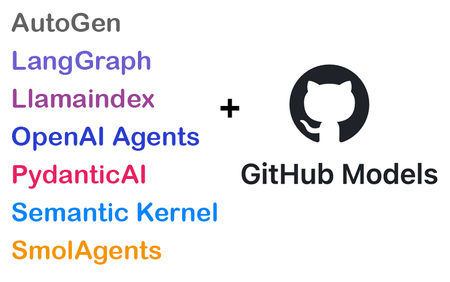
I ❤️ when companies offer free tiers for developer services, since it gives everyone a way to learn new technologies without breaking the bank. Free tiers are especially important for students and people between jobs, when the desire to learn is high but the available cash is low. That's why I'm such a fan of GitHub Models: free, high-quality generative AI models available to anyone with a GitHub account. The available models include the latest OpenAI LLMs (like o3-mini), LLMs from the research community (like Phi and Llama), LLMs from other popular providers (like Mistral and Jamba), multimodal models (like gpt-4o and llama-vision-instruct) and even a few embedding models (from OpenAI and Cohere). With access to such a range of models, you can prototype complex multi-model workflows to improve your productivity or heck, just make something fun for yourself. 🤗 To use GitHub Models, you can start off in no-code mode: open the playground for a model, send a few requests, tweak the parameters, and check out the answers. When you're ready to write code, select "Use this model". A screen will pop up where you can select a programming language (Python/JavaScript/C#/Java/REST) and select an SDK (which varies depending on model). Then you'll get instructions and code for that model, language, and SDK. But here's what's really cool about GitHub Models: you can use them with all the popular Python AI frameworks, even if the framework has no specific integration with GitHub Models. How is that possible? The vast majority of Python AI frameworks support the OpenAI Chat Completions API, since that API became a defacto standard supported by many LLM API providers besides OpenAI itself. GitHub Models also provide OpenAI-compatible endpoints for chat completion models. Therefore, any Python AI framework that supports OpenAI-like models can be used with GitHub Models as well. 🎉 To prove it, I've made a new repository with examples from eight different Python AI agent packages, all working with GitHub Models: python-ai-agent-frameworks-demos. There are examples for AutoGen, LangGraph, Llamaindex, OpenAI Agents SDK, OpenAI standard SDK, PydanticAI, Semantic Kernel, and SmolAgents. You can open that repository in GitHub Codespaces, install the packages, and get the examples running immediately. Now let's walk through the API connection code for GitHub Models for each framework. Even if I missed your favorite framework, I hope my tips here will help you connect any framework to GitHub Models. OpenAI I'll start with openai , the package that started it all! import openai client = openai.OpenAI( api_key=os.environ["GITHUB_TOKEN"], base_url="https://models.inference.ai.azure.com") The code above demonstrates the two key parameters we'll need to configure for all frameworks: api_key : When using OpenAI.com, you pass your OpenAI API key here. When using GitHub Models, you pass in a Personal Access Token (PAT). If you open the repository (or any repository) in GitHub Codespaces, a PAT is already stored in the GITHUB_TOKEN environment variable. However, if you're working locally with GitHub Models, you'll need to generate a PAT yourself and store it. PATs expire after a while, so you need to generate new PATs every so often. base_url : This parameter tells the OpenAI client to send all requests to "https://models.inference.ai.azure.com" instead of the OpenAI.com API servers. That's the domain that hosts the OpenAI-compatible endpoint for GitHub Models, so you'll always pass that domain as the base URL. If we're working with the new openai-agents SDK, we use very similar code, but we must use the AsyncOpenAI client from openai instead. Lately, Python AI packages are defaulting to async, because it's so much better for performance. import agents import openai client = openai.AsyncOpenAI( base_url="https://models.inference.ai.azure.com", api_key=os.environ["GITHUB_TOKEN"]) model = agents.OpenAIChatCompletionsModel( model="gpt-4o", openai_client=client) spanish_agent = agents.Agent( name="Spanish agent", instructions="You only speak Spanish.", model=model) PydanticAI Now let's look at all of the packages that make it really easy for us, by allowing us to directly bring in an instance of either OpenAI or AsyncOpenAI . For PydanticAI, we configure an AsyncOpenAI client, then construct an OpenAIModel object from PydanticAI, and pass that model to the agent: import openai import pydantic_ai import pydantic_ai.models.openai client = openai.AsyncOpenAI( api_key=os.environ["GITHUB_TOKEN"], base_url="https://models.inference.ai.azure.com") model = pydantic_ai.models.openai.OpenAIModel( "gpt-4o", provider=OpenAIProvider(openai_client=client)) spanish_agent = pydantic_ai.Agent( model, system_prompt="You only speak Spanish.") Semantic Kernel For Semantic Kernel, the code is very similar. We configure an AsyncOpenAI client, then construct an OpenAIChatCompletion object from Semantic Kernel, and add that object to the kernel. import openai import semantic_kernel.connectors.ai.open_ai import semantic_kernel.agents chat_client = openai.AsyncOpenAI( api_key=os.environ["GITHUB_TOKEN"], base_url="https://models.inference.ai.azure.com") chat = semantic_kernel.connectors.ai.open_ai.OpenAIChatCompletion( ai_model_id="gpt-4o", async_client=chat_client) kernel.add_service(chat) spanish_agent = semantic_kernel.agents.ChatCompletionAgent( kernel=kernel, name="Spanish agent" instructions="You only speak Spanish") AutoGen Next, we'll check out a few frameworks that have their own wrapper of the OpenAI clients, so we won't be using any classes from openai directly. For AutoGen, we configure both the OpenAI parameters and the model name in the same object, then pass that to each agent: import autogen_ext.models.openai import autogen_agentchat.agents client = autogen_ext.models.openai.OpenAIChatCompletionClient( model="gpt-4o", api_key=os.environ["GITHUB_TOKEN"], base_url="https://models.inference.ai.azure.com") spanish_agent = autogen_agentchat.agents.AssistantAgent( "spanish_agent", model_client=client, system_message="You only speak Spanish") LangGraph For LangGraph, we configure a very similar object, which even has the same parameter names: import langchain_openai import langgraph.graph model = langchain_openai.ChatOpenAI( model="gpt-4o", api_key=os.environ["GITHUB_TOKEN"], base_url="https://models.inference.ai.azure.com", ) def call_model(state): messages = state["messages"] response = model.invoke(messages) return {"messages": [response]} workflow = langgraph.graph.StateGraph(MessagesState) workflow.add_node("agent", call_model) SmolAgents Once again, for SmolAgents, we configure a similar object, though with slightly different parameter names: import smolagents model = smolagents.OpenAIServerModel( model_id="gpt-4o", api_key=os.environ["GITHUB_TOKEN"], api_base="https://models.inference.ai.azure.com") agent = smolagents.CodeAgent(model=model) Llamaindex I saved Llamaindex for last, as it is the most different. The llama-index package has a different constructor for OpenAI.com versus OpenAI-like servers, so I opted to use that OpenAILike constructor instead. However, I also needed an embeddings model for my example, and the package doesn't have an OpenAIEmbeddingsLike constructor, so I used the standard OpenAIEmbedding constructor. import llama_index.embeddings.openai import llama_index.llms.openai_like import llama_index.core.agent.workflow Settings.llm = llama_index.llms.openai_like.OpenAILike( model="gpt-4o", api_key=os.environ["GITHUB_TOKEN"], api_base="https://models.inference.ai.azure.com", is_chat_model=True) Settings.embed_model = llama_index.embeddings.openai.OpenAIEmbedding( model="text-embedding-3-small", api_key=os.environ["GITHUB_TOKEN"], api_base="https://models.inference.ai.azure.com") agent = llama_index.core.agent.workflow.ReActAgent( tools=query_engine_tools, llm=Settings.llm) Choose your models wisely! In all of the examples above, I specified the gpt-4o model. The gpt-4o model is a great choice for agents because it supports function calling, and many agent frameworks only work (or work best) with models that natively support function calling. Fortunately, GitHub Models includes multiple models that support function calling, at least in my basic experiments: gpt-4o gpt-4o-mini o3-mini AI21-Jamba-1.5-Large AI21-Jamba-1.5-Mini Codestral-2501 Cohere-command-r Ministral-3B Mistral-Large-2411 Mistral-Nemo Mistral-small You might find that some models work better than others, especially if you're using agents with multiple tools. With GitHub Models, it's very easy to experiment and see for yourself, by simply changing the model name and re-running the code. Join the AI Agents Hackathon We are currently running a free virtual hackathon from April 8th - 30th, to challenge developers to create agentic applications using Microsoft technologies. You could build an agent entirely using GitHub Models and submit it to the hackathon for a chance to win amazing prizes! You can also join our 30+ streams about building AI agents, including a stream all about prototyping with GitHub Models. Learn more and register at https://aka.ms/agentshack2.7KViews3likes0CommentsDon't miss the 2024 Azure Developers JavaScript Day!
Do you want to discover the latest services and features in Azure designed specifically for JavaScript developers? Are you looking for cutting-edge cloud development techniques that can save you time and money, while providing your customers with the best experience possible?2.5KViews1like2CommentsCreate your own QA RAG Chatbot with LangChain.js + Azure OpenAI Service
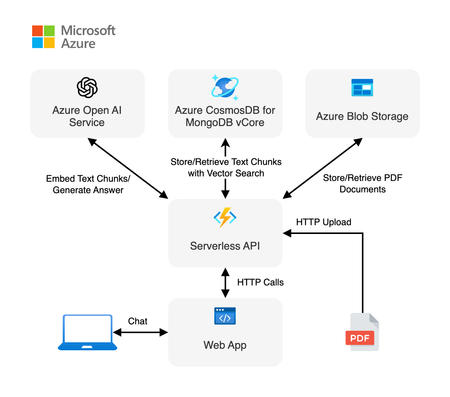
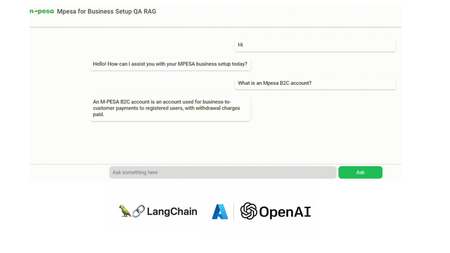
Demo: Mpesa for Business Setup QA RAG Application In this tutorial we are going to build a Question-Answering RAG Chat Web App. We utilize Node.js and HTML, CSS, JS. We also incorporate Langchain.js + Azure OpenAI + MongoDB Vector Store (MongoDB Search Index). Get a quick look below. Note: Documents and illustrations shared here are for demo purposes only and Microsoft or its products are not part of Mpesa. The content demonstrated here should be used for educational purposes only. Additionally, all views shared here are solely mine. What you will need: An active Azure subscription, get Azure for Student for free or get started with Azure for 12 months free. VS Code Basic knowledge in JavaScript (not a must) Access to Azure OpenAI, click here if you don't have access. Create a MongoDB account (You can also use Azure Cosmos DB vector store) Setting Up the Project In order to build this project, you will have to fork this repository and clone it. GitHub Repository link: https://github.com/tiprock-network/azure-qa-rag-mpesa . Follow the steps highlighted in the README.md to setup the project under Setting Up the Node.js Application. Create Resources that you Need In order to do this, you will need to have Azure CLI or Azure Developer CLI installed in your computer. Go ahead and follow the steps indicated in the README.md to create Azure resources under Azure Resources Set Up with Azure CLI. You might want to use Azure CLI to login in differently use a code. Here's how you can do this. Instead of using az login. You can do az login --use-code-device OR you would prefer using Azure Developer CLI and execute this command instead azd auth login --use-device-code Remember to update the .env file with the values you have used to name Azure OpenAI instance, Azure models and even the API Keys you have obtained while creating your resources. Setting Up MongoDB After accessing you MongoDB account get the URI link to your database and add it to the .env file along with your database name and vector store collection name you specified while creating your indexes for a vector search. Running the Project In order to run this Node.js project you will need to start the project using the following command. npm run dev The Vector Store The vector store used in this project is MongoDB store where the word embeddings were stored in MongoDB. From the embeddings model instance we created on Azure AI Foundry we are able to create embeddings that can be stored in a vector store. The following code below shows our embeddings model instance. //create new embedding model instance const azOpenEmbedding = new AzureOpenAIEmbeddings({ azureADTokenProvider, azureOpenAIApiInstanceName: process.env.AZURE_OPENAI_API_INSTANCE_NAME, azureOpenAIApiEmbeddingsDeploymentName: process.env.AZURE_OPENAI_API_DEPLOYMENT_EMBEDDING_NAME, azureOpenAIApiVersion: process.env.AZURE_OPENAI_API_VERSION, azureOpenAIBasePath: "https://eastus2.api.cognitive.microsoft.com/openai/deployments" }); The code in uploadDoc.js offers a simple way to do embeddings and store them to MongoDB. In this approach the text from the documents is loaded using the PDFLoader from Langchain community. The following code demonstrates how the embeddings are stored in the vector store. // Call the function and handle the result with await const storeToCosmosVectorStore = async () => { try { const documents = await returnSplittedContent() //create store instance const store = await MongoDBAtlasVectorSearch.fromDocuments( documents, azOpenEmbedding, { collection: vectorCollection, indexName: "myrag_index", textKey: "text", embeddingKey: "embedding", } ) if(!store){ console.log('Something wrong happened while creating store or getting store!') return false } console.log('Done creating/getting and uploading to store.') return true } catch (e) { console.log(`This error occurred: ${e}`) return false } } In this setup, Question Answering (QA) is achieved by integrating Azure OpenAI’s GPT-4o with MongoDB Vector Search through LangChain.js. The system processes user queries via an LLM (Large Language Model), which retrieves relevant information from a vectorized database, ensuring contextual and accurate responses. Azure OpenAI Embeddings convert text into dense vector representations, enabling semantic search within MongoDB. The LangChain RunnableSequence structures the retrieval and response generation workflow, while the StringOutputParser ensures proper text formatting. The most relevant code snippets to include are: AzureChatOpenAI instantiation, MongoDB connection setup, and the API endpoint handling QA queries using vector search and embeddings. There are some code snippets below to explain major parts of the code. Azure AI Chat Completion Model This is the model used in this implementation of RAG, where we use it as the model for chat completion. Below is a code snippet for it. const llm = new AzureChatOpenAI({ azTokenProvider, azureOpenAIApiInstanceName: process.env.AZURE_OPENAI_API_INSTANCE_NAME, azureOpenAIApiDeploymentName: process.env.AZURE_OPENAI_API_DEPLOYMENT_NAME, azureOpenAIApiVersion: process.env.AZURE_OPENAI_API_VERSION }) Using a Runnable Sequence to give out Chat Output This shows how a runnable sequence can be used to give out a response given the particular output format/ output parser added on to the chain. //Stream response app.post(`${process.env.BASE_URL}/az-openai/runnable-sequence/stream/chat`, async (req,res) => { //check for human message const { chatMsg } = req.body if(!chatMsg) return res.status(201).json({ message:'Hey, you didn\'t send anything.' }) //put the code in an error-handler try{ //create a prompt template format template const prompt = ChatPromptTemplate.fromMessages( [ ["system", `You are a French-to-English translator that detects if a message isn't in French. If it's not, you respond, "This is not French." Otherwise, you translate it to English.`], ["human", `${chatMsg}`] ] ) //runnable chain const chain = RunnableSequence.from([prompt, llm, outPutParser]) //chain result let result_stream = await chain.stream() //set response headers res.setHeader('Content-Type','application/json') res.setHeader('Transfer-Encoding','chunked') //create readable stream const readable = Readable.from(result_stream) res.status(201).write(`{"message": "Successful translation.", "response": "`); readable.on('data', (chunk) => { // Convert chunk to string and write it res.write(`${chunk}`); }); readable.on('end', () => { // Close the JSON response properly res.write('" }'); res.end(); }); readable.on('error', (err) => { console.error("Stream error:", err); res.status(500).json({ message: "Translation failed.", error: err.message }); }); }catch(e){ //deliver a 500 error response return res.status(500).json( { message:'Failed to send request.', error:e } ) } }) To run the front end of the code, go to your BASE_URL with the port given. This enables you to run the chatbot above and achieve similar results. The chatbot is basically HTML+CSS+JS. Where JavaScript is mainly used with fetch API to get a response. Thanks for reading. I hope you play around with the code and learn some new things. Additional Reads Introduction to LangChain.js Create an FAQ Bot on Azure Build a basic chat app in Python using Azure AI Foundry SDK665Views0likes0CommentsLangchain Multi-Agent Systems with Microsoft Agent Framework and Hosted Agents
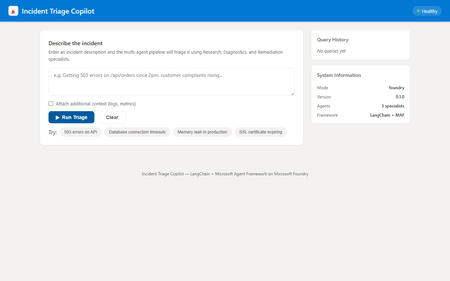
If you have been building AI agents with LangChain, you already know how powerful its tool and chain abstractions are. But when it comes to deploying those agents to production — with real infrastructure, managed identity, live web search, and container orchestration — you need something more. This post walks through how to combine LangChain with the Microsoft Agent Framework ( azure-ai-agents ) and deploy the result as a Microsoft Foundry Hosted Agent. We will build a multi-agent incident triage copilot that uses LangChain locally and seamlessly upgrades to cloud-hosted capabilities on Microsoft Foundry. Why combine LangChain with Microsoft Agent Framework? As a LangChain developer, you get excellent abstractions for building agents: the @tool decorator, RunnableLambda chains, and composable pipelines. But production deployment raises questions that LangChain alone does not answer: Where do your agents run? Containers, serverless, or managed infrastructure? How do you add live web search or code execution? Bing Grounding and Code Interpreter are not LangChain built-ins. How do you handle authentication? Managed identity, API keys, or tokens? How do you observe agents in production? Distributed tracing across multiple agents? The Microsoft Agent Framework fills these gaps. It provides AgentsClient for creating and managing agents on Microsoft Foundry, built-in tools like BingGroundingTool and CodeInterpreterTool , and a thread-based conversation model. Combined with Hosted Agents, you get a fully managed container runtime with health probes, auto-scaling, and the OpenAI Responses API protocol. The key insight: LangChain handles local logic and chain composition; the Microsoft Agent Framework handles cloud-hosted orchestration and tooling. Architecture overview The incident triage copilot uses a coordinator pattern with three specialist agents: User Query | v Coordinator Agent | +--> LangChain Triage Chain (routing decision) +--> LangChain Synthesis Chain (combine results) | +---+---+---+ | | | v v v Research Diagnostics Remediation Agent Agent Agent Each specialist agent has two execution modes: Mode LangChain Role Microsoft Agent Framework Role Local @tool functions provide heuristic analysis Not used Foundry Chains handle routing and synthesis AgentsClient with BingGroundingTool , CodeInterpreterTool This dual-mode design means you can develop and test locally with zero cloud dependencies, then deploy to Foundry for production capabilities. Step 1: Define your LangChain tools Start with what you know. Define typed, documented tools using LangChain’s @tool decorator: from langchain_core.tools import tool @tool def classify_incident_severity(query: str) -> str: """Classify the severity and priority of an incident based on keywords. Args: query: The incident description text. Returns: Severity classification with priority level. """ query_lower = query.lower() critical_keywords = [ "production down", "all users", "outage", "breach", ] high_keywords = [ "503", "500", "timeout", "latency", "slow", ] if any(kw in query_lower for kw in critical_keywords): return "severity=critical, priority=P1" if any(kw in query_lower for kw in high_keywords): return "severity=high, priority=P2" return "severity=low, priority=P4" These tools work identically in local mode and serve as fallbacks when Foundry is unavailable. Step 2: Build routing with LangChain chains Use RunnableLambda to create a routing chain that classifies the incident and selects which specialists to invoke: from langchain_core.runnables import RunnableLambda from enum import Enum class AgentRole(str, Enum): RESEARCH = "research" DIAGNOSTICS = "diagnostics" REMEDIATION = "remediation" DIAGNOSTICS_KEYWORDS = { "log", "error", "exception", "timeout", "500", "503", "crash", "oom", "root cause", } REMEDIATION_KEYWORDS = { "fix", "remediate", "runbook", "rollback", "hotfix", "patch", "resolve", "action plan", } def _route(inputs: dict) -> dict: query = inputs["query"].lower() specialists = [AgentRole.RESEARCH] # always included if any(kw in query for kw in DIAGNOSTICS_KEYWORDS): specialists.append(AgentRole.DIAGNOSTICS) if any(kw in query for kw in REMEDIATION_KEYWORDS): specialists.append(AgentRole.REMEDIATION) return {**inputs, "specialists": specialists} triage_routing_chain = RunnableLambda(_route) This is pure LangChain — no cloud dependency. The chain analyses the query and returns which specialists should handle it. Step 3: Create specialist agents with dual-mode execution Each specialist agent extends a base class. In local mode, it uses LangChain tools. In Foundry mode, it delegates to the Microsoft Agent Framework: from abc import ABC, abstractmethod from pathlib import Path class BaseSpecialistAgent(ABC): role: AgentRole prompt_file: str def __init__(self): prompt_path = Path(__file__).parent.parent / "prompts" / self.prompt_file self.system_prompt = prompt_path.read_text(encoding="utf-8") async def run(self, query, shared_context, correlation_id, client=None): if client is not None: return await self._run_on_foundry(query, shared_context, correlation_id, client) return await self._run_locally(query, shared_context, correlation_id) async def _run_on_foundry(self, query, shared_context, correlation_id, client): """Use Microsoft Agent Framework for cloud-hosted execution.""" from azure.ai.agents.models import BingGroundingTool agent = await client.agents.create_agent( model=shared_context.get("model_deployment", "gpt-4o"), name=f"{self.role.value}-{correlation_id}", instructions=self.system_prompt, tools=self._get_foundry_tools(shared_context), ) thread = await client.agents.threads.create() await client.agents.messages.create( thread_id=thread.id, role="user", content=self._build_prompt(query, shared_context), ) run = await client.agents.runs.create_and_process( thread_id=thread.id, agent_id=agent.id, ) # Extract and return the agent’s response... async def _run_locally(self, query, shared_context, correlation_id): """Use LangChain tools for local heuristic analysis.""" # Each subclass implements this with its specific tools ... The key pattern here: same interface, different backends. Your coordinator does not care whether a specialist ran locally or on Foundry. Step 4: Wire it up with FastAPI Expose the multi-agent pipeline through a FastAPI endpoint. The /triage endpoint accepts incident descriptions and returns structured reports: from fastapi import FastAPI from agents.coordinator import Coordinator from models import TriageRequest app = FastAPI(title="Incident Triage Copilot") coordinator = Coordinator() @app.post("/triage") async def triage(request: TriageRequest): return await coordinator.triage( request=request, client=app.state.foundry_client, max_turns=10, ) The application also implements the /responses endpoint, which follows the OpenAI Responses API protocol. This is what Microsoft Foundry Hosted Agents expects when routing traffic to your container. Step 5: Deploy as a Hosted Agent This is where Microsoft Foundry Hosted Agents shines. Your multi-agent system becomes a managed, auto-scaling service with a single command: # Install the azd AI agent extension azd extension install azure.ai.agents # Provision infrastructure and deploy azd up The Azure Developer CLI ( azd ) provisions everything: Azure Container Registry for your Docker image Container App with health probes and auto-scaling User-Assigned Managed Identity for secure authentication Microsoft Foundry Hub and Project with model deployments Application Insights for distributed tracing Your agent.yaml defines what tools the hosted agent has access to: name: incident-triage-copilot-langchain kind: hosted model: deployment: gpt-4o identity: type: managed tools: - type: bing_grounding enabled: true - type: code_interpreter enabled: true What you gain over pure LangChain Capability LangChain Only LangChain + Microsoft Agent Framework Local development Yes Yes (identical experience) Live web search Requires custom integration Built-in BingGroundingTool Code execution Requires sandboxing Built-in CodeInterpreterTool Managed hosting DIY containers Foundry Hosted Agents Authentication DIY Managed Identity (zero secrets) Observability DIY OpenTelemetry + Application Insights One-command deploy No azd up Testing locally The dual-mode architecture means you can test the full pipeline without any cloud resources: # Create virtual environment and install dependencies python -m venv .venv source .venv/bin/activate pip install -r requirements.txt # Run locally (agents use LangChain tools) python -m src Then open http://localhost:8080 in your browser to use the built-in web UI, or call the API directly: curl -X POST http://localhost:8080/triage \ -H "Content-Type: application/json" \ -d '{"message": "Getting 503 errors on /api/orders since 2pm"}' The response includes a coordinator summary, specialist results with confidence scores, and the tools each agent used. Running the tests The project includes a comprehensive test suite covering routing logic, tool behaviour, agent execution, and HTTP endpoints: curl -X POST http://localhost:8080/triage \ -H "Content-Type: application/json" \ -d '{"message": "Getting 503 errors on /api/orders since 2pm"}' Tests run entirely in local mode, so no cloud credentials are needed. Key takeaways for LangChain developers Keep your LangChain abstractions. The @tool decorator, RunnableLambda chains, and composable pipelines all work exactly as you expect. Add cloud capabilities incrementally. Start local, then enable Bing Grounding, Code Interpreter, and managed hosting when you are ready. Use the dual-mode pattern. Every agent should work locally with LangChain tools and on Foundry with the Microsoft Agent Framework. This makes development fast and deployment seamless. Let azd handle infrastructure. One command provisions everything: containers, identity, monitoring, and model deployments. Security comes free. Managed Identity means no API keys in your code. Non-root containers, RBAC, and disabled ACR admin are all configured by default. Get started Clone the sample repository and try it yourself: git clone https://github.com/leestott/hosted-agents-langchain-samples cd hosted-agents-langchain-samples python -m venv .venv && source .venv/bin/activate pip install -r requirements.txt python -m src Open http://localhost:8080 to interact with the copilot through the web UI. When you are ready for production, run azd up and your multi-agent system is live on Microsoft Foundry. Resources Microsoft Agent Framework for Python documentation Microsoft Foundry Hosted Agents Azure Developer CLI (azd) LangChain documentation Microsoft Foundry documentation599Views0likes0CommentsHow Microsoft Semantic Kernel Transforms Proven Workflows into Intelligent Agents
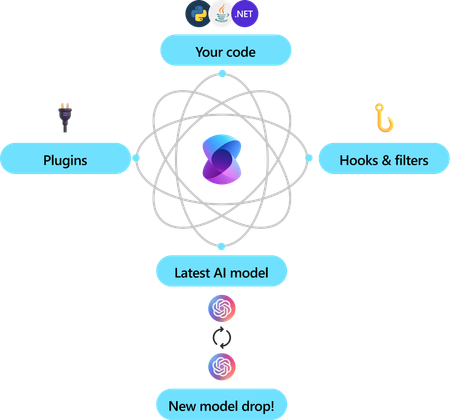
Most developers today face a common challenge when integrating AI into their applications: the gap between natural language prompts and actual code execution. While services like OpenAI's ChatGPT excel at generating responses, they can't directly interact with your existing systems, databases, or business logic. You're left building complex orchestration layers, managing function calls manually, and creating brittle workflows that break when requirements change. Microsoft Semantic Kernel changes this paradigm entirely. Unlike traditional LLM integrations where you send a prompt and receive text, Semantic Kernel acts as an AI orchestration layer that bridges natural language with your existing codebase. Semantic Kernel intelligently decides which of your trusted functions to execute, chains your reliable workflows together automatically, and handles the complete workflow from user intent to business outcome using your proven business logic rather than asking the LLM to handle complex tasks with the risk of hallucinating solutions. What Makes Semantic Kernel Different The Traditional (Novice) LLM Integration Problem Meet Kemi, a data analyst who has spent months perfecting a Python script that generates exactly the sales visualizations her team needs. Her workflow is reliable: run the script, review the charts, write insights based on patterns she knows matter to the business, and deliver a concise report. Excited about AI's potential, Kemi decides to "upgrade" her process with ChatGPT. She uploads her sales data and asks the model to create visualizations and analysis. The LLM responds by generating an entirely new script with a dozen different chart types - many irrelevant to her business needs. She then has to upload the generated images back to the model for analysis, hoping it will provide accurate insights. The result? Instead of streamlining her proven workflow, Kemi now has: Unreliable outputs: The LLM generates different charts each time, some irrelevant to business decisions Loss of domain expertise: Her carefully crafted analysis logic is replaced by generic AI interpretations Broken workflow: What was once a single script is now a multi-step process of uploading, generating, downloading, and re-uploading Reduced confidence: She can't trust the AI's business recommendations the way she trusted her own tested methodology More complexity, not less: Her "AI upgrade" created more steps and uncertainty than her original manual process Kemi's experience reflects a common pitfall: replacing proven business logic with unpredictable LLM generation rather than enhancing existing workflows with intelligent orchestration. A Better Approach: Semantic Kernel Integration In this article, I present a better approach that solves Kemi's problem entirely. Instead of replacing her proven workflows with unpredictable AI generation, we'll show how Microsoft Semantic Kernel transforms her existing script into an intelligent agent that preserves her business logic while adding natural language control. By the end of this article, you'll have a solid grasp of how to integrate Semantic Kernel into your own workflows - whether that's connecting weather APIs for automated marketing campaigns, database queries for sales reporting, or Teams notifications for development task management. The principles you'll learn here apply to automating any specific marketing, sales, or development task where you want AI orchestration without sacrificing the reliability of your existing business logic. The Semantic Kernel Transformation Let's see how Semantic Kernel solves Kemi's workflow problem by transforming her existing script into an intelligent agent that preserves her business logic while adding natural language orchestration. The Complete Example Before: Kemi's Original Script After: Smart Business Agent Full Repository: semantic-kernel-business-agent Kemi's Original Functions Kemi's script contains two core functions that she's refined over months: get_sales_summary(): Calculates total sales, daily averages, and key metrics create_basic_chart(): Generates a reliable sales trend visualization These functions work perfectly for her needs, but require manual orchestration and individual execution. Setting Up the Foundation First, Kemi needs to install the required libraries and set up her OpenAI credentials: pip install semantic-kernel pandas matplotlib python-dotenv She creates a .env file to securely store her OpenAI API key: OPENAI_API_KEY=your-openai-api-key-here Get your OpenAI API key from platform.openai.com → API Keys Step 1: From Manual Function Calls to Kernel Functions In her original script, Kemi had to manually orchestrate everything: # From basic_data_analysis.py - Kemi's manual workflow analyzer = DataAnalyzer() print(analyzer.get_sales_summary()) # She manually calls this analyzer.create_basic_chart() # Then manually calls this With Semantic Kernel, she transforms these exact same functions into AI-discoverable capabilities: from semantic_kernel.functions import kernel_function from typing import Annotated @kernel_function( description="Get sales performance summary with total sales, averages, and trends", name="get_sales_summary" ) def get_sales_summary(self) -> Annotated[str, "Sales summary with key metrics"]: # Kemi's exact same trusted business logic - unchanged! total_sales = self.sales_data['sales'].sum() avg_daily_sales = self.sales_data['sales'].mean() return f"Total: ${total_sales:,}, Daily Avg: ${avg_daily_sales:.2f}" She's not replacing her proven logic with AI generation - she's making her existing, reliable functions available to intelligent orchestration. Step 2: Enhancing Her Chart Function with Smart Parameters Kemi's original create_basic_chart() only made one type of chart. With SK, she can enhance it to be more versatile while keeping the core logic: ( description="Create and save a sales performance chart visualization", name="create_sales_chart" ) def create_sales_chart( self, chart_type: Annotated[str, "Type of chart: 'trend', 'regional', or 'product'"] = "trend" ) -> Annotated[str, "Confirmation that chart was created"]: # Kemi's same matplotlib logic, now with intelligent chart selection plt.figure(figsize=(12, 8)) if chart_type == "trend": plt.plot(self.sales_data['date'], self.sales_data['sales'], marker='o') plt.title('Sales Trend Over Time', fontsize=16) # ... rest of her charting logic Step 3: Adding New Capabilities She Always Wanted Now she can add functions she never had time to build manually, like automated insights and report sending: ( description="Send performance report via email to team", name="send_report" ) def send_report(self, recipient: Annotated[str, "Email address"]) -> Annotated[str, "Confirmation"]: # For now, simulated - but she could easily integrate real email here return f"📧 Performance report sent to {recipient}" Step 4: Creating the Intelligent Agent Here's where the magic happens - connecting her functions to Semantic Kernel: from semantic_kernel import Kernel from semantic_kernel.connectors.ai.open_ai import OpenAIChatCompletion from semantic_kernel.connectors.ai import FunctionChoiceBehavior from dotenv import load_dotenv load_dotenv() # Load her OpenAI key class SmartBusinessAgent: def __init__(self): # Initialize the kernel self.kernel = Kernel() # Connect to OpenAI self.kernel.add_service( OpenAIChatCompletion( service_id="business_agent", api_key=os.getenv("OPENAI_API_KEY"), ai_model_id="gpt-4o-mini" ) ) # Register Kemi's functions as AI-accessible tools self.kernel.add_plugin(SmartBusinessPlugin(), plugin_name="business") # Enable automatic function orchestration self.execution_settings = OpenAIChatPromptExecutionSettings( function_choice_behavior=FunctionChoiceBehavior.Auto() ) Step 5: The Natural Language Interface Now Kemi can interact with her proven workflows using natural language: async def process_request(self, user_request: str) -> str: result = await self.kernel.invoke_prompt( prompt=f"You are a business intelligence agent. You can analyze sales data, create charts, generate insights, and send reports.\n\nRequest: {user_request}", arguments=KernelArguments(settings=self.execution_settings) ) return str(result) The Transformation in Action Before - Kemi's manual, step-by-step process: analyzer = DataAnalyzer() summary = analyzer.get_sales_summary() # She decides to call this chart = analyzer.create_basic_chart() # Then she decides to call this # Then she manually writes insights and sends emails After - Intelligent orchestration of her same functions: agent = SmartBusinessAgent() response = await agent.process_request( "Analyze our sales performance, create relevant charts, and email the full report to sarah@company.com" ) # SK automatically calls: get_sales_summary() → create_sales_chart("trend") → # create_sales_chart("regional") → get_business_insights() → send_report("sarah@company.com") The breakthrough: Kemi keeps her trusted business logic intact while gaining an intelligent interface that can understand complex requests, automatically determine which of her functions to call, and handle multi-step workflows - all while using her proven, reliable analysis methods instead of unpredictable AI generation. This is the core power of Semantic Kernel: enhancing existing workflows with AI orchestration rather than replacing proven business logic with risky hallucination-prone generation. Whether you're working with weather APIs for marketing automation, database queries for sales reporting, or Teams notifications for development workflows, these same patterns apply. You can keep your proven logic and enhance with AI orchestration. Try It Yourself Ready to transform your own workflows? Here's how to get started: 1. Clone and Run the Complete Example git clone https://github.com/your-username/semantic-kernel-business-agent cd semantic-kernel-business-agent pip install -r requirements.txt 2. Set Up Your Environment # Add your OpenAI API key cp .env.example .env # Edit .env and add: OPENAI_API_KEY=your-key-here 3. Experience the Transformation # Run Kemi's original manual script python basic_data_analysis.py # Then run the intelligent agent python smart_business_agent.py 4. Experiment with Natural Language Requests Try these prompts with the smart agent: "Give me a comprehensive sales analysis with multiple chart types" "Create regional performance charts and send insights to my email" "What trends should we focus on for next quarter's strategy?" Watch how Semantic Kernel automatically orchestrates Kemi's trusted functions to fulfill complex, multi-step requests. Next Steps: Adapt to Your Workflow Take your own scripts and apply the same transformation: Identify your core functions (like Kemi's get_sales_summary() and create_basic_chart()) Add decorators with clear descriptions Create your agent class connecting to your preferred LLM Test with natural language requests that combine multiple functions The full repository includes additional examples and documentation to help you extend these concepts to your specific use cases. The goal isn't to replace your expertise with AI - it's to make your expertise accessible through intelligent, natural language orchestration. Start with the working example, then gradually transform your own workflows. You'll discover that Semantic Kernel doesn't just automate tasks - it amplifies your existing capabilities while keeping you in control of the business logic that matters. Further Reading Introduction to Semantic Kernel500Views0likes0Comments