kaushalp@microsoft.com
4 Topics
Using DebugDiag to capture memory dumps on First Chance Exception
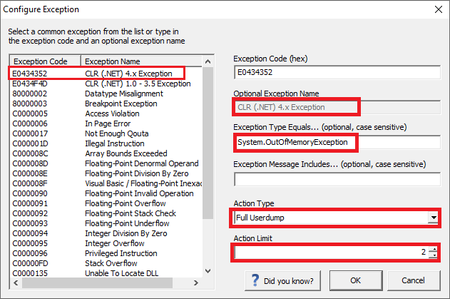
Capturing memory dumps is a common troubleshooting methodology. DebugDiag is usually an ideal choice for collecting memory dumps. I will be discussing on how we can gather memory dumps using DebugDiag when an application hosted on IIS encounters a First-chance exception. Before we proceed, lets understand what a First-chance exception is. From here: What is a First-Chance Exception? When an exception is first thrown, whether from the application itself or from dependent or platform code, it is known a “first chance” exception – the debugger is given the first chance of inspecting the exception prior to the application handling it (or not). All exceptions start as first chance exceptions, and the debugger gets notified each time an exception is thrown. An updated version of this blog is now available which uses DebugDiag 2.3 Pre-requisites: Download DebugDiag 2.2. (Download) Windows 2008 and higher NOTE: Please ensure you have sufficient disk space when using DebugDiag to capture memory dump. The dump files are as big as the process. So if you have a process consuming 600 MB, the dump file would around ~600 MB. If there are many files created then you are running at the risk of crashing the server due to insufficient disk space. There are 2 ways to capture FIRST CHANCE EXCEPTION memory dumps of a process. Method 1: Generate a dump for all First Chance Exception or Method 2: Target a specific First chance exception (Recommended) Method 1: Generate a dump for all First Chance Exception This is the easiest way to capture a dump for any exception that is raised within the process. However, this is not the recommended way to gather data as this captures any exception and in some scenarios where there are too many exceptions can lead to generation of too many memory dumps which can have negative impact on the machine and the disk space. Below are the steps to configure the same: Launch DebugDiag In the Rules tab select Crash and click on Next. In “Select Target Type” select “A specific process” and click on Next. Note: If the target is a web application hosted on IIS then, choose either “All IIS/COM+ related processes” or “A specific IIS web application pool”. In “Select Target” select the target process and click on Next. In “Advanced Configuration (Optional)” under “Unconfigured First Chance Exceptions” set the following: Action type for unconfigured first chance exceptions: Full Userdump Action Limit for unconfigured first chance exceptions: 10 Click on Next twice and then click on Finish to activate the rule. This will generate a dump for any unconfigured exception that may occur inside the target process. The file name will be in the following format: <ProcessName>__<ApplicationPool>__PID__<PIDValue>__Date__<DateValue>__Time_<TimeValue>__First chance exception<Exception_Code>.dmp Example: w3wp__DefaultAppPool__PID__10032__Date__05_09_2012__Time_12_52_51PM__406__First chance exception 0XE0434352.dmp Method 2: Target a specific First Chance Exception (Recommended) Refer the instructions in Method 1 until step 5. After that refer the below instructions. For the purpose of this post, we are targeting OutOfMemoryException. In “Advanced Configuration (Optional)” click on the Exceptions… button. In “First chance Exception Configuration” click on “Add Exception…” In “Configure Exception” select the Exception code from the LHS and since we are targeting OOM, specify the details as shown below: .NET Exception Type: System.OutOfMemoryException Action Type: Full Userdump Action Limit: 3 NOTE: The Exception type is case sensitive. Ensure it is entered correctly. For more details please visit the following link: http://msdn.microsoft.com/en-us/library/system.systemexception.aspx Click on Ok and then click on “Save & Close”. Click on Next twice and then click on Finish to activate the rule. The dumps created by this rule will be in the following format: <ProcessName>__PID__<PID>__Date__<DateValue>__Time_<TimeValue>__First Chance <ExceptionName>.dmp Example: w3wp__PID__2364__Date__05_09_2012__Time_12_59_51PM__406__First Chance System.OutOfMemoryException.dmp NOTE: DebugDiag help menu already has documented steps on how to gather data in most of the scenarios.38KViews1like0CommentsError HRESULT: 0x80070520 when adding SSL binding in IIS
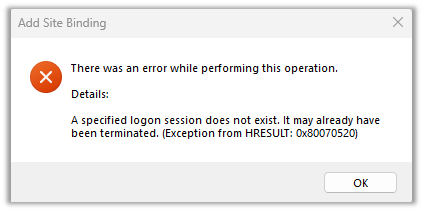
This blog discusses a common error that is encountered while adding a HTTPS binding in IIS 7+ web server. Here is a screenshot of the error The error is not descriptive, and neither does it provide any additional information on how to troubleshoot the issue. A closer look at the System Event logs will reveal the reason behind the error. Log Name: System Source: Schannel Date: 7/10/2018 Event ID: 36870 Task Category: None Level: Error Keywords: User: SYSTEM Computer: WebServer Description: A fatal error occurred when attempting to access the TLS server credential private key. The error code returned from the cryptographic module is 0x8009030D. The internal error state is 10001. The SSPI client process is SYSTEM (PID: 4). The event logs should give you some clue regarding the problem. The primary reason for the above error is the problem in accessing the “Private Key” of the certificate due to a broken keyset. For those who may not be following, Public Key Cryptography deals with “Public Key” & “Private Key”. The Public key is distributed to the clients, while only the Server has access to the Private key as it is used for decrypting the SSL Request. So “Private Key” is of utmost importance here. There are few scenarios where we could see a problem accessing the “Private Key” of the SSL Cert. I will discuss a few in this article: Scenario 1 The most common scenario is when the users use the IIS MMC to import a certificate and they uncheck the option “Allow this certificate to be exported”. This results in a broken keyset and thus results in the problem. Solution There are 2 ways to fix this problem. Before we start off, delete/remove the existing certificate from the store. If using IIS MMC to import the certificate, then ensure that the “Allow this certificate to be exported” is checked. If making the private key exportable is not an option, then use the Certificates MMC to import the certificate. Please go through the following KB on how to import a certificate using the MMC: http://support.microsoft.com/kb/232137 Scenario 2 Another reason which can result in a broken keyset is due to missing permissions on the MachineKeys folder. This is the location where all the private keys are stored. The folder path (IIS 7 & higher) is as shown below: C:\ProgramData\Microsoft\Crypto\RSA\MachineKeys The default permissions on this folder are described in the following articles: Default permissions for the MachineKeys folders The MachineKeys directory is configured with non-default permissions Solution Firstly, delete/remove the broken certificate from the store. Ensure the permissions are as per the articles mentioned above. So we need to permissions to the Administrators and Everyone account. Do remember to select the NOTE: There might be a possibility that the issue might be seen even after ensuring right permissions. In this case, use the procmon.exe tool and fix the access denied error on the specific file inside the machinekeys folder. You may also try giving the System account Full Permissions on the MachineKeys folder. After giving the necessary permissions, re-import the certificate as described in SCENARIO 1. Scenario 3 There is another possibility, that the issue might occur even after ensuring the both mentioned above. I have observed this behavior typically on Windows Server 2008. This depends on the KeySpec property of the certificate. The KeySpec property specifies whether the private key can be used for encryption, or signing, or both. The following MSDN article describes KeySpec property: http://msdn.microsoft.com/en-us/library/windows/desktop/aa379020%28v=vs.85%29.aspx In order to examine the KeySpec property of the certificate, use the following command: certutil –v –store my <thumbprint> NOTE: In the above command the thumbprint information can be found in the details tab of the certificate. The following are valid commands: certutil -v -store my "32 b5 39 8e d3 c9 c6 f1 a3 50 bc d4 b5 14 eb b5 a4 5d 1f c6" certutil -v -store my "32b5398ed3c9c6f1a350bcd4b514ebb5a45d1fc6" certutil -v -store my 32b5398ed3c9c6f1a350bcd4b514ebb5a45d1fc6 Get the output of the above command in a notepad and then search for KeySpec, which is part of the CERT_KEY_PROV_INFO_PROP_ID section. The KeySpec is represented as a hexadecimal value. certutil -v -store my 32b5398ed3c9c6f1a350bcd4b514ebb5a45d1fc6 ... ... CERT_KEY_PROV_INFO_PROP_ID(2): Key Container = {00F81886-5F70-430A-939C-BB7DD58ECE2A} Unique container name: 99247943bd018ca78ef945b82652598d_3ade29bb-f050-41f3-b0db-f2b69957a1d7 Provider = Microsoft Strong Cryptographic Provider ProviderType = 1 Flags = 20 KeySpec = 2 -- AT_SIGNATURE ... As described above it can take three values: Numerical Value Value Description 0 AT_NONE The intended use is not identified. This value should be used if the provider is a Cryptography API: Next Generation (CNG) key storage provider (KSP). 1 AT_KEYEXCHANGE The key can be used for encryption or key exchange. 2 AT_SIGNATURE The key can be used for signing. So the issue is seen if the KeySpec value is set to anything other than 1. The issue is more likely to be occur when the CSR is generated using a custom template and the KeySpec is not specified. Whenever the KeySpec attribute is not explicitly specified, it takes the default value of 2 i.e., it can be used for signing purposes only. Solution So one thing that you need to remember is that the KeySpec attribute has to be specified explicitly. If you are generating a certificate via the code, then ensure you are explicitly setting the KeySpec attribute to 1. If using certreq.exe utility along with an inf file to submit a request to SAN, ensure that you explicitly specify the KeySpec attribute to be 1. Refer the following article for this: http://support.microsoft.com/kb/931351 Remember the KeySpec attribute is specified while creating the Certificate Signing Request. This cannot be modified once the certificate has been issued. So remember to set the value appropriately. Also compare the KeySpec with the Key Usage attribute and make sure that both match logically. For example, for a certificate whose KeySpec equals to AT_KEYEXCHANGE, the Key Usage should be XCN_NCRYPT_ALLOW_DECRYPT_FLAG | XCN_NCRYPT_ALLOW_KEY_AGREEMENT_FLAG. XCN_NCRYPT_ALLOW_USAGES_NONE The permitted uses are not defined. XCN_NCRYPT_ALLOW_DECRYPT_FLAG The key can be used to decrypt content. This maps to the following X509KeyUsageFlags values: XCN_CERT_DATA_ENCIPHERMENT_KEY_USAGE XCN_CERT_DECIPHER_ONLY_KEY_USAGE XCN_CERT_ENCIPHER_ONLY_KEY_USAGE XCN_CERT_KEY_ENCIPHERMENT_KEY_USAGE XCN_NCRYPT_ALLOW_SIGNING_FLAG The key can be used for signing. This maps to the following X509KeyUsageFlags values: XCN_CERT_CRL_SIGN_KEY_USAGE XCN_CERT_DIGITAL_SIGNATURE_KEY_USAGE XCN_CERT_KEY_CERT_SIGN_KEY_USAGE XCN_NCRYPT_ALLOW_KEY_AGREEMENT_FLAG The key can be used to establish key agreement between entities. XCN_NCRYPT_ALLOW_ALL_USAGES All of the uses defined for this enumeration are permitted. More Information For further read on KeyUsage refer the below 2 links: X509PrivateKeyUsageFlags Enumeration IX509PrivateKey::get_KeyUsage method Configuring and Troubleshooting Certificate Services Client–Credential Roaming: Windows: Credential Roaming112KViews1like1CommentDisable Client Certificate Revocation (CRL) Check on IIS
I have been asked this question on several occasions on how to disable revocation check in IIS 7. It was pretty easy for IIS 6, on IIS 7 there is no documentation on how to do so. This post will describe on how to achieve this task. Firstly, list out all the existing IIS bindings via command line as shown below: netsh http show sslcert Default SSL Binding when added via IIS Manager IP:port : 0.0.0.0:443 Certificate Hash : 40db5bb1bf5659a155258d1d007c530fcb8996c2 Application ID : {4dc3e181-e14b-4a21-b022-59fc669b0914} Certificate Store Name : My Verify Client Certificate Revocation : Enabled Verify Revocation Using Cached Client Certificate Only : Disabled Usage Check : Enabled Revocation Freshness Time : 0 URL Retrieval Timeout : 0 Ctl Identifier : (null) Ctl Store Name : (null) DS Mapper Usage : Disabled Negotiate Client Certificate : Disabled NOTE: Client Certificate Revocation is always enabled by default. Application ID of “{4dc3e181-e14b-4a21-b022-59fc669b0914}” corresponds to IIS. In order to disable the revocation check, we need to delete the existing binding first. Before you do that, make a note of the above details, especially the certificate hash. NETSH command to delete existing SSL binding: netsh http delete sslcert ipport=0.0.0.0:443 Now add the binding again using netsh as shown below: NETSH command to add an SSL binding to disable CRL Check: netsh http add sslcert ipport=0.0.0.0:443 certhash=40db5bb1bf5659a155258d1d007c530fcb8996c2 appid={4dc3e181-e14b-4a21-b022-59fc669b0914} certstorename=My verifyclientcertrevocation=disable Highlighted portion of the above command depicts that we are disabling the client certificate revocation. This adds a DWORD at the following location in registry: REGISTRY : HKLM\SYSTEM\CurrentControlSet\Services\HTTP\Parameters\SslBindingInfo DWORD : DefaultSslCertCheckMode Value : 1 DefaultSslCertCheckMode can take the following values. Click here for more info. VALUE MEANING 0 Enables the client certificate revocation check 1 Client certificate is not to be verified for revocation. 2 Only cached certificate revocation is to be used 4 The DefaultRevocationFreshnessTime setting is enabled 0x10000 No usage check is to be performed Review the SSL bindings after executing the above command. The CRL check would be disabled. netsh http show sslcert SSL Binding added via NETSH to disable CRL: IP:port : 0.0.0.0:443 Certificate Hash : 40db5bb1bf5659a155258d1d007c530fcb8996c2 Application ID : {4dc3e181-e14b-4a21-b022-59fc669b0914} Certificate Store Name : My Verify Client Certificate Revocation : Disabled Verify Revocation Using Cached Client Certificate Only : Disabled Usage Check : Enabled Revocation Freshness Time : 0 URL Retrieval Timeout : 0 Ctl Identifier : (null) Ctl Store Name : (null) DS Mapper Usage : Disabled Negotiate Client Certificate : Disabled NOTE: Client Certificate Revocation is always enabled by default. More details on the netsh commands for HTTP can be found here: http://technet.microsoft.com/en-us/library/cc725882(v=ws.10).aspx#BKMK_2 MORE INFORMATION NETSH Commands for HTTP in IIS 8: With IIS there are 2 new SSL bindings viz. SNI Bindings and CCS Bindings. So the above commands have to be modified slightly to incorporate these changes. There are 2 additional parameters to be considered, which are: Tag Value hostname:port Unicode hostname and port for binding. CCS Central Certificate Store binding. hostname:port is very similar to the ip:port. The only difference is that it takes a Unicode string as an input along with the port number. Below are the modified commands for the corresponding bindings in IIS 8: To delete a SNI Binding netsh http delete sslcert hostnameport=www.sni.com:443 To delete a CCS Binding netsh http delete sslcert ccs=443 To add a SNI Binding netsh http add sslcert hostnameport=www.sni.com:443 certhash=40db5bb1bf5659a155258d1d007c530fcb8996c2 appid={4dc3e181-e14b-4a21-b022-59fc669b0914} certstorename=My verifyclientcertrevocation=disable To add a CCS Binding netsh http add sslcert ccs=443 appid={4dc3e181-e14b-4a21-b022-59fc669b0914} verifyclientcertrevocation=disable68KViews1like0Comments