java ee
44 TopicsWhat's new in Azure App Service at #MSBuild 2026
At Microsoft Build 2026, Azure App Service introduced a powerful set of updates designed to help organizations accelerate their journey into AI, without increasing complexity or cost. These innovations focus on one clear business outcome: enabling teams to build, deploy, and scale AI-powered applications and agents faster, more securely, and with greater operational efficiency. A key highlight is the new Easy AI experience, which allows existing web apps to become AI-ready with no rearchitecting required. With capabilities like built-in Model Context Protocol (MCP), developers can instantly expose app functionality as agent-ready endpoints, enabling AI agents to interact with business logic securely and seamlessly. This dramatically reduces development time, allowing teams to move from idea to intelligent application in a fraction of the usual effort. Security and compliance are also strengthened with the general availability of Isolated v4 for Azure App Service Environments, delivering improved performance for customers that need single-tenant isolation and strong data residency guarantees. For enterprises operating in regulated industries, this ensures AI applications meet strict governance requirements without sacrificing scalability or speed. For modernization scenarios, Managed Instance on Azure App Service simplifies the migration of legacy applications, including those with OS-level dependencies. Faster restarts, enhanced diagnostics, and AI-assisted migration workflows help organizations modernize existing systems cost-effectively—avoiding expensive rewrites while unlocking AI capabilities. Recent updates include an AI-assisted approach to migrating legacy IIS applications using a multi-agent workflow powered by MCP. Managed Instance is supported on both Premium v4 and Isolated v4, laying the foundation for a modern compute infrastructure across the board. Operational efficiency is further enhanced through platform and CLI improvements designed for the “agent era.” From structured deployment diagnostics to optimized Python pipelines delivering faster deployments, these updates reduce friction and infrastructure overhead, lowering total cost of ownership. Together, these innovations position Azure App Service as a future-ready platform where businesses can rapidly build intelligent, agent-driven applications securely, efficiently, and at scale. 👉 Learn more in the full announcement: Deep dive into Azure App Service Build 2026 updates1.6KViews0likes0CommentsBuilding the agentic future together at JDConf 2026
JDConf 2026 is just weeks away, and I’m excited to welcome Java developers, architects, and engineering leaders from around the world for two days of learning and connection. Now in its sixth year, JDConf has become a place where the Java community compares notes on their real-world production experience: patterns, tooling, and hard-earned lessons you can take back to your team, while we keep moving the Java systems that run businesses and services forward in the AI era. This year’s program lines up with a shift many of us are seeing first-hand: delivery is getting more intelligent, more automated, and more tightly coupled to the systems and data we already own. Agentic approaches are moving from demos to backlog items, and that raises practical questions: what’s the right architecture, where do you draw trust boundaries, how do you keep secrets safe, and how do you ship without trading reliability for novelty? JDConf is for and by the people who build and manage the mission-critical apps powering organizations worldwide. Across three regional livestreams, you’ll hear from open source and enterprise practitioners who are making the same tradeoffs you are—velocity vs. safety, modernization vs. continuity, experimentation vs. operational excellence. Expect sessions that go beyond “what” and get into “how”: design choices, integration patterns, migration steps, and the guardrails that make AI features safe to run in production. You’ll find several practical themes for shipping Java in the AI era: connecting agents to enterprise systems with clear governance; frameworks and runtimes adapting to AI-native workloads; and how testing and delivery pipelines evolve as automation gets more capable. To make this more concrete, a sampling of sessions would include topics like Secrets of Agentic Memory Management (patterns for short- and long-term memory and safe retrieval), Modernizing a Java App with GitHub Copilot (end-to-end upgrade and migration with AI-powered technologies), and Docker Sandboxes for AI Agents (guardrails for running agent workflows without risking your filesystem or secrets). The goal is to help you adopt what’s new while hardening your long lived codebases. JDConf is built for community learning—free to attend, accessible worldwide, and designed for an interactive live experience in three time zones. You’ll not only get 23 practitioner-led sessions with production-ready guidance but also free on-demand access after the event to re-watch with your whole team. Pro tip: join live and get more value by discussing practical implications and ideas with your peers in the chat. This is where the “how” details and tradeoffs become clearer. JDConf 2026 Keynote Building the Agentic Future Together Rod Johnson, Embabel | Bruno Borges, Microsoft | Ayan Gupta, Microsoft The JDConf 2026 keynote features Rod Johnson, creator of the Spring Framework and founder of Embabel, joined by Bruno Borges and Ayan Gupta to explore where the Java ecosystem is headed in the agentic era. Expect a practitioner-level discussion on how frameworks like Spring continue to evolve, how MCP is changing the way agents interact with enterprise systems, and what Java developers should be paying attention to right now. Register. Attend. Earn. Register for JDConf 2026 to earn Microsoft Rewards points, which you can use for gift cards, sweepstakes entries, and more. Earn 1,000 points simply by signing up. When you register for any regional JDConf 2026 event with your Microsoft account, you'll automatically receive these points. Get 5,000 additional points for attending live (limited to the first 300 attendees per stream). On the day of your regional event, check in through the Reactor page or your email confirmation link to qualify. Disclaimer: Points are added to your Microsoft account within 60 days after the event. Must register with a Microsoft account email. Up to 10,000 developers eligible. Points will be applied upon registration and attendance and will not be counted multiple times for registering or attending at different events. Terms | Privacy JDConf 2026 Regional Live Streams Americas – April 8, 8:30 AM – 12:30 PM PDT (UTC -7) Bruno Borges hosts the Americas stream, discussing practical agentic Java topics like memory management, multi-agent system design, LLM integration, modernization with AI, and dependency security. Experts from Redis, IBM, Hammerspace, HeroDevs, AI Collective, Tekskills, and Microsoft share their insights. Register for Americas → Asia-Pacific – April 9, 10:00 AM – 2:00 PM SGT (UTC +8) Brian Benz and Ayan Gupta co-host the APAC stream, highlighting Java frameworks and practices for agentic delivery. Topics include Spring AI, multi-agent orchestration, spec-driven development, scalable DevOps, and legacy modernization, with speakers from Broadcom, Alibaba, CERN, MHP (A Porsche Company), and Microsoft. Register for Asia-Pacific → Europe, Middle East and Africa – April 9, 9:00 AM – 12:30 PM GMT (UTC +0) The EMEA stream, hosted by Sandra Ahlgrimm, will address the implementation of agentic Java in production environments. Topics include self-improving systems utilizing Spring AI, Docker sandboxes for agent workflow management, Retrieval-Augmented Generation (RAG) pipelines, modernization initiatives from a national tax authority, and AI-driven CI/CD enhancements. Presentations will feature experts from Broadcom, Docker, Elastic, Azul Systems, IBM, Team Rockstars IT, and Microsoft. Register for EMEA → Make It Interactive: Join Live Come prepared with an actual challenge you’re facing, whether you’re modernizing a legacy application, connecting agents to internal APIs, or refining CI/CD processes. Test your strategies by participating in live chats and Q&As with presenters and fellow professionals. If you’re attending with your team, schedule a debrief after the live stream to discuss how to quickly use key takeaways and insights in your pilots and projects. Learning Resources Java and AI for Beginners Video Series: Practical, episode-based walkthroughs on MCP, GenAI integration, and building AI-powered apps from scratch. Modernize Java Apps Guide: Step-by-step guide using GitHub Copilot agent mode for legacy Java project upgrades, automated fixes, and cloud-ready migrations. AI Agents for Java Webinar: Embedding AI Agent capabilities into Java applications using Microsoft Foundry, from project setup to production deployment. Java Practitioner’s Guide: Learning plan for deploying, managing, and optimizing Java applications on Azure using modern cloud-native approaches. Register Now JDConf 2026 is a free global event for Java teams. Join live to ask questions, connect, and gain practical patterns. All 23 sessions will be available on-demand. Register now to earn Microsoft Rewards points for attending. Register at JDConf.com283Views0likes0Comments
Modernizing Spring Framework Applications with GitHub Copilot App Modernization
Upgrading Spring Framework applications from version 5 to the latest 6.x line (including 6.2+) enables improved performance, enhanced security, alignment with modern Java releases, and full Jakarta namespace compatibility. The transition often introduces breaking API changes, updated module requirements, and dependency shifts. GitHub Copilot app modernization streamlines this upgrade by analyzing your project, generating targeted changes, and guiding you through the migration. Supported Upgrade Path GitHub Copilot app modernization supports: Upgrading Spring Framework to 6.x, including 6.2+ Migrating from javax to jakarta Aligning transitive dependencies and version constraints Updating build plugins and configurations Identifying deprecated or removed APIs Validating dependency updates and surfacing CVE issues These capabilities align with the Microsoft Learn quickstart for upgrading Java projects with GitHub Copilot app modernization. Project Setup Open your Spring Framework project in Visual Studio Code or IntelliJ IDEA with GitHub Copilot app modernization enabled. The tool works with Maven or Gradle projects and evaluates your existing Spring Framework, Java version, imports, and build configurations. Project Analysis When you trigger the upgrade, GitHub Copilot app modernization: Detects the current Spring Framework version Flags javax imports requiring Jakarta migration Identifies incompatible modules, libraries, and plugins Validates JDK compatibility requirements for Spring Framework 6.x Reviews transitive dependencies impacted by the update This analysis provides the foundation for the upgrade plan generated next. Upgrade Plan Generation GitHub Copilot app modernization produces a structured plan including: Updated Spring Framework version (6.x / 6.2+) Replacements for deprecated or removed APIs jakarta namespace updates Updated build plugins and version constraints JDK configuration adjustments You can review the plan, modify version targets, and confirm actions before the tool applies them. Automated Transformations After approval, GitHub Copilot app modernization applies automated changes such as: Updating Spring Framework module coordinates Rewriting imports from javax.* to jakarta.* Updating libraries required for Spring Framework 6.x Adjusting plugin versions and build logic Recommending fixes for API changes These transformations rely on OpenRewrite‑based rules to modernize your codebase efficiently. Build Fix Iteration Once changes are applied, the tool compiles your project and automatically responds to failures: Captures compilation errors Suggests targeted fixes Rebuilds iteratively This loop continues until the project compiles with Spring Framework 6.x in place. Security & Behavior Checks GitHub Copilot app modernization performs validation steps after the upgrade: Checks for CVEs in updated dependencies Identifies potential behavior changes introduced during the transition Offers optional fixes to address issues This adds confidence before final verification. Expected Output After a Spring Framework 5 → 6.x upgrade, you can expect: Updated module coordinates for Spring Framework 6.x / 6.2 jakarta‑aligned imports across the codebase Updated dependency versions aligned with the new Spring ecosystem Updated plugins and build tool configurations Modernized test stack (JUnit 5) A summary file detailing versions updated, code edits applied, dependencies changed, and items requiring manual review Developer Responsibilities GitHub Copilot app modernization accelerates framework upgrade mechanics, but developers remain responsible for: Running full test suites Reviewing custom components, filters, and validation logic Revisiting security configurations and reactive vs. servlet designs Checking integration points and application semantics post‑migration The tool handles the mechanical modernization work so you can focus on correctness, runtime behavior, and quality assurance. Learn More For prerequisites, setup steps, and the complete Java upgrade workflow, refer to the Microsoft Learn guide: Upgrade a Java Project with Github Copilot App Modernization Install GitHub Copilot app modernization for VS Code and IntelliJ IDEA328Views0likes0CommentsModernizing Spring Boot Applications with GitHub Copilot App Modernization
Upgrading Spring Boot applications from 2.x to the latest 3.x releases introduces significant changes across the framework, dependencies, and Jakarta namespace. These updates improve long-term support, performance, and compatibility with modern Java platforms, but the migration can surface breaking API changes and dependency mismatches. GitHub Copilot app modernization helps streamline this transition by analyzing your project, generating an upgrade plan, and applying targeted updates. Supported Upgrade Path GitHub Copilot app modernization supports upgrading Spring Boot applications to Spring Boot 3.5, including: Updating Spring Framework libraries to 6.x Migrating from javax to jakarta Aligning dependency versions with Boot 3.x Updating plugins and starter configurations Adjusting build files for the required JDK level Validating dependency updates and surfacing CVE issues These capabilities complement the Microsoft Learn quickstart for upgrading Java projects using GitHub Copilot app modernization. How GitHub Copilot app modernization helps When you open a Spring Boot 2.x project in Visual Studio Code or IntelliJ IDEA and initiate an upgrade, GitHub Copilot app modernization performs: Project Analysis Detects your current Spring Boot version Identifies incompatible starters, libraries, and plugins Flags javax.* imports requiring Jakarta migration Evaluates your build configuration and JDK requirements Upgrade Plan Generation The tool produces an actionable plan that outlines: New Spring Boot parent version Updated Spring Framework and related modules Required namespace changes from javax.* to jakarta.* Build plugin updates JDK configuration alignment for Boot 3 You can review and adjust the plan before applying changes. Automated Transformations GitHub Copilot app modernization applies targeted changes such as: Updating spring-boot-starter-parent to 3.5.x Migrating imports to jakarta.* Updating dependencies and BOM versions Rewriting removed or deprecated APIs Aligning test dependencies (e.g., JUnit 5) Build / Fix Iteration The agent automatically: Builds the project Captures failures Suggests fixes Applies updates Rebuilds until the project compiles successfully This loop continues until all actionable issues are addressed. Security & Behavior Checks As part of the upgrade, the tool can: Validate CVEs introduced by dependency version changes Surface potential behavior changes Recommend optional fixes Expected Output After running the upgrade for a Spring Boot 2.x project, you should expect: An updated Spring Boot parent in Maven or Gradle Spring Framework 6.x and Jakarta-aligned modules Updated starter dependencies and plugin versions Rewritten imports from javax.* to jakarta.* Updated testing stack A summary file detailing: Versions updated Code edits applied Dependencies changed CVE results Remaining manual review items Developer Responsibilities GitHub Copilot app modernization accelerates technical migration tasks, but final validation still requires developer review, including: Running the full test suite Reviewing custom filters, security configuration, and web components Re-validating integration points Confirming application behavior across runtime environments The tool handles mechanical upgrade work so you can focus on correctness, quality, and functional validation. Learn more For setup, prerequisites, and the broader Java upgrade workflow, refer to the official Microsoft Learn guide: Quickstart: Upgrade a Java Project with GitHub Copilot App Modernization Install GitHub Copilot app modernization for VS Code and IntelliJ IDEA1.2KViews0likes0CommentsUpgrade your Java JDK (8, 11, 17, 21, or 25) with GitHub Copilot App Modernization
Developers modernizing Java applications often need to upgrade the Java Development Kit (JDK), update frameworks, align dependencies, or migrate older stacks such as Java EE. GitHub Copilot app modernization dramatically speeds up this process by analyzing your project, identifying upgrade blockers, and generating targeted changes. This post highlights supported upgrade paths and what you can expect when using GitHub Copilot app modernization—optimized for search discoverability rather than deep tutorial content. For complete, authoritative guidance, refer to the official Microsoft Learn quickstart. Supported Upgrade Scenarios GitHub Copilot app modernization supports upgrading: Java Development Kit (JDK) to versions 8, 11, 17, 21, or 25 Spring Boot up to 3.5 Spring Framework up to 6.2+ Java EE → Jakarta EE (up to Jakarta EE 10) JUnit Third‑party dependencies to specified versions Ant → Maven build migrations For the full capabilities list, see the Microsoft Learn quickstart. Prerequisites (VS Code or IntelliJ) To use GitHub Copilot app modernization, you’ll need: GitHub account + GitHub Copilot Free Tier, Pro, Pro+, Business, or Enterprise Visual Studio Code Version 1.101+ GitHub Copilot extension GitHub Copilot app modernization extension Restart after installation IntelliJ IDEA Version 2023.3+ GitHub Copilot plugin 1.5.59+ Restart after installation Recommended: Auto‑approve MCP Tool Annotations under Tools > GitHub Project Requirements Java project using Maven or Gradle Git‑managed Maven access to public Maven Central (if Maven) Gradle wrapper version 5+ Kotlin DSL supported VS Code setting: “Tools enabled” set to true if controlled by your org Selecting a Java Project to Upgrade Open any Java project in: Visual Studio Code IntelliJ IDEA Optional sample projects: Maven: uportal‑messaging Gradle: docraptor‑java Once open, launch GitHub Copilot app modernization using Agent Mode. Running an Upgrade (Example: Java 8 → Java 21) Open GitHub Copilot Chat → Switch to Agent Mode → Run a prompt such as: Upgrade this project to Java 21 You’ll receive: Upgrade Plan JDK version updates Build file changes (Maven/Gradle) Dependency version adjustments Framework upgrade paths, if relevant Automated Transformations GitHub Copilot app modernization applies changes using OpenRewrite‑based transformations. Dynamic Build / Fix Loop The agent iterates: Build Detect failure Fix Retry Until the project builds successfully. Security & Behavior Checks Detects CVEs in upgraded dependencies Flags potential behavior changes Offers optional fixes Final Upgrade Summary Generated as a markdown file containing: Updated JDK level Dependencies changed Code edits made Any remaining CVEs or warnings What You Can Expect in a JDK Upgrade Typical outcomes from upgrading Java 8 → Java 21: Updated build configuration (maven.compiler.release → 21) Removal or replacement of deprecated JDK APIs Updated library versions for Java 21 compatibility Surface warnings for manual review Successfully building project with modern JDK settings GitHub Copilot app modernization accelerates these updates while still leaving space for developer review of runtime or architectural changes. Learn More For the complete, authoritative upgrade workflow—covering setup, capabilities, and the full end‑to‑end process—visit: ➡ Quickstart: Upgrade a Java project with GitHub Copilot app modernization (Microsoft Learn) Install GitHub Copilot app modernization for VS Code and IntelliJ IDEA1.3KViews0likes0CommentsMigrating Application Credentials to Azure Key Vault with GitHub Copilot App Modernization
Storing secrets directly in applications or configuration files increases operational risk. Migrating to Azure Key Vault centralizes secret management, supports rotation, and removes embedded credentials from application code. GitHub Copilot app modernization accelerates this process by identifying credential usage areas and generating changes for Key Vault integration. What This Migration Covers GitHub Copilot app modernization helps with: Detecting secrets hard‑coded in source files, config files, or environment variables. Recommending retrieval patterns using Azure Key Vault SDKs. Updating application code to load secrets from Key Vault. Preparing configuration updates to remove stored credentials. Surfacing dependency, version, and API adjustments required for Key Vault usage. Project Analysis Once the project is opened in Visual Studio Code or IntelliJ IDEA, GitHub Copilot app modernization analyzes: Hard‑coded credentials: passwords, tokens, client secrets, API keys. Legacy configuration patterns using .properties, .yaml, or environment variables. Azure SDK usage and required upgrades for Key Vault integration. Areas requiring secure retrieval or replacement with a managed identity. Migration Plan Generation The tool creates a step‑by‑step migration plan including: Introducing Key Vault client libraries. Mapping existing credential variables to Key Vault secrets. Updating configuration loading logic to retrieve secrets at runtime. Integrating Managed Identity authentication if applicable. Removing unused credential fields from code and configuration. Automated Transformations GitHub Copilot app modernization applies targeted changes: Rewrites code retrieving credentials from files or constants. Generates Key Vault retrieval patterns using SecretClient. Updates build dependencies to current Azure SDK versions. Removes unused configuration entries and environment variables. Build & Fix Iteration The project is rebuilt and validated: Fixes constructor changes related to updated clients. Resolves missing dependency versions. Corrects updated method signatures for Key Vault API calls. Rebuilds until no actionable errors remain. Security & Behavior Checks The tool surfaces: CVEs introduced by new or updated libraries. Behavior changes tied to lazy loading of secrets at runtime. Optional fixes or alternative patterns if Key Vault integration affects existing workflows. Expected Output After modernization: Credentials removed from source and config files. Application retrieves secrets from Azure Key Vault. Updated Azure SDK versions aligned with Key Vault. A summary file detailing code changes, dependency updates, and review items. Developer Responsibilities Developers should: Provision Key Vault resources and assign required access policies. Validate permissions through Managed Identity or service principals. Test application startup, error handling, and rotation scenarios. Review semantic impacts on components relying on early secret loading. Refer to the Microsoft Learn guide on upgrading Java projects with GitHub Copilot app modernization for foundational workflow details. Learn more Predefined tasks for GitHub Copilot app modernization Apply a predefined task Install GitHub Copilot app modernization for VS Code and IntelliJ IDEA428Views0likes0CommentsModernizing Applications by Migrating Code to Use Managed Identity with Copilot App Modernization
Migrating application code to use Managed Identity removes hard‑coded secrets, reduces operational risk, and aligns with modern cloud security practices. Applications authenticate directly with Azure services without storing credentials. GitHub Copilot app modernization streamlines this transition by identifying credential usage patterns, updating code, and aligning dependencies for Managed Identity flows. Supported Migration Steps GitHub Copilot app modernization helps accelerate: Replacing credential‑based authentication with Managed Identity authentication. Updating SDK usage to token‑based flows. Refactoring helper classes that build credential objects. Surfacing libraries or APIs that require alternative authentication approaches. Preparing build configuration changes needed for managed identity integration. Migration Analysis Open the project in Visual Studio Code or IntelliJ IDEA. GitHub Copilot app modernization analyzes: Locations where secrets, usernames, passwords, or connection strings are referenced. Service clients using credential constructors or static credential factories. Environment‑variable‑based authentication workarounds. Dependencies and SDK versions required for Managed Identity authentication. The analysis outlines upgrade blockers and the required changes for cloud‑native authentication. Migration Plan Generation GitHub Copilot app modernization produces a migration plan containing: Replacement of hard‑coded credentials with Managed Identity authentication patterns. Version updates for Azure libraries aligning with Managed Identity support. Adjustments to application configuration to remove unnecessary secrets. Developers can review and adjust before applying. Automated Transformations GitHub Copilot app modernization applies changes: Rewrites code that initializes clients using username/password or connection strings. Introduces Managed Identity‑friendly constructors and token credential patterns. Updates imports, method signatures, and helper utilities. Cleans up configuration files referencing outdated credential flows. Build & Fix Iteration The tool rebuilds the project, identifies issues, and applies targeted fixes: Compilation errors from removed credential classes. Incorrect parameter types or constructors. Dependencies requiring updates for Managed Identity compatibility. Security & Behavior Checks GitHub Copilot app modernization validates: CVEs introduced through dependency updates. Behavior changes caused by new authentication flows. Optional fixes for dependency vulnerabilities. Expected Output A migrated codebase using Managed Identity: Updated authentication logic. Removed credential references. Updated SDKs and dependencies. A summary file listing code edits, dependency changes, and items requiring manual review. Developer Responsibilities Developers should: Validate identity access on Azure resources. Reconfigure role assignments for system‑assigned or user‑assigned managed identities. Test functional behavior across environments. Review integration points dependent on identity scopes and permissions. Learn full upgrade workflows in the Microsoft Learn guide for upgrading Java projects with GitHub Copilot app modernization. Learn more Predefined tasks for GitHub Copilot app modernization Apply a predefined task Install GitHub Copilot app modernization for VS Code and IntelliJ IDEA1.9KViews0likes0CommentsModernizing Java EE Applications to Jakarta EE with GitHub Copilot App Modernization
Migrating a Java EE application to Jakarta EE is now a required step as the ecosystem has fully transitioned to the new jakarta.* namespace. This migration affects servlet APIs, persistence, security, messaging, and frameworks built on top of the Jakarta specifications. The changes are mechanical but widespread, and manual migration is slow, error‑prone, and difficult to validate at scale. GitHub Copilot app modernization accelerates this process by analyzing the project, identifying required namespace and dependency updates, and guiding developers through targeted upgrade steps. Supported Upgrade Path GitHub Copilot app modernization supports: Migrating Java EE applications to Jakarta EE (up to Jakarta EE 10) Updating javax.* imports to jakarta.* Aligning dependencies and application servers with Jakarta EE 10 requirements Updating build plugins, BOMs, and libraries impacted by namespace migration Fixing compilation issues and surfacing API incompatibilities Detecting dependency CVEs after migration These capabilities complement the Microsoft Learn guide for upgrading Java projects with GitHub Copilot app modernization. Getting Started Open your Java EE project in Visual Studio Code or IntelliJ IDEA with GitHub Copilot app modernization enabled. Copilot evaluates the project structure, build files, frameworks in use, and introduces a migration workflow tailored to Jakarta EE. Project Analysis The migration begins with a full project scan: Identifies Java EE libraries (javax.*) Detects frameworks depending on older EE APIs (Servlet, JPA, JMS, Security) Flags incompatible versions of application servers and dependencies Determines JDK constraints for Jakarta EE 10 compatibility Analyzes build configuration (Maven/Gradle) and transitive dependencies This analysis forms the basis for the generated migration plan. Migration Plan Generation GitHub Copilot app modernization generates a clear, actionable plan outlining: Required namespace transitions from javax.* to jakarta.* Updated dependency coordinates aligned with Jakarta EE 10 Plugin version updates Adjustments to JDK settings if needed Additional changes for frameworks relying on legacy EE APIs You can review and adjust versions or library targets before applying changes. Automated Transformations After approving the plan, Copilot performs transformation steps: Rewrites imports from javax. to jakarta. Updates dependencies to Jakarta EE 10–compatible coordinates Applies required framework-level changes (JPA, Servlet, Bean Validation, JAX‑RS, CDI) Updates plugin versions aligned with Jakarta EE–based libraries Converts removed or relocated APIs with recommended replacements These transformations rely on OpenRewrite‑based rules surfaced through Copilot app modernization. Build Fix Iteration Copilot iterates through a build‑and‑fix cycle: Runs the build Captures compilation errors introduced by the migration Suggests targeted fixes Applies changes Rebuilds until the project compiles successfully This loop eliminates hours or days of manual mechanical migration work. Security & Behavior Checks After a successful build, Copilot performs additional validation: Flags CVEs introduced by updated or newly resolved dependencies Surfaces potential behavior changes from updated APIs Offers optional fixes for dependency vulnerabilities These checks ensure the migrated application is secure and stable before runtime verification. Expected Output A Jakarta EE migration with GitHub Copilot app modernization results in: Updated imports from javax.* to jakarta.* Dependencies aligned with Jakarta EE 10 Updated Maven or Gradle plugin and library versions Rewritten API usage where needed Updated tests and validation logic if required A summary file containing: Versions updated Code edits applied Dependency changes CVE results Items requiring manual developer review Developer Responsibilities While GitHub Copilot app modernization accelerates the mechanical upgrade, developers remain responsible for: Running the full application test suite Reviewing security, validation, and persistence behavior changes Updating application server configuration (if applicable) Re‑verifying integrations with messaging, REST endpoints, and persistence providers Confirming semantic correctness post‑migration Copilot focuses on the mechanical modernization tasks so developers can concentrate on validating runtime behavior and business logic. Learn More For setup prerequisites and full upgrade workflow details, refer to the Microsoft Learn guide for upgrading Java projects with GitHub Copilot app modernization. Quickstart: Upgrade a Java Project with GitHub Copilot App Modernization | Microsoft Learn711Views0likes0CommentsDisciplined Guardrail Development in enterprise application with GitHub Copilot
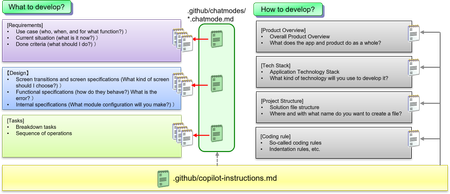
What Is Disciplined Guardrail-Based Development? In AI-assisted software development, approaches like Vibe Coding—which prioritize momentum and intuition—often fail to ensure code quality and maintainability. To address this, Disciplined Guardrail-Based Development introduces structured rules ("guardrails") that guide AI systems during coding and maintenance tasks, ensuring consistent quality and reliability. To get AI (LLMs) to generate appropriate code, developers must provide clear and specific instructions. Two key elements are essential: What to build – Clarifying requirements and breaking down tasks How to build it – Defining the application architecture The way these two elements are handled depends on the development methodology or process being used. Here are examples as follows. How to Set Up Disciplined Guardrails in GitHub Copilot To implement disciplined guardrail-based development with GitHub Copilot, two key configuration features are used: 1. Custom Instructions (.github/copilot-instructions.md): This file allows you to define persistent instructions that GitHub Copilot will always refer to when generating code. Purpose: Establish coding standards, architectural rules, naming conventions, and other quality guidelines. Best Practice: Instead of placing all instructions in a single file, split them into multiple modular files and reference them accordingly. This improves maintainability and clarity. Example Use: You might define rules like using camelCase for variables, enforcing error boundaries in React, or requiring TypeScript for all new code. https://docs.github.com/en/copilot/how-tos/configure-custom-instructions/add-repository-instructions 2. Chat Modes (.github/chatmodes/*.chatmode.md): These files define specialized chat modes tailored to specific tasks or workflows. Purpose: Customize Copilot’s behavior for different development contexts (e.g., debugging, writing tests, refactoring). Structure: Each .chatmode.md file includes metadata and instructions that guide Copilot’s responses in that mode. Example Use: A debug.chatmode.md might instruct Copilot to focus on identifying and resolving runtime errors, while a test.chatmode.md could prioritize generating unit tests with specific frameworks. https://code.visualstudio.com/docs/copilot/customization/custom-chat-modes The files to be created and their relationships are as follows. Next, there are introductions for the specific creation method. #1: Custom Instructions With custom instructions, you can define commands that are always provided to GitHub Copilot. The prepared files are always referenced during chat sessions and passed to the LLM (this can also be confirmed from the chat history). An important note is to split the content into several files and include links to those files within the .github/copilot-instructions.md file. Because it can become too long if everything is written in a single file. There are mainly two types of content that should be described in custom instructions: A: Development Process (≒ outcome + Creation Method) What documents or code will be created: requirements specification, design documents, task breakdown tables, implementation code, etc. In what order and by whom they will be created: for example, proceed in the order of requirements definition → design → task breakdown → coding. B: Application Architecture How will the outcome be defined in A be created? What technology stack and component structure will be used? A concrete example of copilot-instructions.md is shown below. # Development Rules ## Architecture - When performing design and coding tasks, always refer to the following architecture documents and strictly follow them as rules. ### Product Overview - Document the product overview in `.github/architecture/product.md` ### Technology Stack - Document the technologies used in `.github/architecture/techstack.md` ### Coding Standards - Document coding standards in `.github/architecture/codingrule.md` ### Project Structure - Document the project directory structure in `.github/architecture/structure.md` ### Glossary (Japanese-English) - Document the list of terms used in the project in `.github/architecture/dictionary.md` ## Development Flow - Follow a disciplined development flow and execute the following four stages in order (proceed to the next stage only after completing the current one): 1. Requirement Definition 2. Design 3. Task Breakdown 4. Coding ### 1. Requirement Definition - Document requirements in `docs/[subsystem_name]/[business_name]/requirement.md` - Use `requirement.chatmode.md` to define requirements - Focus on clarifying objectives, understanding the current situation, and setting success criteria - Once requirements are defined, obtain user confirmation before proceeding to the next stage ### 2. Design - Document design in `docs/[subsystem_name]/[business_name]/design.md` - Use `design.chatmode.md` to define the design - Define UI, module structure, and interface design - Once the design is complete, obtain user confirmation before proceeding to the next stage ### 3. Task Breakdown - Document tasks in `docs/[subsystem_name]/[business_name]/tasks.md` - Use `tasks.chatmode.md` to define tasks - Break down tasks into executable units and set priorities - Once task breakdown is complete, obtain user confirmation before proceeding to the next stage ### 4. Coding - Implement code under `src/[subsystem_name]/[business_name]/` - Perform coding task by task - Update progress in `docs/[subsystem_name]/[business_name]/tasks.md` - Report to the user upon completion of each task Note: The only file that is always sent to the LLM is `copilot-instructions.md`. Documents linked from there (such as `product.md` or `techstack.md`) are not guaranteed to be read by the LLM. That said, a reasonably capable LLM will usually review these files before proceeding with the work. If the LLM does not properly reference each file, you may explicitly add these architecture documents to the context. Another approach is to instruct the LLM to review these files in the **chat mode settings**, which will be described later. There are various “schools of thought” regarding application architecture, and it is still an ongoing challenge to determine exactly what should be defined and what documents should be created. The choice of architecture depends on factors such as the business context, development scale, and team structure, so it is difficult to prescribe a one-size-fits-all approach. That said, as a general guideline, it is desirable to summarize the following: Product Overview: Overview of the product, service, or business, including its overall characteristics Technology Stack: What technologies will be used to develop the application? Project Structure: How will folders and directories be organized during development? Module Structure: How will the application be divided into modules? Coding Rules: Rules for handling exceptions, naming conventions, and other coding practices Writing all of this from scratch can be challenging. A practical approach is to create template information with the help of Copilot and then refine it. Specifically, you can: Use tools like M365 Copilot Researcher to create content based on general principles Analyze a prototype application and have the architecture information summarized (using Ask mode or Edit mode, feed the solution files to a capable LLM for analysis) However, in most cases, the output cannot be used as-is. The structure may not be analyzed correctly (hallucinations may occur) Project-specific practices and rules may not be captured Use the generated content as a starting point, and then refine it to create architecture documentation tailored to your own project. When creating architecture documents for enterprise-scale application development, a useful approach is to distinguish between the foundational parts and the individual application parts. Discipline-based guardrail development is particularly effective when building multiple applications in a “cookie-cutter” style on top of a common foundation. A cler example of this is Data-Oriented Architecture (DOA). In DOA, individual business applications are built on top of a shared database that serves as the overall common foundation. In this case, the foundational parts (the database layer) should not be modified arbitrarily by individual developers. Instead, focus on how to standardize the development of the individual application parts (the blue-framed sections) while ensuring consistency. Architecture documentation should be organized with this distinction in mind, emphasizing the uniformity of application-level development built upon the stable foundation. #2 Chat Mode By default, GitHub Copilot provides three chat modes: Ask, Edit, and Agent. However, by creating files under .github/chatmodes/*.chatmode.md, you can customize the Agent mode to create chat modes tailored for specific tasks. Specifically, you can configure the following three aspects. Functionally, this allows you to perform a specific task without having to manually change the model or tools, or write detailed instructions each time: model: Specify the default LLM to use (Note: The user can still manually switch to another LLM if desired) tools: Restrict which tools can be used (Note: The user can still manually select other tools if desired) custom instructions: Provide custom instructions specific to this chat mode A concrete example of .github/chatmodes/*.chatmode.md is shown below. description: This mode is used for requirement definition tasks. model: Claude Sonnet 4 tools: ['changes', 'codebase', 'editFiles', 'fetch', 'findTestFiles', 'githubRepo', 'new', 'openSimpleBrowser', 'runCommands', 'search', 'searchResults', 'terminalLastCommand', 'terminalSelection', 'usages', 'vscodeAPI', 'mssql_connect', 'mssql_disconnect', 'mssql_list_servers', 'mssql_show_schema'] --- # Requirement Definition Mode In this mode, requirement definition tasks are performed. Specifically, the project requirements are clarified, and necessary functions and specifications are defined. Based on instructions or interviews with the user, document the requirements according to the format below. If any specifications are ambiguous or unclear, Copilot should ask the user questions to clarify them. ## File Storage Location Save the requirement definition file in the following location: - Save as `requirement.md` under the directory `docs/[subsystem_name]/[business_name]/` ## Requirement Definition Format While interviewing the user, document the following items in the Markdown file: - **Subsystem Name**: The name of the subsystem to which this business belongs - **Business Name**: The name of the business - **Overview**: A summary of the business - **Use Cases**: Clarify who uses this business, when/under what circumstances, and for what purpose, using the following structure: - **Who (Persona)**: User or system roles - **When/Under What Circumstances (Scenario)**: Timing when the business is executed - **Purpose (Goal)**: Objectives or expected outcomes of the business - **Importance**: The importance of the business (e.g., High, Medium, Low) - **Acceptance Criteria**: Conditions that must be satisfied for the requirement to be considered met - **Status**: Current state of the requirement (e.g., In Progress, Completed) ## After Completion - Once requirement definition is complete, obtain user confirmation and proceed to the next stage (Design). Tips for Creating Chat Modes Here are some tips for creating custom chat modes: Align with the development process: Create chat modes based on the workflow and the deliverables. Instruct the LLM to ask the user when unsure: Direct the LLM to request clarification from the user if any information is missing. Clarify what deliverables to create and where to save them: Make it explicit which outputs are expected and their storage locations. The second point is particularly important. Many AI (LLMs) tend to respond to user prompts in a sycophantic manner (known as sycophancy). As a result, they may fill in unspecified requirements or perform tasks that were not requested, often with the intention of being helpful. The key difference between Ask/Edit modes and Agent mode is that Agent mode allows the LLM to proactively ask questions and engage in dialogue with the user. However, unless the user explicitly includes a prompt such as “ask if you don’t know,” the AI rarely initiates questions on its own. By creating a custom chat mode and instructing the LLM to “ask the user when unsure,” you can fully leverage the benefits of Agent mode. About Tools You can easily check tool names from the list of available tools in the command palette. Alternatively, as shown in the diagram below, it can be convenient to open the custom chat mode file and specify the tool configuration. You can specify not only the MCP server functionality but also built-in tools and Copilot Extensions. Example of Actual Operation An example interaction when using this chat mode is as follows: The LLM behaves according to the custom instructions defined in the chat mode. When you answer questions from GHC, the LLM uses that information to reason and proceed with the task. However, the output is not guaranteed to be correct (hallucinations may occur) → A human should review the output and make any necessary corrections before committing. The basic approach to disciplined guardrail-based development has been covered above. In actual business application development, it is also helpful to understand the following two points: Referencing the database schema Integrated management of design documents and implementation code (Important) Reading the Database Schema In business application development, requirements definition and functional design are often based on the schema information of entities. There are two main ways to allow the system to read schema information: Dynamically read the schema from a development/test DB server using MCP or similar tools. Include a file containing schema information within the project and read from it. A development/test database can be prepared, and schema information can be read via the MCP server or Copilot Extensions. For SQL Server or Azure SQL Database, an MCP Server is available, but its setup can be cumbersome. Therefore, using Copilot Extensions is often easier and recommended. This approach is often seen online, but it is not recommended for the following reasons: Setting up MCP Server or Copilot Extensions can be cumbersome (installation, connection string management, etc.) It is time-consuming (the LLM needs schema information → reads the schema → writes code based on it) Connecting to a DB server via MCP or similar tools is useful for scenarios such as “querying a database in natural language” for non-engineers performing data analysis. However, if the goal is simply to obtain the schema information of entities needed for business application development, the method described below is much simpler. Storing Schema Information Within the Project Place a file containing the schema information inside the project. Any of the following formats is recommended. Write custom instructions so that development refers to this file: DDL (full CREATE DATABASE scripts) O/R mapper files (e.g., Entity Framework context files) Text files documenting schema information, etc. DDL files are difficult for humans to read, but AI (LLMs) can easily read and accurately understand them. In .NET + SQL development, it is recommended to include both the DDL and EF O/R mapper files. Additionally, if you include links to these files in your architecture documents and chat mode instructions, the LLM can generate code while understanding the schema with high accuracy. Integrated Management of Design Documents and Implementation Code Disciplined guardrail-based development with LLMs has made it practical to synchronize and manage design documents and implementation code together—something that was traditionally very difficult. In long-standing systems, it is common for old design documents to become largely useless. During maintenance, code changes are often prioritized. As a result, updating and maintaining design documents tends to be neglected, leading to a significant divergence between design documents and the actual code. For these reasons, the following have been considered best practices (though often not followed in reality): Limit requirements and external design documents to the minimum necessary. Do not create internal design documents; instead, document within the code itself. Always update design documents before making changes to the implementation code. When using LLMs, guardrail-based development makes it easier to enforce a “write the documentation first” workflow. Following the flow of defining specifications, updating the documents, and then writing code also helps the LLM generate appropriate code more reliably. Even if code is written first, LLM-assisted code analysis can significantly reduce the effort required to update the documentation afterward. However, the following points should be noted when doing this: Create and manage design documents as text files, not Word, Excel, or PowerPoint. Use text-based technologies like Mermaid for diagrams. Clearly define how design documents correspond to the code. The last point is especially important. It is crucial to align the structure of requirements and design documents with the structure of the implementation code. For example: Place design documents directly alongside the implementation code. Align folder structures, e.g., /doc and /src. Information about grouping methods and folder mapping should be explicitly included in the custom instructions. Conclusion of Disciplined Guardrail-Based Development with GHC Formalizing and Applying Guardrails Define the development flow and architecture documents in .github/copilot-instructions.md using split references. Prepare .github/chatmodes/* for each development phase, enforcing “ask the AI if anything is unclear.” Synchronization of Documents and Implementation Code Update docs first → use the diff as the basis for implementation (Doc-first). Keep docs in text format (Markdown/Mermaid). Fix folder correspondence between /docs and /src. Handling Schemas Store DDL/O-R mapper files (e.g., EF) in the repository and have the LLM reference them. Minimize dynamic DB connections, prioritizing speed, reproducibility, and security. This disciplined guardrail-based development technique is an AI-assisted approach that significantly improves the quality, maintainability, and team efficiency of enterprise business application development. Adapt it appropriately to each project to maximize productivity in application development.3.5KViews6likes0Comments