ip inventory
1 TopicMaintaining Azure Public IP Inventory by Retrieving Exact Deleted Public IP Using Activity Logs
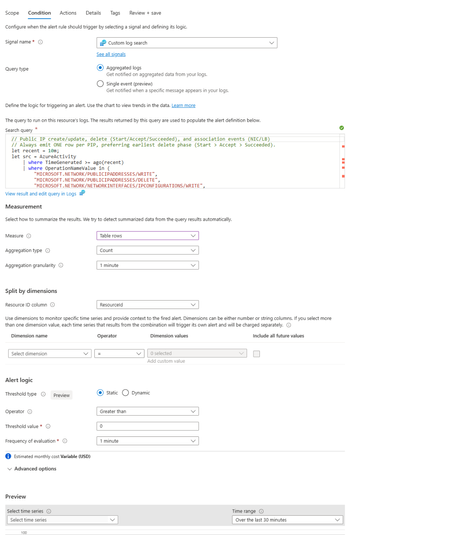
Azure Activity Logs provide strong visibility into resource lifecycle operations across a subscription. Among these are lifecycle events related to Azure Public IP addresses, including creation and deletion. However, when a Public IP address is deleted, the corresponding delete operation in Azure Activity Logs includes only the Resource ID of the Public IP — not the actual IP address that was assigned to the resource. Once deletion is complete: The Public IP resource no longer exists The Resource ID cannot be resolved The assigned Public IP address is permanently unretrievable through Azure APIs For organisations that rely on accurate IP inventory data for: Security monitoring Compliance audits Incident response Network forensics This blog presents a production‑ready implementation approach that enables organisations to reliably capture and retain the assigned Public IP address of Azure Public IP resources — even after they are deleted — using Azure Activity Log alerts, Azure Automation, and a persistent resource mapping cache. The Core Challenge When a Public IP resource is deleted, Azure emits an Activity Log event like: --- OperationName: Microsoft.Network/publicIPAddresses/delete ResourceId: /subscriptions/<subscription-id>/resourceGroups/<rg-name>/providers/Microsoft.Network/publicIPAddresses/<pip-name> --- The alert correctly identifies the operation and the affected resource. However: The Activity Log does not include the assigned Public IP address. After deletion, the associated Resource ID no longer resolves to a live Azure resource. Maintaining Accurate IP Inventory Enterprises rely on centralised Public IP inventories mapped to workloads and ownership. Since delete Activity Log events emit the Resource ID, inventory systems require the exact Public IP address associated with the deleted resource. Preventing False Security Investigations Azure Public IP addresses are globally reused. If a deleted IP remains recorded as owned internally, it may later be assigned to another tenant. This can lead to threat intelligence alerts and internal investigations against an IP address no longer under organisational ownership. Supporting High‑Churn Dynamic Workloads Ephemeral workloads such as Azure Machine Learning, CI/CD pipelines, and autoscaling deployments frequently create and delete Public IPs. In such environments, manual lifecycle tracking of assigned IP addresses is not operationally feasible. Solution Overview The recommended approach is based on the following principle: Capture and persist the assigned Public IP address while the resource still exists and retrieve the stored value later when only the Resource ID is available. This can be implemented using: Azure Activity Logs Log Analytics alerts Azure Automation Runbooks Persistent mapping cache of Resource ID to IP address The solution comprises four primary components: Azure Activity Logs routed to Log Analytics Log Analytics alert rules detecting Public IP lifecycle operations Azure Automation Runbooks triggered through webhook actions Persistent cache storing Resource ID → IP address mappings Implementation Guide Step 1: Route Activity Logs to Log Analytics Public IP lifecycle events are published through the Azure Activity Log under the Administrative category. To enable lifecycle detection through KQL queries: Navigate to: Azure Monitor → Activity Log → Diagnostic Settings Select: Add Diagnostic Setting Configure the following: Category: Administrative Destination: Send to Log Analytics Workspace 4.Select your target Log Analytics Workspace. 5.Click Save. This allows lifecycle operations to be queried by alert rules from Log Analytics. Step 2: Deploy an Azure Automation Account Azure Automation will be used to execute runbooks that process Activity Log alerts and resolve Public IP address details during resource lifecycle operations. To begin: Navigate to the Azure Portal. In the search bar, search for Automation Accounts. Select Create, provide the following details and Select "Review + Create" to complete the deployment. Subscription Resource Group Automation Account Name Region Once the Automation Account has been created: Navigate to the Automation Account. Go to Identity under the Account Settings section. Enable System‑assigned Managed Identity. Click Save. This Managed Identity will later be used by the runbooks to securely retrieve Public IP metadata from Azure Resource Manager during alert execution. Step 3: Assign Managed Identity Permissions The Automation Account requires read‑only permissions to resolve Public IP resource information securely. Navigate to: Subscription → Access Control (IAM) → Add Role Assignment Assign the following roles to the Automation Account Managed Identity: Role Scope Reader Subscription Reader Log Analytics Workspace This ensures the runbooks are able to: Query Public IP resources Resolve resource metadata Interpret Activity Log–driven lifecycle operations Step 4: Create a Persistent Cache Variable The assigned IP address must be captured and persisted in advance before it is deleted. To maintain this mapping, create a persistent Automation variable to store the following relationship: Public IP Resource ID → Assigned IP Address Within the Automation Account: Navigate to: Shared Resources → Variables Select + Add. Configure the variable as follows: Name: PipLastKnownIps Type: String Value: {} Encryption: Disabled 4.Select Create. This variable will act as a persistent cache that is dynamically updated during Public IP lifecycle events. Step 5: Create Required Automation Runbooks Two Azure Automation Runbooks are required for this implementation. Runbook Name Purpose CacheSeedingRunbook Builds initial Resource ID → IP mapping MainLifecycleRunbook Processes Activity Log alerts Step 5.1: Create Cache Seeding Runbook Create Cache Seeding Runbook This runbook will enumerate all currently existing Public IP resources and populate the cache variable with their assigned IP address mappings. Navigate to: Automation Account → Runbooks Select Create a runbook. Provide the following details: Name: CacheSeedingRunbook Runbook Type: PowerShell Runtime Version: 7.2 4. After the runbook is created, paste the script here CacheSeedingRunbook. Select Publish. This runbook will initialise the cache by capturing the current state of all Public IP resources prior to enabling lifecycle‑based Activity Log processing. Step 5.2: Create Main Lifecycle Runbook This runbook will be triggered via webhook whenever a Public IP lifecycle event is detected through Activity Logs. Navigate to: Automation Account → Runbooks Select Create a runbook. Provide the following details: Name: MainLifecycleRunbook Runbook Type: PowerShell Runtime Version: 7.2 After the runbook is created, paste the required lifecycle processing script MainLifecycleRunbook 4. Select Publish once configuration is complete. This runbook will process Activity Log‑based lifecycle events and dynamically update the PipLastKnownIps cache variable in response to Public IP creation or deletion. Step 6: Create Runbook Webhook Configure Runbook Webhook To allow Activity Log alerts to invoke the runbook: Navigate to: Automation Account → Runbooks → MainLifecycleRunbook Go to: Resources → Webhooks Select Add Webhook. Provide the following details: Webhook Name Expiration Date 5. Copy the generated Webhook URL. This URL will be used by the Alert Action Group in a later step to trigger the runbook upon detection of Public IP lifecycle events. Step 7: Seed Cache with Existing Public IPs Before activating the alert‑driven workflow, populate the cache with currently active Public IP resources. Navigate to: CacheSeedingRunbook → Start and Run the job once. This will initialise the PipLastKnownIps mapping with all existing Public IP resources. Future lifecycle events will update this cache dynamically. Step 8: Create Activity Log Alert Rule Navigate to: Azure Monitor → Alerts → Create Alert Rule Scope the alert rule to the relevant Log Analytics Workspace. Under Condition: Select: Custom Log Search Use the KQL query available here: query.json Configure the following parameters as required: Evaluation Frequency Query Time Range This alert rule will detect Public IP lifecycle events and trigger the associated Action Group for downstream runbook execution. Please find the configuration in the attached screenshot below: Step 9: Configure Action Group to Trigger Runbook Create an Action Group that invokes the Lifecycle Runbook webhook. Add a new action. Configure the action with the following details: Action Type: Webhook Paste the previously generated Runbook Webhook URL 3.Enable: Use Common Alert Schema (Optional) Add an Email Notification action to receive lifecycle alerts for troubleshooting or monitoring purposes. 4. Attach this Action Group to the alert rule. Step 10: Validate the Implementation To validate: Create a Public IP resource. Delete the same resource. Navigate to: Automation Account → Jobs → MainLifecycleRunbook Observe the runbook execution output related to: Public IP creation Public IP deletion Although the delete alert contains only the Resource ID, the runbook retrieves the exact assigned Public IP address from the cache. See the sample output below: You can extend this workflow using Azure Logic Apps to forward events to Email , SIEM platforms or CMDB systems. Conclusion In addition to tracking Public IP deletions using Activity Logs, proactively capturing and persisting Resource ID–to–IP mappings through Automation‑driven lifecycle alerts, organisations can maintain an accurate Public IP inventory—ensuring traceability, reducing false‑positive security investigations, and strengthening audit and incident response readiness.