hyperscale
45 Topics
Public Preview: Alerts for Azure SQL Database in Database Hub, powered by Fabric Activator
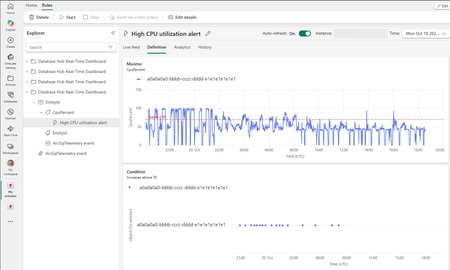
We're excited to announce the public preview of alerts for Azure SQL Database in Database Hub, powered by Fabric Activator. Last month, we brought performance monitoring for Azure SQL to Database Hub. That gave you one place to see how your databases are performing. Alerts are the next step. Instead of waiting for someone to spot a problem on a dashboard, Database Hub now watches your telemetry and tells you when a database needs attention. With alerts in Database Hub, you can: Create an alert on a database in a few clicks, starting from a built-in template Turn a chart on the Performance page into an alert that covers many databases at once Take action when an alert fires, from a Teams message to a Power Automate flow Why we built this When we talk with customers about database monitoring, the first question after "Can I see it?" is almost always "Can it alert me when something's wrong?" Setting up performance alerts for SQL at scale usually meant: Deploying a monitoring resource to collect telemetry Running a data store to hold it Setting up identities and permissions so the alerting service could read it Writing and maintaining alert queries for every new database We wanted alerting to work the way performance monitoring does in Database Hub. Turn it on, and it just works. Rather than build a new alerting engine, we built on Fabric Activator. Activator is the no-code detection and alerting engine that Fabric customers already use to keep an eye on their Fabric workloads. Today, teams use it to: Get alerted when a pipeline fails or a semantic model refresh doesn't finish Watch live data in eventstreams and Real-Time Dashboards Respond automatically, from a Teams message to a notebook or a Power Automate flow Now we've brought those same capabilities to the SQL resources in Database Hub. Database Hub brings the database context and the telemetry. Activator brings the rules engine and the actions. You don't have to learn a new alerting tool. Your database alerts live right alongside the rest of your Fabric alerts. Two ways to create an alert 1. Start from a template This is the fastest way to get started. Go to the Estate page in Database Hub. Hover over an Azure SQL database and open the quick actions menu. Select Set alert from template. Pick a template. Each template covers a common performance problem and comes with a default condition you can tune. For the current list of templates, see Alert templates. The query and the database are already filled in for you. All you need to decide is: How often to check. You can go as often as every minute. The condition thresholds for when to alert. Keep the default threshold or tune it for your workload. What to do when the alert fires (more details in the next section). Then select Create. 2. Alert on a Performance chart Sometimes you don't care which database it is. You just want to know when any of your databases are in trouble. Hover over a chart on the Performance page and select the lightning bolt icon. The query behind the chart becomes the query for your alert. For example, you can get notified whenever any of your databases have had high CPU for more than 5 minutes. Chart alerts cover every resource on the chart. That includes SQL Server on Azure VMs and SQL Server enabled by Azure Arc, even though templates for them aren't available yet. Choose what happens when an alert fires A notification is a good start. But Activator can do a lot more than send a message. Here are a few examples of what you can do when an alert fires: Send a Teams message, such as a post in your on-call channel Send an email Run a Fabric notebook that collects extra diagnostics for the affected database, so the evidence is waiting for you when you start investigating Trigger a Power Automate flow, such as opening an incident in the IT service management (ITSM) tool you already use Activator can also run other Fabric items, like pipelines and Spark jobs. For the full list of actions, see Configure actions for Activator rules. Every notification links you straight into Activator. There you'll see: The metric trend, with your threshold drawn on the chart Exactly when the condition was met The rule's run history, so you can confirm it's checking as often as you expect No identities or credentials to manage When you enable performance monitoring, telemetry is sent to a Microsoft-managed pipeline and data store. Activator rules query that data store, not your databases. That means: There are no additional credentials or identities to create on your databases Alert queries don't add load to your databases Alert rules run with your identity. You can alert on telemetry for any resource where you have the Reader role on its subscription. Keep in mind that anyone who can open your rule, or who receives its notifications, sees the telemetry it returns. They don't need their own access to those resources. Choose your workspace and recipients accordingly. Things to know during the preview Alerts run on Fabric capacity. Database Hub is free. Activator rules run in a Fabric workspace and use that workspace's capacity. Standard Activator capacity usage applies. See all your alerts in one place. The Rules page in Real-Time hub shows every Activator rule you have access to across workspaces. That includes the ones you create from Database Hub. Low end-to-end latency. How quickly an alert fires depends on two intervals: Collection interval. Each type of telemetry is collected on its own schedule. Fast-moving metrics like CPU are collected every 10 to 15 seconds. For the interval for each table, see Query performance monitoring telemetry. Query interval. Activator can run your alert query as often as every minute. What's next We're just getting started. Here's what we're working on: More templates for Azure SQL Database Templates for SQL Server on Azure VMs and SQL Server enabled by Azure Arc Templates for Azure SQL Managed Instance, once performance monitoring for Managed Instance is available Alerts for Azure Database for PostgreSQL and Azure Cosmos DB Handing an alert off to a database agent so it can start the investigation for you Get started Open Database Hub in Fabric. Turn on performance monitoring for your SQL resources. See Enable performance monitoring for Microsoft SQL. Make sure you have a Fabric workspace on a Fabric capacity to save your alerts in. A Fabric trial capacity works for trying it out. On the Estate page, hover over a database and open the quick actions menu. Then select Set alert from template. Pick a template and choose your action. Then select Create. For the full walkthrough, see Create Activator alerts for Microsoft SQL. Give it a try and let us know what you think in the comments. We especially want to hear which templates you want us to build next. Learn more Create Activator alerts for Microsoft SQL What is Fabric Activator? Public Preview: Performance monitoring for Azure SQL in Database Hub Database Hub in Fabric: Now in Public Preview Enable performance monitoring for Microsoft SQL Query performance monitoring telemetry265Views2likes2Comments
Modern Query Editor for Azure SQL Database is now generally available
We're pleased to announce the general availability of Query Editor for Azure SQL Database. The updated experience brings a multi-tab query workspace, easier database exploration, and more interactive query results directly to the Azure portal, with no desktop tools to install. Whether you're checking data after a deployment, investigating an unexpected result, or trying out a query, you can get started from your database in the portal. Modern Query Editor brings these everyday tasks together in a refreshed workspace. Work across multiple queries Multiple query tabs let you keep related queries open and switch between them without replacing the SQL you're already working on. For example, you can keep a query open while writing a second query to investigate its results. When you're ready, run the selected SQL and review the output in the same workspace. Your work also stays with you. Open tabs and query text are restored as you move around the portal during your browser session, and you can save the queries you return to often in Queries. Saved queries are stored in your browser profile, so they're ready the next time you open Query editor in the same browser. Find objects and preview data The updated Object Explorer makes it easier to find what you need in your database. Search for objects by name and narrow the results by object type, rather than browsing through the full hierarchy. You can also open a table or view in a dedicated data-preview tab to inspect up to 1,000 rows without writing a query first. This gives you a quick way to get familiar with the data before building your query, without interrupting work in another tab. Do more with your query results The results grid lets you sort and filter returned data, resize columns, and copy cells, rows, or columns. You can inspect the output and focus on the values that matter without changing your SQL for every quick check. When you need to use the results outside the portal, export them as CSV, JSON, or Excel. That makes it straightforward to move from a quick database check to further analysis or sharing results with your team. Sort and filter results directly in the grid, then export them as CSV, JSON, or Excel Get started To try Modern Query Editor: Open your Azure SQL database in the Azure portal. Select Query editor from the database resource menu. Connect using Microsoft Entra authentication or SQL authentication, then explore your database or run a query. If something blocks the connection, such as a firewall rule or missing Microsoft Entra configuration, Query editor explains what went wrong and suggests the next step. For example, you can add your client IP address to the server firewall with a single click, or go straight to the relevant networking or Microsoft Entra settings. For connection requirements and more details, see the Query Editor documentation. Modern Query Editor is designed for lightweight querying and exploration. When you need a full desktop development or administration environment, use Open in to connect to the same database in Visual Studio Code or SQL Server Management Studio. Prefer the original experience? The classic Query editor remains available, and you can switch between the classic and modern experiences without losing your database context. Try the new experience and let us know what you think by selecting Feedback in the Query editor command bar.269Views0likes0CommentsMake Estate yours: Focus on the databases and issues you own in Database Hub
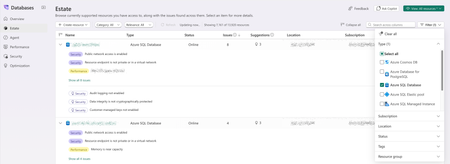
Database Hub in Microsoft Fabric is now in public preview. Estate experience brings every supported database you can access into one inventory, with the issues and suggestions found across them. In a large organization, that can mean thousands of resources. But most people own only part of the estate: a set of production databases, a few subscriptions, one resource group. This post shows how to shape Estate around your part, save it as a custom view, and use it to triage and bring in help. The examples use Azure SQL Database; the same steps work for PostgreSQL and Azure Cosmos DB. Which resources are mine? While in Estate view select Filter to narrow the list by Type, Subscription, Location, Status, Tags, or Resource group. The grid and the resource count update as you select values; Filter (1) shows how many dimensions are active, and Clear all resets them. Looking for one resource? Search across columns matches names, locations, subscriptions, and more. Which issues should I focus on? Each row shows its Issues and Suggestions counts and opens expanded, so findings are readable at a glance: issues with a filled Security or Performance tag, suggestions marked with a lightbulb. Open Category and select Security, Performance, Optimization, or a combination. Use Relevance to keep only resources with Issues or Suggestions. The grid is sorted by issue count, so the resources that need the most attention come first. How do I get back here tomorrow? Once Estate shows what you want, save it. An asterisk after the view name (View: All resources *) means your filters have unsaved changes. Select View > Save. Choose Save as new custom view and give it a name that describes the scope, such as sqlDB-sec-perf-issues. Select Apply. The view now appears under Custom views in the View menu. It saves filters, not results, so you always see the current state of those resources. What's wrong, and what should I do about it? Select an issue to open its detail page. Here, the top database reports Public network access is enabled. The Summary explains why it matters: public reachability increases exposure to credential attacks, scanning, and firewall mistakes. The Recommended action gives the fix and its precondition: Disable public network access after confirming that all clients can connect through approved private connectivity. Resolve in Azure portal opens the resource. Database Hub doesn't change the resource for you; you make the change in the tool that owns it, under your existing permissions. Back returns you to Estate with your view intact. Who can help me fix it? That precondition is often the hard part: confirming every client can connect privately may take your networking or application team. Bring them into the same view. Select View > Share, then Copy link. The link carries your current filters, so a colleague starts from the same scope. Each person still sees only the resources they already have access to; sharing never grants access. Need the list for a change ticket? Select Export view (as .csv). CSV files don't carry sensitivity labels, so handle the file according to your organization's data policies. What needs attention in my part of the estate? Your view isn't limited to Estate. Open Overview, select the same view from the View menu, and every card and chart rescopes to it: the Estate issues summary, the Security, Performance, and Optimization cards with their top issues, and the performance trends. Overview now summarizes your backlog instead of the whole estate. Views are managed in Estate; Manage views (Estate) takes you there. o the resources you own. More in Estate Look up a resource without leaving the list Select a resource name to open its details next to the list: subscription, resource group, and logical server (each linking to the Azure portal), status, location, pricing tier, max storage, and tags. Connection strings for ADO.NET, JDBC, ODBC, PHP, and Go use Microsoft Entra authentication, and Open in Azure portal, Open in VS Code, and Open in SSMS are at the top. The … menu on each row adds quick actions Copy connection string, Open in editor, Enable performance monitoring, Create monitor from template and Set alert from template. Create a database where you work Create resource starts a new database from Estate, grouped by engine: SQL database in Fabric, Azure SQL Database, SQL Server instance, Azure Database for PostgreSQL, and Azure Cosmos DB for NoSQL. Get started Open Estate, filter to the resources you own, focus on the categories you triage, and save the result as a view. Then select it on Overview and start with what needs attention. Database Hub is in public preview; capabilities vary by service and preview configuration. See the Database Hub documentation for supported services and setup, and use Feedback in Database Hub to tell us what you'd like next.198Views1like1Comment
Public Preview: Auto-pause and auto-resume for Azure SQL Database Hyperscale Serverless
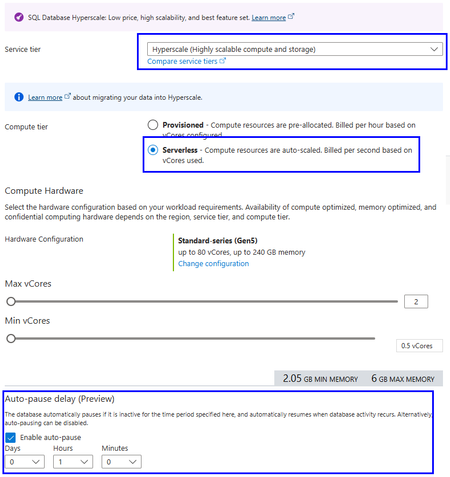
Auto-pause and auto-resume are now available in public preview for Azure SQL Database Hyperscale Serverless. You can now combine Hyperscale's independent scaling of compute and storage with the ability to automatically pause inactive databases, helping reduce compute costs for workloads with extended or predictable idle periods.456Views0likes0CommentsDatabase Hub in Fabric: Now in Public Preview -Turn Database Signals into Guided Action
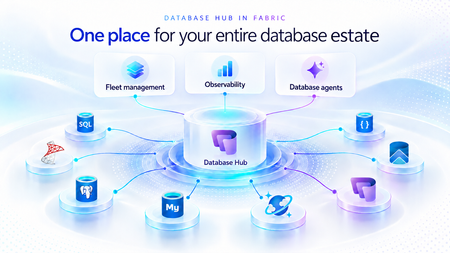
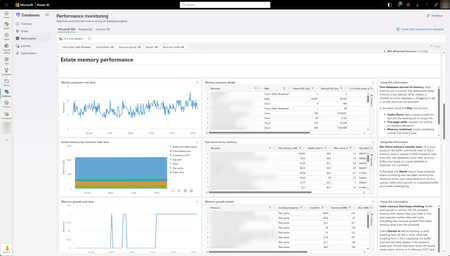
As applications grow, so does the database estate behind them. What starts with a handful of databases can become hundreds or thousands of resources spread across services, subscriptions, and environments. For the teams responsible for keeping them healthy, the challenge is no longer just collecting signals. It is knowing what needs attention, why it matters, and what to do next. Now in public preview, Database Hub in Microsoft Fabric brings inventory, health, performance, security, and optimization insights into one connected experience. It helps administrators and developers see the bigger picture, identify affected resources, and move from estate-wide visibility to focused investigation, without losing the context that brought them there. The preview brings together supported resources across Azure SQL Database, SQL Server enabled by Azure Arc, Azure Database for PostgreSQL, Azure Cosmos DB, and SQL database in Fabric. Available capabilities and signals vary by service and preview configuration. Database Hub Overview brings together estate-wide findings and cross-engine performance trends to help you prioritize what needs attention. Start with what needs your attention When you manage a large database estate, another dashboard is only useful if it helps you decide where to spend your time. The Overview page provides that starting point, bringing together findings across security, performance, and optimization. It distinguishes Issues, which require timely attention, from Suggestions, which highlight opportunities to improve your estate over time. You might begin with a security configuration that needs review or a performance signal that warrants investigation. Selecting a finding opens Estate with the relevant filters already applied, so you can see the affected resources rather than search for them again. The result is a more direct path from “something needs attention” to “these are the resources I should investigate.” Overview highlights issues across Security, Performance, and Optimization, with affected-resource counts and direct links to investigate further. Bring your estate into one view, and make it relevant to you The Estate experience brings supported resources into a unified inventory, scoped to your existing permissions. Search and filters help you narrow that inventory to the service, subscription, or resource group you manage. This is especially useful when your responsibilities span database engines. You can begin with a broader view, then focus on Azure SQL databases, Arc-enabled SQL Server resources, or Azure Database for PostgreSQL flexible servers without rebuilding the resource list in separate portals. Each resource brings its associated Issues and Suggestions into context. Open a finding to review the affected resource, supporting information, and recommended next step. The inventory also respects the resource model of each service. For example, the PostgreSQL view represents flexible server instances, rather than every database hosted within them. A unified view does not mean moving your databases. Your Azure resources remain in their existing subscriptions, and on-premises SQL Server instances remain on-premises, connected through Azure Arc. Database Hub brings operational context together; it does not require relocating or mirroring your application data into Fabric. Estate brings resource inventory, Issues, and Suggestions into one view, with quick actions to continue investigation in the Azure portal, VS Code, or SSMS. Understand security posture and performance in context Database Hub helps you identify configurations worth reviewing and resources that need a closer look. For security, supported signals can include Microsoft Entra authentication, customer-managed keys, and auditing coverage, depending on the database service. These findings provide a starting point for investigation, not a blanket judgment that every flagged resource is insecure or noncompliant. For example, a suggestion to review customer-managed keys should be evaluated against your organization’s requirements. A resource using service-managed keys is still encrypted at rest. For performance, built-in dashboards bring supported utilization and activity signals into view, including CPU, memory, storage, I/O, and connections. Review trends across your estate, then narrow the scope and time range to investigate individual resources. Metric availability varies by engine and monitoring configuration; missing data should not be interpreted as good health. For supported SQL monitoring scenarios, you can also create a custom monitoring dashboard from a template and tailor its charts and layout to the resources your team follows regularly. Together, these experiences help answer two practical questions: Where is pressure building, and where is there an opportunity to improve? Performance summaries highlight recent capacity signals and trends across Microsoft SQL, PostgreSQL, and Cosmos DB. The Security dashboard summarizes Microsoft Entra authentication, audit logging, and customer-managed key coverage, helping you identify configurations that warrant review across your estate. The Performance monitoring dashboard combines memory-pressure trends, resource-level details, and interpretation guidance to help focus your investigation. Move from a finding to an informed next step Estate-wide visibility is the beginning of an investigation, not a replacement for database expertise. When a finding needs deeper analysis, Database Hub helps you review the evidence and continue in the appropriate native experience, such as the Azure portal or SQL Server Management Studio (SSMS). Engine-specific diagnostics and configuration changes remain in the tools designed for that work. Consider a performance issue that occurred before an administrator could inspect it. In supported agent-assisted scenarios, captured incident evidence can help establish what happened, when it happened, and which queries or sessions were involved. That context gives the administrator a more informed starting point for investigation. The operator remains in control: review the evidence, evaluate the recommendation, and apply authorized changes through the appropriate service tools. The preview investigation workflow does not automatically remediate issues, and existing permissions and approval requirements continue to apply. Bring database expertise into agent-assisted workflows We are also making database operational intelligence available through agent skills: reusable capabilities that agents can call to support observability, monitoring, diagnostics, optimization, and other database operations. Database Hub provides estate context; skills provide a way to bring database expertise into an agent-assisted investigation. This creates a foundation for helping teams move from identifying an affected resource to understanding its signals and evaluating the next step. We’re building toward making this expertise available in the AI companions and development tools teams already use, with recommendations grounded in evidence, the specific database, and your organization’s operational controls. If we take a step back, our broader vision brings together a free, extensible Database Hub experience, agentic observability, and OneLake integration, all within Microsoft Fabric. It’s a foundation for connecting database operations with analytics and AI and helping teams turn signals into informed action. Get started with Database Hub Start with the Database Hub documentation to review preview availability, supported services, and setup requirements. Ask your Fabric administrator to enable the preview where required, confirm that you have the appropriate resource permissions, and complete any service-specific monitoring prerequisites. Then open Microsoft Fabric, select Databases in the left navigation, and begin with Overview. Choose a finding, explore the affected resources in Estate, and follow the evidence into your next investigation. For more details on supported services and getting set up, the Database Hub documentation is also available on Microsoft Learn. Learn more What is Database Hub in Fabric? Enable performance monitoring for Microsoft SQL Performance Monitoring for Azure SQL in Database Hub983Views5likes1CommentPublic Preview: Performance monitoring for Azure SQL in Database Hub
We're excited to announce the public preview of performance monitoring for Azure SQL in Database Hub in Fabric. Performance monitoring brings the health and performance of your SQL estate into Database Hub. You see every supported database in one place and quickly spot the ones that need attention. It works across: Azure SQL Database Azure SQL Managed Instance (coming soon) SQL Server on Azure Virtual Machines SQL Server enabled by Azure Arc Microsoft collects performance-related telemetry, runs the pipeline, and stores the data for you. There's nothing you need to deploy and nothing to operate. Turn it on, and your SQL resources show up on the Performance page in Database Hub, which is free. This post is a deep dive on the performance part of Database Hub. For the full tour, including the Overview, Estate, and Security pages, read Database Hub in Fabric: Now in Public Preview. Get started in three steps Open Database Hub in Fabric. During the preview, a Fabric administrator needs to turn on the Database Hub tenant setting. See the prerequisites. Turn on performance monitoring for your SQL resources. See Enable performance monitoring for Microsoft SQL. Go to the Performance page to see which databases need your attention. See your entire database estate in Database Hub Performance monitoring powers the Performance page in Database Hub. Database Hub is built for when you need to look across all your databases, not just one at a time. It brings your database estate across Azure, on-premises, and other clouds into one place, including: Azure SQL and SQL Server enabled by Azure Arc Azure Database for PostgreSQL Azure Cosmos DB The Performance page comes with prebuilt dashboards, so you can see performance at a glance without building anything yourself. The dashboards are designed to quickly answer two questions: Are my databases healthy? Which ones need my attention? From there, you can drill into resource usage, waits, and session activity to understand what's driving a change in performance. With Database Hub, you can: Get estate-wide visibility into health and performance across database types Investigate the root cause of performance issues across many databases Use AI-assisted analysis to find and explain issues faster To learn more, see What is Database Hub in Fabric? Why we built this Monitoring SQL performance at scale often meant building and running your own monitoring stack. Before you could effectively answer, "Which of my databases need attention right now?" you typically had to: Deploy and configure a collection resource, such as a watcher or an agent Build a telemetry pipeline to move the data Provision a data store, and then pay for it, secure it, and keep it running Build dashboards on top of all of it Repeat for every new server, database, or region That's a lot of work before you see your first chart. And every step is another thing that can break, drift, or quietly stop collecting data. Customers are also turning to AI to make sense of their database estate. They want an AI agent that can spot a performance problem, explain what's causing it, and recommend a fix. But an AI agent is only as good as the data it can reach. It operates best with one consistent source of performance data across every database, not a patchwork of tools and data stores. We heard this feedback loud and clear from customers. You told us you love having at-scale dashboards and ownership of your performance data. You also told us that setting up a telemetry stack was time-consuming, scale limits got in the way, and running the data store added operational burden and cost overhead. One customer put it simply: they wanted to spend less time managing their telemetry infrastructure and more time managing and improving their databases. Performance monitoring keeps the parts you valued and removes the infrastructure you had to manage. That's why it feeds Database Hub directly. You get one place to see your whole estate, and your AI agents get one consistent source of performance data. No infrastructure to manage (or pay for) With performance monitoring, there's no monitoring infrastructure for you to deploy, size, or run. It's all managed by Microsoft, with no scale limits on how many targets you can monitor. Telemetry is collected close to the database engine and sent to a Microsoft-managed telemetry pipeline and data store. Access to that data is governed by Azure role-based access control (RBAC), so people only see telemetry for the resources they already have access to. Consistent telemetry across your SQL estate Performance monitoring collects the same core set of performance data across every supported SQL deployment, whether it runs in Azure, on-premises, or in another cloud. That means one mental model and one set of dashboards in Database Hub, instead of a different tool for every flavor of SQL. The preview collects performance-related telemetry, including: CPU and memory utilization Wait statistics Active sessions Storage I/O and database storage utilization Performance counters Client connections Database properties Availability group, replica, and database replica health Go beyond Database Hub with KQL Database Hub covers the most common performance questions. When you need a view that Database Hub doesn't show, you can query the same telemetry directly with Kusto Query Language (KQL). The telemetry is available through a Microsoft-managed, RBAC-governed endpoint, so you don't need to create or pay for your own Azure Data Explorer cluster. Use it to: Build your own Real-Time Dashboards and reports Connect tools you already use, such as Grafana or Power BI Give an AI agent access to investigate performance across your estate To get started, see Query performance monitoring telemetry. It includes the schema, connection steps, and ready-to-run starter queries. Turn on performance monitoring How you turn on performance monitoring depends on the resource type. For all of the steps in one place, see Enable performance monitoring for Microsoft SQL. Resource type How monitoring is enabled in preview Step-by-step guidance Azure SQL Database Add an extended property to each database you want to monitor. You can also select Enable Performance Monitoring in Database Hub. Azure SQL Database Azure SQL Managed Instance (coming soon) Coming soon Coming soon SQL Server on Azure VMs Turn on a feature flag in the SQL IaaS Agent extension. SQL Server on Azure VMs SQL Server enabled by Azure Arc On by default once the server is connected to Azure Arc. SQL Server enabled by Azure Arc To view performance monitoring data, you need: The Reader role, or a role with higher privileges, on each subscription that contains the resources you want to view. The Microsoft.AzureArcData resource provider registered on each subscription. For steps, see Register the Azure resource provider. Availability Performance monitoring is available in public preview in select Azure regions. For the current list of supported regions, see Regional availability and data handling. Learn more Database Hub in Fabric: Now in Public Preview What is Database Hub in Fabric? Enable performance monitoring for Microsoft SQL Query performance monitoring telemetry Supplemental Terms of Use for Microsoft Azure Previews2.8KViews3likes5CommentsICYMI: New Azure SQL Foundations video series with GitHub samples
Bob Ward and I recently released a series of videos, read more in the original blog post or go directly to the series on YouTube. The Azure SQL Database Foundations series are four videos that take you from your first Hyperscale database to AI features running against your own operational data. We also included how to assess and migrate (with AI and skills!) to Hyperscale in the first place, and the common optimizations you should consider. Every episode ships with a repo, so you can follow along in your own environment instead of watching someone else’s terminal.371Views0likes0CommentsSQLCon is Back: 5 Reasons to Attend the European Microsoft Fabric + SQL Community Conference
5 Reasons to Attend the European Microsoft Fabric + SQL Community Conference This year the SQL community joins Fabric in Europe for the first time at the Microsoft Fabric + SQL Community Conference happening September 28th - October 1st in Barcelona, Spain. Hear the latest announcements and roadmap directly from Microsoft leaders. With a full week of deep technical sessions and workshops covering the topics you care about most across and see how we’re helping solve your most pressing data challenges, from strengthening data sovereignty to powering agentic AI and unlocking trusted, actionable intelligence. And while there’s no shortage of topics, here are a couple of things we’re the most excited about heading to Barcelona: Unify your data (conference) experience With one registration, this event doubles your opportunity to sharpen your skillset with 130+ expert led sessions, workshops, and keynotes coming together in one high- impact week. Mix and match sessions to best meet your learning goals while you move seamlessly across tracks, visit the shared expo, and connect with peers in the community hub, all under one roof. The ultimate SQL experience, like only Microsoft can deliver With more than 25 dedicated SQL sessions, whether you’re a DBA or, a developer building AI apps, you can create your custom agenda with the topics you care about most. Pre-day programming is for the builders; bring your laptop and start your week with any of our full- day SQL workshops for the demos, practical guidance, and repeatable patterns you can start using immediately. Tuesday kicks off the official event with our opening keynote, three corenotes, and general sessions focused on SQL Server 2025, Azure SQL, and SQL in Fabric. Learn the latest in performance, tuning and tools like SSMS and VS Code delivered directly from SQL experts, MVPs, and community leaders. Ready to start building your agenda? Try our new session planner to curate your schedule based on your interests. The backdrop: Barcelona This year’s conference takes place in the historic, vibrant city of Barcelona, set along the Mediterranean Sea, the ideal setting for the first European SQLCon. When you’re ready for a break, you’re only a 15-minute ride away from the city center, perfect for exploring Gaudí’s iconic architecture or enjoying some local bites. Don’t miss the wrap- up celebration taking place in Barcelona’s exclusive Sutton Club. Community Connection SQLCon is more than just sessions; we’re bringing together more than 4,000 of the most dedicated Microsoft community members together for a week of endless connection opportunities. The Community Hub will bring some of our most popular experiences to life, from in-person meetups and user group connections to hands-on learning and certification opportunities all designed to help you grow your skills and expand your network. Launching Soon: SQLCon TV Enjoyed catching all the behind-the-scenes action on FabCon TV? In Barcelona we’ll bring SQLCon TV to the stage, with the content, demos, and interviews every SQL fan will want to see. Save your spot today. The earlier you register, the more opportunities you have to take advantage of early pricing specials. See you in Barcelona!468Views0likes2Comments3 Reasons Enterprise SQL Server Migrations Slow Down - and How to Avoid Them
Summary Many of Enterprises around the globe have relied on SQL Server for over 3 decades to run their mission critical business applications. Their SQL Server estates face pressure from downtime risk, cost volatility, end of support timelines and modernization demands. As these customers get ready to modernize their data to use the latest capabilities of A.I and cloud native application trends, they want to migrate and modernize their SQL Servers to use Azure SQL with a modernization strategy built on confidence of customer success. Enterprise migrations rarely fail because of migration tools. They slow down because organizations struggle to answer three questions: How much downtime can we tolerate? What will it cost after migration? Are we choosing the right target platform? The organizations that answer these questions early move faster and with less risk. For the DB Administrators, Data architects, application architect and cloud-cost decision makers there are important technical considerations before, during and after data modernization to avoid long term costs and operational concerns. The Microsoft SQL Team has helped many customers modernize their SQL. We discuss important guidelines that can help resolve the 3 major concerns that block or slow SQL Server migration and modernization in Enterprises. This is covered in the episode of DataExposed for which this companion blog goes into the details. What are important triggers that cause customers and partners to consider SQL modernization? There are many business triggers that force Enterprises to migrate their data to public cloud. As SQL Server 2012 to SQL Server 2016 are already in the end of support stage of their lifecycle, customers need to upgrade SQL Server in place or migrate to AzureSQL. Due to cyber security threats, customers are feeling more vulnerable to attackers. Moving their data into a secure environment is essential for protecting not just their data but their business. Customers are reporting the need to free up IT dollars to invest into other parts of the business that may need it more. These may be anything from datacenter contract expirations, need for Hardware refreshes to software license renewals. As the business grows or becomes cyclical, there is surge in demand. Capacity constraints become a barrier for such expansions. These are triggers that cause them to rethink their data modernization strategy. Data modernization and moving the data to a elastic, scalable, secure and resilient data platform such as Azure SQL, becomes essential. The Three Migration Blockers However, data modernization and migration is not without any risk. Based on our customers experience, here are three key reasons that we have commonly encountered that halt or slow down SQL modernization. 1. Downtime Risk Business stakeholders often require strict service level commitments before authorizing production cutovers. Even when migrations are technically feasible, organizations may delay projects if they believe downtime windows could impact revenue, customer experience, or regulatory obligations. Most customers are still offered offline migration paths which can take hours to days, even though zero-downtime migrations are possible which take seconds to minutes. 2. Cost uncertainty Many modernization projects are approved based on expected cost savings. However, if infrastructure sizing, licensing assumptions, storage consumption, or disaster recovery requirements are not evaluated properly, the actual operational cost can exceed initial expectations. Cost uncertainty often slows executive approval processes and extends migration timelines. 3. Compatibility and Feature Fit When migrating SQL Server, Azure SQL has several deployment offerings from IaaS to PaaS. These include SQL Server on Azure VM, Azure SQL Managed Instance, Azure SQL DB Hyperscale and Azure SQL in Microsoft Fabric. Many customers maybe using SQL Server features like Cross-database queries, CLR, SSIS, SQL Agent, and linked servers. They make a safe decision to lift and shift migrate to SQL Server on Azure VMs IaaS instead of modernizing to a PaaS service like Azure SQL Managed Instance. However, in the process, they lose the opportunity to use the PaaS capabilities, manageability and AI/Fabric capabilities in Azure by making this choice. Enterprise Architects, Application Architects, Database developers and DB Administrators have to make the right choice taking both development as well as operational costs and compatibility when they make their SQL modernization decisions. Here are best practices some of the biggest and successful SQL migrations have used to make the migration and modernization journey with confidence. While we cannot disclose specific customer names, these guidelines are based on helping many large to small Enterprise customers. Azure SQL Managed Instance as the Resiliency Anchor Azure SQL Managed Instance is often the platform that helps organizations overcome all three concerns simultaneously because it combines near-full SQL Server compatibility with platform-as-a-service benefits. Azure SQL Managed Instance (Azure SQL MI) Next-gen General Purpose is now generally available, bringing a built-in performance and scale upgrade for General Purpose workloads, including up to 500 databases per instance, up to 32 TB storage, lower latency, and higher IOPS. The release also adds more flexible cost-performance tuning with independent vCore, IOPS, and memory scaling, plus faster management operations to adapt to changing workload demand. For enterprise SQL Server modernization, this positions Azure SQL MI as a stronger path for high-compatibility migrations that need better price-performance without moving to a full replatform. Let us dive deeper into how this helps address the downtime risk concerns by enables three levels of resiliency and high availability features. Local Redundancy Azure SQL Managed Instance provides first layer of Local Redundancy — built into every Azure SQL MI instance at no extra cost. Azure SQL Managed Instance uses local redundancy by default to keep workloads available during node, VM, rack, maintenance, and other local failures within a single datacenter, with Service Fabric orchestrating failover. In General Purpose (including Next-gen GP), this is implemented as stateless compute plus remote stateful storage; during failover, the engine process moves to another compute node and reattaches data, which can cause temporary performance impact due to cold cache. In Business Critical, local redundancy uses multiple synchronized replicas with local SSD storage (Always On-like architecture), enabling fast failover and read scale-out on secondaries.Next-gen General Purpose is an architectural upgrade to the existing General Purpose service tier that uses an upgraded remote storage layer that stores instance data and log files on Elastic SAN instead of page blobs and maintains it locally. Local redundancy protects against local infrastructure issues. This gives you a 99.99% SLA but not full datacenter/zone disasters, so zone redundancy (where supported) or disaster recovery (DR) options like failover groups/geo-restore are needed for broader resilience. Zone Redundancy The second layer is Zone Redundancy, which is accomplished placing data replicas across availability zones. Your Azure SQL MI resources are distributed across multiple availability zones within a region. This protects against the failure of an entire datacenter because each Azure availability zone is a separate physical location with independent power, cooling and networking. It relies on synchronous replication using zone-redundant storage for General Purpose. For Business critical, it uses Always On Availability group replicas across zones for Business Critical. Always On availability group technology replicates data changes from the primary instance to standby replicas in other availability zones. In the event of an outage, there's an automatic failover that seamlessly transitions one of the standby replicas to be prima. These replicas are always in sync — which means zero data loss. Failover typically happens in under 30 seconds, and your SLA jumps to 99.995%. Failover Groups The third layer is Failover Groups. This is your cross-region disaster recovery solution. It asynchronously replicates all user databases to a secondary Azure SQL MI instance in a different Azure region. Because it is asynchronous replication, there is potential for momentary data loss in the case of a datacenter outage. But it still protects the data against the worst case failure — a full regional outage. If the replica is a standby replica, there is no license required and it is used only for disaster recovery. Using these options, business stakeholders can get their assurance that they have Enterprise grade availability and resiliency platform of AzureSQL for running their mission critical workloads. You can read more about these HA and Resiliency options in Microsoft Learn. Cost Governance for Enterprise Buyers The total cost of data modernization and migration is not a one-time estimate but an ongoing one. In this case, Azure SQL MI provides Enterprise DB Administrators many levers through pricing model choice, right-sizing, elasticity, serverless options and dev/test free tiers. Let us explore how these can be combined for smart cost estimations. Lets also look at the best offering for the cost-conscious Enterprises - Azure SQL DB Hyperscale. With Azure SQL DB Hyperscale, you get the SQL Server engine, T-SQL compatibility, High Availability, Disaster recovery, security, backups, and management all bundled into the service price. No separate cost for SQL Server license. Hyperscale separates compute and storage that can scale independently and does not force you to overprovision. You have to only pay what you use which is ideal for seasonal workloads, Dev/Test, SaaS applications, predictable daytime trends, and up to 60% savings when you use Elastic pools. Azure Hybrid benefit (AHB)- Azure Hybrid Benefit lets you bring your existing SQL Server investments to Azure and reduce compute costs, accelerating your ROI from cloud migration while preserving all the benefits of Azure SQL Azure SQL DB Free offer – is the strongest product offering. Enterprises can use all features of Azure SQL at no cost for up to 10 Azure SQL DB free-tier. 100,000 vCore-seconds of serverless compute per month, 32GB data storage, 32 GB backup storage, serverless auto-scaling and auto-pause if you hit the limit per month. Run your POCs at no cost and evaluate before you move to Azure SQLDB, especially SMB& some enterprise Azure SQL Managed Instance also offers 1 free Azure SQL MI instance per Azure subscription giving you 720vCore hours per month, 64GB storage, up to 500 databases, automated backups and 12 months free. And if data migration is not possible due to data compliance or data proximity purposes, Azure Arc Pay-As-You-Go (PAYG) gives you cloud-style SQL licensing for servers running anywhere—on-premises, at the edge, or in other clouds. Instead of making large up-front licensing investments, you only pay for SQL Server while it's running, while still gaining access to Azure Arc management, security, monitoring, and modernization capabilities. For seasonal, variable, or growth-oriented workloads, PAYG can improve cash flow and reduce licensing complexity. Reserved instances allow Enterprise customers to commit to using Azure SQL resource for a period of one or three years to receive a significant discount. This option combined with AHB can save you even more up to 80%. We have a comprehensive licensing guide for on-premises SQL Server for your reference. Azure SQL enables a variety of cloud cost-models for a wide range of enterprise workload needs to help Enterprise cloud cost decision makers and DB Administrators make the right choice for their workloads. Target selection guidance While Azure SQL has multiple deployment options to migrate your on-premises work loads, it is critical to make the right choice long term. Customers can install SQL Server on-premises, they can use Azure SQL deployment options, and also run SQL Server in other clouds like Amazon Web Services and Google Cloud. If there is an Enterprise workload that is not ready to modernize, you have the ability to lift and shift into SQL Server in Azure VM. It is a low cost migration option, because the application does not need any modification and it gives DB Administrators full control over the SQL server and underlying Windows or Linux OS. This can be a first step to modernization for some customers who are risk-averse. For those Enterprise customers who are willing to modernize their workloads and SQL Server instances, Azure SQL DB Hyperscale is the best option. Azure SQL Database Hyperscale helps organizations modernize their most demanding database workloads with virtually unlimited growth, high performance, and cloud-scale economics. Customers can scale storage and compute independently, support large multi-terabyte databases, accelerate application performance with read-scale replicas, and eliminate the operational complexity of managing infrastructure, backups, patching, and high availability. They can build cloud-native applications or cloud-enable existing applications. However, if Enterprise customers want good compatibility with their on-premises SQL Server but continue down the modernization path - their best option is Azure SQL Managed Instance. They can modernize the instance and not impact the application as there is no application change required. Applications will continue to work and the DB Administrators do not need to worry about managing infrastructure and all the overhead that comes with managing, self-managing your SQL Server virtual machines. For SQL Server customers, PostgreSQL may look like an attractive low cost option. However, it requires re-platforming that could add significant hidden cost due to retraining all their DBAs and their developers to do performance optimization, performance best practices and operational maintenance. Lastly, our same SQL engine is also available to customers as a SaaS-ified version, Fabric SQL database as well. All these options use the exact same SQL engine which makes it easier for Database developers and DB Administrators continue to use the same expertise, tools and process. Making the right choice of Azure SQL deployment is not just on the fastest way to modernize but the right long term approach. Conclusion and Next steps Enterprise SQL Server migrations rarely stall because of migration technology. More often, they are delayed by concerns around downtime, cost predictability, and platform selection. Organizations that address these questions early can accelerate modernization while reducing operational risk. Azure SQL provides multiple modernization paths—from SQL Server on Azure Virtual Machines to Azure SQL Managed Instance and Azure SQL Database—allowing organizations to balance compatibility, operational simplicity, resiliency, and cost efficiency based on their business requirements. As modernization initiatives accelerate, the most successful projects are those that treat migration not as a one-time infrastructure event, but as a long-term platform strategy. Whether its the newest and the fastest way for us to migrate customers, we have all the comprehensive Copilot enabled AI-assisted migration tooling, technical training and support you need. Look for more blogs, whitepapers, guides and training based on best practices used real-world data modernization projects.488Views0likes0CommentsGenerally Available: Microsoft Entra Server Principals and Server Roles for Azure SQL Database
The problem we're solving Previously, Microsoft Entra identities in Azure SQL Database could only be created as contained database users - principals scoped to a single database with no server-level presence. That meant: No granular server-level delegation. You couldn't assign a server role such as ##MS_ServerStateReader## (to query DMVs across databases) or ##MS_LoginManager## (to manage logins) to an Entra principal. Only the Entra admin or a SQL login could perform these server-scoped tasks. Per-database provisioning overhead. Each Entra principal had to be created separately as a contained database user in every database that required access, with no way to inherit server-scoped permissions. No centralized “disable” switch. Offboarding meant tracking down a contained database user in every database - there was no server-level login to disable. These gaps forced many teams to keep SQL authentication for administrative tasks, even when they wanted to go password-less with Entra. What changes with GA Microsoft Entra logins become first-class server principals in the logical master database, just like SQL logins. This capability has been in public preview on Azure SQL Database (and is already generally available on Azure SQL Managed Instance and SQL Server 2022+); with this release it reaches general availability on Azure SQL Database, unlocking three things for production use: 1. Server role assignment for Entra identities Azure SQL Database's seven fixed server-level roles can be assigned to Entra server principals(logins). These roles cover database connectivity, database management, definition and security-definition reads, login management, and server-state read/manage. This means you can give your monitoring service principal read-only DMV access across all databases (##MS_ServerStateReader##), delegate login management to a security team member (##MS_LoginManager##), or let a DevOps app create databases (##MS_DatabaseManager##). All without SQL auth, all with Entra identities. 2. Server-wide login model Instead of provisioning contained users independently in every database, you can create database users mapped to a server login (CREATE USER ... FROM LOGIN). These users inherit server-scoped permissions automatically. One login, many databases — managed from a single place. For the T-SQL syntax, see Create and utilize Microsoft Entra server logins. 3. Centralized logins enable/disable ALTER LOGIN [user@contoso.com] DISABLE - one command blocks that identity from connecting to every database on the server. No more hunting down per-database users during an offboarding or incident response. When you re-enable the login, access is restored everywhere. Note: ALTER LOGIN ... DISABLE applies only to login-based users, not contained database users. It blocks new connections only; existing sessions remain active until terminated with KILL if needed. For immediate effect, see cache propagation. Microsoft Entra group logins are not supported; see the server principals documentation for alternatives. What does this unlock for your organization Ability to go password-less. With server principals and roles now generally available, organizations can adopt Entra-only authentication without a remaining server-level functionality gap. Entra logins bring parity with SQL logins closer, making it practical to disable SQL authentication entirely and using Entra as the sole authentication path. Least-privilege administration. Server-level roles simplify permission management by enabling customers to delegate common management and monitoring responsibilities without requiring admin privileges, enabling adherence to least privilege and separation of duties at scale, while making administration across databases on the same logical server much easier. Server roles let you scope access precisely, previously, the only server-wide option for an Entra identity was the all-powerful Entra admin. Give your security auditors ##MS_SecurityDefinitionReader## role instead of 'db_owner'. Give your monitoring tools ##MS_ServerStateReader## instead of an over-privileged administrator role. Zero-touch DevOps. A service principal with ##MS_DatabaseManager## and ##MS_LoginManager## can automate database and user provisioning end-to-end. After the initial Entra admin bootstrap, no human needs to be in the loop for routine operations. Faster incident response. When a principal is compromised, disable the login at the server level. New connections are blocked across all databases immediately - without needing to know which databases the user had access to. To cut off active sessions immediately, flush the authentication caches and KILL existing sessions. Geo-replica support. Entra logins created on the primary server are automatically available on geo-replicas, with read-only access to replicated databases. Key things to know Bootstrap requirements. The Microsoft Entra admin must create the first Entra login. After that, any Entra principal with ALTER ANY LOGIN or ##MS_LoginManager## membership can create additional logins. Entra admin takes precedence. If a principal is both the Entra admin and has a login, the admin permissions win. The login permissions have no additional effect. Cache propagation. Role membership and permission changes take effect on the next connection. For immediate effect, clear the auth cache with DBCC FLUSHAUTHCACHE and DBCC FREESYSTEMCACHE('TokenAndPermUserStore'). EXECUTE AS LOGIN is not supported for Entra logins on Azure SQL Database (it is supported on Managed Instance). Get started Configure a Microsoft Entra admin on your logical server Create your first Entra login and assign server roles (step-by-step tutorial) Understand the server roles and their permissions Consider enabling Entra-only authentication to eliminate SQL auth entirely Ready to migrate from SQL Authentication? If you're looking to move your existing SQL logins to Entra, check out Securing Azure SQL Database with Microsoft Entra password-less authentication - migration guide. It walks through the end-to-end journey from SQL auth to Entra, including how to identify SQL login dependencies, convert them to Entra principals, and enable Entra-only mode. Learn more Microsoft Entra server principals (logins) - full reference: syntax, permissions, limitations. Azure SQL Database server roles - role descriptions, permission matrix, examples. Microsoft Entra authentication overview - how Entra auth works with Azure SQL. Manage logins and users - login lifecycle management.918Views1like1Comment