helmutwagensonner
12 TopicsDemystifying the Client Repeatable Feature in Edge
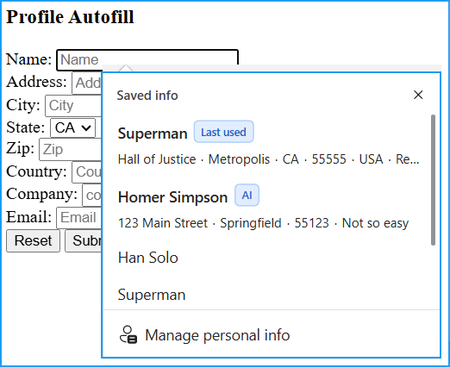
Autofill behavior in modern browsers can sometimes feel confusing—especially when suggestions suddenly stop appearing even though data is still being entered correctly. In Microsoft Edge, this behavior is often caused by a feature called the Client Repeatable Feature. This article explains how Autofill works in Edge, how Frequently Saved Data (FSD) and Parsable Name are used, why Autofill suggestions get blocked, and how this behavior differs from other Chromium-based browsers like Google Chrome. How Autofill Works in Edge At a basic level, Microsoft Edge stores and reuses form data based on the name of a form field. More precisely, it uses a value called the Parsable Name. If two input fields share the same Parsable Name, Edge assumes they represent the same type of data and will show the same Autofill suggestions for both fields. For example, if a field called EmailAddress exists in two different forms, Edge will show the same Autofill values in both—even if those forms are completely unrelated. This behavior is part of the Frequently Saved Data (FSD) feature. Frequently Saved Data (FSD) and Chromium The Frequently Saved Data (FSD) feature originates from the Chromium project and is used by Microsoft Edge. Because of this, this part of Autofill behavior should be identical to other Chromium-based browsers, such as Google Chrome. An important detail is that FSD works across domains. It is not limited to a specific website or URL. This means that a field with the Parsable Name EmailAddress on www.contoso.com/someform will show the same Autofill suggestions as a field with the same Parsable Name on www.microsoft.com/someotherform. FSD only cares about the Parsable Name, not the website, URL, or form structure. What Is the Client Repeatable Feature? The Client Repeatable Feature is a Microsoft Edge–specific feature. It does not originate from the Chromium project. Because of this, its behavior may differ from what you see in Google Chrome or other Chromium-based browsers. This feature is designed to reduce noisy or repetitive Autofill suggestions. It does this by monitoring how many different values are entered into a field within the same form. When and Why Autofill Gets Blocked If five different values are entered consecutively into the same field within the same form, the Client Repeatable Feature becomes active. When this happens: Autofill suggestions are blocked No suggestion popup is shown New values are still saved internally The key point is that this blocking is form-specific. Edge identifies a form using a hash value called Form SignatureV2. The Autofill block applies only to the form with that specific Form SignatureV2. If another form exists with: a different Form SignatureV2 but the same Parsable Name Autofill suggestions will still appear in that other form—until the same five-value rule is triggered there as well. How to Unblock Autofill Suggestions Blocking caused by the Client Repeatable Feature is not permanent. To remove the block, one of the five previously entered values that were stored as Frequently Saved Data (FSD) must be typed again in full. Partial input is not enough. Typing only part of a previously used value will not lift the block. Once a complete previously saved value is entered: Autofill suggestions become visible again All values that were saved during the blocked phase will also appear However, unblocking only resets an internal counter. If five new, different values are entered consecutively again, the block will be reactivated. Clearing Autofill Data via Edge Settings In addition to unblocking Autofill by re-entering a previously saved value, all Autofill suggestions can also be removed manually via the Edge settings. Autofill data can be cleared under: edge://settings/privacy/clearBrowsingData In the Delete browsing data dialog: Set Time range to All time Enable Autofill form data (includes forms and cards) Click Clear now This removes all saved Autofill entries, including data affected by the Client Repeatable Feature. Debugging Autofill Behavior in Edge Microsoft Edge provides a useful debugging option to better understand Autofill behavior. By enabling Show Autofill Predictions under edge://flags you can inspect Autofill metadata directly. After enabling the flag, hovering over a form field will display values such as: Parsable Name Form SignatureV2 This makes it much easier to understand why Autofill suggestions appear—or why they don’t. For hands-on testing, Autofill behavior can also be explored on the Autofill Smoke Test page: https://rsolomakhin.github.io/autofill/ Inspecting Autofill Data on Disk (Advanced) Autofill data in Microsoft Edge is stored locally on disk in a SQLite database file named Web Data. The file can be found at: C:\Users\<username>\AppData\Local\Microsoft\Edge\User Data\<profilename>\Web Data Key details: The file uses SQLite format It contains Autofill-related tables and metadata It can be inspected using common SQLite viewers such as DB Browser for SQLite https://sqlitebrowser.org/dl/ This is useful for advanced debugging scenarios, for example when validating which values are stored internally or confirming that data is still saved even when Autofill suggestions are temporarily blocked. The Last Used Feature For completeness, Edge also includes the Last Used Feature. This feature does not affect the blocking behavior described above and is mentioned here for informational purposes only. Last Used uses information from the entire form—not just the field name—to determine which value was entered most recently. Differences in labels or surrounding text can be enough to distinguish forms. To do this, the feature also relies on Form SignatureV2. Final Thoughts Understanding the difference between Parsable Name, Frequently Saved Data (FSD), and the Client Repeatable Feature helps explain many Autofill behaviors that might otherwise look like bugs. In short: FSD is Chromium-based and works across domains Client Repeatable Feature is Edge-specific and form-scoped Autofill blocking is temporary and counter-based Once these concepts are clear, Autofill behavior in Edge becomes far more predictable—and much easier to debug.Managing PAC Script Configuration in Microsoft Edge
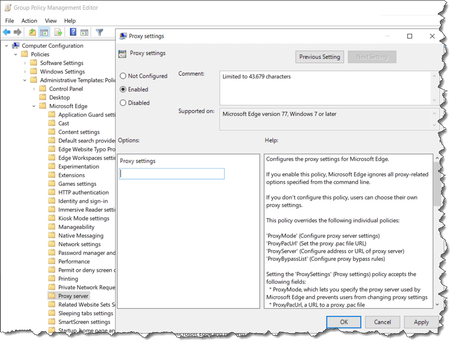
Hi, I'm Helmut Wagensonner, a Cloud Solution Architect at Microsoft. This blog post is about the different ways to handle PAC Scripts in Microsoft Edge. Microsoft Edge (Chromium-based) offers two primary strategies for deploying Proxy Auto-Config (PAC) scripts in enterprise environments. Understanding the difference between these scenarios is critical for managing web traffic routing, application compatibility, and network efficiency across all corporate systems. Scenario 1: PAC Script Configured via Microsoft Edge Group Policy In this configuration, Microsoft Edge is explicitly instructed to use a PAC script, bypassing the system's proxy settings. This method is enforced via Group Policy Objects (GPOs) using the Microsoft Edge Administrative Templates. Configuration Steps Download Microsoft Edge ADMX Templates: Available at Microsoft Edge Enterprise download. Import Templates: Copy msedge.admx and relevant language .adml files into your domain controller's PolicyDefinitions directory. Create/Edit a GPO: Navigate to: Computer Configuration > Administrative Templates > Microsoft Edge > Proxy server Enable the "ProxySettings" policy. Configure with JSON: { "ProxyMode": "pac_script", "ProxyPacUrl": "https://proxy.company.com/proxy.pac", "ProxyPacMandatory": false, "ProxyBypassList": "<local addresses>" } This configuration is stored in the registry: HKLM\Software\Policies\Microsoft\Edge\ProxySettings Technical Behavior Independent Download: Edge fetches the PAC script directly from the defined URL using its own network stack. The file must be provided via http, https or ftp protocol. Use of file:// protocol is not supported. Bypasses System Settings: Windows' system proxy configuration is ignored. In-Memory Caching: The PAC script is cached in memory by Chromium's network service process. PAC Script Lifecycle The PAC script is downloaded once per browser session, specifically: At the launch of the first msedge.exe instance, only if no Edge-related network service process is already running. Subsequent instances of msedge.exe (e.g., new windows, tabs, or user profiles) reuse the already-loaded PAC script from memory. A fresh PAC download occurs only if: All Edge processes (including background ones) are fully closed and terminated. Edge is launched again, triggering a new network service startup. The user manually resets proxy settings via edge://net-internals/#proxy. A network change occurs (e.g., IP change, adapter switch, VPN connection). The in-memory PAC is considered valid for up to 12 hours. Retried on failure (with backoff). Implications Applies only to Edge: Other applications (Chrome, Teams, Outlook, etc.) do not inherit this setting. No effect on system services: Applications using WinHTTP or WinINET, such as Windows Update, Office apps, or OneDrive, will not use this PAC unless it is also configured at the OS level. No shared PAC cache between Chromium-based apps: Chrome, Edge, Electron apps (e.g., Teams) each load and evaluate PAC files separately. Scenario 2: PAC Script Configured via System Settings In this scenario, the PAC script is not configured via Edge policies, but through the Windows operating system—typically via Internet Options or GPO. This configuration can lead to two distinct behaviors, depending on whether or not the "Use Windows Proxy Resolver" policy is enabled. Scenario 2A: System PAC URL Set, Without "Use Windows Proxy Resolver" This is the default behavior when a PAC URL is configured system-wide (e.g., via Internet Explorer LAN settings or registry), but the "Use Windows Proxy Resolver" policy is not enabled. Technical Behavior Edge fetches the PAC script itself, just like in Scenario 1. The only difference is the source of the PAC URL: Edge reads it from system settings (AutoConfigURL). Edge evaluates the PAC script internally using Chromium’s JavaScript engine. Implications PAC resolution is fully handled inside Edge. WinHTTP AutoProxy Service is not involved. Caching and refresh behavior is identical to Scenario 1. This setup gives system administrators central control over the PAC URL without enabling Edge-specific policies. Scenario 2B: System PAC URL + "Use Windows Proxy Resolver" Enabled In this configuration, Edge uses the same proxy resolution logic as WinHTTP-based applications. Enabling the Resolver Group Policy: Computer Configuration > Administrative Templates > Microsoft Edge > Use Windows Proxy Resolver Sets HKLM\Software\Policies\Microsoft\Edge\UseWinHttpProxyResolver = 1 Technical Behavior Edge does not download or evaluate the PAC script directly. Proxy resolution is performed by the WinHTTP AutoProxy Service. Edge queries the OS via WinHttpGetProxyForUrl(). PAC script is loaded, parsed, and cached by Windows. Caching & Refresh PAC is cached in memory by the OS. Refreshed when: A network context change occurs. The WinHTTP AutoProxy Service is restarted. net stop winhttpautoproxysvc net start winhttpautoproxysvc No TTL: PAC does not expire by time. Benefits Shared proxy logic across all WinHTTP-using apps. Reduces duplicated PAC downloads. Improved manageability and consistency. Comparison Summary Configuration Who Downloads PAC? Who Evaluates PAC? Uses WinHTTP Service? Scenario 1 (Edge Policy) Edge Edge (Chromium) ❌ Scenario 2A (System PAC) Edge Edge (Chromium) ❌ Scenario 2B (With Resolver) Windows Windows (WinHTTP) ✅ What Happens if Both Are Configured? If both an Edge-specific PAC policy and a system-wide PAC are configured: Edge policy takes precedence. Even if the "Use Windows Proxy Resolver" is enabled, it is ignored when ProxySettings is defined. To use Scenario 2B correctly, avoid setting the Edge-specific ProxySettings policy. Best Practices for Enterprise Proxy Management Use Scenario 2B if: You want consistent proxy logic across all apps (Edge, Outlook, etc.). You want to centralize PAC logic and reduce network load. Use Scenario 1 if: You need to test a new PAC for Edge only. You require advanced Edge-only routing with ProxyPacMandatory. Conclusion Microsoft Edge supports a native integration with the Windows proxy resolver through policy. This enables clean separation between Chromium-based evaluation (default) and centralized OS-based resolution (WinHTTP).Windows 10 or Windows 11 GPO ADMX - Which One To Use For Your Central Store?
Windows 10 and Windows 11 use different Administrative Templates for their Group Policy Objects. In you on-premise Active Directory environment you can only use one set of ADMX templates per Domain. But which one to use? Or is there a way to use both?207KViews13likes70CommentsWindows 10 or Windows 11 GPO ADMX – An Update
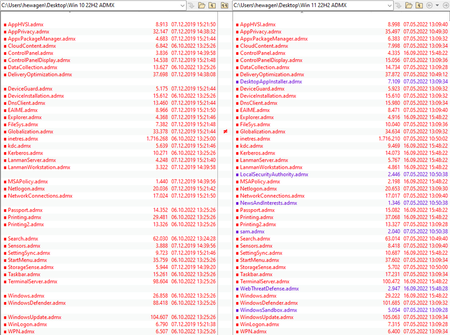
Meanwhile it's no longer a secret that the ADMX templates of both Windows streams (Win 10 and Win 11) differ in a few settings. This is an updated template comparison of the 22H2 Windows releases. It shows the main differences between those two ADMX sets.