gpt
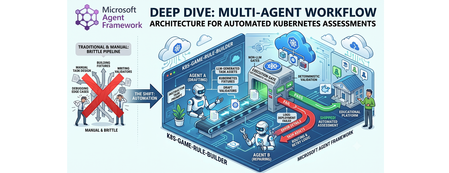
16 TopicsMicrosoft Agent Framework Multi-Agent Workflow Architecture for Automated Kubernetes Assessments
Why this system generates tests (design rationale) This project does not generate tests just to "check code." It generates tests because, in a Kubernetes learning game, the test suite is the grading contract. The design goals are: Scale content creation: instructors should not hand-author every task and checker. Keep grading objective: student success is measured against Kubernetes API state, not subjective review. Avoid fragile tasks: generated tasks must survive empty/wrong cluster states without crashing. Make failures repairable: when checks break, the system should patch and re-validate automatically. So the pipeline generates a full task package (setup, answer, check, cleanup) where tests define exactly what "correct" means. Lifecycle: from concept to production-ready grader Reader mental model: this is a content compiler with validation stages, not a single chat completion. Phase 1: Pedagogical intent -> structured concept The Idea Agent converts a topic into a constrained concept object (objective, progression, task IDs, difficulty variants). Memory rules block duplicates and previously failed concepts. Phase 2: Concept -> executable grading package The Generator Agent turns that concept into files: student instructions (instruction.md) learning material (concept.md) parameter source (session.json) setup and answer manifests (setup.template.yaml, answer.template.yaml) deterministic pytest flow (test_01 ... test_06) At this point, output is still untrusted draft content. Phase 3: Structural correctness gate Deterministic validation checks file presence, syntax, JSON/YAML shape, and template correctness. This catches basic integrity issues before cluster execution. Phase 4: Behavioral correctness gate (real cluster) Pytest executes against Kubernetes and verifies runtime behavior using real kubectl-derived state. This proves that generated checks actually evaluate cluster resources as intended. Phase 5: Anti-false-positive gate (skip-answer mode) The same suite runs with SKIP_ANSWER_TESTS=True to verify grader integrity: answer deployment is skipped test_05_check.py must fail If it still passes, the grader is invalid (it would accept wrong student submissions). Phase 6: Self-healing repair loop On any failure, deterministic error logs are fed into the Fixer Agent, which patches only broken files. The workflow then re-enters validation + test gates. Phase 7: Finalization If all gates pass -> task is kept as production-ready content. If retries are exhausted -> task is moved to unsuccessful/ with FAILURE_REPORT.txt for human triage. This lifecycle explains the core architecture decision: LLMs generate candidate graders, deterministic execution certifies them. Concrete generated sample (what the pipeline actually produces) Below is a representative generated task for topic: ConfigMap Environment Variable Injection. Generated directory layout tests/game01/050_configmap_env_injection/ ├── __init__.py ├── instruction.md ├── concept.md ├── session.json ├── setup.template.yaml ├── answer.template.yaml ├── test_01_setup.py ├── test_02_ready.py ├── test_03_answer.py ├── test_05_check.py └── test_06_cleanup.py session.json (runtime variables) { "namespace": "{{random_name()}}{{random_number(100,999)}}{{student_id()}}", "configmap_name": "{{random_name()}}", "deployment_name": "{{random_name()}}", "container_name": "app", "env_key": "APP_MODE", "env_value": "production" } Why this exists: task values are randomized per student/session, so tests verify behavior by variable contract instead of hardcoded names. setup.template.yaml (baseline state only) apiVersion: v1 kind: Namespace metadata: name: {{ namespace }} Why this exists: setup should create prerequisites only. It must not accidentally include the final answer. answer.template.yaml (expected correct solution) apiVersion: v1 kind: ConfigMap metadata: name: {{ configmap_name }} namespace: {{ namespace }} data: {{ env_key }}: "{{ env_value }}" --- apiVersion: apps/v1 kind: Deployment metadata: name: {{ deployment_name }} namespace: {{ namespace }} spec: replicas: 1 selector: matchLabels: app: env-demo template: metadata: labels: app: env-demo spec: containers: - name: {{ container_name }} image: nginx:latest env: - name: {{ env_key }} valueFrom: configMapKeyRef: name: {{ configmap_name }} key: {{ env_key }} Why this exists: defines canonical "correct cluster state" that graders must detect. test_02_ready.py (wait for setup resources) import json import time from tests.helper.kubectrl_helper import build_kube_config, run_kubectl_command class TestReady: def test_001_namespace_active(self, json_input): kube_config = build_kube_config( json_input["cert_file"], json_input["key_file"], json_input["host"] ) time.sleep(2) result = run_kubectl_command( kube_config, f"kubectl get namespace {json_input['namespace']} -o json", ) data = json.loads(result) assert data.get("status", {}).get("phase") == "Active" Why this matters: validates setup-stage readiness only. It should not check answer resources yet. test_05_check.py (student grading contract) import json from tests.helper.kubectrl_helper import build_kube_config, run_kubectl_command class TestCheck: def test_001_configmap_key_exists(self, json_input): kube_config = build_kube_config( json_input["cert_file"], json_input["key_file"], json_input["host"] ) result = run_kubectl_command( kube_config, f"kubectl get configmap {json_input['configmap_name']} -n {json_input['namespace']} -o json", ) data = json.loads(result) assert data["data"][json_input["env_key"]] == json_input["env_value"] def test_002_deployment_uses_configmap_env(self, json_input): kube_config = build_kube_config( json_input["cert_file"], json_input["key_file"], json_input["host"] ) result = run_kubectl_command( kube_config, f"kubectl get deployment {json_input['deployment_name']} -n {json_input['namespace']} -o json", ) data = json.loads(result) env = data["spec"]["template"]["spec"]["containers"][0].get("env", []) matched = [ e for e in env if e.get("name") == json_input["env_key"] and e.get("valueFrom", {}).get("configMapKeyRef", {}).get("name") == json_input["configmap_name"] and e.get("valueFrom", {}).get("configMapKeyRef", {}).get("key") == json_input["env_key"] ] assert matched, "Deployment container must consume env var from ConfigMap key" Why this matters: this is the real grading logic. If a student deploys wrong resource wiring, this test fails with explicit reason. Why skip-answer validation is essential for this sample When SKIP_ANSWER_TESTS=True, answer deployment is skipped. In this mode: test_03_answer.py should be skipped test_05_check.py must fail (ConfigMap/Deployment wiring is absent) If test_05_check.py still passes, the grader is broken (false positive), and the workflow routes to Fixer. Rule Builder Workflow Flowchart Multi-graph architecture views 1) Control-plane graph (orchestration DAG) 2) Runtime sequence (who calls what) 3) State machine (task lifecycle) 4) Prompt lifecycle graph (how prompts evolve) 5) MCP + Kubernetes execution boundary graph Core Agent Framework Primitives Used This repository is a practical example of Agent Framework as a graph orchestrator, not just an agent wrapper. WorkflowBuilder builds a typed DAG with explicit edges. @executor functions implement deterministic nodes (validation, pytest, decisions, routing prep). AgentExecutor wraps LLM agents so they behave as graph nodes. WorkflowContext shared state carries typed data and retry metadata between nodes. add_multi_selection_edge_group(...) + selector functions enforce conditional routing. MCPStdioTool connects filesystem MCP tools into agents for controlled file I/O. Production graph construction (from workflow/builder.py) looks like this: workflow = ( WorkflowBuilder(start_executor=initialize_retry) .add_edge(initialize_retry, generator_executor) .add_edge(generator_executor, parse_generated_task) .add_edge(parse_generated_task, run_validation) .add_edge(run_validation, run_pytest) .add_edge(run_pytest, make_decision) .add_multi_selection_edge_group( make_decision, [keep_task, remove_task], selection_func=select_action, ) .add_edge(keep_task, run_pytest_skip_answer) .add_multi_selection_edge_group( run_pytest_skip_answer, [check_loop, complete_workflow], selection_func=select_skip_answer_action, ) .add_multi_selection_edge_group( check_loop, [fix_task, complete_workflow], selection_func=select_loop_action, ) .add_edge(fix_task, fixer_executor) .add_edge(fixer_executor, parse_generated_task) .build() ) This is the architectural heart of the system: agents and deterministic executors are first-class nodes in the same graph. Detailed Node-by-Node Mechanics 1. Idea Agent (🧠): Concept Synthesis with Memory Constraints The Idea Agent (agents/k8s_task_idea_agent.py) generates a structured concept with three difficulty variations (BEGINNER/INTERMEDIATE/ADVANCED). It is memory-aware: task_ideas_memory.json tracks successful concepts. task_ideas_failure_memory.json tracks concepts that failed downstream. Memory constraints are injected using AgentMiddleware (system-level prompt injection) to avoid duplicate or previously failed concepts. For Responses-only models, the agent switches to a tool-call contract (save_k8s_task_concept) instead of structured response formatting. 2. Generator Agent (⚙️): MCP-Backed File Authoring The Generator Agent receives a strict prompt and writes task files through MCP filesystem tools. Key framework details: Built through chat_client.as_agent(...). MCP tool attached via tools=mcp_tool. Function-call execution observability added with LoggingFunctionMiddleware. Uses absolute-path-only policy in instructions to prevent path drift. 3. Deterministic Validation + Test (✅): Non-LLM Gates After generation, the graph moves through deterministic executors: run_validation calls pure Python checks (k8s_task_validator). run_pytest executes pytest --import-mode=importlib --rootdir=. .... Raw pytest output is persisted in workflow state for later fixing. This is critical: no LLM is asked whether code is correct. 4. Skip-Answer Test (🧪): Grader Correctness Gate Even if standard tests pass, the workflow enforces a second tier: SKIP_ANSWER_TESTS=True pytest --import-mode=importlib --rootdir=. Implementation detail: the executor writes JUnit XML, parses it, and asserts that: test_03_answer.py is skipped test_05_check.py fails as expected If test_05_check.py does not fail, the task is treated as invalid and sent back to retry/fix. 5. Fixer Agent + Retry Loop (🔧): Bounded Self-Healing On failure, fix_task builds a targeted prompt containing: failure reasons from deterministic nodes full captured pytest output explicit rule to patch only broken files in place The Fixer Agent runs through AgentExecutor, writes patches via MCP, and the graph loops back to parse_generated_task. Retries are stateful (retry_count, max_retries) and hard-bounded. On exhaustion, complete_workflow moves the task to unsuccessful/<game>/ and writes FAILURE_REPORT.txt. Agent Prompt Design (The Part That Makes It Work) If you want to understand why this pipeline works, you need to inspect prompts as operational contracts, not generic instructions. Real Idea Agent Prompt (from code) IDEA_AGENT_INSTRUCTIONS = ( "You are a Kubernetes task idea generator that creates detailed task concepts with three difficulty variations. " "Read official K8s documentation and propose comprehensive learning concepts for a Kubernetes game. " "\n\nYour task:\n" "1. Choose ONE Kubernetes concept not yet covered (check context for existing concepts)\n" "2. Generate exactly 3 variations: BEGINNER, INTERMEDIATE, and ADVANCED\n" "3. Use 3-digit task IDs (001-999) in format: XXX_concept_name_level (e.g., 041_secrets_basic)\n" "4. Each variation should build on the previous one with increasing complexity\n" "5. Include practical, hands-on scenarios covering: Workloads, Services, Storage, Configuration, Security, Scheduling, Policies\n" "\nProvide the concept, tags, description, and 3 variations with task_id, difficulty, title, objective, key_skills, and estimated_time." ) Responses-only models use a stricter tool-call version: IDEA_AGENT_INSTRUCTIONS_TOOL_CALL = ( IDEA_AGENT_INSTRUCTIONS + "\n\n" "**CRITICAL**: You MUST call the save_k8s_task_concept tool to save your generated concept.\n" "...\n" "Always call save_k8s_task_concept with your generated concept." ) Idea Agent Prompt Contract The Idea Agent prompt enforces: one concept per run exactly three difficulty variations strict task ID format (XXX_concept_name_level) practical skill progression Core pattern: You are a Kubernetes task idea generator... 1. Choose ONE Kubernetes concept not yet covered 2. Generate exactly 3 variations: BEGINNER, INTERMEDIATE, ADVANCED 3. Use 3-digit task IDs in format XXX_concept_name_level ... It is strengthened by runtime memory injection: previously generated concepts are blocked previously failed concepts are blocked For Responses-only models, the contract becomes tool-driven: CRITICAL: You MUST call the save_k8s_task_concept tool... This reduces ambiguity in output structure and makes downstream parsing deterministic. Real Generator Agent Prompt (from code) def _get_generator_instructions(): return ( "You are a Kubernetes task generator with filesystem tools.\n" f"The MCP filesystem is rooted at: {PATHS.tests_root.parent}\n" f"You MUST use ABSOLUTE paths for ALL file operations.\n" f"Task directory: {PATHS.game_root}/XXX_task_name/\n" "...\n" "CRITICAL: test_02_ready.py checks resources from setup.template.yaml, NOT answer.template.yaml.\n" "...\n" "MUST use polling loops (60s timeout, 15s interval)\n" "MUST use try/except and safe .get() JSON access\n" ) The generator prompt is long on purpose: it encodes path correctness, file schema, YAML/Jinja structure, and testing strategy in a single deterministic contract. Generator Agent Prompt Contract The Generator prompt is intentionally long and prescriptive because it defines filesystem safety and grading correctness requirements. Key constraints encoded in the prompt: Absolute path writes only (prevents writing to wrong workspace paths) No directory creation (directory is pre-created by executor) Required file set (instruction.md, concept.md, session.json, templates, tests) test-flow invariants: test_01_setup.py deploys setup test_02_ready.py checks setup resources only test_03_answer.py deploys answer test_05_check.py validates final solution robust test coding style: polling loops, try/except, .get()-based JSON parsing, explicit debug output Example contract fragment: CRITICAL PATH RULES: ✅ CORRECT: /abs/path/tests/gameXX/050_task/file.py ❌ WRONG: tests/gameXX/050_task/file.py (relative) CRITICAL: test_02_ready.py checks resources from setup.template.yaml, NOT answer.template.yaml. This is why generation quality is high before the Fixer loop even starts. Real Runtime Retry Prompt Builder (from code) def _build_retry_generation_prompt(combined: CombinedValidationResult) -> str: task_id = combined.test.task_id failure_reasons = _build_failure_reasons(combined) return ( f"Generate a complete Kubernetes learning task with ID '{task_id}' about '{combined.target_topic}'. " f"This is retry attempt {combined.retry_count + 1} of {combined.max_retries}. " f"\n\n⚠️ PREVIOUS ATTEMPT FAILED:" f"\n{chr(10).join([f' - {reason}' for reason in failure_reasons])}" f"\n\nIMPORTANT: You MUST use the exact task ID '{task_id}' - do not generate a new ID." f"\n\n✅ Directory already exists: {PATHS.game_root}/{task_id}/" f"\nWrite all files directly into this directory. Do NOT call create_directory." "..." ) This means retries are not generic retries; they are failure-conditioned retries with precise constraints. Fixer Agent Prompt Contract The Fixer prompt is a repair protocol, not a regeneration prompt. It includes: exact failure reasons from deterministic validators raw pytest output instruction to read current task files first strict directive to patch only broken files Core behavior constraints: DO NOT rewrite all files. Make TARGETED FIXES to ONLY the broken files. Use ABSOLUTE paths for all file operations. This keeps retries cheap, preserves working artifacts, and improves convergence speed. Real Runtime Fix Prompt Builder (from code) def _build_fix_prompt(combined: CombinedValidationResult, raw_test_output: str) -> str: task_id = combined.test.task_id failure_reasons = _build_failure_reasons(combined) prompt = ( f"Fix the failed Kubernetes task '{task_id}' located in '{PATHS.game_root}/{task_id}/'." f"\n\nThis is fix attempt {combined.retry_count + 1} of {combined.max_retries}." f"\n\n⚠️ TASK FAILED WITH THESE ERRORS:" f"\n{chr(10).join([f' - {reason}' for reason in failure_reasons])}" ) if raw_test_output: prompt += f"\n\n📋 FULL TEST OUTPUT:\n```\n{raw_test_output}\n```" prompt += ( f"\n\n🔍 YOUR TASK:" f"\n1. READ all files from '{PATHS.game_root}/{task_id}/'" f"\n6. Make TARGETED FIXES to ONLY the broken files" f"\n7. WRITE ONLY the fixed files back" f"\n\n⚠️ CRITICAL: DO NOT rewrite all files! Only fix the broken ones!" ) return prompt How Prompt Output Enters the Agent Framework Graph The prompt builders above are used by deterministic executors and sent to agent nodes through AgentExecutorRequest: await ctx.send_message( AgentExecutorRequest( messages=[Message(role="user", contents=[fix_prompt])], should_respond=True ) ) So prompt generation and graph routing are tightly coupled: each route transition emits a specific prompt payload into the next LLM node. Runtime-Constructed Prompts in Executors The most important prompts are built dynamically in workflow executors: _build_retry_generation_prompt(...) _build_fix_prompt(...) These functions inject live context: retry_count / max_retries concept + objective metadata validation/test failure reasons full captured test logs So each retry is context-rich and specific, not another blind generation attempt. Prompt + Middleware + Deterministic Gates = Reliability In this repository, reliability does not come from prompt text alone. It comes from three layers working together: Prompt contracts constrain agent behavior. Middleware injects memory and logs tool invocations. Deterministic executors enforce objective pass/fail gates. That combination is why the workflow remains auditable and predictable even when LLM outputs vary. Agent Framework Execution Model in This Repo Strongly-Typed Message Passing workflow/models.py defines transport models used between nodes: ValidationResult and TestResult (Pydantic) CombinedValidationResult (dataclass with should_keep and should_retry) InitialWorkflowState (seed payload for each run) This keeps node contracts explicit and simplifies selector logic. Fail-Fast Shared State Management Executors use ctx.get_state(...) with a sentinel (_MISSING) and raise explicit exceptions if required state is absent. This prevents hidden fallback behavior and catches graph/data wiring errors early. Conditional Routing with Selectors Selectors (workflow/selectors.py) encode graph decisions: select_action → keep vs remove select_skip_answer_action → complete vs loop select_loop_action → fix vs complete This separates decision policy from executor implementation. Streaming Workflow Runtime workflow.run(initial_state, stream=True) emits output events incrementally. The runner (workflow/runner.py) consumes these events to detect successful completions and update concept memory accordingly. Agent Construction and API Selection Strategy The repository uses Azure CLI auth (AzureCliCredential) and dynamically selects API mode by deployment name (agents/config.py): Chat Completions path: OpenAIChatCompletionClient Responses-only model path: OpenAIChatClient or custom ResponsesAgent Why this matters: some codex-class deployments are Responses-only, so the architecture supports both without changing workflow logic. How MCP Actually Controls Kubernetes (Important Distinction) In this repo, MCP is used for filesystem control; Kubernetes control is done through kubectl tools. 1) MCP server role: controlled file I/O The workflow starts MCP stdio servers (official filesystem server) and mounts them into agents: docs_mcp_tool = MCPStdioTool( name="filesystem_docs", command="npx", args=["-y", "@modelcontextprotocol/server-filesystem", str(PATHS.k8s_docs_root)], load_prompts=False, ) tests_mcp_tool = MCPStdioTool( name="filesystem_tests", command="npx", args=["-y", "@modelcontextprotocol/server-filesystem", str(PATHS.tests_root.parent)], load_prompts=False, ) Those MCP tools are passed into Generator/Fixer agents, which then call MCP file functions (read/write/list) inside allowed roots only. 2) Kubernetes cluster control role: kubectl execution tool Cluster actions are not performed by MCP filesystem server; they are performed by a dedicated function tool: def run_kubectl_command(command: str) -> str: kubeconfig_path = os.environ.get("KUBECONFIG", "/home/developer/.kube/config") cmd_list = ["kubectl"] + command.split() result = subprocess.run( cmd_list, capture_output=True, text=True, check=True, env={**os.environ, "KUBECONFIG": kubeconfig_path}, ) return result.stdout And the Kubernetes agent forces tool usage: agent = responses_client.as_agent( name="KubernetesAgent", instructions="...You MUST use the run_kubectl_command tool...", tools=[run_kubectl_command], default_options={"tool_choice": "required"}, ) So the control plane is: MCP filesystem → manipulate generated task files. kubectl tool → query/mutate real cluster state. deterministic pytest/validator executors → accept or reject results. 3) End-to-end command flow in practice When generated tests run, they execute real kubectl get ... -o json checks in test code, and the deterministic runner captures raw output: pytest_command = f"pytest --import-mode=importlib --rootdir=. {task_with_val.task_directory}/" result = run_pytest_command(pytest_command) ctx.set_state(f"raw_output_{task_with_val.task_id}", raw_output) This means Kubernetes state verification is always grounded in live command output, not model speculation. Should MCP run Kubernetes tests? Short answer: not in this design. Current architecture keeps test execution deterministic and local: pytest is run by run_pytest_command(...) (pure Python subprocess runner) test results are parsed and stored in workflow state retry/fix routing uses those deterministic outputs This is intentional. If test execution were delegated to an LLM-facing MCP command tool, you would lose strict control over execution semantics and error handling. Recommended pattern: Use MCP for file/document access and controlled editing. Use deterministic executors for pytest and validation. Use LLM agents only for generation and repair. If you still want MCP-driven test execution, add a separate locked-down command MCP server (only whitelisted pytest/kubectl commands), but keep pass/fail decision logic in deterministic executors. How tests are run in this workflow (with code) The workflow executes tests in deterministic executors, not inside LLM agents. 1) Workflow node calls pytest runner run_pytest executor builds the command and calls the pure Python runner: @executor(id="run_pytest") async def run_pytest(task_with_val: TaskWithValidation, ctx: WorkflowContext[TestResult]) -> None: from agents.pytest_runner import run_pytest_command pytest_command = f"pytest --import-mode=importlib --rootdir=. {task_with_val.task_directory}/" result = run_pytest_command(pytest_command) raw_output = result["details"][0] if result.get("details") else "" ctx.set_state(f"raw_output_{task_with_val.task_id}", raw_output) ... 2) Deterministic subprocess execution The runner normalizes command flags and executes pytest via subprocess: def run_pytest_command(command: str) -> dict[str, Any]: normalized_command = _normalize_pytest_command(command) # adds -s if needed cmd_list = shlex.split(normalized_command) result = subprocess.run( cmd_list, capture_output=True, text=True, check=False, cwd=str(PATHS.pytest_rootdir), ) combined_output = result.stdout + "\n" + result.stderr _save_test_output(normalized_command, combined_output, skip_answer) ... Exit codes are interpreted deterministically: 0 → pass 5 → no tests collected (fail) others → fail with exit code reason 3) Skip-answer validation tier After normal pass, the workflow runs pytest again with SKIP_ANSWER_TESTS=True and parses JUnit XML: os.environ["SKIP_ANSWER_TESTS"] = "True" pytest_command = f"pytest --import-mode=importlib --rootdir=. --junitxml={junit_path} {task_dir}/" result = run_pytest_command(pytest_command) test_05_failed, test_03_skipped = _parse_skip_answer_junit(junit_path) The parser checks per-testcase outcomes: if "test_05_check.py" in context and has_failure_or_error: test_05_failed = True if "test_03_answer.py" in context and has_skipped: test_03_skipped = True 4) How failures trigger fix loop If pytest fails (or skip-answer logic fails), failure reasons and raw output are pushed into state, then the Fixer Agent receives a generated fix prompt containing that output: ctx.set_state(f"failure_reasons_{task_id}", reasons) ctx.set_state(f"raw_output_{task_id}", raw_output) fix_prompt = _build_fix_prompt(combined, raw_test_output) await ctx.send_message( AgentExecutorRequest( messages=[Message(role="user", contents=[fix_prompt])], should_respond=True ) ) That is the key loop: deterministic test output drives LLM repair, then deterministic tests re-run. ResponsesAgent Internals (Advanced Agent Framework Pattern) The custom ResponsesAgent (agents/responses_agent.py) demonstrates a lower-level integration pattern: Connect MCP tool lazily. Call Responses API. Parse ResponseFunctionToolCall items. Execute tools (MCP + custom callables). Feed function_call_output back to model. Repeat until final text response. It also runs a middleware chain around tool invocations, preserving observability and consistency with standard agent paths. Why This Architecture Is Robust This design works because Agent Framework is used as a deterministic orchestration layer around probabilistic generation: LLM creativity is constrained by typed state and strict prompts. deterministic executors act as objective quality gates. retries are targeted, bounded, and auditable. failures produce durable forensic artifacts (FAILURE_REPORT.txt + test logs). For Kubernetes education pipelines, this yields high throughput without sacrificing grader reliability. GitHub Repo - https://github.com/wongcyrus/k8s-game-rule-builder About the Author Cyrus Wong is the senior lecturer of Hong Kong Institute of Information Technology (HKIIT) @ IVE(Lee Wai Lee).and he focuses on teaching public Cloud technologies. He is a passionate advocate for the adoption of cloud technology across various media and events. With his extensive knowledge and expertise, he has earned prestigious recognitions such as AWS AI Hero, Microsoft MVP- Microsoft Foundry, and Google Developer Expert - Cloud(AI).256Views0likes0CommentsUnderstanding Azure OpenAI Service Quotas and Limits: A Beginner-Friendly Guide
Azure OpenAI Service allows developers, researchers, and students to integrate powerful AI models like GPT-4, GPT-3.5, and DALL·E into their applications. But with great power comes great responsibility and limits. Before you dive into building your next AI-powered solution, it's crucial to understand how quotas and limits work in the Azure OpenAI ecosystem. This guide is designed to help students and beginners easily understand the concept of quotas, limits, and how to manage them effectively. What Are Quotas and Limits? Think of Azure's quotas as your "AI data pack." It defines how much you can use the service. Meanwhile, limits are hard boundaries set by Azure to ensure fair use and system stability. Quota The maximum number of resources (e.g., tokens, requests) allocated to your Azure subscription. Limit The technical cap imposed by Azure on specific resources (e.g., number of files, deployments). Key Metrics: TPM & RPM Tokens Per Minute (TPM) TPM refers to how many tokens you can use per minute across all your requests in each region. A token is a chunk of text. For example, the word "Hello" is 1 token, but "Understanding" might be 2 tokens. Each model has its own default TPM. Example: GPT-4 might allow 240,000 tokens per minute. You can split this quota across multiple deployments. Requests Per Minute (RPM) RPM defines how many API requests you can make every minute. For instance, GPT-3.5-turbo might allow 350 RPM. DALL·E image generation models might allow 6 RPM. Deployment, File, and Training Limits Here are some standard limits imposed on your OpenAI resource: Resource Type Limit Standard model deployments 32 Fine-tuned model deployments 5 Training jobs 100 total per resource (1 active at a time) Fine-tuning files 50 files (total size: 1 GB) Max prompt tokens per request Varies by model (e.g., 4096 tokens for GPT-3.5) How to View and Manage Your Quota Step-by-Step: Go to the Azure Portal. Navigate to your Azure OpenAI resource. Click on "Usage + quotas" in the left-hand menu. You will see TPM, RPM, and current usage status. To Request More Quota: In the same "Usage + quotas" panel, click on "Request quota increase". Fill in the form: Select the region. Choose the model family (e.g., GPT-4, GPT-3.5). Enter the desired TPM and RPM values. Submit and wait for Azure to review and approve. What is Dynamic Quota? Sometimes, Azure gives you extra quota based on demand and availability. “Dynamic quota” is not guaranteed and may increase or decrease. Useful for short-term spikes but should not be relied on for production apps. Example: During weekends, your GPT-3.5 TPM may temporarily increase if there's less traffic in your region. Best Practices for Students Monitor Regularly: Use the Azure Portal to keep an eye on your usage. Batch Requests: Combine multiple tasks in one API call to save tokens. Start Small: Begin with GPT-3.5 before requesting GPT-4 access. Plan Ahead: If you're preparing a demo or a project, request quota in advance. Handle Limits Gracefully: Code should manage 429 Too Many Requests errors. Quick Resources Azure OpenAI Quotas and Limits How to Request Quota in Azure Join the Conversation on Azure AI Foundry Discussions! Have ideas, questions, or insights about AI? Don't keep them to yourself! Share your thoughts, engage with experts, and connect with a community that’s shaping the future of artificial intelligence. 🧠✨ 👉 Click here to join the discussion!3KViews0likes0CommentsIntegrating Microsoft Foundry with OpenClaw: Step by Step Model Configuration
Step 1: Deploying Models on Microsoft Foundry Let us kick things off in the Azure portal. To get our OpenClaw agent thinking like a genius, we need to deploy our models in Microsoft Foundry. For this guide, we are going to focus on deploying gpt-5.2-codex on Microsoft Foundry with OpenClaw. Navigate to your AI Hub, head over to the model catalog, choose the model you wish to use with OpenClaw and hit deploy. Once your deployment is successful, head to the endpoints section. Important: Grab your Endpoint URL and your API Keys right now and save them in a secure note. We will need these exact values to connect OpenClaw in a few minutes. Step 2: Installing and Initializing OpenClaw Next up, we need to get OpenClaw running on your machine. Open up your terminal and run the official installation script: curl -fsSL https://openclaw.ai/install.sh | bash The wizard will walk you through a few prompts. Here is exactly how to answer them to link up with our Azure setup: First Page (Model Selection): Choose "Skip for now". Second Page (Provider): Select azure-openai-responses. Model Selection: Select gpt-5.2-codex , For now only the models listed (hosted on Microsoft Foundry) in the picture below are available to be used with OpenClaw. Follow the rest of the standard prompts to finish the initial setup. Step 3: Editing the OpenClaw Configuration File Now for the fun part. We need to manually configure OpenClaw to talk to Microsoft Foundry. Open your configuration file located at ~/.openclaw/openclaw.json in your favorite text editor. Replace the contents of the models and agents sections with the following code block: { "models": { "providers": { "azure-openai-responses": { "baseUrl": "https://<YOUR_RESOURCE_NAME>.openai.azure.com/openai/v1", "apiKey": "<YOUR_AZURE_OPENAI_API_KEY>", "api": "openai-responses", "authHeader": false, "headers": { "api-key": "<YOUR_AZURE_OPENAI_API_KEY>" }, "models": [ { "id": "gpt-5.2-codex", "name": "GPT-5.2-Codex (Azure)", "reasoning": true, "input": ["text", "image"], "cost": { "input": 0, "output": 0, "cacheRead": 0, "cacheWrite": 0 }, "contextWindow": 400000, "maxTokens": 16384, "compat": { "supportsStore": false } }, { "id": "gpt-5.2", "name": "GPT-5.2 (Azure)", "reasoning": false, "input": ["text", "image"], "cost": { "input": 0, "output": 0, "cacheRead": 0, "cacheWrite": 0 }, "contextWindow": 272000, "maxTokens": 16384, "compat": { "supportsStore": false } } ] } } }, "agents": { "defaults": { "model": { "primary": "azure-openai-responses/gpt-5.2-codex" }, "models": { "azure-openai-responses/gpt-5.2-codex": {} }, "workspace": "/home/<USERNAME>/.openclaw/workspace", "compaction": { "mode": "safeguard" }, "maxConcurrent": 4, "subagents": { "maxConcurrent": 8 } } } } You will notice a few placeholders in that JSON. Here is exactly what you need to swap out: Placeholder Variable What It Is Where to Find It <YOUR_RESOURCE_NAME> The unique name of your Azure OpenAI resource. Found in your Azure Portal under the Azure OpenAI resource overview. <YOUR_AZURE_OPENAI_API_KEY> The secret key required to authenticate your requests. Found in Microsoft Foundry under your project endpoints or Azure Portal keys section. <USERNAME> Your local computer's user profile name. Open your terminal and type whoami to find this. Step 4: Restart the Gateway After saving the configuration file, you must restart the OpenClaw gateway for the new Foundry settings to take effect. Run this simple command: openclaw gateway restart Configuration Notes & Deep Dive If you are curious about why we configured the JSON that way, here is a quick breakdown of the technical details. Authentication Differences Azure OpenAI uses the api-key HTTP header for authentication. This is entirely different from the standard OpenAI Authorization: Bearer header. Our configuration file addresses this in two ways: Setting "authHeader": false completely disables the default Bearer header. Adding "headers": { "api-key": "<key>" } forces OpenClaw to send the API key via Azure's native header format. Important Note: Your API key must appear in both the apiKey field AND the headers.api-key field within the JSON for this to work correctly. The Base URL Azure OpenAI's v1-compatible endpoint follows this specific format: https://<your_resource_name>.openai.azure.com/openai/v1 The beautiful thing about this v1 endpoint is that it is largely compatible with the standard OpenAI API and does not require you to manually pass an api-version query parameter. Model Compatibility Settings "compat": { "supportsStore": false } disables the store parameter since Azure OpenAI does not currently support it. "reasoning": true enables the thinking mode for GPT-5.2-Codex. This supports low, medium, high, and xhigh levels. "reasoning": false is set for GPT-5.2 because it is a standard, non-reasoning model. Model Specifications & Cost Tracking If you want OpenClaw to accurately track your token usage costs, you can update the cost fields from 0 to the current Azure pricing. Here are the specs and costs for the models we just deployed: Model Specifications Model Context Window Max Output Tokens Image Input Reasoning gpt-5.2-codex 400,000 tokens 16,384 tokens Yes Yes gpt-5.2 272,000 tokens 16,384 tokens Yes No Current Cost (Adjust in JSON) Model Input (per 1M tokens) Output (per 1M tokens) Cached Input (per 1M tokens) gpt-5.2-codex $1.75 $14.00 $0.175 gpt-5.2 $2.00 $8.00 $0.50 Conclusion: And there you have it! You have successfully bridged the gap between the enterprise-grade infrastructure of Microsoft Foundry and the local autonomy of OpenClaw. By following these steps, you are not just running a chatbot; you are running a sophisticated agent capable of reasoning, coding, and executing tasks with the full power of GPT-5.2-codex behind it. The combination of Azure's reliability and OpenClaw's flexibility opens up a world of possibilities. Whether you are building an automated devops assistant, a research agent, or just exploring the bleeding edge of AI, you now have a robust foundation to build upon. Now it is time to let your agent loose on some real tasks. Go forth, experiment with different system prompts, and see what you can build. If you run into any interesting edge cases or come up with a unique configuration, let me know in the comments below. Happy coding!11KViews2likes2CommentsCan you use AI to implement an Enterprise Master Patient Index (EMPI)?
The Short Answer: Yes. And It's Better Than You Think. If you've worked in healthcare IT for any length of time, you've dealt with this problem. Patient A shows up at Hospital 1 as "Jonathan Smith, DOB 03/15/1985." Patient B shows up at Hospital 2 as "Jon Smith, DOB 03/15/1985." Patient C shows up at a clinic as "John Smythe, DOB 03/15/1985." Same person? Probably. But how do you prove it at scale — across millions of records, dozens of source systems, and data quality that ranges from pristine to "someone fat-fingered a birth year"? That's the problem an Enterprise Master Patient Index (EMPI) solves. And traditionally, it's been solved with expensive commercial products, rigid rule engines, and a lot of manual review. We built one with AI. On Azure. With open-source tooling. And the results are genuinely impressive. This post walks through how it works, what the architecture looks like, and why the combination of deterministic matching, probabilistic algorithms, and AI-enhanced scoring produces better results than any single approach alone. 1. Why EMPI Still Matters (More Than Ever) Healthcare organizations don't have a "patient data problem." They have a patient identity problem. Every EHR, lab system, pharmacy platform, and claims processor creates its own patient record. When those systems exchange data via FHIR, HL7, or flat files, there's no universal patient identifier in the U.S. — Congress has blocked funding for one since 1998. The result: Duplicate records inflate costs and fragment care history Missed matches mean clinicians don't see a patient's full medical picture False positives can merge two different patients into one record — a patient safety risk Traditional EMPI solutions use deterministic matching (exact field comparisons) and sometimes probabilistic scoring (fuzzy string matching). They work. But they leave a significant gray zone of records that require human review — and that queue grows faster than teams can process it. What if AI could shrink that gray zone? 2. The Architecture: Three Layers of Matching Here's the core insight: no single matching technique is sufficient. Exact matches miss typos. Fuzzy matches produce false positives. AI alone hallucinates. But layer them together with calibrated weights, and you get something remarkably accurate. Let's break each layer down. 3. Layer 1: Deterministic Matching — The Foundation Deterministic matching is the bedrock. If two records share an Enterprise ID, they're the same person. Full stop. The system assigns trust levels to each identifier type: Identifier Weight Why Enterprise ID 1.0 Explicitly assigned by an authority SSN 0.9 Highly reliable when present and accurate MRN 0.8 System-dependent — only valid within the same healthcare system Date of Birth 0.35 Common but not unique — 0.3% of the population shares any given birthday Phone 0.3 Useful signal but changes frequently Email 0.3 Same — supportive evidence, not proof The key implementation detail here is MRN system validation. An MRN of "12345" at Hospital A is completely unrelated to MRN "12345" at Hospital B. The system checks the identifier's source system URI before considering it a match. Without this, you'd get a flood of false positives from coincidental MRN collisions. If an Enterprise ID match is found, the system short-circuits — no need for probabilistic or AI scoring. It's a guaranteed match. 4. Layer 2: Probabilistic Matching — Where It Gets Interesting This is where the system earns its keep. Probabilistic matching handles the messy reality of healthcare data: typos, nicknames, transposed digits, abbreviations, and inconsistent formatting. Name Similarity The system uses a multi-algorithm ensemble for name matching: Jaro-Winkler (60% weight): Optimized for short strings like names. Gives extra credit when strings share a common prefix — so "Jonathan" vs "Jon" scores higher than you'd expect. Soundex / Metaphone (phonetic boost): Catches "Smith" vs "Smythe," "Jon" vs "John," and other sound-alike variations that string distance alone would miss. Levenshtein distance (typo detection): Handles single-character errors — "Johanson" vs "Johansn." These scores are blended, and first name and last name are scored independently before combining. This prevents a matching last name from compensating for a wildly different first name. Date of Birth — Smarter Than You'd Think DOB matching goes beyond exact comparison. The system detects month/day transposition — one of the most common data entry errors in healthcare: Scenario Score Exact match 1.0 Month and day swapped (e.g., 03/15 vs 15/03) 0.8 Off by 1 day 0.9 Off by 2–30 days 0.5–0.8 (scaled) Different year 0.0 This alone catches a category of mismatches that pure deterministic systems miss entirely. Address Similarity Address matching uses a hybrid approach: Jaro-Winkler on the normalized full address (70% weight) Token-based Jaccard similarity (30% weight) to handle word reordering Bonus scoring for matching postal codes, city, and state Abbreviation expansion — "St" becomes "Street," "Ave" becomes "Avenue" 5. Layer 3: AI-Enhanced Matching — The Game Changer This is where the architecture diverges from traditional EMPI solutions. OpenAI Embeddings (Semantic Similarity) The system generates a text embedding for each patient's complete demographic profile using OpenAI's text-embedding-3-small model. Then it computes cosine similarity between patient pairs. Why does this work? Because embeddings capture semantic relationships that string-matching can't. "123 Main Street, Apt 4B, Springfield, IL" and "123 Main St #4B, Springfield, Illinois" are semantically identical even though they differ character-by-character. The embedding score carries only 10% of the total weight — it's a signal, not a verdict. But in ambiguous cases, it's the signal that tips the scale. GPT-5.2 LLM Analysis (Intelligent Reasoning) For matches that land in the human review zone (0.65–0.85), the system optionally invokes GPT-5.2 to analyze the patient pair and provide structured reasoning: { "match_score": 0.92, "confidence": "high", "reasoning": "Multiple strong signals: identical last name, DOB matches exactly, same city. First name 'Jon' is a common nickname for 'Jonathan'.", "name_analysis": "First name variation is a known nickname pattern.", "potential_issues": [], "recommendation": "merge" } The LLM doesn't just produce a number — it explains why it thinks two records match. This is enormously valuable for the human reviewers who make final decisions on ambiguous cases. Instead of staring at two records and guessing, they get AI-generated reasoning they can evaluate. When LLM analysis is enabled, the final score blends traditional and LLM scores: Final Score = (Traditional Score × 0.8) + (LLM Score × 0.2) The LLM temperature is set to 0.1 for consistency — you want deterministic outputs from your matching engine, not creative ones. 6. The Graph Database: Modeling Patient Relationships Records and scores are only half the story. The real power comes from how the system stores and traverses relationships. We use Azure Cosmos DB with the Gremlin API — a graph database that models patients, identifiers, addresses, and clinical data as vertices connected by typed edges. (:Patient)──[:HAS_IDENTIFIER]──▶(:Identifier) │ ├──[:HAS_ADDRESS]──▶(:Address) │ ├──[:HAS_CONTACT]──▶(:ContactPoint) │ ├──[:LINKED_TO]──▶(:EmpiRecord) ← Golden Record │ ├──[:POTENTIAL_MATCH {score, confidence}]──▶(:Patient) │ └──[:HAS_ENCOUNTER]──▶(:Encounter) └──[:HAS_OBSERVATION]──▶(:Observation) Why a Graph? Three reasons: Candidate retrieval is a graph traversal problem. "Find all patients who share an identifier with Patient X" is a natural graph query — traverse from the patient to their identifiers, then back to other patients who share those same identifiers. In Gremlin, this is a few lines. In SQL, it's a multi-table join with performance that degrades as data grows. Relationships are first-class citizens. A POTENTIAL_MATCH edge stores the match score, confidence level, and detailed breakdown directly on the relationship. You can query "show me all high-confidence matches" without any joins. EMPI records are naturally hierarchical. A golden record (EmpiRecord) links to multiple source patients via LINKED_TO edges. When you merge two patients, you're adding an edge — not rewriting rows in a relational table. Performance at Scale Cosmos DB's partition strategy uses source_system as the partition key, providing logical isolation between healthcare systems. The system handles Azure's 429 rate-limiting with automatic retry and exponential backoff, and uses batch operations for bulk loads to avoid RU exhaustion. 7. FHIR-Native Data Ingestion The system ingests HL7 FHIR R4 Bundles — the emerging interoperability standard for healthcare data exchange. Each FHIR Bundle is a JSON file containing a complete patient record: demographics, encounters, observations, conditions, procedures, immunizations, medication requests, and diagnostic reports. The FHIR loader: Maps FHIR identifier systems to internal types (SSN, MRN, Enterprise ID) Handles all three FHIR date formats (YYYY, YYYY-MM, YYYY-MM-DD) Extracts clinical data for comprehensive patient profiles Uses an iterator pattern for memory-efficient processing of thousands of patients Tracks source system provenance for audit compliance This means the service can ingest data directly from any FHIR-compliant EHR — Epic, Cerner, MEDITECH, or Synthea-generated test data — without custom integration work. 8. The Conversational Agent: Matching via Natural Language Here's where it gets fun. The system includes a conversational AI agent built on the Azure AI Foundry Agent Service. It's deployed as a GPT-5.2-powered agent with OpenAPI tools that call the matching service's REST API. Instead of navigating a complex UI to find matches, a data steward can simply ask: "Search patients named Aaron" "Compare patient abc-123 with patient xyz-456" "What matches are pending review?" "Approve the match between patient A and patient B" The agent is integrated directly into the Streamlit dashboard's Agent Chat tab, so users never leave their workflow. Under the hood, when the agent decides to call a tool (like "search patients"), Azure AI Foundry makes an HTTP request directly to the Container App API — no local function execution required. Available Agent Tools Tool What It Does searchPatients Search patients by name, DOB, or identifier getPatientDetails Get detailed patient demographics and history findPatientMatches Find potential duplicates for a patient compareTwoPatients Side-by-side comparison with detailed scoring getPendingReviews List matches awaiting human decision submitReviewDecision Approve or reject a match getServiceStatistics MPI dashboard metrics This same tool set is also exposed via a Model Context Protocol (MCP) server, making the matching engine accessible from AI-powered IDEs and coding assistants. 9. The Dashboard: Putting It All Together The Patient Matching Service includes a full-featured Streamlit dashboard for operational management. Page What You See Dashboard Key metrics, score distribution charts, recent match activity Match Results Filterable list with score breakdowns — deterministic, probabilistic, AI, and LLM tabs Patients Browse and search all loaded patients with clinical data Patient Graph Interactive graph visualization of patient relationships using streamlit-agraph Review Queue Pending matches with approve/reject actions Agent Chat Conversational AI for natural language queries Settings Configure match weights, thresholds, and display preferences The match detail view provides six tabs that walk reviewers through every scoring component: Summary, Deterministic, Probabilistic, AI/Embeddings, LLM Analysis, and Raw Data. Reviewers don't just see a number — they see exactly why the system scored a match the way it did. 10. Azure Architecture The full solution runs on Azure: Service Role Azure Cosmos DB (Gremlin + NoSQL) Patient graph storage and match result persistence Azure OpenAI (GPT-5.2 + text-embedding-3-small) LLM analysis and semantic embeddings Azure Container Apps Hosts the FastAPI REST API Azure AI Foundry Agent Service Conversational agent with OpenAPI tools Azure Log Analytics Centralized logging and monitoring The separation between Cosmos DB's Gremlin API (graph traversal) and NoSQL API (match result documents) is intentional. Graph queries excel at relationship traversal — "find all patients connected to this identifier." Document queries excel at filtering and aggregation — "show me all auto-merge matches from the last 24 hours." 11. What We Learned AI doesn't replace deterministic matching. It augments it. The three-layer approach works because each layer compensates for the others' weaknesses: Deterministic handles the easy cases quickly and with certainty Probabilistic catches the typos, nicknames, and formatting differences that exact matching misses AI provides semantic understanding and human-readable reasoning for the ambiguous middle ground The LLM is most valuable as a reviewer's assistant, not a decision-maker. We deliberately keep the LLM weight at 20% of the final score. Its real value is the structured reasoning it produces — the "why" behind a match score. Human reviewers process cases faster when they have AI-generated analysis explaining the matching signals. Graph databases are naturally suited for patient identity. Patient matching is fundamentally a relationship problem. "Who shares identifiers with whom?" "Which patients are linked to this golden record?" "Show me the cluster of records that might all be the same person." These are graph traversal queries. Trying to model this in relational tables works, but you're fighting the data model instead of leveraging it. FHIR interoperability reduces integration friction to near zero. By accepting FHIR R4 Bundles as the input format, the service can ingest data from any modern EHR without custom connectors. This is a massive practical advantage — the hardest part of any EMPI project is usually getting the data in, not matching it. 12. Try It Yourself The Patient Matching Service is built entirely on Azure services and open-source tooling https://github.com/dondinulos/patient-matching-service : Python with FastAPI, Streamlit, and the Azure AI SDKs Azure Cosmos DB (Gremlin API) for graph storage Azure OpenAI for embeddings and LLM analysis Azure AI Foundry for the conversational agent Azure Container Apps for deployment Synthea for FHIR test data generation The matching algorithms (Jaro-Winkler, Soundex, Metaphone, Levenshtein) use pure Python implementations — no proprietary matching engines required. Whether you're building a new EMPI from scratch or augmenting an existing one with AI capabilities, the three-layer approach gives you the best of all worlds: the certainty of deterministic matching, the flexibility of probabilistic scoring, and the intelligence of AI-enhanced analysis. Final Thoughts Can you use AI to implement an EMPI? Yes. And the answer isn't "replace everything with an LLM." It's "use AI where it adds the most value — semantic understanding, natural language reasoning, and augmenting human reviewers — while keeping deterministic and probabilistic matching as the foundation." The combination is more accurate than any single approach. The graph database makes relationships queryable. The conversational agent makes the system accessible. And the whole thing runs on Azure with FHIR-native data ingestion. Patient matching isn't a solved problem. But with AI in the stack, it's a much more manageable one. Tags: Healthcare, Azure, AI, EMPI, FHIR, Patient Matching, Azure Cosmos DB, Azure OpenAI, Graph Database, InteroperabilityHow to build Tool-calling Agents with Azure OpenAI and Lang Graph
Introducing MyTreat Our demo is a fictional website that shows customers their total bill in dollars, but they have the option of getting the total bill in their local currencies. The button sends a request to the Node.js service and a response is simply returned from our Agent given the tool it chooses. Let’s dive in and understand how this works from a broader perspective. Prerequisites An active Azure subscription. You can sign up for a free trial here or get $100 worth of credits on Azure every year if you are a student. A GitHub account (not necessarily) Node.js LTS 18 + VS Code installed (or your favorite IDE) Basic knowledge of HTML, CSS, JS Creating an Azure OpenAI Resource Go over to your browser and key in portal.azure.com to access the Microsoft Azure Portal. Over there navigate to the search bar and type Azure OpenAI. Go ahead and click on + Create. Fill in the input boxes with appropriate, for example, as shown below then press on next until you reach review and submit then finally click on Create. After the deployment is done, go to the deployment and access Azure AI Foundry portal using the button as show below. You can also use the link as demonstrated below. In the Azure AI Foundry portal, we have to create our model instance so we have to go over to Model Catalog on the left panel beneath Get Started. Select a desired model, in this case I used gpt-35-turbo for chat completion (in your case use gpt-4o). Below is a way of doing this. Choose a model (gpt-4o) Click on deploy Give the deployment a new name e.g. myTreatmodel, then click deploy and wait for it to finish On the left panel go over to deployments and you will see the model you have created. Access your Azure OpenAI Resource Key Go back to Azure portal and specifically to the deployment instance that we have and select on the left panel, Resource Management. Click on Keys and Endpoints. Copy any of the keys as shown below and keep it very safe as we will use it in our .env file. Configuring your project Create a new project folder on your local machine and add these variables to the .env file in the root folder. AZURE_OPENAI_API_INSTANCE_NAME= AZURE_OPENAI_API_DEPLOYMENT_NAME= AZURE_OPENAI_API_KEY= AZURE_OPENAI_API_VERSION="2024-08-01-preview" LANGCHAIN_TRACING_V2="false" LANGCHAIN_CALLBACKS_BACKGROUND = "false" PORT=4556 Starting a new project Go over to https://github.com/tiprock-network/mytreat.git and follow the instructions to setup the new project, if you do not have git installed, go over to the Code button and press Download ZIP. This will enable you get the project folder and follow the same procedure for setting up. Creating a custom tool In the utils folder the math tool was created, this code show below uses tool from Langchain to build a tool and the schema of the tool is created using zod.js, a library that helps in validating an object’s property value. The price function takes in an array of prices and the exchange rate, adds the prices up and converts them using the exchange rate as shown below. import { tool } from '@langchain/core/tools' import { z } from 'zod' const priceConv = tool((input) =>{ //get the prices and add them up after turning each into let sum = 0 input.prices.forEach((price) => { let price_check = parseFloat(price) sum += price_check }) //now change the price using exchange rate let final_price = parseFloat(input.exchange_rate) * sum //return return final_price },{ name: 'add_prices_and_convert', description: 'Add prices and convert based on exchange rate.', schema: z.object({ prices: z.number({ required_error: 'Price should not be empty.', invalid_type_error: 'Price must be a number.' }).array().nonempty().describe('Prices of items listed.'), exchange_rate: z.string().describe('Current currency exchange rate.') }) }) export { priceConv } Utilizing the tool In the controller’s folder we then bring the tool in by importing it. After that we pass it in to our array of tools. Notice that we have the Tavily Search Tool, you can learn how to implement in the Additional Reads Section or just remove it. Agent Model and the Call Process This code defines an AI agent using LangGraph and LangChain.js, powered by GPT-4o from Azure OpenAI. It initializes a ToolNode to manage tools like priceConv and binds them to the agent model. The StateGraph handles decision-making, determining whether the agent should call a tool or return a direct response. If a tool is needed, the workflow routes the request accordingly; otherwise, the agent responds to the user. The callModel function invokes the agent, processing messages and ensuring seamless tool integration. The searchAgentController is a GET endpoint that accepts user queries (text_message). It processes input through the compiled LangGraph workflow, invoking the agent to generate a response. If a tool is required, the agent calls it before finalizing the output. The response is then sent back to the user, ensuring dynamic and efficient tool-assisted reasoning. //create tools the agent will use //const agentTools = [new TavilySearchResults({maxResults:5}), priceConv] const agentTools = [ priceConv] const toolNode = new ToolNode(agentTools) const agentModel = new AzureChatOpenAI({ model:'gpt-4o', temperature:0, azureOpenAIApiKey: AZURE_OPENAI_API_KEY, azureOpenAIApiInstanceName:AZURE_OPENAI_API_INSTANCE_NAME, azureOpenAIApiDeploymentName:AZURE_OPENAI_API_DEPLOYMENT_NAME, azureOpenAIApiVersion:AZURE_OPENAI_API_VERSION }).bindTools(agentTools) //make a decision to continue or not const shouldContinue = ( state ) => { const { messages } = state const lastMessage = messages[messages.length -1] //upon tool call we go to tools if("tool_calls" in lastMessage && Array.isArray(lastMessage.tool_calls) && lastMessage.tool_calls?.length) return "tools"; //if no tool call is made we stop and return back to the user return END } const callModel = async (state) => { const response = await agentModel.invoke(state.messages) return { messages: [response] } } //define a new graph const workflow = new StateGraph(MessagesAnnotation) .addNode("agent", callModel) .addNode("tools", toolNode) .addEdge(START, "agent") .addConditionalEdges("agent", shouldContinue, ["tools", END]) .addEdge("tools", "agent") const appAgent = workflow.compile() The above is implemented with the following code: Frontend The frontend is a simple HTML+CSS+JS stack that demonstrated how you can use an API to integrate this AI Agent to your website. It sends a GET request and uses the response to get back the right answer. Below is an illustration of how fetch API has been used. const searchAgentController = async ( req, res ) => { //get human text const { text_message } = req.query if(!text_message) return res.status(400).json({ message:'No text sent.' }) //invoke the agent const agentFinalState = await appAgent.invoke( { messages: [new HumanMessage(text_message)] }, {streamMode: 'values'} ) //const agentFinalState_b = await agentModel.invoke(text_message) /*return res.status(200).json({ answer:agentFinalState.messages[agentFinalState.messages.length - 1].content })*/ //console.log(agentFinalState_b.tool_calls) res.status(200).json({ text: agentFinalState.messages[agentFinalState.messages.length - 1].content }) } There you go! We have created a basic tool-calling agent using Azure and Langchain successfully, go ahead and expand the code base to your liking. If you have questions you can comment below or reach out on my socials. Additional Reads Azure Open AI Service Models Generative AI for Beginners AI Agents for Beginners Course Lang Graph Tutorial Develop Generative AI Apps in Azure AI Foundry Portal4.9KViews1like2CommentsCreate your own QA RAG Chatbot with LangChain.js + Azure OpenAI Service
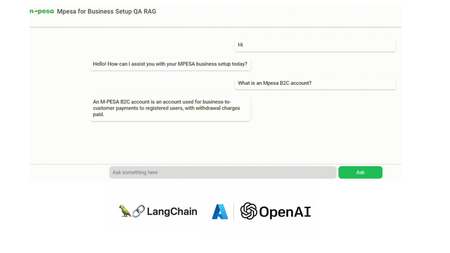
Demo: Mpesa for Business Setup QA RAG Application In this tutorial we are going to build a Question-Answering RAG Chat Web App. We utilize Node.js and HTML, CSS, JS. We also incorporate Langchain.js + Azure OpenAI + MongoDB Vector Store (MongoDB Search Index). Get a quick look below. Note: Documents and illustrations shared here are for demo purposes only and Microsoft or its products are not part of Mpesa. The content demonstrated here should be used for educational purposes only. Additionally, all views shared here are solely mine. What you will need: An active Azure subscription, get Azure for Student for free or get started with Azure for 12 months free. VS Code Basic knowledge in JavaScript (not a must) Access to Azure OpenAI, click here if you don't have access. Create a MongoDB account (You can also use Azure Cosmos DB vector store) Setting Up the Project In order to build this project, you will have to fork this repository and clone it. GitHub Repository link: https://github.com/tiprock-network/azure-qa-rag-mpesa . Follow the steps highlighted in the README.md to setup the project under Setting Up the Node.js Application. Create Resources that you Need In order to do this, you will need to have Azure CLI or Azure Developer CLI installed in your computer. Go ahead and follow the steps indicated in the README.md to create Azure resources under Azure Resources Set Up with Azure CLI. You might want to use Azure CLI to login in differently use a code. Here's how you can do this. Instead of using az login. You can do az login --use-code-device OR you would prefer using Azure Developer CLI and execute this command instead azd auth login --use-device-code Remember to update the .env file with the values you have used to name Azure OpenAI instance, Azure models and even the API Keys you have obtained while creating your resources. Setting Up MongoDB After accessing you MongoDB account get the URI link to your database and add it to the .env file along with your database name and vector store collection name you specified while creating your indexes for a vector search. Running the Project In order to run this Node.js project you will need to start the project using the following command. npm run dev The Vector Store The vector store used in this project is MongoDB store where the word embeddings were stored in MongoDB. From the embeddings model instance we created on Azure AI Foundry we are able to create embeddings that can be stored in a vector store. The following code below shows our embeddings model instance. //create new embedding model instance const azOpenEmbedding = new AzureOpenAIEmbeddings({ azureADTokenProvider, azureOpenAIApiInstanceName: process.env.AZURE_OPENAI_API_INSTANCE_NAME, azureOpenAIApiEmbeddingsDeploymentName: process.env.AZURE_OPENAI_API_DEPLOYMENT_EMBEDDING_NAME, azureOpenAIApiVersion: process.env.AZURE_OPENAI_API_VERSION, azureOpenAIBasePath: "https://eastus2.api.cognitive.microsoft.com/openai/deployments" }); The code in uploadDoc.js offers a simple way to do embeddings and store them to MongoDB. In this approach the text from the documents is loaded using the PDFLoader from Langchain community. The following code demonstrates how the embeddings are stored in the vector store. // Call the function and handle the result with await const storeToCosmosVectorStore = async () => { try { const documents = await returnSplittedContent() //create store instance const store = await MongoDBAtlasVectorSearch.fromDocuments( documents, azOpenEmbedding, { collection: vectorCollection, indexName: "myrag_index", textKey: "text", embeddingKey: "embedding", } ) if(!store){ console.log('Something wrong happened while creating store or getting store!') return false } console.log('Done creating/getting and uploading to store.') return true } catch (e) { console.log(`This error occurred: ${e}`) return false } } In this setup, Question Answering (QA) is achieved by integrating Azure OpenAI’s GPT-4o with MongoDB Vector Search through LangChain.js. The system processes user queries via an LLM (Large Language Model), which retrieves relevant information from a vectorized database, ensuring contextual and accurate responses. Azure OpenAI Embeddings convert text into dense vector representations, enabling semantic search within MongoDB. The LangChain RunnableSequence structures the retrieval and response generation workflow, while the StringOutputParser ensures proper text formatting. The most relevant code snippets to include are: AzureChatOpenAI instantiation, MongoDB connection setup, and the API endpoint handling QA queries using vector search and embeddings. There are some code snippets below to explain major parts of the code. Azure AI Chat Completion Model This is the model used in this implementation of RAG, where we use it as the model for chat completion. Below is a code snippet for it. const llm = new AzureChatOpenAI({ azTokenProvider, azureOpenAIApiInstanceName: process.env.AZURE_OPENAI_API_INSTANCE_NAME, azureOpenAIApiDeploymentName: process.env.AZURE_OPENAI_API_DEPLOYMENT_NAME, azureOpenAIApiVersion: process.env.AZURE_OPENAI_API_VERSION }) Using a Runnable Sequence to give out Chat Output This shows how a runnable sequence can be used to give out a response given the particular output format/ output parser added on to the chain. //Stream response app.post(`${process.env.BASE_URL}/az-openai/runnable-sequence/stream/chat`, async (req,res) => { //check for human message const { chatMsg } = req.body if(!chatMsg) return res.status(201).json({ message:'Hey, you didn\'t send anything.' }) //put the code in an error-handler try{ //create a prompt template format template const prompt = ChatPromptTemplate.fromMessages( [ ["system", `You are a French-to-English translator that detects if a message isn't in French. If it's not, you respond, "This is not French." Otherwise, you translate it to English.`], ["human", `${chatMsg}`] ] ) //runnable chain const chain = RunnableSequence.from([prompt, llm, outPutParser]) //chain result let result_stream = await chain.stream() //set response headers res.setHeader('Content-Type','application/json') res.setHeader('Transfer-Encoding','chunked') //create readable stream const readable = Readable.from(result_stream) res.status(201).write(`{"message": "Successful translation.", "response": "`); readable.on('data', (chunk) => { // Convert chunk to string and write it res.write(`${chunk}`); }); readable.on('end', () => { // Close the JSON response properly res.write('" }'); res.end(); }); readable.on('error', (err) => { console.error("Stream error:", err); res.status(500).json({ message: "Translation failed.", error: err.message }); }); }catch(e){ //deliver a 500 error response return res.status(500).json( { message:'Failed to send request.', error:e } ) } }) To run the front end of the code, go to your BASE_URL with the port given. This enables you to run the chatbot above and achieve similar results. The chatbot is basically HTML+CSS+JS. Where JavaScript is mainly used with fetch API to get a response. Thanks for reading. I hope you play around with the code and learn some new things. Additional Reads Introduction to LangChain.js Create an FAQ Bot on Azure Build a basic chat app in Python using Azure AI Foundry SDK708Views0likes0CommentsWhat runs GPT-4o and Microsoft Copilot? | Largest AI supercomputer in the cloud | Mark Russinovich
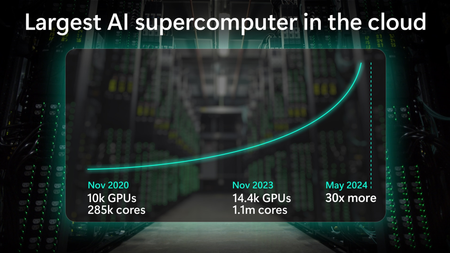
Microsoft has built the world’s largest cloud-based AI supercomputer that is already exponentially bigger than it was just 6 months ago, paving the way for a future with agentic systems.18KViews2likes0Comments