general
59 Topics
Problemen seit dem letzten Copilot-/Edge-Update
Seit dem Copilot-/Edge-Update vor etwa zwei Wochen erscheint dauerhaft die Meldung "Ihr Copilot migriert zur neuen Erfahrung". Nach dem Anmelden auf dem PC werden die Chats vom Handy zunächst angezeigt. Sobald ich jedoch einen bestehenden Chat öffnen oder fortsetzen möchte, erscheint erneut die Migrationsmeldung. Die Migration wird seit zwei Wochen nicht abgeschlossen. Dasselbe Microsoft-Konto wird auf Handy und PC verwendet.
I had interesting conversation with copilot. Asked it to test it’s internet retrieval functions.
It failed on all retrievals. and suggested to report the following: M365 Copilot web retrieval consistently fails with ExpiredWeb/internet retrieval from M365 Copilot is currently failing. Multiple independent retrieval attempts were tested, including web search and direct URL retrieval across Microsoft and non-Microsoft domains. All attempts consistently return Expired.The failure appears to occur at the retrieval/tool layer rather than at the destination website, because unrelated domains and different retrieval methods exhibit the same result.The Microsoft Cloud status page currently reports Copilot as operational, so this may be an unreported partial, regional, tenant-specific, or backend retrieval-service degradation.Repeated testing from the same Copilot session reproduces the problem consistently. I'd include 5 October 2026, 19:00GMT, your region/location, and screenshots of both Expired results and the Operational status if the reporting interface allows attachments.
Multiple Copilot notebooks disappeared immediately after sync
Today, after a Copilot synchronisation event, multiple notebooks disappeared from my account. I observed the notebooks briefly appear on a second device (MacBook Air) and then disappear during synchronisation. One missing notebook is called VIT. Several other notebooks also disappeared at the same time. Chats associated with those notebooks are no longer visible in chat history. Other notebooks remain visible. One remaining notebook ("8 STEM") displays the message: "Limit reached: Copilot can chat about the 20 oldest items in your notebook." The timing strongly suggests a synchronisation or migration issue rather than accidental deletion. This content represents a substantial amount of teaching-related work and planning material. Can Microsoft confirm whether the missing notebook and chat data still exists on the backend and whether there is a way to force a resynchronisation? Additional observations: The notebooks existed prior to the sync. Notebooks were briefly visible, then disappeared. The issue occurs across multiple devices. Associated chats are also missing.
Copilot Chat on Windows repeatedly triggers a file‑access permission prompt; Copilot Health does not
Subject: Copilot Chat on Windows repeatedly triggers a file‑access permission prompt; Copilot Health does not Summary of Behavior: Copilot Chat on Windows displays a Windows dialog asking whether to allow access to local files every time a new chat is started. This happens consistently and repeatedly. Copilot Health does not display this dialog. If Copilot is closed, reopened, and the user goes directly into Copilot Health, the permission prompt does not appear — even when asking questions that require analysis or reasoning. Copilot on iPhone also does not display any permission prompt. Repro Steps: Open Copilot Chat on Windows. Start a new chat. Windows shows a dialog asking whether to allow access to local files. Close Copilot completely. Reopen Copilot. Navigate directly to Copilot Health. Ask a question. No permission dialog appears. Use Copilot on iPhone. No permission dialog appears. Troubleshooting Attempts (All Unsuccessful): Toggled Windows “File system access” privacy settings (global and per‑app). Verified Edge permissions. Closed and reopened Copilot. Tested Copilot Health (no prompt). Tested Copilot on iPhone (no prompt). Tested multiple chat sessions (prompt appears every time). Reboot not yet tested, but all other attempts show the behavior is isolated to Copilot Chat. None of these actions changed the behavior. The permission prompt appears only in Copilot Chat on Windows. Impact: This behavior is highly disruptive and makes Copilot appear unsafe or intrusive. It undermines user trust, especially for users who rely on Copilot Health. It creates confusion, breaks workflow, and makes Copilot feel unusable. This is likely to push users toward competing AI products that do not exhibit this behavior.
Copilot Nonperformance and AI Credit deduction
A simple prompt for fixing spelling, punctuation, repetitions, capitalization in a dictation text across 20 pages is not being done, and one is told it has been done. And then the AI credit is deducted every time you ask it to redo it. Any ideas what is going on, and shouldn't there be a way to ensure that the wrong debited credits are re-credited to the account.
Issues while trying to build a graph connector to Azure SQL in M365 copilot
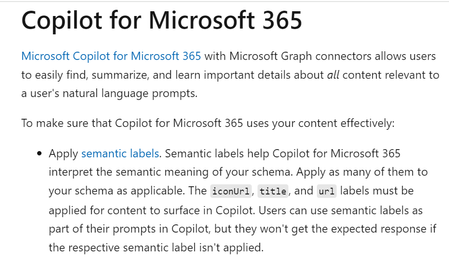
Dear All, I tried to create a Graph Connector to Azure SQL. I wanted to ingest data from Azure SQL and ask questions about it within Copilot for Microsoft 365. The graph connector was created in this Microsoft 365 Admin Centre within the 'Data sources' section in 'Search and Intelligence' menu: https://admin.microsoft.com/#/homepage The Microsoft documentation (https://learn.microsoft.com/en-us/graph/connecting-external-content-experiences#copilot-for-microsoft-365) screenshot below states that in order for the information to surface in Copilot for Microsoft 365, the fields "title," "url," and "iconUrl" need to be filled out during the configuration process. However, during the configuration process, I noticed that the 'iconUrl' field is greyed out. Hence, I am not able surface data from Azure SQL in Copilot for Microsoft 365. On the other hand, Microsoft Search and Sharepoint both displayed the Azure SQL data as I proceeded to configure the connector anyway. Is there any workaround for this? Are there any alternative approaches that I can take to surface the data in Copilot chat? Would appreciate any help regarding the same.Automate Copilot in Excel
Hi, Is it possible to automate opening Copilot in Excel and send a prompt using VBA? Currently, Copilot in excel seems to work only through the UI, where we have to manually click the Copilot button in the ribbon section and paste the prompt. I want to automate this process so that, with a single click, Excel opens Copilot and enters the prompt automatically. If this is not possible, are there any alternative approaches to achieve similar automation?
Copilot Excel error "Failed to fetch document context" - Cannot use paid service
Environment: Microsoft 365 (paid subscription, recently upgraded) Excel for Windows (desktop app) Copilot in Excel Issue: I am repeatedly receiving the error message "Failed to fetch document context due to an internal error" when trying to use Copilot in Excel. This error has been occurring for multiple days across multiple sessions. What happens: I open my Excel workbook (.xlsx file) I open Copilot from the ribbon I ask Copilot to perform a task (e.g., write data to cells, read from a table) Copilot responds as if it completed the task Nothing actually happens in my workbook — no data is written, no changes are made The error "Failed to fetch document context due to an internal error" appears What I've tried: Restarting Excel (multiple times) Closing and reopening Copilot panel Signing out and signing back in to my Microsoft account Checking for updates Waiting several hours/days and trying again Force-closing Excel via Task Manager Starting fresh chat sessions Contacted Microsoft Support chat (they directed me here) None of these resolved the issue. Impact: I recently upgraded to a paid subscription specifically to use Copilot I cannot use the service I paid for Simple tasks like writing text values to cells do not work Copilot claims tasks are "done" but nothing actually changes in my workbook This has been happening for 5+ days Questions: Is this a known server-side issue? Is there a fix or workaround? How can I get this resolved or request a refund for a non-functional service? Thank you for any help!