entraid
5 Topics
Where Does My Microsoft Entra ID Data Reside? Understanding Azure Regions and Data Residency
Hello everyone! Zoheb Shaikh here again. I’m a Senior Cloud Solution Architect with Microsoft, based in Doha, Qatar. It’s been almost three years since my last blog, and I’m happy to be back sharing another interesting customer conversation. This time, we’ll explore what the new Saudi Azure region really means for Microsoft Entra ID and data residency. I was recently having a conversation with a customer about Microsoft’s announcement of the Saudi Arabia East Azure region, which is expected to become available in November 2026. Naturally, there was a lot of excitement around it. We started discussing what this means for workloads, applications, data, resiliency and, of course, data residency. And then came a very simple question. “Great. So once the Saudi Azure region is available, our Microsoft Entra ID will also be in Saudi, right?” It is actually a very good question. And I think this is something we are going to hear more often as local Azure regions become available across different countries. My answer was: “Not exactly. Azure region availability and Microsoft Entra ID data residency are two different things.” And that started an interesting conversation. “But Entra runs on Azure, right?” Yes, But this is where we need to understand the difference between a workload that we deploy into Azure and a cloud service that Microsoft operates for us. Think about a normal Azure workload, you want to deploy a VM > Azure asks you: Where do you want to deploy it? Saudi Arabia East, UAE North, UK South, West Europe. You select the region based on your requirements. The same concept applies to many other supported Azure services. With the new Saudi Arabia East region, customers will be able to access supported Microsoft cloud and AI services and host eligible workloads and data locally in the Kingdom. Microsoft has announced that the region will also include three Availability Zones. That is the Azure region conversation But Microsoft Entra ID is different. You don’t create your Microsoft Entra tenant and then say: “Deploy my Entra tenant into Saudi Arabia East.” That is not how the service is designed. So how does Microsoft Entra actually work? This is where the architecture becomes interesting. Microsoft Entra ID is designed as a geographically distributed identity service. When an Entra tenant is created in the public cloud, the country or region selected during tenant creation is mapped by Microsoft Entra to a geo-location and a scale unit. Microsoft’s documentation currently lists geo-locations such as EMEA, North America, Asia/Pacific, Japan, Australia and Worldwide. The tenant location isn’t simply determined by where you later deploy your Azure VMs or applications. I explained it to the customer like this. If you deploy an application into Azure, you are largely deciding: “Where should my workload run?” For Microsoft Entra, Microsoft is managing a global identity platform and deciding: “How do we keep identity available, resilient and responsive while respecting the service’s data-residency architecture?” They are two very different design problems. Then the customer asked the next obvious question “Why does Entra need to work this way?” And this is probably my favourite part of the discussion. Imagine your company’s entire authentication service was dependent on one datacenter. Your users are signing in, Your applications are authenticating, Microsoft 365 depends on identity, Azure depends on identity. Thousands of applications may depend on the same identity platform and now imagine that datacenter has a problem. Identity is one of those services where availability really matters, this is one of reasons Microsoft Entra uses a distributed architecture. Microsoft’s published architecture describes a directory partition as having a primary replica and multiple secondary replicas. The primary replica handles writes, Before a write is acknowledged as successful, Microsoft Entra replicates that write to a secondary replica in another datacenter. Reads work differently, Directory reads, including authentication requests, can be serviced by secondary replicas that are geographically distributed. Microsoft routes these requests so that they can be serviced from datacenters close to customers. Now the architecture starts making more sense. It isn’t distributed randomly, It is distributed because the identity platform needs to provide things such as: availability, resiliency, performance and data durability. “So when I authenticate, am I always talking to where my directory data is stored?” Not necessarily in the way we traditionally think about it. This was another useful part of our conversation. Microsoft documents the Microsoft Entra authentication service itself as stateless. The directory data required for authentication resides in the Microsoft Entra Core Store. When users authenticate, Microsoft can route them to an authentication service instance in the geographically nearest datacenter that forms part of the applicable Microsoft Entra logical region. This is an important concept. The place from which a service responds to you and the place where the underlying authoritative data is managed do not always have to be the same thing. That is quite normal in large cloud services. And then came the real question: “Where is my data?” This is where I normally slow the conversation down a little. Because there are actually a few different questions hiding inside that one question. The customer might be asking: Where does my application data reside? Or Where does my Microsoft Entra directory data reside? Or Where is my authentication request being processed? Or perhaps the actual concern is Do I meet a specific regulatory requirement? These questions sound similar. But technically, they are not the same. For Microsoft Entra ID, Microsoft’s public documentation says the country/region selected during tenant creation is mapped to a Microsoft Entra geo-location and a scale unit. Microsoft Entra Core Store data is then managed according to that geo-location, considering areas such as performance, usability, residency and other requirements. That is why simply saying: “I have an Azure datacenter in my country, therefore every Microsoft cloud service must now store its data there” would be an oversimplification. There is actually an interesting Saudi-specific detail here At this point the conversation usually gets a little more interesting. Microsoft’s public documentation explains that Microsoft Entra directory location is determined when the tenant is originally created. Changing the country code later doesn’t move the directory data location. There is also some historical behaviour worth understanding. Microsoft documents that several country codes — including Saudi Arabia, UAE, Qatar, Bahrain, Kuwait and Oman — were mapped to the Asia region until 2013 and later mapped to Europe. As a result, tenants from those countries created before July 2013 can be provisioned differently from tenants created afterward. Why do I like this example? Because it makes one thing very clear: You shouldn’t determine your Microsoft Entra data location simply by looking at where your Azure workloads are deployed today but tenant provisioning history matters as well. “Okay, but is distributed data less secure?” This is another place where two conversations sometimes get mixed together. Data residency and security are related, but they are not the same thing. Data residency generally talks about where data is geographically stored. Security talks about how that data and the service around it are protected. Microsoft documents several protections around the Entra service. For example, Microsoft Entra directory data is signed and encrypted while it is being transferred between datacenters within a scale unit, and customer-facing web services use TLS. Microsoft also documents tenant-isolation controls around the Entra Core Store. Microsoft Entra also uses geographically distributed replicas, automated routing, monitoring and failover as part of its service architecture. So I wouldn’t look at a distributed architecture and conclude: “The data isn’t sitting in my local Azure region, therefore it is less secure.” That isn’t the right comparison. But I also wouldn’t say: “The service is secure, therefore data residency doesn’t matter.” That isn’t correct either. Security and regulatory residency are two different conversations This is probably the most important takeaway from the whole discussion. Imagine a customer tells me: “Our concern is security.” Then we should discuss the security architecture, tenant isolation, encryption, authentication controls, privileged access, service resilience and the controls Microsoft has put around the service. But imagine the customer says: “Our regulator specifically requires this category of data to be stored within Saudi Arabia.” That becomes a data-residency and compliance conversation. The right thing to do in that situation is not to make an assumption based on the availability of a local Azure region. Instead, check the official Microsoft documentation for the specific service and the specific data type involved. Microsoft’s Trust Center provides service-specific information for Microsoft Azure, Microsoft 365, Microsoft Entra ID, Intune, Defender and other cloud services. This is important because not every Microsoft cloud service follows exactly the same data-storage architecture. Back to the Saudi Azure region, So after all of this, we came back to where our conversation started. What does Saudi Arabia East actually change? A lot. Microsoft has announced that Saudi Arabia East will allow government and private-sector organizations to access supported Microsoft cloud and AI services and host eligible workloads and data locally in the Kingdom. The region will contain three Availability Zones, providing another important building block for organizations designing resilient local architectures. For customers running Azure applications, data platforms, infrastructure and AI workloads, this is a very significant development. But does that automatically mean an existing Microsoft Entra tenant moves into the Saudi Arabia East Azure region? No, And that shouldn’t really be surprising once we understand how Microsoft Entra is designed. The easiest way I explain it By the end of the conversation, I normally reduce everything into two simple questions. Azure Region is “Where do I want to deploy my workload?” For eligible Azure services, Saudi Arabia East gives customers another local option. Microsoft Entra ID “How does Microsoft’s identity service manage and protect my directory data?” That involves Microsoft Entra geo-locations, scale units, replicas and a geographically distributed service architecture. And then there is a third question which is equally important: Data residency “What does Microsoft commit to regarding the storage of my specific data for this specific cloud service?” That answer should always come from the relevant service documentation rather than from assumptions about where the nearest Azure datacenter happens to be. One last thought I actually think conversations like this are healthy. When customers ask “Where is my data?”, we shouldn’t try to answer the question with one sentence. Because modern cloud architecture doesn’t always work like the datacenter architecture we grew up with. An Azure region. A Microsoft Entra geography. A scale unit. A service endpoint. A replica. A data-residency commitment. They can all be part of the same cloud architecture, but they don’t necessarily mean the same thing. The Saudi Arabia East region is a major step forward for customers wanting to run Azure workloads locally in the Kingdom. And at the same time, it gives us a great opportunity to have a deeper conversation about how global cloud services such as Microsoft Entra ID are actually built. My conversation with the customer started with: “So Entra will now also be in Saudi, right?” By the end, the question had changed to something much better: “What is our actual data-residency requirement, and how does Microsoft Entra meet it?” And I think that is the right conversation to have. References Microsoft announces Saudi Arabia East datacenter region https://news.microsoft.com/source/emea/2026/08/microsoft-announces-saudi-arabia-east-datacenter-region-will-be-available-in-november-2026/ Microsoft Entra ID and data residency https://learn.microsoft.com/en-us/entra/fundamentals/data-residency Microsoft Entra architecture https://learn.microsoft.com/en-us/entra/architecture/architecture Customer data storage and processing for European customers in Microsoft Entra ID https://learn.microsoft.com/en-us/entra/fundamentals/data-storage-eu Microsoft Entra data protection considerations https://learn.microsoft.com/en-us/entra/fundamentals/data-protection-considerations Microsoft Trust Center – Data location https://www.microsoft.com/en-us/trust-center/privacy/data-location I hope this blog helped clarify the difference between Azure regions and Microsoft Entra ID data residency. These are the kinds of interesting customer conversations that I enjoy sharing, and I hope to continue writing more regularly. As always, feel free to share your thoughts, questions or experiences in the comments. I'd love to hear your views! Thanks for reading, and until next time! Zoheb Shaikh Senior Cloud Solution Architect | Microsoft Doha, QatarEntra Group Source of Authority CONVERSION: Enabling Cloud-First Identity Management
As organizations modernize their identity infrastructure, Microsoft Entra’s Group Source of Authority (SOA) Conversion feature enables a granular migration of group management from on-premises AD to Microsoft Entra ID without disabling sync or rearchitecting the entire directory. What Is Group Source of Authority? Group SOA defines where a group object is mastered either in on-prem AD or in Entra ID. With SOA conversion, administrators can selectively convert AD-synced groups into cloud-native groups, making them editable and governable directly in Entra ID. Permissions Required To perform SOA conversion, the following Microsoft Entra roles and Graph API permissions are required: Hybrid Administrator: Required to call Microsoft Graph APIs to read and update SOA of groups. Application Administrator or Cloud Application Administrator: Required to grant user consent to the app or Graph Explorer. Graph API Permission Scope: Group-OnPremisesSyncBehavior.ReadWrite.All must be granted to the app calling the onPremisesSyncBehavior endpoint. Prerequisites Before initiating SOA conversion, ensure the following: Licensing Microsoft Entra Free or Basic license is sufficient. Sync Clients Microsoft Entra Connect Sync: Minimum version 2.5.76.0 Microsoft Entra Cloud Sync: Minimum version 1.1.1370.0 Group Eligibility Groups must not be mail-enabled or tied to Exchange on-premises (DLs or MESGs). If provisioning back to AD is planned, change group scope to Universal. How to Convert Group SOA from AD to Entra Here’s a simplified step-by-step guide: Identify Target Groups Use Entra Admin Center or Graph Explorer to list synced groups. Confirm they are not Exchange-dependent. Grant Permissions Use Graph Explorer or your app registration to grant Group-OnPremisesSyncBehavior.ReadWrite.All. Execute SOA Conversion If we see Group1, which is in scope of conversion is synchronized from on-prem. Execute the below from Graph Explorer to convert “Group1” to cloud managed PATCH https://graph.microsoft.com/beta/groups/{group-id}/OnPremisesSyncbehavior { "isCloudManaged": true } We can verify the change by executing below query on Graph API Explorer This marks the group as cloud-managed. AD sync will stop honoring changes to this group. Validate Conversion Confirm blockOnPremisesSync = true in the Entra Admin Center. Use audit logs to verify the change. Apply Governance Apply lifecycle policies, access reviews, and provisioning rules using Entra ID Governance. Use Cases: Migrating from On-Prem to Cloud Use Case 1: Retiring Legacy AD Groups Scenario: A customer has migrated all mailboxes to Exchange Online and no longer needs certain AD groups. Solution: Convert those groups to cloud-native Entra ID groups and delete them from AD, reducing footprint and simplifying governance. Use Case 2: Governing On-Prem Apps from the Cloud Scenario: A customer uses AD security groups to secure on-prem apps (e.g., Kerberos-based apps). Solution: Convert the group SOA to Entra ID, apply governance policies, and use Group Provision to AD to sync cloud-managed groups back to AD. Use Case 3: Migrating DLs and MESGs to Cloud Scenario: A customer wants to migrate all distribution lists and mail-enabled security groups to the cloud. Solution: Convert SOA to Entra ID, recreate mail-enabled groups in Exchange Online, and decommission AD-based mail groups. Use Case 4: Enabling Access Reviews Scenario: A federal customer wants to run access reviews on group memberships but the groups are AD-synced. Solution: Convert SOA to Entra ID, enabling full access review capabilities and lifecycle workflows. Use Case 5: Hybrid Identity Cleanup Scenario: A customer is migrating from Entra Connect Sync to Cloud Sync and wants to clean up group sprawl. Solution: Use SOA conversion to move group management to the cloud, then decommission legacy sync rules and OUs. Strategic Impact Group SOA Conversion is more than a technical enhancement, it’s a strategic enabler for identity modernization. It supports: AD DS minimization: Shrinking on-prem footprint. Cloud-first governance: Centralized access control and lifecycle management. Phased migration: Avoiding disruption while modernizing.Strengthening Identity Resilience: A Deep Dive into Microsoft Entra Backup and Recovery
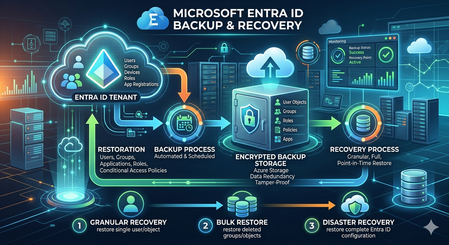
In the modern security landscape, we often say that "Identity is the new perimeter." We spend significant resources on Conditional Access, Phishing-Resistant MFA, and Identity Protection to keep the "bad guys" out. But what happens when the threat is already inside, or when a legitimate administrative action goes sideways? If our identity data the "brain" of our Microsoft 365 and Azure ecosystem is corrupted or maliciously altered, usr entire security posture collapses. Today, we’re exploring the new Microsoft Entra Backup and Recovery capability, a native safety net designed to ensure usr identity infrastructure remains resilient against both accidents and attacks. Why Native Backup Matters For years, Entra ID administrators relied on the Recycle Bin for deleted objects. However, a major gap existed: Attribute Corruption. If a script accidentally wipes the department and manager attributes for 10,000 users, or if a malicious actor modifies our most restrictive Conditional Access policies to create a backdoor, the Recycle Bin can't help us the objects aren't deleted; they are just wrong. Restoring these specific states previously required complex PowerShell scripting or expensive third-party tools. Entra Backup and Recovery closes this gap by providing a native, automated way to "roll back" the state of usr objects. Core Capabilities: How it Works The service is currently available in Public Preview for customers with Entra ID P1 or P2 licenses. It operates on a simple yet powerful "Snapshot" model: Automated Daily Snapshots The system automatically captures a point-in-time view of our tenant every day. Currently, the service maintains a 5-day retention window. This allows us to look back at the state of our environment from yesterday or earlier in the week to find a "known good" configuration. Visibility via Difference Reports One of the most powerful features is the Difference Report. Before committing to a restoration, we can compare a specific snapshot against the live state of our tenant. The report provides a granular view of: Object ID: Exactly which user, group, or policy is affected. Attribute Changes: A side-by-side comparison showing the "Old Value" (from the backup) versus the "Current Value" (live in the tenant). Metadata Loading: While the first report may take a moment to load metadata, subsequent reports are lightning-fast, allowing for quick triaging during an incident. Granular Restoration We aren't forced into an "all or nothing" recovery. We can choose to restore: An entire object class (e.g., all Conditional Access Policies). Specific object types (e.g., only Service Principals). Individual Object IDs for targeted fixes. The "Defense in Depth" Identity Strategy Entra Backup and Recovery is not a standalone silo; it is the third pillar of a complete identity resilience strategy. To truly harden our tenant, we must coordinate these three features: Pillar 1: Soft Delete (The Recycle Bin) Used for Deleted Objects. If a user or Microsoft 365 group is deleted, it sits in the Recycle Bin for 30 days. We can restore these easily via the portal or Graph API to maintain the original Object ID and SID. Pillar 2: Protected Actions (The Vault) To prevent an attacker from "hard deleting" our objects (purging them from the Recycle Bin so they can't be recovered), we must implement Protected Actions. How it works: we assign a "Conditional Access Authentication Context" to sensitive actions like Microsoft.Directory/deletedItems/delete. The Result: Even a Global Admin cannot permanently purge an object unless they meet strict requirements, such as using a Phishing-Resistant MFA key or working from a Secure Access Workstation (SAW). Pillar 3: Backup and Recovery (The Time Machine) Used for Corruption and Configuration Drift. When the object exists but its properties are compromised, this is our "Time Machine" to revert attributes and policy logic to a functional state. Real-World Scenario: Recovering from a Bulk Logic Error Imagine an admin runs a bulk update script intended to update the JobTitle for the Sales team. Due to a logic error in the CSV, the script instead clears the SecurityGroup memberships and ExtensionAttributes for the entire department. Detection: Users lose access to apps because their group memberships are gone. Analysis: The Admin generates a Difference Report between today and yesterday’s snapshot. Validation: The report confirms that 500 users now have "null" values for the affected attributes. Recovery: The Admin selects those 500 User IDs and hits Restore. Within minutes, the attributes are repopulated, and dynamic group memberships begin to recalculate automatically. Conclusion and Next Steps The preview of Microsoft Entra Backup and Recovery is a significant step forward in native tenant protection. By combining it with Protected Actions and the Recycle Bin, organizations can finally achieve a "circular" protection model for identity. Ready to try it? Navigate to the Microsoft Entra Admin Center, look for Backup and Recovery in the left-hand navigation, and explore usr first snapshot today.The Future of Identity: Self-Service Account Recovery (Preview) in Microsoft Entra
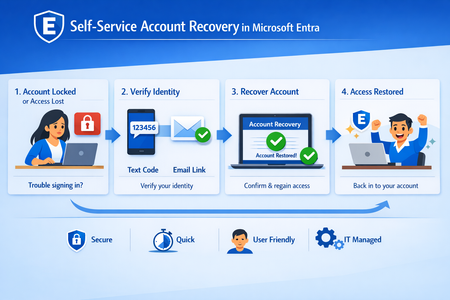
In the modern enterprise, the "Help Desk" is paradoxically both a vital resource and a massive security liability. As organizations move toward phishing-resistant, passwordless environments using passkeys and FIDO2 tokens, a critical question remains: What happens when a user loses their only authentication device? Historically, this required a phone call to a support agent. However, in an era of sophisticated social engineering and AI-generated deepfakes, a human agent is often the easiest point of entry for an attacker. Microsoft Entra’s new Self-Service Account Recovery solves this by replacing manual verification with high-assurance, automated identity proofing. The Fatal Flaw in Traditional Recovery Most organizations currently rely on one of two methods for recovery, both of which have significant drawbacks: Self-Service Password Reset (SSPR): Often relies on "weak" factors like SMS codes or security questions. These are easily intercepted or guessed and don't help a user who is trying to move away from passwords entirely. The Help Desk: Requires an agent to "vouch" for a user. Attackers can impersonate employees, use voice-cloning technology, or provide leaked personal information to trick an agent into issuing a Temporary Access Pass (TAP). The new Entra flow removes the human element from the validation process, ensuring that the person regaining access is exactly who they claim to be. How the New Recovery Flow Works: The recovery process is built on the concept of "identity proofing," utilizing government-issued documents and biometric liveness checks. Integration with Verification Partners Microsoft doesn’t store your passport or driver's license. Instead, Entra integrates with specialized Third-Party Identity Verification providers (such as True Credential, IDEMIA, AU10TIX). These services are experts in forensic document analysis. The Verification Process When a user begins a recovery, they are redirected to the partner service. The process typically involves: Document Capture: The user takes a photo of a government ID (Passport, Driver’s License, etc.). Forensic Analysis: The service checks for security features like holograms, fonts, and watermarks to ensure the ID is genuine. Liveness Check: The user takes a "selfie" or video. The system uses "Face Check" technology projecting specific light patterns or colors on the user’s face to ensure it is a live person and not a photo, video, or deepfake. Issuance of a Verified ID Once the third party confirms the user's identity, Microsoft Entra issues Verified ID. This is a decentralized, digital credential that sits in the user's Microsoft Authenticator app. It serves as digital proof of their identity that Entra can trust. The Final Handshake: Face Check To bridge the gap between the digital credential and the person at the keyboard, Entra performs a Face Check. It compares the live user's face against the photo contained within the Verified ID. If they match, Entra considers the identity "proven." Bootstrapping the New Device Once verified, Entra automatically issues a Temporary Access Pass (TAP). This allows the user to log in and immediately register their new device, passkey, or Authenticator app, effectively "bootstrapping" their new secure environment without ever speaking to a human. Strategic Advantages for IT Leaders Zero Trust Maturity: This process fulfills the Zero Trust requirement of "explicit verification" even during the recovery phase. Scalability: By automating the most time-consuming part of help desk tickets identity verification IT teams can focus on more complex tasks. Phishing Resistance: Because the recovery is tied to physical ID and biometrics, there is no "code" for an attacker to phish. Global Compliance: Leveraging government-issued IDs allows organizations to meet high-bar regulatory requirements for identity assurance (such as NIST IAL2). Deployment and Prerequisites To implement this, administrators need to ensure a few things are in place: Verified ID Setup: You must configure Microsoft Entra Verified ID within your tenant. Matching Logic: Entra uses attributes like First Name and Last Name to match the Verified ID to the user account. Ensuring your HR data is clean and synchronized is essential. License & Costs: While the recovery flow is a feature of Entra, the verification partners and the Face Check service (typically a per-check fee) must be provisioned through the Microsoft Security Store. Conclusion The transition to a passwordless world is incomplete if the "back door" (recovery) remains open and insecure. By integrating government-grade identity verification directly into the login flow, Microsoft Entra provides the final piece of the puzzle: a recovery method that is as secure as the primary login itself.Conditional Access for Agent Identities in Microsoft Entra
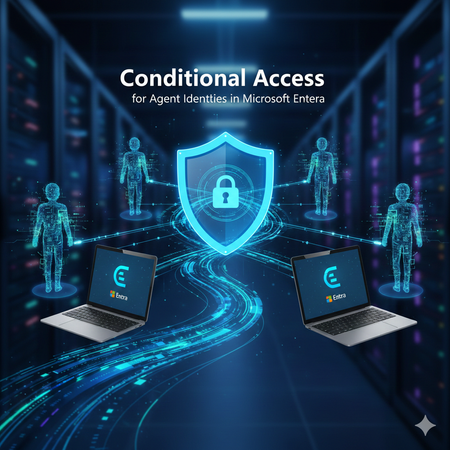
AI agents are rapidly becoming part of everyday enterprise operations summarizing incidents, analyzing logs, orchestrating workflows, or even acting as digital colleagues. As organizations adopt these intelligent automations, securing them becomes just as important as securing human identities. Microsoft Entra introduces Agent Identities and extends Conditional Access to them but with very limited controls compared to traditional users and workload identities. This blog breaks down what Agent Identities are, how Conditional Access applies to them, and what are current limitations. What Exactly Are Agent Identities? Microsoft Entra now supports a new identity type designed specifically for AI systems: Agent Identity – like an app/service principal but specialized for AI Agent User – an identity that behaves more like a human user Agent Blueprint – a template used to create agent identities This model exists because AI systems behave differently than humans or applications: they can act autonomously, operate continuously, and make decisions without user input. AI-driven automation must be governed and that’s where Conditional Access comes in. Conditional Access for Agents, but with Important Limitations Today, Conditional Access for agent identities is purposely minimal. Microsoft clearly states: Conditional Access applies only when: An agent identity requests a token An agent user requests a token It does NOT apply when: A blueprint acquires a token to create identities An agent performs intermediate token exchange What Controls Are Actually Available Today? ✔ Supported Today Category Supported? Details Identity Targeting ✔ Yes You can include/exclude agent identities & agent users Block Access ✔ Yes This is the only Grant control currently available Agent Risk (Preview) ✔ Yes Early stage risk evaluation Sign-in evaluation ✔ Yes Token acquisition governed by CA ❌NOT Supported Today These CA controls do not apply to Agent Identities: MFA Authentication strength Device compliance Approved client apps App protection policies Session controls User sign-in frequency Terms of Use Location conditions (network/device-based) Client apps (legacy/modern access) Why? Because agents do not perform interactive authentication and do not use device signals or session context like humans. Their authentication is purely machine‑driven. How Conditional Access Works for Agents When an agent identity (or agent user) requests a token, Microsoft Entra: Identifies the requesting agent Checks CA policy assignments Evaluates any agent-risk conditions Allow/Blocks token issuance if conditions meet That’s it. No MFA prompt. No device check. No authentication strength evaluation. This makes CA for agents fundamentally different from CA for humans. Why Is Conditional Access So Limited for Agents? Two major reasons: Agents cannot satisfy user-based controls AI agents cannot: Perform MFA Use biometrics Run on compliant devices Follow session prompts These are human-driven processes. Agents authenticate via secure credential flows They use: Client credentials Federated identity credentials Token exchange flows So CA is limited to identity-level allow/block and risk-based token decisions. Practical Use Cases (Given Today’s Limitations) Even with limited controls, CA for agents is still important. Stop compromised agents from continuing to operate If Microsoft Entra detects high agent risk: CA can block token issuance This halts the agent’s ability to act immediately Enforce separation of duties for AI agents Even though you cannot apply MFA or auth strength, you can: Separate agents into “allowed” vs “blocked” groups Apply different CA rules per department or system Prevent AI sprawl Large enterprises may generate hundreds of AI agents. CA gives central admin control: Only approved, vetted agents can operate Others are blocked at token-request time Why Agent Blueprints Cannot Be Governed by CA Blueprints are templates, not active identities. Blueprint token flows are system-level operations, not access attempts. Therefore: ❌ No CA evaluation ❌ No controls applied ❌ Not counted as agent activity Only actual agent identities are governed by CA. What the Future Might Include Microsoft hints the capabilities will expand: Agent risk scoring Agent behaviour analytics More granularity in CA for agents Additional grant controls Policy scoping at task or capability level But as of today, CA for agents remains intentionally constrained to allow safe onboarding of the new identity type without accidental disruption. Final Summary Conditional Access for Agent Identities is currently a lightweight enforcement mechanism designed to block unauthorized or risky agents, not a full policy suite like we have for human users. ✔ What it does: Controls whether an agent identity can acquire a token Allows blocking specific agents Implements early agent‑risk logic Applies Zero Trust principles at the identity perimeter ❌ What it does not do: Enforce MFA Enforce authentication strength Enforce device or location conditions Apply session controls Govern blueprints As organizations adopt more autonomous agents, this foundational layer keeps AI identities visible and controllable and sets the stage for richer governance in the future.