edge insider
66 TopicsBlock Microsoft from running experiments in the Microsoft Edge browser
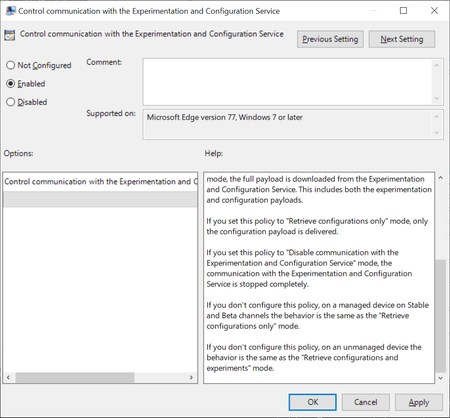
Browsers like Firefox, Chrome or Microsoft Edge come with built-in functionality to run experiments. Browser makers like Mozilla or Google may enable or disable features or changes in select browsers; this is often used to A-B test features or get early feedback on new implementations. While most users may not even notice that experiments are running in their browsers, it happened in the past that experiments caused issues. The latest case was revealed in November when administrators from around the world reported that a Chrome experiment would crash browsers in organizations worldwide. Negative side-effects of experiments are a problem for home users and business users alike, and it is often desirable to disable or block experiments from being downloaded and run. Microsoft distinguishes between controlled feature rollouts and experiments in the company's new Chromium-based Microsoft Edge web browser. Both are made available to part of the user base when they start to roll out but similarities end here. Microsoft notes: Microsoft Edge builds have features and functionality that are still in development or are experimental. Experiments are like CFR, but the size of the user group is much smaller for testing the new concept. These features are hidden by default until the feature's rolled out or the experiment's finished. Experiment flags are used to enable and disable these features. System administrators may use the "Control communication with the Experimentation and Configuration Service" on pro and Enterprise editions of Windows 7, 8.1 or 10 to prevent experiments in the browser. Here is what is needed for that: Get the latest Microsoft Edge policy file from the Microsoft Edge Insider website. It is likely that the policies will become available natively eventually when Edge is released and integrated in Windows. Extract the file (first a cab, then a zip). Open Windows > Admx. Copy the two .admx template files to C:\Windows\PolicyDefinitions\. Open the language folder that matches the system language and copy the .adml files to the corresponding language folder of C:\Windows\PolicyDefinitions\ Open Start, type gpedit.msc and hit the Enter-key to open the Group Policy Editor. Consult this Docs page on the Microsoft website for additional scenarios, e.g. when domain controllers are used. Open Computer Configuration > Administrative Templates > Microsoft Edge. Open the policy "Control communication with the Experimentation and Configuration Service" policy. Set the policy to Enabled. Set it to either "Retrieve configurations only" or "Disable communication with the Experimentation and Configuration Service". Retrieve will download configuration payloads only, disable won't download or enable them. The behavior of not configuring the policy differs depending on whether it is a managed or unmanaged device. Managed devices will download the configuration only while unmanaged devices will retrieve configurations and experiments. Source9.3KViews0likes4CommentsAnyone down for Edge logo options?
So is it me or the new Microsoft Edge log not as fun? You know what would be fun? Options. I would love to see a buried settings options for the type of logo we can have. Hell, I think if they give us the option to swap between the Spartan Logo, Edge logo, and New Edge logo that will be fun. I love options and Windows has always been the better bet for it. Let us have fun with one of the most important apps we use on our computers.2.3KViews1like8Comments
Disable Edge disabling unverified extensions
TL:DR How do I reenable unverified extensions for development, after disabling through "Disable unverified extensions in Developer Mode" notification? Switching to Beta or Dev insider channel didn't help. Hello, I wanna learn about browser extension development, which ofc requires Developer Mode being on. Because unverified extensions can be malicious, you can't make the "Turn off unverified extensions in Developer Mode" notification stop appearing, and so I chose to just let it have its way to leave me alone. Inconvenient mistake. Doing this disables any unverified extensions that I sideload (as the notification says), so I asked CoPilot for help. CoPilot said I could enable the extensions again using either the Edge Dev or Canary channel, so I tried the Beta and Dev channel. Beta with and Dev both with and without importing my data from the normal Edge browser, but neither did anything, since all unverified extensions are still disabled, even when I enable them in the "Manage extensions" page. Is there some way to actually turn off the security disabling, in the Insider channels (Beta, Dev and Canary)? I really want to continue learning about extension development, so it's a little inconvenient that the unverified extensions don't feel like being enabled ever again, even when they're my own.329Views0likes0Comments
The edge dev is not opening
From the previous update of 119.0.2116.0 my microsoft edge dev is not opening. I think the problem come after this update and now I have manually updated to the latest 120.0.2165.1 with the installer and the problem is still there. I have seen the task manager the msedge process starts and run for sometime then automatically get terminated. Please Show any fix.546Views0likes0Comments
Edge Insider won't open after Update, Repair doesn't fix the issue.
Edge Insider (119.0.2132.0) won't open after Update, Modify Repair doesn't fix the issue, neither does restarting. Small blue wheel for a brief second then nothing. No third party security software running, scanning the system comes up clean. Not sure where to go from here or how to further debug the issue. I have all my passwords stored in edge and don't want to lose those. If anyone can help it would be greatly appreciated. Thanks!1.1KViews0likes3Comments
Edge Canary When you create a new tab, two new tabs open
Microsoft Edge Canary version 117.0.1963.0 When you create a new tab, two new tabs open. As you click on the + sign on the top of the software, it will create two new tab. More information is included in the images below.1.4KViews2likes4CommentsAdd SOCKS5 (+ Authentication) support to Edge insider browser
Hi, Please consider adding SOCKS5 proxy support and Authentication (username and password) to the new Edge browser. currently only Firefox has that capability (without Auth). Microsoft Edge insider is using the same networking settings as google chrome which is not ideal and heavily relies on extensions and 3rd party programs. please create a separate proxy settings page that only effects Edge browser (like Firefox) and Not the whole Windows OS, and add SOCKS5 support to it. Thanks71KViews5likes5CommentsNew Feature: Launch Taskbar Pinning Wizard in Edge insider
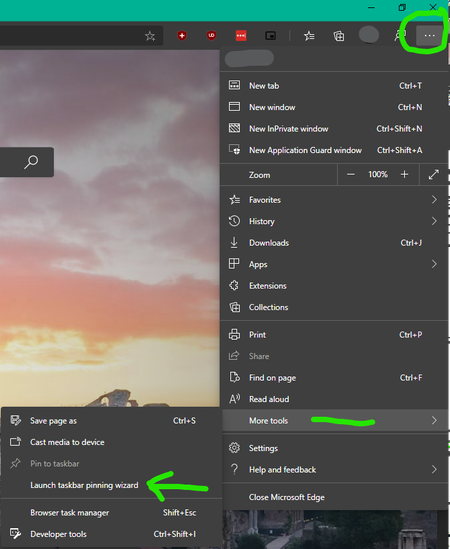
There is a new feature added in Edge insider Version 81.0.367.0 (Official build) canary (64-bit) called "Taskbar Pinning Wizard" you can find it from the ellipsis menu => more tools Edge will generate suggestions based on your usage Then offer some useful websites from Microsoft to you, you can either choose them or ignore and proceed to next step You're all set the icons get added to your Taskbar And Start Menu You will be able to uninstall them whenever you want from the Apps page Right-click on any apps to see these options8.9KViews2likes6CommentsAdd an option to delete saved search engines in bulk
After using Edge insider for a while, a dozen search engines get listed in here: edge://settings/searchEngines but there is no way to select them all and delete them, have to do it one by one. please add an option to delete all of them at once.2.7KViews0likes5Comments