edgarus71
6 TopicsMDATP Linux agent latest release reporting
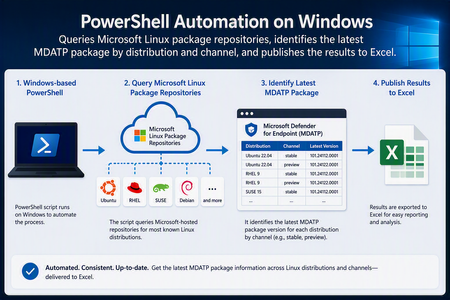
Executive Summary The solution provides a repeatable way to determine which Microsoft Defender for Endpoint for Linux package is released by configured Microsoft package repositories for each operating-system family, version, architecture, and update channel. It runs from Windows using PowerShell and writes a structured Excel report for operational review. A single report replaces repeated manual browsing and package-manager checks across multiple Linux distributions and release channels. What the automation delivers Queries packages.microsoft.com over HTTPS. Checks RPM-based and APT-based repository metadata. Locates package records named mdatp. Selects the latest version represented by repository metadata. Captures source URLs, architecture, available timestamps, and collection status. Creates Latest Releases and Configuration worksheets. Continues processing when an individual repository fails. Scope and Limitations The report reflects package availability in the configured Microsoft repositories. It is intended for release visibility and operational review only. What the report does not do Confirm that a package has been deployed to an endpoint. Validate compatibility with a customer-specific environment. Replace published Microsoft support or deployment guidance. Change an endpoint’s configured update channel. Solution Structure Scheduler Collector Source Processing Output Windows Task Scheduler PowerShell 7 Microsoft Linux package repositories Metadata discovery and version selection Excel workbook The scheduler launches the script. The script enumerates configured targets, retrieves metadata, identifies an mdatp package record, normalizes the result, and exports it to the workbook. End-to-End Processing Walkthrough 1. Initialize the environment Confirm that ImportExcel is available. The first interactive run can use -InstallDependencies to install the module for the current user. The module creates .xlsx files without desktop Excel. 2. Load the target matrix Use the built-in target list for RHEL, Rocky Linux, Amazon Linux, Ubuntu, Debian, and SLES. The current design evaluates prod, insiders-slow, and insiders-fast URL patterns. 3. Construct endpoints Substitute the channel into each repository or configuration URL so every query has a traceable source. 4. Process RPM metadata Download repodata/repomd.xml, follow its primary-metadata reference, decompress when needed, and search package records for mdatp. 5. Process APT metadata Read the Microsoft repository configuration, identify the base, suite, and component, obtain Packages.gz indexes, and search for mdatp. 6. Select the latest record Compare RPM epoch, version, and release fields or the APT version field, then retain the winning package record. 7. Normalize output Create one row per attempted OS, version, and channel combination with package details, traceability URLs, collection time, status, and errors. 8. Isolate failures Record a failed query as an ERROR row and continue processing other targets. 9. Publish Excel Create a formatted Latest Releases table and Configuration worksheet. 10. Schedule execution (optional) Use Windows Task Scheduler to run PowerShell 7 with full script and output paths, network availability, and Start when available settings.cd \ Repository Metadata by Package Family Family Example systems Metadata source Fields used RPM RHEL, Rocky, Amazon Linux, SLES repodata/repomd.xml and referenced primary metadata Name, epoch, version, release, architecture, location, time APT Ubuntu, Debian Repository .list file and Packages.gz Package, Version, Architecture, Filename Excel Workbook Structure Worksheet Audience Purpose Latest Releases Security and operations teams One row per attempted target, with version, architecture, status, source URLs, and timestamps. Configuration Platform owners Documents about the target systems, channels, and URL patterns included by the script. Operational Runbook First interactive run Store the script in a specific folder such as C:\MDATPTracker. IMPORTANT: Script requires PowerShell 7.6.2 minimum version to run. Open PowerShell 7 as the account that will own the task, with elevated privileges Run once with -InstallDependencies as shown in the example below Example: .\ GetMDATPLinuxLatestReleases.ps1 -InstallDependencies This will generate an excel spreadsheet named “MDATP_Linux_Latest_Releases.xlsx” Review the workbook and investigate ERROR column to confirm no errors. Run a second time without -InstallDependencies to validate steady state. Scheduled execution For each tab on the Windows task scheduler, configure the tabs like the example screenshots or to your desired schedule when the task needs to be run. The only tab that needs to be configured as described is the tab “Actions” however, the working directories can be adjusted to your needs, just take into consideration the directories exist and the Powershell logic is configured as described below in the Actions tab section. General tab: Triggers tab: Actions tab: Details for the highlighted fields in the “Actions” tab: - Program/script value: NOTE: your Powershell 7 directory may be different than the example "C:\Program Files\WindowsApps\Microsoft.PowerShell_7.6.4.0_x64__8wekyb3ch388r\pwsh.exe" - Add arguments(optional): but this is required for the script to run -NoProfile -NonInteractive -ExecutionPolicy Bypass -File "C:\MDATPLinuxVersionTracker\Get-MDATPLinuxLatestReleases-Corrected.ps1" -OutputPath "C:\MDATPLinuxVersionTracker\MDATP_Linux_Releases.xlsx" - Start in(optional): C:\MDATPLinuxVersionTracker Conditions tab: Settings tab: Validation checklist Description Validation Confirm Powershell required version PowerShell 7.6.2 or later is available. The PowerShell switch -InstallDependencies The Powershell script needs to be run the first time with that switch to guarantee an .xlsx file can be generated, even if Excel is not installed on the device. Main URL to check for Linux MDATP release packages for MDE packages.microsoft.com is reachable over HTTPS. The working directory where the script runs from The output folder is writable. Check the columns generated by the script are visible The workbook timestamp changes after a test run. Rows for update channels Insiders-fast, Insiders-slow and Prod are present Expected target rows are present. Last column in the spreadsheet registers any errors if the checked URL is not reachable. No logs are generated as part of this check. The error field means the URL for that particular package wasn’t reachable via https ERROR rows are reviewed. Use Windows Task Scheduler to program a recurring capture of the latest MDATP Linux releases for review. Task Scheduler shows a successful result (0x0) If you see an error 0x40 after the task runs, you won’t see the excel file being generated. Check that the parameters in the Actions tab on the task are configured as described in the previous section. Assumptions, Risks, and Governance Validate the target URL matrix against current Microsoft documentation before customer deployment. The report is not an endpoint software inventory or compliance view. Test representative version strings before treating script comparison logic as a formal release-control mechanism. An ERROR can reflect an unavailable URL, network restriction, layout change, missing architecture, or absent package record. Preview packages require customer change-management and validation. Code-review and sign the script if required, store it in source control, and use least privilege. Retain dated snapshots if historical reporting is required. Reference Links Microsoft Linux Software Repository: https://learn.microsoft.com/en-us/linux/packages Deploy Microsoft Defender for Endpoint on Linux manually: https://learn.microsoft.com/en-us/defender-endpoint/linux-install-manually PowerShell Gallery: ImportExcel: https://www.powershellgallery.com/packages/ImportExcel Appendix #1: Key Report Fields Field Interpretation OS / OS Version Configured distribution and major release. Family RPM or APT processing path. Channel prod, insiders-slow, or insiders-fast. Latest Version Package version selected from metadata. Architecture Architecture is associated with the selected record. Repository Metadata Build Time UTC Current workbook label for the RPM metadata time value. See the clarification below. Checked UTC Time when the script evaluated the target. Status OK or ERROR. Repository / Config URL Starting endpoint. Metadata URL Metadata index used for discovery. Package URL Package location from metadata. Error Failure details. Important Clarification: Package Timestamp Semantics The current Excel column labeled “Repository Metadata Build Time UTC” is populated differently from the timestamp displayed beside a package in the packages.microsoft.com directory-browsing page. These values should not be treated as interchangeable. Key correction For RPM-based repositories, the script reads the build attribute from the package time element in the repository primary metadata and converts the Unix epoch value to UTC. Therefore, the current column is more accurately described as Repository Metadata Build Time UTC. Where the current workbook value comes from For RPM-based distributions, the script follows repomd.xml to the primary metadata, locates the selected mdatp package record, reads the repository metadata time build value, and converts that epoch value through PowerShell to a UTC date and time. What the directory-listing time represents The timestamp displayed beside the RPM in the packages.microsoft.com directory browser is the timestamp exposed by that directory listing for the file. For the customer-observed SLES 15 Insiders Fast package, the listing displays 25-Jul-2026 13:44. The existing script does not parse that HTML directory-listing value. Why the values may differ Value Current source Recommended interpretation Repository metadata build time expressed in UTC. RPM primary metadata: package time build attribute Current workbook label for the RPM metadata time value. Directory-listing timestamp packages.microsoft.com HTML directory listing File timestamp displayed by the repository browser. Checked UTC The script runtime Time the automation queried the repository. Reporting changes done at script level Renamed Package Published UTC to Repository Metadata Build Time UTC. Keep Checked UTC as the collection timestamp. Appendix #2: PowerShell script – raw format Be mindful of spaces or blank spaces that might be added when you copy and paste the script to use. Disclaimer: The sample scripts are not supported under any Microsoft standard support program or service. The sample scripts are provided AS IS without warranty of any kind. Microsoft further disclaims all implied warranties including, without limitation, any implied warranties of merchantability or of fitness for a particular purpose. The entire risk arising out of the use or performance of the sample scripts and documentation remains with you. In no event shall Microsoft, its authors, or anyone else involved in the creation, production, or delivery of the scripts be liable for any damages whatsoever (including, without limitation, damages for loss of business profits, business interruption, loss of business information, or other pecuniary loss) arising out of the use of or inability to use the sample scripts or documentation, even if Microsoft has been advised of the possibility of such damages. <# Disclaimer The sample scripts are not supported under any Microsoft standard support program or service. The sample scripts are provided AS IS without warranty of any kind. Microsoft further disclaims all implied warranties including, without limitation, any implied warranties of merchantability or of fitness for a particular purpose. The entire risk arising out of the use or performance of the sample scripts and documentation remains with you. In no event shall Microsoft, its authors, or anyone else involved in the creation, production, or delivery of the scripts be liable for any damages whatsoever (including, without limitation, damages for loss of business profits, business interruption, loss of business information, or other pecuniary loss) arising out of the use of or inability to use the sample scripts or documentation, even if Microsoft has been advised of the possibility of such damages. Author: Edgar Parra, Microsoft v1.0 #> #requires -Version 7.2 [CmdletBinding()] param( [string]$OutputPath = (Join-Path $PWD 'MDATP_Linux_Latest_Releases.xlsx'), [switch]$InstallDependencies ) Set-StrictMode -Version Latest $ErrorActionPreference = 'Stop' $ProgressPreference = 'SilentlyContinue' function Initialize-ImportExcel { if (-not (Get-Module -ListAvailable ImportExcel)) { if (-not $InstallDependencies) { throw 'ImportExcel is required. Run this script again with -InstallDependencies.' } if (Get-Command Install-PSResource -ErrorAction SilentlyContinue) { Install-PSResource ImportExcel -Scope CurrentUser -TrustRepository -Quiet } else { Install-PackageProvider NuGet -Scope CurrentUser -Force | Out-Null Install-Module ImportExcel -Scope CurrentUser -Force -AllowClobber } } Import-Module ImportExcel -ErrorAction Stop } function Get-RemoteBytes { param([Parameter(Mandatory)][string]$Uri) $temporaryFile = [IO.Path]::GetTempFileName() try { Invoke-WebRequest -Uri $Uri -OutFile $temporaryFile -UserAgent 'MDATPReleaseTracker/3.0' -MaximumRetryCount 3 -RetryIntervalSec 2 [IO.File]::ReadAllBytes($temporaryFile) } finally { Remove-Item $temporaryFile -Force -ErrorAction SilentlyContinue } } function Expand-GzipBytes { param([Parameter(Mandatory)][byte[]]$Bytes) $inputStream = [IO.MemoryStream]::new($Bytes) $gzipStream = [IO.Compression.GZipStream]::new($inputStream, [IO.Compression.CompressionMode]::Decompress) $outputStream = [IO.MemoryStream]::new() try { $gzipStream.CopyTo($outputStream) $outputStream.ToArray() } finally { $gzipStream.Dispose() $inputStream.Dispose() $outputStream.Dispose() } } function Compare-VersionText { param([string]$Left, [string]$Right) $pattern = '[0-9]+|[A-Za-z]+|~' $leftParts = @([regex]::Matches(($Left ?? ''), $pattern) | ForEach-Object Value) $rightParts = @([regex]::Matches(($Right ?? ''), $pattern) | ForEach-Object Value) for ($index = 0; $index -lt [Math]::Max($leftParts.Count, $rightParts.Count); $index++) { if ($index -ge $leftParts.Count) { return -1 } if ($index -ge $rightParts.Count) { return 1 } $leftPart = $leftParts[$index] $rightPart = $rightParts[$index] if ($leftPart -eq $rightPart) { continue } if ($leftPart -eq '~' -or $rightPart -eq '~') { if ($leftPart -eq '~') { return -1 } return 1 } $leftNumeric = $leftPart -match '^\d+$' $rightNumeric = $rightPart -match '^\d+$' if ($leftNumeric -ne $rightNumeric) { if ($leftNumeric) { return 1 } return -1 } if ($leftNumeric) { $leftPart = $leftPart.TrimStart('0'); if (-not $leftPart) { $leftPart = '0' } $rightPart = $rightPart.TrimStart('0'); if (-not $rightPart) { $rightPart = '0' } if ($leftPart.Length -ne $rightPart.Length) { if ($leftPart.Length -gt $rightPart.Length) { return 1 } return -1 } } $comparison = [string]::CompareOrdinal($leftPart, $rightPart) if ($comparison -gt 0) { return 1 } if ($comparison -lt 0) { return -1 } } return 0 } function Compare-RpmPackage { param($Left, $Right) foreach ($property in 'Epoch', 'Version', 'Release') { $result = Compare-VersionText ([string]$Left.$property) ([string]$Right.$property) if ($result -ne 0) { return $result } } return 0 } function Get-LatestRpmPackage { param([Parameter(Mandatory)][string]$BaseUrl) $repomdUrl = [Uri]::new([Uri]$BaseUrl, 'repodata/repomd.xml').AbsoluteUri [xml]$repomd = [Text.Encoding]::UTF8.GetString((Get-RemoteBytes $repomdUrl)) $namespace = [Xml.XmlNamespaceManager]::new($repomd.NameTable) $namespace.AddNamespace('repo', 'http://linux.duke.edu/metadata/repo') $primary = $repomd.SelectSingleNode("//repo:data[@type='primary']", $namespace) if (-not $primary) { throw 'Primary RPM metadata was not found.' } $relativePath = $primary.SelectSingleNode('repo:location', $namespace).href $metadataUrl = [Uri]::new([Uri]$BaseUrl, $relativePath).AbsoluteUri $metadataBytes = Get-RemoteBytes $metadataUrl if ($relativePath.EndsWith('.gz')) { $metadataBytes = Expand-GzipBytes $metadataBytes } [xml]$metadata = [Text.Encoding]::UTF8.GetString($metadataBytes) $common = [Xml.XmlNamespaceManager]::new($metadata.NameTable) $common.AddNamespace('common', 'http://linux.duke.edu/metadata/common') $packages = @($metadata.SelectNodes('//common:package[common:name="mdatp"]', $common) | ForEach-Object { $versionNode = $_.SelectSingleNode('common:version', $common) $timeNode = $_.SelectSingleNode('common:time', $common) $packagePath = $_.SelectSingleNode('common:location', $common).href [pscustomobject]@{ Epoch = if ($versionNode.epoch) { $versionNode.epoch } else { '0' } Version = $versionNode.ver Release = $versionNode.rel Architecture = $_.SelectSingleNode('common:arch', $common).InnerText Published = if ($timeNode.build) { [DateTimeOffset]::FromUnixTimeSeconds([int64]$timeNode.build).UtcDateTime } else { $null } MetadataUrl = $metadataUrl PackageUrl = [Uri]::new([Uri]$BaseUrl, $packagePath).AbsoluteUri } }) if ($packages.Count -eq 0) { throw 'The mdatp package was not found in RPM metadata.' } $latest = $packages[0] foreach ($package in $packages | Select-Object -Skip 1) { if ((Compare-RpmPackage $package $latest) -gt 0) { $latest = $package } } $latest | Add-Member FullVersion "$($latest.Version)-$($latest.Release)" -PassThru } function ConvertFrom-DebianIndex { param([Parameter(Mandatory)][string]$Text) foreach ($block in $Text -split '(?:\r?\n){2,}') { $values = [ordered]@{} foreach ($line in $block -split '\r?\n') { if ($line -match '^([^:]+):\s*(.*)$') { $values[$Matches[1]] = $Matches[2] } } if ($values.Count -gt 0) { [pscustomobject]$values } } } function Get-LatestAptPackage { param([Parameter(Mandatory)][string]$ConfigUrl) $config = [Text.Encoding]::UTF8.GetString((Get-RemoteBytes $ConfigUrl)) $repositoryLine = $config -split '\r?\n' | Where-Object { $_ -match '^\s*deb\s+' } | Select-Object -First 1 if (-not $repositoryLine) { throw 'APT repository declaration was not found.' } $repositoryLine = $repositoryLine -replace '^\s*deb\s+(\[[^\]]+\]\s+)?', '' $tokens = $repositoryLine.Trim() -split '\s+' $baseUrl = $tokens[0] $suite = $tokens[1] $components = @($tokens[2..($tokens.Count - 1)]) $packages = @() foreach ($component in $components) { foreach ($architecture in 'amd64', 'arm64') { $indexUrl = "$($baseUrl.TrimEnd('/'))/dists/$suite/$component/binary-$architecture/Packages.gz" try { $text = [Text.Encoding]::UTF8.GetString((Expand-GzipBytes (Get-RemoteBytes $indexUrl))) foreach ($entry in ConvertFrom-DebianIndex $text | Where-Object Package -eq 'mdatp') { $packages += [pscustomobject]@{ Version = $entry.Version Architecture = $architecture Published = $null MetadataUrl = $indexUrl PackageUrl = "$($baseUrl.TrimEnd('/'))/$($entry.Filename)" } } } catch { Write-Verbose "Skipped $indexUrl because $($_.Exception.Message)" } } } if ($packages.Count -eq 0) { throw 'The mdatp package was not found in APT metadata.' } $latest = $packages[0] foreach ($package in $packages | Select-Object -Skip 1) { if ((Compare-VersionText $package.Version $latest.Version) -gt 0) { $latest = $package } } $latest | Add-Member FullVersion $latest.Version -PassThru } Initialize-ImportExcel $channels = @('prod', 'insiders-slow', 'insiders-fast') $targets = @( @{ OS='RHEL'; Version='8'; Family='rpm'; Template='https://packages.microsoft.com/rhel/8/{channel}/' }, @{ OS='RHEL'; Version='9'; Family='rpm'; Template='https://packages.microsoft.com/rhel/9/{channel}/' }, @{ OS='Rocky'; Version='8'; Family='rpm'; Template='https://packages.microsoft.com/rocky/8/{channel}/' }, @{ OS='Rocky'; Version='9'; Family='rpm'; Template='https://packages.microsoft.com/rocky/9/{channel}/' }, @{ OS='Amazon Linux'; Version='2'; Family='rpm'; Template='https://packages.microsoft.com/amazonlinux/2/{channel}/' }, @{ OS='Amazon Linux'; Version='2023'; Family='rpm'; Template='https://packages.microsoft.com/amazonlinux/2023/{channel}/' }, @{ OS='Ubuntu'; Version='20.04'; Family='apt'; Template='https://packages.microsoft.com/config/ubuntu/20.04/{channel}.list' }, @{ OS='Ubuntu'; Version='22.04'; Family='apt'; Template='https://packages.microsoft.com/config/ubuntu/22.04/{channel}.list' }, @{ OS='Ubuntu'; Version='24.04'; Family='apt'; Template='https://packages.microsoft.com/config/ubuntu/24.04/{channel}.list' }, @{ OS='Debian'; Version='11'; Family='apt'; Template='https://packages.microsoft.com/config/debian/11/{channel}.list' }, @{ OS='Debian'; Version='12'; Family='apt'; Template='https://packages.microsoft.com/config/debian/12/{channel}.list' }, @{ OS='SLES'; Version='15'; Family='rpm'; Template='https://packages.microsoft.com/sles/15/{channel}/' } ) $checked = [DateTime]::UtcNow $results = @(foreach ($target in $targets) { foreach ($channel in $channels) { $source = ([string]$target.Template).Replace('{channel}', $channel) try { $package = if ($target.Family -eq 'rpm') { Get-LatestRpmPackage $source } else { Get-LatestAptPackage $source } [pscustomobject]@{ OS = $target.OS; 'OS Version' = $target.Version; Family = $target.Family.ToUpperInvariant() Channel = $channel; 'Latest Version' = $package.FullVersion; Architecture = $package.Architecture 'Repository Metadata Build Time UTC' = $package.Published; 'Checked UTC' = $checked; Status = 'OK' 'Repository / Config URL' = $source; 'Metadata URL' = $package.MetadataUrl 'Package URL' = $package.PackageUrl; Error = '' } } catch { [pscustomobject]@{ OS = $target.OS; 'OS Version' = $target.Version; Family = $target.Family.ToUpperInvariant() Channel = $channel; 'Latest Version' = ''; Architecture = ''; 'Repository Metadata Build Time UTC' = $null 'Checked UTC' = $checked; Status = 'ERROR'; 'Repository / Config URL' = $source 'Metadata URL' = ''; 'Package URL' = ''; Error = $_.Exception.Message } } } }) if (Test-Path $OutputPath) { Remove-Item $OutputPath -Force } $results | Export-Excel -Path $OutputPath -WorksheetName 'Latest Releases' -TableName 'MdatpLatestReleases' -TableStyle Medium2 -AutoSize -FreezeTopRow -AutoFilter -BoldTopRow $targets | ForEach-Object { [pscustomobject]@{ OS = $_.OS 'OS Version' = $_.Version Family = $_.Family Channels = $channels -join ', ' Template = $_.Template } } | Export-Excel -Path $OutputPath -WorksheetName 'Configuration' -TableName 'MdatpConfiguration' -TableStyle Medium2 -AutoSize -FreezeTopRow -AutoFilter -BoldTopRow -Append Write-Host "Excel report created: $OutputPath" Output of the script After the script runs, which can be few seconds, it will generate in the active folder where the script is, a file called “MDATP_Linux_Latest_Releases.xlsx” with a similar view like the one shown below. Image below used for reference.Unified AI Defense: Security Copilot, Project Perception, and MDASH
Executive Summary This triumvirate of tools present a cohesive and unified platform that tells a compelling story: Microsoft Security Copilot as the assistive AI experience and extensible agent platform for security and IT work; Project Perception as the coordinated multi-agent defense system that executes Red, Blue, and Green workflows. MDASH as the specialized multi-model agentic code-scanning harness for discovering, validating, proving, and helping remediate exploitable source-code vulnerabilities. Security Copilot helps analysts and teams ask, summarize, investigate, report, and extend workflows. Project Perception coordinates agents that reason and act across the defense lifecycle. MDASH feeds high-confidence vulnerability findings into broader security workflows, including Project Perception. Simple distinction Security Copilot assists the human. Project Perception coordinates the defense workflow. MDASH finds and validates software vulnerabilities. Platform Description Security Copilot AI that assists security and IT teams through natural-language investigation, summarization, promptbooks, plugins, embedded experiences, and extensible agents across Microsoft Security products. Project Perception AI that acts through coordinated multi-agent defense, using Red, Blue, and Green agents to expose gaps, investigate threats, remediate, and harden with humans in control of critical decisions. MDASH AI that finds and proves code vulnerabilities through a multi-model agentic scanning harness focused on source-code vulnerability discovery, validation, deduplication, proof, prioritization, and fix guidance. Relationship Model Security Copilot, Project Perception, and MDASH should not be positioned as interchangeable AI security tools. They sit at different layers of the security operating model: Security Copilot is the broad assistance and agent platform across Microsoft Security experiences; Project Perception is the coordinated multi-agent defense system for continuous defense; MDASH is the specialized code-security harness whose findings can feed Project Perception workflows. Layer Role How it connects Security Copilot Assistive AI and extensible agent platform Provides the user-facing experience, promptbooks, plugins, reporting, investigation help, and custom/Microsoft-built agents. Project Perception Coordinated multi-agent defense system Coordinates Red, Blue, and Green agents across exposure discovery, investigation, prioritization, remediation, and hardening. MDASH Specialized source-code vulnerability scanner Produces validated vulnerability findings and fix guidance that can inform broader Project Perception workflows. Detailed Comparison Matrix Category Security Copilot Project Perception MDASH Primary purpose Improve defender efficiency through generative AI assistance, embedded experiences, plugins, promptbooks, and agents. Coordinate specialized Red, Blue, and Green agents across the security lifecycle. Discover, validate, prove, prioritize, and help remediate exploitable source-code vulnerabilities. Core operating model Natural-language assistant and extensible agent platform. Coordinated agent playbooks and workflows with shared security context. Multi-model, multi-agent code-scanning pipeline. Primary users SOC analysts, threat hunters, IT admins, data security admins, identity teams, and teams building custom agents. Security operations, exposure management, posture, and incident response teams. AppSec, DevSecOps, product security, engineering, and authorized security teams. Inputs Prompts, incidents, alerts, logs, threat intelligence, plugins, policies, and product context. Security signals, threat intelligence, organizational context, sensors, models, agents, and approved actions. Source repositories or code folders, scan configuration, model outputs, code context, and vulnerability signals. Outputs Summaries, reports, investigations, KQL/query help, recommendations, and agent-generated results. Exposure findings, investigations, triage, detections, remediation/hardening recommendations, and approved actions. HTML/SARIF outputs, severity/confidence details, affected paths, proof details, and remediation suggestions. Strength Breadth and usability across Microsoft Security workflows. End-to-end coordinated defense across agent roles. Depth in software vulnerability discovery and exploitability validation. Best fit Productivity, explanation, reporting, analyst assistance, and workflow extension. Machine-speed coordinated defense for mature security operations. Deep application security and secure engineering workflows. Overlap Analysis Shared AI security reasoning All three use AI for security reasoning, but at different levels. Security Copilot grounds analyst-facing assistance through prompts, plugins, connectors, and organization context. Project Perception coordinates agents across security workflows. MDASH uses a specialized multi-model harness for code vulnerability analysis and proof-oriented validation. Investigation and analyst assistance Security Copilot and Project Perception overlap most clearly around investigations. The difference is the operating model: Security Copilot is optimized for human-assisted investigation; Project Perception is optimized for coordinated multi-agent workflows. Vulnerability discovery and remediation MDASH and Project Perception overlap around vulnerability discovery, exploitability validation, prioritization, and remediation. MDASH focuses on code vulnerabilities, while Project Perception can use MDASH findings with threat intelligence and broader security context to prioritize and drive remediation actions. Agent orchestration Security Copilot agents automate specific security and IT tasks. Project Perception coordinates Red, Blue, and Green defense agents across end-to-end workflows. MDASH orchestrates specialized scanning agents inside the code vulnerability pipeline. Scenario-Based Guidance Scenario Lead with Reason Faster SOC investigation, summarization, reporting, KQL help, and embedded assistance Security Copilot Best when the goal is analyst productivity and guided work inside existing Microsoft Security experiences. Deep source-code vulnerability discovery and exploitability validation MDASH Best when the organization has large code estates and needs richer AppSec analysis than traditional scanners alone. Coordinated Red/Blue/Green defense workflow across security domains Project Perception Best when the organization is ready for agentic defense workflows that identify, investigate, prioritize, and reduce risk. Organization asks whether Project Perception is just Security Copilot Clarify distinction Security Copilot assists; Project Perception coordinates agentic defense workflows. Organization asks whether MDASH is the same as Project Perception Clarify layered relationship MDASH produces code vulnerability findings; Project Perception operationalizes findings in broader defense workflows. Organization wants a complete agentic security story Combination Use Security Copilot for interaction and extensibility, Project Perception for coordinated defense, and MDASH for code vulnerability signals. How to position these AI offerings Lead with Security Copilot for analyst productivity, MDASH for source-code vulnerability discovery, and Project Perception for coordinated agentic defense. Project Perception is not a Security Copilot rebrand. Position the product as a distinct multi-agent defense system that complements Security Copilot. Each of these products complement each other rather than replace any of them. MDASH is not a general SOC platform. In essence, it is a specialized code vulnerability discovery and validation capability. Organization maturity Primary message Recommended offering Early AI/security productivity Use AI to help analysts and IT teams work faster inside the tools they already use. Security Copilot Mature SOC / Defender-centric operations Move from task assistance to coordinated defense workflows with agents that expose, investigate, and harden. Project Perception Strong engineering/AppSec focus Use AI to find, validate, prove, prioritize, and help remediate vulnerabilities in code repositories. MDASH Strategic AI-era security transformation Combine assistive AI, agentic defense, and deep code security. Combination Summary Security Copilot is a great entry point for organizations starting their Frontier journey and how AI can empower their security analysts, investigations and autonomous agent deployments. Project Perception is a coordinated agentic defense system. MDASH is a specialized code-security analysis engine. A simple, concise explanation would be: Copilot assists humans analyzing vast amount of security sources, MDASH discovers software vulnerabilities at machine speed level, and Project Perception coordinates security agents to determine what’s exploitable before an attacker does. Additional insights The newly updated documentation adds a clearer operating model for Project Perception: a continuous cycle to perceive risk, reason across security context, and act with human oversight. It also describes the underlying cyber stack and the role of the purpose-built MAI-Cyber-1-Flash model. Perceive, reason, and act Perceive: Continuously identify emerging risk across endpoints, identities, clouds, applications, and broader security signals. Reason: Apply threat intelligence, organizational context, and security signals to determine which risks are meaningful. Act: Help defenders move from findings to protective action faster, while retaining human judgment and approval for high-impact decisions. The new cyber stack Layer Role in Project Perception Field positioning cue Signals and sensors Provide visibility across endpoints, identities, clouds, applications, data, and AI. Start with the breadth of the digital estate. Security context Connect signals, threat intelligence, and organizational knowledge so agents can reason with operational context. Context turns raw signals into relevant understanding. Models Use a multi-model approach, including specialized cybersecurity reasoning. Select the right model for the task rather than relying on one model. Harness Orchestrate models and agents with the tools and controls required for reliable operation. The harness coordinates workflow, evaluation, and control. Agents Apply Red, Blue, and Green roles across discovery, investigation, response, remediation, and hardening. Agents are specialized roles working as one defense team. Actuators Translate decisions into real-world protective effects, not only recommendations. Actions remain governed and subject to the appropriate oversight. MAI-Cyber-1-Flash and the MDASH relationship MAI-Cyber-1-Flash is a Microsoft purpose-built cybersecurity model optimized for software vulnerability analysis. It operates as one model within the multi-model MDASH system, supporting selected stages of vulnerability discovery and analysis. MAI-Cyber-1-Flash provides specialized reasoning, while MDASH coordinates multiple models and scanning agents, and Project Perception connects those findings to broader defense workflows. Governance and human control Human oversight remains part of the operating model, especially for critical or high-impact actions. Agent activity should be positioned as governed, logged, auditable, and aligned to least-privilege access. Project Perception is designed to inherit enterprise security, governance, privacy, and compliance foundations rather than operate outside them. Appendix A: Project Perception Agent Roles and Relationship to Security Copilot and MDASH Understanding the Red, Blue, and Green Agents Project Perception is built around a coordinated virtual team of specialized AI agents. Just as human security organizations employ Red Teams, Blue Teams, and Security Engineering functions, Project Perception introduces AI agents that perform analogous activities at machine speed while maintaining human oversight for critical decisions. Red Agents Red Agents are responsible for identifying weaknesses before attackers can exploit them. Typical activities: Discover attack paths Identify exposed assets Detect privilege escalation opportunities Analyze risky configurations Correlate exposures across systems Surface previously unknown attack opportunities Business value: Red Agents help organizations move from reactive security to proactive exposure management by continuously searching for conditions that could enable compromise. Blue Agents Blue Agents investigate and validate risk. Once a potential exposure or threat is identified, Blue Agents determine whether it represents a meaningful security concern. Typical activities: Analyze alerts and incidents Correlate telemetry Validate exploitability Assess likelihood of attack Prioritize findings Evaluate business impact Generate investigative conclusions Business value: Blue Agents reduce alert fatigue and help security teams focus on the threats and vulnerabilities that present the highest operational risk. Green Agents Green Agents focus on remediation and hardening. After a risk has been identified and validated, Green Agents help eliminate or reduce that risk. Typical activities: Recommend fixes Validate remediation strategies Propose configuration changes Reduce attack surface Improve security posture Coordinate hardening activities Track remediation progress Business value: Green Agents help close the gap between identifying a problem and fixing it, accelerating risk reduction across the environment. Overlap with Security Copilot Security Copilot and Project Perception share some capabilities but are optimized for different operating models. Security Copilot is fundamentally an analyst-facing experience whose primary objective is to make humans more effective. Incident investigation Threat hunting Alert analysis Report generation Threat intelligence research Security summarization Security operations assistance Workflow automation through Security Copilot agents Positioning statement Security Copilot helps security professionals perform their jobs faster and more effectively. Area Security Copilot Project Perception agents Positioning Red overlap Assists analysts in understanding exposure data. Red Agents proactively discover exposures and attack opportunities. Security Copilot explains the exposure; Red Agents discover the exposure. Blue overlap Helps analysts investigate incidents and alerts. Blue Agents investigate as part of coordinated defense workflows. Security Copilot helps analysts investigate; Blue Agents investigate as part of the defense system. Green overlap Recommends remediation actions and implementation guidance. Green Agents coordinate remediation and hardening activities. Security Copilot recommends fixes; Green Agents drive remediation activities. Overlap with MDASH MDASH differs significantly from Security Copilot because it is focused specifically on software and source-code security. Its mission is vulnerability discovery, exploitability validation, and remediation guidance rather than general security operations. Area MDASH Project Perception agents Positioning Red overlap Identifies software weaknesses in source code. Red Agents evaluate broader attack surface across identity, endpoint, cloud, network, applications, and configuration weaknesses. MDASH identifies software weaknesses; Red Agents identify security weaknesses across the environment. Blue overlap Validates vulnerabilities and exploitability from a software perspective. Blue Agents validate operational risk using endpoint telemetry, identity exposure, threat intelligence, business impact, and attack paths. MDASH validates vulnerabilities; Blue Agents validate operational risk. Green overlap Provides code-level remediation guidance. Green Agents focus on broader environmental remediation and hardening. MDASH fixes code; Green Agents reduce organizational risk. Capability Comparison Matrix Capability Security Copilot Red Agents Blue Agents Green Agents MDASH Natural language interaction Primary No No No Limited Analyst assistance Primary No Limited Limited No Exposure discovery Limited Primary Limited No Code-focused Attack path analysis Limited Primary Yes No Limited Vulnerability discovery Limited Limited Limited No Primary Incident investigation Yes Limited Primary No Limited Alert triage Yes No Primary No No Risk prioritization Yes Limited Primary Limited Yes Exploitability validation Limited Limited Yes Limited Primary Remediation guidance Yes No Limited Primary Yes Code fix recommendations Limited No No Limited Primary Security hardening Limited No Limited Primary Limited Multi-agent orchestration Limited Yes Yes Yes Internal scanning agents End-to-end security lifecycle coverage Partial Partial Partial Partial No Final Takeaway Simple explanation In simple terms: Security Copilot assists humans. MDASH discovers software vulnerabilities. Project Perception coordinates security agent's activities and actions. Within Project Perception, Red Agents identify weaknesses, Blue Agents determine what matters, and Green Agents reduce risk. Technical Resources Getting started with Project Perception Project Perception FAQ Codename MDASH Overview Introducing MAI-Cyber-1-Flash inside MDASH Getting started with Security Copilot Security Copilot is now included for Microsoft 365 E5 and E7 organizations The AI Strategy Roadmap: Five drivers of successful AI transformation The AI Strategy Roadmap: How organizations are achieving Frontier Transformation (pdf)Microsoft Security Copilot: AI-Driven Security Operations at Greater Scale
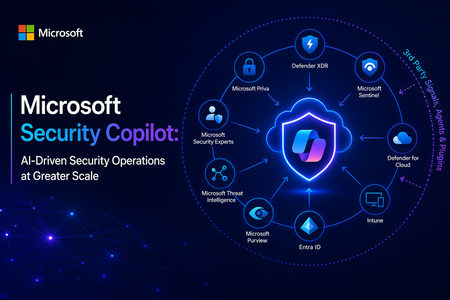
At its core, Security Copilot is built to enhance every facet of security operations at machine speed. It translates a vast array of inputs (Microsoft’s cloud-scale telemetry, threat intelligence feeds, security best practices, and enterprise-specific data) into tailored recommendations and summaries, helping security teams “catch what others miss,” respond faster, and strengthen their expertise. In the sections below, I explore the key security benefits of Security Copilot, its extensibility via third-party plugins and skills, and the value of its deep integration with Microsoft’s security ecosystem. Key Benefits for Security Operations Security Copilot meaningfully improves threat detection, investigation, response, correlation of signals, and analyst productivity. The table below summarizes these core security benefits and capabilities: Security Operations Aspect Benefit with Security Copilot Threat Detection Augmented detection of elusive threats: Security Copilot leverages broad threat intelligence and comprehensive signals to identify subtle threats, anomalies, and attack patterns that might be missed through manual analysis. By reasoning over Microsoft’s vast security graph and global threat telemetry, it helps analysts “catch what others miss,” ensuring unique or stealthy threats are surfaced. Incident Investigation Faster, context-rich investigations: Security Copilot can swiftly summarize and analyze incident data from multiple sources, enhancing incident details with additional context from logs, alerts, and threat intel. It correlates related events and highlights root causes, giving analysts a consolidated understanding of complex incidents in minutes. This enables quicker triage and deeper insights, so investigators know what happened and where to focus next. Response & Remediation Guided response and remediation: Security Copilot not only identifies issues but also provides prescriptive guidance on how to respond. It can suggest remediation steps and mitigation strategies in plain language, helping analysts act decisively. For example, it may outline containment steps or orchestrate automated actions through integrated tools, significantly reducing response time to incidents. Signal Correlation Holistic cross-domain correlation: Because it taps into signals across identities, endpoints, email, cloud workloads, and more, Security Copilot automatically connects the dots among disparate alerts and data streams. It presents unified incident narratives by linking related indicators (e.g., matching an endpoint malware alert with identity login anomalies and cloud logs), eliminating manual cross-tool correlation and uncovering hidden attack paths. Analysts get a single cohesive view of an incident across the kill chain. Analyst Productivity Boosted efficiency & skill elevation: By automating repetitive tasks (like scanning logs, writing KQL queries, or summarizing reports) and supporting natural language interaction, Security Copilot reduces manual workload and accelerates everyday tasks. This lets analysts focus on higher-value activities. In practice, teams using Security Copilot have seen significant productivity gains – a recent study found 23–47% improvement in SecOps task efficiency after adoption. Junior analysts ramp up faster (learning from Copilot’s guidance), while senior analysts can handle more incidents with less fatigue. These improvements translate into measurable security outcomes. Incident response becomes faster and more consistent, with mean time to resolution reduced by 30% on average within a few months of use according to early research. Security Copilot’s ability to accelerate investigations and streamline tasks drives down risk exposure and helps organizations make the most of their security investments. Ultimately, it strengthens an organization’s security posture by augmenting human analysts with AI-driven speed, scale, and intelligence. Seamless Integration with the Microsoft Security Ecosystem Another key strength of Security Copilot is its deep native integration with Microsoft’s security portfolio. From day one, Security Copilot was “designed with integration in mind.” It plugs directly into a broad range of Microsoft security products — including Microsoft 365 Defender (XDR), Microsoft Sentinel (SIEM), Microsoft Entra (ID and access management), Microsoft Intune (endpoint management), Microsoft Purview (compliance), and more. In practice, Security Copilot is available as both a standalone portal and as an embedded side-by-side experience within these Microsoft security tools. This means a security analyst working in Microsoft Sentinel or Defender can access Copilot’s capabilities without switching context: Copilot is right there in the workflow, ready to answer questions or assist with tasks in real time. Because of this close integration, Security Copilot can access data and signals from across all Microsoft security solutions that an organization uses. It operates over a unified security data estate encompassing endpoints, identities, emails, applications, cloud workloads, data repositories, and beyond. The result is truly end-to-end visibility and protection: Copilot can reason across diverse telemetry (e.g., correlating a device malware alert from Defender with cloud logs from Azure, or identity risk signals from Entra) to provide comprehensive insight. This unified approach eliminates silos and tool fragmentation — analysts spend less time pivoting between separate consoles or manually stitching together information because Copilot synthesizes it automatically. Moreover, leveraging the Microsoft ecosystem means Security Copilot can immediately add value without requiring a rip-and-replace of existing tools. It acts as a “force multiplier” across the installed Microsoft Security stack, maximizing the return on those investments by making them more effective and easier to use. For example, Copilot can turn a collection of raw alerts from different Microsoft products into a single, coherent incident storyline with actionable next steps. This synergy leads to significant operational efficiency gains and a more streamlined SOC workflow, as analysts have a central AI assistant coordinating across all defenses on their behalf. By providing unified insights, reducing tool sprawl, and bringing together Microsoft’s best-in-class security technologies, Security Copilot emerges as a valuable asset for modern security teams. It empowers organizations to practice “AI-first” security operations – enabling defenders to work faster and smarter, while fully utilizing an integrated security ecosystem to protect the enterprise from evolving threats. In summary, Microsoft Security Copilot offers a compelling combination of advanced AI capabilities, extensibility, and seamless integration that helps security teams achieve unprecedented speed, breadth, and efficiency in defending their organizations. It enhances human expertise with machine-scale intelligence, improving threat detection and response outcomes and transforming the way security operations centers operate for the better. Open Extensibility with Third-Party Plugins and Skills A standout capability of Security Copilot is its extensible plugin architecture, which allows it to incorporate external data sources and integrate with third-party security tools. Plugins in Security Copilot are modular connectors that bring in specific data or perform defined actions (each plugin encapsulates certain “skills,” such as running a KQL query, calling an API, or searching threat intel). Microsoft provides numerous pre-installed plugins out-of-the-box for common Microsoft security services and workflows, and administrators can easily add or develop custom plugins to connect 3rd-party systems or bespoke data sources. This design ensures that Security Copilot’s capabilities can expand and adapt to different environments. Through both Microsoft-built and third-party plugins, Security Copilot can tap into a wide variety of security data beyond the Microsoft stack. For example, supported third-party plugins let Copilot pull context from external solutions such as IT service management tools (e.g., ServiceNow), vulnerability management platforms, identity providers, network security appliances, and others. Plugins feed additional logs, alerts, and intelligence into Copilot’s analysis, thereby enriching its understanding of incidents with non-Microsoft data and events. This means a SOC can leverage existing investments in third-party security products by having Security Copilot analyze and correlate those systems’ outputs alongside Microsoft’s telemetry. Microsoft and its partners have already created an ecosystem of Security Copilot plugins. For instance, Microsoft announced 15+ new third-party plugins at Ignite 2024, spanning categories like threat intelligence (e.g., integrating feeds from providers like CrowdSec, Cybersixgill, GreyNoise) and device/network/identity management tools (e.g., Red Canary, Netskope, Tanium, CyberArk, etc.). These plugins bring rich external data on threat actors, indicators of compromise, vulnerabilities, device health, user activity, and more, allowing Copilot to provide even more comprehensive analyses and recommendations. Crucially, customers can build their own plugins and skills if needed, using Security Copilot’s developer tools and APIs. This means an enterprise could integrate a proprietary threat feed, custom data store, or even trigger custom response workflows via Copilot, tailoring the AI assistant to their unique security environment. Thanks to secure design and admin controls, organizations maintain full governance over which plugins are enabled and how they consume resources. In summary, Security Copilot’s open, plugin-based extensibility ensures that it can grow with an organization’s needs, incorporating any relevant third-party data or workflow to further enhance threat analysis and incident response. Technical Resources: Security Copilot Main documentation site Security Copilot agents Security Copilot plugins What’s new for Security Copilot Responsible AI in Security Copilot Official Security Copilot GitHub How to operationalize Security Copilot and increase SOC productivityRedefining Security for an AI Driven World
Vendors are being challenged to help customers address these challenges not as a point-solution vendor but as an end-to-end security and AI platform partner. By integrating identity, data governance, threat protection, and AI services into a unified ecosystem, Microsoft can deliver coordinated defenses, continuous compliance monitoring, and operational efficiency gains that fragmented toolsets cannot match. The sections that follow examine each challenge in depth — why it persists, what makes it hard, and specifically how Microsoft helps organizations bridge the gap. Challenge 1: Safeguarding Data Privacy in the AI Era AI systems are voracious consumers of data, and their adoption is outpacing the governance structures meant to protect it. More than 80% of business leaders cite leakage of sensitive data as their primary concern with generative AI, and nearly 48% have responded by banning all use of GenAI in the workplace entirely. Meanwhile, AI is raising the value of human-generated data as a critical training input while introducing entirely new avenues for potential data leakage through models and AI-powered applications. Why This Challenge Persists Fragmented tooling is the most immediate obstacle. Organizations are managing security, compliance, and data governance through disconnected platforms, creating siloed visibility that undermines cohesive protection. Only 31% of organizations have established a global data architecture, and just 25% maintain a global data quality program — two foundations essential for trustworthy AI innovation. Without enterprise-wide data classification and access controls, AI systems cannot distinguish what is too sensitive to surface. At the same time, shadow AI compounds the risk. When employees turn to unapproved AI tools to boost productivity, sensitive data can flow to services outside IT's purview. According to Microsoft's guide on securing the AI-powered enterprise, 80% of business leaders worry that sensitive data could slip through the cracks due to unchecked AI use. AI models also inherit the permissions of their users, meaning an over-permissioned employee can unknowingly expose critical data to an AI system. Gartner has estimated that by 2025, generative AI will account for 10% of all data produced, further blurring the boundary between what is corporate-controlled and what is AI-generated. Regulatory stakes add urgency: Gartner projects that by 2027, at least one global company will see its AI deployment banned by a regulator for non-compliance with data protection or AI governance legislation. How can organizations bridge the gap? Microsoft Purview provides a unified platform that combines data classification, data loss prevention (DLP), and AI-specific posture management to address fragmentation head-on. Its Data Security Posture Management (DSPM) for AI centralizes visibility into how AI applications interact with sensitive data across the organization — including Microsoft 365 Copilot, enterprise AI apps, and third-party AI tools. Security teams can see, for example, how many unlabeled files were referenced by Copilot and where the greatest concentrations of unprotected data reside. Sensitivity labels created in Purview travel with documents and are enforced at inference time: when an AI app retrieves a file labeled "Highly Confidential," the system ensures the requesting user holds the required EXTRACT and VIEW usage rights before returning data. In practice, an executive running a Copilot query on a labeled strategy document would see the sensitivity label clearly marked alongside the response. Purview's DLP policies now extend to AI scenarios directly, including inline browser protection that can block or warn users attempting to paste sensitive data into third-party generative AI sites such as ChatGPT in Microsoft Edge, Chrome, or Firefox. For organizations handling the most sensitive workloads, Azure Confidential Computing protects data even while it is being processed, using hardware-based Trusted Execution Environments (TEEs) that keep information encrypted in memory — invisible even to cloud operators. This capability is especially relevant for AI training and inference on regulated data, where customers need verifiable proof that their information was never exposed in plaintext during processing. The net result is defense-in-depth for data: discover where sensitive information lives, classify it so AI systems respect boundaries, enforce policies at the point of AI interaction, and encrypt data in use for the highest-risk scenarios — all governed through a single compliance surface. Challenge 2: The AI-Weaponized Threat Landscape Adversaries are using AI to accelerate, scale, and personalize attacks faster than traditional defenses can respond. In the past year, 67% of all phishing attacks employed some form of AI, and organizations now face an average of 66 data security alerts per day — up from 52 in 2023. Under this pressure, 73% of cybersecurity experts admit they have missed, ignored, or failed to respond to high-priority security alerts. Why This Challenge Persists The speed differential is the core problem. AI-enabled threat actors can now use models to autonomously discover, chain, and exploit vulnerabilities, compressing the window from discovery to exploitation from months to hours. Attackers leverage generative AI for malware generation, automated vulnerability scanning, customized exploits, password cracking, sophisticated phishing and social engineering, and deepfake-based impersonation of data, email, and voice. At the same time, AI systems themselves introduce novel attack surfaces. A staggering 88% of organizations, according to a Gartner Peer Community survey of 332 participants, are concerned about indirect prompt injection attacks — where malicious instructions embedded in data manipulate an AI's behavior to reveal confidential information or bypass controls. AI models are also susceptible to fabrications, initially known as hallucinations, in essence biased outputs, and data poisoning — risks that traditional vulnerability management frameworks were never designed to address. From an operational standpoint, SOC analysts already spend nearly three hours per day on incidents, accumulating costs that reach billions in aggregate. Layering AI-driven attacks on top of this existing overload threatens to break conventional security operations entirely. How can organizations bridge the gap? Microsoft counters the asymmetry with AI-powered defense at cloud scale, grounded in threat intelligence no single organization could replicate alone. Microsoft processes more than 100 trillion security signals per day from endpoints, cloud services, identity systems, and the edge, and tracks 1,500 unique threat actor groups — including 600 nation-state actors, 300 cybercrime groups, and 200 influence operations groups. This intelligence feeds directly into detection models and product updates, ensuring customers benefit from patterns observed across billions of users and devices worldwide. Microsoft Security Copilot is the most visible expression of this strategy. A generative AI security assistant combining advanced OpenAI models with a Microsoft-developed security-specific model, it helps analysts investigate and remediate incidents in natural language — from triaging complex alerts into actionable summaries, to reverse-engineering malicious scripts, to generating KQL queries for threat hunting. Early deployment data shows that Defender XDR customers using Security Copilot experienced a 30% reduction in incident resolution time in just three months. For securing AI models themselves, Microsoft Defender for Cloud now offers AI model security (in public preview since March 2026), which scans custom AI models in Azure Machine Learning registries and workspaces for embedded malware, unsafe operators, and exposed secrets — integrated directly into CI/CD pipelines so risky models are stopped before reaching production. The Microsoft Digital Defense Report 2025 reinforced this posture with seven top recommendations, led by managing cyber risk at the boardroom level, prioritizing identity protection, and investing in people alongside tools. Microsoft's approach treats AI threats not as a separate domain but as an intensification of the broader threat landscape that demands coordinated, platform-level defense. Challenge 3: Identity and Access Governance for AI Agents AI is creating an entirely new class of digital actors that most identity systems were never designed to manage. According to IDC, there will be approximately 1.3 billion AI agents operating across enterprises by 2028. These agents — which range from simple automation bots to fully autonomous decision-making systems — require resource access, generate data, and interact with users and services in ways that fundamentally differ from traditional applications or human users. Why This Challenge Persists Most organizations lack lifecycle management, ownership models, and policy controls for non-human identities, and AI agents amplify these gaps significantly. Industry analysts argue that AI agents should not be treated as just another non-human identity; they introduce complex delegation chains between humans, agents, and services that require distinct identity, accountability, and audit models. Traditional human-in-the-loop controls may not scale for agentic systems, yet new identity-centric governance mechanisms are only beginning to emerge. Compounding the issue, the indeterministic nature of large language models means that an AI agent with broad access privileges may behave unpredictably — potentially taking actions its developers did not anticipate. Without proper controls, forgotten or orphaned agent identities can become easy targets for attackers, and the resulting security incidents may be difficult to attribute or contain. How can organizations bridge the gap? Microsoft extends its identity-first Zero Trust architecture to AI through Microsoft Entra Agent ID (in public preview). The core idea: every AI agent receives a unique, first-class identity — discoverable, manageable, and securable alongside human users, applications, and devices. Once registered, an agent's access can be scoped using the same enterprise-grade controls as any other identity: conditional access policies, role-based access control, lifecycle governance, and risk-based protection. Conditional Access for Agents allows organizations to evaluate an agent's context and risk level before granting a token. Policies can enforce controls such as restricting agents to specific network locations or blocking access when risk signals are elevated. Microsoft is also developing RBAC guardrails specifically tailored to AI agent behaviors, acknowledging that LLM-based agents present heightened risk when granted broad role assignments. For lifecycle management, Microsoft provides mechanisms for IT administrators to create automated lifecycle policies for agent identities — including periodic attestation by designated sponsors, automated cleanup of unmonitored agents, and notifications when agent identities approach expiration. This directly addresses the "agent sprawl" problem identified by CISOs and security architects. At a broader level, Microsoft Agent 365 delivers a unified control plane for agents, aggregating posture, and real-time risk signals from Defender, Entra, and Purview into a single dashboard — providing discovery of both Microsoft and third-party agents, AI posture tracking, and governance controls to delegate remediation tasks to the appropriate teams. The Security Dashboard for AI (in GA now) answers the executive-level questions: Which AI assets exist in our environment? What is their current security posture? Where must we take action? — covering Microsoft 365 Copilot, Copilot Studio agents, Foundry apps, and third-party AI including Google Gemini, OpenAI ChatGPT, and MCP servers Challenge 4: Regulatory Compliance and Ethical AI Governance The regulatory landscape for AI is evolving faster than most organizations can track, and the stakes — legal, financial, and reputational — are escalating. More than 52% of business leaders admit they are unsure how to navigate rapidly evolving AI regulations. Frameworks like the EU AI Act (whose first obligations took effect on February 2, 2025), GDPR, and sector-specific rules such as DORA are converging to create a compliance environment that demands continuous adaptation. Why This Challenge Persists The EU AI Act alone adopts a risk-based approach to AI regulation, classifying systems by their potential impact on health, safety, and fundamental rights and imposing corresponding obligations for documentation, transparency, human oversight, and testing. Organizations must map every AI deployment to the correct risk category — and misclassification can lead to regulatory violations. Simultaneously, the responsibilities of security leaders are expanding to include governance and regulatory compliance oversight that traditionally belonged to legal or compliance teams. The NC State University Executive Perspectives on Top Risks survey of 1,540 board members and C-suite executives ranked regulatory uncertainty and fragmentation as the eighth-highest near-term risk (2026–2028), and AI implementation risks as sixth. Among AI-specific concerns, 24% of respondents identified lack of governance and accountability for AI deployments as a top three worry. Culturally, building internal consensus around what constitutes "responsible" AI use — across diverse business units with different risk appetites — remains a persistent organizational challenge. How can organizations bridge the gap? Microsoft's Responsible AI program, anchored by six durable principles established in 2018 — Fairness, Reliability & Safety, Privacy & Security, Inclusiveness, Transparency, and Accountability — provides a governance blueprint that has proven stable even as AI technology evolves rapidly. These principles shape design, deployment, and oversight choices across Microsoft's products, and the company shares the lessons openly through its 2025 Responsible AI Transparency Report and customer guidance. In preparing for the EU AI Act specifically, Microsoft has taken a proactive, layered approach to compliance, conducting impact assessments and adversarial red teaming on high-risk models and systems, and extending its Sensitive Uses governance program to ensure additional oversight for the most consequential AI deployments. Microsoft has also documented its approach to EU AI Act implementation to help customers understand how its products and services are being built to comply. Operationally, the Security Dashboard for AI provides board-ready analytics and compliance insights, aggregating risk signals across Entra, Defender, and Purview into a single executive view with recommendations and direct remediation paths. This makes AI governance visible and actionable within the same tools security leaders already use for broader risk management. Microsoft also fosters community-driven governance through initiatives like the Security for AI Accelerated Collaboration Forum (ACF), which brings together CISOs, security architects, SOC leaders, identity and data owners, and platform engineers to share challenges, shape roadmap priorities, and develop reusable governance frameworks. Challenge 5: Integration Complexity and Workforce Readiness Even when the right AI security tools exist, most organizations struggle to integrate them into existing technology stacks and to equip their people to use them effectively. Among executives surveyed by NC State University, 31% identified integrating AI with existing technologies, business processes, and workforce as a top-three AI concern, 29% pointed to equipping the workforce to realize AI's value proposition, and 28% flagged the inability to deploy AI at a competitive pace. Why This Challenge Persists Years of tool proliferation have left enterprises with fragmented security architectures. Organizations rely on disconnected platforms for endpoint protection, cloud workload security, identity management, and data governance — and AI capabilities are now being added to each domain independently. Microsoft's own research notes that organizations using fragmented platforms across security, compliance, and data teams see exacerbated security outcomes. When a data loss prevention alert in one system cannot be correlated with an identity anomaly in another, threats slip through. At the same time, AI security as a discipline lacks comprehensive resources and seasoned experts. Because major cloud AI platforms only became generally available in 2021–2023, organizations must often develop protective measures without much external guidance or established precedent. The cybersecurity workforce shortage is well documented; the additional demand for professionals who understand both machine learning and security compounds it further. The broader threat environment amplifies the urgency: cyberthreats have grown 5X in scale, Microsoft now tracks over 1,500 threat actor groups (up from roughly 300 just a few years ago), and the median time for an attacker to access confidential data after a successful phishing attack is just 1 hour 12 minutes. Teams that cannot integrate and respond quickly are structurally disadvantaged. How can organizations bridge the gap? Microsoft's primary answer to integration complexity is a unified, cloud-native security platform in which AI, identity, data governance, and threat protection work as a coordinated system. Security Copilot, for instance, is embedded within and integrates across Microsoft Defender XDR, Microsoft Sentinel, Microsoft Intune, Microsoft Entra, and Microsoft Purview. An analyst can use a single natural language interface to investigate incidents drawing on data from any of these products, generate remediation steps, build reports for stakeholders, and automate routine tasks with autonomous Security Copilot agents — all without switching consoles. The inclusion of Security Copilot in Microsoft 365 E5 and E7 licensing simplifies adoption further. Customers receive a monthly allocation of SCUs or Secure Computing Units to empower Security Copilot, eliminating the need for separate AI security procurement. This positions integrated, agentic AI-powered security as a default capability rather than an add-on. For endpoint-level visibility into AI agent sprawl, Microsoft Defender for Endpoint now automatically discovers supported AI coding agents on onboarded Windows 11 devices — including OpenClaw, Claude Code, Codex, Cursor, GitHub Copilot CLI, ChatGPT Desktop, Gemini CLI, and others — and surfaces them in the Defender portal inventory for investigation and correlation with existing device telemetry. On workforce enablement, Microsoft operates the Security Copilot Adoption Hub, which provides role-specific guidance for CISOs, threat intelligence analysts, IT admins, and data security administrators on how to embed AI into their daily workflows. The broader Microsoft Learn platform now offers modules on securing AI applications and responsible AI governance. Microsoft's role here is as a force multiplier: by consolidating tools, reducing integration burden, and actively investing in customer readiness, Microsoft enables organizations to convert AI from a source of complexity into an operational advantage — without leaving security behind. Conclusion: Turning AI Security into Competitive Advantage The five challenges examined here — data exposure, adversarial threats, identity sprawl, regulatory uncertainty, and integration complexity — will only intensify as AI adoption accelerates. Yet for organizations that address them proactively, the payoff extends well beyond risk mitigation. Robust AI security has become a source of trust with customers and regulators, a prerequisite for bold innovation, and a differentiator in markets where competitors may still be scrambling to catch up. Microsoft's contribution is structural: an integrated platform where identity, data governance, threat intelligence, and compliance converge — backed by principles of Responsible AI that have remained durable since 2018 and by threat visibility at a scale (more than 100 trillion signals per day, 1,500+ tracked threat actor groups) that no single enterprise can replicate. For executive leadership, the actionable imperative is to treat AI security not as a technical footnote but as a boardroom priority — one that spans the CIO, CISO, Chief Data Officer, and business-unit leaders working together. As Microsoft's own AI security guidance articulates, cross-team collaboration, employee training, and transparent governance are just as essential as firewalls and encryption in building a secure AI future. The organizations that internalize this lesson will be those best positioned to harness AI's full potential — securely, responsibly, and at scale. Tech Resources: Defense at AI speed: Microsoft’s new multi-model agentic security system tops leading industry benchmark Securing AI and Navigating risks and compliance for the future Entra agent Identities for AI agents Secure Dashboard for AI Microsoft Security Copilot Microsoft Security Copilot FAQDetermine Defender for Endpoint offboarding state for Linux devices
There are certain instances when a machine or machines are offboarded that the corresponding status takes an unusual amount of time to report in the Defender portal. The status that is shown in the portal is “Can be onboarded,” however this status doesn’t clarify with absolute certainty that the machine was offboarded from the platform. The status “Can be onboarded” means that either the endpoint was offboarded from the platform or, that it is a new device discovered by the “Device Discovery” service of MDE and the platform is highlighting this for you as something to address and cover the security gap that represents an endpoint without protection. Figure 1.”Can be onboarded” status of a device. In advanced hunting in the Defender portal, there’s not a direct field that reflects if a device was offboarded but if it is onboarded that is visible using a KQL query. If a device is onboarded, this is shown in the portal, under Assets -- Device Inventory -- All devices, but not if it is offboarded. Figure 2. Onboarding status as seen in the Device Inventory view. To circumvent this existing challenge, I am using a similar approach to what I described in the article “Determine offboarding state using Powershell” and you can run a bash script that determines with a high level of confidence that a device was offboarded from the platform without the need to wait for the 7 days period it takes a device to be deemed as inactive in the console. This script can be handy in situations where offboarding is happening on devices that are experiencing communication issues or sensor issues and offboarding is the option to fix the problem and you would like to know straight away if the process was successful. In essence, the bash script checks three indicators present in Linux system to confirm if the key services responsible for sending telemetry to the portal are up and running. The key parameters are listed below: Confirm the onboard file exists in this path: "/etc/opt/microsoft/mdatp/mdatp_onboard.json" Check the Defender daemon process is running: wdavdaemon/mdatp Check mdatp rpm package is installed These two last parameters are informational only to report the status of the wdavdaemon and if the rpm package for Defender is installed, but it provides two key pieces of information: If service is still running but machine is offboarded, this is the expected behavior unless you also uninstall the MDE agent from the Linux endpoint. If the service and rpm package show as not installed and the device also shows as offboarded that means the machine hasn't been onboarded to Defender for Endpoint High level execution of the script: Scans computer(s) to determine onboarding method in MDE: The script proceeds through several logical steps: It first checks if the onboarding file exists and attempts to extract the organization ID from it using either jq or a portable grep/awk fallback. Next, it determines if the MDE package is installed by querying the system’s package manager. It then checks if the Defender service is running, using systemd if available, or falling back to process checks otherwise. The script also locates the Defender CLI and, if present, queries its health status and extracts additional metadata such as org ID, machine ID, health state, and app version. In theory, to make it scalable and reach to more devices, this bash script could be pushed to Linux endpoints using any of the Linux management tools like Chef, Ansible or Puppet. Finally, the script synthesizes these findings to decide the overall status: it reports “ONBOARDED” if the Defender agent is healthy, the service is active, or both the package and onboarding file are present; otherwise, it reports “OFFBOARDED.” The output summarizes key findings, making it easy for administrators or automation systems to quickly assess the Defender state on Linux endpoints. For further troubleshooting with Linux devices: Microsoft Defender for Endpoint on Linux resources - Microsoft Defender for Endpoint | Microsoft Learn Parameters used in the script: The script contains different parameters to evaluate with a great level of certainty if a device was onboarded using one of the known methods: ONBOARD_FILE: The path to the Defender onboarding artifact (/etc/opt/microsoft/mdatp/mdatp_onboard.json). Its presence and contents are used to determine onboarding state and extract the organization ID. onboard_state: Indicates whether the onboarding file is present ("Present") or missing ("Missing"). org_from_file / org_from_cli: The organization (tenant) ID, extracted from the onboarding file or from the Defender CLI health output, respectively. pkg_status: Reflects whether the Defender package (mdatp) is installed, and via which package manager (Installed(rpm), Installed(dpkg), or NotInstalled(...)). svc_state: The running state of the Defender service or process (active, inactive, UnitMissing, NoSystemd, etc.), determined via systemd or process checks. MDATP_CLI: The path to the Defender CLI binary, used to query health and metadata. healthy: Indicates if the Defender agent is healthy (true/false), as reported by the CLI. edr_machine_id: The unique machine ID assigned by Defender, extracted from the CLI health output. app_version: The installed version of the Defender agent, also from the CLI health output. overall: The final computed status, either "ONBOARDED" or "OFFBOARDED", based on the combination of health, service, package, and onboarding file checks. - HOW TO RUN - EXAMPLE Open a terminal window in the Linux device you want to check and navigate to the directory where the script is saved. Run the following command to make it executable: chmod +x MDE_CheckOffboardingState_Linux.sh Run the Script with Sufficient Privileges: Sudo bash ./MDE_CheckOffboardingState_Linux.sh Check the output of the script. If the endpoint is onboarded you will see an output similar to this: Fig. 3 Linux device is onboarded in Defender for Endpoint If the endpoint hasn’t been onboarded to Defender for Endpoint or it has been offboarded, the output of the shell script will be similar to this: Fig. 4 A Linux device that is offboarded from Defender for Endpoint Linux shell scripting code: Code disclaimer: The sample scripts are not supported under any Microsoft standard support program or service. The sample scripts are provided AS IS without warranty of any kind. Microsoft further disclaims all implied warranties including, without limitation, any implied warranties of merchantability or of fitness for a particular purpose. The entire risk arising out of the use or performance of the sample scripts and documentation remains with you. In no event shall Microsoft, its authors, or anyone else involved in the creation, production, or delivery of the scripts be liable for any damages whatsoever (including, without limitation, damages for loss of business profits, business interruption, loss of business information, or other pecuniary loss) arising out of the use of or inability to use the sample scripts or documentation, even if Microsoft has been advised of the possibility of such damages. NOTE: When using your scripting editing tool of choice, be aware of any additional spaces added as a result of the copy/past operation into your editing tool. #!/usr/bin/env bash # Check Microsoft Defender for Endpoint (MDE) offboarding/onboarding status on Linux # v3 - robust unit detection, non-systemd fallback, smarter CLI/Org ID parsing # Output is ASCII-only, suitable for CI/logging. # USAGE DISCLAIMER # The sample scripts are not supported under any Microsoft standard support program or service. The sample scripts are # provided AS IS without warranty of any # kind. Microsoft further disclaims all implied warranties including, without limitation, any implied warranties of # merchantability or of fitness for a # particular purpose. The entire risk arising out of the use or performance of the sample scripts and documentation # remains with you. In no event shall # Microsoft, its authors, or anyone else involved in the creation, production, or delivery of the scripts be liable for # any damages whatsoever (including, # without limitation, damages for loss of business profits, business interruption, loss of business information, or other # pecuniary loss) arising out of the use # of or inability to use the sample scripts or documentation, even if Microsoft # has been advised of the possibility of such damages. # Author: Edgar Parra - Microsoft v1.1 #!/usr/bin/env bash # Check Microsoft Defender for Endpoint (MDE) offboarding/onboarding status on Linux # v3-modified - authoritative offboarding via artifact files only set -euo pipefail ONBOARD_FILE="/etc/opt/microsoft/mdatp/mdatp_onboard.json" OFFBOARD_FILE="/etc/opt/microsoft/mdatp/mdatp_offboard.json" # ---- helper: trim ---- _trim() { sed -e 's/^[[:space:]]\+//' -e 's/[[:space:]]\+$//' ; } # ---- 1) Onboarding artifact check ---- onboard_state="Missing" if [[ -s "$ONBOARD_FILE" ]]; then onboard_state="Present" fi offboard_state="Missing" if [[ -s "$OFFBOARD_FILE" ]]; then offboard_state="Present" fi # ---- 2) Package presence (rpm or dpkg) ---- pkg_status="Unknown" if command -v rpm >/dev/null 2>&1; then if rpm -q mdatp >/dev/null 2>&1; then pkg_status="Installed(rpm)" else pkg_status="NotInstalled(rpm)" fi elif command -v dpkg >/dev/null 2>&1; then if dpkg -s mdatp >/dev/null 2>&1; then pkg_status="Installed(dpkg)" else pkg_status="NotInstalled(dpkg)" fi fi # ---- 3) Service/process state (informational only) ---- svc_state="Unknown" if systemctl is-active --quiet mdatp 2>/dev/null; then svc_state="active" else svc_state="inactive" fi # ---- 4) CLI presence (informational only) ---- MDATP_CLI="$(command -v mdatp 2>/dev/null || true)" [[ -z "$MDATP_CLI" ]] && MDATP_CLI="/opt/microsoft/mdatp/bin/mdatp" # ---- 5) Decide OFFBOARDING STATUS (AUTHORITATIVE LOGIC ONLY) ---- overall="NOT_OFFBOARDED" if [[ "$offboard_state" == "Present" && "$onboard_state" == "Missing" ]]; then overall="OFFBOARDED" fi # ---- 6) Output ---- echo "========== Microsoft Defender for Endpoint (Linux) ==========" echo "Offboarding status (authoritative): $overall" echo "mdatp_offboard.json: $offboard_state ($OFFBOARD_FILE)" echo "mdatp_onboard.json: $onboard_state ($ONBOARD_FILE)" echo "mdatp service status (informational): $svc_state" echo "mdatp RPM status (informational): $pkg_status" echo "=============================================================" Conclusion The purpose of this script is to be used as an alternative to discover faster if a device has been offboarded or never onboarded in Defender for Endpoint. It provides a swift approach for when deployments occur and you need to know faster when a device has been offboarded. It streamlines your deployment and allows you to move faster. We understand that waiting 7 days for a device to be marked as “Can be onboarded” in the Defender portal, feels like a long wait but the reasons for this are security. To allow devices that have been offline for a period of time that may reconnect with Defender. Additional benefit An additional benefit of this script is that it can also be run from Live Response console but only on devices that are onboarded in Defender for Endpoint. For devices that are not onboarded, Live Response is not available. However, running the script will tell you if the device is properly onboarded and the output of the script will be shown in the Live Response console. This is a practical way to run the script remotely without the need to logon to the device directly and find out quickly if the device was onboarded properly. Fig. 5 Running the shell script from the Live Response console and output is shown in the Live Response console.Determine Defender for Endpoint offboarding state of Windows machines using PowerShell
There are certain instances when a machine or machines are offboarded that the corresponding status takes an unusual amount of time to report in the Defender portal. The status that is shown in the portal is “Can be onboarded”, however this status doesn’t clarify with absolute certainty that the machine was offboarded from the platform. The status “Can be onboarded” means that either the endpoint was offboarded from the platform or, that it is a new device discovered by the “Device Discovery” service of MDE and the platform is highlighting this for you as something to address and cover the security gap that represents an endpoint without protection. Figure 1.”Can be onboarded” status of a device. In advanced hunting in the Defender portal, there’s not a direct field that reflects if a device was offboarded but if it is onboarded that is visible using a KQL query. If a device is onboarded, this is shown in the portal, under Assets --> Device Inventory --> All devices, but not if it is offboarded. Figure 2. Onboarding status as seen in the Device Inventory view. To circumvent this existing challenge, Powershell can come to the rescue, and you can run a script that determines with a high level of confidence that a device was offboarded from the platform without the need to wait for the 7 days period it takes a device to be deemed as inactive in the console. This script can be handy in situations where offboarding is happening on devices that are experiencing communication issues or sensor issues and offboarding is the option to fix the problem and you would like to know straight away if the process was successful. In essence, the script checks an indicator in the registry and the status of the key service that is responsible for sending telemetry to the portal and a true indication that the device is onboarded in Defender for Endpoint, the Sense.exe service. The registry key: 'HKLM:\SOFTWARE\Microsoft\Windows Advanced Threat Protection\Status', REG_DWORD: OnboardingState. High level execution of the script: Scans computers to determine if devices are offboarded from MDE: The script checks one or more Windows computers (locally by default, or remotely via PowerShell remoting) and infers whether the device appears OFFBOARDED from MDE by looking at: Registry onboarding indicators (OnboardingState and OnboardedInfo) The state of the SENSE service (Sense) Then it outputs: A human-readable status (ASCII only) It pipes the results to a .csv file Optionally exports CSV Fairly simple script but it allows administrators to check on the fly if a device has been offboarded from Defender for Endpoint. I wanted to keep it simple, but this script could be run from Configuration Manager or Intune to check in bulk what devices are offboarded from MDE. PowerShell scripting code: Code disclaimer: The sample scripts are not supported under any Microsoft standard support program or service. The sample scripts are provided AS IS without warranty of any kind. Microsoft further disclaims all implied warranties including, without limitation, any implied warranties of merchantability or of fitness for a particular purpose. The entire risk arising out of the use or performance of the sample scripts and documentation remains with you. In no event shall Microsoft, its authors, or anyone else involved in the creation, production, or delivery of the scripts be liable for any damages whatsoever (including, without limitation, damages for loss of business profits, business interruption, loss of business information, or other pecuniary loss) arising out of the use of or inability to use the sample scripts or documentation, even if Microsoft has been advised of the possibility of such damages. NOTE: When using your scripting editing tool of choice, be aware of any additional spaces added as a result of the copy/past operation into your editing tool. <# .SUMMARY Checks if a device appears OFFBOARDED from Microsoft Defender for Endpoint (MDE). .DESCRIPTION - Reads onboarding indicators in the registry. - Checks the SENSE service state. - Outputs a simple, ASCII-only status. - Can run locally (default) or against one/many remote computers via PS Remoting. .PARAMETER ComputerName One or more computers to check. Default = local computer. .PARAMETER OutCsv Optional path to write results as CSV. .PARAMETER Quiet If set, returns $true when OFFBOARDED and $false otherwise (for local-only use). .NOTES Registry indicators are based on the typical onboarding keys used by MDE. References: - MS Learn: Offboard devices (status becomes Inactive after 7 days; data retained up to 180 days). - Author: Edgar Parra - Microsoft v1.0 #> [CmdletBinding()] param( [string[]]$ComputerName = @($env:COMPUTERNAME), [string]$OutCsv, [switch]$Quiet ) # --- inner checker that runs LOCALLY on a target (used both locally and via Invoke-Command) --- $localCheck = { $regPaths = @( 'HKLM:\SOFTWARE\Microsoft\Windows Advanced Threat Protection\Status', 'HKLM:\SOFTWARE\Policies\Microsoft\Windows Advanced Threat Protection\Status' ) $onboardingStates = @() foreach ($p in $regPaths) { if (Test-Path $p) { try { $val = Get-ItemPropertyValue -Path $p -Name 'OnboardingState' -ErrorAction SilentlyContinue if ($null -ne $val) { $onboardingStates += [int]$val } } catch { } } } # SENSE service check $senseStatus = try { $svc = Get-Service -Name 'Sense' -ErrorAction Stop $svc.Status.ToString() } catch { 'NotInstalled' } # Determine likely state # If any OnboardingState == 1 OR SENSE Running, treat as not offboarded $isOnboarded = ($onboardingStates -contains 1) -or ($senseStatus -eq 'Running') # Build result [PSCustomObject]@{ ComputerName = $env:COMPUTERNAME SenseService = $senseStatus OnboardingState = if ($onboardingStates.Count) { ($onboardingStates -join ',') } else { 'N/A' } AppearsOffboarded = if ($isOnboarded) { $false } else { $true } Notes = if ($isOnboarded) { 'OnboardingState==1 and/or SENSE Running' } else { 'No onboarding indicators and SENSE not running' } } } $results = @() foreach ($comp in $ComputerName) { if ($comp -ieq $env:COMPUTERNAME -or $comp -eq '.' -or $comp -eq 'localhost') { $results += & $localCheck } else { try { $res = Invoke-Command -ComputerName $comp -ScriptBlock $localCheck -ErrorAction Stop $res | ForEach-Object { $_.ComputerName = $comp } $results += $res } catch { $results += [PSCustomObject]@{ ComputerName = $comp SenseService = 'Unknown' OnboardingState = 'Unknown' AppearsOffboarded = $null Notes = "Error: $($_.Exception.Message)" } } } } # Output if ($OutCsv) { $results | Export-Csv -NoTypeInformation -Path $OutCsv -Encoding UTF8 Write-Host "Saved results to $OutCsv" } if ($ComputerName.Count -eq 1 -and $Quiet) { # local single-check boolean mode return [bool]$results[0].AppearsOffboarded } # Human-readable summary (ASCII only) $results | ForEach-Object { $status = if ($_.AppearsOffboarded -eq $true) { 'OFFBOARDED' } elseif ($_.AppearsOffboarded -eq $false) { 'ONBOARDED' } else { 'UNKNOWN' } Write-Host ('[{0}] Status: {1} | SENSE: {2} | OnboardingState: {3} | Notes: {4}' -f ` $_.ComputerName, $status, $_.SenseService, $_.OnboardingState, $_.Notes) } # Also emit objects so you can pipe to Select-Object/Where-Object if you want $results Additional information: Offboarding devices from Defender for Endpoint. Offboarding devices via API explorer. In the next publication, I will aboard how to do this same process but for devices running Linux. Stay tuned!! and thank you for reading!