documentdb
3 TopicsBuild AI RAG Apps with LangChain, Azure DocumentDB and Microsoft Foundry: Step-by-Step Guide
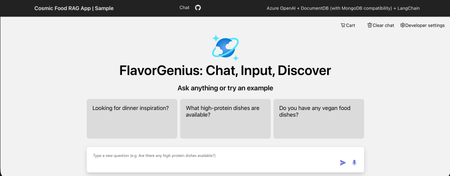
Scenario Imagine you are building your company’s RAG chat application using Microsoft Foundry - Azure OpenAI and orchestrating the flow with LangChain. The chat experience works, but now it needs to be grounded in your company’s data. You generate embeddings and want to store and query them without adding another database or complex sync pipeline. Instead of stitching services together, you use Azure DocumentDB (with MongoDB compatibility) with built-in vector search to store your JSON data and embeddings in one place. You deploy the app to Azure App Service and quickly compare vector search alone versus a full RAG pipeline, sharing it with your team for testing. What will you learn? In this blog, you'll learn to: Create an Azure DocumentDB (with MongoDB compatibility) resource. Create an embeddings and a chat deployment in Microsoft Foundry Azure OpenAI portal. Create an Azure App Service website with continuous deployment from GitHub. Configure Azure App Service application settings to enable communication between Azure resources. Configure GitHub workflow to work successfully. What is the main objective? Build AI Powered RAG Application using LangChain, Microsoft Foundry Azure OpenAI, and Azure DocumentDB (with MongoDB compatibility): Step-by-Step Guide Prerequisites An Azure subscription. If you don’t already have one, you can sign up for an Azure free account. For students, you can use the free Azure for Students offer which doesn’t require a credit card only your school email. A GitHub account. Summary of the steps: Step 1: Create an Azure DocumentDB (with MongoDB compatibility) resource Step 2: Create a Microsoft Foundry - Azure OpenAI resource and Deploy chat and embedding Models Step 3: Create an Azure App Service and Deploy the RAG Chat Application Step 1: Create an Azure DocumentDB (with MongoDB compatibility) resource In this step, you'll: Open the Azure Portal. Create an Azure DocumentDB (with MongoDB compatibility) resource. Open the Azure Portal 1. Visit the Azure Portal https://portal.azure.com in your browser and sign in. Now you are inside the Azure portal! Create a new Azure DocumentDB (with MongoDB compatibility) resource In this step, you create an Azure DocumentDB (with MongoDB compatibility) resource to store your data, vector embedding, and perform vector search. 1. Type documentdb in the search bar at the top of the portal page and select Azure DocumentDB (with MongoDB compatibility) from the available options. 2. Select Create from the toolbar to start provisioning your new cluster. 3. Add the following information to create a resource: What Value Subscription Use your preferred subscription. It's advised to use the same subscription across all the resources that communicate with each other on Azure. Resource group Select Create new to create a new resource group. Enter a unique name for the resource group. Cluster name Enter a globally unique name. Location Select a region close to you for the best response time. For example, Select UK South. MongoDB version Select the latest available version of MongoDB 4. Select Configure to configure your cluster tier. 5. Add the following information to configure the cluster tier. You can scale it up later: What Value Cluster tier Select M25 tier, 2 (Burstable) vCores. Storage Select 32 GiB. 6. Select Save. 7. Enter the cluster Admin Username and Password and store them in a secure location. 8. Select Next to configure the networking settings. 9. Select Allow Public Access from Azure services and resources within the Azure to this cluster. 10. Select Add current IP address to the firewall rules to allow local access to the cluster. 11. Select Review + create. 12. Confirm your configuration settings and select Create to start provisioning the resource. Note: The cluster creation can take up to 10 minutes. It's recommended to move on with the rest of the steps and get back to it later. Step 2: Create a Microsoft Foundry - Azure OpenAI resource and Deploy chat and embedding Models In this step, you'll: Create a Microsoft Foundry Azure OpenAI resource. Create chat and embedding model deployments. Create an Azure OpenAI resource In this step, you create an Azure OpenAI Service resource that enables you to interact with different large language models (LLMs). 1. Type openai in the search bar at the top of the portal page and select Azure OpenAI from the available options. 2. Select Create from the toolbar then select Azure OpenAI to provision a new Azure OpenAI resource. 3. Add the following information to create a resource: What Value Subscription Use the same subscription you used to apply for Azure OpenAI access. Resource group Use the resource group you created in the previous step. Region Select a region close to you for the best response time. For example, Select UK South. Name Enter a globally unique name. Pricing tier Select S0. Currently, this is the only available pricing tier. 4. Now that the basic information is added, select Next to confirm your details and proceed to the next page. 5. Select Next to confirm your network details. 6. Select Next to confirm your tag details. 7. Confirm your configuration settings and select Create to start provisioning the resource. Wait for the deployment to finish. 8. After the deployment finishes, select Go to resource to inspect your created resource. Here, you can manage your resource and find important information like the endpoint URL and API keys. Create chat and embedding model deployments In this step, you create an Azure OpenAI embedding model deployment and a chat model deployment. Creating a deployment on your previously provisioned resource allows you to generate text embeddings (i.e. numerical representation for text) and have a natural language conversation with your data. 1. Select Go to Foundry portal from the toolbar to open the studio. 2. Select Deployments from the Shared resources left side menu to go to the deployments tab. 3. Select + Deploy model from the toolbar then select Deploy base model from the options. A Deploy model window opens. 4. Type gpt-4o-mini to search for the model then select it then select Use model. 5. Select Continue with existing setup to proceed to next step. 6. Refresh page and repeat previous steps to select the model then select Confirm. 7. Review selected options then select Deploy. 8. Select + Deploy model from the toolbar then select Deploy base model from the options. A Deploy model window opens. 9. Type text-embedding-3-small to search for the model then select it then select Confirm. 10. Review selected options then select Deploy. Step 3: Create an Azure App Service and Deploy the RAG Chat Application In this step, you'll: Fork the sample repository on GitHub. Create an Azure App Service resource with a deployment from GitHub. Modify Azure App Service Application settings in the Azure portal. Configure the workflow to deploy your application from GitHub. Test the website before and after adding the data. Fork the Sample Repository on GitHub In this step, you create a copy from the source code on your GitHub account to be able to edit it and use it later. 1. Visit the sample github.com/Azure-Samples/Cosmic-Food-RAG-app in your browser and sign in. 2. Select Fork from the top of the sample page. 3. Select an owner for the fork then, select Create fork. Create an Azure App Service resource with a deployment from GitHub In this step, you create an Azure App service resource and connect it with your GitHub account to deploy a Python application. 1. Type app service in the search bar at the top of the portal page and select App Services from the available options. 2. Select Create Web App from the toolbar to start provisioning a new web application. 3. Add the following information to fill in the basic configuration of the application: What Value Subscription Use the same subscription you used to apply for Azure OpenAI access. Resource group Use the same resource group you created before. Name Enter a unique name for your website. For example, cosmic-food-rag. Publish? Select Code. This option specifies whether your deployment consists of code or a container. Runtime stack Select Python 3.12. Operating System Select Linux. Region Select UK South. This is the region where the rest of the resources you created reside. 4. Add the following information to create the app service plan. You can scale it up later: What Value Linux Plan Select a pre-existing plan or create a new plan. Pricing Plan Select Basic B1. 5. Select Deployment from the toolbar to move to the deployment configuration tab. 6. Add the following information to enable continuous deployment from GitHub: What Value Continuous deployment Select Enable. GitHub account Select your GitHub account. Organization Select your organization. If you are using your personal account then select it. Repository Select Cosmic-Food-RAG-app. Branch Select main. 7. Select Review + create. 8. Confirm your configuration settings and select Create to start provisioning the resource. Wait for the deployment to finish. 9. After the deployment finishes, select Go to resource to inspect your created resource. Here, you can manage your resource and find important information like the application settings and logs. Modify Azure App service Application settings in the Azure portal In this step, you configure the Application settings to make the website able to communicate with other cloud resources. 1. In the Web App resource, select Environment variables from the left side menu. 2. Select + Add to add new environment variables to the function configuration. 3. Add the following names and values one by one and select Ok. Make sure to add your own values. These application settings are for the Azure OpenAI resources that you created: What Value OPENAI_API_VERSION 2024-10-21 AZURE_OPENAI_CHAT_DEPLOYMENT_NAME gpt-4o-mini AZURE_OPENAI_CHAT_MODEL_NAME gpt-4o-mini AZURE_OPENAI_EMBEDDINGS_DEPLOYMENT_NAME text-embedding-3-small AZURE_OPENAI_EMBEDDINGS_MODEL_NAME text-embedding-3-small AZURE_OPENAI_EMBEDDINGS_DIMENSIONS 1536 AZURE_OPENAI_DEPLOYMENT_NAME <azureOpenAiResourceName> AZURE_OPENAI_ENDPOINT https://<azureOpenAiResourceName>.openai.azure.com/ AZURE_OPENAI_API_KEY <azureOpenAiResourceKey> You can get the Azure OpenAI key from the Azure OpenAI resource page. Select Keys and Endpoint from the Resource Management section and copy any of the available keys. These application settings are for Azure DocumentDB (with MongoDB compatibility): AZURE_COSMOS_USERNAME <documentUsername> AZURE_COSMOS_PASSWORD <documentPassword> AZURE_COSMOS_CONNECTION_STRING mongodb+srv://<user>:<password>@<clusterName>.global.mongocluster.cosmos.azure.com/?tls=true&authMechanism=SCRAM-SHA-256&retrywrites=false&maxIdleTimeMS=120000 You can get the DocumentDB connection string from the Azure DocumentDB (with MongoDB compatibility) resource page. Select Connection strings and copy the connection string. Make sure to replace the user and password with the ones you created. These application settings are new and are used for resources that will be created when the application starts you can use any value for them: AZURE_COSMOS_DATABASE_NAME <documentDatabaseName> ex. CosmicDB AZURE_COSMOS_COLLECTION_NAME <documentContainerName> ex. CosmicFoodCollection AZURE_COSMOS_INDEX_NAME <documentIndexName> ex. CosmicIndex 4. Select Apply to save your newly added environment variables. 5. Select Configuration then Stack settings to edit the application startup command. 6. Type entrypoint.sh in the startup command field then select Apply. Configure the Workflow to deploy your application from GitHub In this step, you modify the GitHub deployment workflow to point to the folder that contains the application. 1. Visit your forked repository on GitHub and notice the failing workflow. 2. Open the workflow file .github/workflows/main_cosmic-food-rag.yml. 3. Open the file and select the pen icon to edit it. 4. Modify line 41 from . to src/. 5. Remove the optional Local Build Section since the application already has tests that cover this part. 6. Add this section to Install Node 22 and build the static frontend. 7. Select Commit changes, and review your commit message and description. Select Commit changes. The final workflow file should look like this: # Docs for the Azure Web Apps Deploy action: https://github.com/Azure/webapps-deploy # More GitHub Actions for Azure: https://github.com/Azure/actions # More info on Python, GitHub Actions, and Azure App Service: https://aka.ms/python-webapps-actions name: Build and deploy Python app to Azure Web App - cosmic-food-rag on: push: branches: - main workflow_dispatch: jobs: build: runs-on: ubuntu-latest permissions: contents: read #This is required for actions/checkout steps: - uses: actions/checkout@v4 - name: Set up Node 22 uses: actions/setup-node@v6 with: node-version: 22 - name: Install Node Packages & Build Static Site run: cd frontend && npm install && npm run build # By default, when you enable GitHub CI/CD integration through the Azure portal, the platform automatically sets the SCM_DO_BUILD_DURING_DEPLOYMENT application setting to true. This triggers the use of Oryx, a build engine that handles application compilation and dependency installation (e.g., pip install) directly on the platform during deployment. Hence, we exclude the antenv virtual environment directory from the deployment artifact to reduce the payload size. - name: Upload artifact for deployment jobs uses: actions/upload-artifact@v4 with: name: python-app path: | src/ !antenv/ # 🚫 Opting Out of Oryx Build # If you prefer to disable the Oryx build process during deployment, follow these steps: # 1. Remove the SCM_DO_BUILD_DURING_DEPLOYMENT app setting from your Azure App Service Environment variables. # 2. Refer to sample workflows for alternative deployment strategies: https://github.com/Azure/actions-workflow-samples/tree/master/AppService deploy: runs-on: ubuntu-latest needs: build permissions: id-token: write #This is required for requesting the JWT contents: read #This is required for actions/checkout steps: - name: Download artifact from build job uses: actions/download-artifact@v4 with: name: python-app - name: Login to Azure uses: azure/login@v2 with: client-id: ${{ secrets.AZUREAPPSERVICE_CLIENTID_5672547ED09F46D59DD431ACF5A29F28 }} tenant-id: ${{ secrets.AZUREAPPSERVICE_TENANTID_0059913572C8467882D3999D0E0DD5B8 }} subscription-id: ${{ secrets.AZUREAPPSERVICE_SUBSCRIPTIONID_7C42E3352C5D47F084CB0CD14F549D27 }} - name: 'Deploy to Azure Web App' uses: azure/webapps-deploy@v3 id: deploy-to-webapp with: app-name: 'cosmic-food-rag' slot-name: 'Production' 8. Select Actions to review the workflow run status. Test the website before and After adding the data In this step, you test the application before adding the data, add the data, and test again. 1. Select the workflow name to open it and get the website URL. 2. Select any of the suggested messages or type your own and it should respond with No results found. 3. Navigate to your Azure App Service resource page and select SSH then select Go to open a new SSH page. 4. In the SSH terminal, run these commands: uv sync --active uv run --active ./scripts/add_data.py --file="./data/food_items.json" 5. Navigate back to the live website and type in the chat message Do you have any vegan food dishes? and it should respond with the correct answer now. Congratulations!! You successfully built the full application. Clean Up Once you finish experimenting on Microsoft Azure you might want to delete the resources to not consume any more money from your subscription. You can delete the resource group and it will delete everything inside it or delete the resources one by one that's totally up to you. Conclusion Congratulations! You've learned how to create an Azure DocumentDB (with MongoDB compatibility) cluster, how to create a Microsoft Foundry - Azure OpenAI resource, how to deploy an embedding model and a chat model from the Foundry portal, how to create an Azure App Service and configure continuous deployment with GitHub, and how to modify application settings to enable the communication across Azure resources. By using these technologies, you can build a RAG chat application with the option to perform vector search too over your own data and provide grounded (relevant) responses. Next steps Documentation Azure OpenAI in Microsoft Foundry models Understand embeddings in Azure OpenAI in Microsoft Foundry Models (classic) Azure DocumentDB (with MongoDB compatibility) documentation Integrated vector store in Azure DocumentDB LangChain Python documentation Training Content Develop generative AI apps in Azure Found this useful? Share it with others and follow me to get updates on: Twitter (twitter.com/john00isaac) LinkedIn (linkedin.com/in/john0isaac) Feel free to share your comments and/or inquiries in the comment section below.. See you in future demos!135Views0likes0CommentsGetting Started with Azure Cosmos DB SDK for TypeScript/JavaScript (4.2.0)
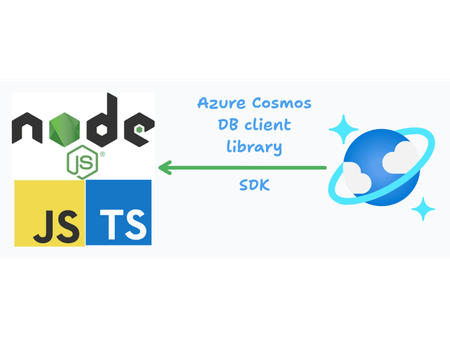
In this blog, we will walk through how to get started with Azure Cosmos DB SDK for TypeScript. Using the SDK, we'll cover how to set up a Cosmos DB client, interact with containers and items, and perform basic CRUD operations such as creating, updating, querying, and deleting items. By the end of this tutorial, you'll have a solid understanding of how to integrate Azure Cosmos DB into your TypeScript applications. What is an SDK? An SDK (Software Development Kit) is a collection of software development tools, libraries, and documentation that helps developers integrate and interact with a service or platform. In this case, the Azure Cosmos DB SDK for JavaScript/TypeScript provides a set of tools to interact with the Cosmos DB service, making it easier to perform operations like database and container management, data insertion, querying, and more. What is the Azure Cosmos DB Client Library for JavaScript/TypeScript? The Azure Cosmos DB Client Library for JavaScript/TypeScript is a package that allows developers to interact with Azure Cosmos DB through an easy-to-use API. It supports operations for creating databases, containers, and documents, as well as querying and updating documents. For our example, we will be using the SQL API, which is the most widely used API in Cosmos DB, and will show how to use the SDK for basic CRUD operations. To get started, make sure to install the SDK by running: npm i @azure/cosmos Prerequisites Before we can start interacting with Cosmos DB, we need to make sure we have the following prerequisites in place: 1. Azure Subscription You need an active Azure subscription. If you don’t have one, you can Sign up for a free Azure account, or Azure for students to get $100 azure credit. 2. Azure Cosmos DB Account To interact with Cosmos DB, you need to have a Azure Cosmos DB API account. Create one from the Azure Portal and keep the Endpoint URL and Primary Key handy. If you dont know how to do so check out this blog Getting started with Azure Cosmos Database (A Deep Dive) Overview of Cosmos Client Concepts Before diving into code, let's briefly go over the essential concepts you will interact with in Azure Cosmos DB. 1. Database A Database is a container for data in Cosmos DB. You can think of it as a high-level entity under which collections (containers) are stored. client.databases("<db id>") for creating new databases, and reading/querying all databases 2. Container A Container (formerly known as a collection) is a logical unit for storing items (documents). In Cosmos DB, each container is independent, and the items within a container are stored as JSON-like documents. Operations for reading, replacing, or deleting a specific, existing container by id. For creating new containers and reading/querying all containers; use .containers() ie .container(id).read() 3. Partition Key A Partition Key is used to distribute data across multiple physical partitions. When you insert data into a container, you must define a partition key. This helps Cosmos DB scale and optimize read and write operations. 4. Item An Item in Cosmos DB is a single piece of data that resides in a container. It is typically stored as a JSON document, and each item must have a unique ID and be associated with a partition key. Used to perform operations on a specific item. read method const { resource,statusCode } = await usersContainer.item(id, id).read<TUser>(); delete method const { statusCode } = await usersContainer.item(id, id).delete() 5. Items Items in Cosmos DB is used for Operations for creating new items and reading/querying all items. Used to perform operations on a many items. query method const { resources } = await usersContainer.items.query(querySpec).fetchAll(); read all items method const { resources} = await usersContainer.items.readAll<TUser[]>().fetchAll(); upsert (update or insert if item doesn't exist) const { resource } = await usersContainer.items.upsert<Partial<TUser>>(user); Environment Variables Setup Create a .env file in the root directory of your project with the following contents: NODE_ENV=DEVELOPMENT AZURE_COSMOS_DB_ENDPOINT=https://<your-cosmos-db-account>.documents.azure.com:443 AZURE_COSMOS_DB_KEY=<your-primary-key> AZURE_COSMOS_DB_DATABASE_NAME=<your-database-name> Let's set up a simple node app Initialize the Project Create a new directory for your project and navigate into it: mkdir simple-node-app cd simple-node-app Initialize a new Node.js project with default settings: npm init -y Install Dependencies Install the necessary dependencies for Express, TypeScript, and other tools: npm install @azure/cosmos zod uuid dotenv npm install --save-dev typescript rimraf tsx @types/node Configure TypeScript Create a tsconfig.json file in the root of your project with the following content: { "compilerOptions": { /* Base Options: */ "target": "es2022", "esModuleInterop": true, "skipLibCheck": true, "moduleResolution": "nodenext", "resolveJsonModule": true, /* Strictness */ "strict": true, "allowUnreachableCode": false, "noUnusedLocals": true, // "noUnusedParameters": true, "strictBindCallApply": true, /* If transpiling with TypeScript: */ "module": "NodeNext", "outDir": "dist", "rootDir": "./", "lib": [ "ES2022" ], }, "include": [ "./*.ts" ], "exclude": [ "node_modules", "dist" ] } Loading Environment Variables Create env.ts to securely and type safe load our env variables using zod add below code //./env.ts import dotenv from 'dotenv'; import { z } from 'zod'; // Load environment variables from .env file dotenv.config(); // Define the environment schema const EnvSchema = z.object({ // Node Server Configuration NODE_ENV: z.enum(['PRODUCTION', 'DEVELOPMENT']).default('DEVELOPMENT'), // CosmosDB Configuration AZURE_COSMOS_DB_ENDPOINT: z.string({ required_error: "AZURE_COSMOS_DB_ENDPOINT is required", invalid_type_error: "AZURE_COSMOS_DB_ENDPOINT must be a string", }), AZURE_COSMOS_DB_KEY: z.string({ required_error: "AZURE_COSMOS_DB_KEY is required", invalid_type_error: "AZURE_COSMOS_DB_KEY must be a string", }), AZURE_COSMOS_DB_DATABASE_NAME: z.string({ required_error: "AZURE_COSMOS_DB DB Name is required", invalid_type_error: "AZURE_COSMOS_DB must be a string", }), }); // Parse and validate the environment variables export const env = EnvSchema.parse(process.env); // Configuration object consolidating all settings const config = { nodeEnv: env.NODE_ENV, cosmos: { endpoint: env.AZURE_COSMOS_DB_ENDPOINT, key: env.AZURE_COSMOS_DB_KEY, database: env.AZURE_COSMOS_DB_DATABASE_NAME, containers: { users: 'usersContainer', }, }, }; export default config; Securely Setting Up Cosmos Client Instance To interact with Cosmos DB, we need to securely set up a CosmosClient instance. Here's how to initialize the client using environment variables for security. Create cosmosClient.ts and add below code // ./cosmosdb.config.ts import { PartitionKeyDefinitionVersion, PartitionKeyKind, Database, CosmosClient, Container, CosmosDbDiagnosticLevel, ErrorResponse, RestError, AbortError, TimeoutError } from '@azure/cosmos'; import config from './env'; let client: CosmosClient; let database: Database; let usersContainer: Container; async function initializeCosmosDB(): Promise<void> { try { // Create a new CosmosClient instance client = new CosmosClient({ endpoint: config.cosmos.endpoint, key: config.cosmos.key, diagnosticLevel: config.nodeEnv === 'PRODUCTION' ? CosmosDbDiagnosticLevel.info : CosmosDbDiagnosticLevel.debug }); // Create or get the database const { database: db } = await client.databases.createIfNotExists({ id: config.cosmos.database }); database = db; console.log(`Database '${config.cosmos.database}' initialized.`); // Initialize containers usersContainer = await createUsersContainer(); console.log('Cosmos DB initialized successfully.'); } catch (error: any) { return handleCosmosError(error); } } // Create the users container async function createUsersContainer(): Promise<Container> { const containerDefinition = { id: config.cosmos.containers.users, partitionKey: { paths: ['/id'], version: PartitionKeyDefinitionVersion.V2, kind: PartitionKeyKind.Hash, }, }; try { const { container } = await database.containers.createIfNotExists(containerDefinition); console.log(`'${container.id}' is ready.`); // const { container, diagnostics } = await database.containers.createIfNotExists(containerDefinition); // console.log(diagnostics.clientConfig) Contains aggregates diagnostic details for the client configuration // console.log(diagnostics.diagnosticNode) is intended for debugging non-production environments only return container; } catch (error: any) { return handleCosmosError(error); } } // Getter functions for containers function getUsersContainer(): Container { if (!usersContainer) { throw new Error('user container is not initialized.'); } return usersContainer; } const handleCosmosError = (error: any) => { if (error instanceof RestError) { throw new Error(`error: ${error.name}, message: ${error.message}`); } else if (error instanceof ErrorResponse) { throw new Error(`Error: ${error.message}, message: ${error.message}`); } else if (error instanceof AbortError) { throw new Error(error.message); } else if (error instanceof TimeoutError) { throw new Error(`TimeoutError code: ${error.code}, message: ${error.message}`); } else if (error.code === 409) { //if you try to create an item using an id that's already in use in your Cosmos DB database, a 409 error is returned throw new Error('Conflict occurred while creating an item using an existing ID.'); } else { console.log(JSON.stringify(error)); throw new Error('An error occurred while processing your request.'); } }; export { initializeCosmosDB, getUsersContainer, handleCosmosError }; This code is for initializing and interacting with Azure Cosmos DB using the Azure Cosmos SDK in a Node.js environment. Here's a brief and straightforward explanation of what each part does: Imports: The code imports several classes and enums from azure/cosmos that are needed to interact with Cosmos DB, like CosmosClient, Database, Container, and various error types. Variables: client, database, and usersContainer are declared to hold references to the Cosmos DB client, database, and a specific container for user data. initializeCosmosDB() function: Purpose: Initializes the Cosmos DB client, database, and container. Steps: Creates a new CosmosClient with credentials from the config (like endpoint, key, and diagnosticLevel). Attempts to create or retrieve a database (using createIfNotExists). Logs success and proceeds to initialize the usersContainer by calling createUsersContainer(). createUsersContainer() function: Purpose: Creates a container for storing user data in Cosmos DB with a partition key. Steps: Defines a partition key for the container (using /id as the partition key path). Attempts to create the container (or retrieves it if it already exists) with the given definition. Returns the container instance. getUsersContainer() function: Purpose: Returns the usersContainer object if it exists. Throws an error if the container is not initialized. handleCosmosError() function: Purpose: Handles errors thrown by Cosmos DB operations. Error Handling: It checks the type of error (e.g., RestError, ErrorResponse, AbortError, TimeoutError) and throws a formatted error message. Specifically handles conflict errors (HTTP 409) when attempting to create an item with an existing ID. Key Exported Functions: initializeCosmosDB: Initializes the Cosmos DB client and container. getUsersContainer: Returns the initialized users container. handleCosmosError: Custom error handler for Cosmos DB operations. Create User Schema This code defines data validation schemas using Zod, a TypeScript-first schema declaration and validation library. Create user.schema.ts and add below code // ./user.schema.ts import { z } from 'zod'; const coerceDate = z.preprocess((arg) => { if (typeof arg === 'string' || arg instanceof Date) { return new Date(arg); } else { return arg; } }, z.date()); export const userSchema = z.object({ id: z.string().uuid(), fullname: z.string(), email: z.string().email(), address: z.string(), createdAt: coerceDate.default(() => new Date()), }) const responseSchema = z.object({ statusCode: z.number(), message: z.string(), }) export type TResponse = z.infer<typeof responseSchema>; export type TUser = z.infer<typeof userSchema>; Here's a concise breakdown of the code: 1. coerceDate Schema: Purpose: This schema is designed to coerce a value into a Date object. How it works: z.preprocess() allows preprocessing of input before applying the base schema (z.date()). If the input is a string or an instance of Date, it converts it into a Date object. If the input is neither of these, it returns the original input without modification. Use: The coerceDate is used later in the userSchema to ensure that the createdAt field is always a valid Date object. 2. userSchema: Purpose: Defines the structure and validation rules for a user object. Fields: id: A required string that must be a valid UUID (z.string().uuid()). fullname: A required string. email: A required string that must be a valid email format (z.string().email()). address: A required string. createdAt: A Date field, which defaults to the current date/time if not provided (z.date() with default(() => new Date())), and uses coerceDate for preprocessing to ensure the value is a valid Date object. 3. responseSchema: Purpose: Defines the structure of a response object. Fields: statusCode: A required number (z.number()). message: A required string. 4. Type Inference: TResponse and TUser are TypeScript types that are automatically inferred from the responseSchema and userSchema, respectively. z.infer<typeof schema> generates TypeScript types based on the Zod schema, so: TResponse will be inferred as { statusCode: number, message: string }. TUser will be inferred as { id: string, fullname: string, email: string, address: string, createdAt: Date }. Let's implement Create Read Delete and Update Create user.service.ts and add the code below // ./user.service.ts import { SqlQuerySpec } from '@azure/cosmos'; import { getUsersContainer, handleCosmosError } from './cosmosClient'; import { TResponse, TUser } from './user.schema'; // Save user service export const saveUserService = async (user: TUser): Promise<Partial<TUser>> => { try { const usersContainer = getUsersContainer(); const res = await usersContainer.items.create<TUser>(user); if (!res.resource) { throw new Error('Failed to save user.'); } return res.resource; } catch (error: any) { return handleCosmosError(error); } }; // Update user service export const updateUserService = async (user: Partial<TUser>): Promise<Partial<TUser>> => { try { const usersContainer = getUsersContainer(); const { resource } = await usersContainer.items.upsert<Partial<TUser>>(user); if (!resource) { throw new Error('Failed to update user.'); } return resource; } catch (error: any) { return handleCosmosError(error); } }; // Fetch users service export const fetchUsersService = async (): Promise<TUser[] | null> => { try { const usersContainer = getUsersContainer(); const querySpec: SqlQuerySpec = { query: 'SELECT * FROM c ORDER BY c._ts DESC', }; const { resources } = await usersContainer.items.query<TUser[]>(querySpec).fetchAll(); return resources.flat(); } catch (error: any) { return handleCosmosError(error); } }; // Fetch user by email service export const fetchUserByEmailService = async (email: string): Promise<TUser | null> => { try { const usersContainer = getUsersContainer(); const querySpec: SqlQuerySpec = { query: 'SELECT * FROM c WHERE c.email = ', parameters: [ { name: '@email', value: email }, ], }; const { resources } = await usersContainer.items.query<TUser>(querySpec).fetchAll(); return resources.length > 0 ? resources[0] : null; } catch (error: any) { return handleCosmosError(error); } } // Fetch user by ID service export const fetchUserByIdService = async (id: string): Promise<TUser | null> => { try { const usersContainer = getUsersContainer(); const { resource } = await usersContainer.item(id, id).read<TUser>(); if (!resource) { return null; } return resource; } catch (error: any) { return handleCosmosError(error); } }; // Delete user by ID service export const deleteUserByIdService = async (id: string): Promise<TResponse> => { try { const usersContainer = getUsersContainer(); const userIsAvailable = fetchUserByIdService(id); if (!userIsAvailable) { throw new Error('User not found'); } const { statusCode } = await usersContainer.item(id, id).delete(); if (statusCode !== 204) { throw new Error('Failed to delete user.'); } return { statusCode, message: 'User deleted successfully', } } catch (error: any) { return handleCosmosError(error); } }; This code provides a set of service functions to interact with the Cosmos DB container for managing user data, including create, update, fetch, and delete operations. Here's a brief breakdown of each function: 1. saveUserService: Purpose: Saves a new user to the Cosmos DB container. How it works: Retrieves the usersContainer using getUsersContainer(). Uses items.create<TUser>(user) to create a new user document in the container. If the operation fails (i.e., no resource is returned), it throws an error. Returns the saved user object (with partial properties). Error Handling: Catches any error and passes it to handleCosmosError(). 2. updateUserService: Purpose: Updates an existing user in the Cosmos DB container. How it works: Retrieves the usersContainer. Uses items.upsert<Partial<TUser>>(user) to either insert or update the user data. If no resource is returned, an error is thrown. Returns the updated user object. Error Handling: Catches any error and passes it to handleCosmosError(). 3. fetchUsersService: Purpose: Fetches all users from the Cosmos DB container. How it works: Retrieves the usersContainer. Executes a SQL query (SELECT * FROM c ORDER BY c._ts DESC) to fetch all users ordered by timestamp (_ts). If the query is successful, it returns the list of users. If an error occurs, it is passed to handleCosmosError(). Return Type: Returns an array of TUser[] or null if no users are found. 4. fetchUserByEmailService: Purpose: Fetches a user by their email address. How it works: Retrieves the usersContainer. Executes a SQL query to search for a user by email (SELECT * FROM c WHERE c.email = Email). If the query finds a matching user, it returns the user object, otherwise returns null. Error Handling: Catches any error and passes it to handleCosmosError(). 5. fetchUserByIdService: Purpose: Fetches a user by their unique id. How it works: Retrieves the usersContainer. Uses item(id, id).read<TUser>() to read a user by its id. If no user is found, returns null. If the user is found, returns the user object. Error Handling: Catches any error and passes it to handleCosmosError(). 6. deleteUserByIdService: Purpose: Deletes a user by their unique id. How it works: Retrieves the usersContainer. Checks if the user exists by calling fetchUserByIdService(id). If the user is not found, throws an error. Deletes the user using item(id, id).delete(). Returns a response object with statusCode and a success message if the deletion is successful. Error Handling: Catches any error and passes it to handleCosmosError(). Summary of the Service Functions: Save a new user (saveUserService). Update an existing user (updateUserService). Fetch all users (fetchUsersService), a user by email (fetchUserByEmailService), or by id (fetchUserByIdService). Delete a user by id (deleteUserByIdService). Key Points: Upsert operation (upsert): If the user exists, it is updated; if not, it is created. Error Handling: All errors are passed to a centralized handleCosmosError() function, which ensures consistent error responses. Querying: Uses SQL-like queries in Cosmos DB to fetch users based on conditions (e.g., email or id). Type Safety: The services rely on the TUser and TResponse types from the schema, ensuring that the input and output adhere to the expected structure. This structure makes the service functions reusable and maintainable, while providing clean, type-safe interactions with the Azure Cosmos DB. Let's Create Server.ts Create server.ts and add the code below. //./server.ts import { initializeCosmosDB } from "./cosmosClient"; import { v4 as uuidv4 } from 'uuid'; import { TUser } from "./user.schema"; import { fetchUsersService, fetchUserByIdService, deleteUserByIdService, saveUserService, updateUserService, fetchUserByEmailService } from "./user.service"; // Start server (async () => { try { // Initialize CosmosDB await initializeCosmosDB(); // Create a new user const newUser: TUser = { id: uuidv4(), fullname: "John Doe", email: "john.doe@example.com", address: "Nairobi, Kenya", createdAt: new Date() }; const createdUser = await saveUserService(newUser); console.log('User created:', createdUser); // Fetch all users const users = await fetchUsersService(); console.log('Fetched users:', users); let userID = "81b4c47c-f222-487b-a5a1-805463c565a0"; // Fetch user by ID const user = await fetchUserByIdService(userID); console.log('Fetched user with ID:', user); //search for user by email const userByEmail = await fetchUserByEmailService("john.doe@example.com"); console.log('Fetched user with email:', userByEmail); // Update user const updatedUser = await updateUserService({ id: userID, fullname: "Jonathan Doe" }); console.log('User updated:', updatedUser); // Delete user const deleteResponse = await deleteUserByIdService(userID); console.log('Delete response:', deleteResponse); } catch (error: any) { console.error('Error:', error.message); } finally { process.exit(0); } })(); This server.ts file is the entry point of an application that interacts with Azure Cosmos DB to manage user data. It initializes the Cosmos DB connection and performs various CRUD operations (Create, Read, Update, Delete) on user records. Breakdown of the Code: 1. Imports: initializeCosmosDB: Initializes the Cosmos DB connection and sets up the database and container. uuidv4: Generates a unique identifier (UUID) for the id field of the user object. TUser: Type definition for a user, ensuring that the user object follows the correct structure (from user.schema.ts). Service Functions: These are the CRUD operations that interact with the Cosmos DB (fetchUsersService, fetchUserByIdService, etc.). 2. Asynchronous IIFE (Immediately Invoked Function Expression): The entire script runs inside an async IIFE, which is an asynchronous function that executes immediately when the file is run. 3. Workflow: Here’s what the script does step-by-step: Initialize Cosmos DB: The initializeCosmosDB() function is called to set up the connection to Cosmos DB. If the connection is successful, it logs Cosmos DB initialized. to the console. Create a New User: A new user is created with a unique ID (uuidv4()), full name, email, address, and a createdAt timestamp. The saveUserService(newUser) function is called to save the new user to the Cosmos DB container. If successful, the created user is logged to the console. Fetch All Users: The fetchUsersService() function is called to fetch all users from the Cosmos DB. The list of users is logged to the console. Fetch User by ID: The fetchUserByIdService(userID) function is called with a hardcoded userID to fetch a specific user by their unique ID. The user (if found) is logged to the console. Fetch User by Email: The fetchUserByEmailService(email) function is called to find a user by their email address ("john.doe@example.com"). The user (if found) is logged to the console. Update User: The updateUserService({ id: userID, fullname: "Jonathan Doe" }) function is called to update the user's full name. The updated user is logged to the console. Delete User: The deleteUserByIdService(userID) function is called to delete the user with the specified ID. The response from the deletion (status code and message) is logged to the console. 4. Error Handling: If any operation fails, the catch block catches the error and logs the error message to the console. This ensures that any issues (e.g., database connection failure, user not found, etc.) are reported. 5. Exit Process: After all operations are completed (or if an error occurs), the script exits the process with process.exit(0) to ensure the Node.js process terminates cleanly. Example Output: If everything runs successfully, the console output would look like this (assuming the hardcoded userID exists in the database and the operations succeed): Cosmos DB initialized. User created: { id: 'some-uuid', fullname: 'John Doe', email: 'john.doe@example.com', address: 'Nairobi, Kenya', createdAt: 2024-11-28T12:34:56.789Z } Fetched users: [{ id: 'some-uuid', fullname: 'John Doe', email: 'john.doe@example.com', address: 'Nairobi, Kenya', createdAt: 2024-11-28T12:34:56.789Z }] Fetched user with ID: { id: '81b4c47c-f222-487b-a5a1-805463c565a0', fullname: 'John Doe', email: 'john.doe@example.com', address: 'Nairobi, Kenya', createdAt: 2024-11-28T12:34:56.789Z } Fetched user with email: { id: 'some-uuid', fullname: 'John Doe', email: 'john.doe@example.com', address: 'Nairobi, Kenya', createdAt: 2024-11-28T12:34:56.789Z } User updated: { id: '81b4c47c-f222-487b-a5a1-805463c565a0', fullname: 'Jonathan Doe', email: 'john.doe@example.com', address: 'Nairobi, Kenya', createdAt: 2024-11-28T12:34:56.789Z } Delete response: { statusCode: 204, message: 'User deleted successfully' } Error Handling The SDK generates various types of errors that can occur during an operation. ErrorResponse is thrown if the response of an operation returns an error code of >=400. TimeoutError is thrown if Abort is called internally due to timeout. AbortError is thrown if any user passed signal caused the abort. RestError is thrown in case of failure of underlying system call due to network issues. Errors generated by any devDependencies. For Eg. azure/identity package could throw CredentialUnavailableError. Following is an example for handling errors of type ErrorResponse, TimeoutError, AbortError, and RestError. import { ErrorResponse, RestError, AbortError, TimeoutError } from '@azure/cosmos'; const handleCosmosError = (error: any) => { if (error instanceof RestError) { throw new Error(`error: ${error.name}, message: ${error.message}`); } else if (error instanceof ErrorResponse) { throw new Error(`Error: ${error.message}, message: ${error.message}`); } else if (error instanceof AbortError) { throw new Error(error.message); } else if (error instanceof TimeoutError) { throw new Error(`TimeoutError code: ${error.code}, message: ${error.message}`); } else if (error.code === 409) { //if you try to create an item using an id that's already in use in your Cosmos DB database, a 409 error is returned throw new Error('Conflict occurred while creating an item using an existing ID.'); } else { console.log(JSON.stringify(error)); throw new Error('An error occurred while processing your request.'); } }; Read More Quickstart Guide for Azure Cosmos DB Javascript SDK v4 Best practices for JavaScript SDK in Azure Cosmos DB for NoSQL Visit the JavaScript SDK v4 Release Notes page for the rest of our documentation and sample code. Announcing JavaScript SDK v4 for Azure Cosmos DB1.2KViews1like0Comments